How to fix
McpManagementService error code 15100
on Windows
Resolve McpManagementService error code 15100 on Windows 10 and 11 swiftly with our expert-tested solutions. Get back to smooth operation in minutes!


What causes How to fix McpManagementService error code 15100 in Windows?
- Corrupted system files
- Issues with Windows Services
- Third-party software interference
- Malware presence
- Improper service settings
Repairs Windows system files, removes malware, and restores a clean OS state — without reinstalling.
Hello, I have been having some problems with my Windows recently and noticed that there's an error under the McpManagementService which says "Failed to read description, Error Code: 1510." Could you please advise on how to resolve this? Thanks in advance.
Windows is an intricate operating system, and for it to work as intended, thousands of components are implemented. Windows Services is one such part that is considered to be integral - dozens of them come pre-installed with the operating system itself. Some of the services might also be implemented by third-party software or even malware to help with its operation whenever the computer is active.
Services run in the background, and, depending on their settings, some launch immediately after the operating system is booted. For example, the Windows Update service enables the detection, download, and installation of updates, and if it is not running, users would be able to update their systems automatically.
Users can change these settings and startup types if they require to. However, just like any other components, these ones can malfunction as well, and many users were recently complaining about the McpManagementService service, which comes up with error code 15100.
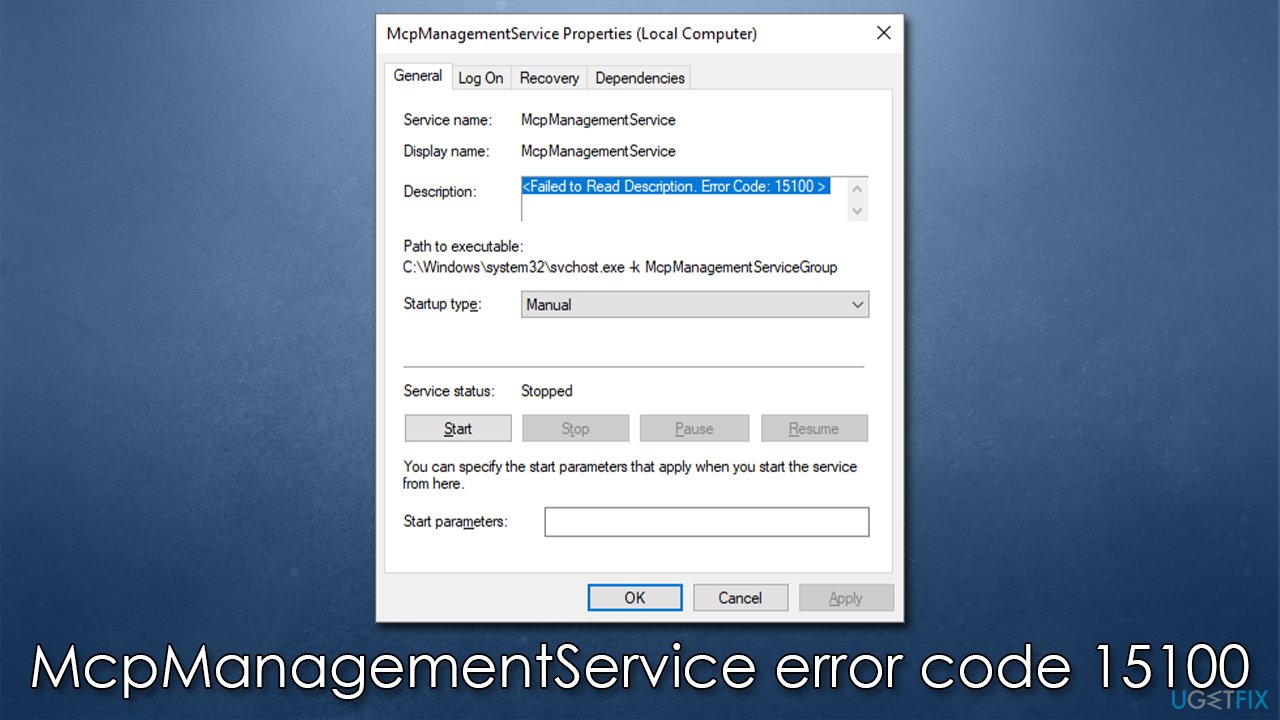
The message can be seen in the Description part of the Services window, and it reads, "Failed to read description, Error Code: 15100." While it usually doesn't cause any issues with the normal OS functions, some users claimed that they had issues with certain Windows features (such as audio), and the error was preventing them from finding a resolution.
In this article, we will show several steps that should help you fix the error on Windows platforms. Before you proceed, we recommend you run a scan with [d1] - an automatic PC repair software that can find and repair underlying issues quickly and effectively, resulting in the resolution of BSODs,[ref en-3] DLL errors, registry corruption, and similar. Otherwise, proceed with the solutions below.
1. Check the system for corruption
Corrupted system files might be the reason for many system failures that cause errors, including in Services. Therefore, we recommend starting with checking the device with SFC and DISM scans.
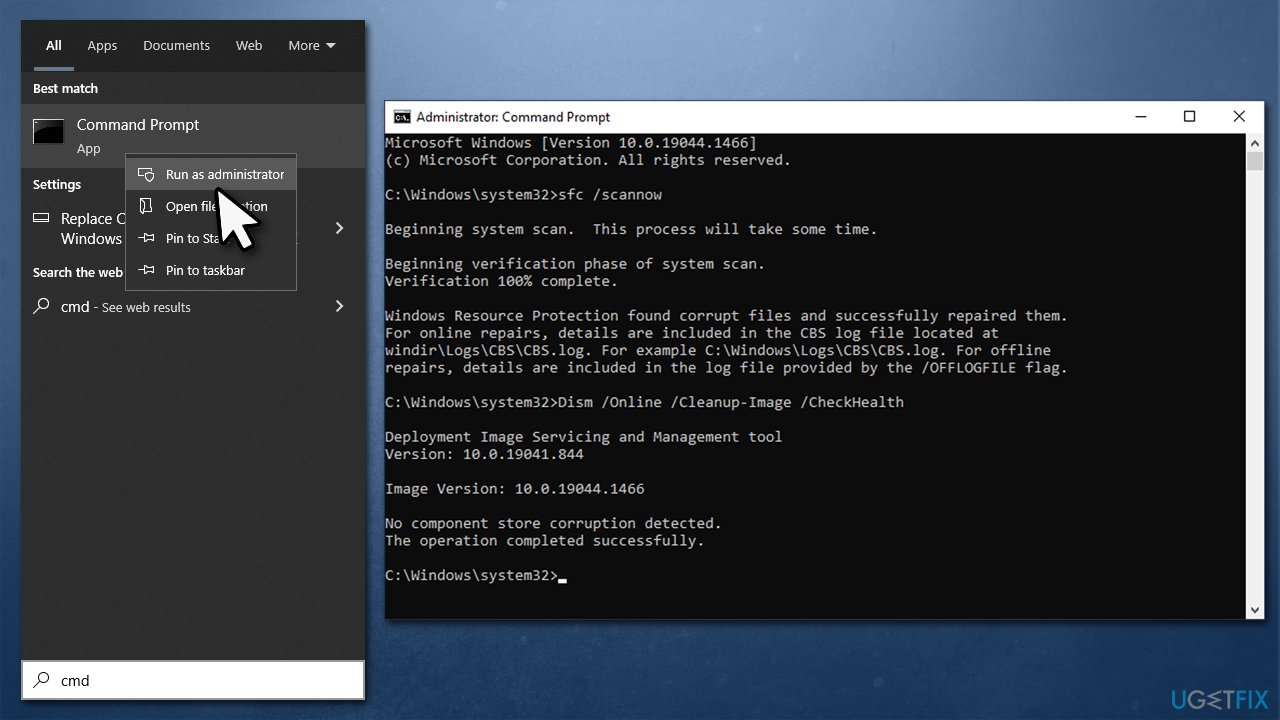
- Type cmd in Windows search
- Right-click on Command Prompt and pick Run as administrator
- When the confirmation prompt shows up, click Yes
- In this window, type in the following commands, pressing Enter after each:
sfc /scannow
DISM /Online /Cleanup-Image /CheckHealth
DISM /Online /Cleanup-Image /ScanHealth
DISM /Online /Cleanup-Image /RestoreHealth - Once done, restart your device and check if the error code 15100 comes back.
2. Shut down the DeviceCensus.exe process
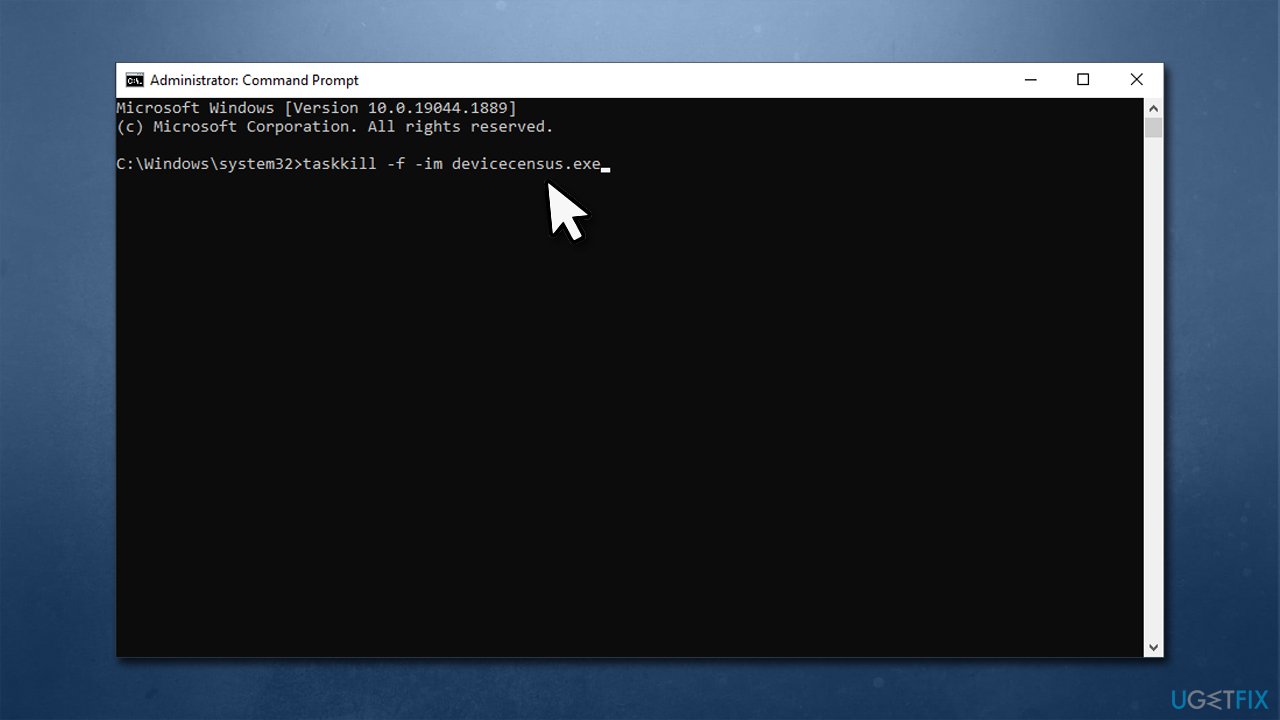
As some users mentioned, the issue lay within the DeviceCensus.exe process. Shutting it down via the elevated Command Prompt resolved the error for many:
- Open Command Prompt as administrator
- In the new window, type in the following command line and press Enter:
taskkill -f -im devicecensus.exe - Check if the issue has been resolved.
3. Try using security software
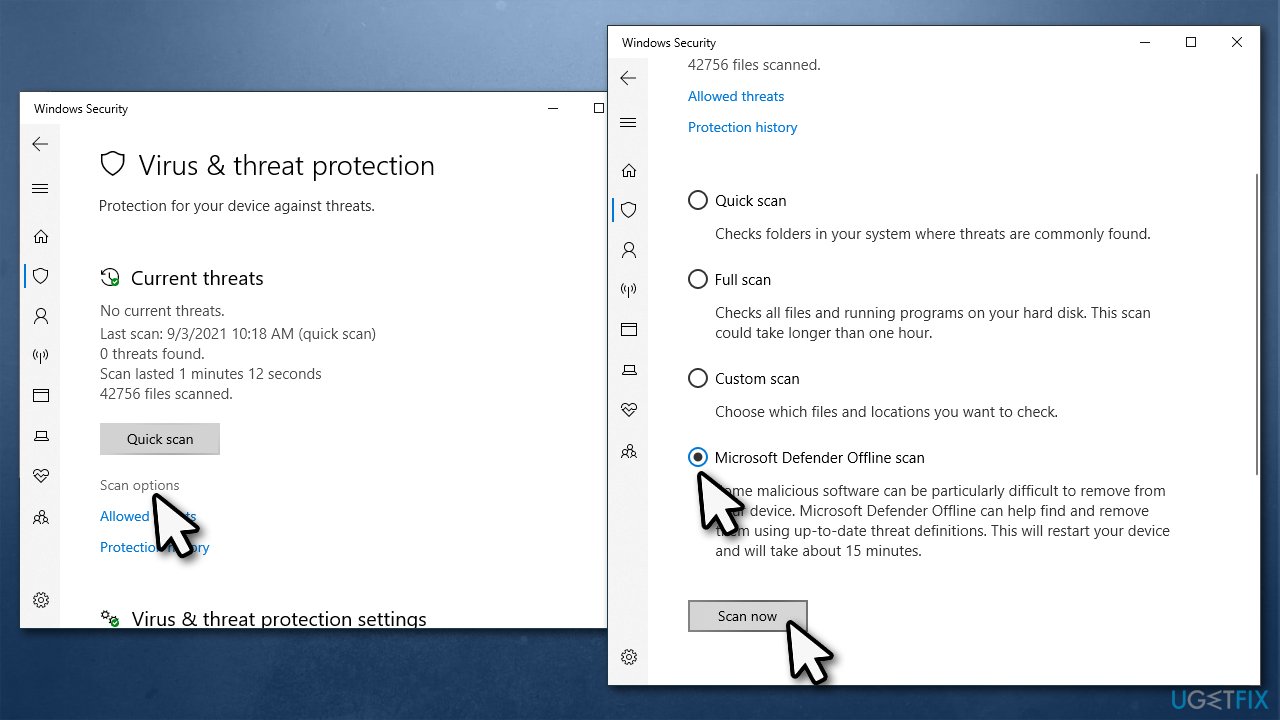
In some cases, system files might get infected or even replaced by malware. The "Failed to read description, Error Code: 15100" error might be caused by a malware[ref en-1] infection. Malware might destroy certain files or damage them, resulting in various errors. Thus, we recommend you run a scan with an anti-malware tool - while third-party software is sometimes superior, running Microsoft's offline scan should get rid of even the most stubborn parasites.
- Type Windows Security in Windows search and press Enter
- Select Virus & threat protection and pick Scan options
- Choose Microsoft Defender Offline scan and click Scan now
- Your computer will immediately reboot and begin a deep scan.
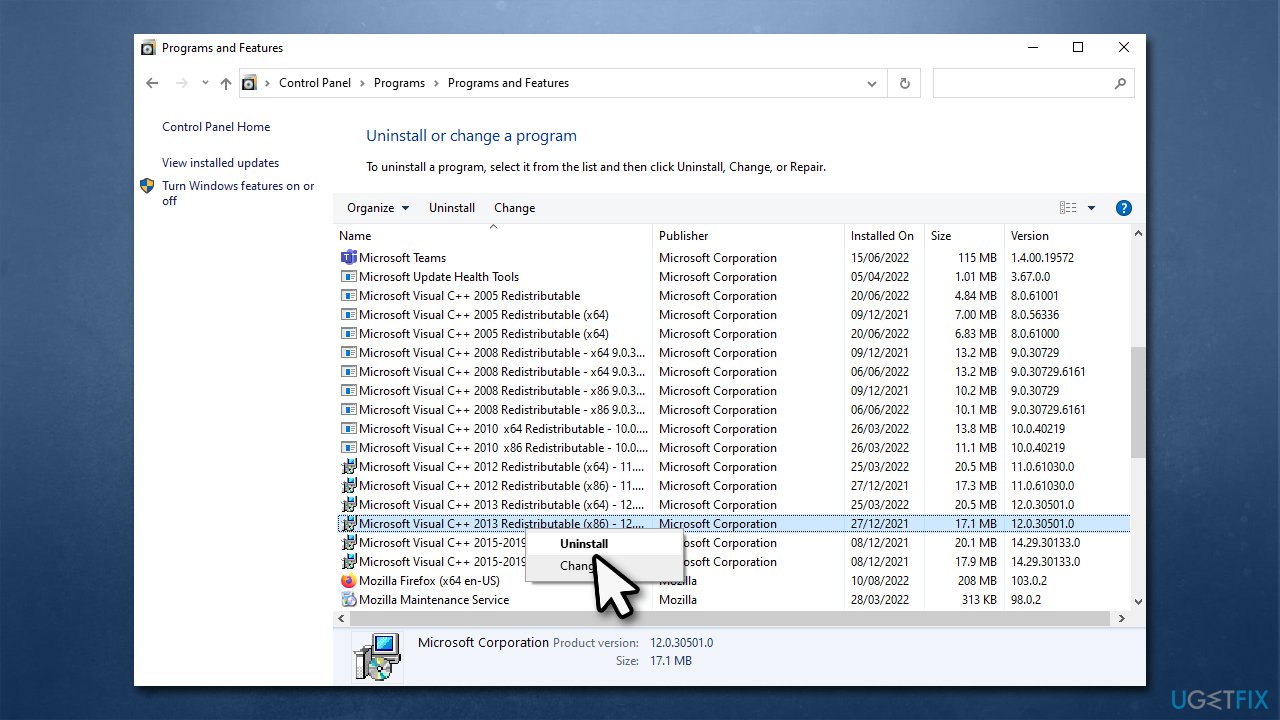
4. Reinstall Microsoft Visual C++ Redistributable
Missing or corrupted Visual C++[ref en-2] redist packages can be the reason for the error to occur.
- Type Control Panel in Windows search and press Enter
- Go to Programs > Uninstall a program
- Find Microsoft Visual C++ 2013 Redistributable and uninstall it
- Download and install both vc_redist.x86.exe (32-bit) and vc_redist.x64.exe (64-bit) versions on the official Microsoft website
- Restart your device.
Bottom line
To fix the McpManagementService error code 15100, you should check the system for corruption and consider running a scan with automatic PC repair software. If the issue persists after these steps, further investigation into system settings and potential malware may be necessary.
Frequently asked questions
The McpManagementService error code 15100 is often caused by corrupted system files, issues with the Windows Update service, or problems with the Microsoft Store apps.
To resolve the error, try running the System File Checker tool by executing 'sfc /scannow' in the Command Prompt, and ensure that your Windows 11 is up to date.
Yes, check the status of the Windows Update service and ensure that the relevant services like 'Microsoft Store Install Service' are running properly in the Services application.




Report an issue
What's wrong with this guide? We review every report and update or remove content.
Report received — thank you. We'll review and fix it.
You need a free account to submit a report.
Be the first to comment