How to fix
“Cookies must be allowed”
on Windows
Resolve the "Cookies must be allowed" error on Windows 10 effortlessly. Follow our expert-tested tips for a smooth browsing experience. Fixed in minutes!

What causes How to Fix “Cookies must be allowed” on Windows 10?
- Faulty drivers
- Software incompatibilities
- Damaged registry entries
- Damaged Windows 10 update files
- Issues with Internet Explorer 11
Repairs Windows system files, removes malware, and restores a clean OS state — without reinstalling.
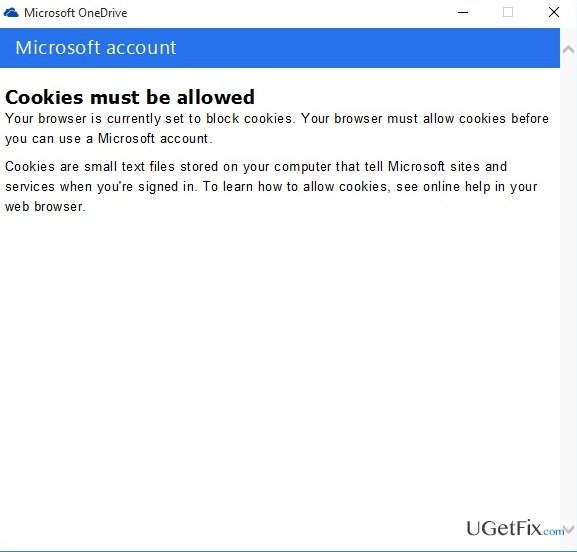
Hello guys! I’ve upgraded my PC to Windows 10 a long time ago and enjoyed its smooth run, thanks to Microsoft. However, recently I’ve switched to 1607 build and started experiencing cookies issue in OneDrive. After the upgrade, setting up OneDrive ends up with a message saying “Cookies must be allowed.” I’ve checked each web browser on the system and found out that most of them, except Firefox, have cookies enables. I’ve enabled cookies on Firefox as well, but that did not help. Is there any fix for this?
Windows 10, the newest version of OS developed by Microsoft, is available for the home users since the summer of 2015. Microsoft community has been presented with a bunch of new features, including Cortana – personal assistant, inbuilt Windows Defender anti-virus, modified Start menu, Microsoft Edge web browser, and many others. Unfortunately, but Windows 10 is often dubbed as a collection of bugs. According to Microsoft specialists, the vast majority of errors is triggered by faulty drivers, software incompatibilities, damaged registry entries or damaged Windows 10 update files. Unfortunately, but Windows 10 bugs have no borders and may hit any service or software. This time, people keep reporting about “Cookies must be allowed” error, which usually occurs when setting up OneDrive. However, lots of people are confronting this error on Skype, OneNote or Microsoft Edge web browser as well. While people tend to believe that the core of the bug is related to OneDrive, OneNote or another application that throws an error message, in fact, it seems to be triggered by the Internet Explorer 11. That’s why “Cookies must be allowed” error encompasses a set of programs that require use of Microsoft account. Sadly, Microsoft hasn’t yet provided a patch for this program thus raising the anger of Windows 10 users. Luckily, the members of Microsoft community have come up with several solutions that helped to fix “Cookies must be allowed.” Here’s what you should try:
Method 1. Reset Internet Explore
- Launch Internet Explorer.
- Open Tools and select Internet options. I case Tools menu is not visible, press Alt.
- Open Internet Options and select Advanced tab.
- Click Reset or Restore Default in Windows Explorer 6.
- If you want to delete web browsing data, search providers, home page, tracking protection, and ActiveX Filtering data, put a tick on Delete personal settings option.
- When the changes are executed, click Close and OK.
- Finally, reopen Internet Explorer and check if “Cookies must be allowed” error still occurs.
Method 2. Enable cookies on Internet Explorer
- Launch Microsoft Edge and open Settings.
- Select View Advanced Settings.
- Scroll down to find Cookies section.
- Click an arrow below Cookies to see a drop-down menu and select Don’t block cookies.
- Close Edge and check if the problem has been resolved.
Method 3. Clear the list of blocked sites on Internet Explorer
- Launch Internet Explorer.
- Open Tools at the top right corner.
- Select Internet Options and click Privacy tab.
- Go to Advanced settings and find an option Don’t block cookies.
- After that, open Sites tab and clear the entire block/allow list of sites.
Method 4. Modify registry entry
- Click Win key + R, type regedit, and press Enter.
- Using the left pane, find the HKEY_CURRENT_USER\SOFTWARE\Microsoft\Windows\CurrentVersion\Internet Settings\Zones\3\1A10 entry.
- Change its value to 0.
Hopefully, these guidelines helped you to fix “Cookies must be allowed” bug on Windows 10. Finally, don’t forget to perform a thorough system scan with a PC optimization tool, for example [d1]. It will optimize registries, system files, startup programs, etc. to ensure best system’s performance.
Bottom line
To fix the 'Cookies must be allowed' error, you can try resetting Internet Explorer and ensuring that cookies are enabled in all browsers. If these solutions do not resolve the issue, consider seeking further assistance from the Microsoft community or checking for updates.
Frequently asked questions
Open Microsoft Edge, click on the three dots in the upper right corner, select 'Settings', then go to 'Site permissions' and click on 'Cookies and site data' to enable cookies.
If clearing cookies doesn't help, try resetting your browser settings to default, which can often resolve persistent cookie-related issues.
Yes, this error can appear in various browsers like Chrome and Firefox on Windows 10, and the steps to enable cookies will differ slightly depending on the browser.




Report an issue
What's wrong with this guide? We review every report and update or remove content.
Report received — thank you. We'll review and fix it.
You need a free account to submit a report.
Be the first to comment