How to fix
Wificx.sys BSOD
on Windows
Resolve the Wificx.sys BSOD error in Windows 10 or 11 effortlessly. Get expert-tested solutions that ensure your system runs smoothly again. Fixed in mi…


What causes How to fix Wificx.sys BSOD in Windows?
- Outdated Windows updates
- Corrupted network drivers
- Registry errors
- DLL issues
- Faulty hardware
Repairs Windows system files, removes malware, and restores a clean OS state — without reinstalling.
Hello, I'm having repeated Blue Screen of Death crashes with Wificx.sys referenced as a reason for it. BSODs appear regularly, sometimes several times an hour, to the point when it became really frustrating to use my computer. Any advice on how to fix this would be appreciated.
The Blue Screen of Death[ref en-1] error is commonplace among Windows users, and it usually appears randomly. When it does occur, the computer will shut down and restart automatically without any prior warning, often interrupting whatever work or other activities the user was in the midst of. To put it mildly, BSOD can go from being a minor annoyance to an absolute disaster.
Despite how many users could be completely annoyed by these inconveniences of random restarts, they serve an important function within any Windows environment - they prevent further damage that would otherwise be catastrophic. In other words, BSOD occurs when it encounters an error it can't recover quickly, so a system restart is forced.
While for most users, Blue Screen crashes remain the inconveniences of a moment, others suffer from persistent issues, and these matters should be taken seriously. Wificx.sys BSOD was reported by many users, as they started receiving random shutdowns on a regular basis - so much so that it disrupts their computing time greatly.

To get to the root of the problem and resolve it, one should first check what the Wificx.sys component relates to. Initially, it is an architecture provided by Microsoft to program network drivers, so if something within it fails, users may experience a Blue Screen crash. Repeated instances indicate that the issue is persistent and needs to be addressed ASAP.
There are several ways to fix Wificx.sys blue screen crashes, and we address all of them below. Before proceeding with manual solutions, we recommend you try an automatic [d1] repair tool, which is perfect for dealing with BSODs, registry[ref en-2] errors, DLL[ref en-3] issues, and more.
1. Update Windows
First of all, you should make sure that all the newest Windows updates are installed on your system.
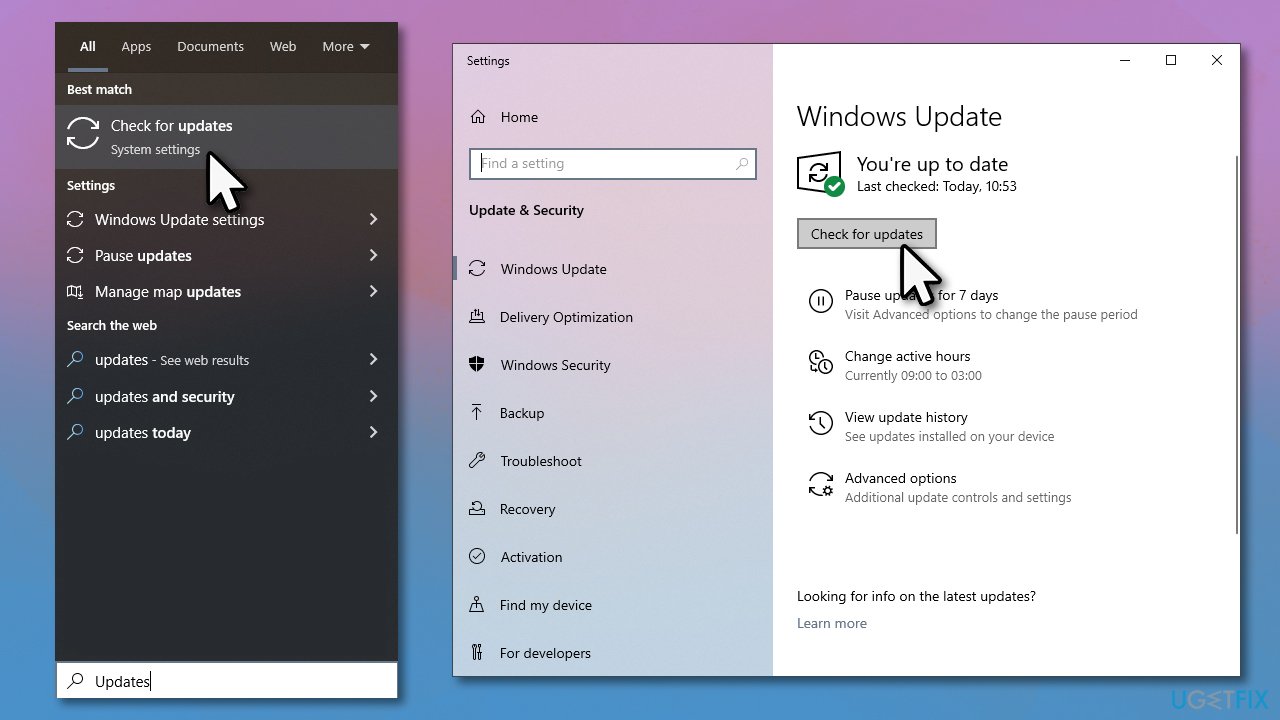
- Type Updates in Windows search and press Enter
- Click Check for updates and wait for Windows to download and install all the necessary files
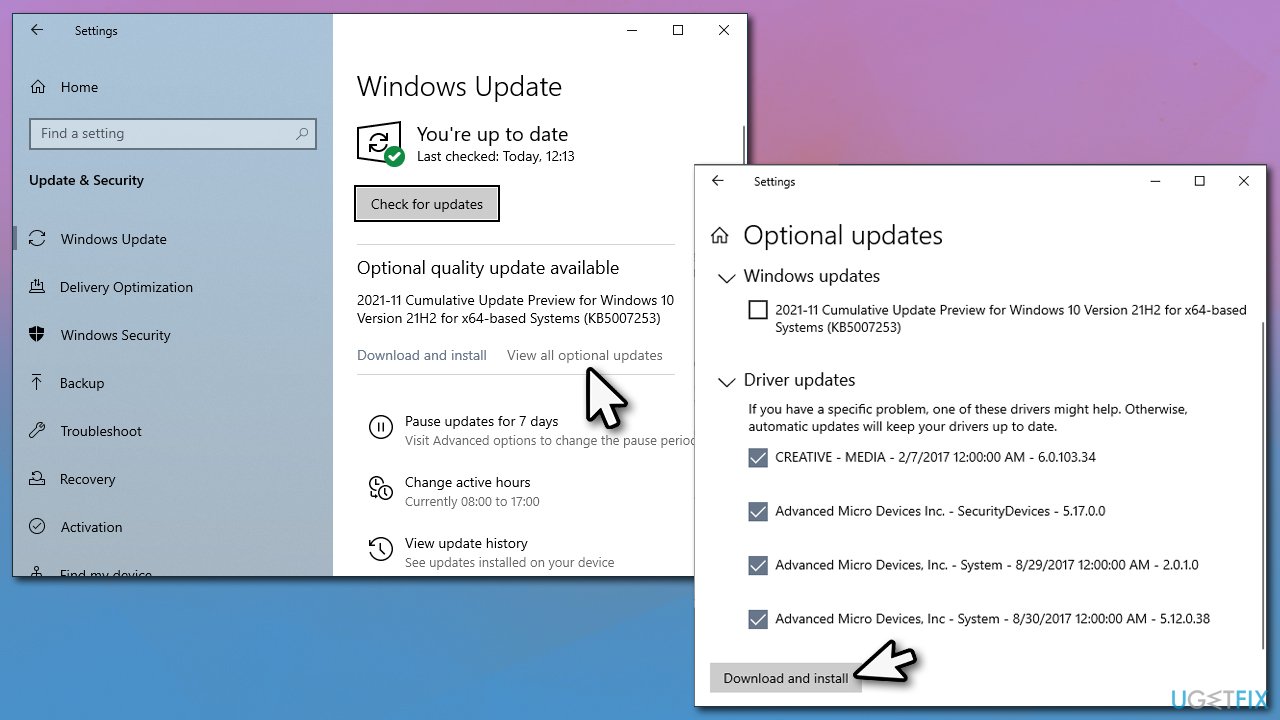
- If optional updates are available, install them as well
- Reboot the system.
2. Update network drivers
Wificx.sys relates to network drivers, so it is possible that the crashes are caused by driver corruption or other driver-related issues. In order to resolve this, you should update your drivers to the latest version, and there are several ways you can do this. The easiest way to update drivers is by employing an automatic driver updater [rev id="DriverFix"].
You can also download the required drivers from the manufacturer's website, although keep in mind you need to know the make and model of your network card.
Finally, the Windows update feature can also help you install the driver updates, although keep in mind that it's not as reliable. Simply go to Windows Updates section as described above, select View optional Updates, expand the Driver updates section, mark everything available and click Download and install.
3. Reinstall network drivers
If updating drivers didn't do the trick, you could try to clean installing them. Thus, you should uninstall the existing driver:
Important: It is very important to download the driver before you uninstall it, as your internet connection will be gone. If you have access to another computer or a phone connected to the internet, it should not be a problem, as you can transfer the driver via a USB stick or other storage devices.
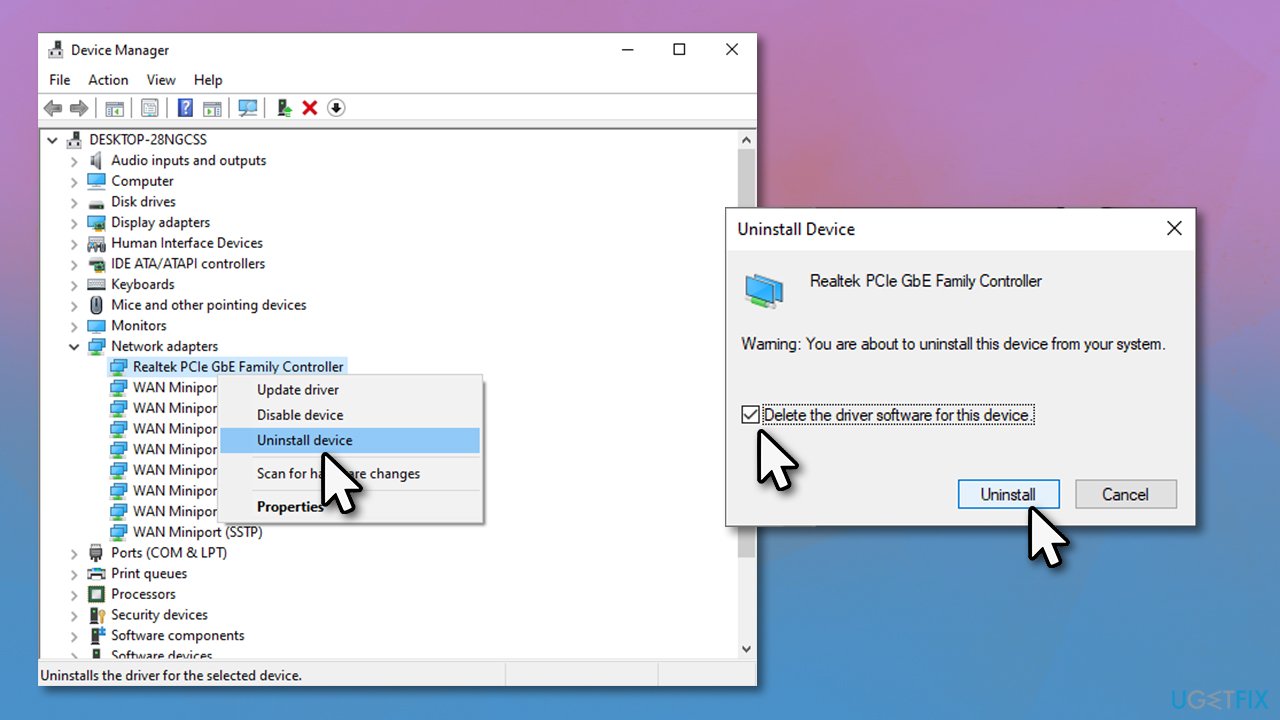
- Right-click on Start and pick Device Manager
- Expand the Network Adapters section
- Right-click your network adapter (for example, Realtek PCIe) and select Uninstall device
- In the new window, tick the Delete the driver software for this device option and click Uninstall
- Once complete, restart your PC and use one of the methods described above to install the latest network driver.
4. Check integrity of system files
Running SFC and DISM via elevated Command Prompt can fix damaged system files for you.
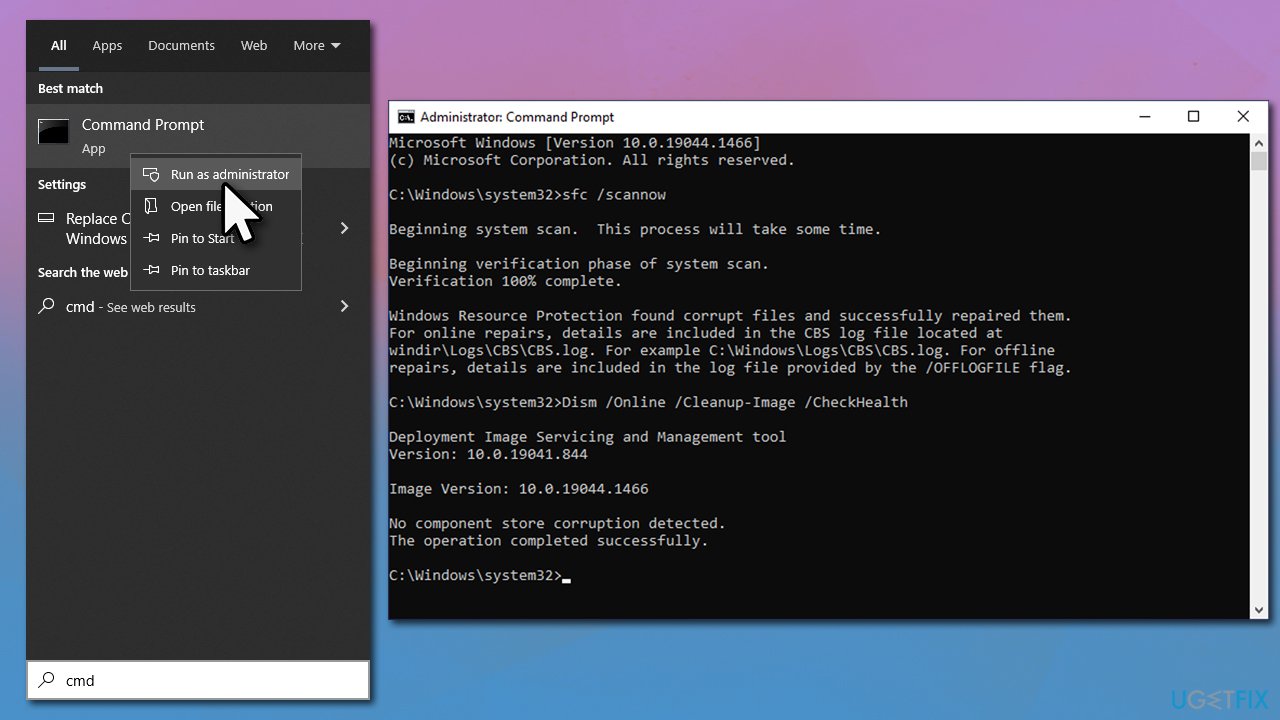
- Type in cmd in Windows search
- Right-click on Command Prompt result and select Run as administrator
- Type sfc /scannow and press Enter
- Wait till the scan is finished. Even if nothing was found or the scan returned an error, proceed with the following commands, pressing Enter after each:
DISM /Online /Cleanup-Image /CheckHealth
DISM /Online /Cleanup-Image /ScanHealth
DISM /Online /Cleanup-Image /RestoreHealth - Restart your computer.
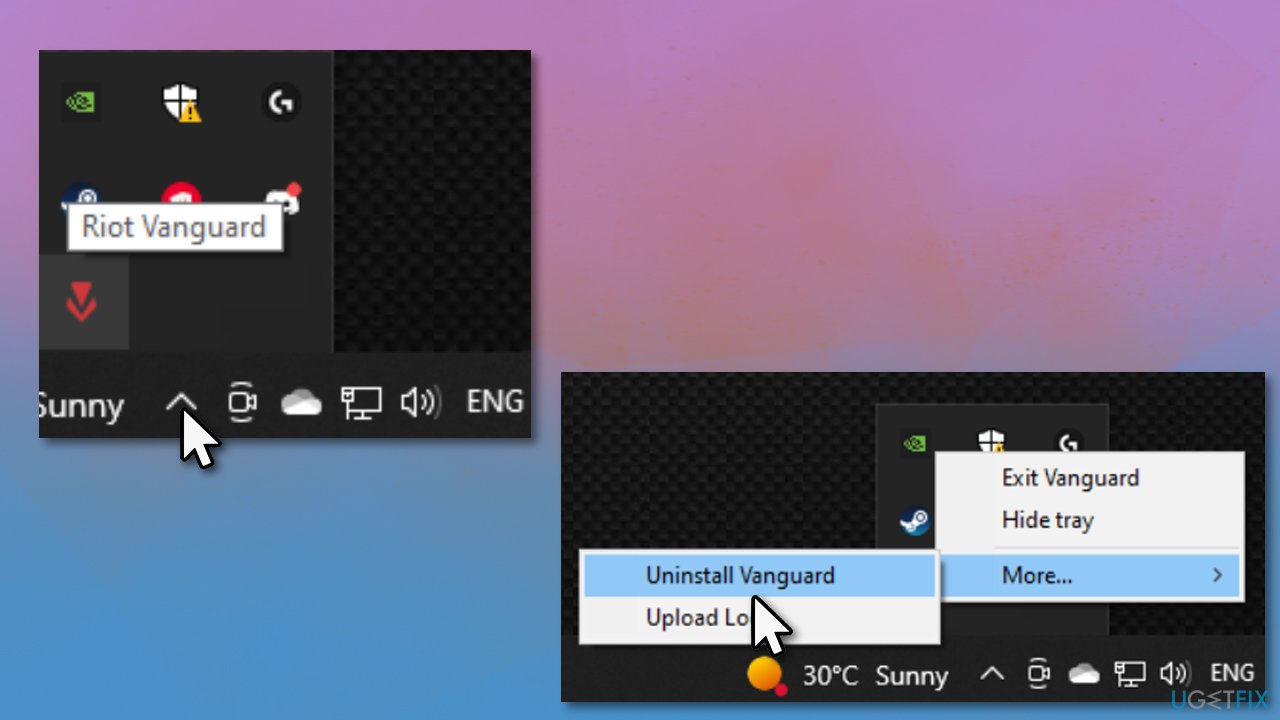
5. Reinstall Vanguard Anti-Cheat [if applicable]
It turns out that Vanguard could be causing issues with the Wificx.sys driver. Therefore, we recommend you completely remove Vanguard and reinstall it.
- Open system tray
- Right-click on the Vanguard icon and select Exit Vanguard
- Open Apps and Features and find Riot Vanguard entry
- Select Uninstall > Uninstall
- When User Account Control shows up, click Yes
- Restart your PC.
- Reinstall Vanguard.
Bottom line
To fix the Wificx.sys BSOD, you should start by updating Windows, checking for corrupted network drivers, and using an automatic repair tool to address registry and DLL issues. If these solutions do not resolve the problem, further investigation into hardware issues may be necessary.
Frequently asked questions
The Wificx.sys BSOD error is typically caused by outdated or corrupted network adapter drivers, conflicts with third-party software, or hardware issues related to the Wi-Fi card.
To update your network drivers, go to Device Manager, find your network adapter, right-click it, and select 'Update driver.' You can also visit the manufacturer's website for the latest drivers compatible with Windows 10 or Windows 11.
Yes, you can use the built-in Windows Troubleshooter for hardware and devices, or run the System File Checker (SFC) by executing 'sfc /scannow' in the Command Prompt to repair corrupted system files.




Report an issue
What's wrong with this guide? We review every report and update or remove content.
Report received — thank you. We'll review and fix it.
You need a free account to submit a report.
Be the first to comment