How to fix
Windows update error 80240025
on Windows
Resolve Windows update error 80240025 quickly and effectively. Follow expert-tested tips to ensure a smooth update process on Windows 10 and 11. Fixed i…

What causes How to fix Windows update error 80240025?
- Incorrect user input
- Accidentally deleted files from the registry
- Corrupted files
- Update components
Repairs Windows system files, removes malware, and restores a clean OS state — without reinstalling.
Hello. I tried to install the latest update on my Windows computer but it did not work and I received an 80240025 error. How do I fix it?
Windows is generally easy to use. However, the operating system relies on updates to keep running smoothly. Microsoft regularly releases new fixes for bugs, security issues, or even new features so it is important to install the updates as soon as they come out.[ref en-1] Unfortunately, sometimes users encounter errors when attempting to do so.
Recently, some users received the 80240025 update error. When an error code such as this appears, Windows cannot finish updating the operating system. The most common reasons for this include incorrect user input and accidentally deleted files from the registry that now cause system malfunctions, corrupted files, and update components. In this guide, you will find 5 steps that should help you fix them.
Troubleshooting manually can be a lengthy process, so you can try using an automatic solution [d1]. The repair tool can identify the damaged system components, fix BSODs,[ref en-2] and registry[ref en-3] issues by scanning the system. Below you will find a few manual methods that could fix the Windows update error 80240025 and let you update your system. Note that this will take a while, so please follow all of the steps very carefully.
Method 1. Fix Corrupted System Files
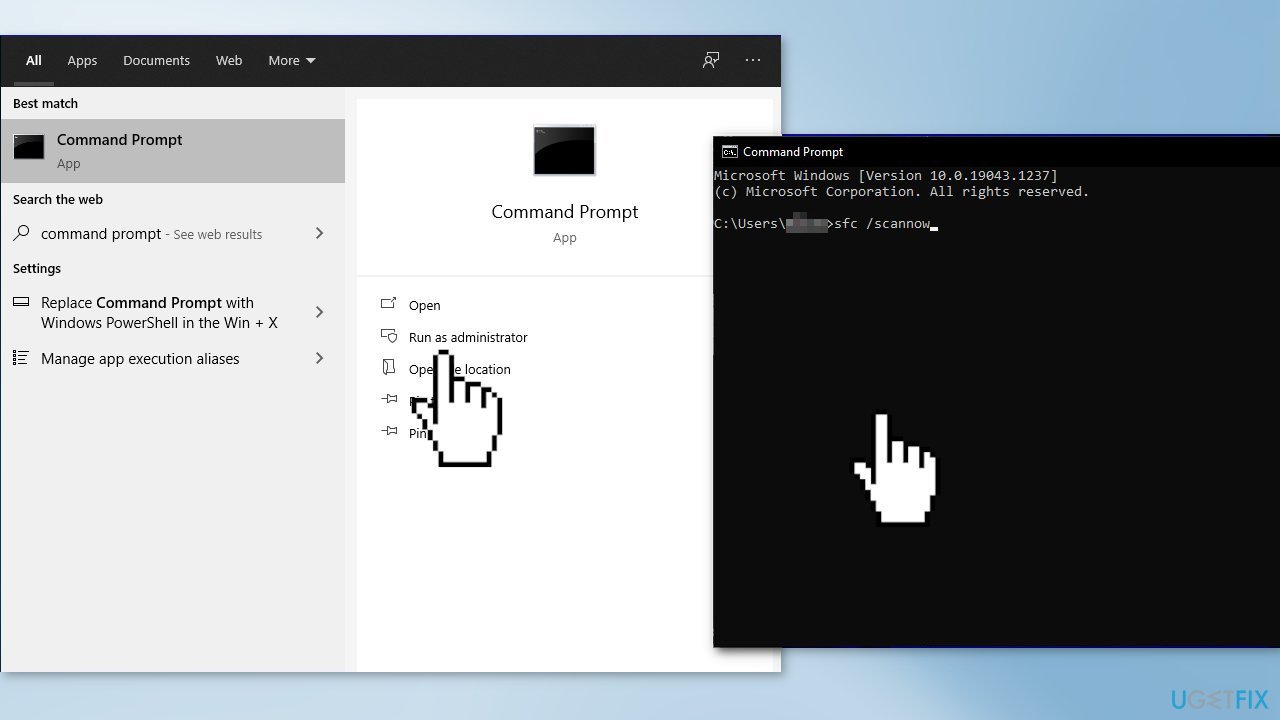
Use Command Prompt commands to repair system file corruption:
- Open Command Prompt as administrator
- Use the following command and press Enter:
sfc /scannow
- Reboot your system
- If SFC returned an error, then use the following command lines, pressing Enter after each:
DISM /Online /Cleanup-Image /CheckHealth
DISM /Online /Cleanup-Image /ScanHealth
DISM /Online /Cleanup-Image /RestoreHealth
Method 2. Use the Update Troubleshooter
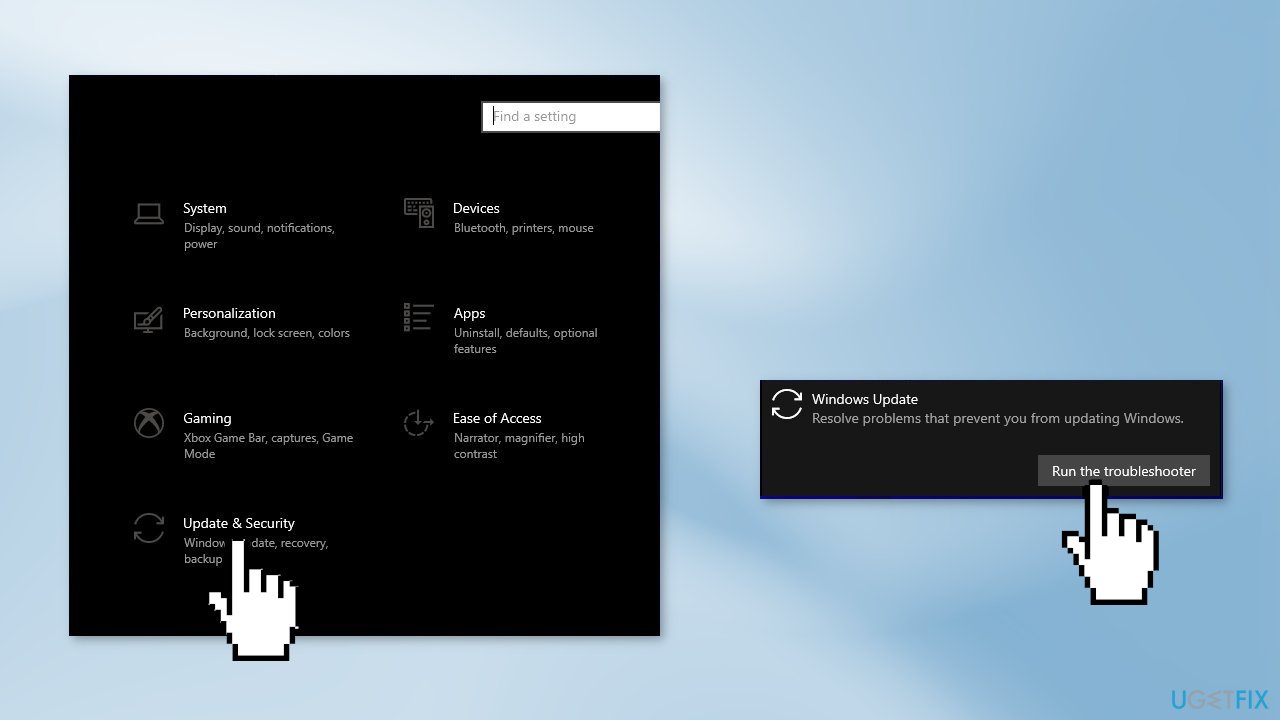
- Press the Windows + X keys and go to Settings
- Go to Update and Security
- Click Troubleshooter
- Select Additional troubleshooters
- Run the Update troubleshooter
- Restart
Method 3. Disable a Registry Key
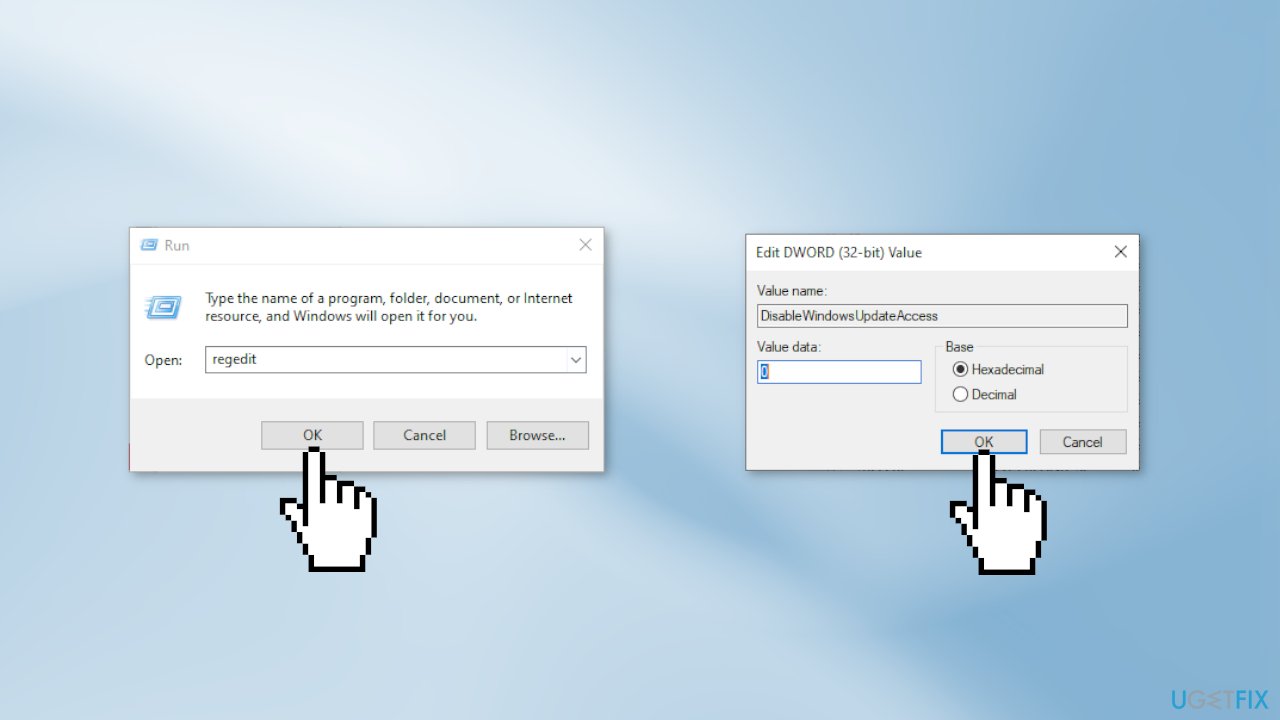
- Press Windows key + R to open up a Run dialog box
- Type regedit and press Enter
- Navigate to the following location:
HKEY_USERS\S-1-5-18\Software\Microsoft\Windows\CurrentVersion\Policies\WindowsUpdate
- Double-click on DisableWindowsUpdateAccess
- Set the Base to Hexadecimal, and the Value data to 0
- Reboot your computer
Method 4. Reset Windows Update Components
- Press the Windows key + R to open the Run dialog box
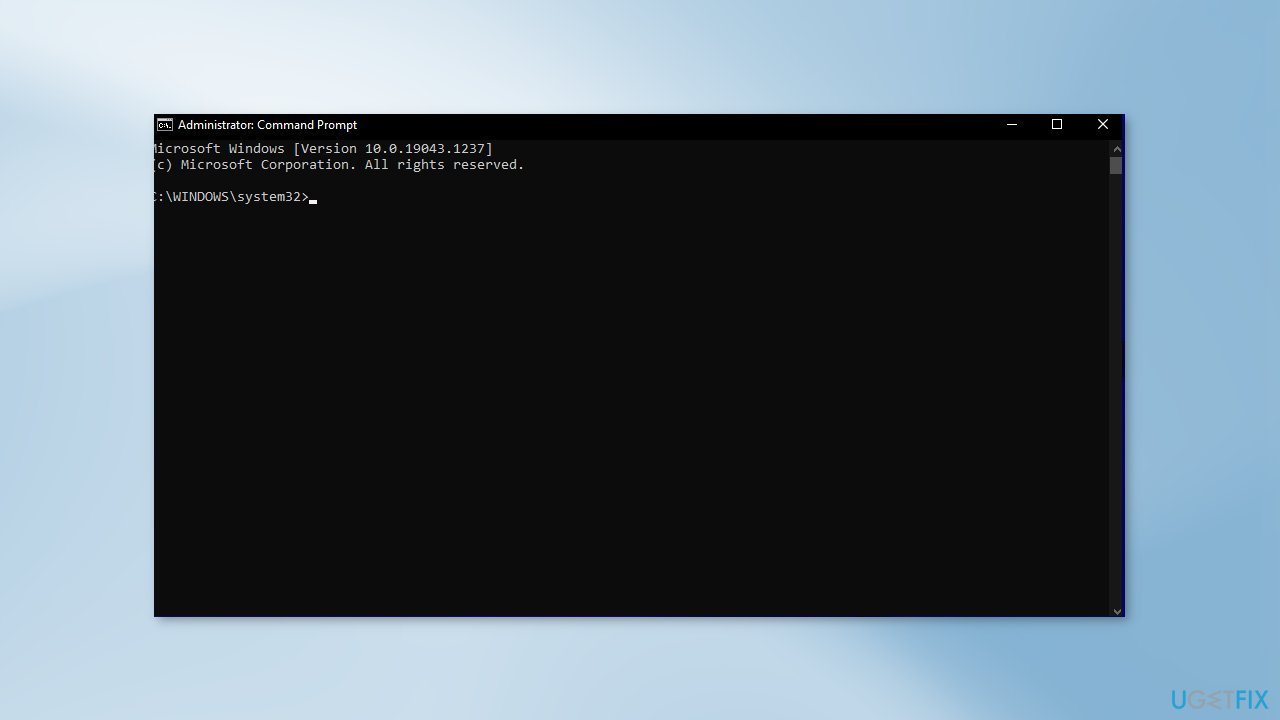
- Type cmd and press Ctrl + Shift + Enter to open up an elevated Command Prompt
- Type the following commands in order and press Enter after each one:
net stop wuauserv
net stop cryptSvc
net stop bits
net stop msiserver
ren C:\Windows\SoftwareDistribution SoftwareDistribution.old
ren C:\Windows\System32\catroot2 Catroot2.old
net start wuauserv
net start cryptSvc
net start bits
net start msiserver
- Restart your computer
Method 5. Install the Update Manually
Whenever Windows updates fail to install automatically, you can always try doing it manually. First, you need to find out which KB number is relevant to you.
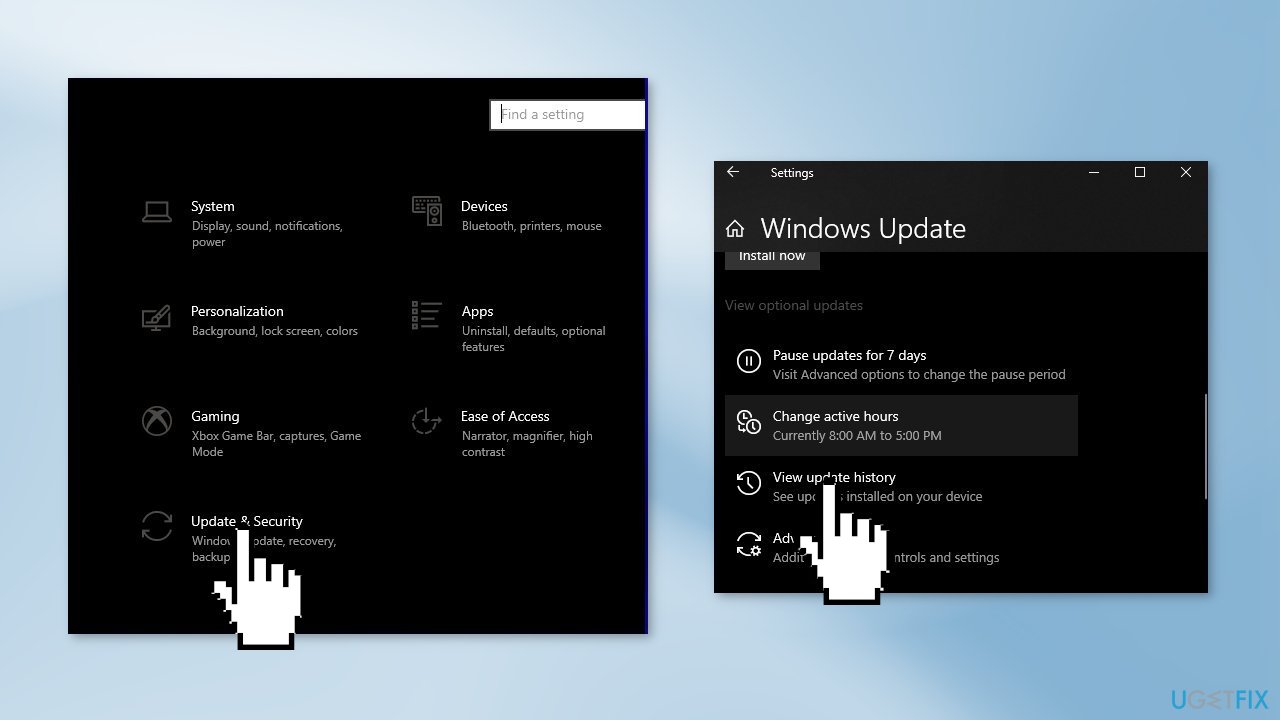
- Right-click Start button and pick Settings
- Go to Update & Security
- On the right, locate and click View update history
- From the list, note the KB number that fails to install with the error code
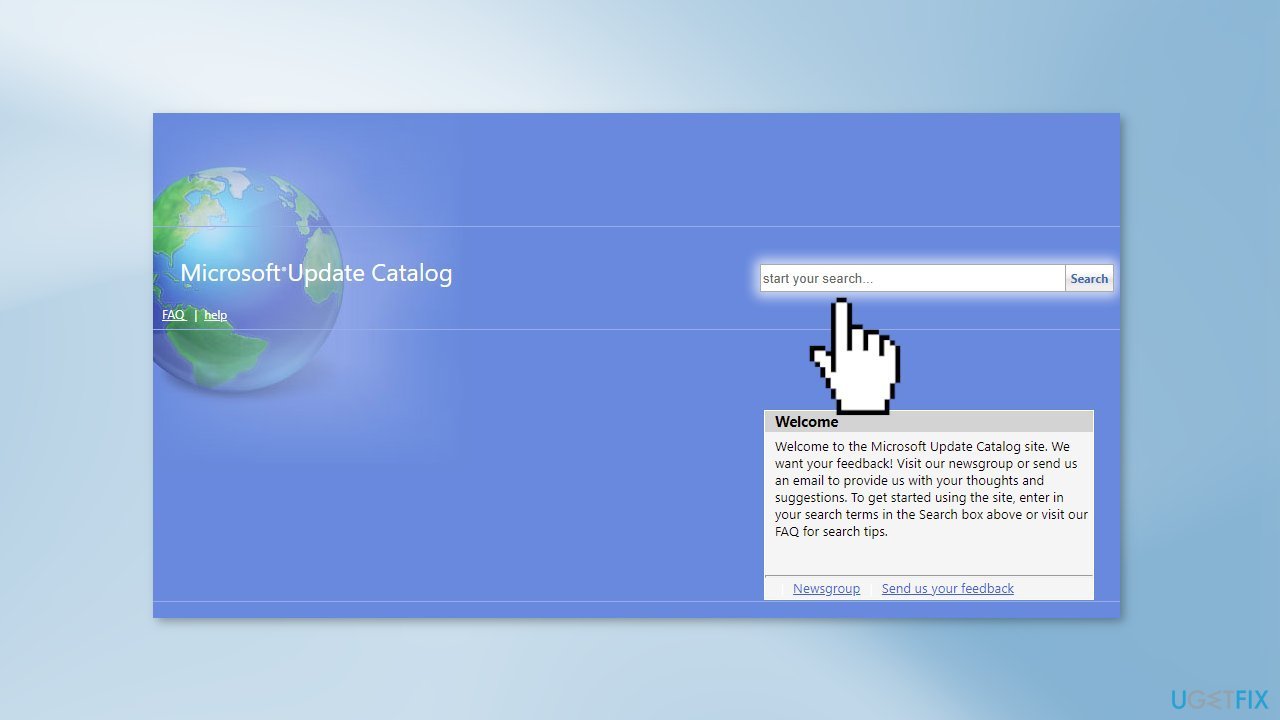
- Go to Microsoft Update Catalog page, type in the KB number and press Search
- Download the update and install it manually
Bottom line
To fix the Windows update error 80240025, you can repair corrupted system files using Command Prompt, utilize the Update Troubleshooter, or disable a specific registry key. If these methods do not resolve the issue, consider using an automatic repair tool for further assistance.
Frequently asked questions
Windows update error 80240025 is typically caused by issues with the Windows Update service, corrupted update files, or network connectivity problems.
To resolve error 80240025 on Windows 11, try running the Windows Update Troubleshooter and resetting the Windows Update components using Command Prompt.
Yes, you can manually fix error 80240025 by deleting the SoftwareDistribution folder and then restarting the Windows Update service through the Command Prompt.




Report an issue
What's wrong with this guide? We review every report and update or remove content.
Report received — thank you. We'll review and fix it.
You need a free account to submit a report.
Be the first to comment