How to fix
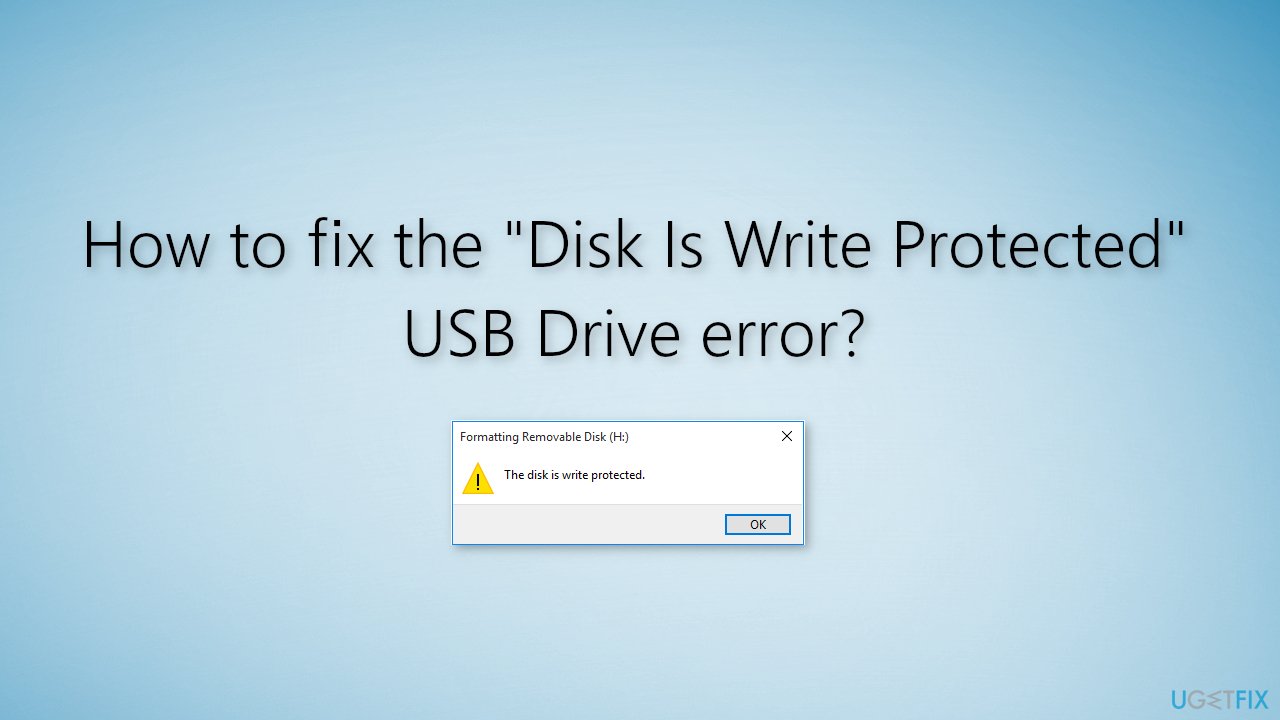
The “Disk Is Write Protected” USB Drive error
on Windows
Resolve the "Disk Is Write Protected" error on your USB drive in Windows 10 or 11 effortlessly. Expert-tested solutions ensure quick fixes.


What causes How to fix the “Disk Is Write Protected” USB Drive error?
- PC has locked the removable storage
- Write-protected switch enabled on the USB drive
- Software related issues
- Corrupted system files
- Computer virus
Repairs Windows system files, removes malware, and restores a clean OS state — without reinstalling.
Hello. I tried to open my USB drive but I received a "Disk Is Write Protected" error. What should I do?
A USB drive is a data storage device that includes flash memory[ref en-1] with an integrated USB interface. People use USBs for storage, data backups, and transferring files from one device to another. It is easy to use - simply plug it into your computer and you are able to transfer files immediately.
However, sometimes people run into difficulties when trying to use them. Some users report seeing the "Disk Is Write Protected" error when trying to access their USB flash drive. Most often, the USB drive error appears when the PC has locked the removable storage out of the system or there is a write-protected switch enabled on the removable drive itself.
The same error may occur when trying to use CD drives and Micro SD cards. Another reason for the "Disk Is Write Protected" error may be software related. In this guide, you will find 7 steps that should help you get rid of the write-protected error.
However, manual troubleshooting can be a lengthy process. We recommend scanning your device with the [d1] maintenance tool. The error may be caused by corrupted system files. This powerful software can fix that automatically. Additionally, it can help with BSOD[ref en-2] errors and registry[ref en-3] issues. Otherwise, follow the step-by-step instructions below.
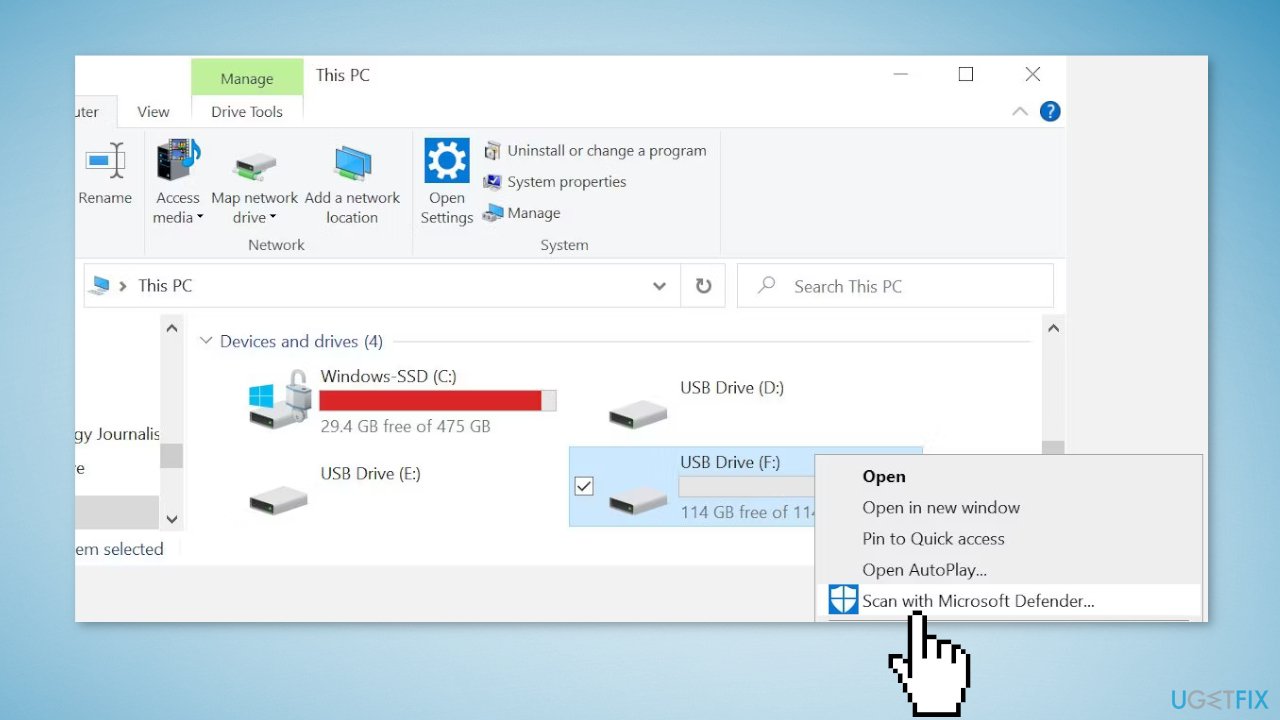
Method 1. Scan USB with Microsoft Defender
A computer virus can cause your USB drive show to show the "Disk Is Write Protected" error.
- Navigate to the USB drive in Windows Explorer
- Right-click on it and choose the Scan with Microsoft Defender option
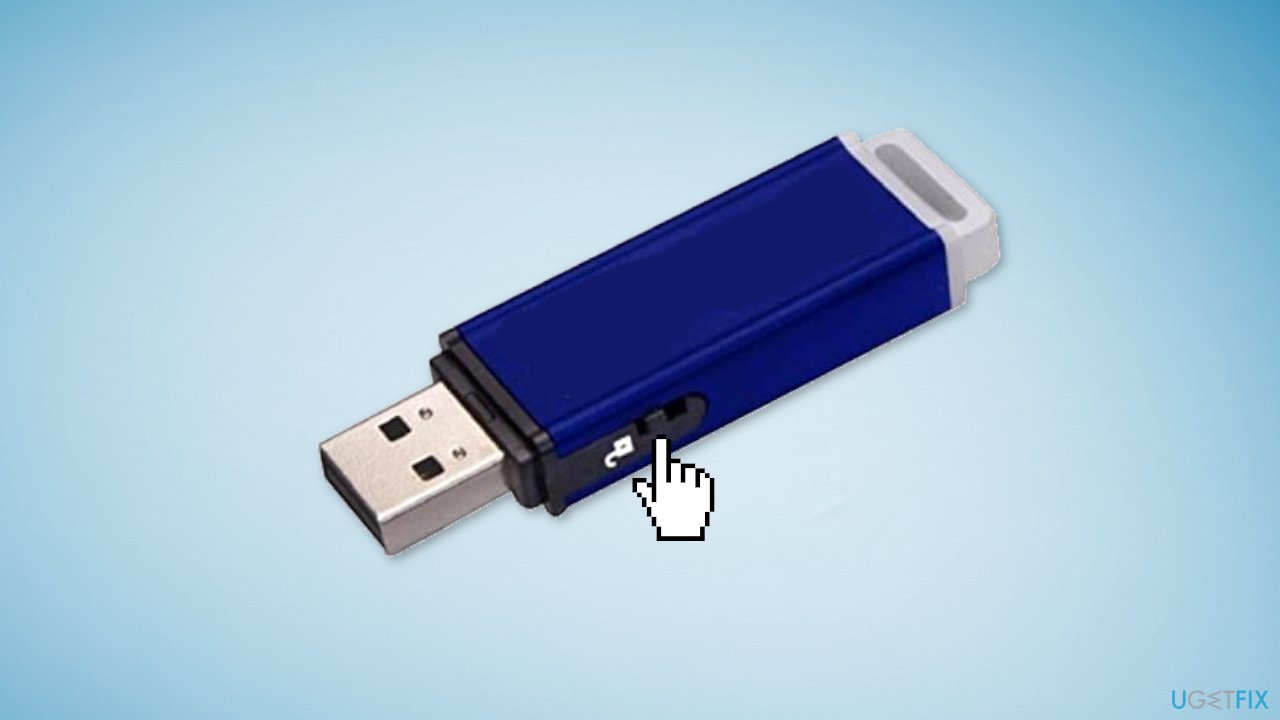
Method 2. Check the USB Drive Visually
Some USB drives have mechanical switches on their body that puts them into Write Protect mode. This can be a very small slider on the front or sides. If that is the case, move the switch to the unlocked position and try to transfer files again.
Method 3. Check the Drive Capacity
You may see the Write Protected error message if your USB is full.
- Open Windows Explorer, and go to This PC
- Right-click on your USB drive and select Properties
- You should see a chart that displays your current drive capacity
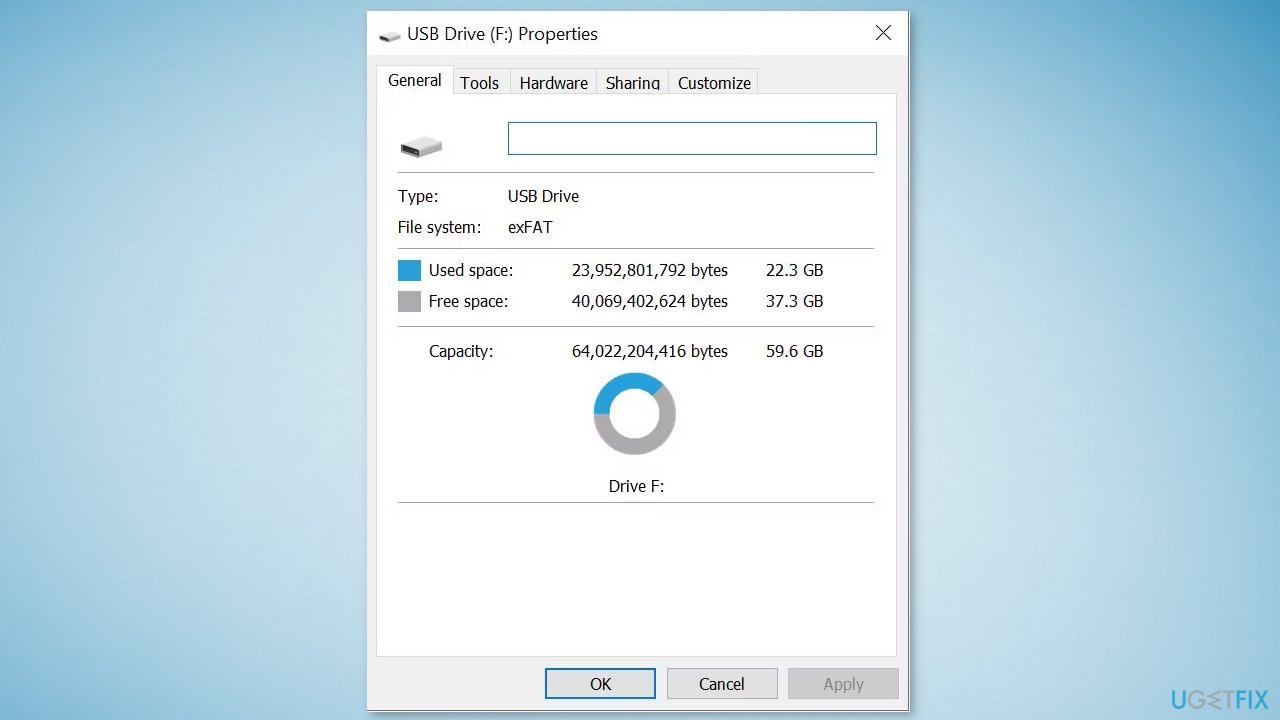
- If your USB drive is completely full, it can cause "Disk Is Write Protected" error
Method 4. Remove Files with Write Protection
In some cases, the write protection error can be caused by a single file.
- Browse through your USB drive, and locate the write-protected file
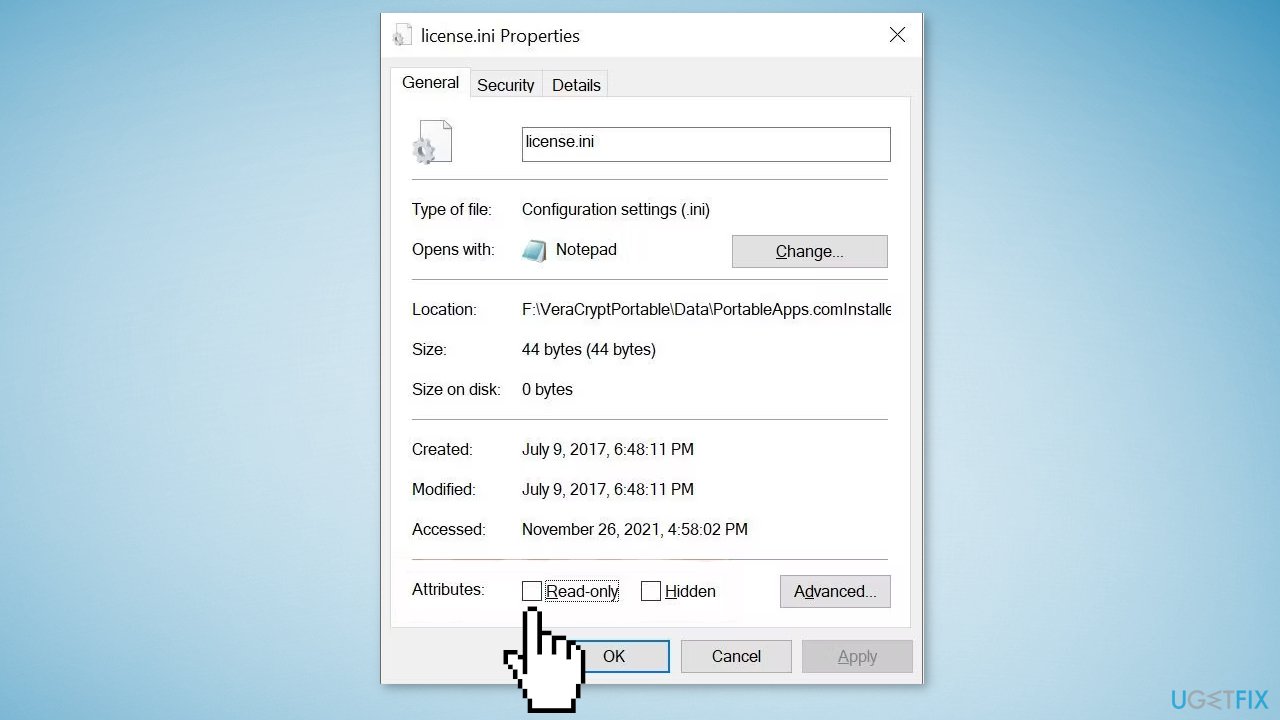
- Right-click on it and select Properties.
- Under Attributes, ensure Read-only is unchecked
Method 5. Clear Read-only Attributes
- Press the Windows key + R to open the Run box
- Type cmd and select Run as administrator
- Type diskpart and press Enter
- Type list disk (all the removable devices plugged into your computer should be listed in the terminal)
- Identify the disk using the disk numbers assigned
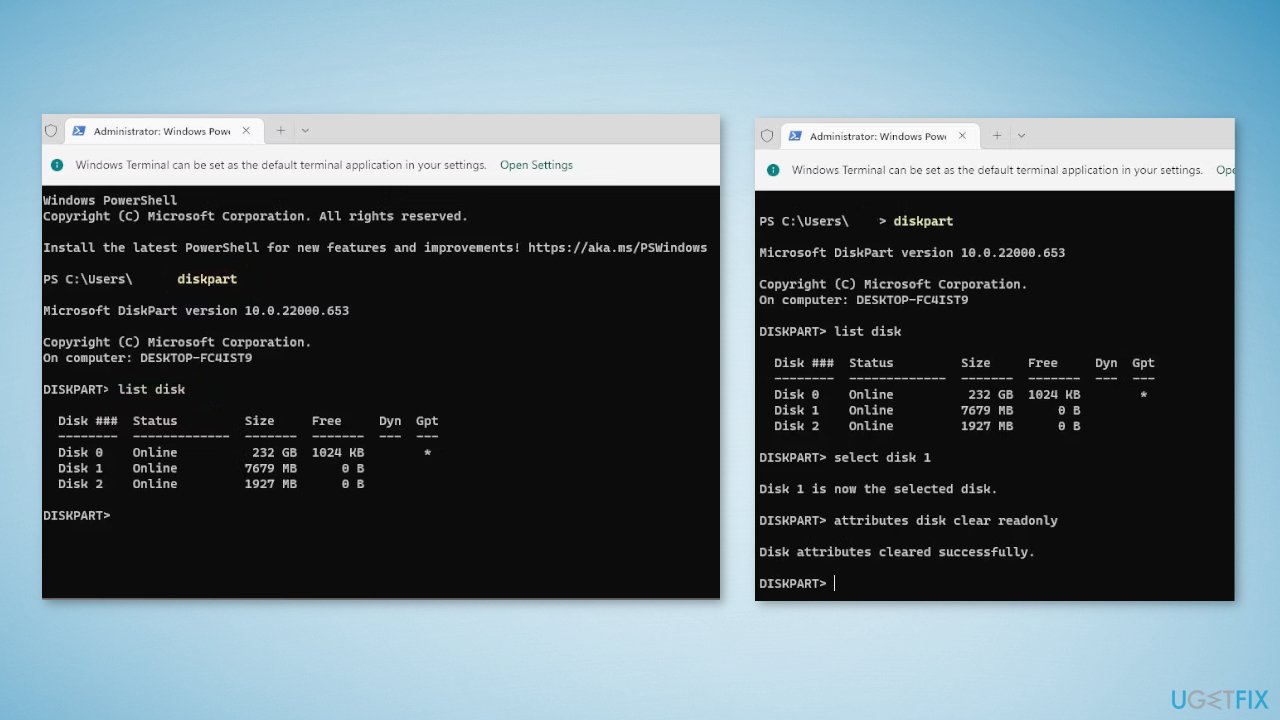
- Once you have identified the disk, type the command select disk 1 (assuming that the disk which is your USB drive causing the problem is disk 1)
- Type attributes disk clear readonly and press Enter
- Unplug your USB device and plug it in again
- Check if the problem is solved
Method 6. Clear Write Protection in Registry Editor
- Press the Windows key + R to open the Run box
- Type regedit in the dialogue box and press Enter
- Once in the Registry Editor, navigate to the following directory:
HKEY_LOCAL_MACHINE\SYSTEM\Currentcontrolset\control\
- Find the entry of StorageDevicePolicies
- If you cannot find it, create a new one
- Right-click on any control and select New > Key
- Name the new key as StorageDevicePolicies
- Navigate to the right navigation pane and select New > DWORD (32-bit) Value (select 32bit option if you have a computer of 32bits and 64bit if you have a 64bits system)
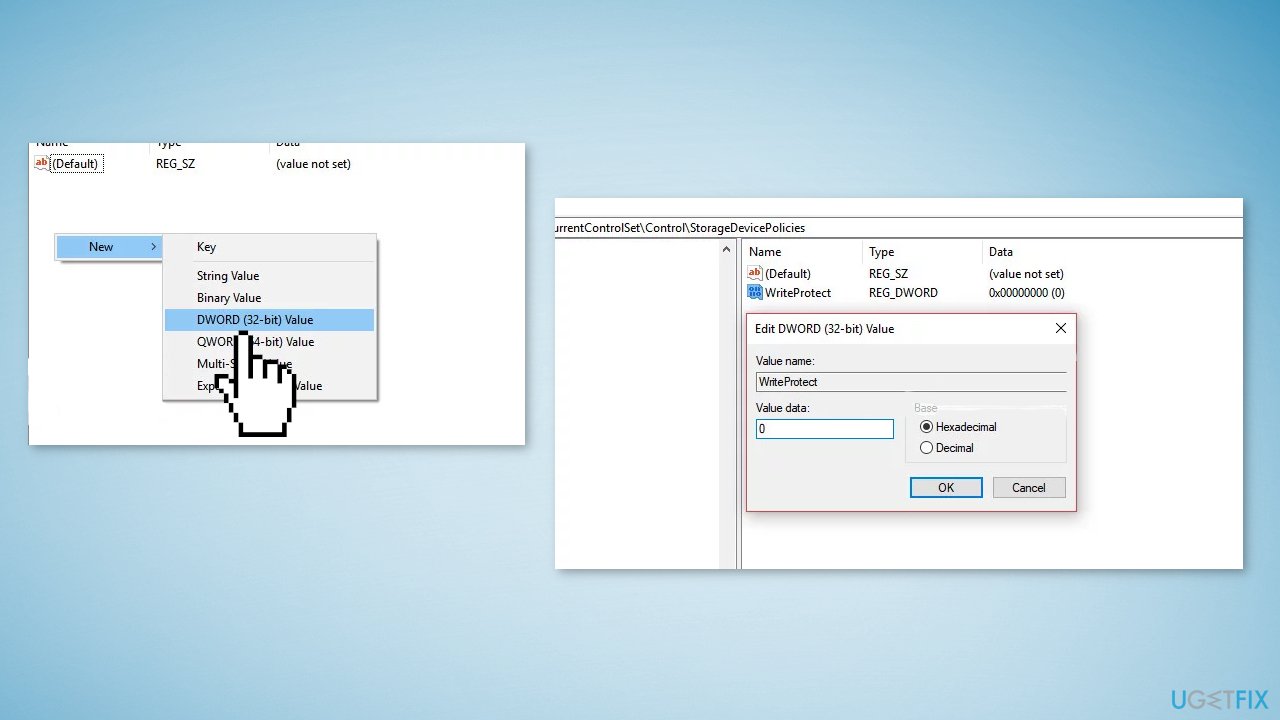
- Set the name of the DWORD to WriteProtect and set the value as 0 in Hexadecimal
- Press OK to save changes and exit
- Open This PC using File Explorer and refresh the window 5 or 6 times
- Plug your USB back into the computer and format it by right-clicking it and selecting Format
- Set the format type as exfat
- Check if you can access your USB without an error
Method 7. Format the USB Drive
- Open Windows Explorer, and browse to This PC
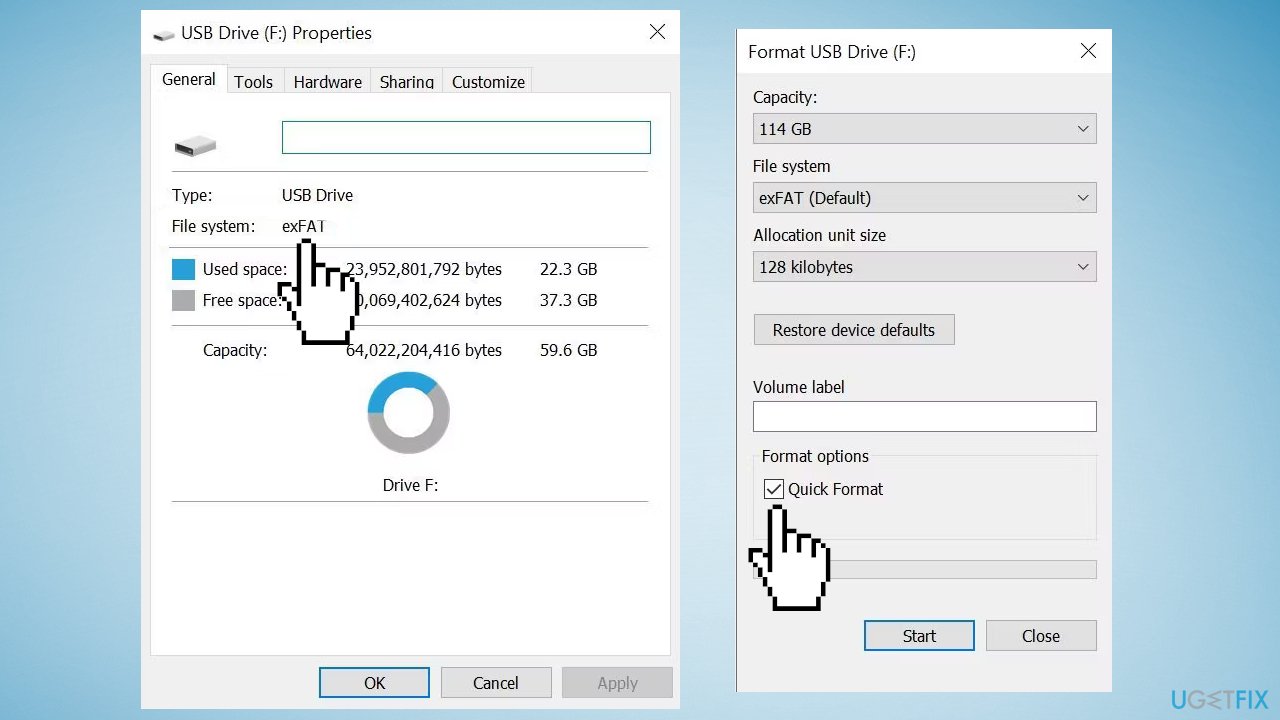
- Right-click your USB drive and select Properties
- Close the Properties window
- Right-click the USB drive again, this time selecting Format
- Change the Volume label to something memorable
- Uncheck the Quick Format box and press Start
Bottom line
To fix the 'Disk Is Write Protected' error, you can scan the USB drive with Microsoft Defender, check the USB drive visually for a write-protect switch, and consider using maintenance tools for corrupted files. If none of these methods work, further troubleshooting may be necessary.
Frequently asked questions
This error can be caused by a physical write protection switch on the USB drive, software settings, or corrupted file systems on Windows 10.
You can remove write protection by using the Diskpart utility in Command Prompt, where you can select the USB drive and execute the 'attributes disk clear readonly' command.
Yes, you can try using Windows Registry Editor to remove write protection or check for physical switches, but if these methods fail, formatting may be necessary.




Report an issue
What's wrong with this guide? We review every report and update or remove content.
Report received — thank you. We'll review and fix it.
You need a free account to submit a report.
Be the first to comment