How to fix
Event ID 56, Application Popup error
on Windows
Resolve the Event ID 56, Application Popup error in Windows 10 and 11 quickly. Follow our expert-tested tips for a seamless experience, fixed in minutes.

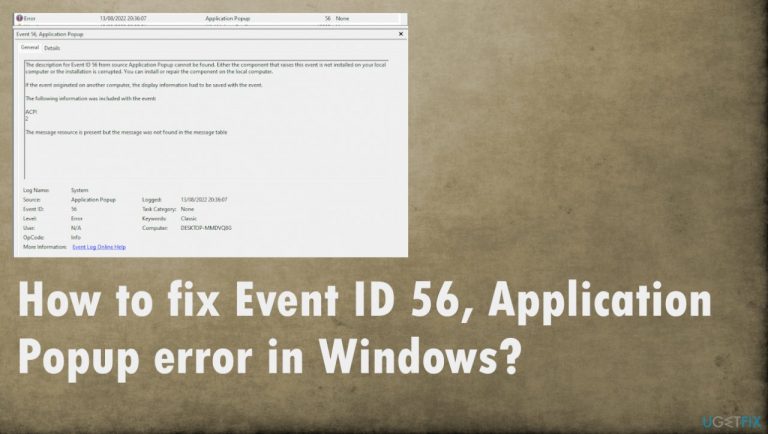
What causes How to fix Event ID 56, Application Popup error in Windows?
- Corrupted device driver
- Faulty device driver
- BIOS and firmware issues
- Corrupted or missing system files
- Windows operating system formatting issues
Repairs Windows system files, removes malware, and restores a clean OS state — without reinstalling.
Hello. I need help with the error on Windows 11 now. Event ID 56 bothers me. It shows up after every reboot and I have no idea where it comes from and how to deal with it properly. Can you help me learn about it is possibly solve the reason behind the problem?
Event ID 56, Application Popup error in Windows is a common issue that keeps occurring. People complain about this and some of the reports online even state that their PC shutdowns and the issue remains unsolved and unexplained. users encounter the error for a few different reasons, however, and there are particular fixes for this.
This is the error that can often be accompanied by the computer reboot and shutdown and the Blue Screen of Death error[ref en-1] that appears on the screen when the operating system tries to avoid corruption of the machine. These errors can often come with the error code that notifies about the log name or the level of the issue, indicating the driver that has been a trigger for the error.
Event ID 56, Application Popup error in Windows can show up when the river for the particular device is corrupted or is faulty. This application error can be related to BIOS and Firmware updates, river updates or formatting other parts of the Windows operating system.
Users[ref en-2] have encountered these messages for years now. So these fixes are closely related to the problem that triggers it. Even though these errors appear on Windows 10 and Windows 11 even, upgrades of the OS and bugs there[ref en-3] do not trigger in this issue.
It is possible to troubleshoot what issues caused the appearance of this Event ID 56, Application Popup error in Windows. Also, there are ways to quickly improve the performance, so this issue could be fixed easily. Applications like [d1] can be launched to clear infection leftovers and treat problems related to corrupted or missing system files. other options are listed below and might take more time, but should help solve this issue and avoid permanent damage.
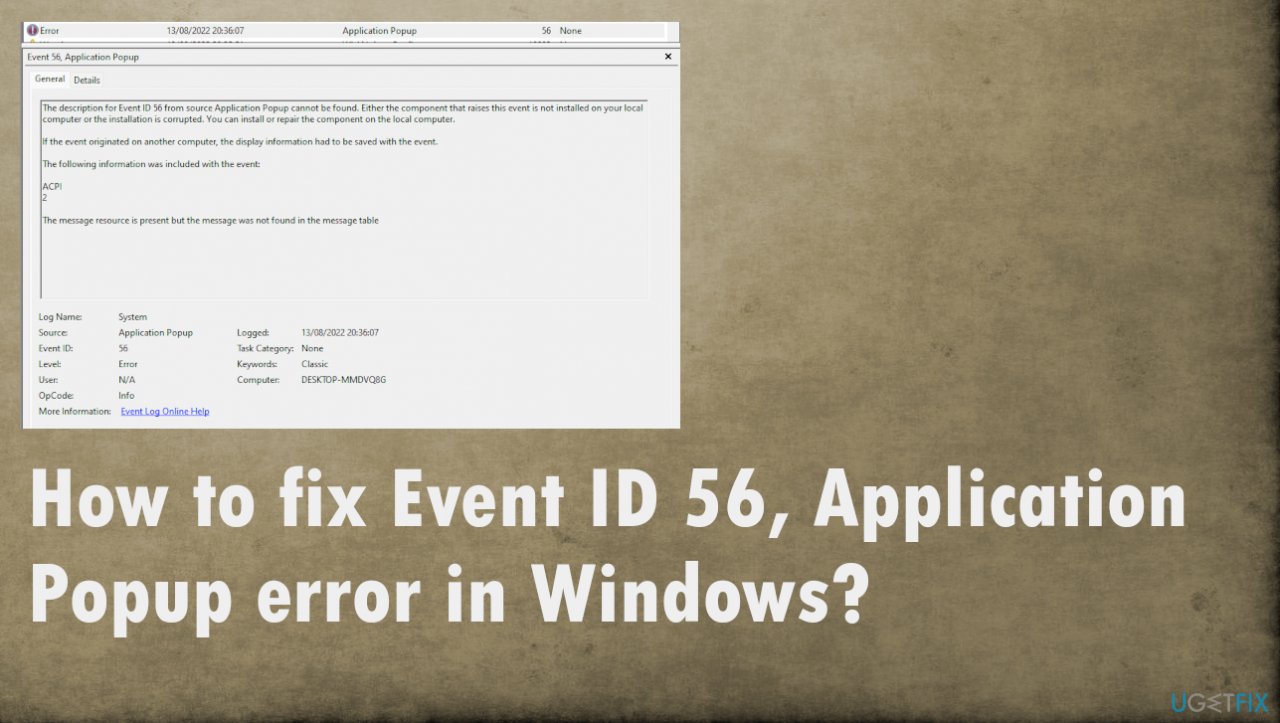
1. Run system file checker
- Open Command Prompt as administrator by searching for cmd in the search and choose the launch with administrative rights.
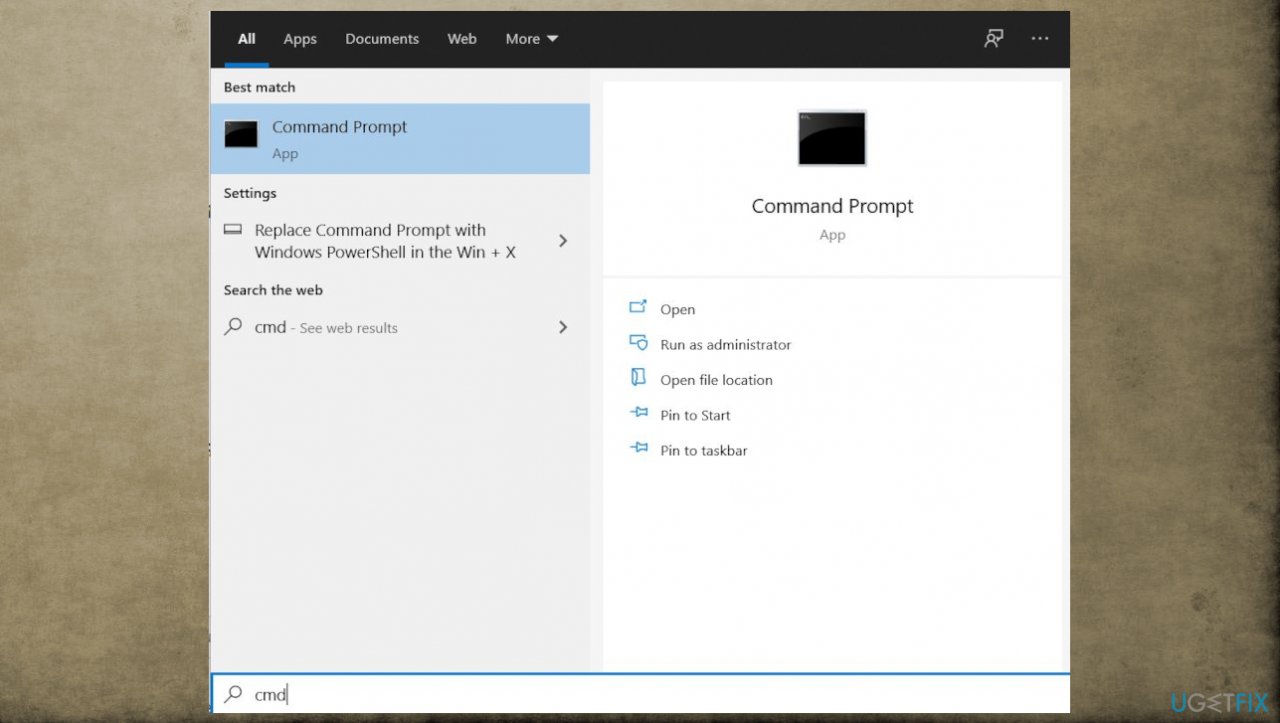
Event id 56 application error command prompt - Use the following command and press Enter:
sfc /scannow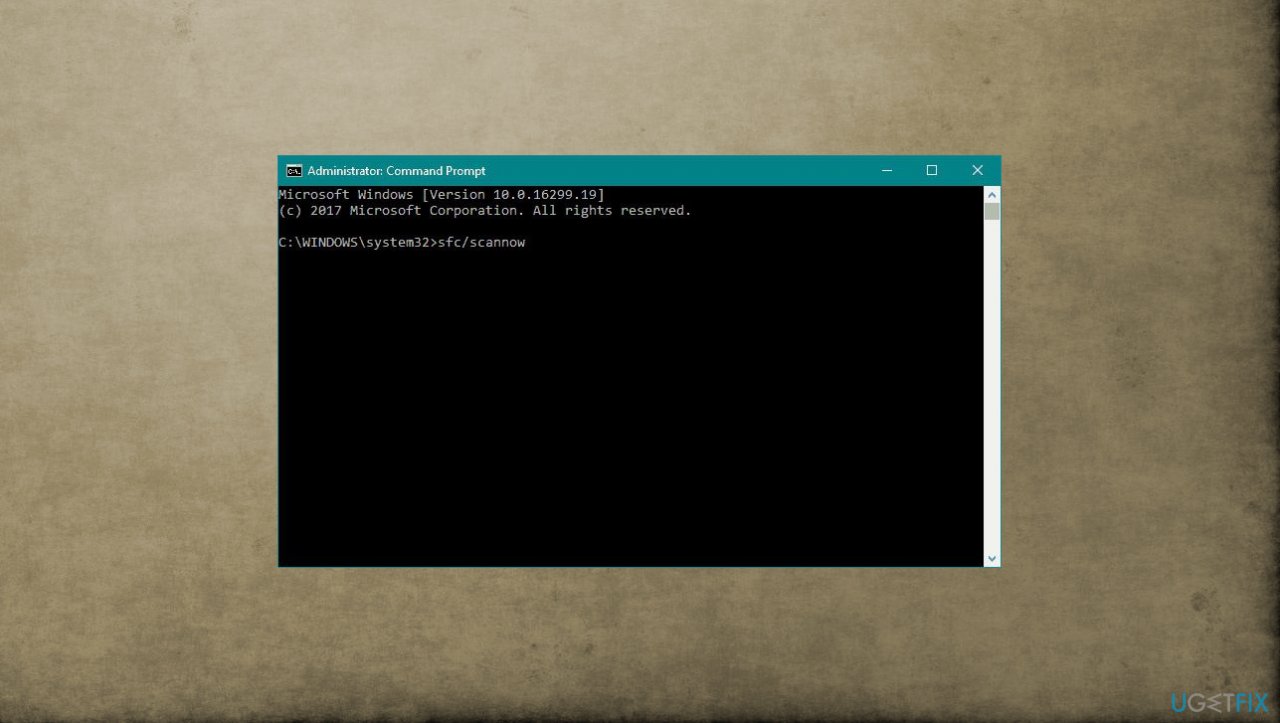
Event id 56 application error sfc scan - Reboot your system.
- If SFC returned an error, then use the following command lines, pressing Enter after each:
DISM /Online /Cleanup-Image /CheckHealth
DISM /Online /Cleanup-Image /ScanHealth
DISM /Online /Cleanup-Image /RestoreHealth - Reboot.
2. Update BIOS
- Press the Windows Key + R buttons. This will open the Run prompt.
- In this, type msinfo32.
- A System Information window will open. Select the System Summary option on the menu on the left and look under BIOS Version/Date.
- Note down the BIOS version and date.
- Enter the BIOS by pressing the key mentioned on the screen during startup.
- Enter Advanced Mode.
- Plug in your USB to a working USB port.
- Here, you will find a utility such as EZ Flash, Q Flash, or another flash utility. It depends on the manufacturer of your motherboard. Click on it.
- Select the USB drive on which you stored your BIOS file from the pop-up screen.
- On the next screen, you’ll see the downloaded BIOS file.
- Double-click on the file.
- On the pop-up prompt, click on Yes and then Yes again.
- The BIOS will go through the update process and, upon updating, press Ok on the prompt.
- Enter BIOS one more time and restart the computer.
3. Update graphics or video drivers
- Search for Device Manager in the search bar present on the taskbar.
- Then click on Device Manager.
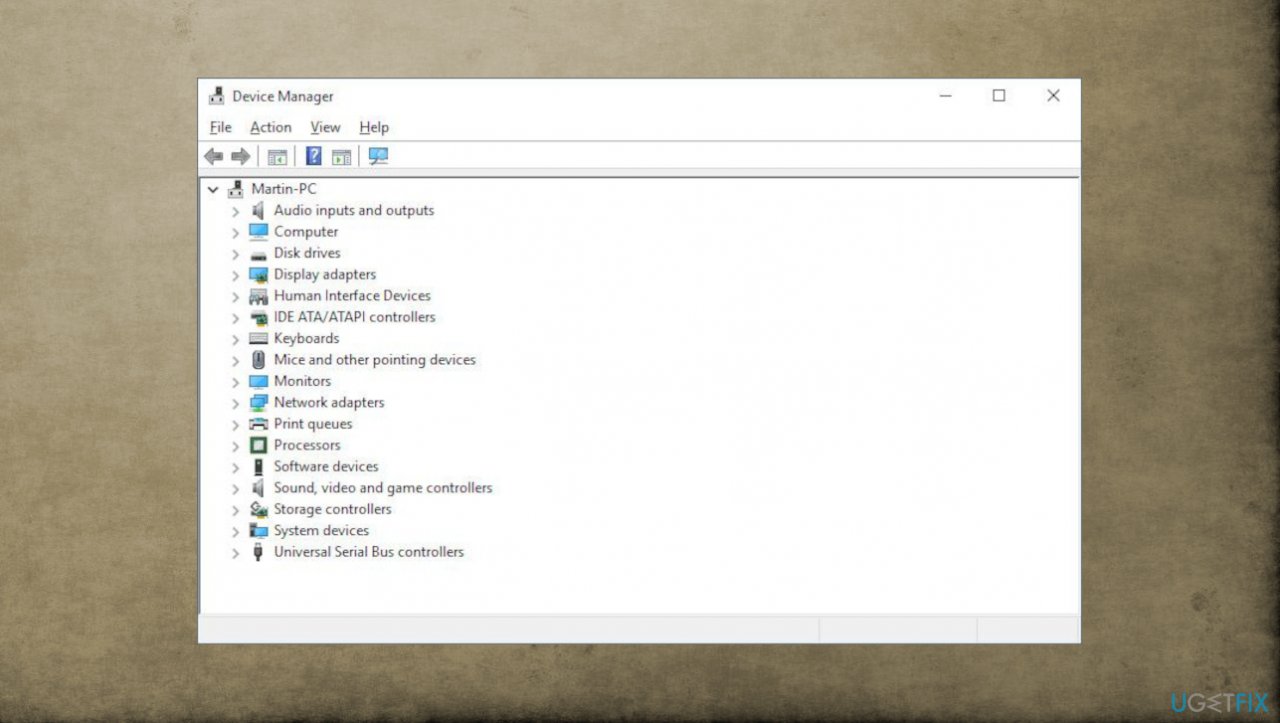
Event id 56 application error device manager - Click on the arrow next to Display adapters to view the graphics and video cards.
- Double-click on one of them and go to the Driver tab.
- Here or via Right-click on the driver, click on the Update Driver button.
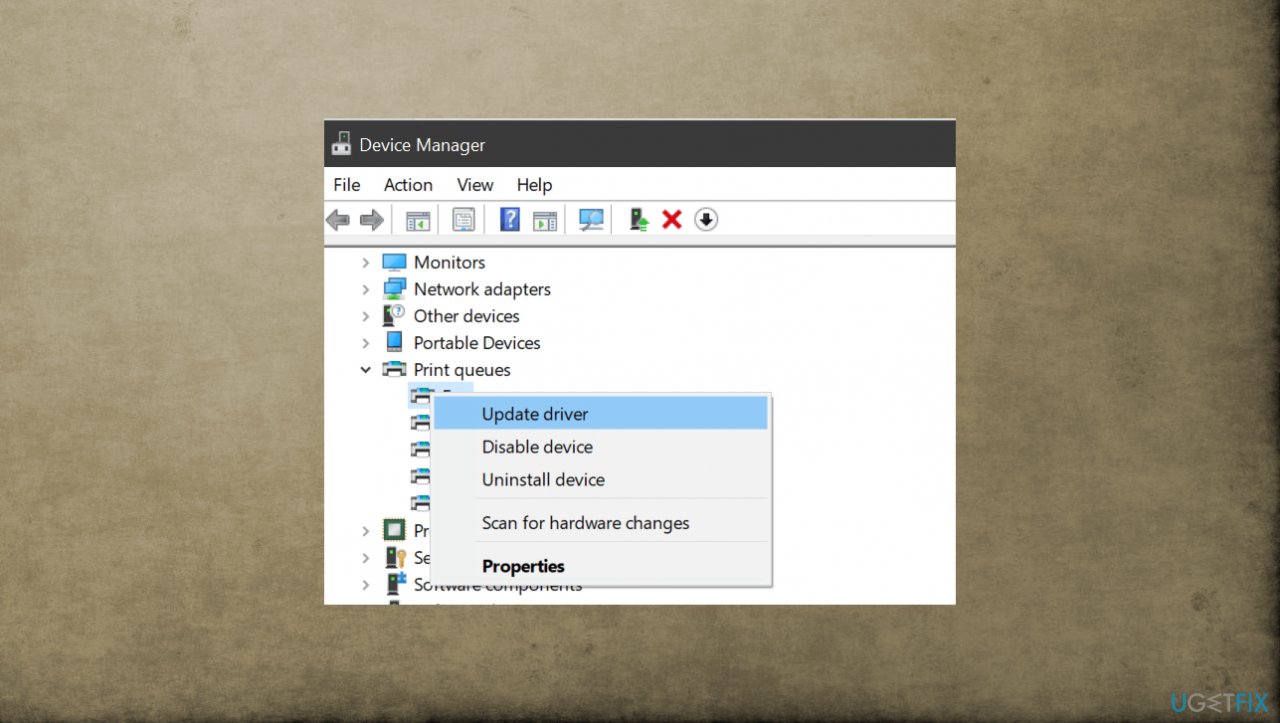
Event id 56 application error update driver - Select Search automatically for drivers.
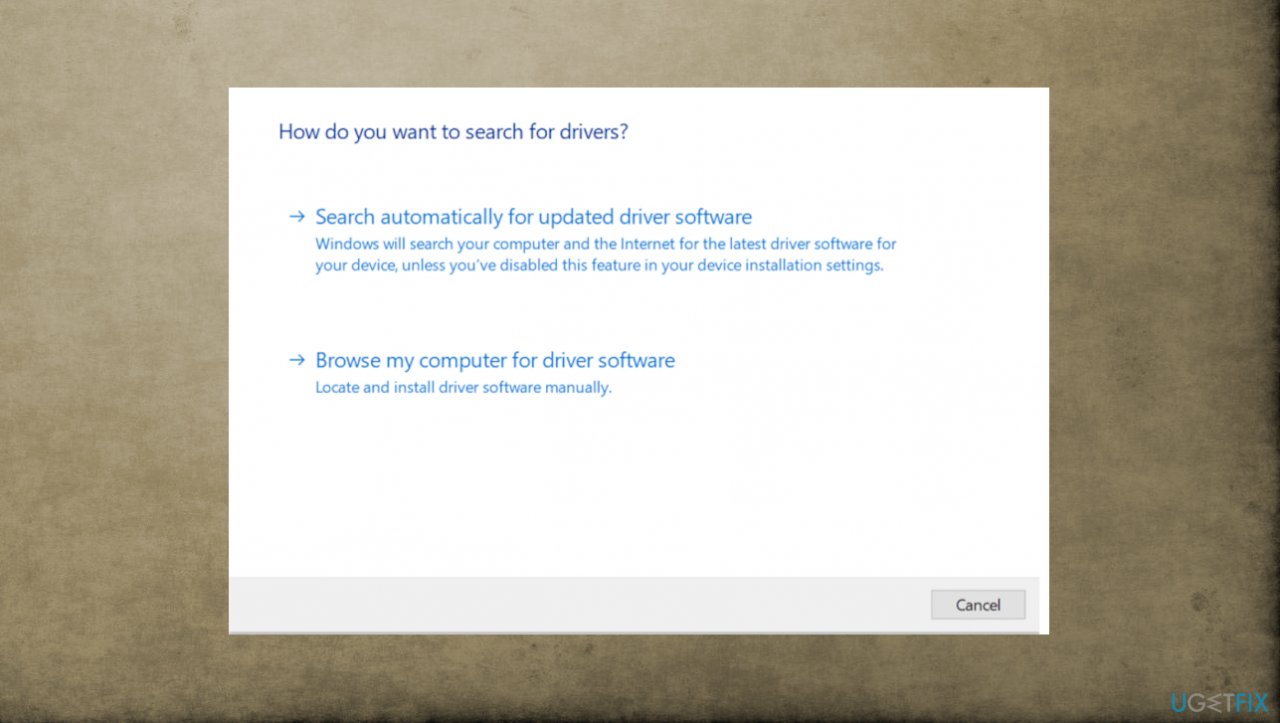
Event id 56 application error driver - Wait for the computer to search for driver updates and install them if there are any.
- Do the same for every graphics and video card or the driver that presents the exclamation point near it.
4. Manually update ME firmware
- Download the latest version of Intel ME from the manufacturer of your motherboard’s website.
- Save the ME zip file in the OS folder.
- Unzip the file and double-click on the MEUpdateTool.exe application.
- Then, click on Yes on the ME update tool prompt.
- Once the update has finished installing, click on the OK button.
- On the startup screen, press the key mentioned on the screen to enter BIOS.
- Under Advanced Mode in the Main Menu
- Check for the ME FW Version and verify it’s the latest one.
5. Format Windows
- Ensure you have backed up all of your data to an external drive or the cloud.
- Go to the Start menu and click on Settings.
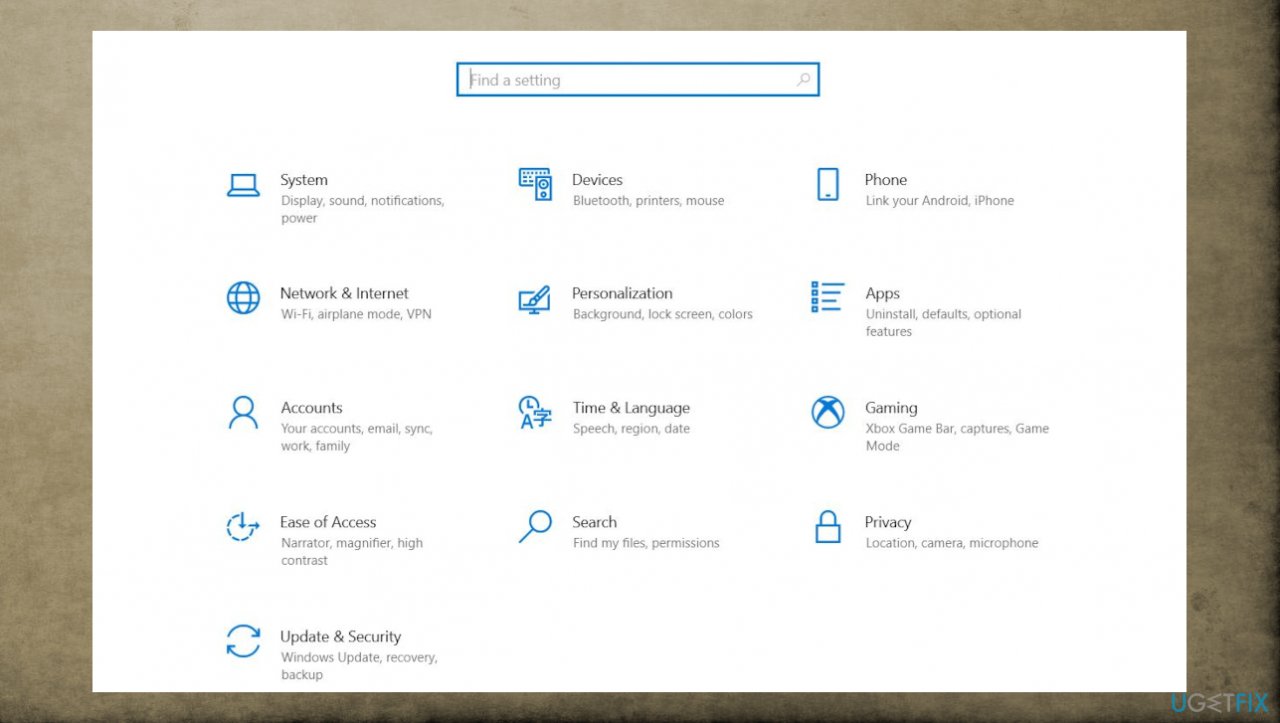
Event id 56 application error settings - Then, go to the Update & Security section and select Recovery.
- Find the Reset this PC section and click Get started.
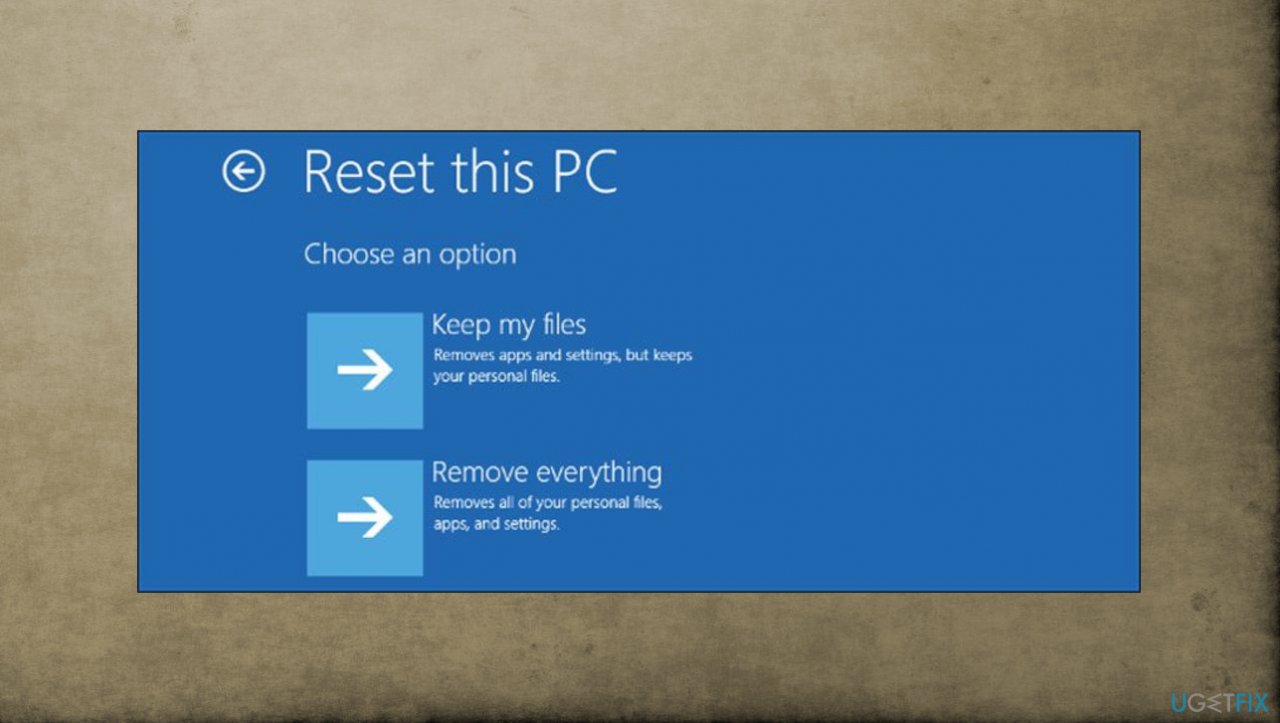
Event id 56 application error reset pc - Click Get Started
- Click on Remove Everything to make sure that all data wipe out.
- Follow the steps to reinstall Windows 10.
Bottom line
To fix Event ID 56, Application Popup error in Windows, users can update drivers, perform BIOS and firmware updates, and use applications to clear infection leftovers. If these solutions do not resolve the issue, further troubleshooting may be necessary to identify the root cause.
Frequently asked questions
Event ID 56 typically indicates a problem with a software application or system service that has encountered an issue, often related to driver or software conflicts.
To troubleshoot Event ID 56 errors, you can check the Event Viewer for detailed error messages, update your drivers, or uninstall recently installed software that may be causing conflicts.
Yes, you can use the built-in Windows Troubleshooter or third-party tools like System File Checker (SFC) and DISM to scan for and repair corrupted system files that may be causing Application Popup errors.




Report an issue
What's wrong with this guide? We review every report and update or remove content.
Report received — thank you. We'll review and fix it.
You need a free account to submit a report.
Be the first to comment