How to fix
Windows Error Reporting Event ID 1001
on Windows
Resolve Windows Error Reporting Event ID 1001 easily with our practical tips for Windows 10 and Windows 11. Expert-tested solutions for faster fixes!

What causes How to fix Windows Error Reporting Event ID 1001?
- Application crashes
- Faulty applications or files
- High system resource usage
- Conflicting applications
- Antivirus software interference
- Lack of free RAM
Repairs Windows system files, removes malware, and restores a clean OS state — without reinstalling.
Hello. I have this issue with Event ID 1001 on my computer. The system gets locked, and the error occurs. The problem was persistent, but recently it was not bothering me. However, Windows reports the issue, and the machine is not working as it is supposed to. Can you help me?
Windows Error Reporting Event ID 1001 is the issue with application crashes and errors. The error gets logged by the Windows Error reporting infrastructure in the event log. Various issues like Blue Screen errors can cause it.[ref en-1] It can also be caused by faulty applications or files.
This is a problem that can be caused by high system resource usage or conflicting applications. Antivirus software can interfere with other programs or malware[ref en-2] leftovers can lead to system file corruption and issues with the system its security and performance.
Sometimes expanding the virtual memory allocation can help solve the issue with this error, or disabling some of the features on Windows can solve the error that is related to third-party antivirus software and Windows security feature incompatibility. Windows Error Reporting Event ID 1001 issue can be annoying, so troubleshooting can help users.[ref en-3]
The causes for this error can be created by the specific software, so if you know that a program is related to the issue, you can reinstall or update that. The lack of free RAM can also be the trigger for these application errors. Other cases can present the responsible application via the Windows Error Reporting Event ID 1001.
Generally, these issues with the machine and applications can be triggered by problems within the operating system. If you recently updated the machine or upgraded to Windows 11 that can be the reason why you experience these issues. As for the general system improvement, you can run the application like [d1] and repair any damaged files, or corrupted pieces on the machine and possibly fix Windows Error Reporting Event ID 1001.
Fix 1. Run SFC scan
- Type cmd in Windows search.
- Right-click on Command Prompt result and select Run as administrator.
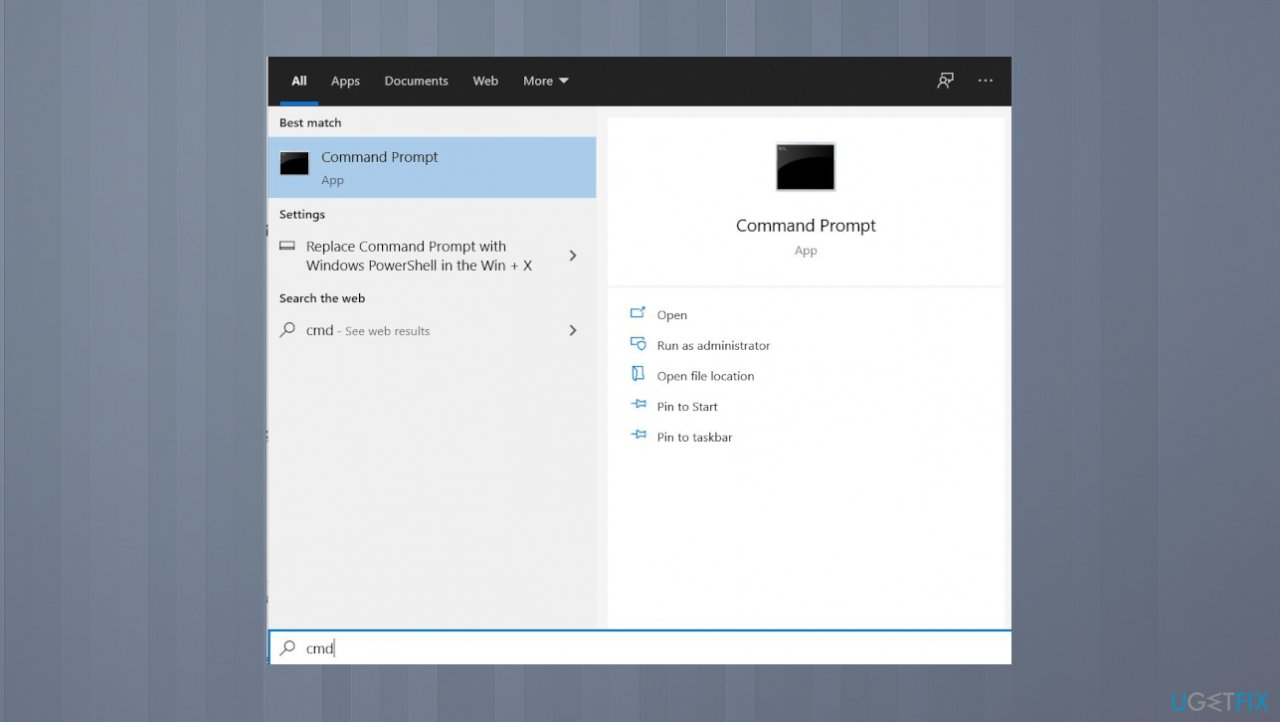
Event 1001 error command prompt - Paste the following command into the new window:
sfc /scannow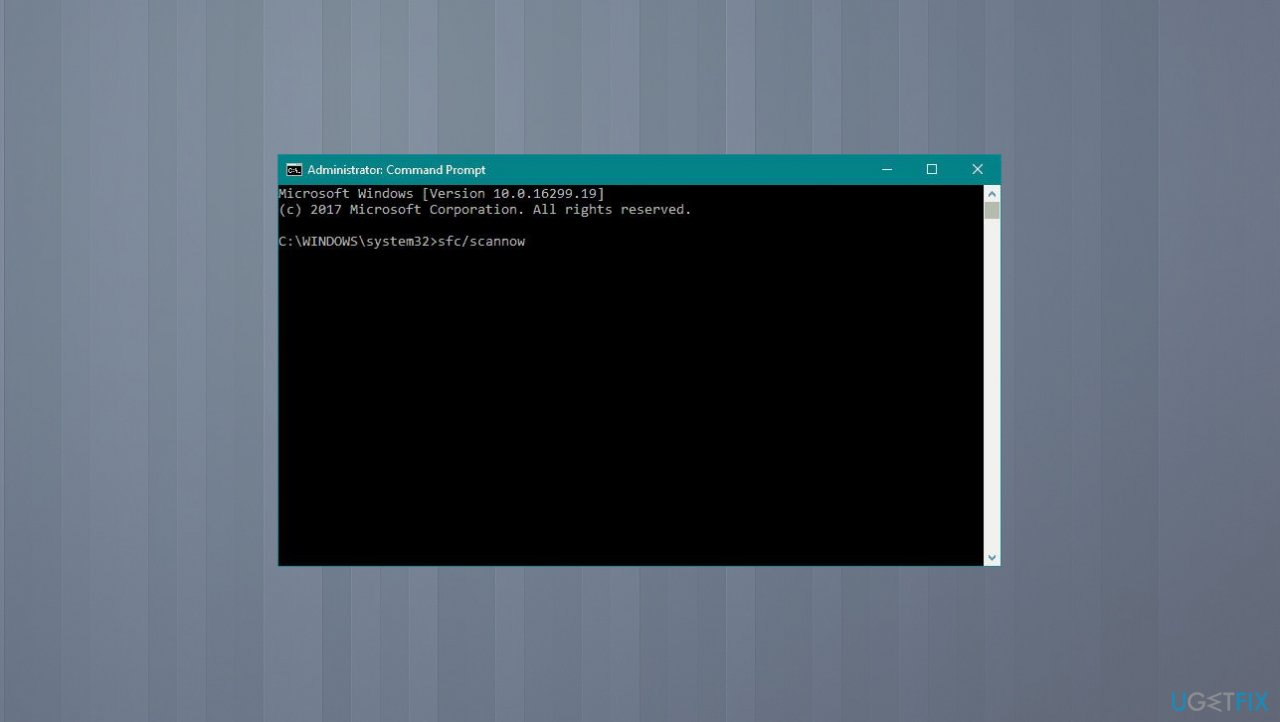
Event 1001 error sfc files - Press Enter and wait till the scan is finished
- You can also run this set of commands.
- Press Enter after each:
DISM /Online /Cleanup-Image /CheckHealth
DISM /Online /Cleanup-Image /ScanHealth
DISM /Online /Cleanup-Image /RestoreHealth - Restart your device.
Fix 2. Check for malware
- Double-click the Windows Security icon in your system tray.
- Select Virus & threat protection to open the scan tab.
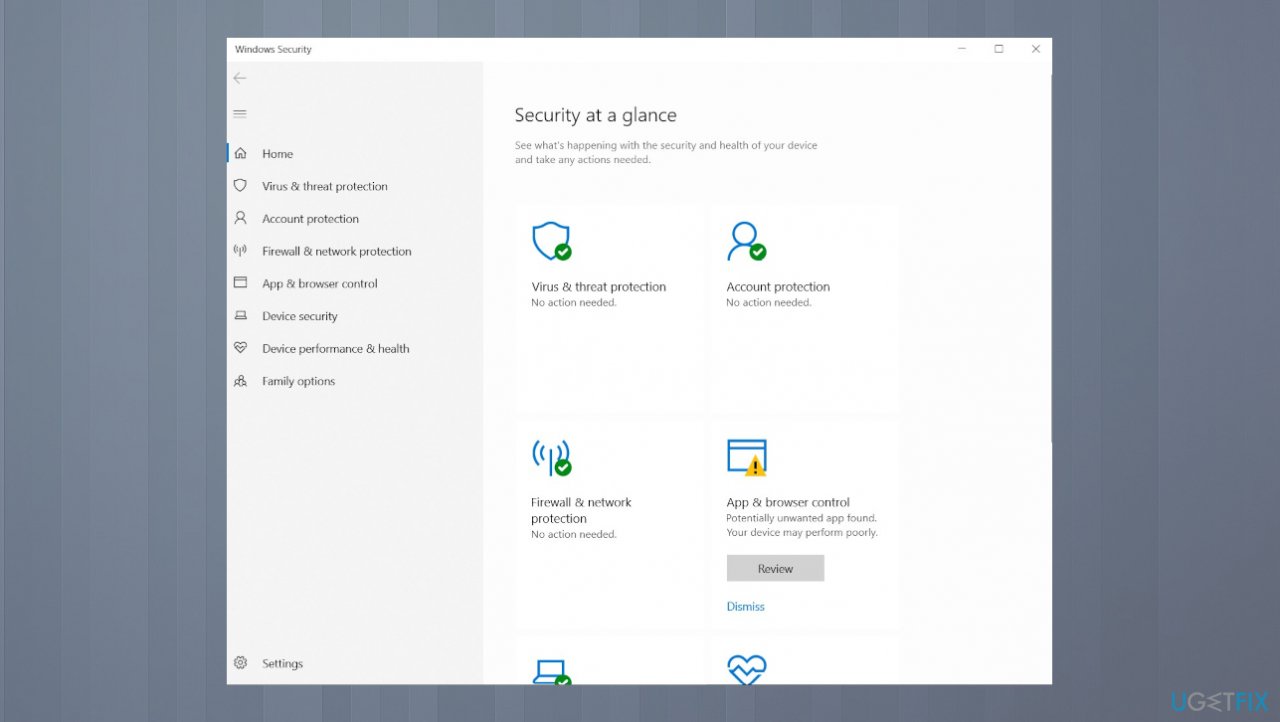
Event 1001 error report security - Click Scan options to view more settings.
- Select the Full scan option, and then click on Scan now.
Fix 3. Free up hard drive space
- Hit the Windows and S keys.
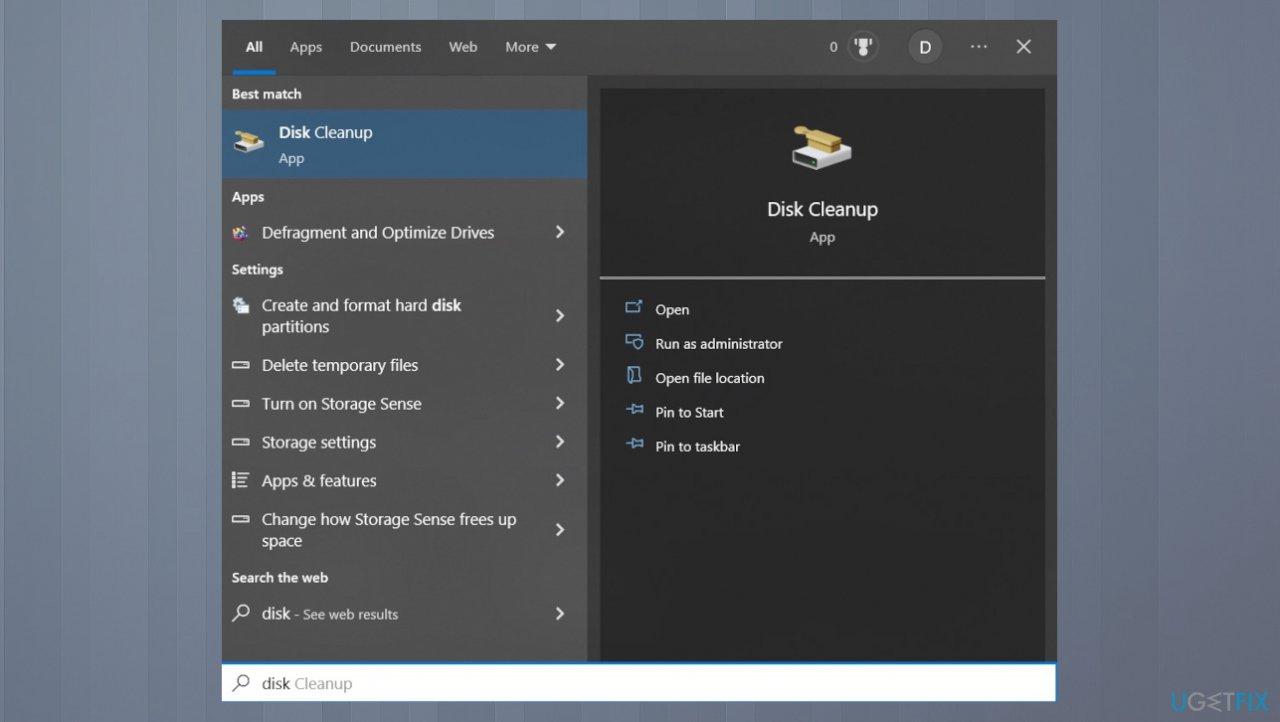
Event 1001 error report disk cleanup - Enter Disk Cleanup in the text field, choose the search result.
- Choose the drive you want to clean from the dropdown menu, and click OK.
- Select all the checkboxes under Files to delete, and click on OK.
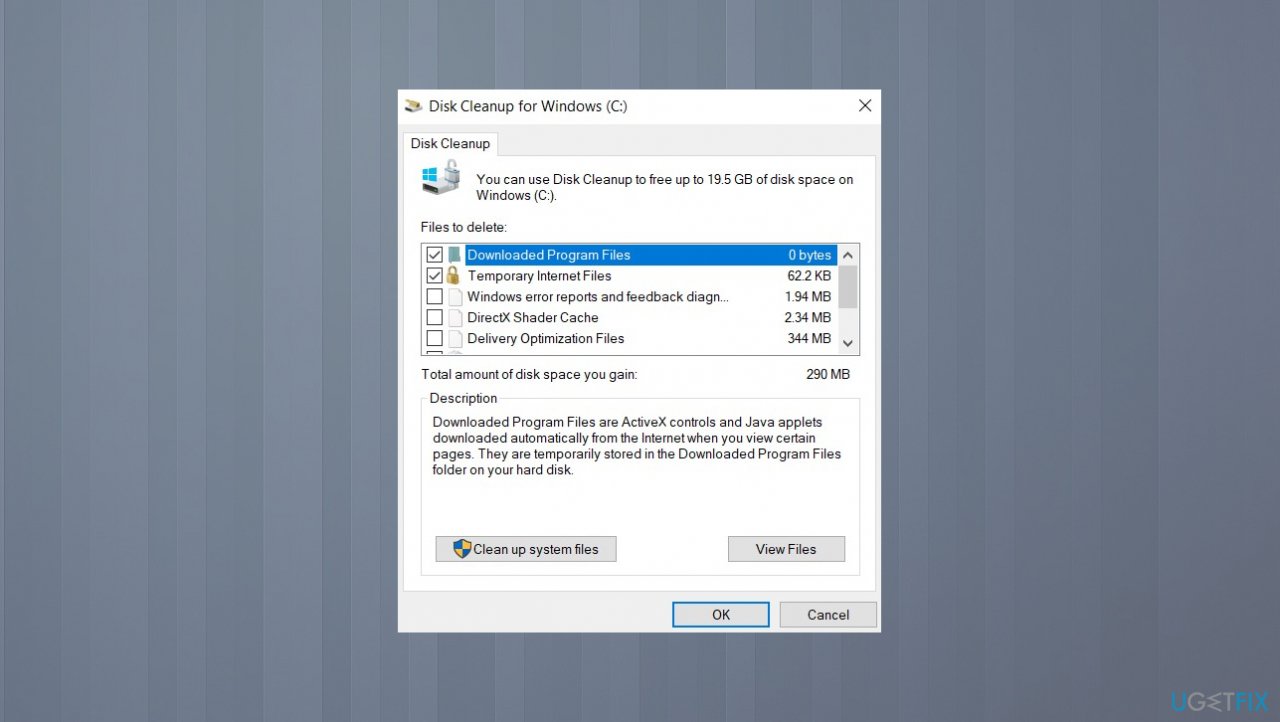
Event 1001 error report disk file delete - Click Delete Files in the prompt to confirm.
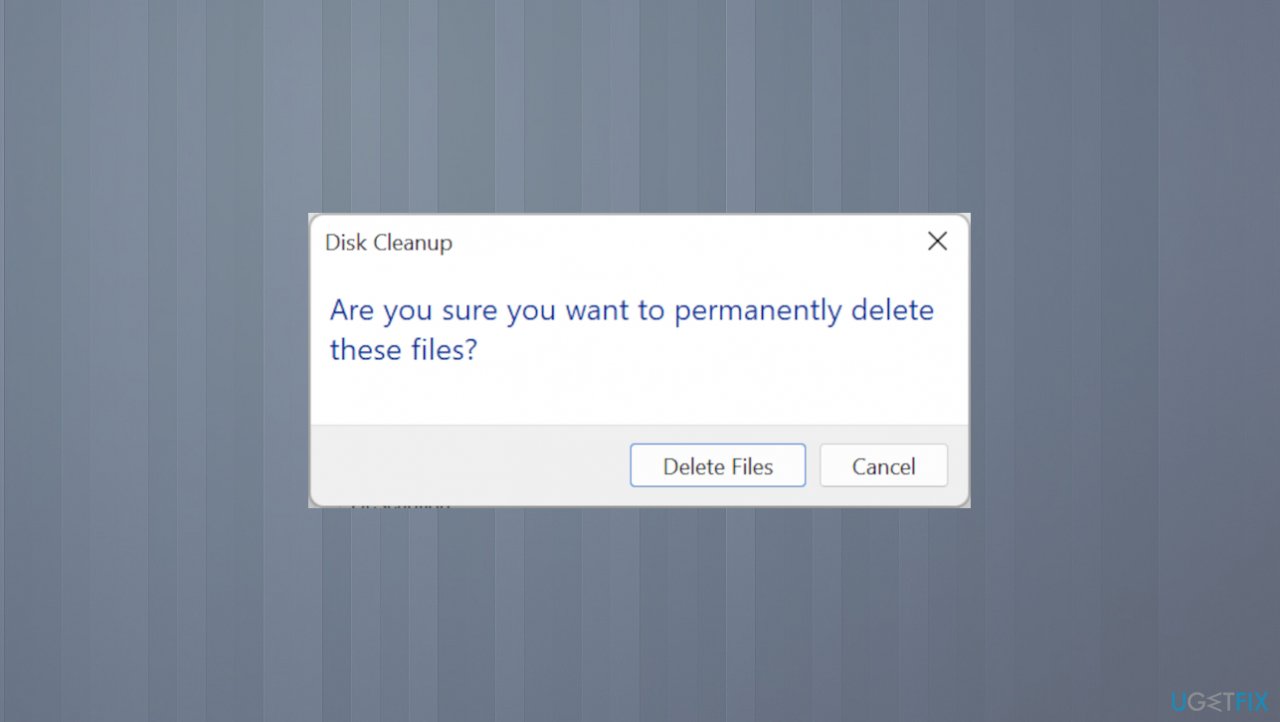
Event 1001 error deleting files
Fix 4. Extend virtual memory allocation
- Search for Adjust the appearance and performance of Windows.
- Click the Advanced tab in the Performance Options window.
- Press the Change button on that tab.
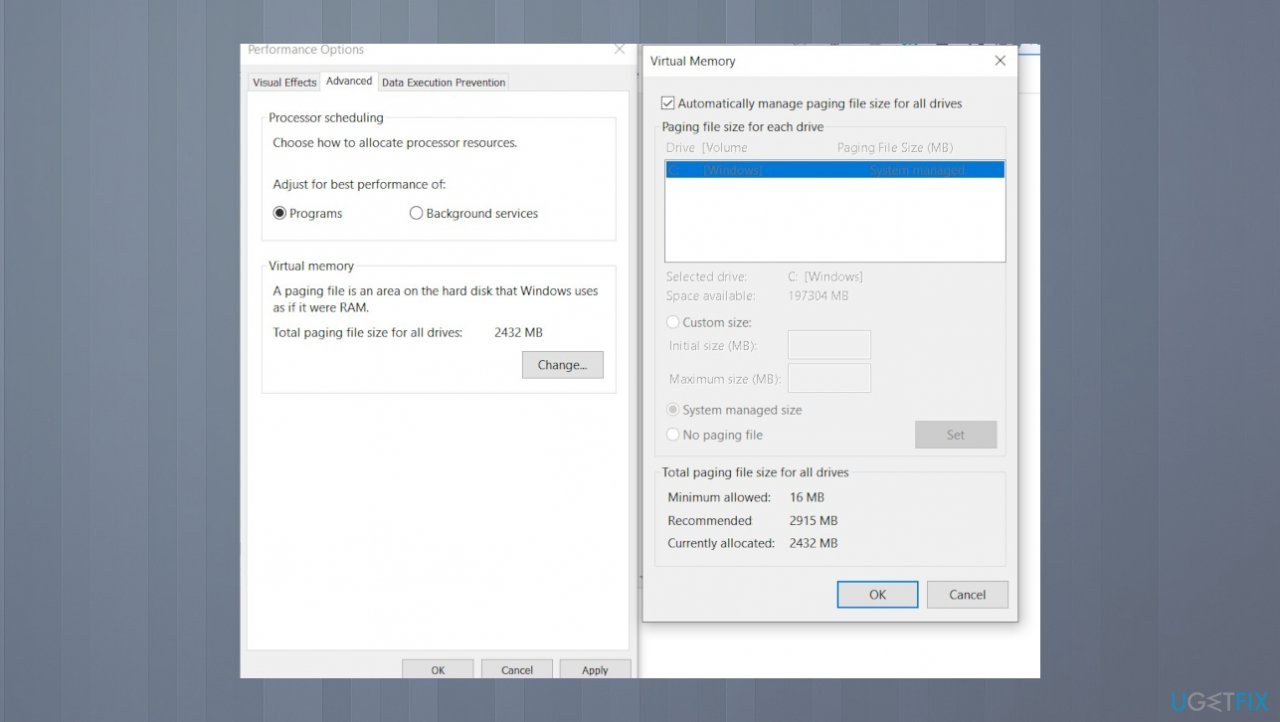
Event 1001 error report virtual memory - Uncheck the Automatically manage paging file size for all drives checkbox.
- Click the Custom size radio button to select it.
- Enter values in the Initial Size and Maximum Size boxes to increase virtual memory allocation on your PC. Then, look at the details provided under Total paging file size for all drives to check current values.
- Press the OK button to save the changes.
Fix 5. Reinstall or uninstall the problematic software
- Open Run box with Windows and R keys.
- Type appwiz.cpl in the text field, and click OK.
- Now, select the app leading to the error, and click the Uninstall button.
- Follow the on-screen instructions.
- Restart the computer.
Bottom line
To fix Windows Error Reporting Event ID 1001, you can run an SFC scan, expand virtual memory allocation, or disable features related to third-party antivirus software. If these solutions do not resolve the issue, consider reinstalling or updating the specific software related to the problem.
Frequently asked questions
Event ID 1001 typically indicates that a program has crashed or stopped responding on Windows 10 or Windows 11, prompting Windows to generate a report about the issue.
To resolve Event ID 1001 errors on Windows 10, you can try updating the affected software, running a System File Checker scan, or checking for Windows updates to fix potential system issues.
Yes, you can disable Windows Error Reporting by navigating to the Control Panel, selecting 'Security and Maintenance', and adjusting the settings under 'Problem Reporting' in Windows 11 or Windows 10.




Report an issue
What's wrong with this guide? We review every report and update or remove content.
Report received — thank you. We'll review and fix it.
You need a free account to submit a report.
Be the first to comment