How to fix
Chrome bookmarks disappeared issue
on Windows
Restore your missing Chrome bookmarks on Windows 10 or 11 easily with expert-tested solutions. Get back your organized browsing in minutes!

What causes How to fix Chrome bookmarks disappeared issue?
- Corrupted files
- Not signed in to Google account
- Settings not synced
- Using another browser without importing bookmarks
Repairs Windows system files, removes malware, and restores a clean OS state — without reinstalling.
Hello. I opened Google Chrome and discovered that all my bookmarks disappeared. Is there a way to restore them?
Google Chrome is a cross-platform web browser developed by Google. It was first released in 2008 for Microsoft Windows. The application features a minimalistic user interface, with its user-interface principles later being implemented into other browsers. For example, the merging of the address bar and search bar into the omnibox or omnibar.
Chrome has a reputation for strong browser performance, which is why it is so popular. Many people use a feature that saves a website's URL address for future reference. These are called bookmarks.[ref en-1] They save time, which is especially useful for web pages with long URLs or accessing a specific part of the site that might not be the homepage. Unfortunately, some people experience an issue when Chrome bookmarks disappear.
In this guide, you will find 5 steps that should help you fix missing bookmarks in Chrome. The issue could be a result of corrupted files. If you want to avoid a lengthy troubleshooting process you can try using a repair tool like [d1] that can fix most system errors, BSODs,[ref en-2] corrupted files, and registry[ref en-3] issues. Otherwise, follow the step-by-step instructions below carefully.
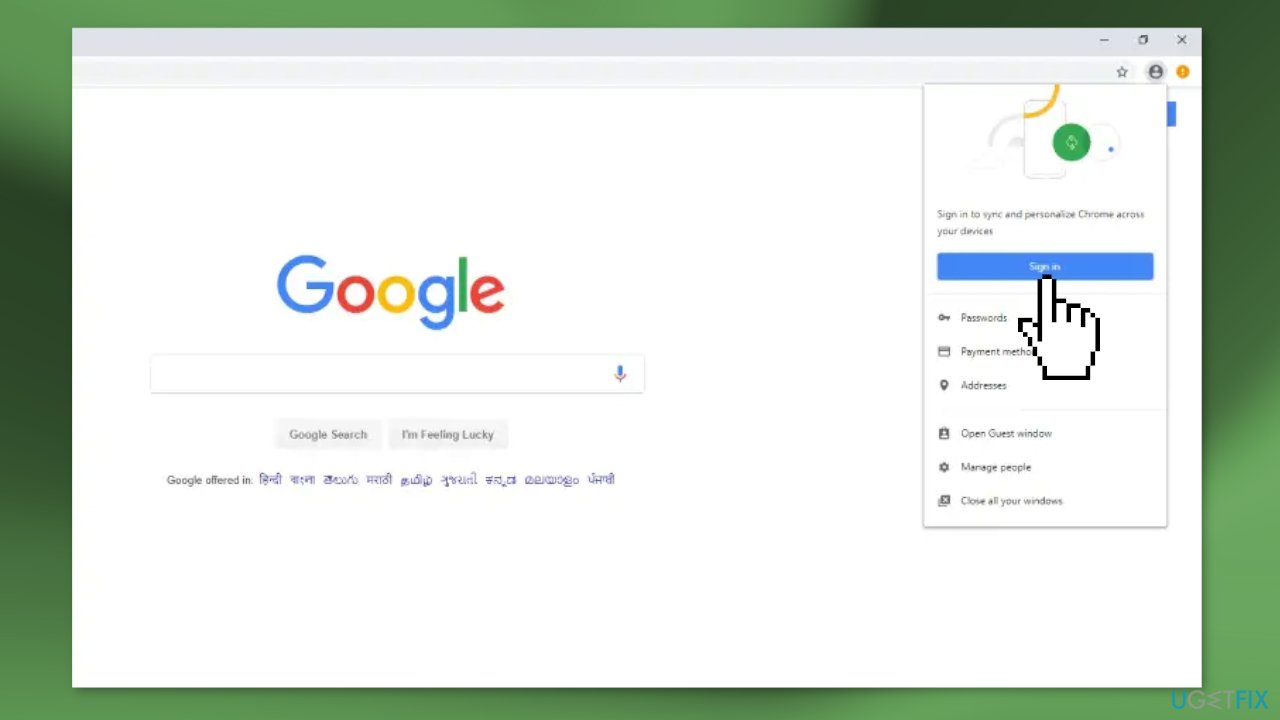
Solution 1. Sign in to your Google Account
The Chrome browser lets users sync all their settings, including extensions, and bookmarks to their Google account. If you have synced your Chrome user profile to your Google account, you can restore all your browsing data, bookmarks, and extensions by signing in to that Google account.
Solution 2. Restore Bookmarks from another Browser
If you use other web browsers in addition to Google Chrome, proceed with these steps:
- Open the Chrome browser and click on Customize your Google Chrome button
- Hover your mouse pointer over the Bookmarks and click on Import bookmarks and settings...
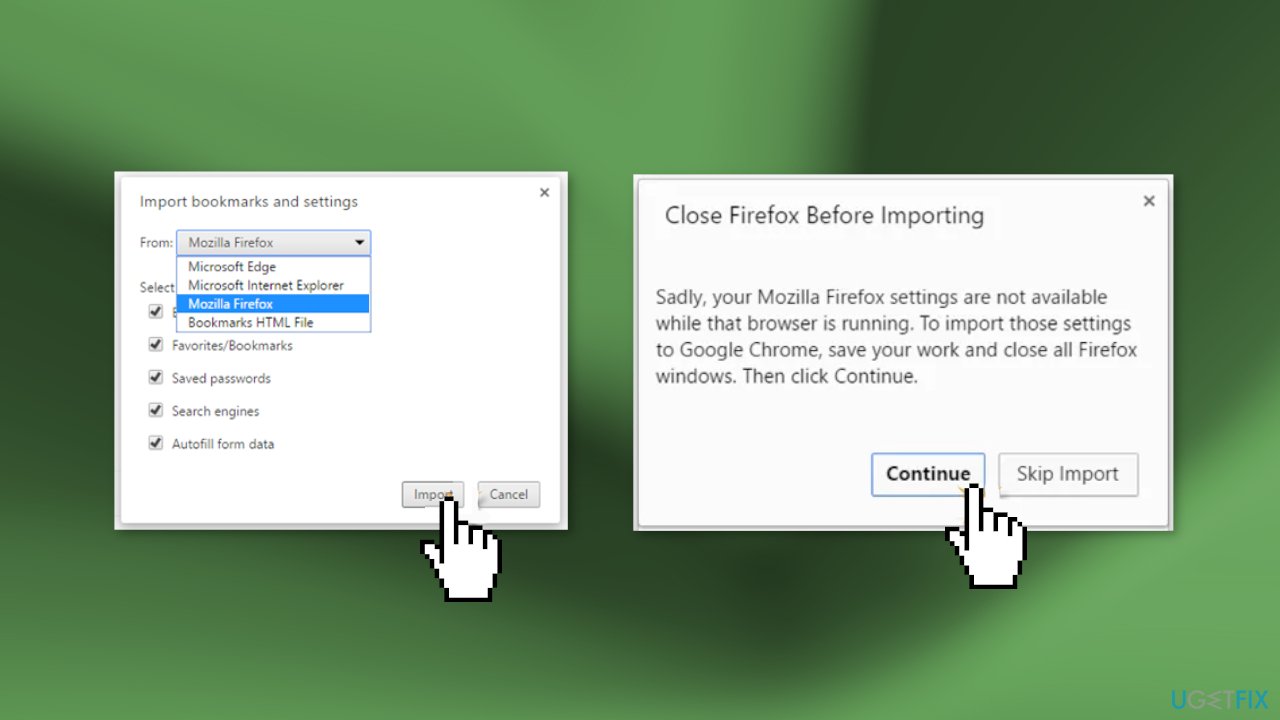
- Select the browser from where you want to import the settings into Chrome
- Select the settings you want to import
- Once you have selected your preferences, close the other browsers and click on Continue
- Finish the process and check if the issue was fixed
Solution 3. Create a new User Profile
- Go to the following location on your computer (replace the User Name with your username):
C:\Users\User Name\AppData\Local\Google\Chrome\User Data
- Open the Local folder
- Go to Google, then Chrome, and User Data
- Open Google Chrome
- Click on the Profile icon on the top right side and select Add
- Click Continue without an account
- Give a name to your new user profile, select a theme for it, and click Done
- Close Google Chrome
- Go to the above-mentioned path and open the Default folder
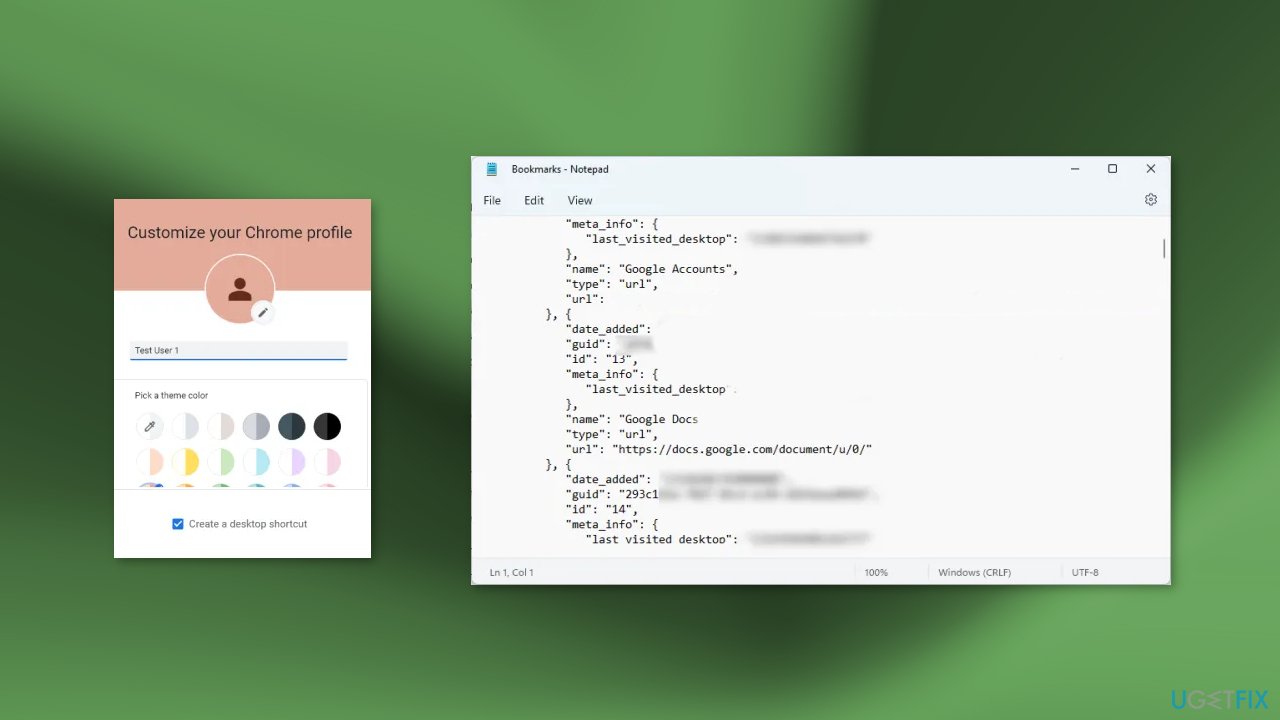
- Open all the profile folders one by one and locate the Bookmarks file
- Right-click on the Bookmarks file and select Open with
- Select Notepad and click OK
- Identify the correct Bookmarks file
- Copy that file to the newly created Chrome user profile folder on your C drive (do not copy Bookmarks.bak file)
- Open Chrome and check if your bookmarks were restored
Solution 4. Rename the Bookmarks File
- Close Google Chrome
- In your user profile folder, you will find Bookmarks and Bookmarks.bak files
- The Bookmarks.bak file contains the most recent backup of your Chrome bookmarks
- Copy both files to another location on your hard drive so that you could restore them later
- Rename the Bookmarks file to Bookmarks.old and Bookmarks.bak to Bookmarks
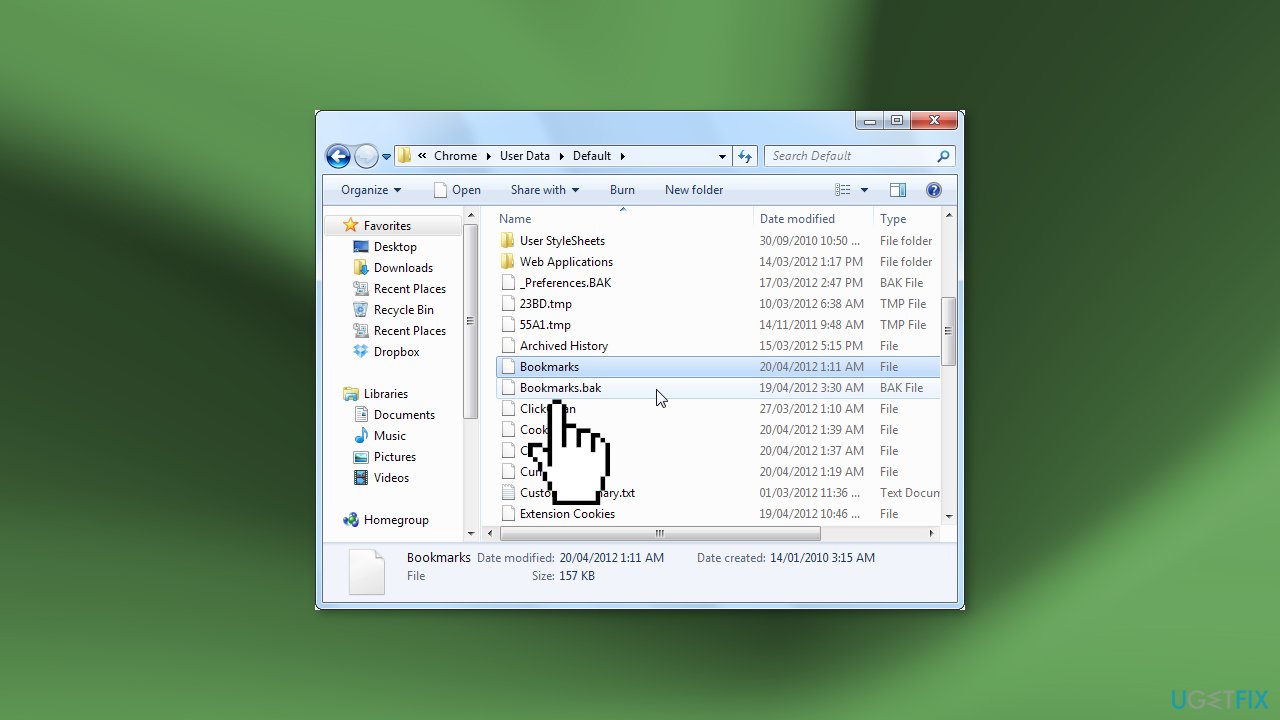
- Check if your bookmarks reappeared
Solution 5. Run System Restore
- Press the Windows key and type System Restore Point to the search bar
- When the System Properties window opens, navigate to the System Protection tab
- Now click the System Restore button
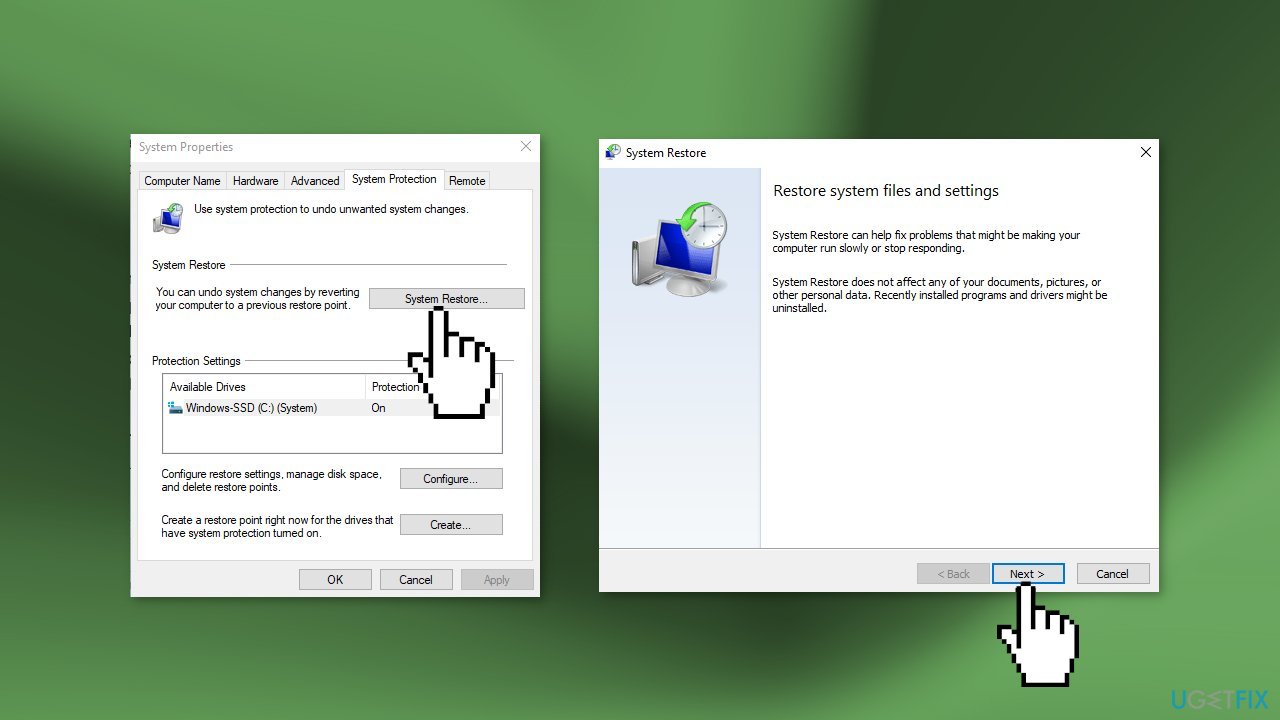
- Now the System Restore wizard should emerge. Click the Next button to go on
- Now you should see all available restore points. Luckily, the Windows system by default creates a weekly restore point, so if you haven't created one manually, select the last System Restore Point. If you cannot find the preferred point, click the Show more restore points
- If the restore point is suitable for you, click Next and Finish buttons. The system should automatically reboot to ever all the recovery
Bottom line
To fix the issue of disappearing bookmarks in Chrome, you can try signing in to your Google account to restore your bookmarks, or import bookmarks from another browser. If these solutions do not work, consider using a repair tool to address potential system errors.
Frequently asked questions
You can try restoring your bookmarks by navigating to the Bookmark Manager, then selecting 'Organize' and choosing 'Import Bookmarks'. If that doesn't work, check for a backup file in your user data folder.
To recover your missing bookmarks, access the 'Settings' menu in Chrome, go to 'Bookmarks', and see if they are listed under 'Other Bookmarks'. If they are not there, you may need to restore them from a backup file.
Bookmarks can disappear due to a corrupted profile or issues during updates, especially on Windows 10 or Windows 11. You can create a new profile or restore from a backup to recover them.




Report an issue
What's wrong with this guide? We review every report and update or remove content.
Report received — thank you. We'll review and fix it.
You need a free account to submit a report.
Be the first to comment