How to fix
FBNetFit.sys Blue Screen
on Windows
Resolve the FBNetFit.sys Blue Screen error in Windows 10 and 11 with our expert-tested solutions. Get back to smooth performance in minutes.

What causes How to fix FBNetFit.sys Blue Screen in Windows?
- FBNetFit.sys driver fails to load or run
- Enabled Network Boost in Lenovo Vantage
- Outdated Lenovo Gaming NetFilter Device driver
- Issues with the Lenovo Vantage application
Repairs Windows system files, removes malware, and restores a clean OS state — without reinstalling.
Hello. I just received an FBNetFit.sys Blue Screen error on my Windows computer. How can I fix this?
A blue screen occurs when Windows encounters something known as a "STOP Error.” This critical failure causes Windows to crash and stop working. The only thing Windows can do is restart the PC. This can sometimes lead to data loss as active apps do not have a chance to save the data.
Recently, some users encountered a FBNetFit.sys Blue Screen in Windows. FBNetFit.sys is a digitally signed driver[ref en-1] file from Lenovo installed by the Lenovo Vantage App. If the driver file fails to load or run on your system, it causes a Blue Screen error. The issue might be caused by the enabled network boost or other issues with the Lenovo Vantage application.
Enabled Network Boost automatically prioritizes games to the highest level within your network, maximizing the speed. If you are using any apps while gaming. The error could also be caused by an outdated Lenovo Gaming NetFilter Device driver.
In this guide, you will find 4 steps that should help you get rid of the FBNetFit.sys Blue Screen. Manual troubleshooting can be a lengthy process. You can use a maintenance tool like [d1]. It can fix most system errors, BSODs,[ref en-2] corrupted files, and registry[ref en-3] issues automatically. Otherwise, follow the step-by-step instructions below.
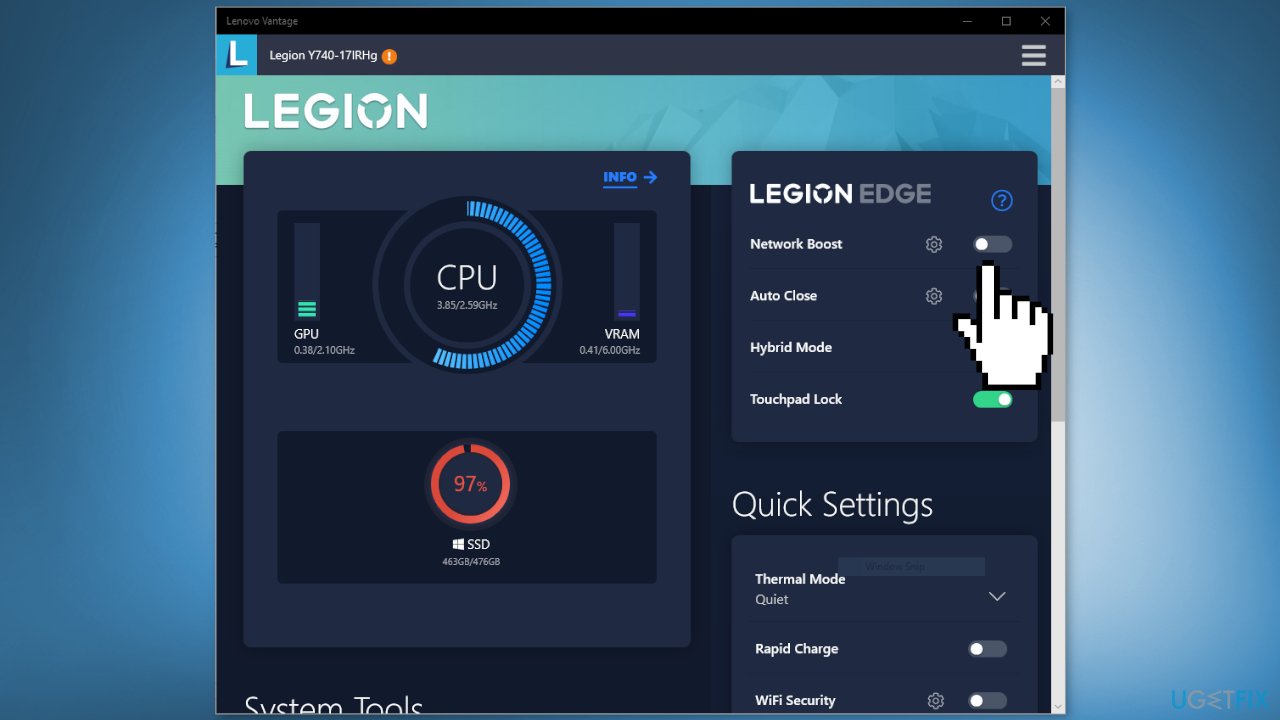
Method 1. Disable Network Boost in Lenovo Vantage
- Open the Lenovo Vantage application
- Disable Network Boost
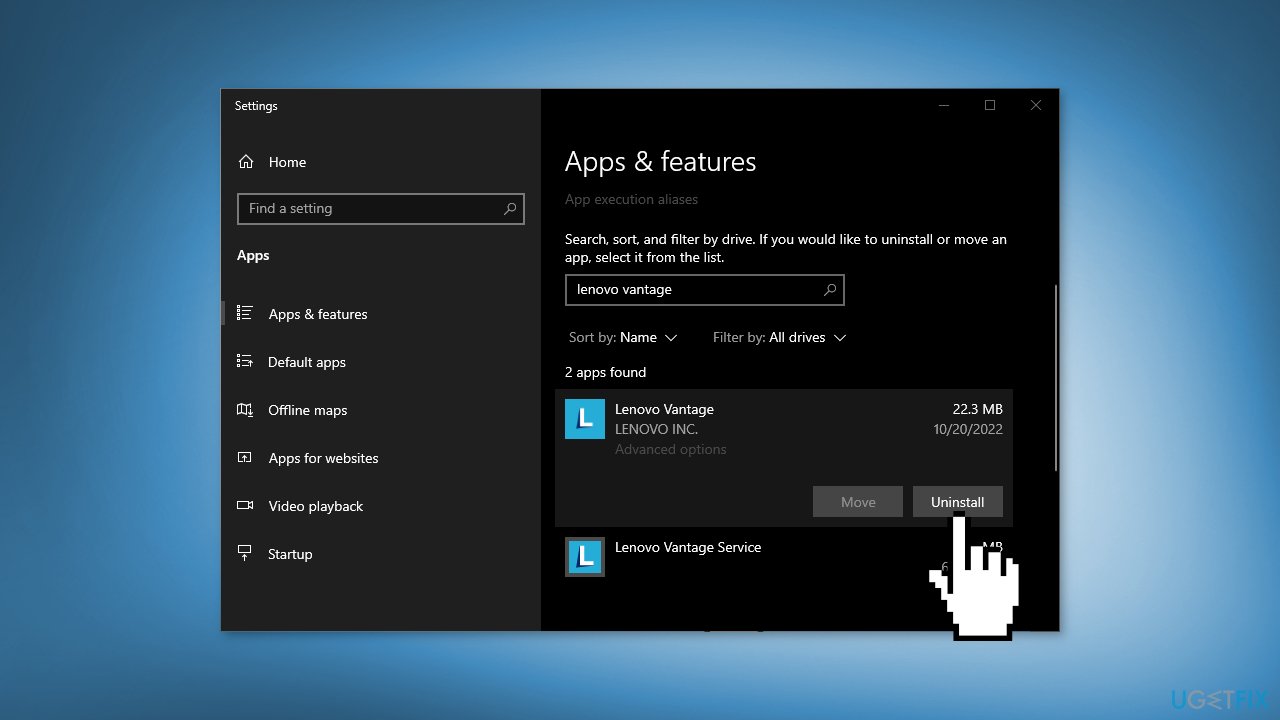
Method 2. Uninstall Lenovo Vantage
- Open Settings
- Go to Apps, then Apps & Features or Installed Apps
- Look for Lenovo Vantage
- In Windows 11, click on the three vertical dots and select Advanced Options
- In Windows 10, Select the app and select Uninstall
Method 3. Reinstall Lenovo Gaming NetFilter Driver
- Open Device Manager by searching it out from the Start Menu
- Expand System Devices
- Look for Lenovo Gaming NetFilter Device
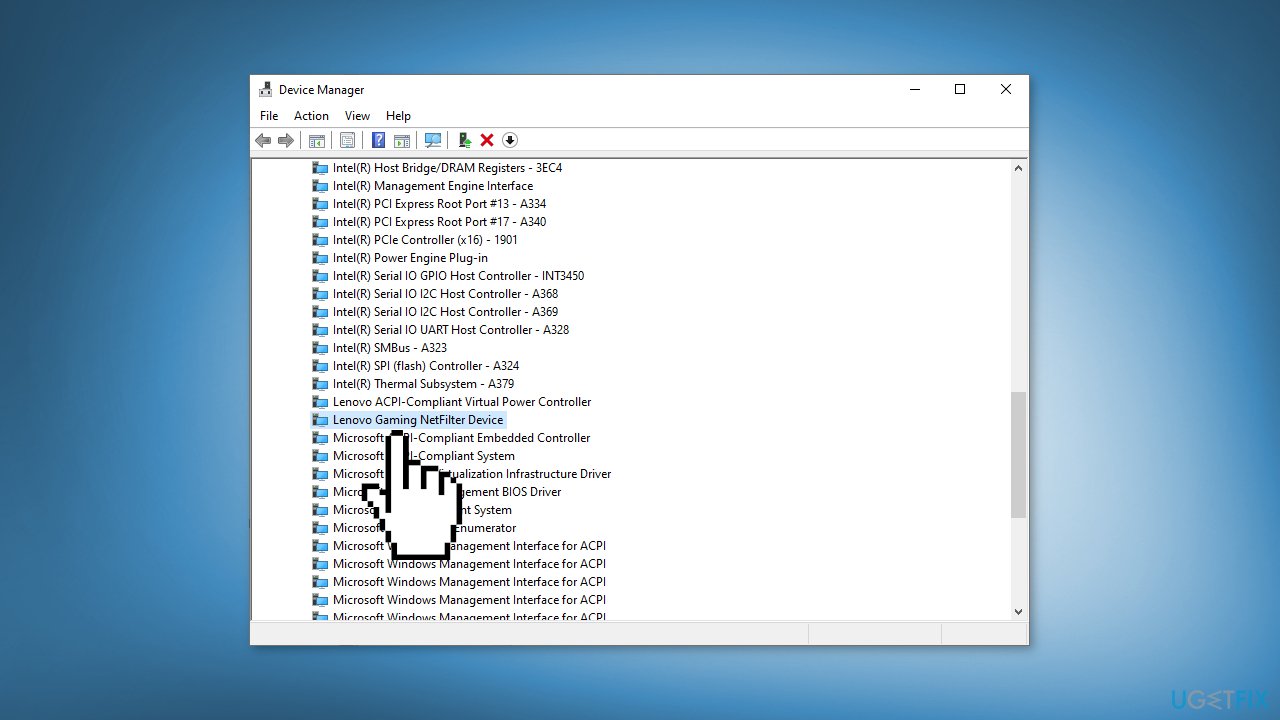
- Right-click on it and select Uninstall device
- Click Uninstall again to confirm
- Restart your device and see if the driver is reinstalled
- You can also use a dedicated utility like [rev id="DriverFix"] that can find the best drivers for your device and install them automatically
Method 4. Use System Restore
- Type in Create a System Restore Point in Windows search and hit Enter
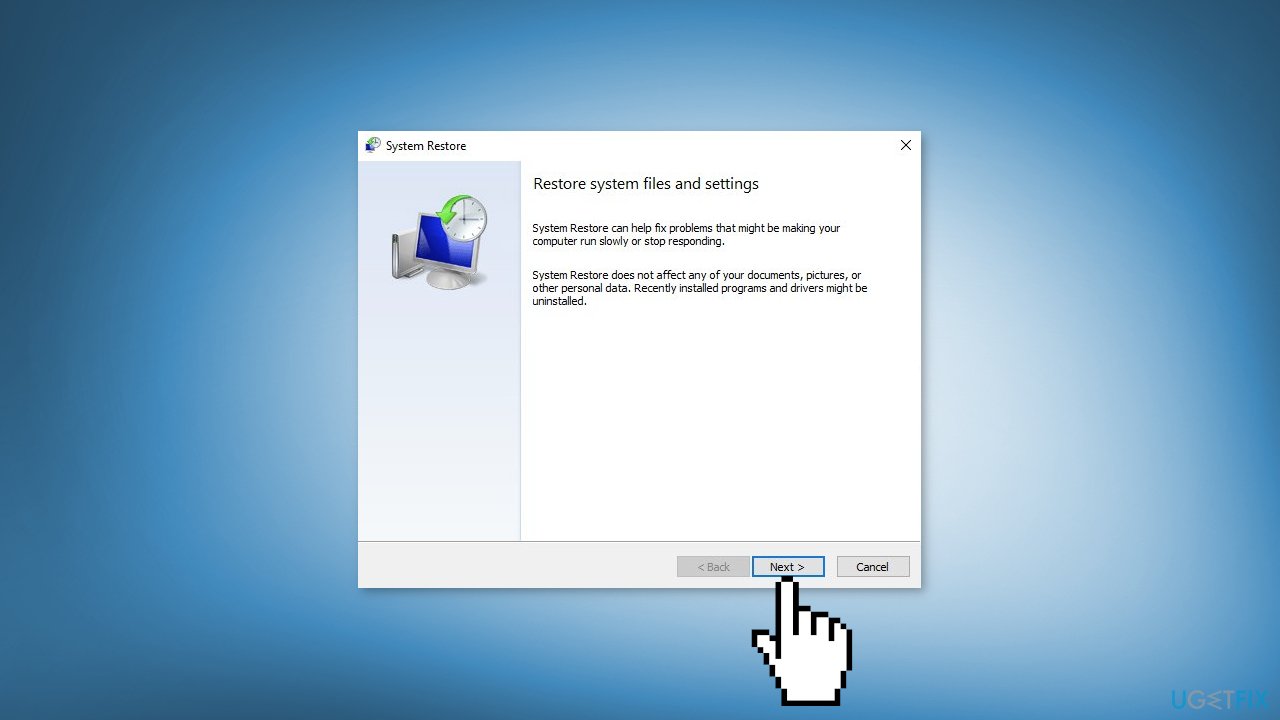
- Click on System Restore
- Select Choose a different restore point (if available) and click Next
- Mark the Show more restore points checkbox
- Choose the date before you start experiencing the issue
- Click Next and reboot the system as required
Bottom line
To fix the FBNetFit.sys Blue Screen error, you can disable Network Boost in Lenovo Vantage, uninstall Lenovo Vantage, or reinstall the Lenovo Gaming NetFilter Driver. If these steps do not resolve the issue, consider using a maintenance tool to fix system errors automatically.
Frequently asked questions
The FBNetFit.sys Blue Screen error is often caused by outdated or incompatible network drivers, particularly related to the Intel or Realtek network adapters in Windows 10.
To fix the FBNetFit.sys blue screen in Windows 11, go to Device Manager, locate your network adapter, right-click it, and select 'Update driver' to search for the latest version.
Yes, you can boot into Safe Mode or use a Windows recovery drive to access troubleshooting options and attempt to fix the FBNetFit.sys error without fully loading Windows 10.




Report an issue
What's wrong with this guide? We review every report and update or remove content.
Report received — thank you. We'll review and fix it.
You need a free account to submit a report.
Be the first to comment