How to fix
Envirtahci.sys Blue Screen
on Windows
Resolve the Envirtahci.sys Blue Screen error on Windows 10 and 11 quickly. Follow our expert-tested solutions for a hassle-free fix in minutes.

What causes How to fix Envirtahci.sys Blue Screen in Windows?
- Driver corruption
- Outdated AHCI Virtual Storage Miniport Driver
- Conflicts with certain programs
- Improper driver installation
- System changes without user awareness
Repairs Windows system files, removes malware, and restores a clean OS state — without reinstalling.
Hello, I keep receiving strange Blue Screen of Death crashes at random times. It mentions the Envirtahci.sys component when the PC restarts. I am not quite sure what it is or how to deal with it. Any help would be appreciated.
Blue Screen of Death is a stop error that automatically stops everything that's being done on a computer and restarts the system immediately, stopping all the activities performed by users at the time. While this act may seem particularly disruptive, it does serve an important role in Windows' infrastructure - it prevents further damage from being caused to it.
In most cases, that's when BSOD problems end and users are free to use their PCs as normal. Unfortunately, those who encounter such crashes are likely to see them once again, which indicates that something is wrong with the system, and that's why it's crashing.
Envirtahci.sys Blue Screen is one of many that users claim they have come across. Just like any other crash of this type, it occurs unpredictably, although sometimes it might be caused by some actions, for example, when certain programs are being launched. Likewise, most people said that they started encountering the issue abruptly without making changes to their system (although it is not always the case). It can come with one of two errors:
- SYSTEM_THREAD_EXCEPTION_NOT_HANDLED
- NO_MORE_IRP_STACK_LOCATIONS
Envirtahci.sys BSOD is caused by a driver, typically an AHCI Virtual Storage Miniport driver. Drivers are vital Windows components that provide the instructions for the hardware to communicate with computer software correctly. When something goes wrong with these drivers (they get corrupted for one reason or another), the system may start crashing.
In order to fix Envirtahci.sys Blue Screen, you have to either update or reinstall drivers. In some cases, the issue may be a bit more complex, so we provide additional ways of resolving it. Note that you can always try using an automatic PC repair tool such as [d1] to tackle the most common Windows issues.
Solution 1. Update AHCI Virtual Storage Miniport Driver
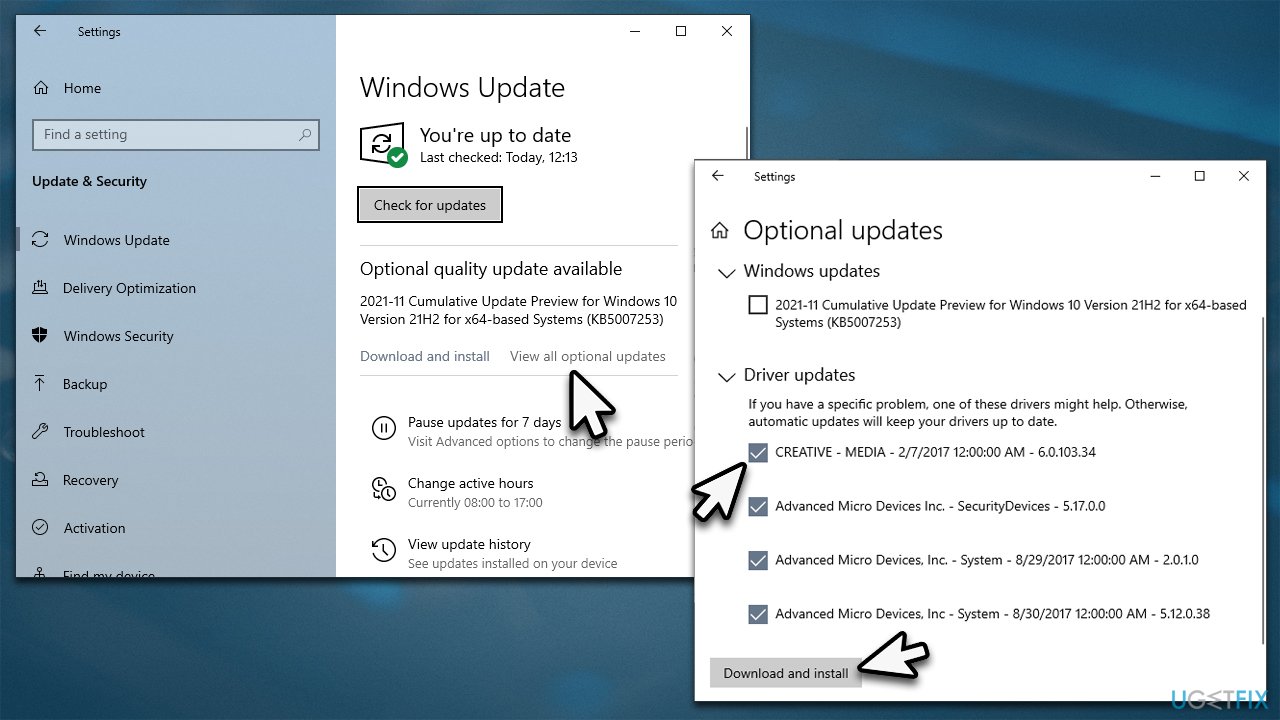
There are a few ways how you can update your drivers on Windows. You can initiate the update process via the Windows update feature as follows:
- Type Update in Windows search and hit Enter
- Click Check for updates
- Click View optional updates
- Find the Driver Updates section, tick the checkboxes, and click Download and Install
- Restart your system.
It is important to note that this method may not always successfully find the required drivers. In that case, you can either download the required driver from the official website of the manufacturer or simply employ [rev id="DriverFix"], which can automatically scan your device and install the newest versions of drivers available.
Solution 2. Reinstall drivers
Note that chipset drivers for your motherboard may also cause this issue, so try reinstalling them too.
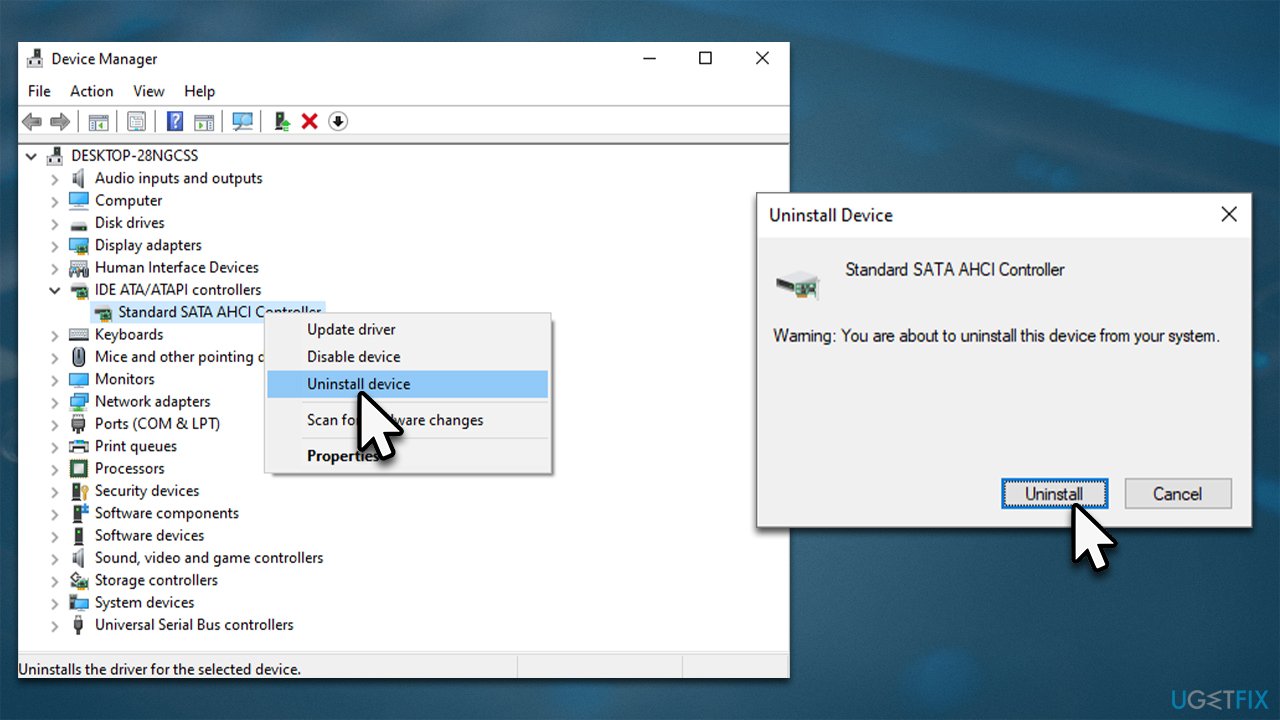
- Right-click Start and select Device Manager
- Expand IDE ATA/ATAPI controllers
- Locate the AHCI Virtual Storage Miniport driver
- Right-click and select Uninstall device
- When a confirmation prompt shows up, click Uninstall
- Restart your system and use one of the methods described above to install the newest driver on your system.
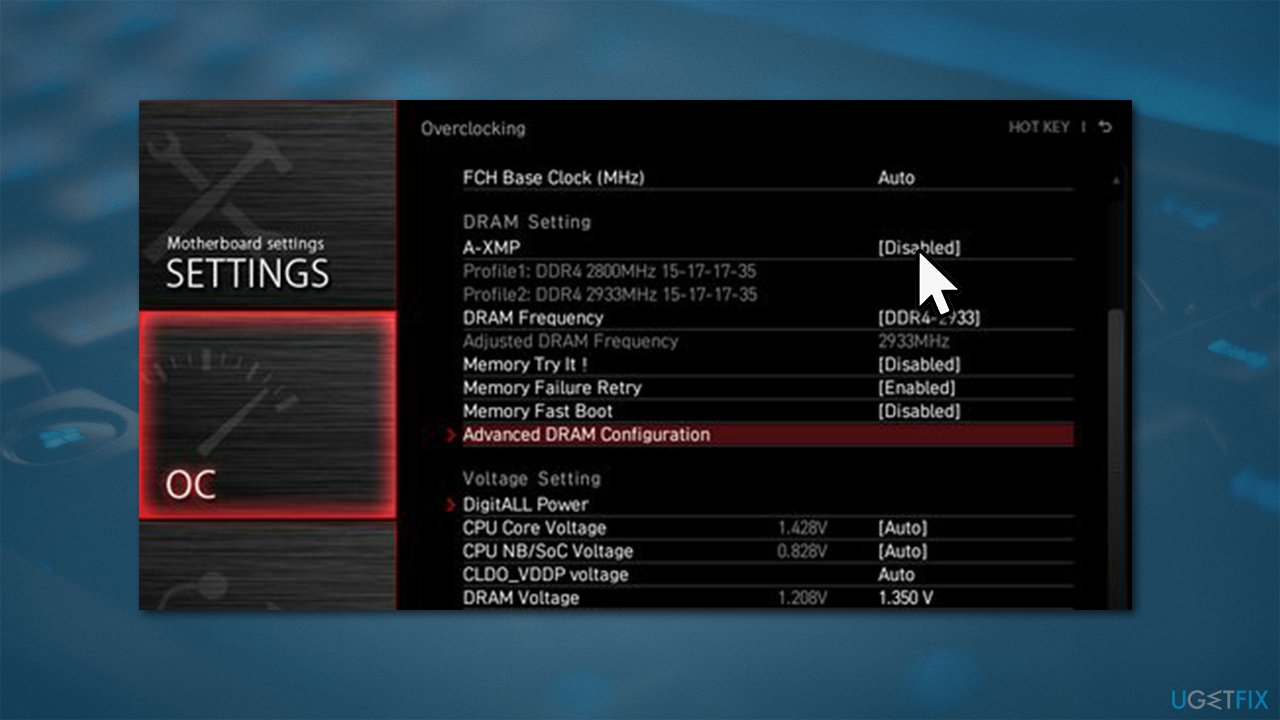
Solution 3. Disable XMP
- Restart your computer and once Windows starts booting, repeatedly press F2, F8, F12, Del, or another button on your keyboard (check with your motherboard manufacturer) until you access BIOS
- Here, you need to find the XMP setting - its location may vary. Look in Overclocking, Advanced, or other sections
- Disable XMP and reboot your system.
Solution 4. Run SFC and DISM
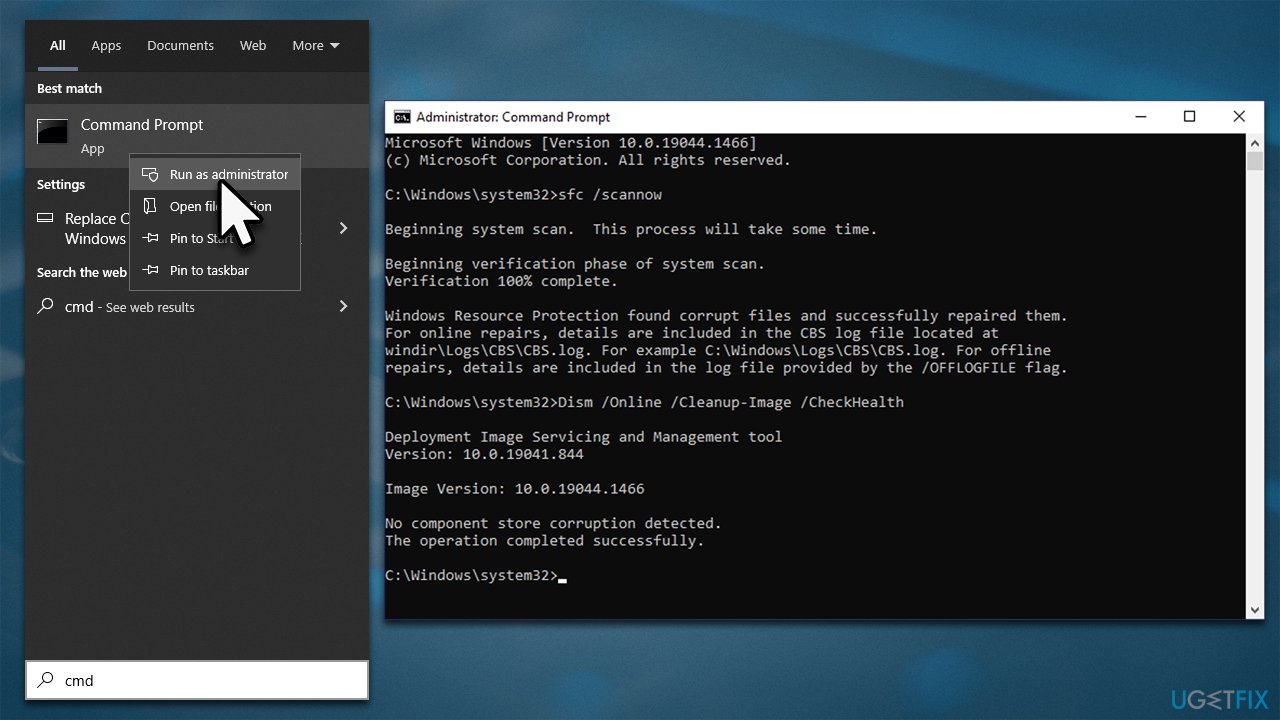
- Type in cmd in Windows search
- Right-click on Command Prompt and select Run as administrator
- Type in the following command, pressing Enter after:
sfc /scannow - Wait till the process finishes and reboot the PC
- If SFC did not help, run DISM
- Open Command Prompt with administrator's rights once again, type in the following commands, and press Enter:
DISM /Online /Cleanup-Image /CheckHealth
DISM /Online /Cleanup-Image /ScanHealth
DISM /Online /Cleanup-Image /RestoreHealth - Close down Command Prompt and restart the system.
Solution 5. Reinstall Windows
Before proceeding, make sure you disconnect any unnecessary devices, such as printers, are disconnected from your computer. Also, uninstall any third-party security software.
- Visit the official Microsoft website and download Windows 10 installation media (Windows 11 version)
- Double-click the installer and select Yes when UAC shows up
- Agree to terms
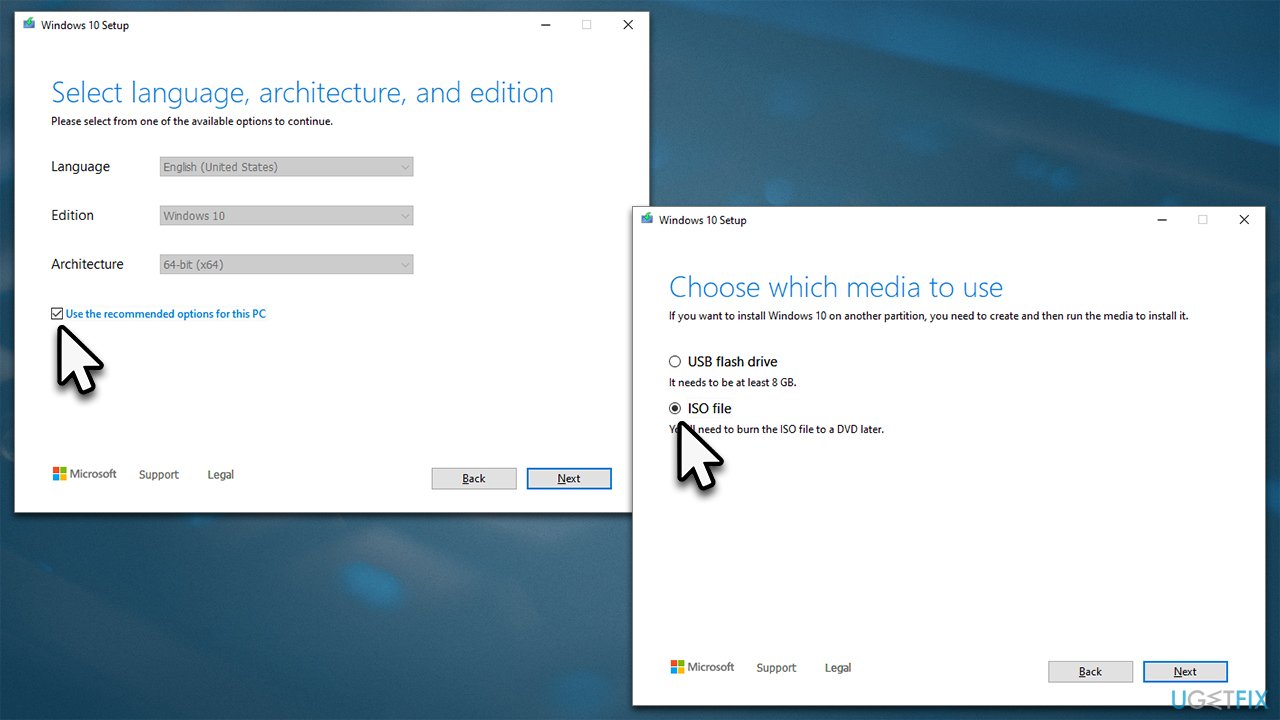
- Pick Create installation media (USB flash drive, DVD or ISO file) for another PC option and click Next
- Select the Use Recommended options for this PC checkbox and click Next
- Choose the ISO file and click Next
- Once you have prepared the ISO, put it into the malfunctioning PC
- Restart your machine and rapidly press F8, F10, F12, Del, or another button that would let you load into BIOS
- Here, go to the Boot section and set the boot priority to Flash drive
- Restart your system, and then proceed with on-screen instructions to reinstall Windows.
Bottom line
To fix the Envirtahci.sys Blue Screen, you can update or reinstall the AHCI Virtual Storage Miniport Driver. If the issue persists, consider using an automatic PC repair tool to address common Windows problems.
Frequently asked questions
The Envirtahci.sys blue screen error is often caused by outdated or corrupt drivers, particularly related to virtualization software or storage controllers. It can also occur due to hardware issues or conflicting software.
You can update drivers by going to Device Manager, right-clicking on the relevant device, and selecting 'Update driver.' Alternatively, you can visit the manufacturer's website to download the latest drivers compatible with Windows 10 or Windows 11.
Yes, you can often resolve the Envirtahci.sys error by performing a system restore, running the Windows Memory Diagnostic, or using the built-in Windows Troubleshooter. Reinstalling Windows should be considered a last resort.




Report an issue
What's wrong with this guide? We review every report and update or remove content.
Report received — thank you. We'll review and fix it.
You need a free account to submit a report.
Be the first to comment