How to fix
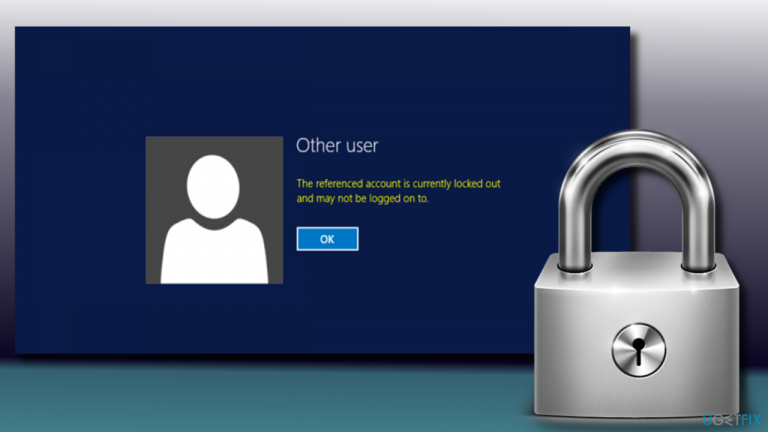
“The referenced account is currently locked out and may not be logged on to” Error
on Windows
Resolve the “account locked out” error on Windows 10 quickly and effectively. Follow our expert-tested solutions and regain access in minutes.

What causes How to Fix “The referenced account is currently locked out and may not be logged on to” Error on Windows 10?
- Entered wrong password multiple times
- Account locked due to Account lockout threshold policy
- Account temporarily locked out
- Multiple accounts with configured Account lockout threshold policy
- Domain controller intervention required
Repairs Windows system files, removes malware, and restores a clean OS state — without reinstalling.
As I understand now, I have been entering a wrong password into the login screen for more than five times, which is why I’m currently locked out of my account and desperately need to log in. That’s my work PC, so I’m really frustrated. Could you please help?
"The referenced account is currently locked out and may not be logged on to" is an error one could encounter when using Windows by Microsoft.[ref en-1] This message indicates that a PC user has been typing a wrong password[ref en-2] a number of times, which is why Windows locked the account and prevented them from signing in for a particular period of time, which is not specified.
According to experts, "The referenced account is currently locked out and may not be logged on to" error typically emerges on Windows 10 or Windows 11 systems, which belong to the domain with the configured Account lockout threshold policy.
Also, this error might occur due to the account being temporarily locked out after typing the wrong password for several times in the log-in screen when a computer has multiple accounts with the Account lockout threshold policy configured.
Nevertheless, the emergence of "The referenced account is currently locked out and may not be logged on to" is not an inextricable issue. The only problem is that the error fix requires the intervention of the domain controller.[ref en-3]
Before you start troubleshooting a relatively complicated issue, make sure you perform the basics first, which include:
- Remove your network cable and restart your PC;
- Disconnect the mapped drives, reset the password, and try again;
- Check your time and date settings.
This video will help you:
[youtube sSe2Y91mxiA]
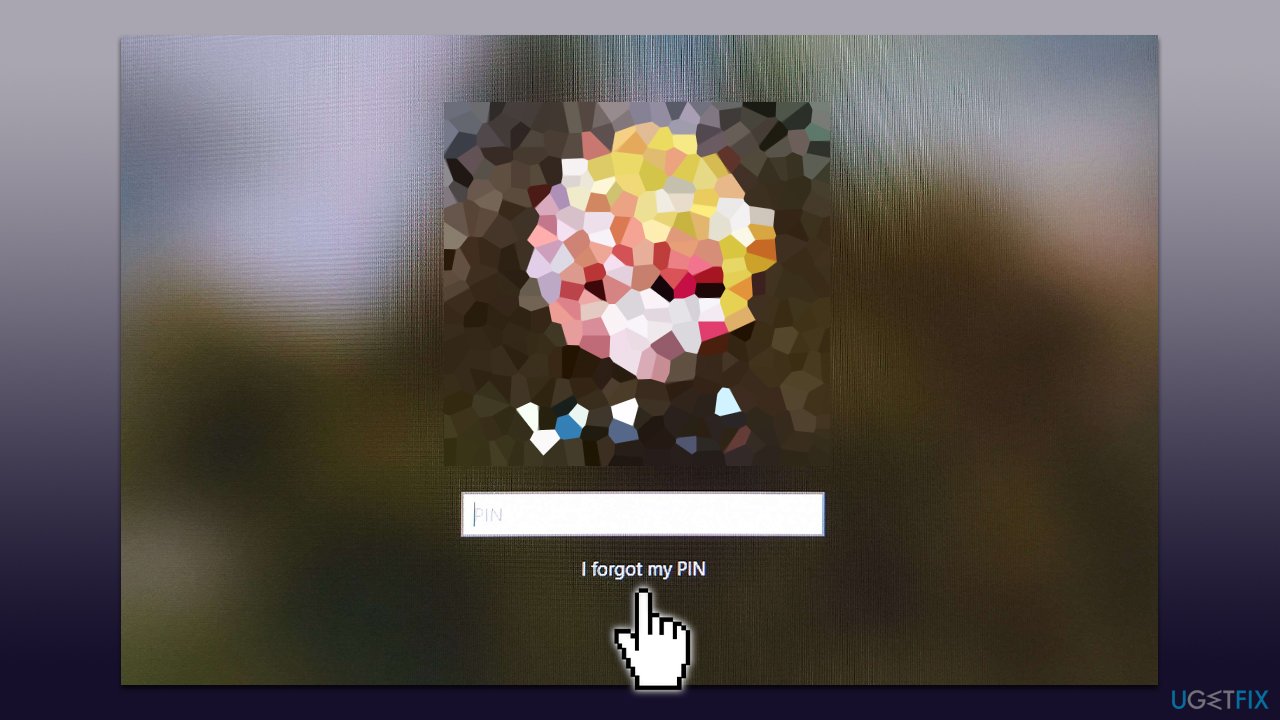
Solution 1. Use the "I forgot my password" option
You can always try using the "I forgot my password" option in this case, which prompt you to verify your account.
- In the login screen, pick I forgot my password/PIN option.
- Wait a bit, and Windows will show you the login screen.
- Here, enter the password for your Microsoft account and click Sign in.
- If you can't remember your Microsoft password, you should click Forgot password?
- In the verification method screen, pick your email and click Next.
- Enter the verification code sent to your email and click Next.
- Create a new password and log back in.
Solution 2. Set the administrator account
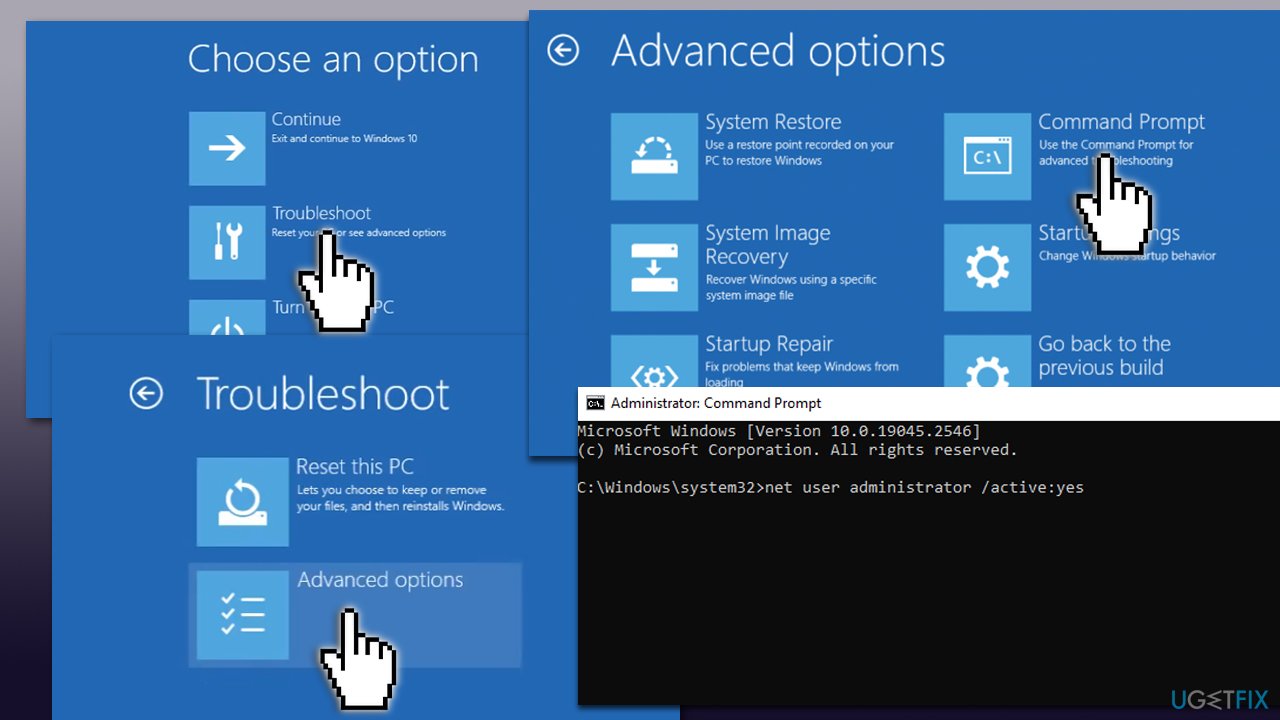
- From the login screen, hold the Shift key on your keyboard and click Power > Restart.
- Once you enter the recovery environment, click Troubleshoot.
- Select Advanced options and then pick Command Prompt.
- When Command Prompt window shows up, type in the following command and press Enter:
net user administrator /active:yes - Close down Command Prompt.
- Click Continue to boot into Windows normally.
Once you manage to access Windows, perform the steps below to resolve the error.
Solution 3. Edit Local Security Policy
Once you encounter "The referenced account is currently locked out and may not be logged on to" error, we would strongly recommend you leave the PC for 30 minutes. That's the waiting time that is often set by the system administrator if the user enters the wrong password. After 30 minutes, the log-in screen may be unlocked, and you may get a second chance to access your desktop.
If you have managed to access your desktop successfully, you should disable the Account lockout threshold policy to prevent "The referenced account is currently locked out and may not be logged on to" error from showing up:
NOTE: these steps apply for Windows Pro and Enterprise editions only.
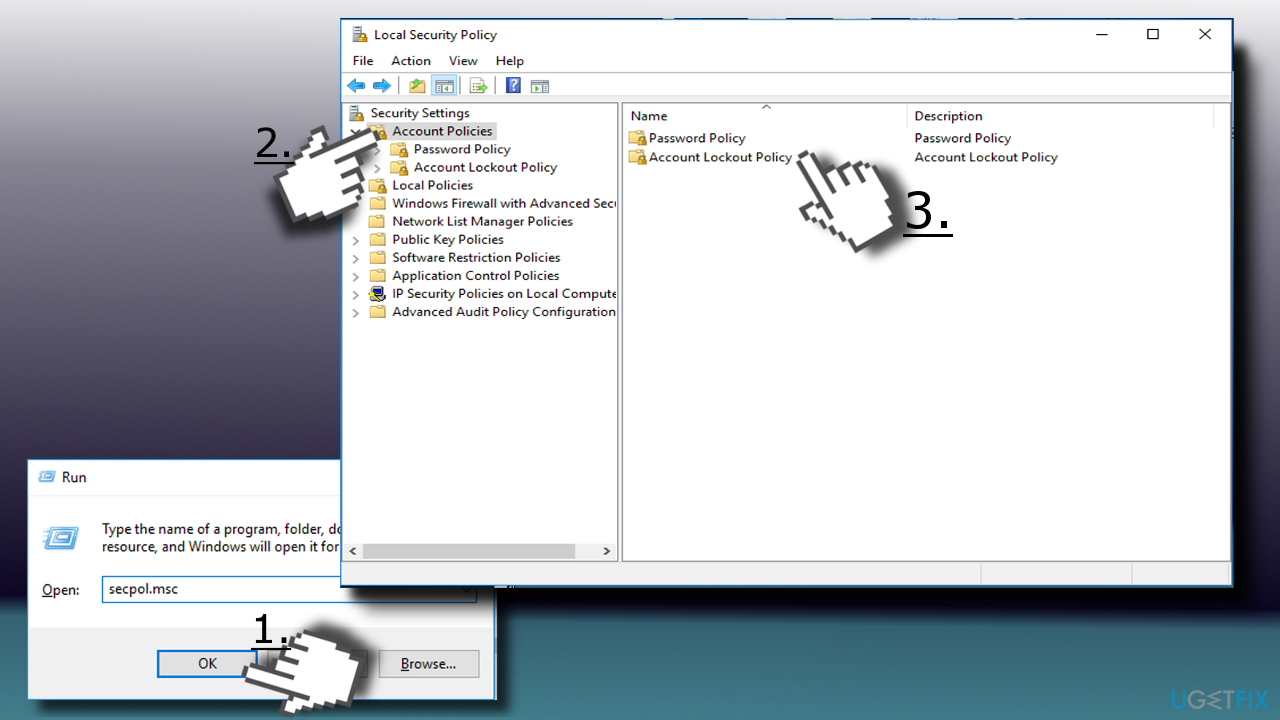
- Press Windows key + R, type secpol.msc, and hit Enter.
- When the Local Security Policy window opens, select Security Settings.
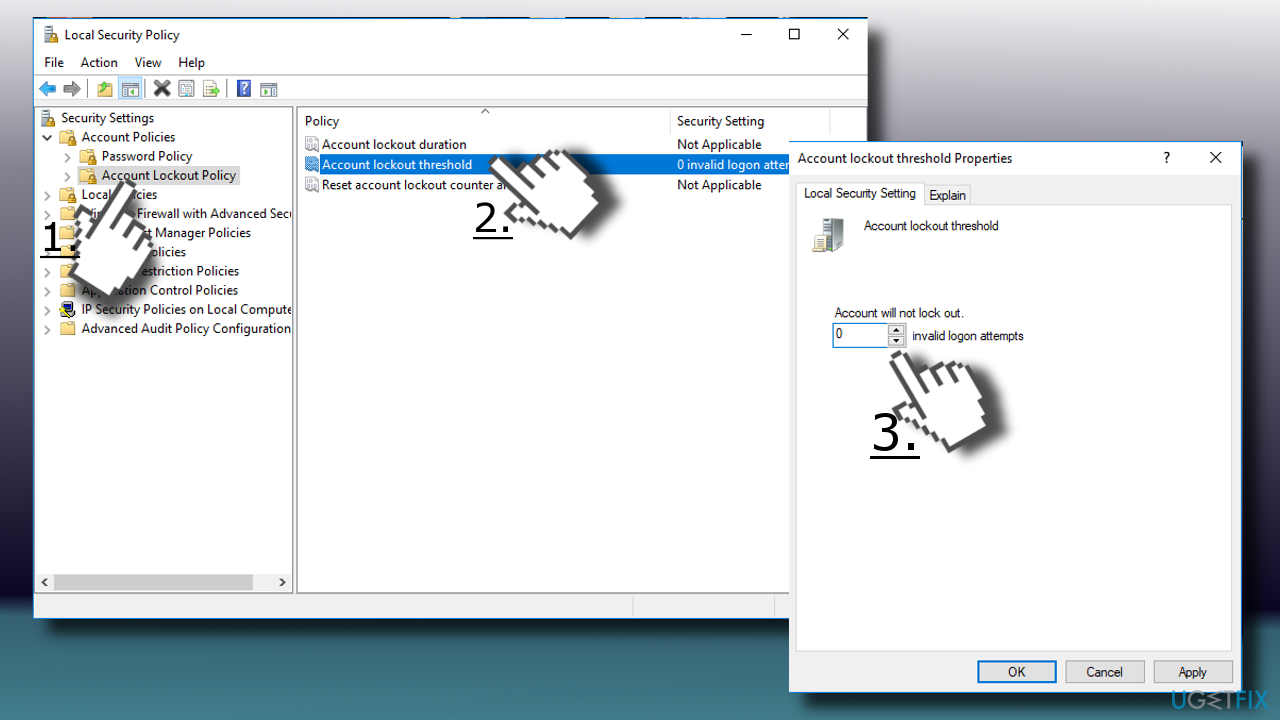
- Open Account Policy and select Account Lockout Policy.
- Double-click on the Account lockout threshold policy (on the right) to open Settings configuration window.
- To disable account lockout, replace the existing value with 0 and click Apply to save the changes.
- Then press OK and close the Local Security Policy window.
- After that, you will be able to log on to your account without seeing “The referenced account is currently locked out and may not be logged on to” error.
- Next, type cmd in Windows search, right-click on Command Prompt, and select Run as administrator.
- When User Account Control shows up, click Yes.
- In the new window, type in the following command and press Enter:
gpupdate /force - Close down Command Prompt.
Solution 4. Check your DNS settings
In some cases, users reported that wrong DNS[ref en-4] settings made them encounter “The referenced account is currently locked out and may not be logged on to” error. There are plenty of potentially unwanted applications[ref en-5] (such as Utopia.net) that can act as DNS hijackers. In such a case, the DNS settings are altered without permission. To restore the parameters, please follow these steps (note: eliminate all suspicious applications from the Control Panel first):
- Right-click on Start button and pick Network Connections
- On the right pane, select Ethernet
- Click on Change adapter options on the right
- Right-click on Ethernet and select Properties
- From the list, find Internet Protocol Version 4 (TCP/IPv4) and click on Properties
- In the Properties window, tick Obtain DNS server addresses automatically and click OK
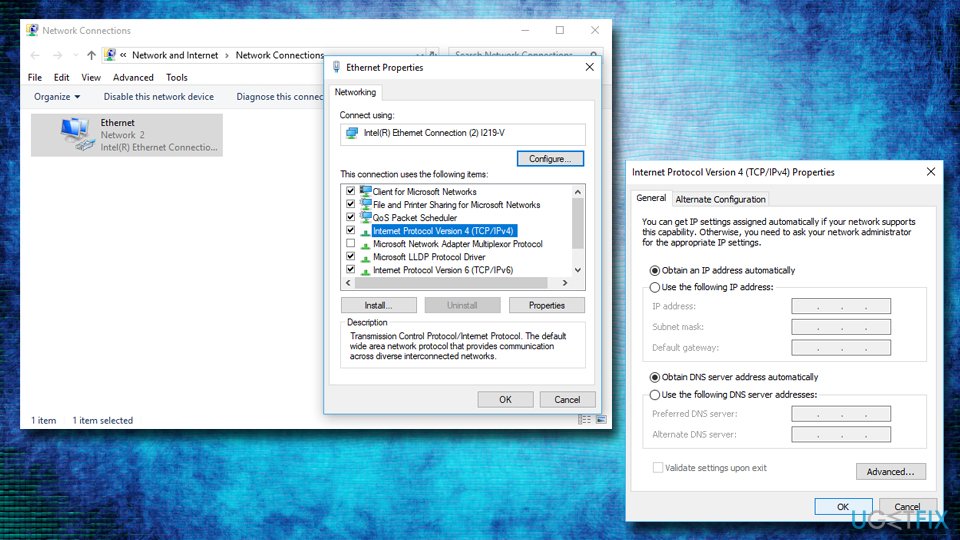
If that brings no results, you can try swapping to Google's DNS by ticking Use the following DNS server addresses and entering the following:
Preferred DNS server: 8.8.8.8
Alternative DNS server: 8.8.4.4
Solution 5. Set the account password to never expire
You need to make sure the password is set to never expire in Local Users and Groups menu:
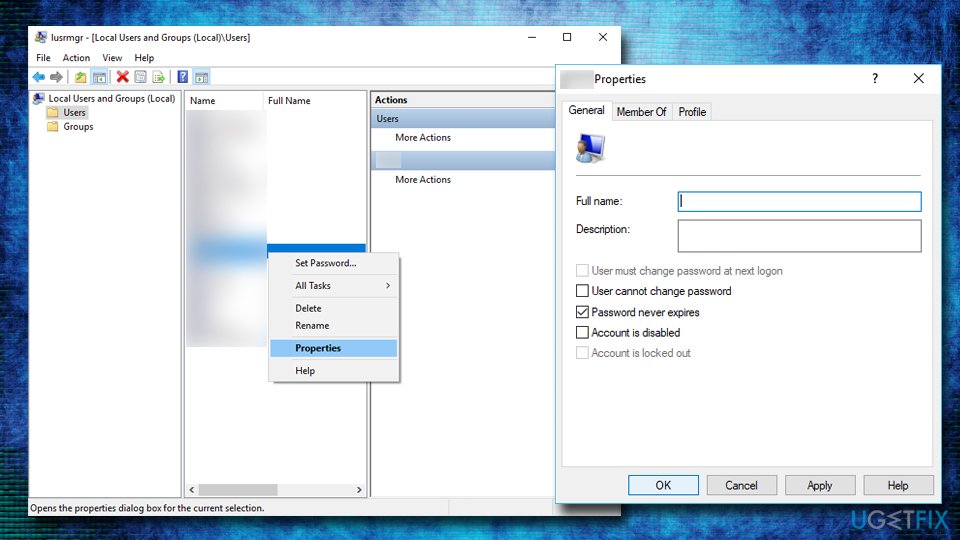
- Press Windows key + R, enter lusrmgr.msc and hit Enter
- Select Users in the right pane
- Right click on the user and pick Properties
- In the General tab, tick the Password never expires box and click OK
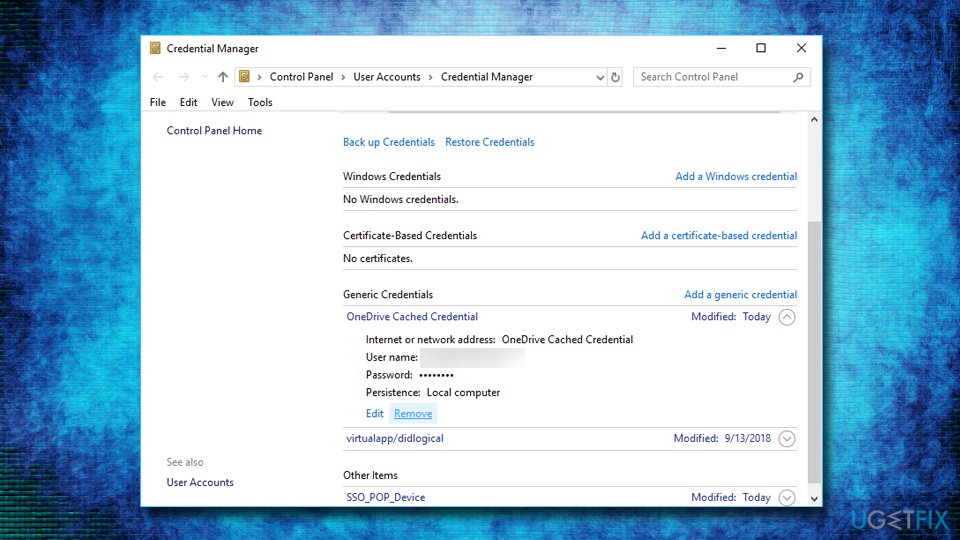
Solution 6. Clear cached credentials from your computer
- Click on Start button and type Credential Manager into the search box
- Select Windows Credentials
- Click and arrow next to credentials you want to remove and select Remove
Solution 7. Use Password reset disk or format Windows
What if your computer does not belong to the domain? In other words, if you are using a home computer with a single admin account, which has no Account lockout threshold policies' settings configured, but the “The referenced account is currently locked out and may not be logged on to” emerged?
Then the only solution would be to reset your password using a Password reset disk, but for this purpose, you have to have such a disk created some time ago.
In case you do not have a password reset disk, then we have sad news for you because the only way to unlock your PC is to format Windows.
Bottom line
To fix the error, you can try using the 'I forgot my password' option, check your time and date settings, and perform basic troubleshooting steps like removing the network cable and restarting your PC. If these solutions do not work, further assistance from the domain controller may be necessary.
Frequently asked questions
This error usually occurs when a user exceeds the allowed number of failed login attempts, resulting in their account being locked out by Windows 10 security settings.
You can unlock a locked account by accessing the Local Users and Groups management console or by using the Command Prompt with administrative privileges to reset the account status.
Yes, resetting your password can help if the account is locked due to failed login attempts, but you may still need to unlock the account through administrative tools.




Report an issue
What's wrong with this guide? We review every report and update or remove content.
Report received — thank you. We'll review and fix it.
You need a free account to submit a report.
Be the first to comment