How to fix
“This location isn’t set up for installing games” error in Xbox App
on Windows
Resolve the "This location isn’t set up for installing games" error in the Xbox App on Windows 10 and 11 effortlessly. Fixed in minutes!

What causes How to fix “This location isn’t set up for installing games” error in Xbox App?
- Gaming Services not installed
- Missing Gaming Dependencies
- No storage drive selected for new apps
- Issues after upgrading Windows
Repairs Windows system files, removes malware, and restores a clean OS state — without reinstalling.
Hello. When I try to install a game using the Xbox app on Windows I receive the "This location isn’t set up for installing games" error. What should I do?
The Xbox app for Windows lets users discover and download new games, play console games on PC, connect with friends, etc. However, some people report seeing the "This location isn’t set up for installing games" error when trying to install new games through the application.
It is unknown why exactly this error appears but the issue might be caused by Gaming Services. Some people found that they did not have Gaming Services on their computers. This can happen after upgrading the Windows operating system. Some people fixed the issue by simply updating the services.
Gaming Services are related to Game Core updates to UWP[ref en-1] and Xbox Live. They should allow the Windows Store to perform better and help with the installation of large programs through the Microsoft Store. Another reason why people could be seeing this error is that they have not chosen a storage drive for new apps.
In this guide, you will find 4 steps that could help you fix "This location isnt set up for installing games" Xbox app error in Windows. If you do not want to go through a lengthy troubleshooting process, you can use a maintenance tool like [d1] that can fix most system errors, BSODs,[ref en-2] corrupted files, and registry[ref en-3] issues. Otherwise, follow the step-by-step instructions below.
Method 1. Download Gaming Dependencies
Gaming Dependencies are apps that are needed for you to be able to install or play games on your device. Look at the list of dependencies and if there are any installations pending, click the install button next to the app/service.
- Open the Xbox app on your PC, and go to Settings
- Open General, at the top, there should be a notification telling you to download Gaming dependencies for certain games to work
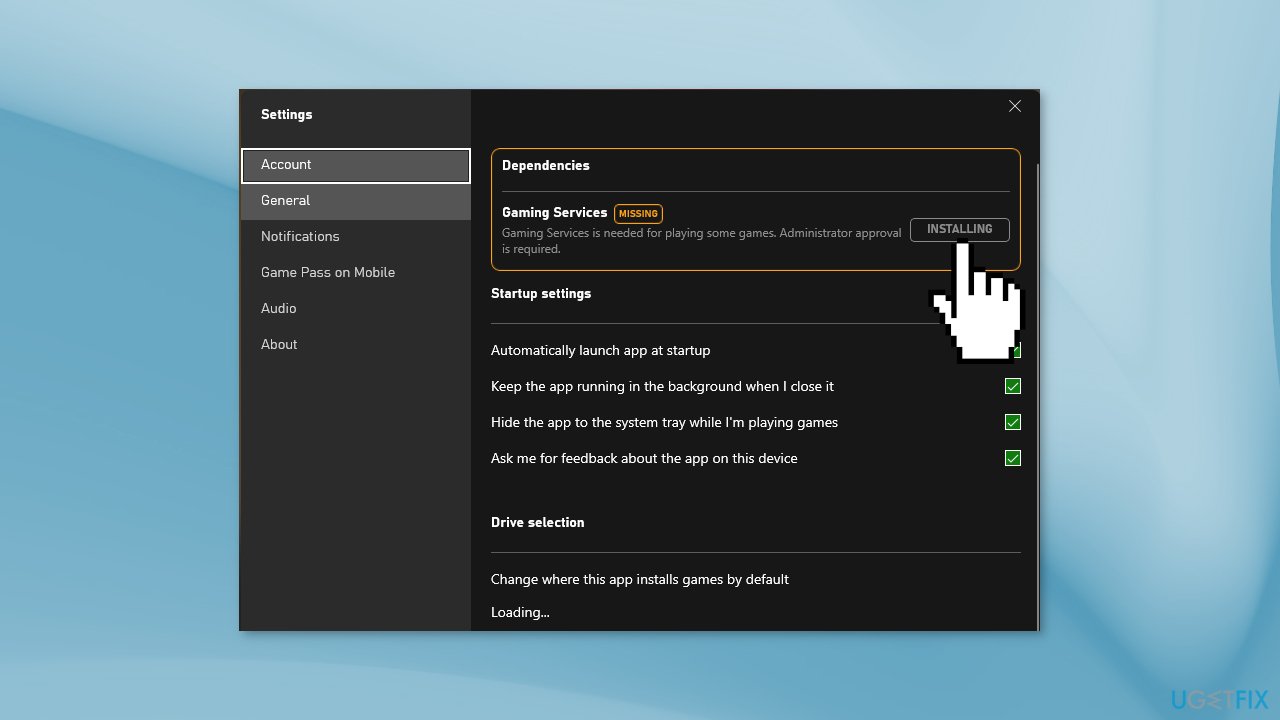
- Proceed with the process and check if the issue is solved
Method 2. Update Gaming Services
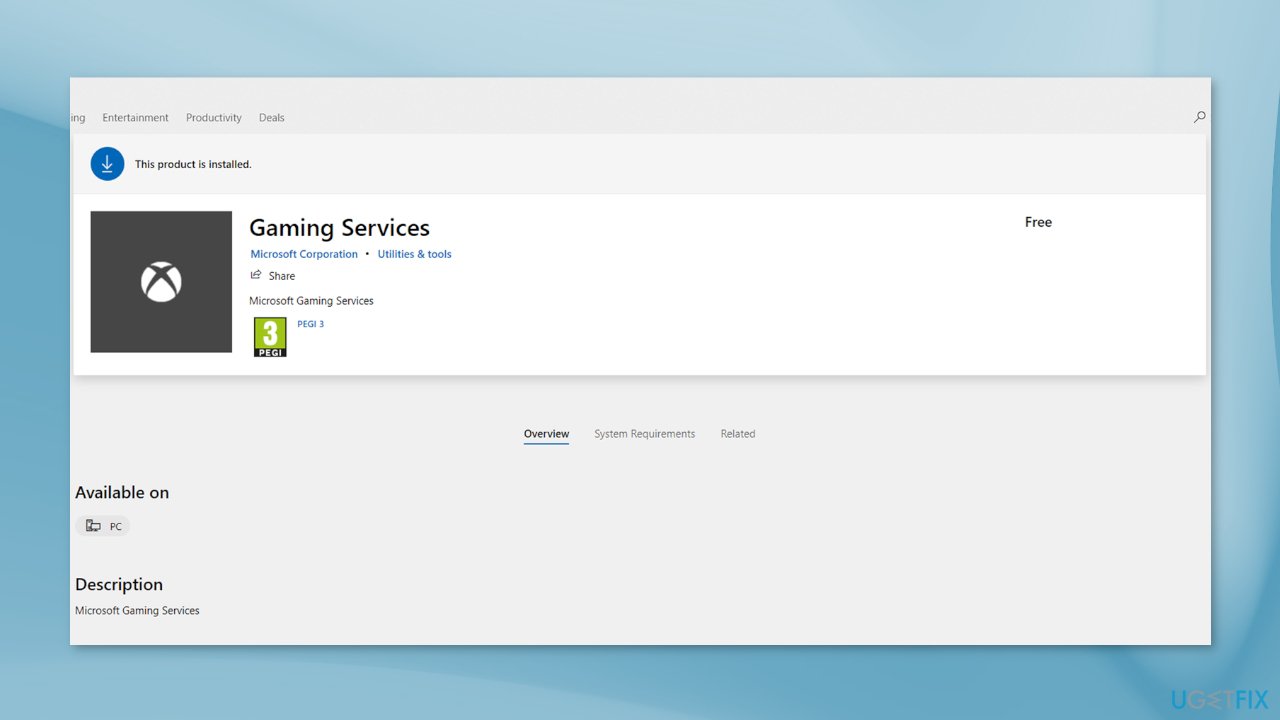
An outdated version of the Gaming Services app could be causing issues when trying to install games. Update it and see if the issue disappears.
- Press the Start button on the taskbar and open the Microsoft Store app
- Select Library
- Under Updates & downloads, check if there are any updates available for the Xbox app or Gaming Services app
- If an update is available, select Update
Method 3. Choose a Storage Drive
Go to Windows Settings and check if you have a storage drive for new applications set.
- Click Start, then open Settings
- Go to System, and click on Storage
- Select Change where new content is saved
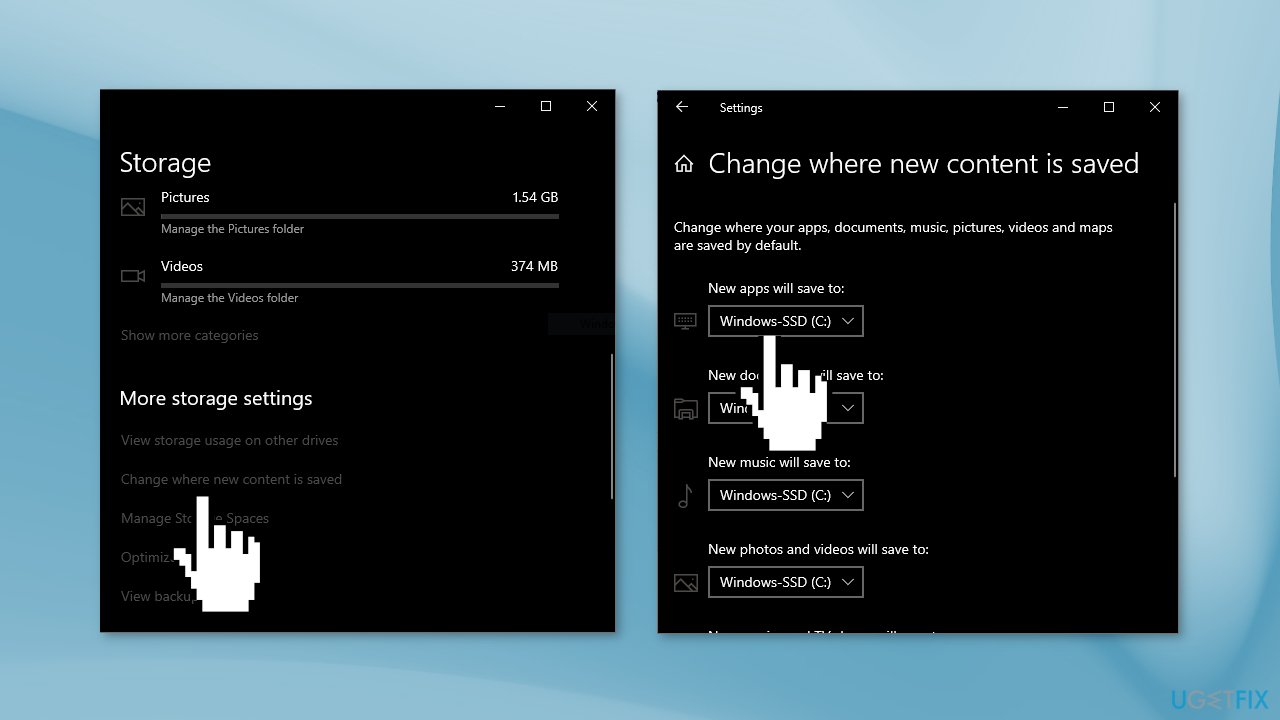
- Using the menu under Where apps will be saved to, choose the drive you want
Method 4. Install the game through the Microsoft Store
If you have the Xbox game pass, try using this workaround:
- Make your Microsoft Store account the same as your Xbox Account
- Have the Microsoft Store and Xbox app open
- Find the game on the Microsoft Store that you want and click Install
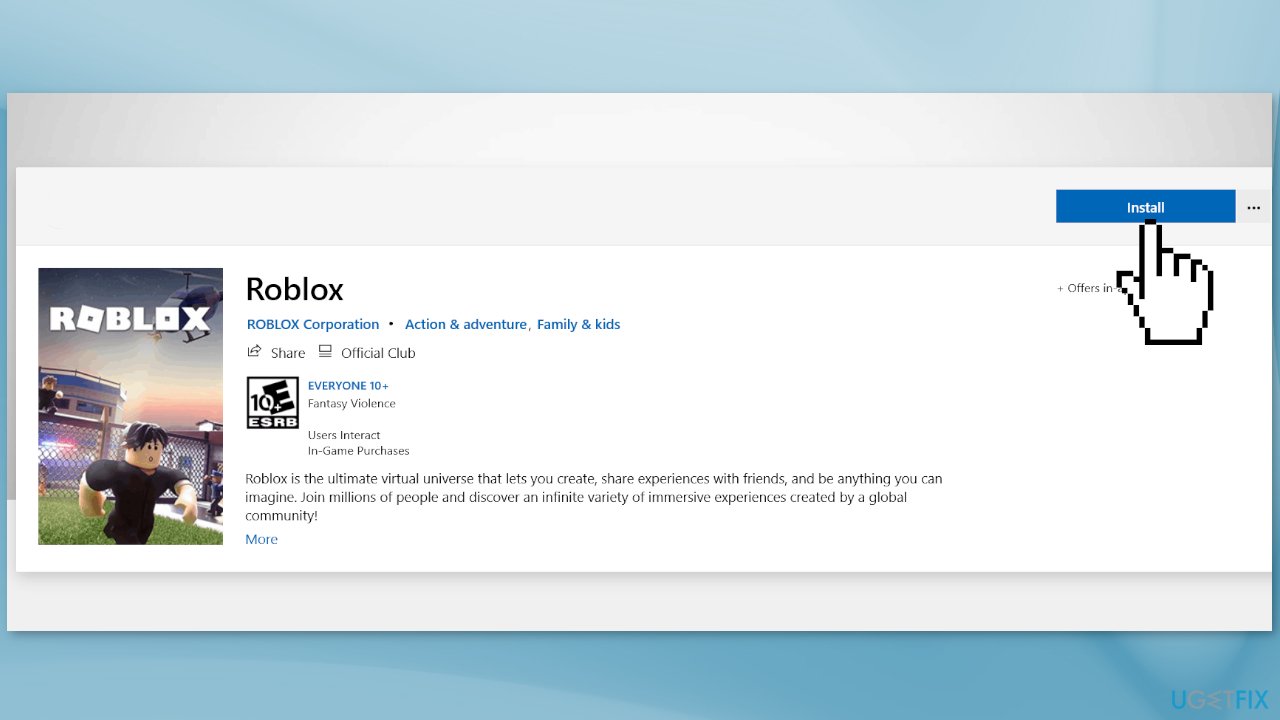
- It will show installing in the store and on the Xbox app
Bottom line
To fix the 'This location isn’t set up for installing games' error, you can download Gaming Dependencies, ensure Gaming Services are installed, and select a storage drive for new apps. If these steps do not resolve the issue, consider using a maintenance tool to fix system errors.
Frequently asked questions
You should check the installation location settings in the Xbox App and ensure that the drive is properly configured for game installations. Additionally, make sure that the drive has sufficient space and is not set to read-only.
To change the installation location, open the Xbox App, go to Settings, select 'General', and then modify the 'Game install location' to your preferred drive. Ensure that the new location is accessible and formatted correctly.
Yes, you can try resetting the Xbox App via the Settings app by going to Apps, selecting Xbox, and clicking on 'Advanced options' to find the reset option. This often resolves configuration issues without needing a full reinstall.




Report an issue
What's wrong with this guide? We review every report and update or remove content.
Report received — thank you. We'll review and fix it.
You need a free account to submit a report.
Be the first to comment