How to fix
KB5020695 fails to install
on Windows
Resolve KB5020695 installation issues on Windows 11 effortlessly with expert tips and proven tricks. Get your update fixed in minutes!

What causes How to fix KB5020695 fails to install in Windows 11?
- Corrupted files
- Malfunctioning Windows services
- Third-party security software interference
- Timeout occurring under high load
- Incorrect data returned from queries
Repairs Windows system files, removes malware, and restores a clean OS state — without reinstalling.
Hello. I tried to install the KB5020695 update in Windows 11, but the process fails. How can I fix this issue?
Windows, like any other operating system, relies on updates to keep it stable and running smoothly. That is why Microsoft regularly releases updates. They contain bug fixes, new features, and security patches. However, sometimes for whatever reason, the updates fail to install. This can put users' security at risk or force them to experience unwanted symptoms due to Microsoft's faults.
Recently, Microsoft released the KB5020695 update for Windows 11. It is a security update that addresses a vulnerability that exists in System.Data.SqlClient and Microsoft.Data.SqlClient libraries where a timeout occurring under high load can cause incorrect data to be returned as the result of an asynchronously executed query or command.[ref en-1]
Some people are struggling when trying to install the update. The issue should be taken care of as soon as possible as it can put the system at risk. It is unknown why exactly KB5020695 fails to install for some people. Most of the time, updates do not install because of corrupted files, malfunctioning Windows services, or third-party security software interference.
In this guide, you will find 6 steps that should help you install KB5020695 on Windows 11. Keep in mind, that the manual troubleshooting process can be lengthy. Instead, you can use an automatic maintenance tool like [d1]. It can fix most system errors, BSODs,[ref en-2] corrupted files, and registry[ref en-3] issues.
Method 1. Fix Corrupted System Files
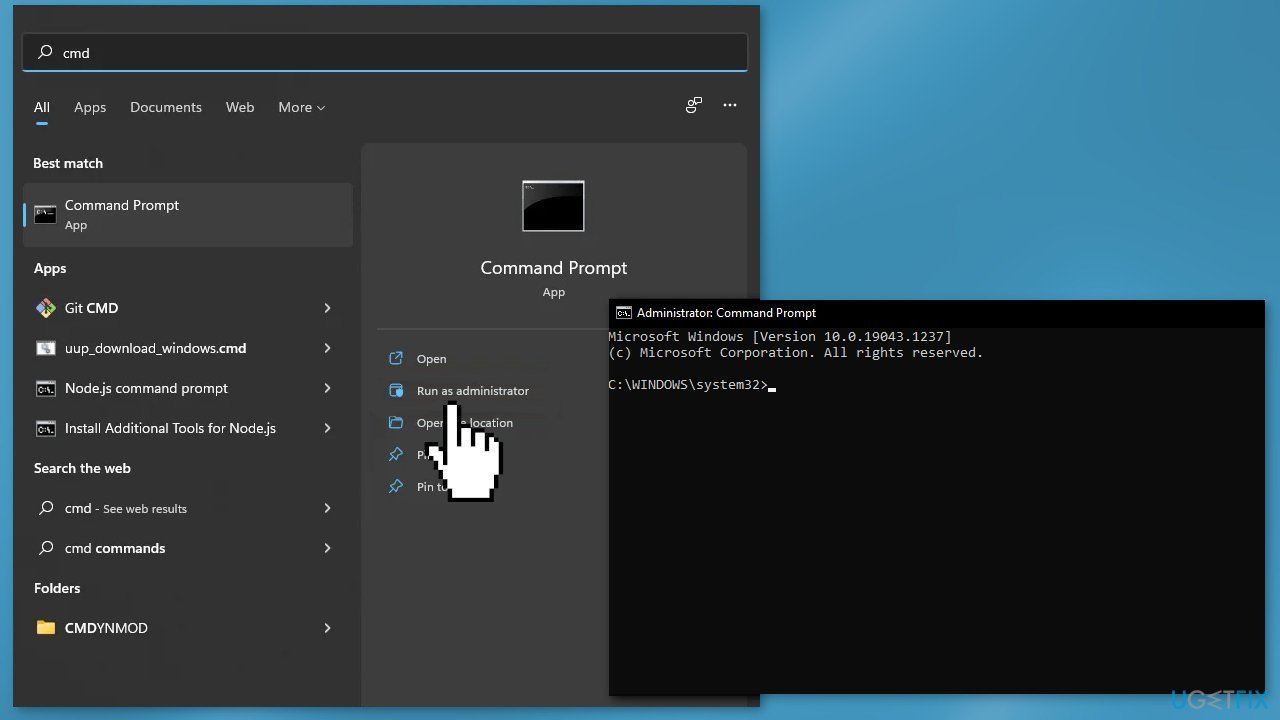
Use Command Prompt commands to repair system file corruption:
- Open Command Prompt as administrator
- Use the following command and press Enter:
sfc /scannow
- Reboot your system
- If SFC returned an error, then use the following command lines, pressing Enter after each:
DISM /Online /Cleanup-Image /CheckHealth
DISM /Online /Cleanup-Image /ScanHealth
DISM /Online /Cleanup-Image /RestoreHealth
Method 2. Run Windows Update Troubleshooter
- Click the Windows button and select Settings
- Select System from the left pane, then scroll down on the right pane, and click on Troubleshoot
- Click on Other troubleshooters
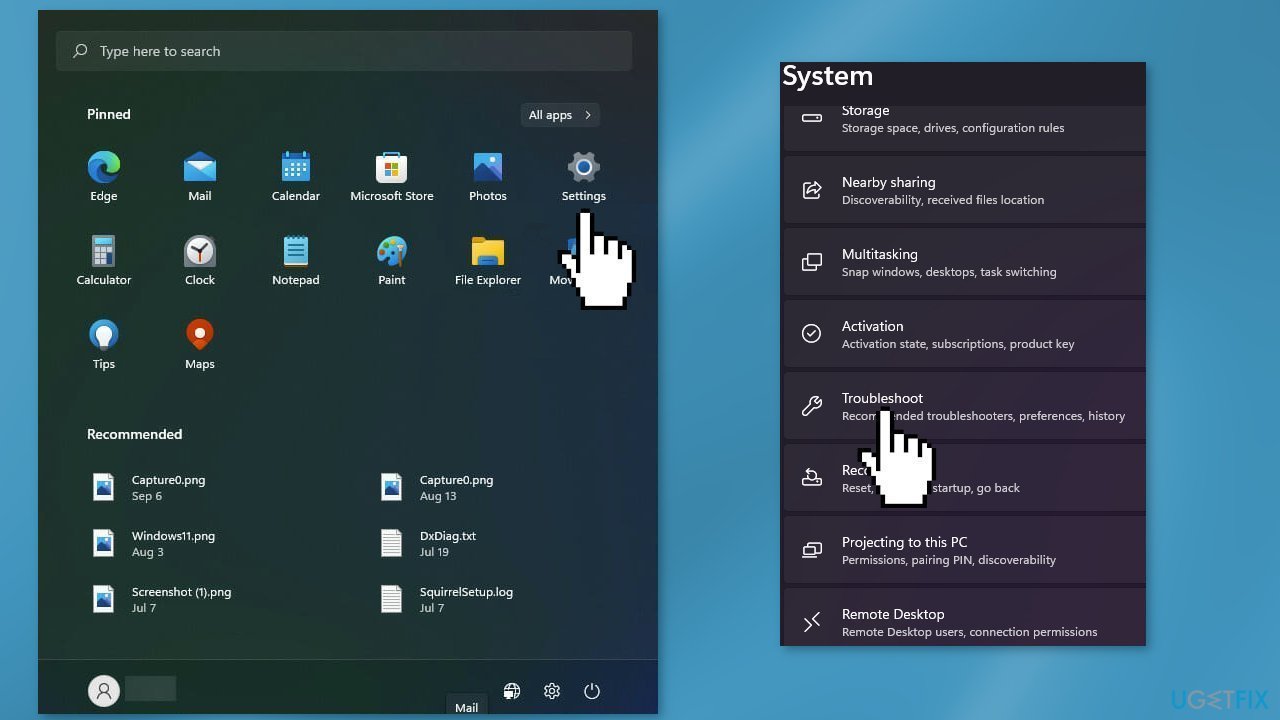
- Locate the Windows Update troubleshooter and hit the Run button
Method 3. Restart Windows Services
- Type services in the search bar and launch the Services utility
- Find Windows Update in the list
- Double-click on it, set the Startup type to Automatic, and click Apply
- Now click on Restart the Service
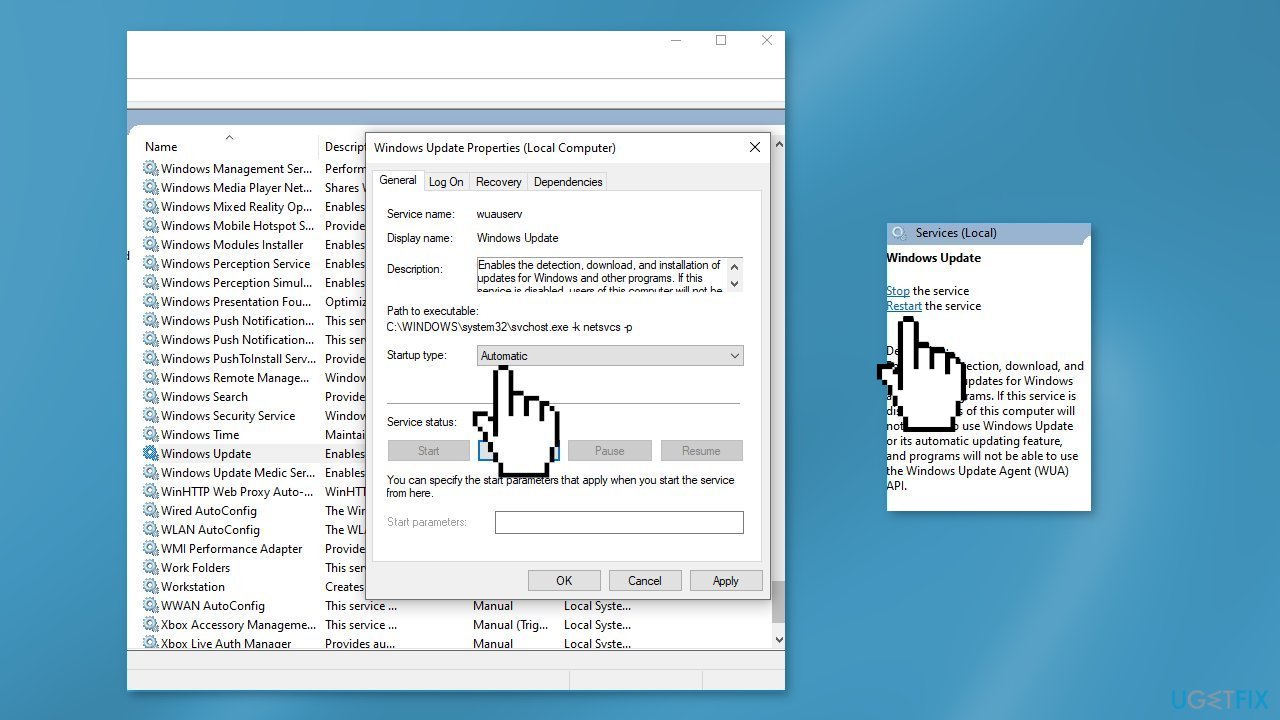
- Do the same with Background Intelligent Transfer Service
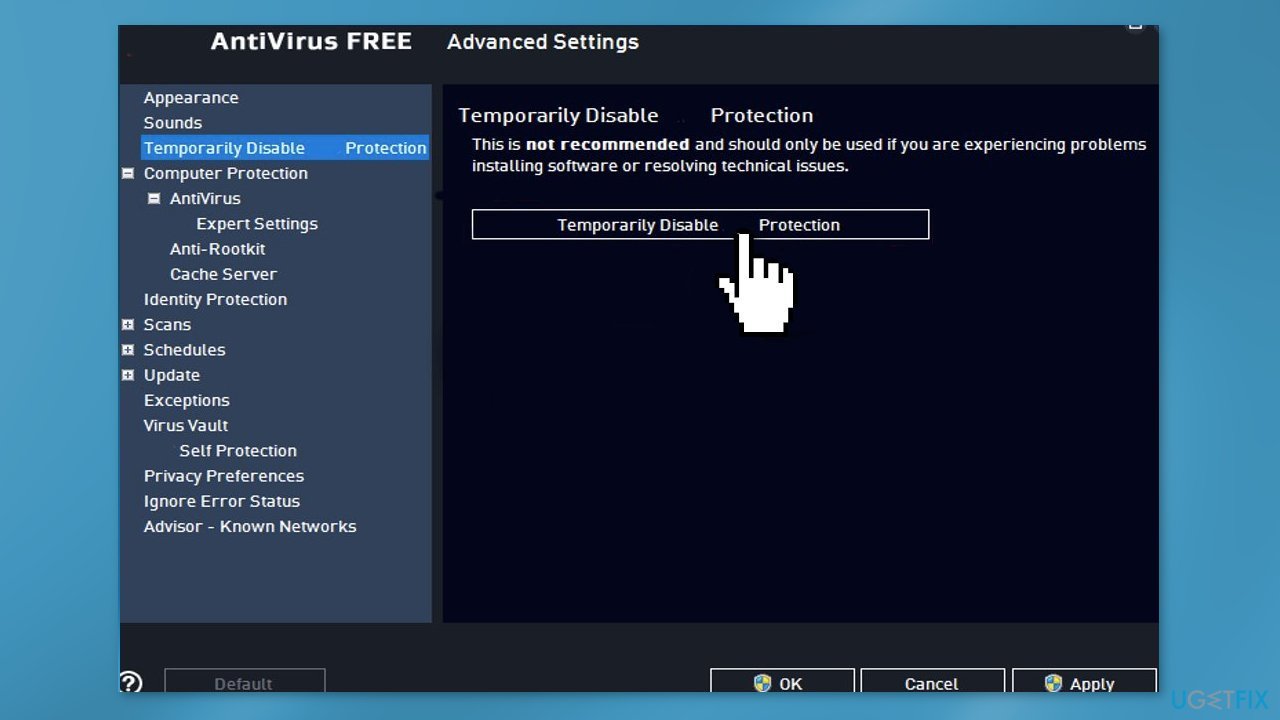
Method 4. Disable Third-Party Security Software
Sometimes antivirus software can block legitimate processes mistakenly. You should try disabling your antivirus and trying to run the update again.
Method 5. Install the Update Manually
If automatic download would not succeed, we recommend trying to download and install the update manually.
- Go to the official Microsoft Update Catalog website
- Type the KB number KB5020695 into the search bar, and press Enter or click Search
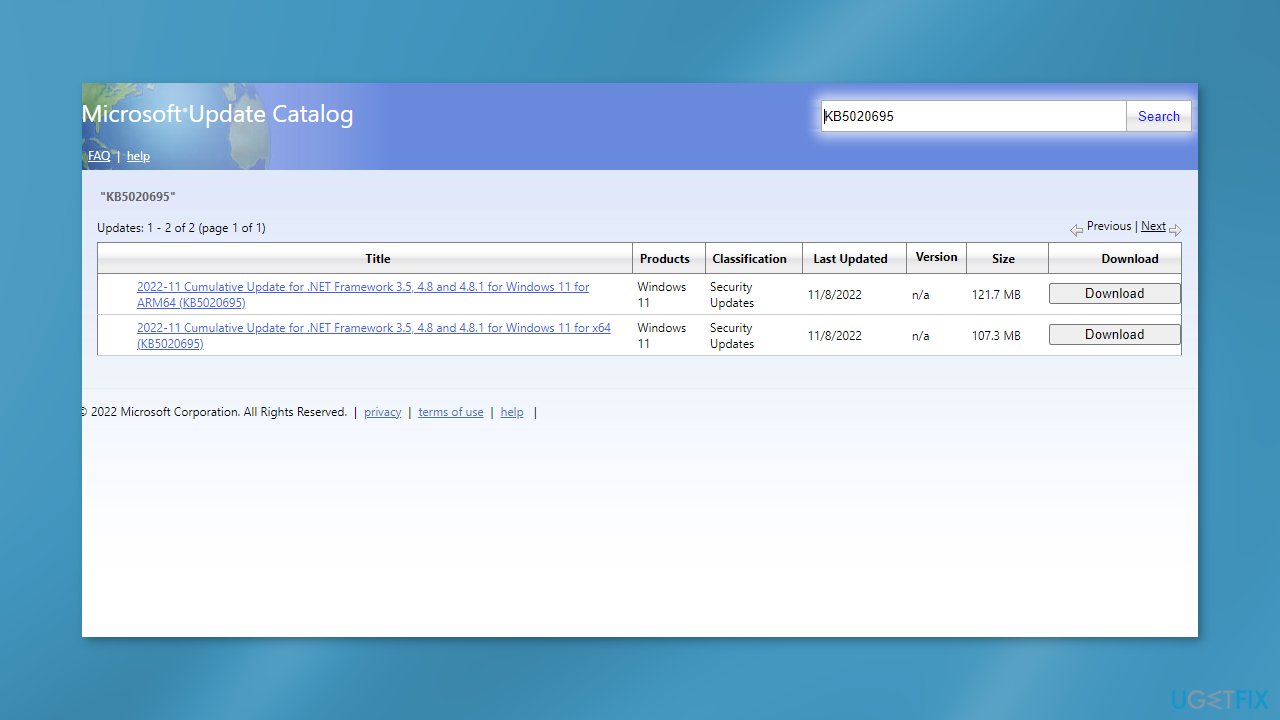
- You will find many different versions on the update – you need to find the one that matches your PC specs and Windows version (as a home user, ignore Windows server versions)
- After picking the correct version, click the Download button and proceed with the on-screen instructions
- Restart your system once done.
Method 6. Perform a Repair Install
- Visit the official Microsoft website to download Windows 11 Installation Media
- Run the Media Creation Tool and select Create Installation Media for another PC
- Select your USB drive
- Let the Process complete of writing the Installation files to the USB drive
- Click Finish
- On the PC you wish to upgrade, Press Windows + E to open the File Explorer
- Open the Removable drive and click Setup.exe
- Accept the license terms on the next screen
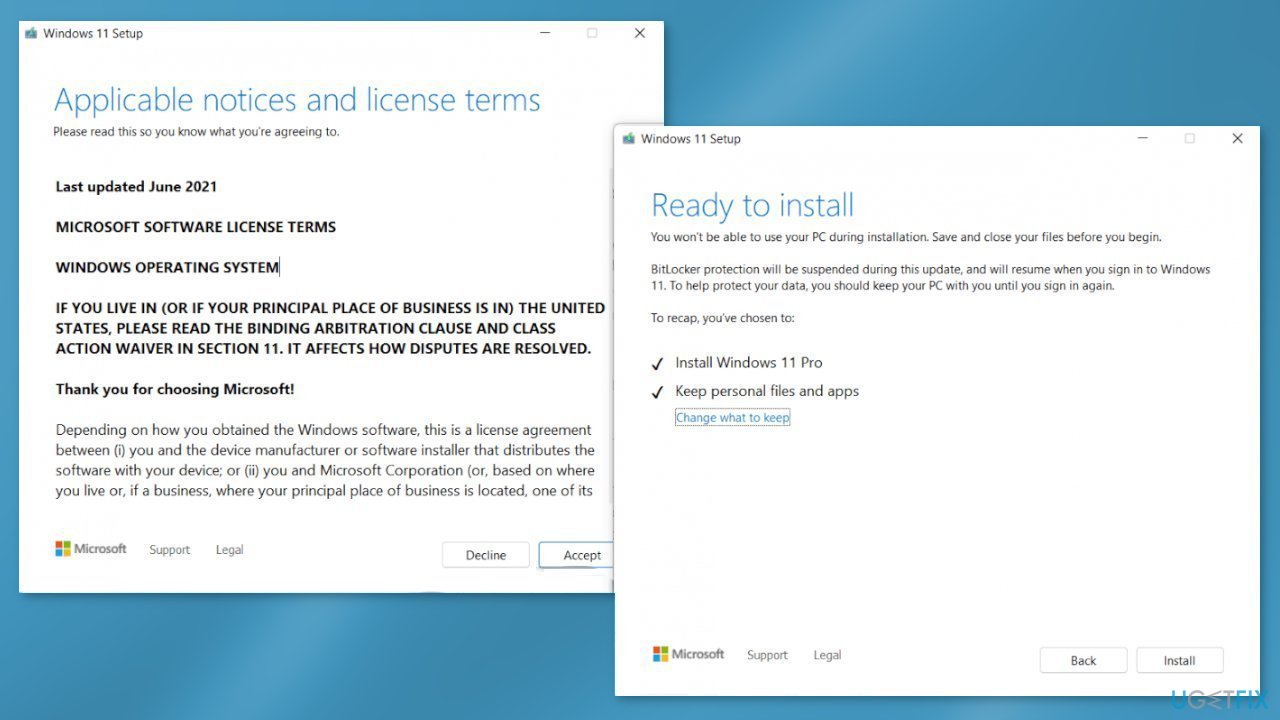
- Confirm the Upgrade options – Files, apps and Settings are kept
- Click Install, and the upgrade should start
Bottom line
To fix the KB5020695 installation failure, you can repair corrupted system files using Command Prompt commands and run the Windows Update Troubleshooter. If these steps do not resolve the issue, consider using an automatic maintenance tool to address system errors.
Frequently asked questions
Try running the Windows Update Troubleshooter, which can be accessed through Settings > Update & Security > Troubleshoot. If that doesn't work, consider downloading the update manually from the Microsoft Update Catalog.
Free up some disk space by deleting unnecessary files or using the Disk Cleanup tool found in Settings > System > Storage. After clearing space, attempt to install the update again.
You can try restarting your PC and then checking for updates again; if that doesn't help, consider resetting the Windows Update components using Command Prompt. This often resolves stuck installations.




Report an issue
What's wrong with this guide? We review every report and update or remove content.
Report received — thank you. We'll review and fix it.
You need a free account to submit a report.
Be the first to comment