How to fix
Event ID 7000 in Service Control Manager
on Windows
Resolve Event ID 7000 errors in Windows 10 and 11 effortlessly with our expert-tested solutions. Get your services running smoothly and fixed in minutes!


What causes How to fix Event ID 7000 in Service Control Manager?
- Service not starting due to logon failure
- Service is disabled
- Incorrect startup type configuration
- Issues with system components
- Third-party software conflicts
Repairs Windows system files, removes malware, and restores a clean OS state — without reinstalling.
Hello. I noticed that my Windows computer became really slow and I saw Event ID 7000 in Service Control Manager. How can I fix this?
Windows is a complicated operating system that relies on thousands of processes to keep it running smoothly. Recently, some users encountered an Event ID 7000 in Service Control Manager. The error stops software services from starting. They can be both Windows and third-party software services.
This Event ID error can seriously slow down the performance of Windows. Logs that usually accompany event ID 7000 read like this:
Logon attempt with current password failed with the following error or The service did not start due to a logon failure.
The issue can be fixed using various methods. Some people found that simply restarting the service that stopped running resolves the issue. In this guide, you will find 6 steps that should help you fix Event ID 7000 in Service Control Manager.
If you want to avoid going through a lengthy troubleshooting process, we recommend using [d1] repair tool to scan your machine and automatically fix damaged system components, errors like BSODs,[ref en-1] and registry[ref en-2] issues. The software can also be used for optimization purposes - free up space by clearing cookies and cache,[ref en-3] which should boost the performance.
Solution 1. Check the Event Viewer Log
- Press the Start button and enter the keyword Event Viewer in the search box
- Click Windows Logs to expand a list of log categories
- Select the System log
- Click the Event ID column header to organize the events numerically
- Then click one of the Event ID 7000 errors to open further details for it
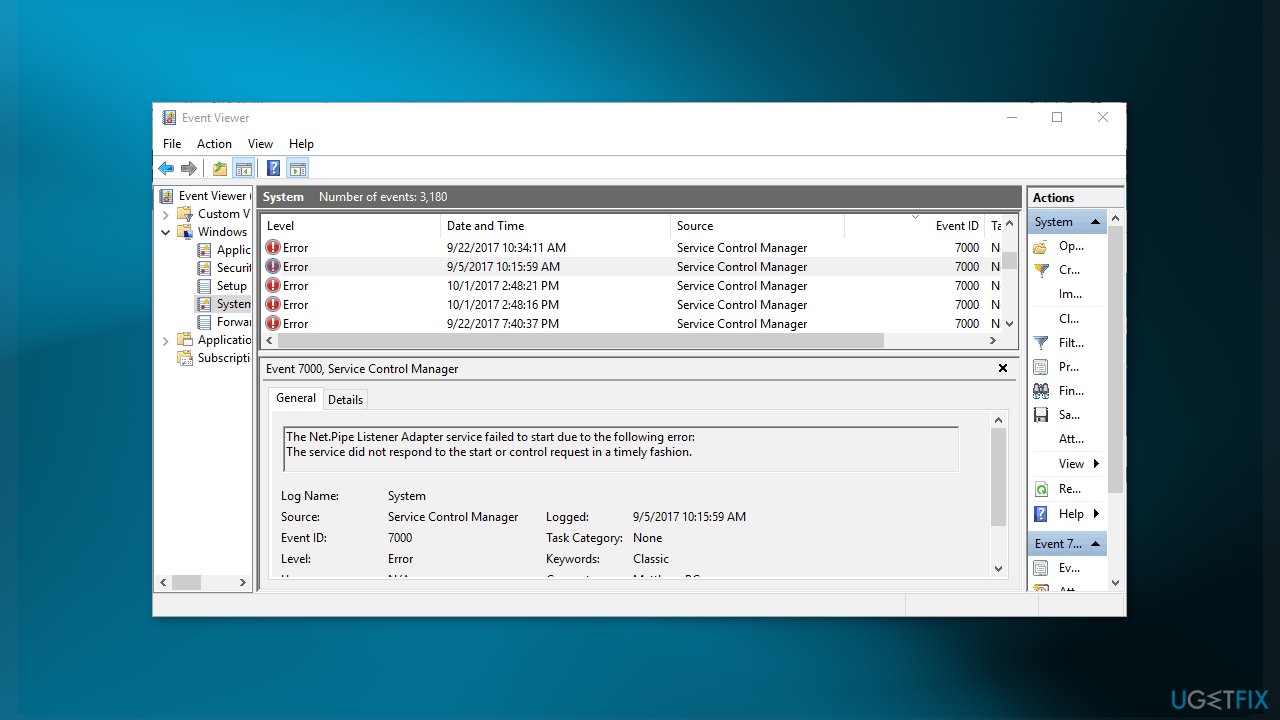
- The details should tell which specific service did not start
- Note down the specified service, it will be useful for next steps
Solution 2. Restart the Service
- Enter Services in the search box
- Select to open the Services window
- Scroll to the service that didn’t start
- Right-click the service and select Properties from its context menu
- First, click the Startup type drop-down menu, and select Automatic from there if the service is currently disabled
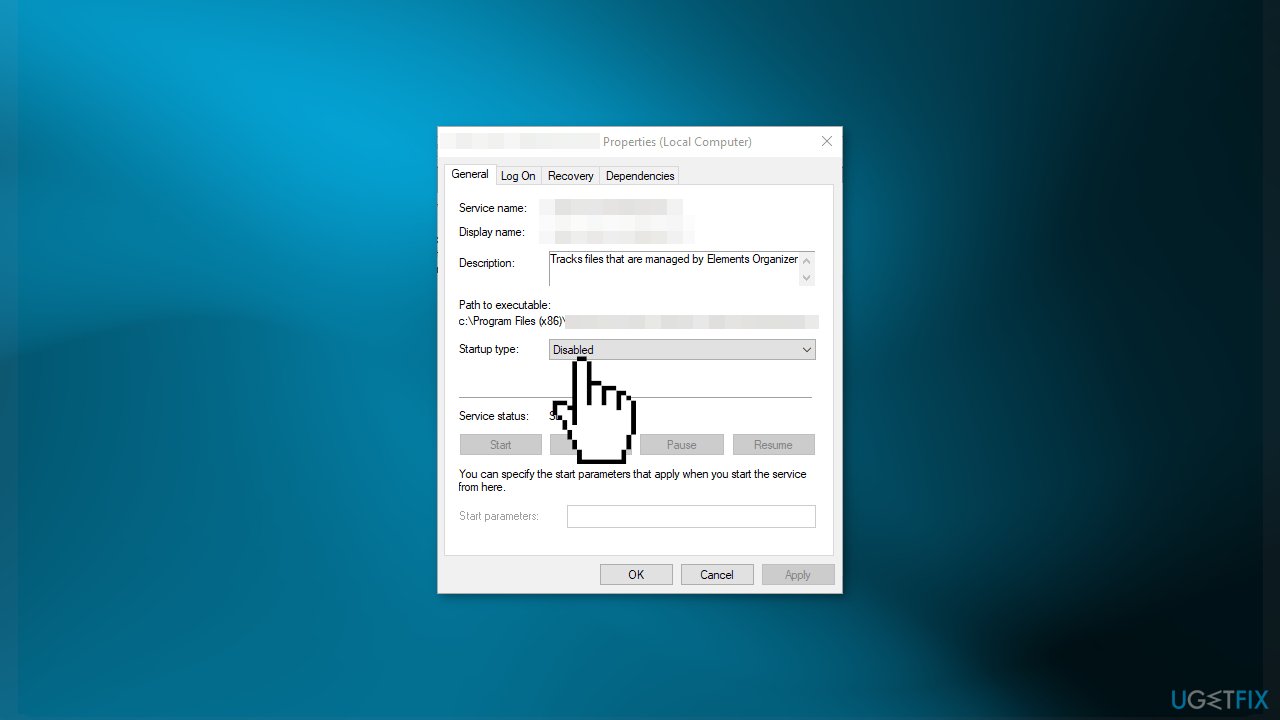
- Press the Start button to restart the service
- Press the Apply and OK buttons to save the changes
Solution 3. Adjust the Service Log On Settings
- Right-click the service included in the event ID 7000 log
- Select Properties to open the service properties window
- Next, select the Log On tab in the shot directly below
- Select the This account radio button option
- Input your credentials, then press the Apply and OK buttons
- Now restart your device
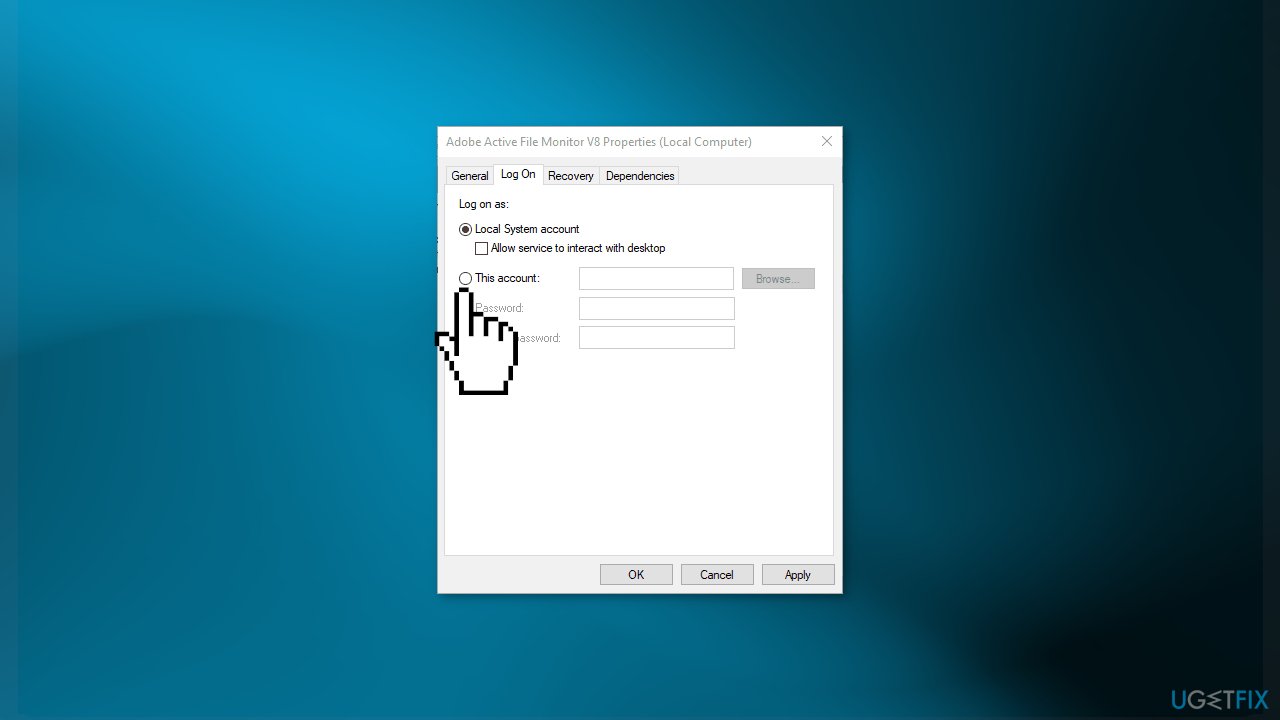
- If the service is already configured with the This account setting selected, select the Local System account option on the Log On tab instead
- Then click OK, right-click the service, and select Restart
Solution 4. Use the Group Policy Editor
- First, log in to an administrator account
- Press the Start button, type gpedit.msc in the search box, and select the Group Policy Editor
- Expand these categories on the Group Policy Editor window:
Computer Configuration\Windows Settings\Security Settings\Local Policies\User Rights Assignment
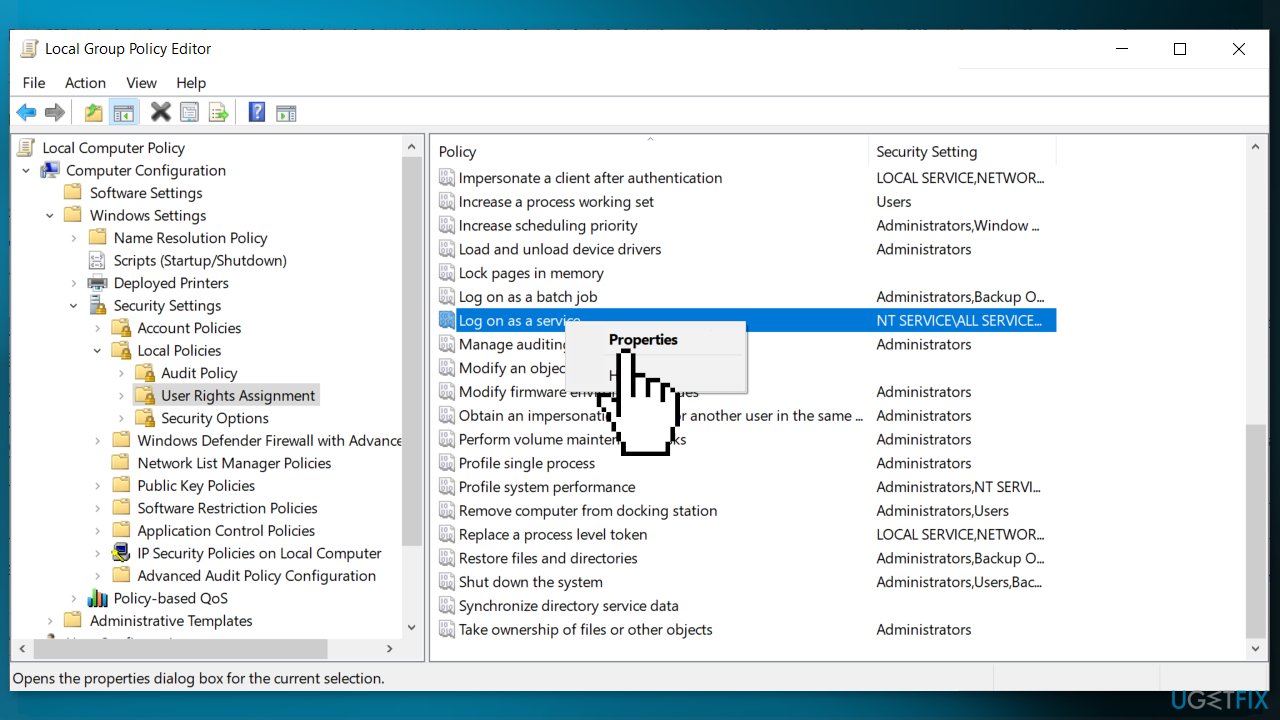
- Next, right-click Log on as service on the right of the Group Policy Editor window and select Properties in the context menu
- Then you can click Add User to add a new user to the policy
- Click OK a couple of times to close the GPE
Solution 5. Use System Restore
- Type in Create a System Restore Point in Windows search and hit Enter
- Click on System Restore
- Select Choose a different restore point (if available) and click Next
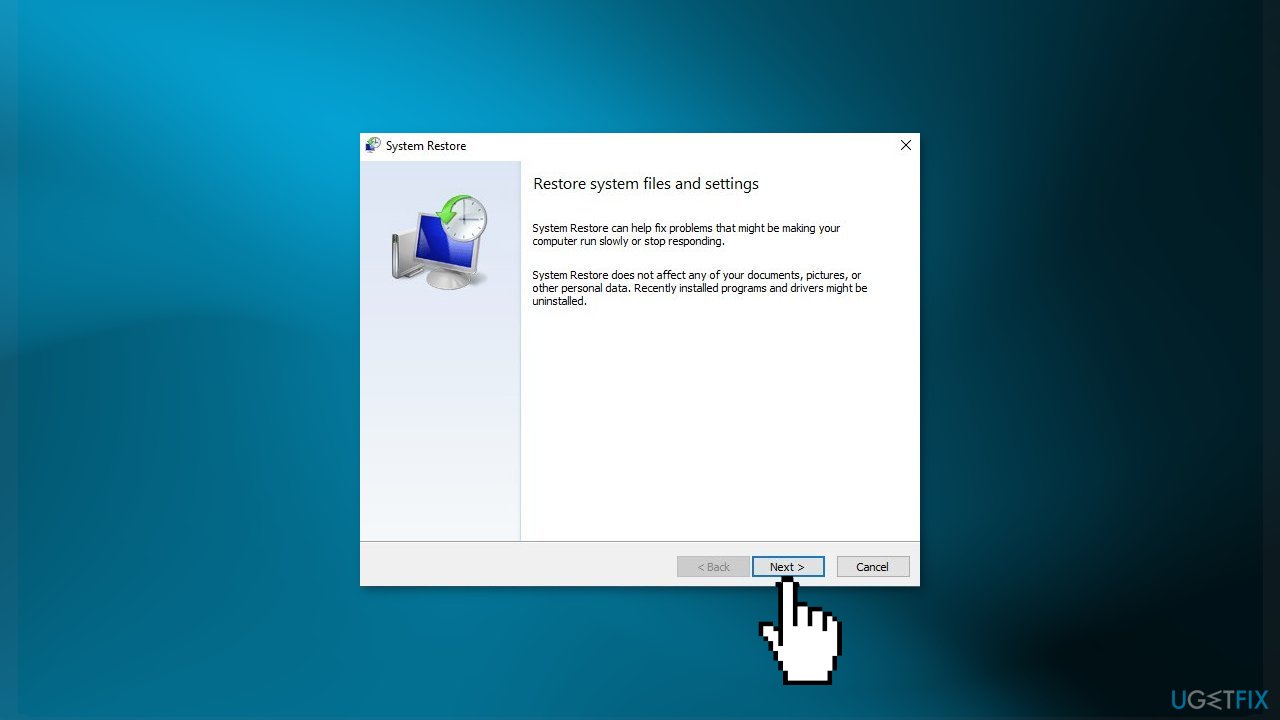
- Mark the Show more restore points checkbox
- Choose the date before you start experiencing the issue
- Click Next and reboot the system as required
Solution 6. Use the Registry Editor
- Press Windows key + R to open the Run dialog
- Type regedit, and hit Enter
- Locate and then click the following registry subkey:
HKEY_LOCAL_MACHINE\SYSTEM\CurrentControlSet\Control
- In the right pane, locate the ServicesPipeTimeout entry
If the ServicesPipeTimeout entry does not exist, you must create it:
- Click the Edit menu or an empty space in the right pane, then click New > DWORD (32-bit) Value
- Type ServicesPipeTimeout, and then hit Enter
- Right-click ServicesPipeTimeout, and then click Modify to edit its Properties
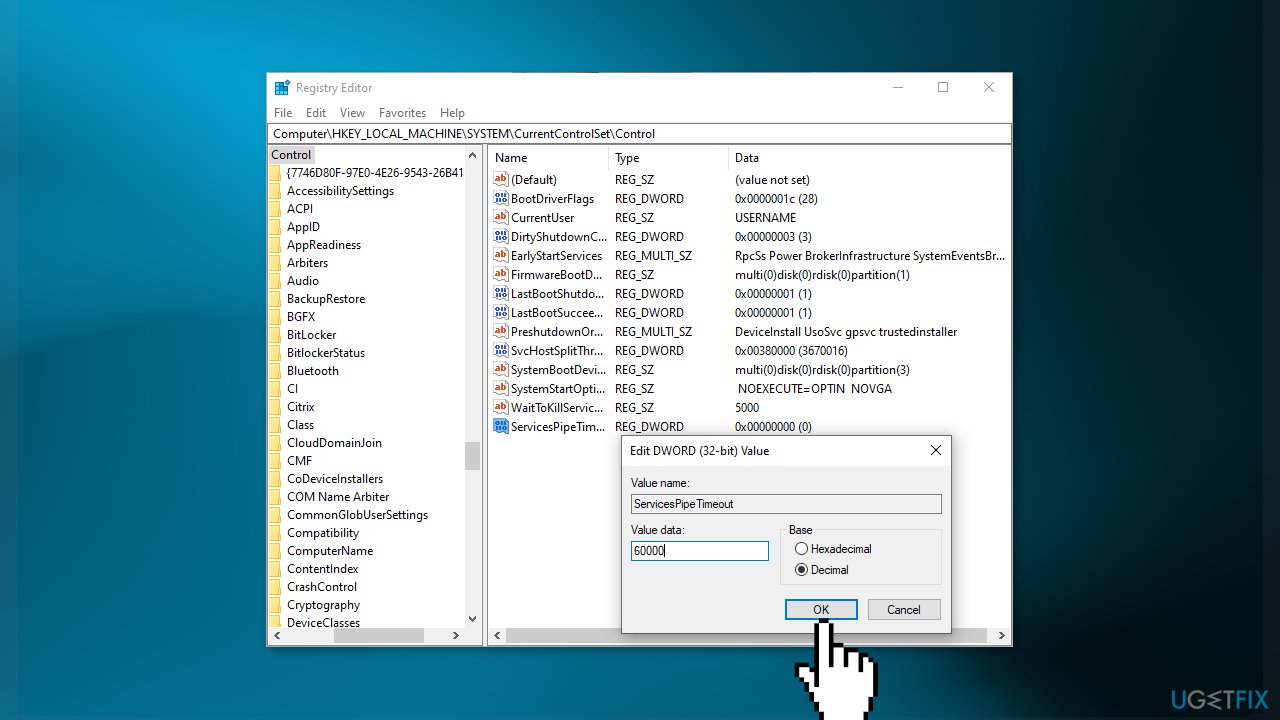
- Select the radio button for Decimal under Base, then type 60000 under Value data
- Click OK and restart the computer
Bottom line
To fix Event ID 7000 in Service Control Manager, you can check the Event Viewer log to identify the specific service that failed to start and restart the service if it is disabled. If these steps do not resolve the issue, consider using a repair tool to automatically fix system errors and optimize performance.
Frequently asked questions
Event ID 7000 indicates that a service failed to start due to a missing or corrupted driver, or the service's configuration is incorrect.
To troubleshoot Event ID 7000 errors on Windows 11, you can check the Event Viewer for detailed error messages, update the service driver, or reinstall the service if necessary.
You can use the 'sc config' command to change service settings or the 'sfc /scannow' command to repair corrupted system files that may be causing Event ID 7000.




Report an issue
What's wrong with this guide? We review every report and update or remove content.
Report received — thank you. We'll review and fix it.
You need a free account to submit a report.
Be the first to comment