How to fix
INVALID_SOFTWARE_INTERRUPT Blue Screen
on Windows
Resolve the INVALID_SOFTWARE_INTERRUPT Blue Screen error in Windows 10 and 11 with expert-tested solutions. Get back to smooth computing in minutes!

What causes How to fix INVALID_SOFTWARE_INTERRUPT Blue Screen in Windows?
- Corrupted system files
- Third-party antivirus software malfunctions
- Outdated drivers
- Hardware failure
Repairs Windows system files, removes malware, and restores a clean OS state — without reinstalling.
Hello. Recently, when using my computer I experienced an INVALID_SOFTWARE_INTERRUPT Blue Screen. I am using Windows 10. Can this error be fixed?
Blue Screen crashes[ref en-1] in Windows can be very intimidating. Recently, some users reported encountering the INVALID_SOFTWARE_INTERRUPT Blue Screen. Such crashes completely interrupt users' work and any unsaved progress disappears. With our help, you should be able to get rid of this error.
There is no specific reason why this BSOD crash may happen. There are various possibilities - your system files could be corrupted, third-party antivirus software could be causing malfunctions or your drivers[ref en-2] are outdated. Sometimes BSOD crashes can also be a symptom of hardware failure.
In this guide, you will find 7 steps that should help you fix INVALID_SOFTWARE_INTERRUPT Blue Screen in Windows. If none of the solutions work, you should consider bringing your device to a repair shop to check the hardware. You can also try using an automatic repair tool like [d1].
It can fix most system errors (including BSODs), corrupted files, and registry[ref en-3] issues. It can also clear your system from cookies and cache which are often the culprits behind many malfunctions. Otherwise, follow the step-by-step instructions below.
Method 1. Run the BSOD Troubleshooter
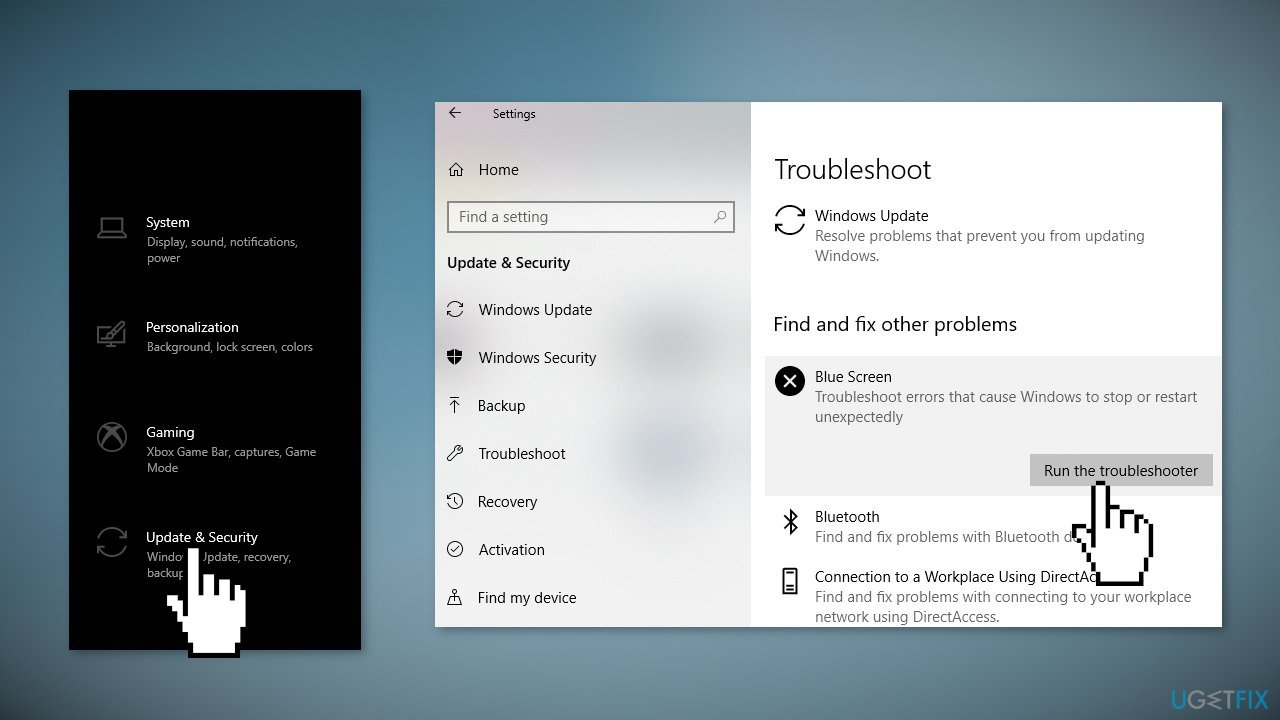
- Open the Settings and go to the Update & Security section
- Select Troubleshoot from the menu on the left
- Select BSOD from the right pane and click Run the troubleshooter
- Follow the instructions on the screen
Method 2. Update Windows
- Click Settings from your start menu and click Update & Security
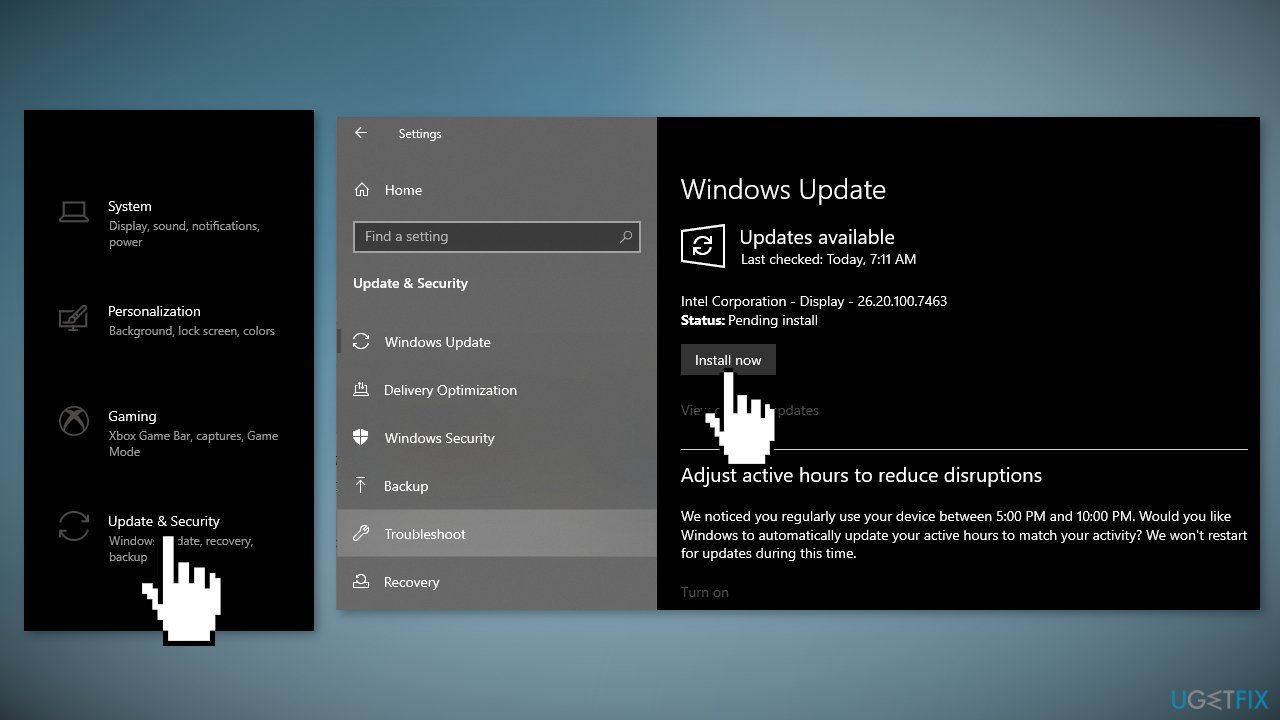
- Choose Windows Upgrade from the left panel and click the Check for updates button, and then your computer will check for, download, and install any updates found
Method 3. Repair Corrupted System Files
Use Command Prompt commands to repair system file corruption:
- Open Command Prompt as administrator
- Use the following command and press Enter:
sfc /scannow
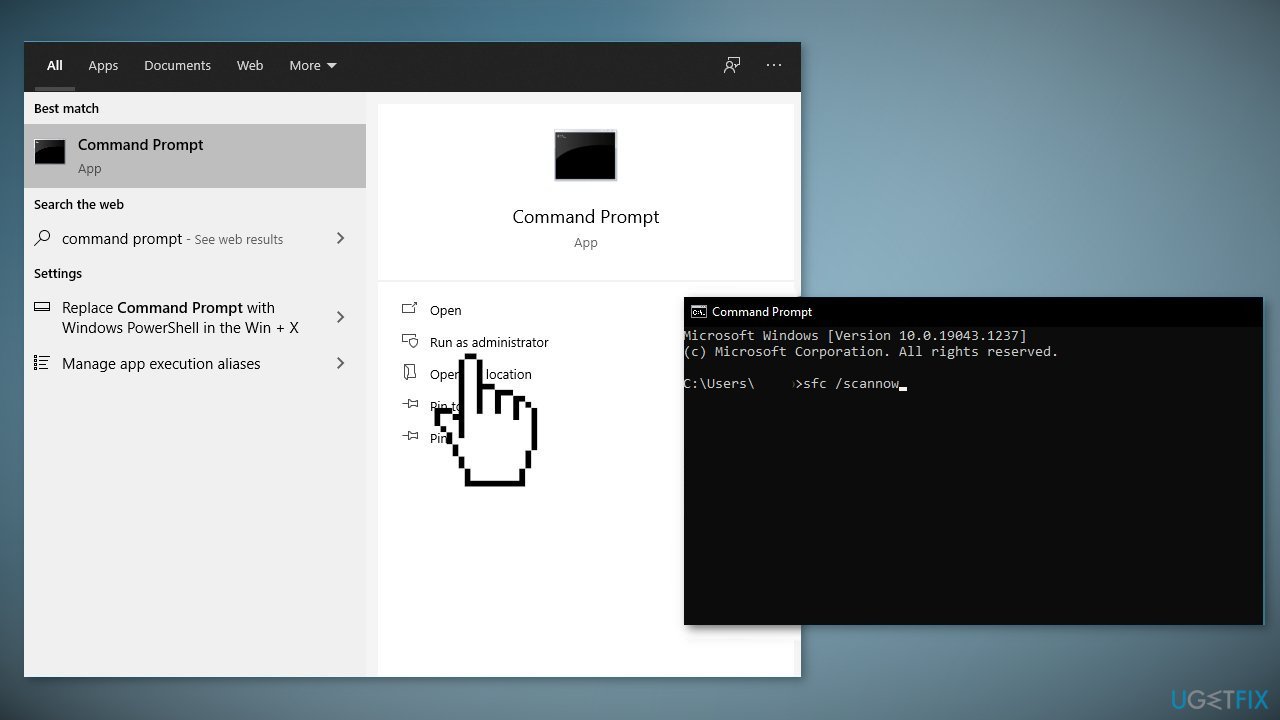
- Reboot your system
- If SFC returned an error, then use the following command lines, pressing Enter after each:
DISM /Online /Cleanup-Image /CheckHealth
DISM /Online /Cleanup-Image /ScanHealth
DISM /Online /Cleanup-Image /RestoreHealth
Method 4. Check Disk
- Enter the Advanced Startup (Restart your computer while holding the Shift key).
- Choose Troubleshoot, then choose Advanced Options
- Select Command Prompt
- When it appears, enter the following lines and press Enter:
bootrec.exe /rebuildbcd
bootrec.exe /fixmbr
bootrec.exe /fixboot
chkdsk /r c:
chkdsk /r d:
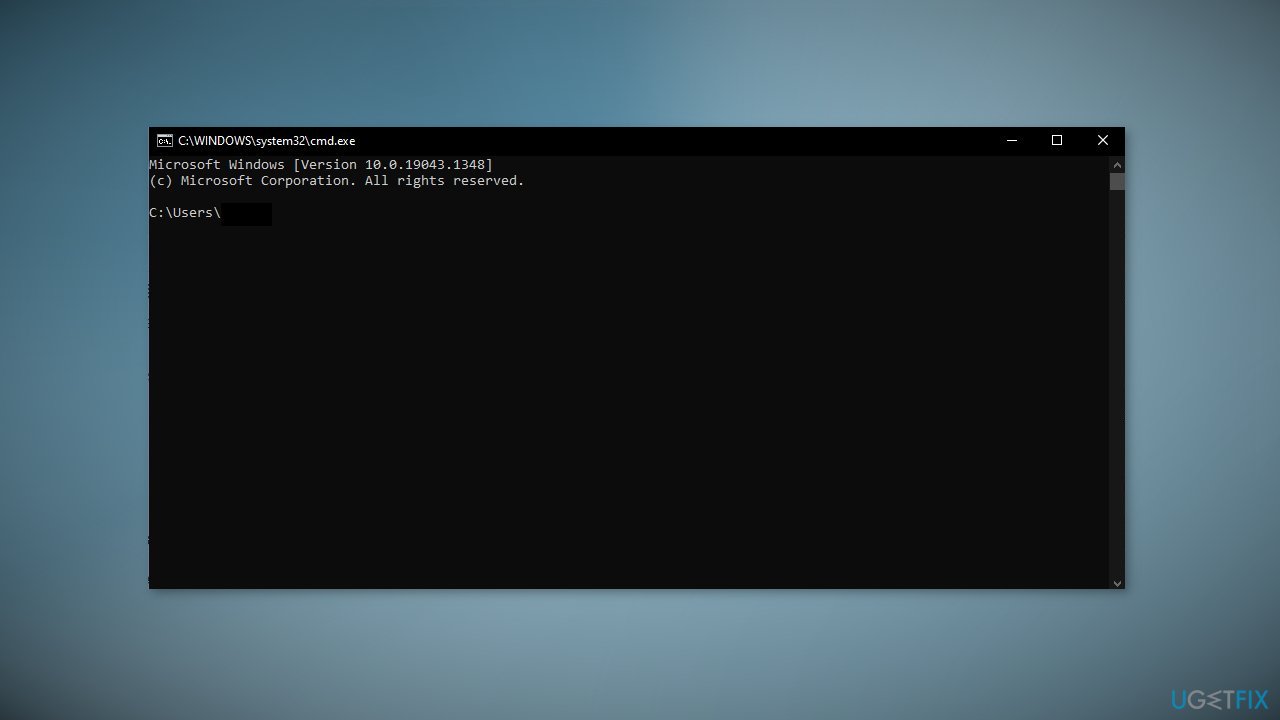
- Restart your computer
Method 5. Update Drivers
- Press Windows key + S and write device manager
- Hit the Enter button to proceed
- Look for the exclamation marks near any devices on the console
- If found, expand them, right-click and select the Update driver option
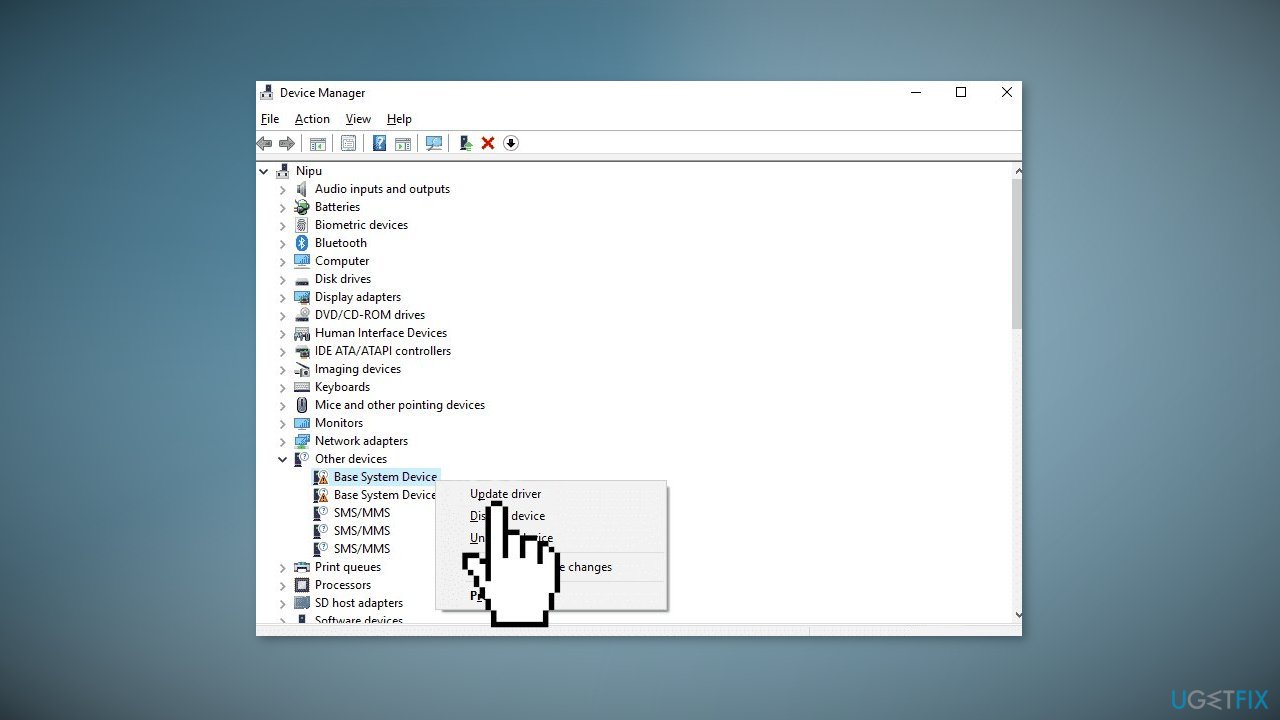
- Select Search automatically for updated driver software
- You can also use a tool like [rev id="DriverFix"] that can find the best drivers for your device and update them automatically
- After these steps, the newer version (if available) of the following driver will automatically download
- Restart Windows
Method 6. Uninstall Third-Party Antivirus
Sometimes third-party security tools can interfere with legitimate Windows processes because it is seeing them as malicious and cause various errors, bugs or crashes. If you have any antivirus installed on your computer, remove it to see if it fixes the issue:
- Go to Apps & features
- Find third-party antivirus in the list
- Click on it once and then click Uninstall
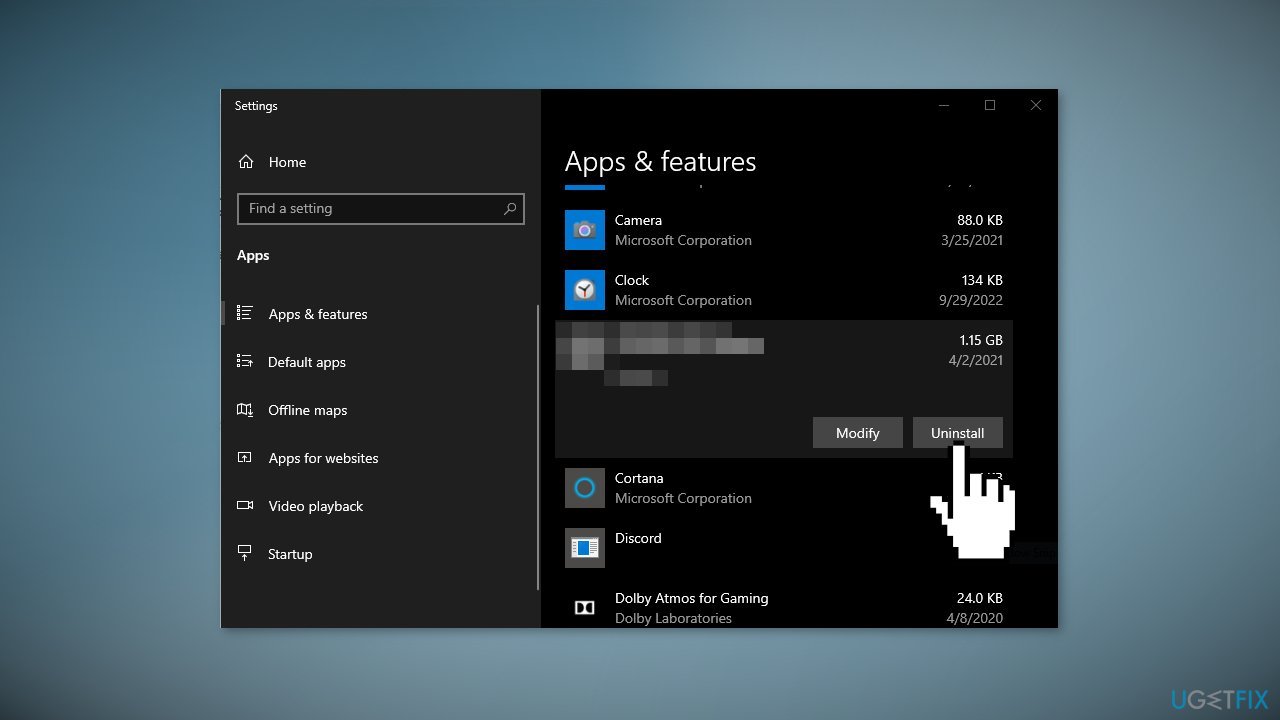
- Wait for the process to finish and check if you can install updates
Method 7. Perform a Clean Install
Performing a clean install wipes out data from the PC, so please create backups before you proceed.
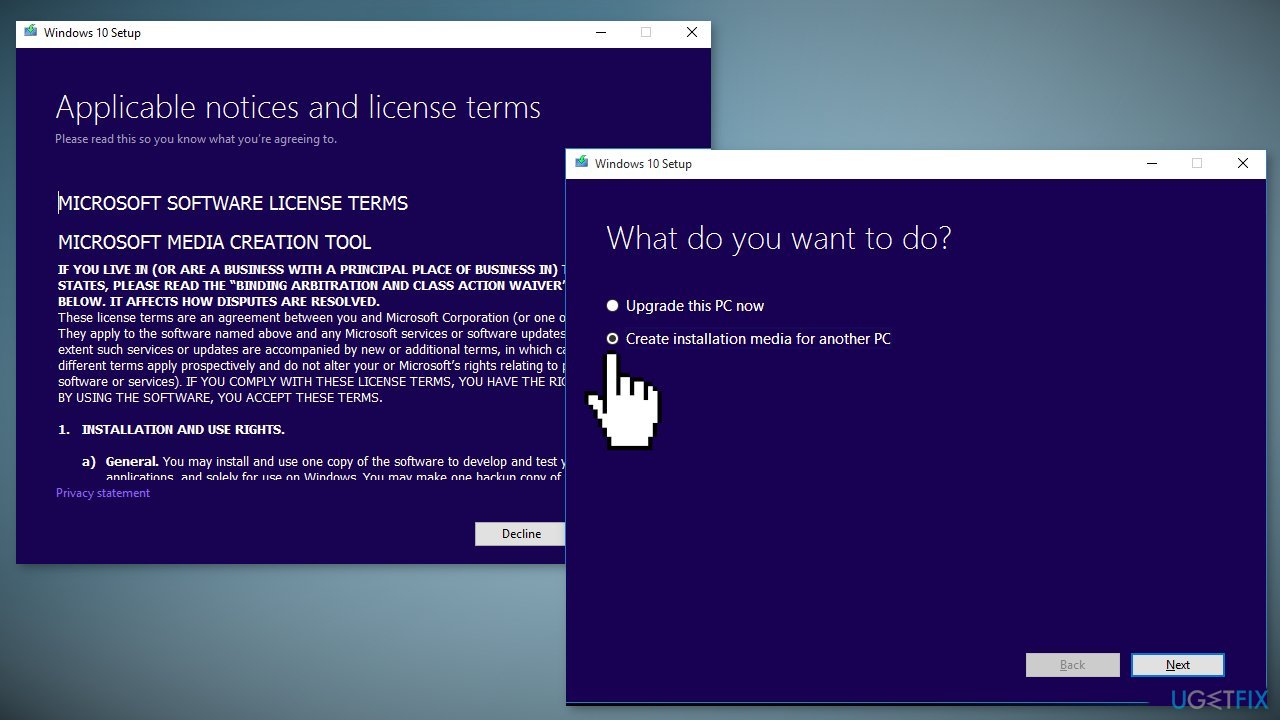
- Download the ISO file for Windows 10
- Select Create installation media for another PC and click Next
- Select ISO file and click Next
- Click Finish
- Open the Windows ISO file you downloaded
- Open Setup and click Next
- Click Accept (Be prepared to wait; this next part may take a while)
- Click Install
- Wait for your system to restart and install Windows
Bottom line
To fix the INVALID_SOFTWARE_INTERRUPT Blue Screen, you can run the BSOD Troubleshooter, update Windows, and repair corrupted system files using Command Prompt. If none of these solutions work, consider bringing your device to a repair shop to check the hardware.
Frequently asked questions
This error typically occurs due to hardware malfunctions, incompatible drivers, or corrupted system files in Windows 10 and Windows 11.
You can troubleshoot this error by updating your drivers, running a system file checker scan, or performing a clean boot in Windows 11.
To prevent this error in Windows 10, ensure that all your drivers are updated regularly and keep your system free of malware.




Report an issue
What's wrong with this guide? We review every report and update or remove content.
Report received — thank you. We'll review and fix it.
You need a free account to submit a report.
Be the first to comment