How to fix
Dev Error 1202 in Call of Duty Modern Warfare
on Windows
Resolve Dev Error 1202 in Call of Duty on Windows 10 or 11 effortlessly. Follow our expert-tested solutions for a seamless gaming experience!

What causes How to fix Dev Error 1202 in Call of Duty Modern Warfare?
- Issues with the game’s installation
- Problems with the graphics card
- Outdated game version
- Outdated graphics driver
Repairs Windows system files, removes malware, and restores a clean OS state — without reinstalling.
Hello. While playing Call of Duty Modern Warfare I keep getting the Dev Error 1202. Is there any way to fix this?
Call of Duty Modern Warfare is a 2019 first-person shooter game developed by Infinity Ward for PlayStation 4, Windows, and Xbox One. The game received plenty of praise for its gameplay, campaign, multiplayer, and graphics. Besides the single-player and multiplayer it also has a battle royal[ref en-1] mode which has gotten really popular in the gaming world.
Recently, some people reported that they were having issues while trying to play Modern Warfare. A Dev Error 1202 was reported to interrupt the gameplay. This error mainly occurs due to issues with the game’s installation or the graphics card. This issue is also reported to occur on all supported platforms like PCs, consoles, etc.
In this guide, you will find 5 steps that should help you easily fix Dev Error 1202 in Call of Duty Modern Warfare. Keep in mind, that the manual troubleshooting process can be a lengthy one. You can try using a maintenance tool like [d1]. It can fix most system errors, BSODs,[ref en-2] corrupted files, and registry[ref en-3] issues. Otherwise, follow the step-by-step instructions below.
Solution 1. Update Modern Warfare
- Open the Battle.net Game launcher and select COD Modern Warfare
- Expand the game’s Options and click on Check for Updates
- If a game update is available, download and install the update
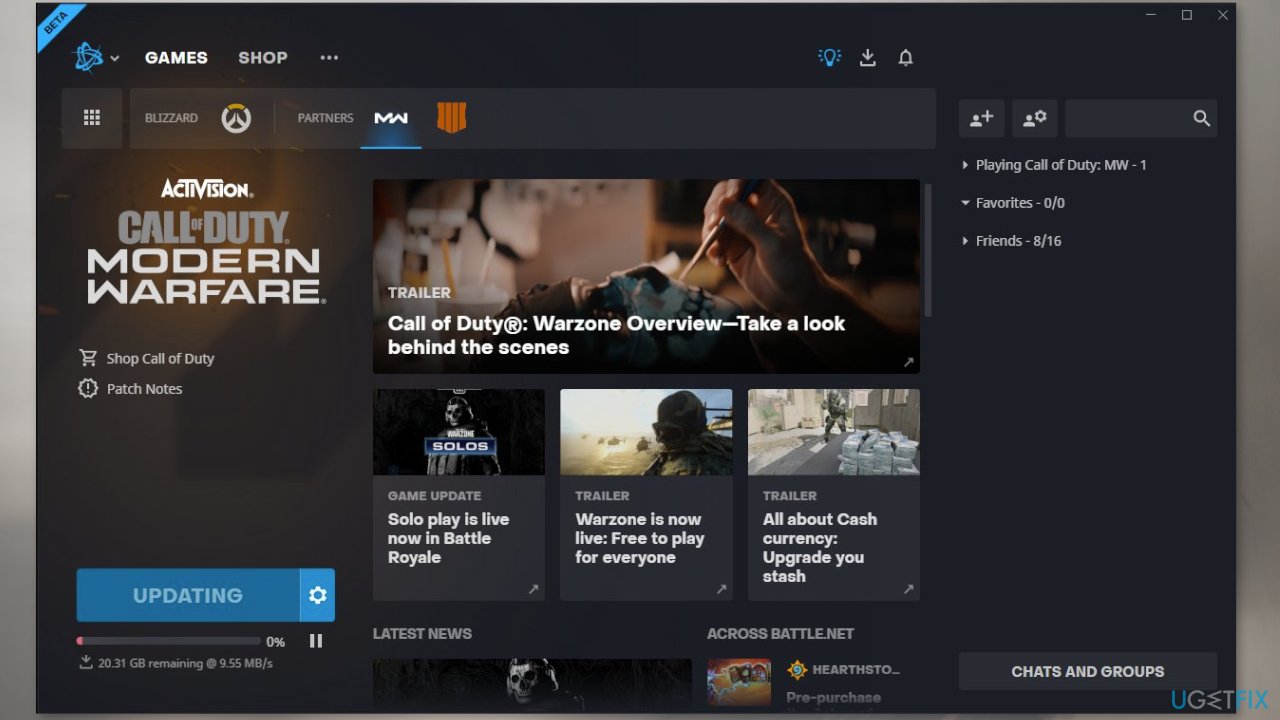
- Once updated, relaunch the game’s launcher and open the Modern Warfare game to check if its dev error 1202 is resolved
Solution 2. Update Graphics Driver
- Open Device Manager and expand the Display Adapters tab
- Right-click on your graphics driver and select Update Driver
- Press on Search Automatically for Drivers
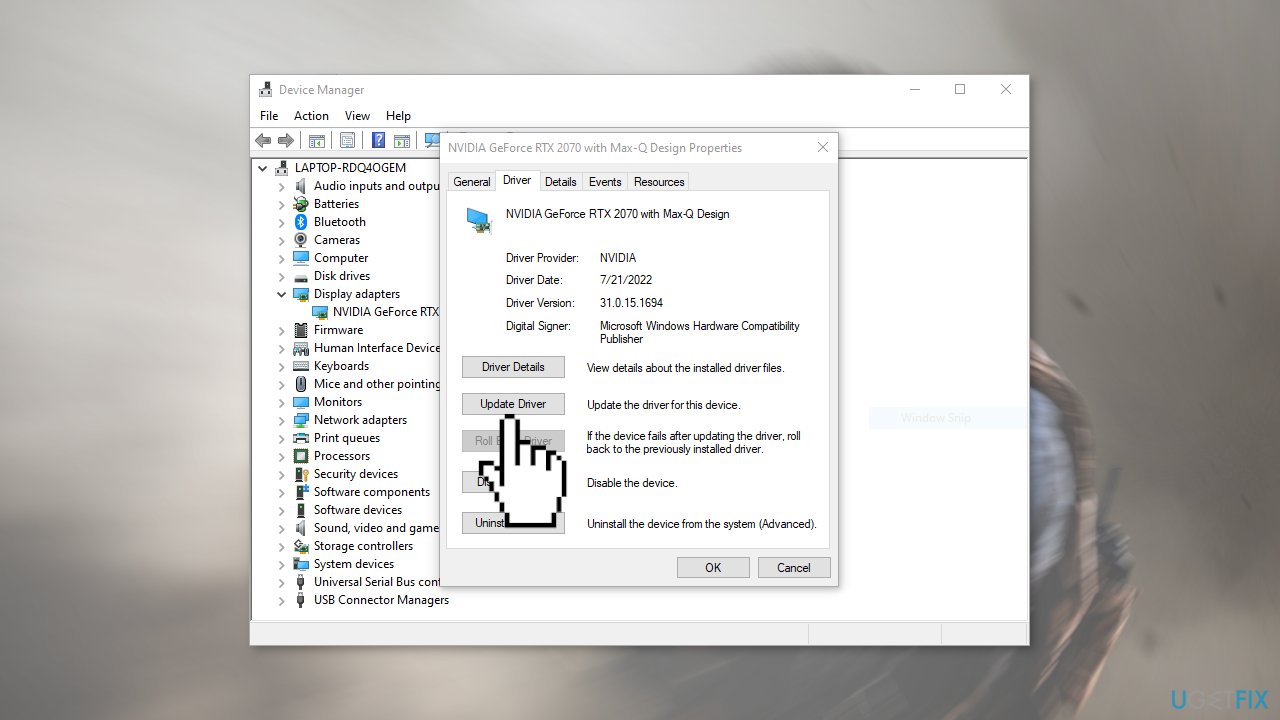
- If a graphic driver update is available, install it and then restart your PC
- Upon restart, launch the Modern Warfare game and check if it fixed the issue.
- You may also use a dedicated utility like [rev id="DriverFix"] that ca find the best drivers for your machine and install them automatically
Solution 3. Host the Game as a Free Player
- If there is a free player in your teammates, ask him to send you the invite and host the game
- Then join the game through the invite and check if that fixes the issue
- If no free player is available, then log out of the Battle.net launcher and click on Create a Free Blizzard Account
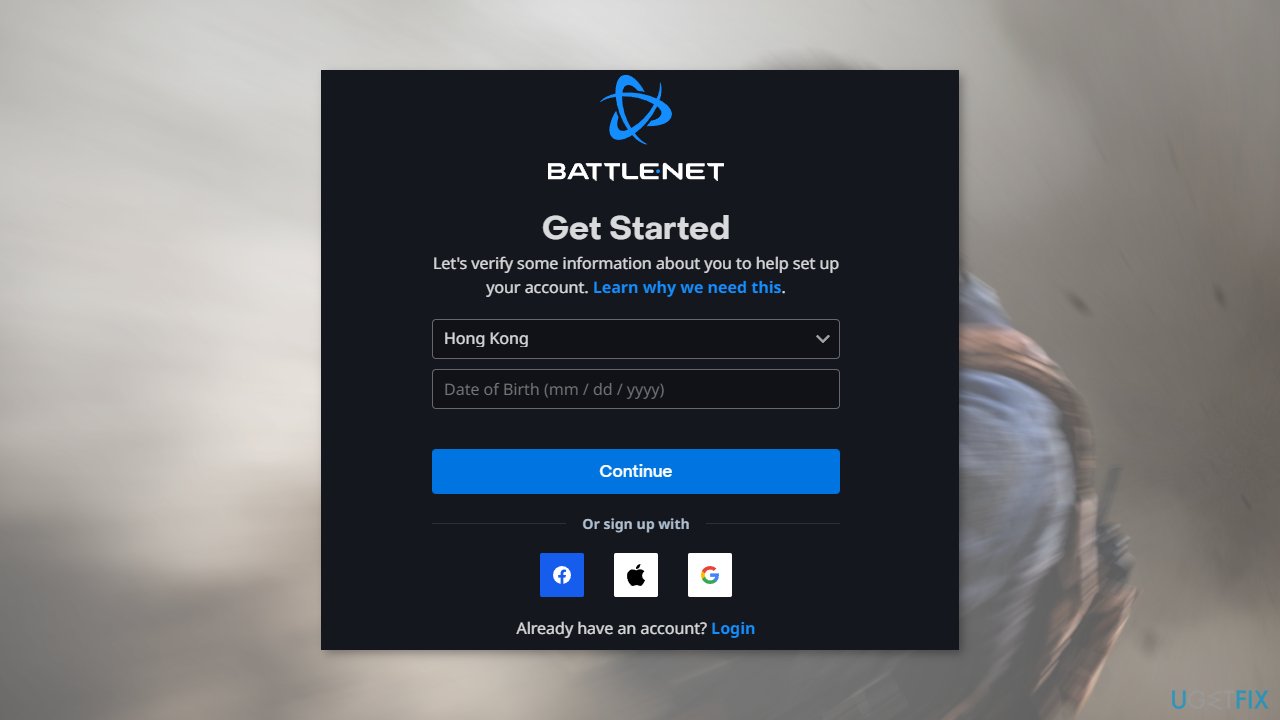
- Now follow the prompts on the screen to complete the process of creating a new free account and then use that free account to play the game
- After a match is completed, log out of the free account and log in using your original account
- If that did not work, then you may invite yourself through the free account and use that invite on the original account to play the game
Solution 4. Launch Modern Warfare in the DirectX 11 Mode
- Open the Battle.net application and select COD Modern Warfare
- Expand its Options and select Game Settings
- Tick the checkbox of Additional Command Line Arguments
- Now type the following in the box shown:
-d3d11
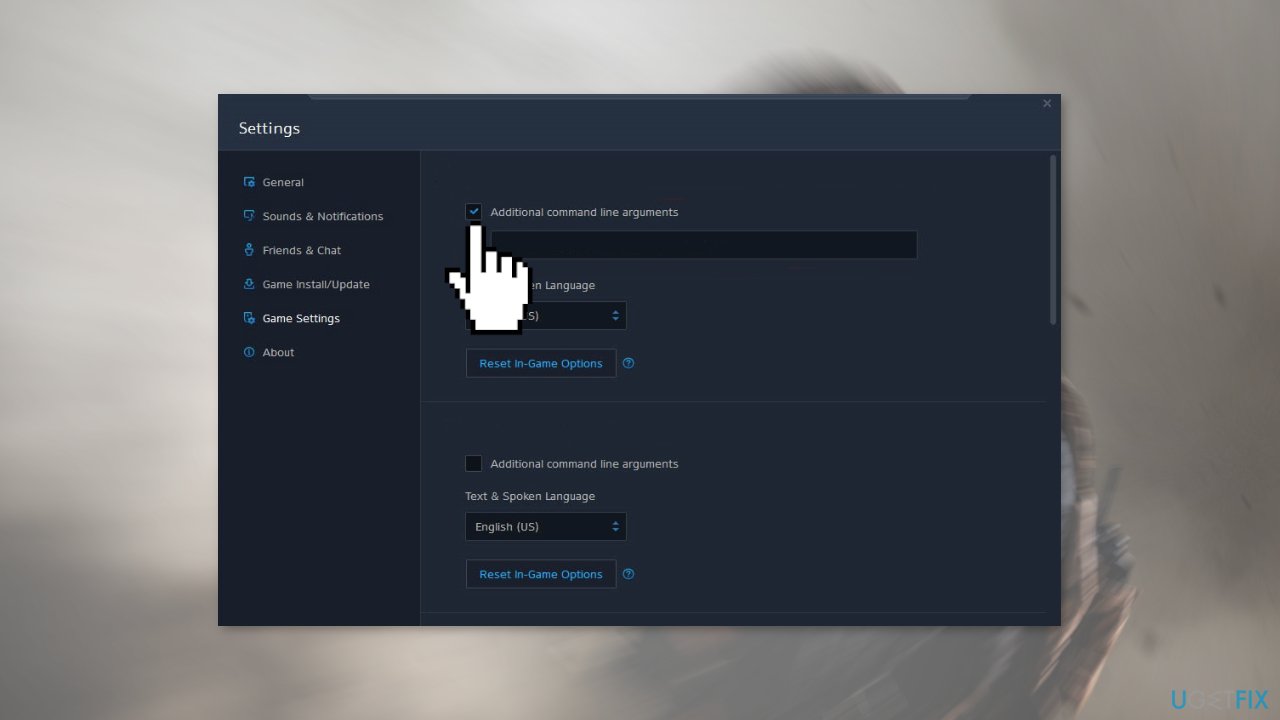
- Click on Done
Solution 5. Reinstall the Game
- Open Battle.Net’s launcher and select the Modern Warfare game
- Expand its Options and click on Uninstall Game
- Then confirm to Uninstall the game and wait till the game uninstalls
- Once done, restart your system and upon restart, right-click Windows
- Now select Apps & Features and locate the Modern Warfare game (if shown)
- Then expand its options and click on Uninstall
- Restart your system.
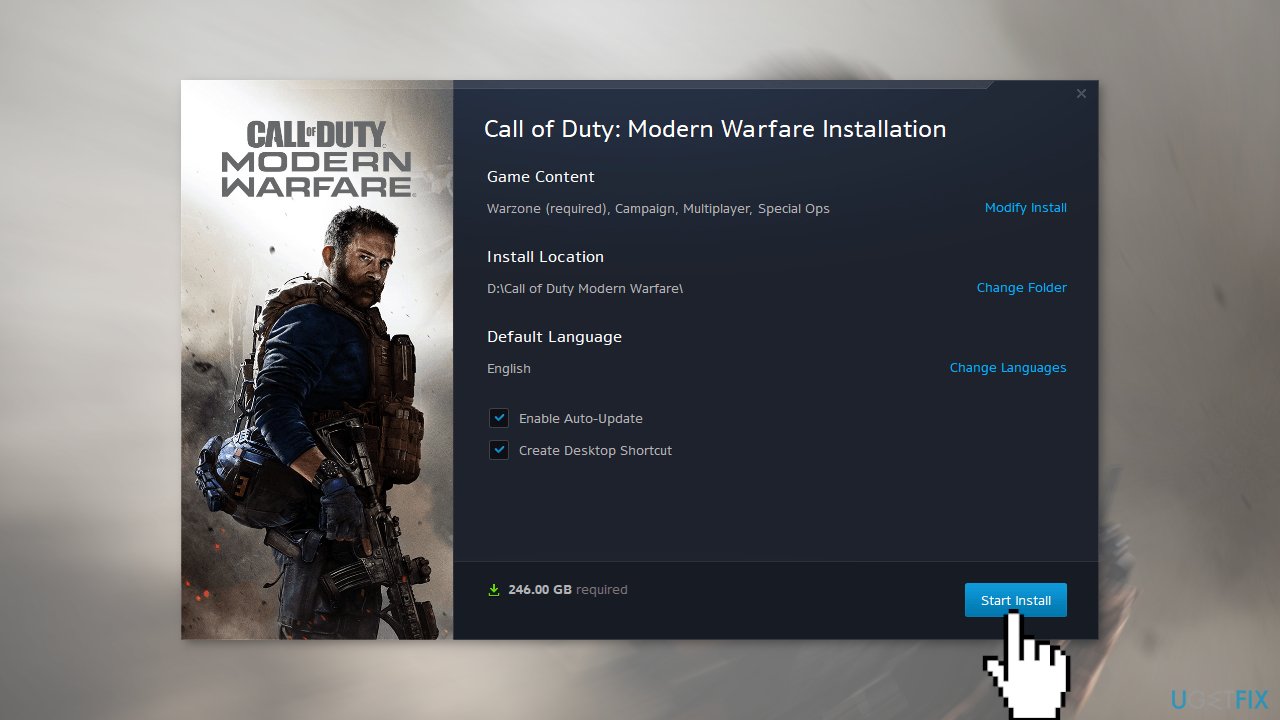
- Install the game again following the on-screen instructions
Bottom line
To fix Dev Error 1202 in Call of Duty Modern Warfare, you can update the game and graphics driver, or host the game as a free player. If these solutions do not resolve the issue, consider using a maintenance tool or seeking further technical support.
Frequently asked questions
Dev Error 1202 is often caused by issues with the game files, outdated graphics drivers, or conflicts with background applications on Windows 10.
To verify the game files, open the Battle.net launcher, go to the game settings for Call of Duty Modern Warfare, and select 'Scan and Repair' to check for missing or corrupted files on Windows 11.
Yes, ensure that your graphics drivers are updated to the latest version available from NVIDIA or AMD, as this can help resolve Dev Error 1202 on both Windows 10 and Windows 11.




Report an issue
What's wrong with this guide? We review every report and update or remove content.
Report received — thank you. We'll review and fix it.
You need a free account to submit a report.
Be the first to comment