How to fix
Waves MaxxAudio Service Application high CPU
on Windows
Resolve high CPU usage from Waves MaxxAudio Service in Windows 10 or 11 quickly and effectively. Expert-tested solutions for smooth performance!


What causes How to fix Waves MaxxAudio Service Application high CPU in Windows?
- High CPU usage due to a bug in the software
- Waves MaxxAudio Service running in the background
- Outdated audio drivers
- Malfunctioning applications or services
- Corrupted files or registry issues
Repairs Windows system files, removes malware, and restores a clean OS state — without reinstalling.
Hello. I recently bought a new Dell computer and the fans run all the time. I then found that Waves MaxxAudio Service Application consumes a high amount of CPU power. How do I fix this problem?
The Windows operating system relies on thousands of processes working in the background to keep it running smoothly. In Windows, even if one process goes rogue, people can start experiencing bugs, glitches, and errors. Some of the applications and services can malfunction, or start using high amounts of CPU[ref en-1] power. This can result in a significant decrease in performance.
Some people report that they found Waves MaxxAudio Service Application running in the background and using a high amount of CPU power. This causes the computer's fans to run all of the time. If a device runs on high CPU usage for a prolonged period of time, this can cause overheating issues, and even damage the device.
That is why it is so important to fix the issue as soon as possible. The Waves MaxxAudio Service is an audio software that enhances the audio performance of a computer system. It comes pre-installed on Dell computers. There is no exact reason why this problem occurs. Most likely it is a bug that causes the software to use too much CPU.
However, there are a couple of methods that can help reduce or eliminate the problem. In this guide, you will find 4 steps that should help you fix this. Some people found that simply updating the audio drivers did the job. Others managed to reduce CPU consumption by disabling the Waves Audio Service altogether.
You can also use a maintenance tool like [d1] to fix various system errors, BSODs,[ref en-2] corrupted files, and registry[ref en-3] issues. This powerful software can also clear up cookies and cache, often the culprits behind many malfunctions. If you want to begin the guide that should fix Waves MaxxAudio Service Application high CPU in Windows, make sure to follow the step-by-step instructions carefully.

Method 1. Update Audio Driver
You could be experiencing high CPU consumption because your audio drivers are outdated. Try updating them to see if it solves the issue.
- Go to the Device Manager
- Expand Sound, video and game controllers
- Right-click on your driver and choose Update driver
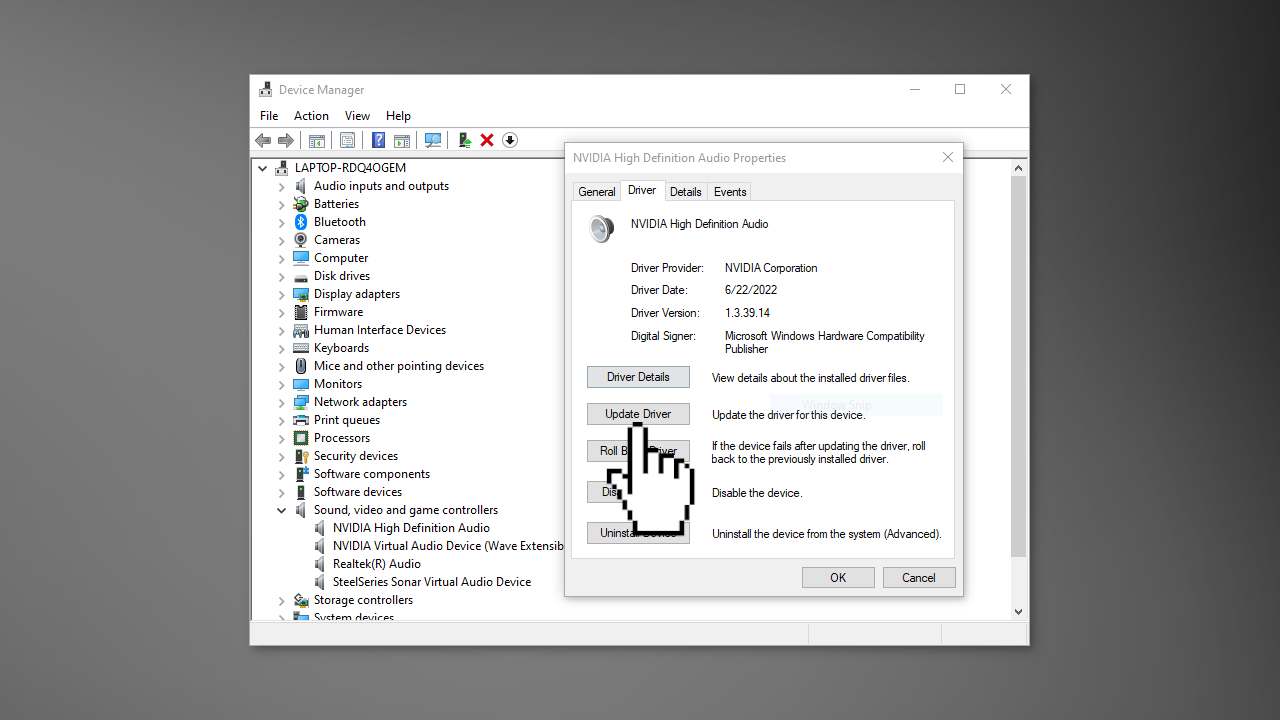
- Click Search automatically for drivers
- Wait for the process to finish and restart your computer
Method 2. Install the High Definition Audio Device Driver
- Open Device Manager
- Go to Sound, video and game controllers
- Find Realtek Audio
- Right-click, then click Update driver
- Select Browse my computer for driver software
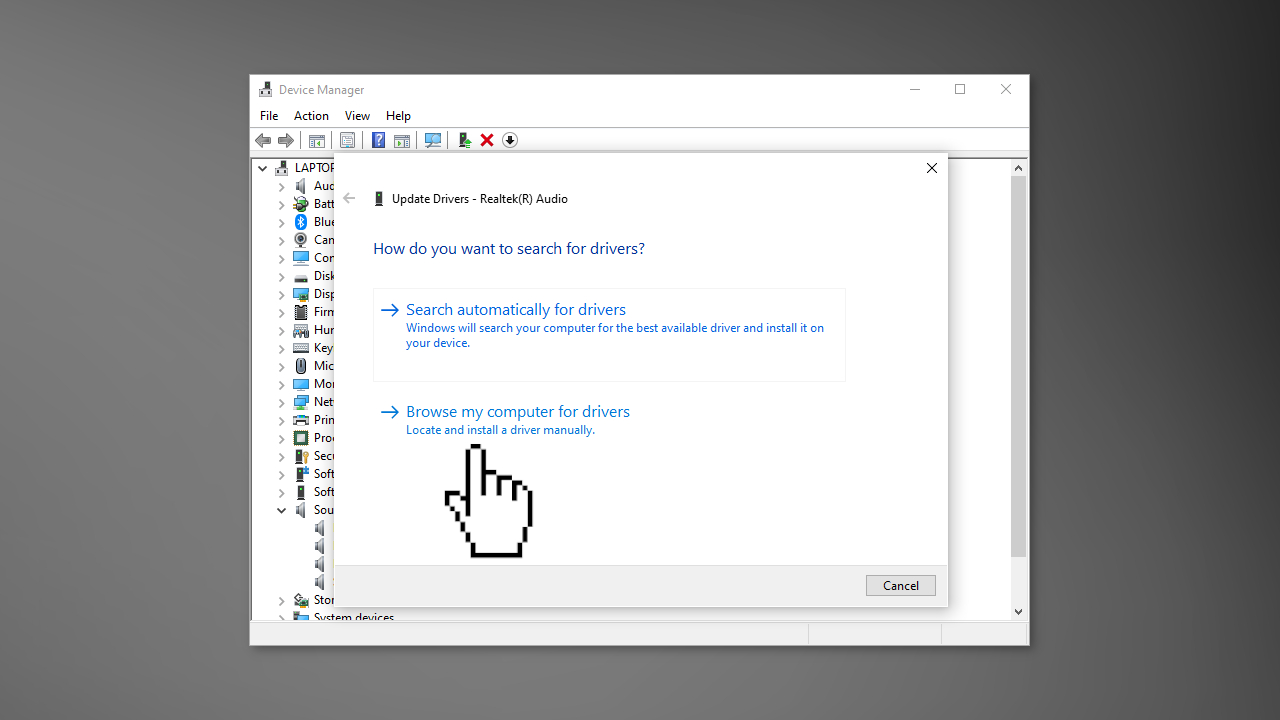
- Click on Let me pick from a list...
- Find the device High Definition Audio Device
- Follow the on-screen instructions
- Reboot your computer
Method 3. Disable the Waves Audio Service
- Open the Services app
- Scroll down to find Waves Audio Services
- Right-click on it and choose Properties
- Change the Startup Type to Disable and stop the service by clicking the Stop button
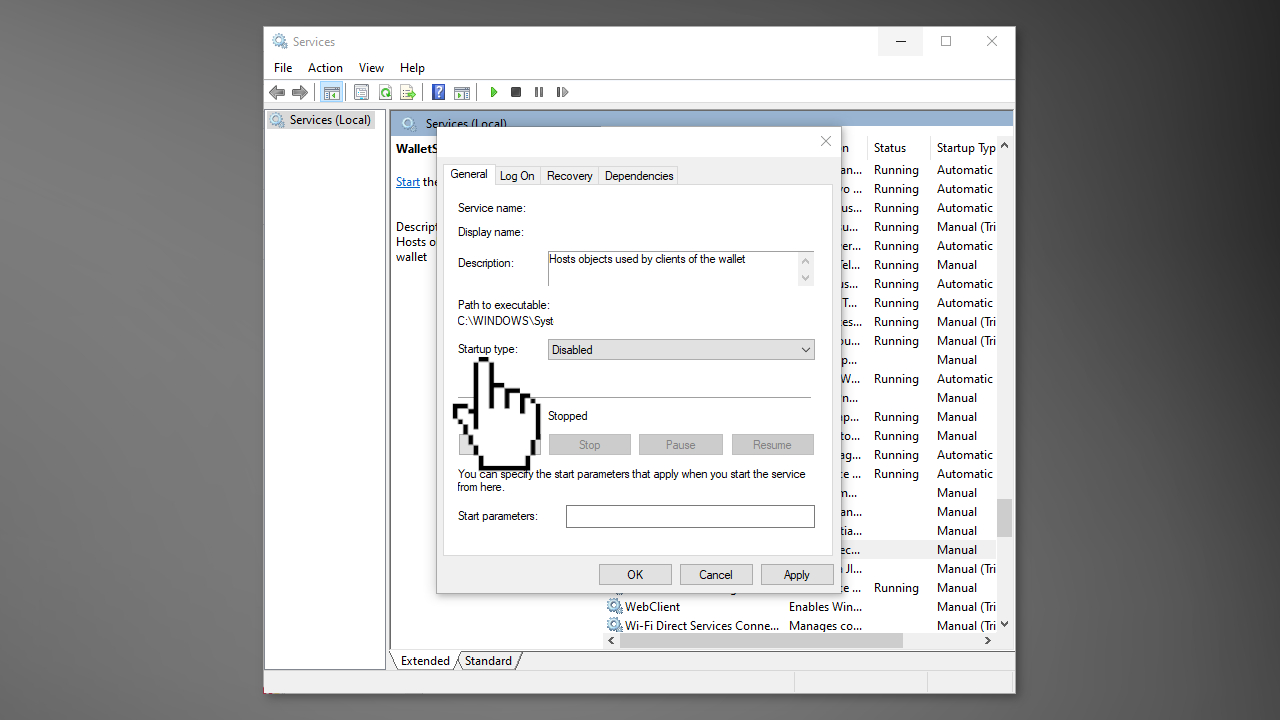
- Click OK and close the window
Method 4. Remove Audio Installer
- Find the Audio Installer (x64) located in:
C:\Program Files\Realtek\Audio\HDA\Waves\Maxx> Audio Installer (x64)
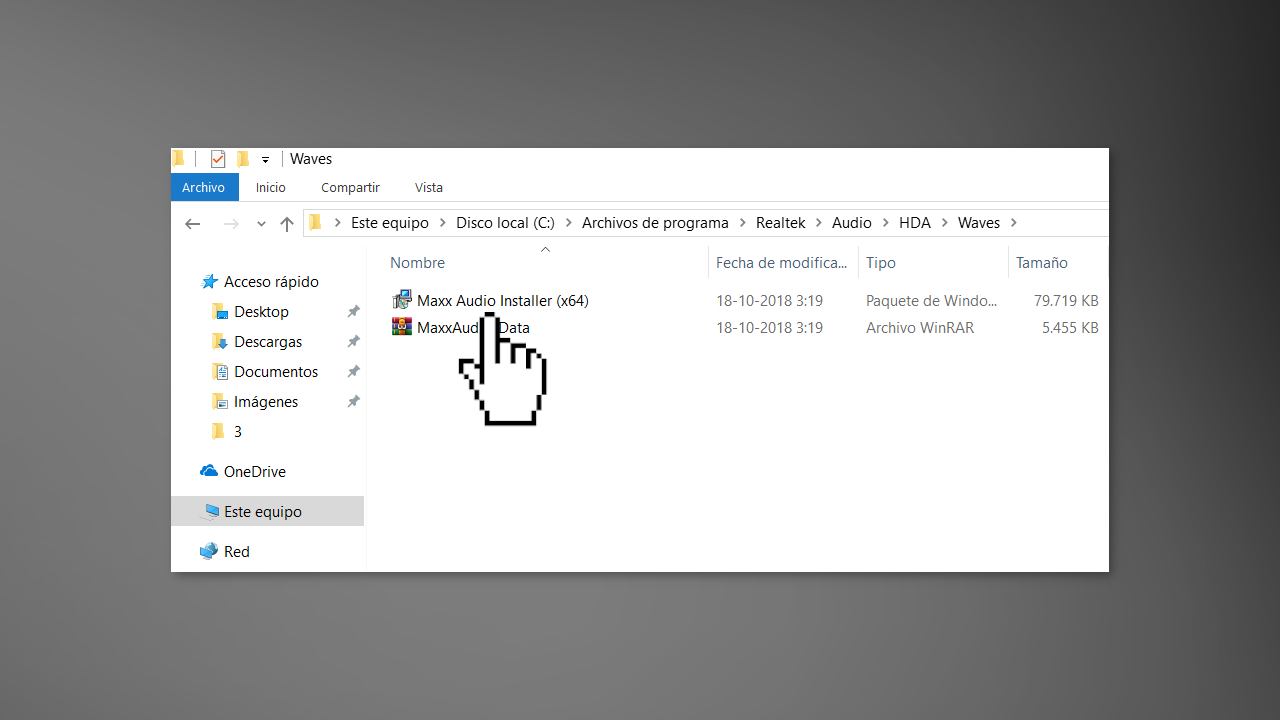
- Remove it from your device
- Check if the issue is fixed
Bottom line
To fix the Waves MaxxAudio Service Application high CPU issue, you can update your audio drivers or disable the Waves Audio Service. If these methods do not resolve the problem, consider using a maintenance tool to address system errors and optimize performance.
Frequently asked questions
High CPU usage by the Waves MaxxAudio Service Application can be caused by outdated audio drivers, software conflicts, or misconfigurations in the audio settings.
You can disable the Waves MaxxAudio Service Application from starting up by accessing Task Manager, navigating to the Startup tab, and disabling it from there.
To update Waves MaxxAudio drivers on Windows 10, go to Device Manager, find your audio device, right-click it, and select 'Update driver' to search for the latest updates.




Report an issue
What's wrong with this guide? We review every report and update or remove content.
Report received — thank you. We'll review and fix it.
You need a free account to submit a report.
Be the first to comment