How to fix
Non-responsive desktop shortcuts
on Windows
Resolve non-responsive desktop shortcuts in Windows 10 quickly and easily. Follow our expert-tested guide for solutions that work efficiently!

What causes How to fix non-responsive desktop shortcuts in Windows 10?
- Recent upgrade from previous Windows version to Windows 10
- Conflict with Windows Defender and other security software
- Issues with HomeGroup feature
- Potential malware infection
- Corrupted system files
Repairs Windows system files, removes malware, and restores a clean OS state — without reinstalling.
Hello. I recently bought a brand new computer with pre-installed Windows 8.1 and instantly upgraded to Windows 10. I heard that nothing would change after the upgrade and I will be able to use my computer from the point I left it. However, after the installation was complete, I saw that none of my Shortcuts on the desktop are working. When I click on a shortcut, I get a split second black screen, then back to the desktop. And then, nothing happens. Could you help me, please?
Desktop shortcuts[ref en-1] are comfortable assets used by many. Therefore, it is an extremely unfortunate situation when one can no longer use such functionality. Do not worry, however, as our security experts prepared few solution options that might work and help you fix non-responsive desktop shortcuts.
Not-working or non-responsive desktop shortcuts may be the result of several problems. The most frequent cause is prevalent among users who just recently upgraded from previous Windows version to Windows 10. As promised by Microsoft, users should be able to start using their computers where they left them - in working order. However, the newest operating system is known to have several bugs,[ref en-2] especially when it comes to Windows Defender's conflict[ref en-3] with other security software.
Many users also reported the bug with the HomeGroup. HomeGroup is a useful feature which allows users to connect to multiple machines on the same network. It is also known sometimes to affect desktop shortcuts and make them non-responsive. This issue can be solved by leaving HomeGroup entirely.
The problems with the proper system or program operation might indicate a malware infection. We advise users to scan their machines with reputable anti-malware software (like [d1]) to make sure that no trojan,[ref en-4] keylogger, coin-miner or other malicious software is not present and causes these issues with shortcuts.
Microsoft always makes a continual effort to fix bugs within the newest operating system. Unfortunately, issues still arise and users look for solutions. Below you will find multiple options for not-working or non-responsive desktop shortcuts fix.
Option 1. Launch Task manager and System File Checker
PowerShell[ref en-5] is a powerful tool that is built-in into every Windows OS. Some users reported that simply running a system file check using this program might instantaneously fix the desktop shortcut issue:
- Press CTRL+Shift+ESC to launch Task Manager.
- Choose File and then Run New Task.
- Put the check mark on Create this task with administrative privileges.
- Enter cmd.
- Type the following commands at the CMD prompt:
dism /online /cleanup-image /restorehealth
sfc /scannnow
If the scan does not indicate any problems, launch PowerShell.
- Click Start button and type PowerShell.
- Type the following command and click Enter:
Get-AppXPackage -AllUsers |Where-Object {$_.InstallLocation -like "*SystemApps*"} | Foreach {Add-AppxPackage -DisableDevelopmentMode -Register "$($_.InstallLocation)\\AppXManifest.xml"}
Option 2. Leave your HomeGroup
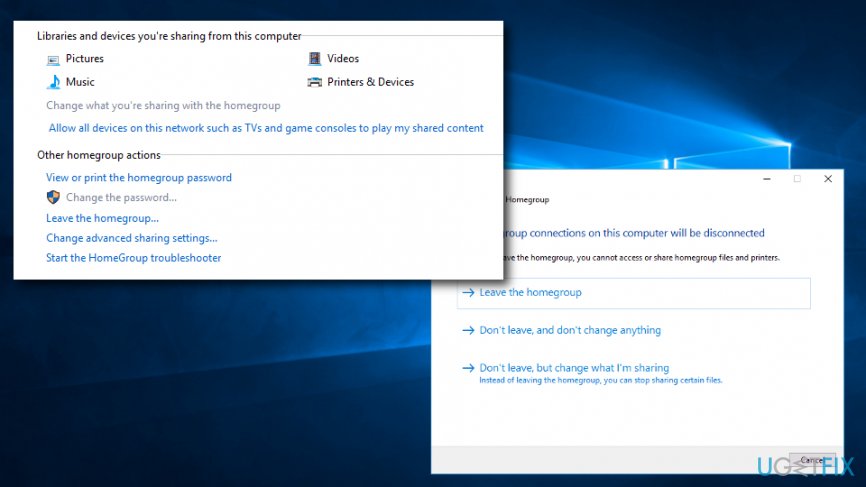
A lot of users rely on HomeGroup to be able to connect to multiple computers at the same time. However, IT specialists noted that the HomeGroup might cause several problems with desktop shortcuts, i. e. make them unusable. In such case, you need to leave your HomeGroup and fix the problem:
- Click on Start and then type in Control Panel into the search box
- Detect HomeGroup in the list
- Now click on Leave the homegroup
- As soon as next window appears, click on Leave the homegroup again and tap on Finish
Option 3. Uninstall your anti-virus program
The newest version of Windows is known to have conflicts with certain security programs. Therefore, you can try uninstalling you anti-virus program and see if it fixes the problem:
- Click on Start button and pick Settings
- Select Apps
- Find your security program and click Uninstall, then follow on-screen instructions
However, it is not safe to keep your PC unprotected. Therefore, we suggest downloading and installing [d1].
Option 4. Re-do the shortcut
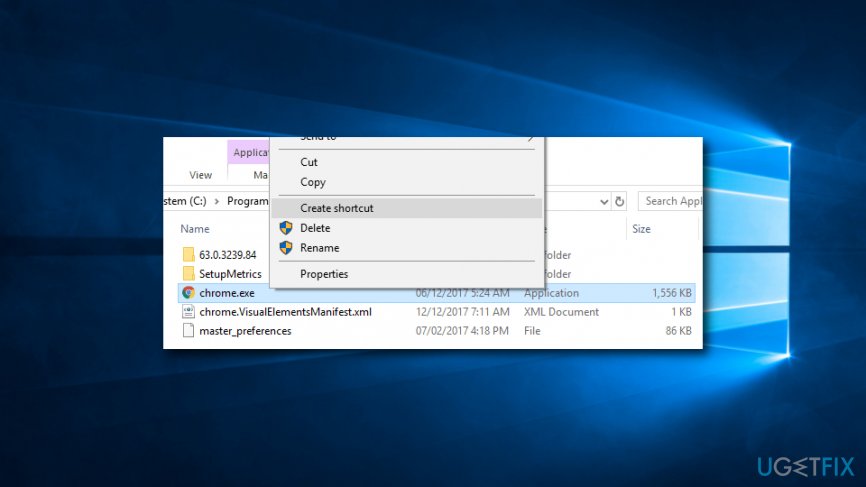
One of the most simple solutions would be simply to recreate the shortcut which is not working. You can do it by following these steps (the example is for Google Chrome):
- Navigate to C:\\Program Files (x86)\\Google\\Chrome\\Application
- Find chrome.exe
- Right-click on the icon and select Create shortcut
- Then, pick Desktop as the location for your newly created shortcut
Option 5. Create a system image and then reinstall Windows
Click Start and type Backup. Then you will be redirected to your OS backup settings. There you can perform the backup by adding a drive to store the system image. You can either manually uninstall and then install Windows using Media creation software or employ Refresh Windows tool found on the official Microsoft web page. It will guide you to through the restore wizard.
Option 6. Make sure your Windows OS is up to date
By default, Windows downloads and installs updates automatically. If you have this feature switched off, it is extremely important to turn it back on and check for latest Windows patches which can fix arising problems.
Bottom line
To fix non-responsive desktop shortcuts, you can try leaving the HomeGroup, scanning for malware with reputable anti-malware software, and using Task Manager and System File Checker. If none of these solutions work, further troubleshooting may be necessary.
Frequently asked questions
You can try rebuilding the icon cache by deleting the IconCache.db file and restarting your computer to see if that resolves the issue.
Right-click the shortcut and select 'Properties,' then verify that the 'Target' field points to the correct file location.
Yes, you can reset your desktop layout by creating a new user account, which will generate default shortcuts for Windows 10.




Report an issue
What's wrong with this guide? We review every report and update or remove content.
Report received — thank you. We'll review and fix it.
You need a free account to submit a report.
Be the first to comment