How to fix
ERR_MEM_MULTIALLOC_FREE error in GTA V
on Windows
Resolve the ERR_MEM_MULTIALLOC_FREE error in GTA V on Windows 10 or 11 with expert-tested solutions that get you back to gaming in minutes.

What causes How to fix ERR_MEM_MULTIALLOC_FREE error in GTA V?
- Game file corruption
- Mods causing issues
- Registry corruption
- System file integrity violations
Repairs Windows system files, removes malware, and restores a clean OS state — without reinstalling.
CI am getting a rather strange error whenever I try to launch story mode in GTA V on Windows, it says "ERR_MEM_MULTIALLOC_FREE." It stops me from playing the game, and I want to continue with the story. Any idea on how to fix this? I tried reinstalling the game, but the problem persists.
Grand Theft Auto V is the seventh iteration of the franchise, released in 2013 by Rockstar Games. Even with its successful predecessors like San Andreas, this series entry is deemed one of the most successful ones the publisher had ever released, with more than 165 million copies sold as of spring 2022.[ref en-3] The game continues to be plaid by millions of people even after all these years, with an online multiplayer mode being especially active.
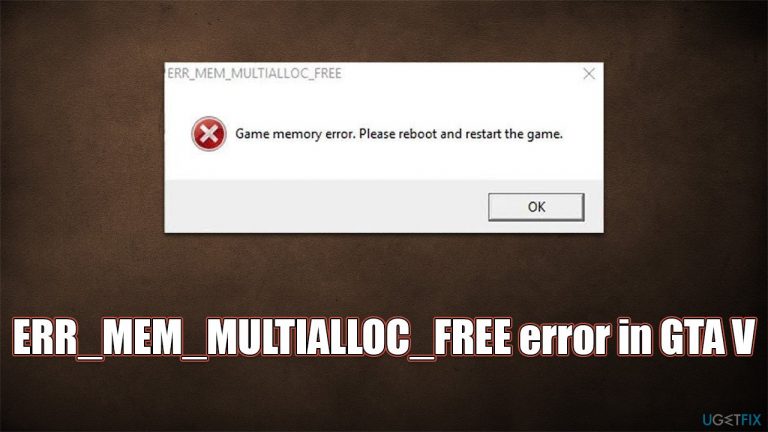
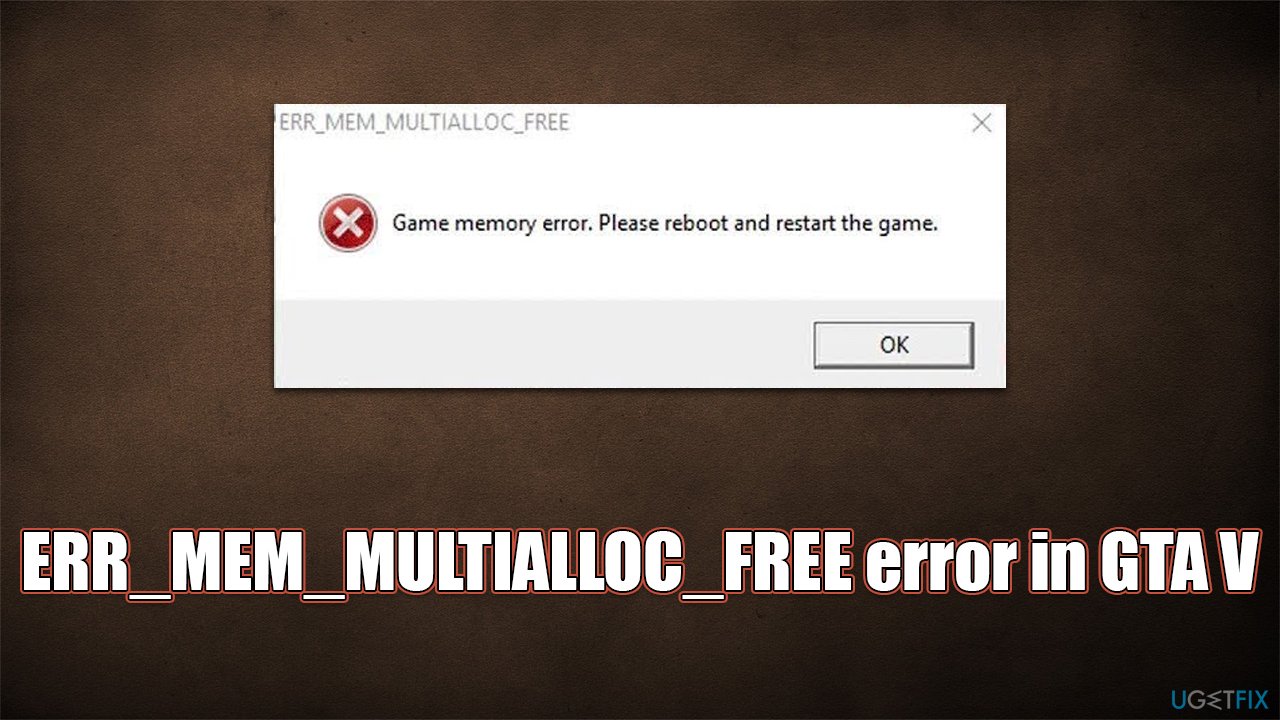
Unfortunately, not all players can experience the game as intended, as they reported encountering the ERR_MEM_MULTIALLOC_FREE error, which they can receive it under varying circumstances. The full message of the error reads as follows:
ERR_MEM_MULTIALLOC_FREE
Game memory error. Please reboot and restart the game.
The message claims that restarting or rebooting the game should be the next step, and most people follow this advice. It usually doesn't work, however, and users are stuck with the error and are not able to play GTA 5.
As it is with many issues that plague systems, there is no one resulting for everyone, although the most common reason for the ERR_MEM_MULTIALLOC_FREE error is the game file corruption. This can usually be fixed by reinstalling the game or verifying game files. Mods[ref en-2] are another reason why games might experience difficulties, as they are introduced by third parties and frequently get corrupted when a new game version is released.
Before proceeding with the solutions to fix the ERR_MEM_MULTIALLOC_FREE error in GTA V, we recommend you start by running a PC repair tool [d1] to rule out any underlying issues with Windows - registry[ref en-1] corruption, system file integrity violations, and similar issues could also be the cause.
Fix 1. Verify the integrity of game files
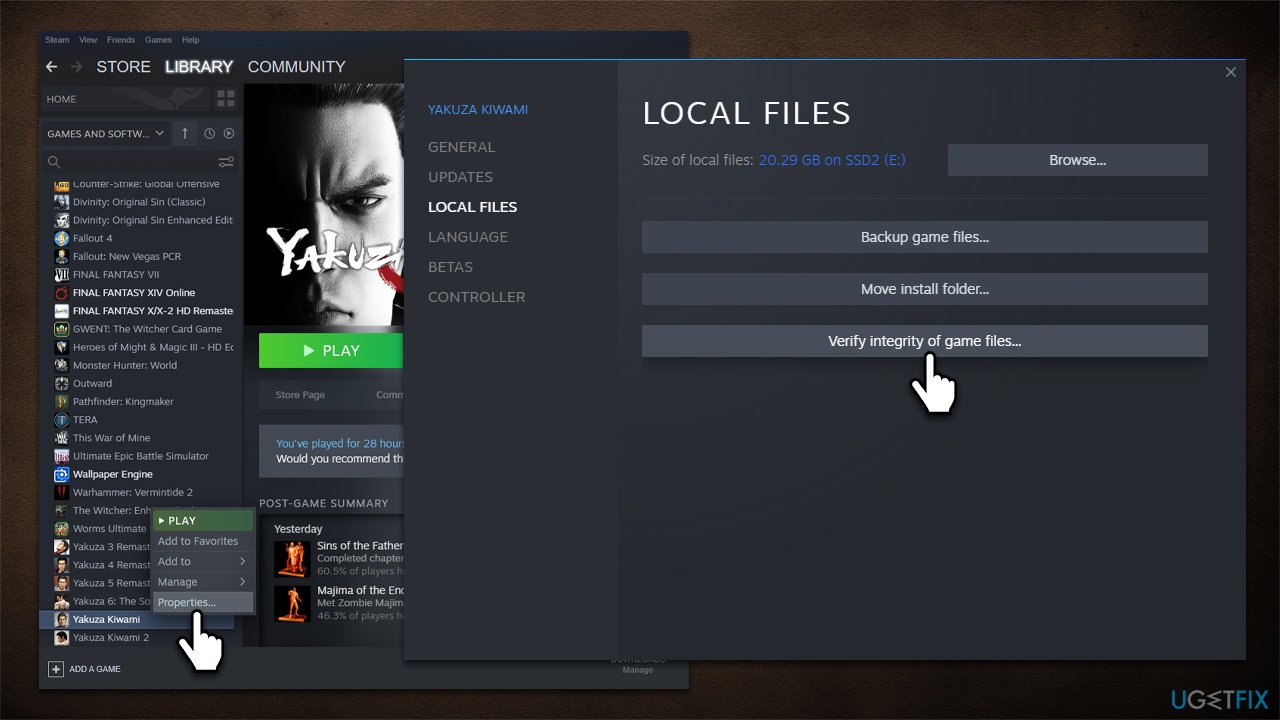
If you are using a gaming platform such as Steam, you can try verifying game files to ensure everything is running properly.
- Open Steam and go to your Library
- Right-click GTA V and select Properties
- Go to the Local files section
- Click Verify integrity of game files...
- Wait till the process is complete, and try launching the game once more.
Fix 2. Update your GPU drivers
One of the main reasons for technical issues in games is related to your video card drivers. If they get corrupted or aren't well-compatible with the game you are playing, you might experience crashes and errors like ERR_MEM_MULTIALLOC_FREE.
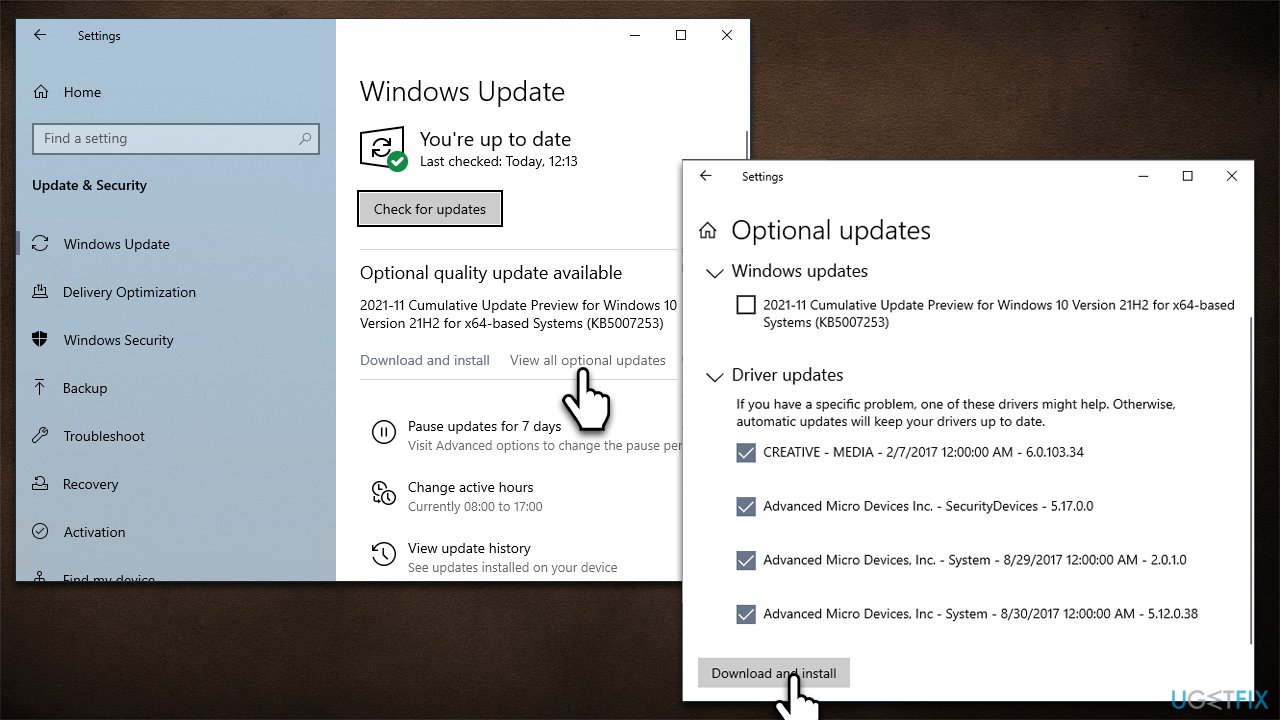
There are several ways to update your GPU drivers, the easiest one is using automatic software such as [rev id="DriverFix"]. You can also access your GPU manufacturer's website and download the latest driver from there. Finally, you could try using the Windows update feature, although it is not a secret that it often fails to find and install the latest drivers for all specific hardware components.
- Type Updates in Windows search and press Enter
- In the Settings window, click Check for updates
- The mandatory updates will be installed automatically
- Then, click View all optional updates
- Tick all the available driver update boxes and install them all
- Restart your PC.
Fix 3. Download a patch
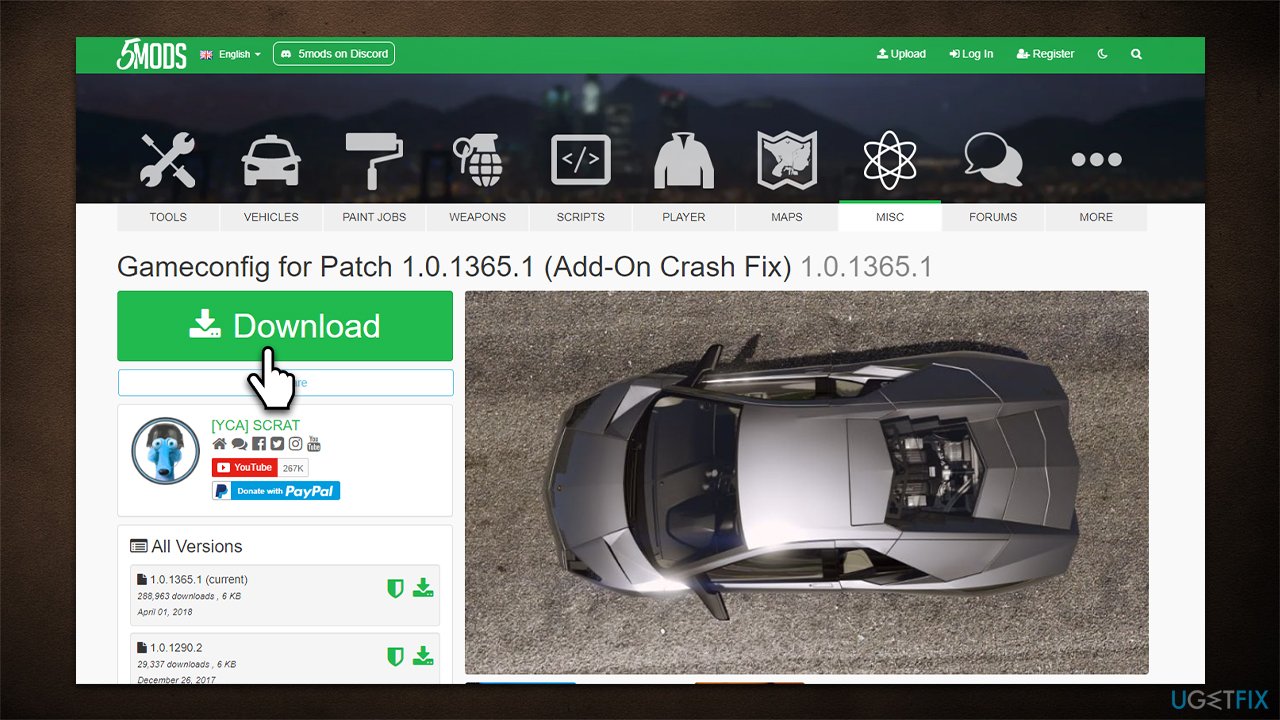
Some users said that they managed to get rid of the error by using the Gameconfig for Patch 1.0.1365.1. All you have to do is download the patch, go to the GTA V/mods/update/update.rpf /common/data folder and replace the gameconfig.xml file. Make sure you are in edit mode when doing this.
Fix 4. Switch to the earlier DirectX version in-game
This solution applies if you can open the game.
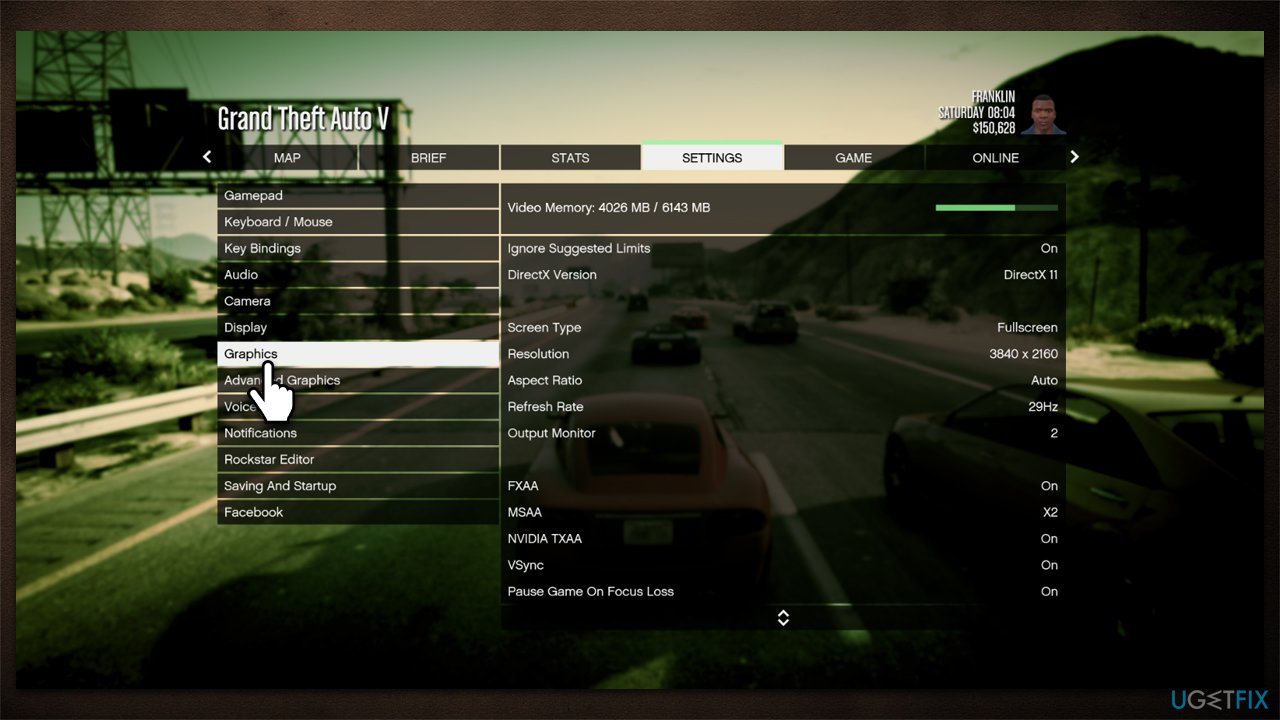
- Launch GTA 5 and go to Settings
- Select Graphics and then pick DirectX Version
- Pick either DirectX 10 or 10.1
- Save the new preferences and see if that solves the issue.
Fix 5. Remove a command line from the bootup process.
Commandline.txt is one of the files that the game uses for its bootup, and it may sometimes be incompatible with your GPU. As a result, you may experience crashes and won't be able to launch the game. You can use the following workaround:
- Go to GTA V in your library
- Right-click the game and select Properties
- Go to Local files and Select Browse
- Find the Commandline.txt file and open it
- Next, press Ctrl + F to find the ignoreDifferentVideoCard line
- Delete it by pressing Shift + Del
- Restart your system.
Fix 6. Reinstall the game
Since the issue is usually caused by corrupted files, you can try reinstalling the game. You can do this in multiple ways. If you are using Steam or another gaming platform, you can simply right-click and select Uninstall option.
Alternatively, you can get rid of the game via the Apps & Features:
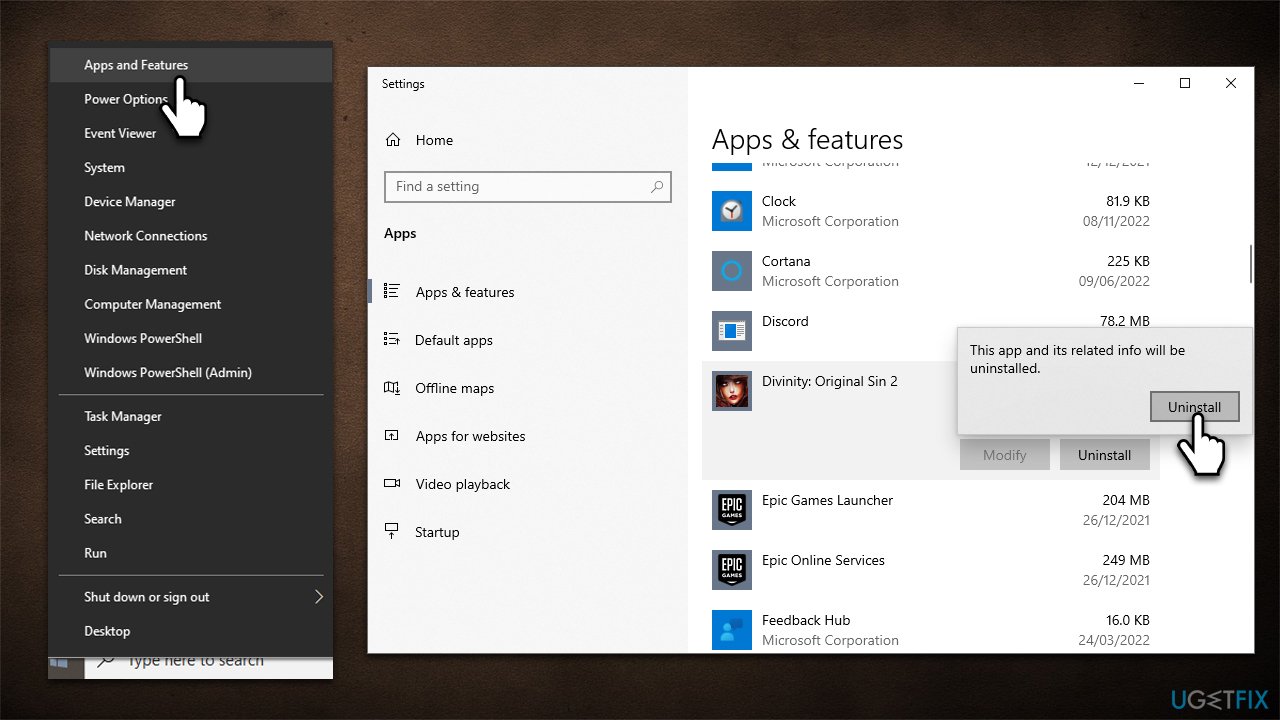
- Right-click on Start and pick Apps and Features
- Scroll down to GTA V from the list
- Select Uninstall > Uninstall and proceed with on-screen instructions
- Next, uninstall the Rockstar Games Social Club app too
- Restart your PC, re-download the game and install it once more.
Bottom line
To fix the ERR_MEM_MULTIALLOC_FREE error in GTA V, you can verify the integrity of game files, reinstall the game, or use a PC repair tool to address underlying Windows issues. If none of these solutions work, consider checking for updates or seeking further assistance from support forums.
Frequently asked questions
The ERR_MEM_MULTIALLOC_FREE error indicates a memory allocation issue, often caused by corrupted game files or improper memory management within the game. This can lead to crashes or performance problems while playing on Windows 10.
To fix this error on Windows 11, verify the integrity of the game files through the game launcher, and ensure your graphics drivers are up to date. Additionally, consider adjusting in-game settings to optimize memory usage.
Yes, you can try disabling background applications and optimizing your system for gaming by adjusting the power settings to 'High Performance' in Windows 10. This may help free up system resources and alleviate memory allocation issues.




Report an issue
What's wrong with this guide? We review every report and update or remove content.
Report received — thank you. We'll review and fix it.
You need a free account to submit a report.
Be the first to comment