How to fix
Sound not working in Chrome and other browsers
on Windows
Resolve sound issues in Chrome and other browsers on Windows 10 and 11 quickly. Follow our expert-tested solutions for instant results and zero traces l…

What causes How to fix sound not working in Chrome and other browsers?
- Incorrect volume settings
- Faulty browser extensions
- Insufficient permissions on the browser
- Sound driver issues
Repairs Windows system files, removes malware, and restores a clean OS state — without reinstalling.
Hello, I need help. Sound is not working from browsers - all of them. The sounds work fine with all the other apps, such as Outlook or when I watch a video. System sounds are also working fine. I am not sure what caused it, and I am baffled why this is happening. I use Windows 10 Home 22H2 version if that helps.
Some users have reported a rather bizarre issue: their browsers don't play sounds anymore. According to multiple reports on various IT forums, all of the other sounds, such as Windows system sounds, as well as those coming out of other apps or videos, are present and working as intended. However, as soon as users want to watch a video or listen to music via the web browser, the problems start, and they can't hear anything anymore.
Sound not working on a web browser is a problem that has been around for many years now. It can happen to any Windows system, including Windows 10 and 11, as well as the older versions. Most users describe the issue as appearing seemingly out of nowhere and usually affecting all of the browsers they have installed. In other cases, it only persists on Google Chrome or another used browser.
While it may seem that the issues lie within the sounds themselves, it is not the case here, as users can hear sounds from other sources. Thus, this being a sound driver issue is unlikely, although not completely impossible. Running a reliable driver updater such as [rev id="DriverFix"] can make sure that all your drivers are up to date (or you could download the newest drivers from the hardware manufacturer's website manually).
Most instances related to sound issues on browsers relate to incorrect volume settings, faulty browser extensions, insufficient permissions on the browser, and similar. We address all of these issues and provide a resolution to all of them, so make sure you check them out until you find the method that would help you fix the sound not working on Chrome or another browser issue.
To ensure that there is no system corruption or similar issues that could be underlying, we recommend running a scan with the [d1] repair tool. It can quickly check Windows for damage and repair all the inconsistencies automatically for you.
1. Install all the available updates
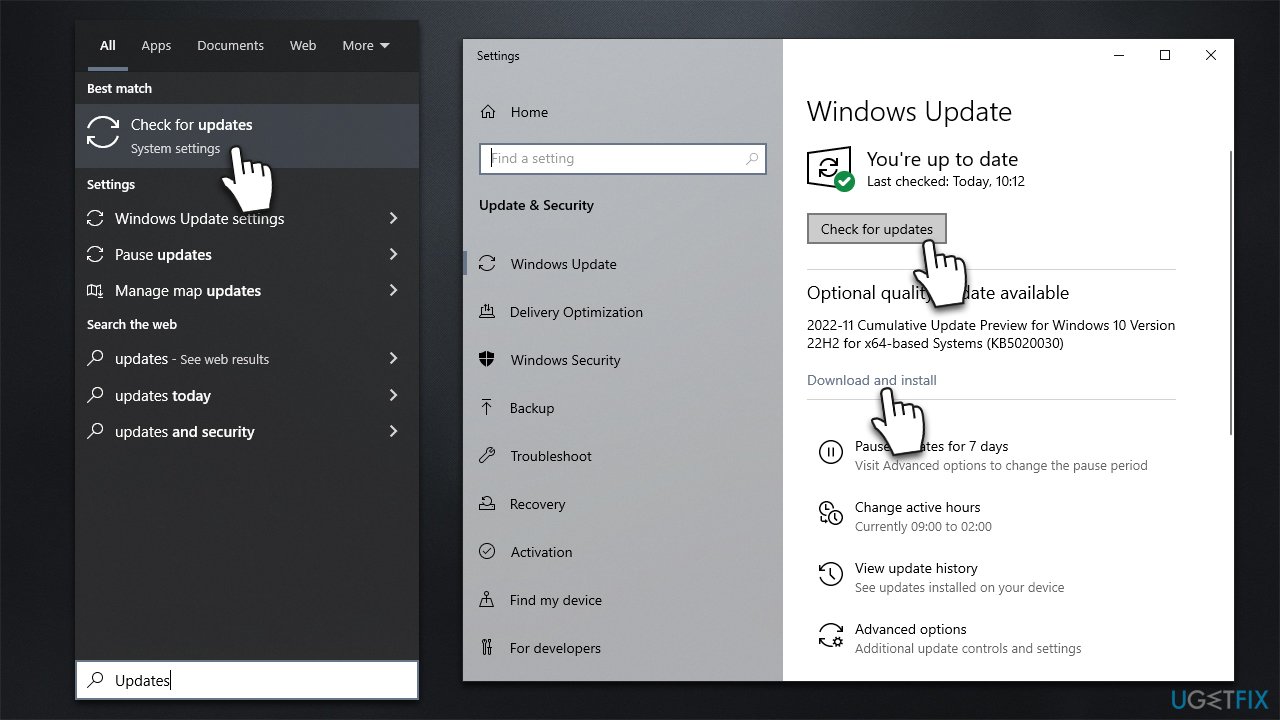
While it may seem unrelated initially, Windows updates can fix a lot of bugs that could occur within the operating system due to one reason or another. Thus, your first task is to make sure that you have all the latest updates installed:
- Type Updates in the Windows search box and press Enter
- Click the Check for updates button
- Wait till everything is downloaded - it should be installed automatically
- If optional updates are available, install them too
- Once done, restart your system and see if that resolves your sound issues on the browser.
2. Run the troubleshooter
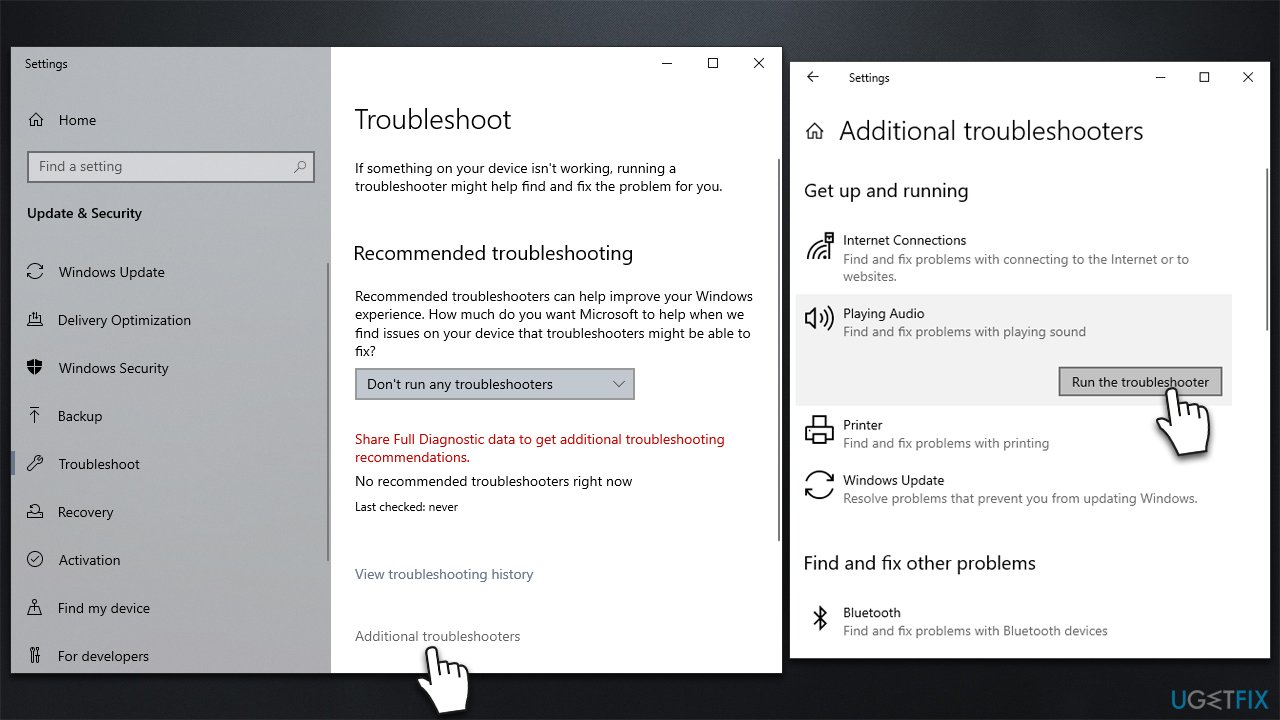
Troubleshooters are great tools that can help you resolve various issues you have with sound.
- Type troubleshoot in Windows search and hit Enter
- Select Additional troubleshooters/Other troubleshooters
- Select the Playing audio option
- Click Run/Run the troubleshooter and apply all the suggested solutions.
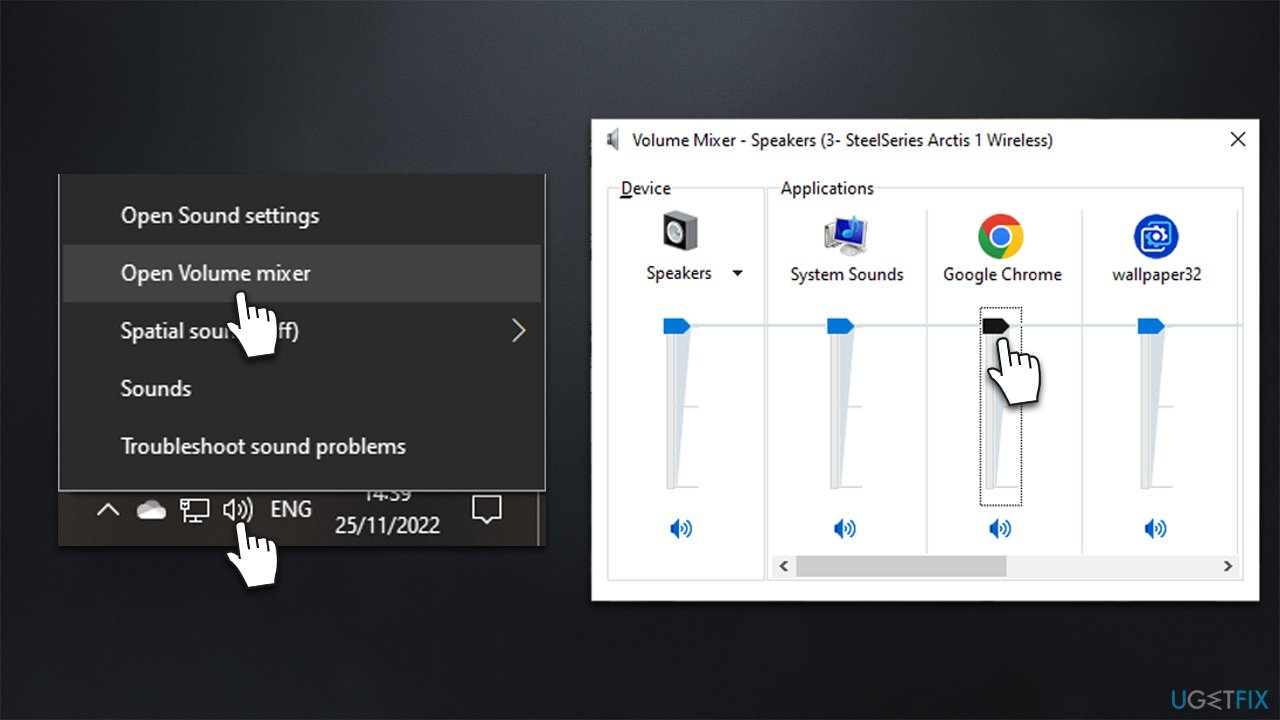
3. Check individual volume controls
In some cases, individual sound controls could be the reason you can't hear sounds from the browser. You might have muted it previously and forgotten about it, or some application did that. You can check that as follows:
- Right-click on the Speaker icon on your taskbar and select Volume Mixer
- Here, you will see the list of all applications capable of playing sounds
- Scroll if needed to find your browser, for example, Google Chrome, and then ensure the volume is not set to 0.
4. Allow sites to play sounds
Within browser settings, there is an option that may prevent websites from playing sounds. Make sure it is not the case:
- Click Menu (three vertical dots) on the browser and select Settings
- On the left, select Privacy and security, then pick Site settings
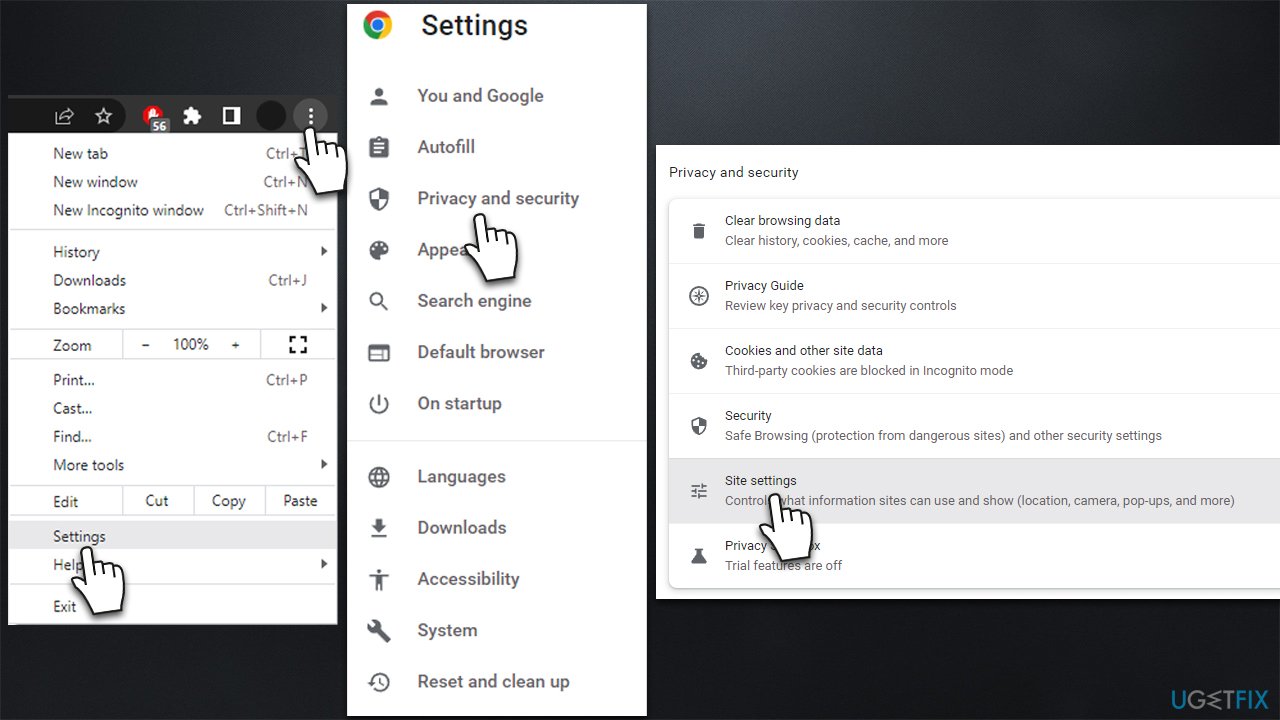
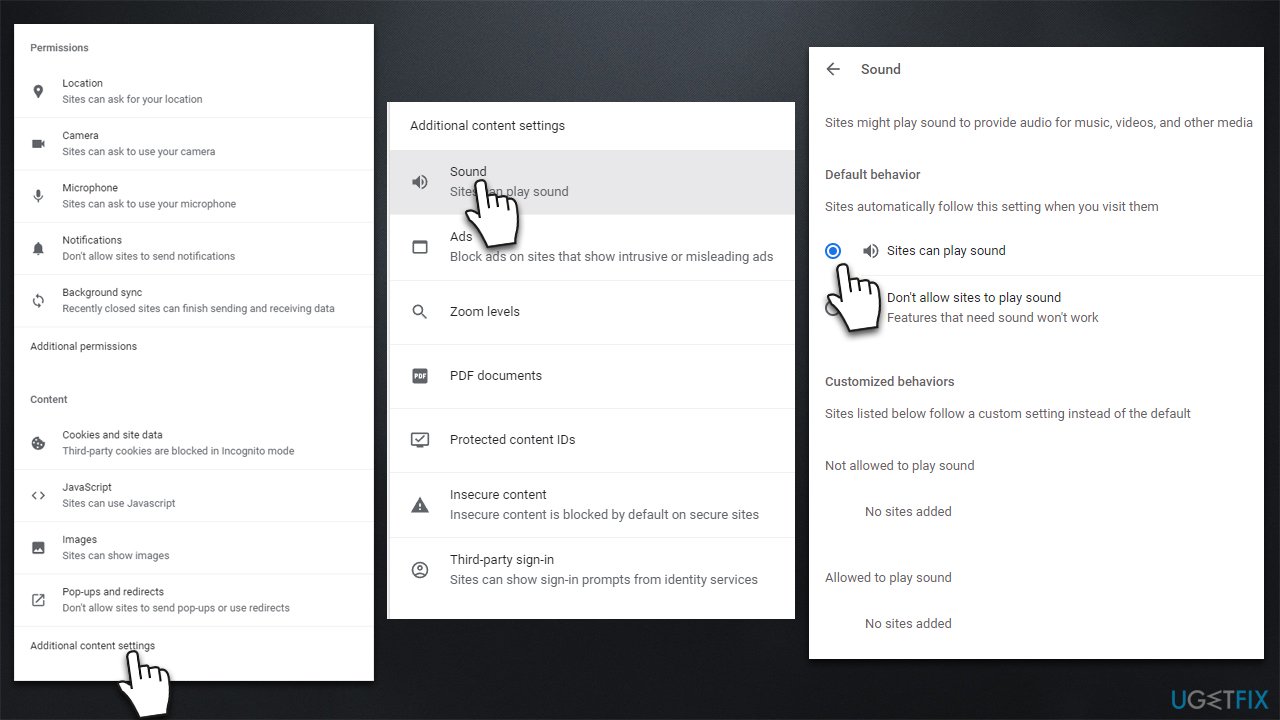
- Scroll down until you find Additional content settings at the very bottom - expand this option
- Pick Sound
- Make sure that the Sites can play sound option is selected.
5. Remove browser extensions
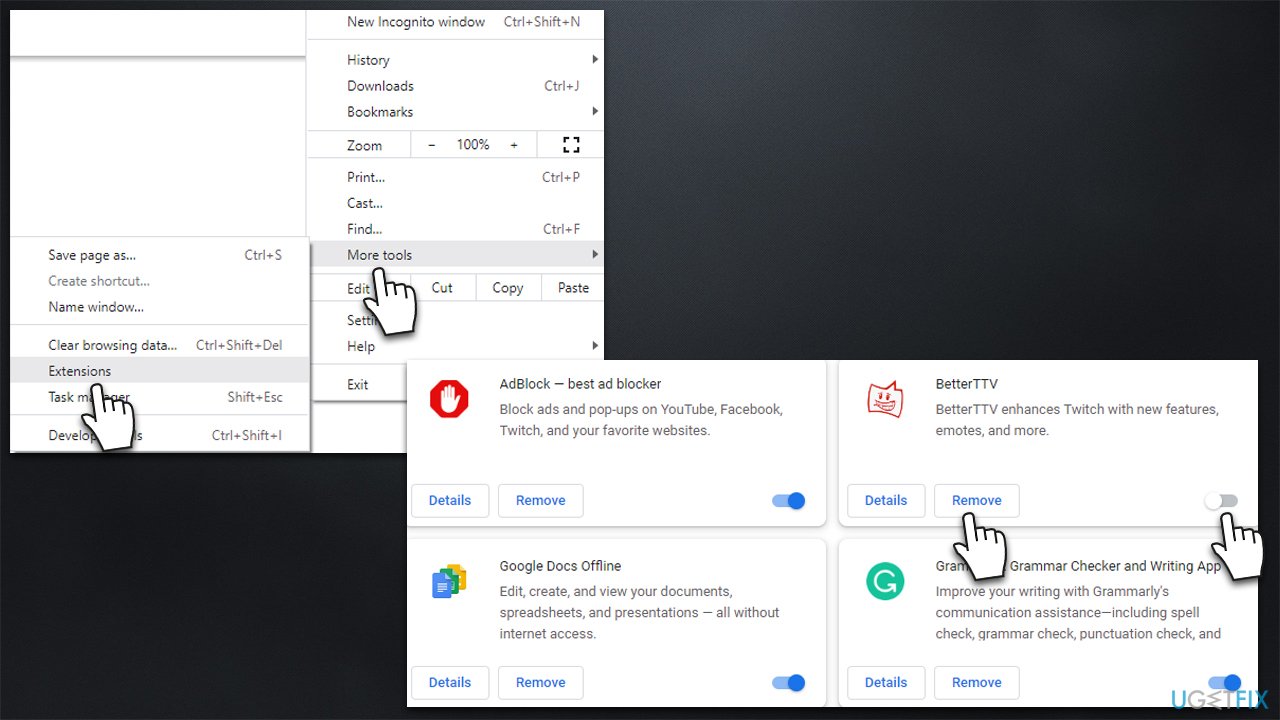
Potentially unwanted or faulty extensions might cause various issues, including those related to sounds. You can either disable or uninstall apps you think may impact sounds on your browser - here's how:
- Click Menu and select More Tools > Extensions
- Here you will find the list of all extensions installed
- You can click the switch on the bottom-right to disable the extension
- Alternatively, you can click Remove to eliminate it completely.
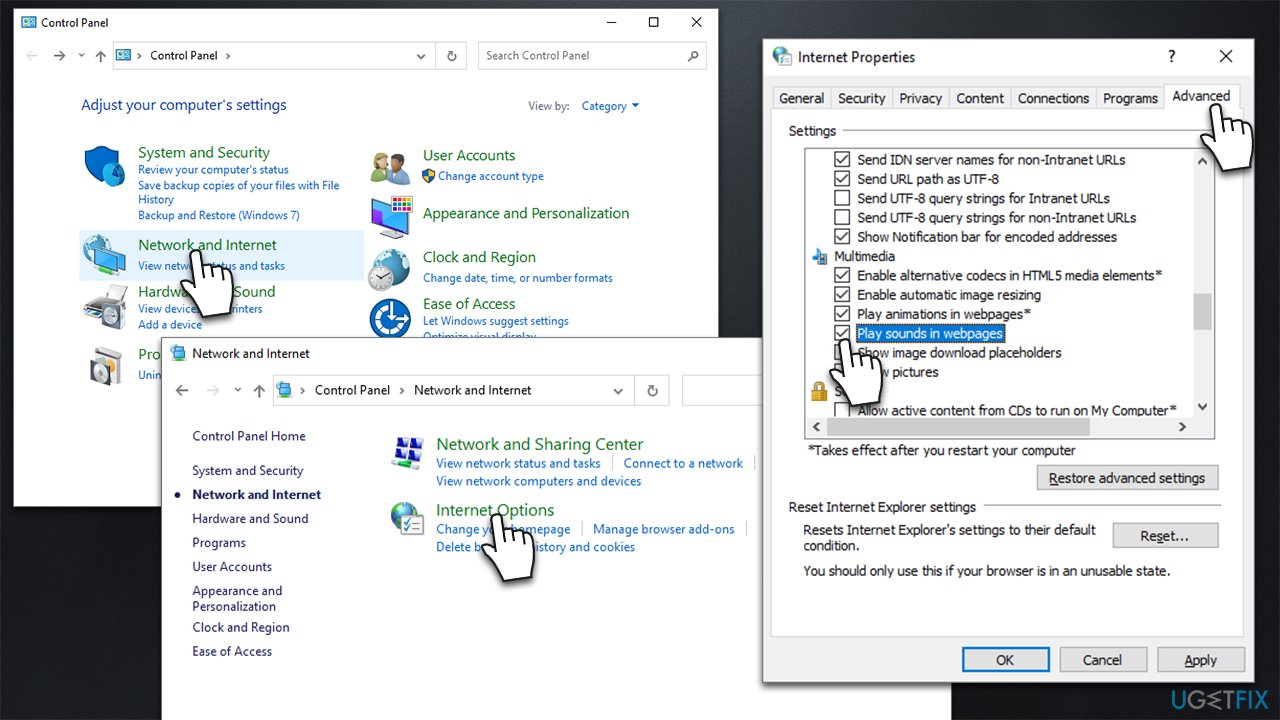
6. Check internet options
- Type Control Panel in Windows search and press Enter
- Go to Network and Internet section and select Internet Options
- Select Advanced tab
- Scroll down to the Multimedia section and make sure the Play sounds in webpages option is enabled
- Click Apply and OK.
Bottom line
To fix sound not working in browsers, check your volume settings, disable any faulty extensions, and ensure the browser has the necessary permissions. If these steps do not resolve the issue, consider updating your sound drivers or reinstalling the browser.
Frequently asked questions
Sound issues in Chrome can be caused by incorrect audio settings or browser permissions. Ensure that the site is not muted and check your system's sound settings.
Try clearing the browser cache and ensuring that the audio is enabled in the browser settings. Additionally, check if the audio output device is set correctly in Windows Sound settings.
If sound issues persist, consider updating your audio drivers and checking for any pending Windows updates that might affect browser functionality.




Report an issue
What's wrong with this guide? We review every report and update or remove content.
Report received — thank you. We'll review and fix it.
You need a free account to submit a report.
Be the first to comment