How to fix
Auto muting microphone
on Windows
Resolve auto muting issues with your microphone on Windows 10 quickly and easily. Expert-tested solutions for a seamless audio experience, fixed in minu…

What causes How to fix auto muting microphone on Windows 10?
- Improper sound settings
- Outdated device drivers
- Malware or virus infection
- Changes after system updates
Repairs Windows system files, removes malware, and restores a clean OS state — without reinstalling.
My internal microphone automatically sets itself to mute. After that, I open Properties and click unmute, but after a few seconds, it sets itself to 0 and gets muted again. I really don’t know what to do. Could you please help?
Many people encounter a problem related to the auto muting microphone (both internal and external). Although this issue prevails on Windows 10 OS, the microphone may start malfunctioning on the older Microsoft products[ref en-1] as well. Typically the microphone works fine for a long time, but the starts randomly muting it and going to zero levels.
According to Microsoft experts, this might happen due to improper sound settings or outdated device drivers.[ref en-2] Nevertheless, the version of malware/virus infection should not be rejected as well. Therefore, if you cannot have a proper Skype conversation or record something due to continuously auto muting microphone, try the methods that we have listed below.
How to fix auto muting microphone on Windows 10?
Usually, an internal or external microphone sets itself to mute automatically due to the incorrect sound settings. Even if you haven’t modified those settings, they might have been changed automatically after the installation of some updates or malware infection. 
Therefore, the first thing you should try is a thorough system scan with a professional anti-malware / fixer. We would recommend using [d1]. This tool will also ensure that all Windows Registry files are correct. Besides, it will fix damaged/corrupted system files. If the scan did not help to stop the microphone from muting, here’s what you should try:
Method 1. Update device drivers
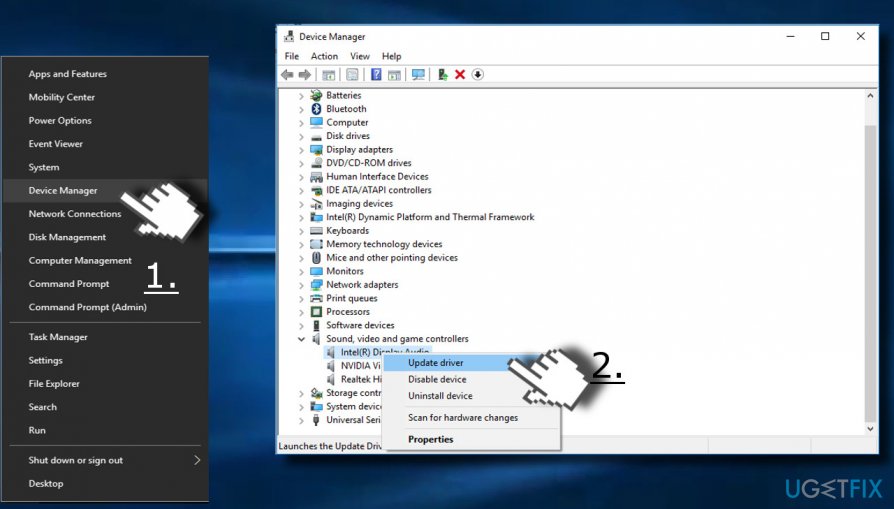
- Right-click on Windows key and select Device Manager.
- Expand Sound, video, and game controllers and update all device drivers from that list.
- For this purpose, right-click on driver and click Update Drivers.
- Finally, reboot your PC.
- In case you prefer an auto driver update method, a handy tool could be [rev id="Driverfix"]
Update device drivers
Method 2. Modify microphone’s settings
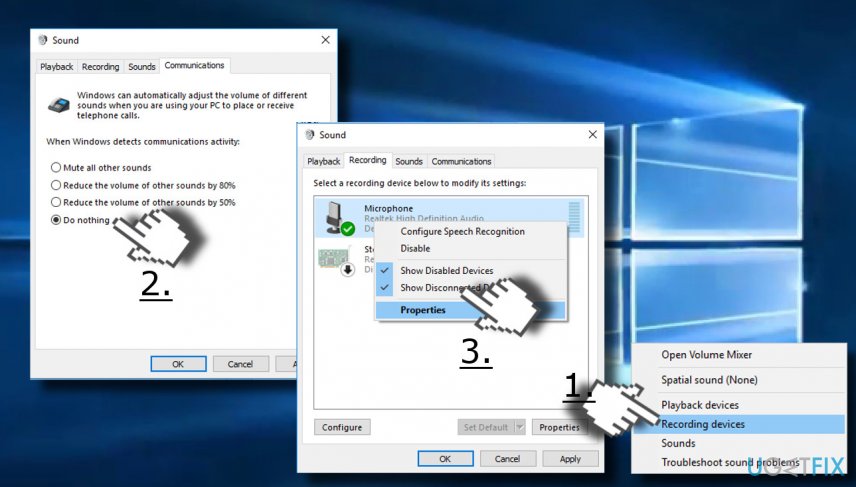
- Right-click on the speaker icon placed next to the taskbar (near date/time).
- Select Recording Devices.
- When the Sound control window opens, select the Communications tab.
- When the question When Windows detects communication activity emerges, select Do nothing.
- Then click Apply. After that, check your microphone if it stopped muting itself. If the problem did not stop, please do the following:
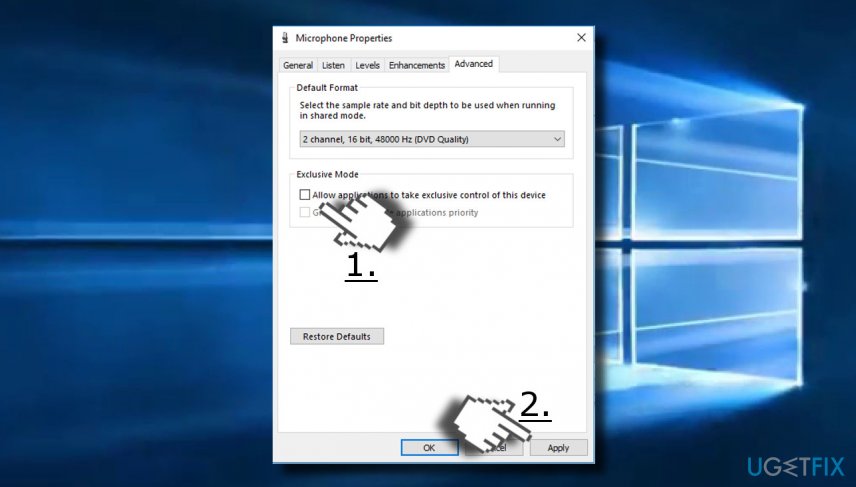
- Open the Recording tab on the Sounds window again.
- Right-click on the microphone and select Properties.
Change microphone settings - Click the Advanced tab on the new window.
- Uncheck the Allow applications to take exclusive control of this device option.
- Click Apply to save the changes.
Change microphone settings2
Method 3. Change the format of the Microphone
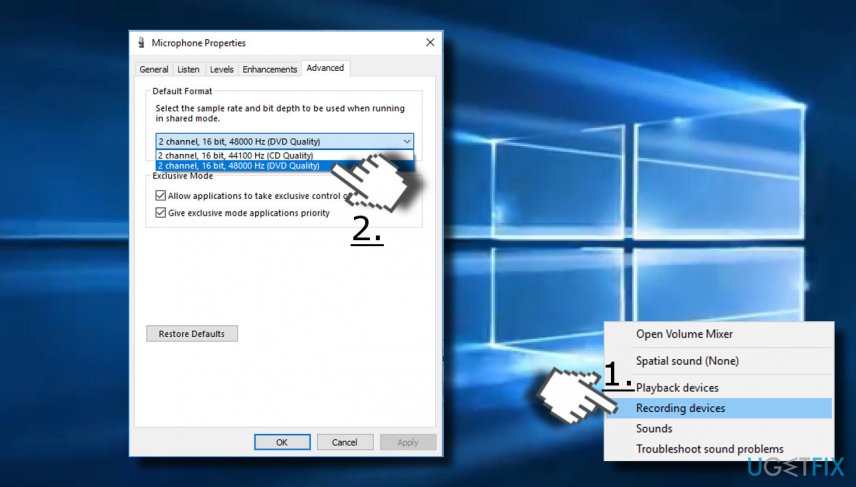
- Right-click on the speaker icon placed next to the taskbar (near date/time).
- Select Recording Devices and double-click on the microphone that you are currently using.
- Open the Advanced tab and select any of the 16-bit options on the list.
Change microphones format
If none of the previous methods did help, you should try to fix auto muting microphone by disabling your anti-virus. Many people have reported that they were using Norton anti-virus. If you are using it as well (or any other third-party antivirus), try to disable it temporarily and check if the issue persists.
Finally, the microphone error may be fostered by svchost.exe file.[ref en-3] To check that, open Task Manager and check how much CPU this process is consuming. If it sucks up more than 30%, there is a high probability that this process is the culprit. Here you may find a helpful article for removing the corrupted svchost.exe file.
Bottom line
To fix the auto muting microphone issue on Windows 10, try updating device drivers and modifying microphone settings. If these methods do not resolve the problem, consider performing a thorough system scan with a professional anti-malware tool.
Frequently asked questions
Auto muting can be caused by incorrect audio settings, outdated drivers, or interference from other applications. Check your sound settings and ensure no other software is controlling your microphone.
To prevent auto muting, go to Sound settings, select your microphone, and disable any enhancements or exclusive mode options that may interfere. Additionally, keep your audio drivers updated to the latest version.
Yes, you can run the built-in Troubleshooter for audio recording by going to Settings > Update & Security > Troubleshoot > Additional troubleshooters. This tool can help identify and fix common microphone issues.




Report an issue
What's wrong with this guide? We review every report and update or remove content.
Report received — thank you. We'll review and fix it.
You need a free account to submit a report.
Be the first to comment