How to fix
BlueStacks not installing
on Windows
Resolve BlueStacks installation issues on Windows 10 or 11 easily with expert-tested solutions. Get your apps running smoothly in minutes.

What causes How to fix BlueStacks not installing in Windows?
- Installer got corrupted during the downloading process
- Installation is blocked by security software
- Essential certificates are missing
- Graphics driver is outdated
- Using an incorrect installer type
Repairs Windows system files, removes malware, and restores a clean OS state — without reinstalling.
Hello. I tried to install BlueStacks but it is not working. What could the problem be?
BlueStacks is an American technology company that produces the BlueStacks App Player, which allows Android applications to run on Microsoft Windows or macOS computers. The app was released in 2011, and has been adopted by over 1 Billion gamers across 100 countries since then.
However, many users are having difficulties when trying to install BlueStacks in Windows. People receive the "There was an error while trying to download BlueStacks" message or "Error code: 1." It is unknown why exactly this is happening. It is possible that the BlueStacks installer got corrupted during the downloading process, the installation is blocked by your security software or the essential certificates are missing.
In this guide, you will find 7 steps that should help you fix BlueStacks not installing in Windows. Keep in mind that the manual troubleshooting process can be lengthy. You can use a maintenance tool like [d1]. It can automatically fix most system errors, BSODs,[ref en-1] corrupted files, and registry[ref en-2] issues. It can also clear cookies and cache[ref en-3] which are often the culprits behind many malfunctions. Otherwise, follow the step-by-step instructions below.
Solution 1. Download a New Installer
- Navigate to the location where the installer is stored, select it, and Delete it
- Now, go to BlueStacks official website, and download the installer again
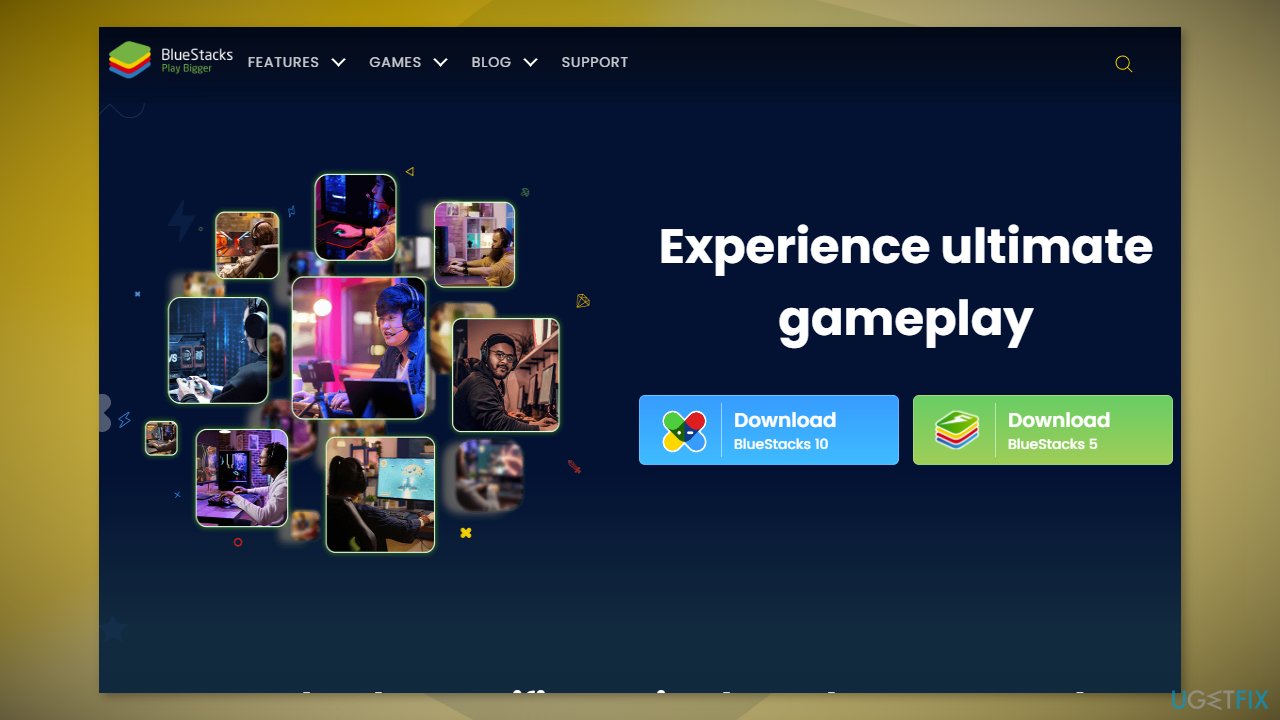
- Once done, launch the setup and proceed with the installation
Solution 2. Update the Graphics Driver
- Open Device Manager and expand the Display Adapters tab
- Right-click on your graphics driver and select Update Driver
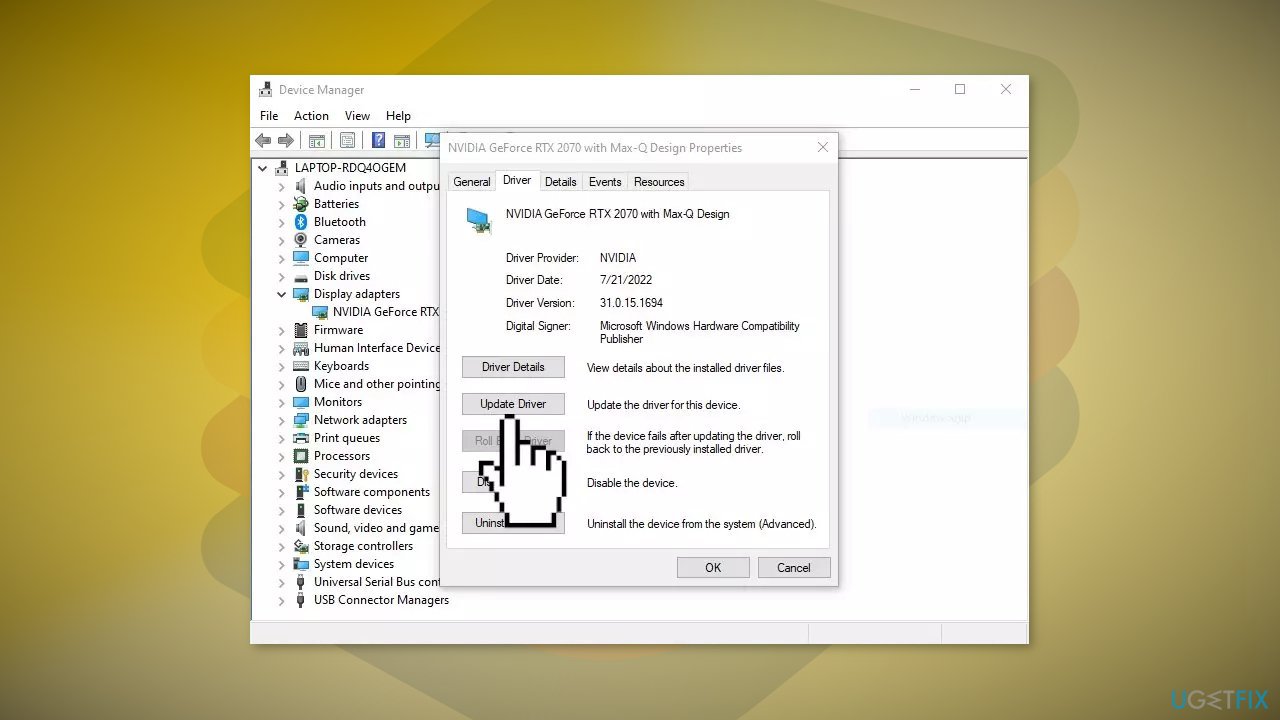
- Press on Search Automatically for Drivers
- If a graphic driver update is available, install it and then restart your PC
- Upon restart, launch the Modern Warfare game and check if it fixed the issue.
- You may also use a dedicated utility like [rev id="DriverFix"] that ca find the best drivers for your machine and install them automatically
Solution 3. Use the Offline Installer
- Download the BlueStacks’ offline installer
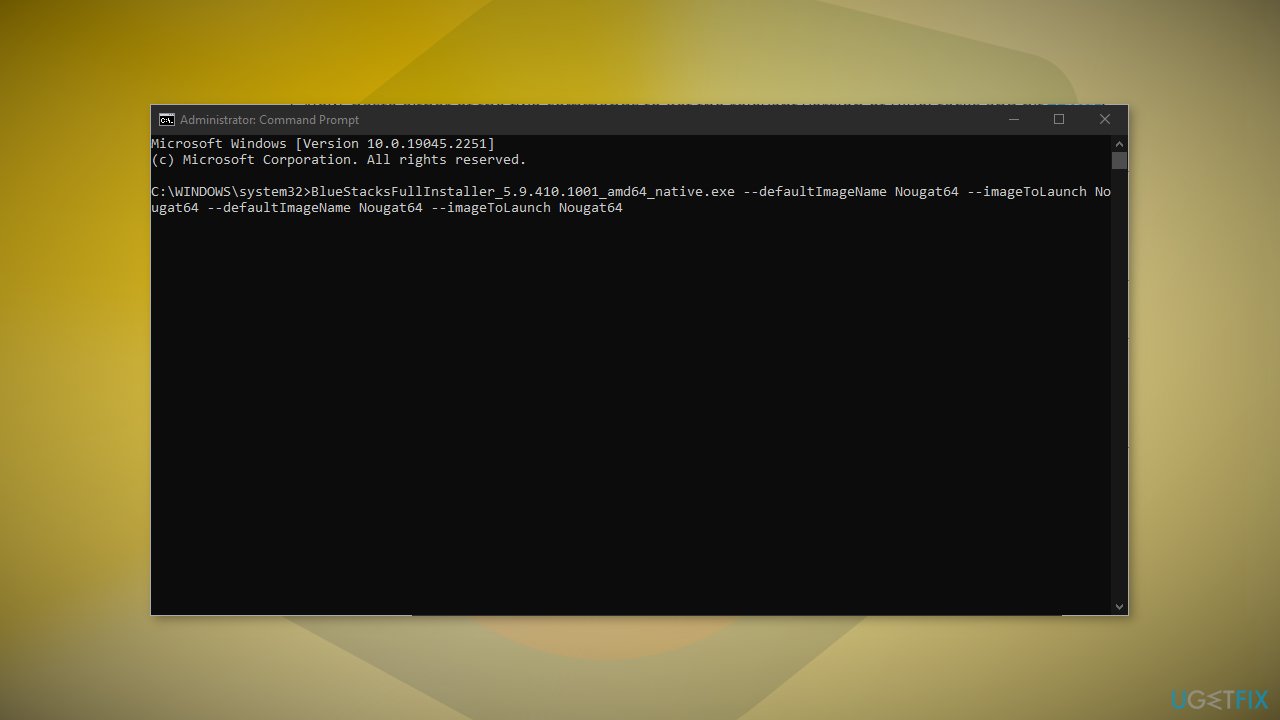
- Navigate to the location the installer is downloaded, type cmd in the address bar, and then hit Enter
- Now, paste either of the two commands to get the relevant version of BlueStacks and hit Enter:
Nougat:
BlueStacksFullInstaller_5.9.410.1001_amd64_native.exe --defaultImageName Nougat64 --imageToLaunch Nougat64 --defaultImageName Nougat64 --imageToLaunch Nougat64
Pie:
BlueStacksFullInstaller_5.9.410.1001_amd64_native.exe --defaultImageName Nougat64 --imageToLaunch Nougat64 --defaultImageName Pie64 --imageToLaunch Pie64
- Once done, wait for the installation to complete
Solution 4. Run the Installer in Compatibility Mode
- Navigate to the folder where the BlueStacks installer is stored, right-click on it, and select Properties
- Navigate to the Compatibility tab, tick the checkbox for Run this program in compatibility mode for:
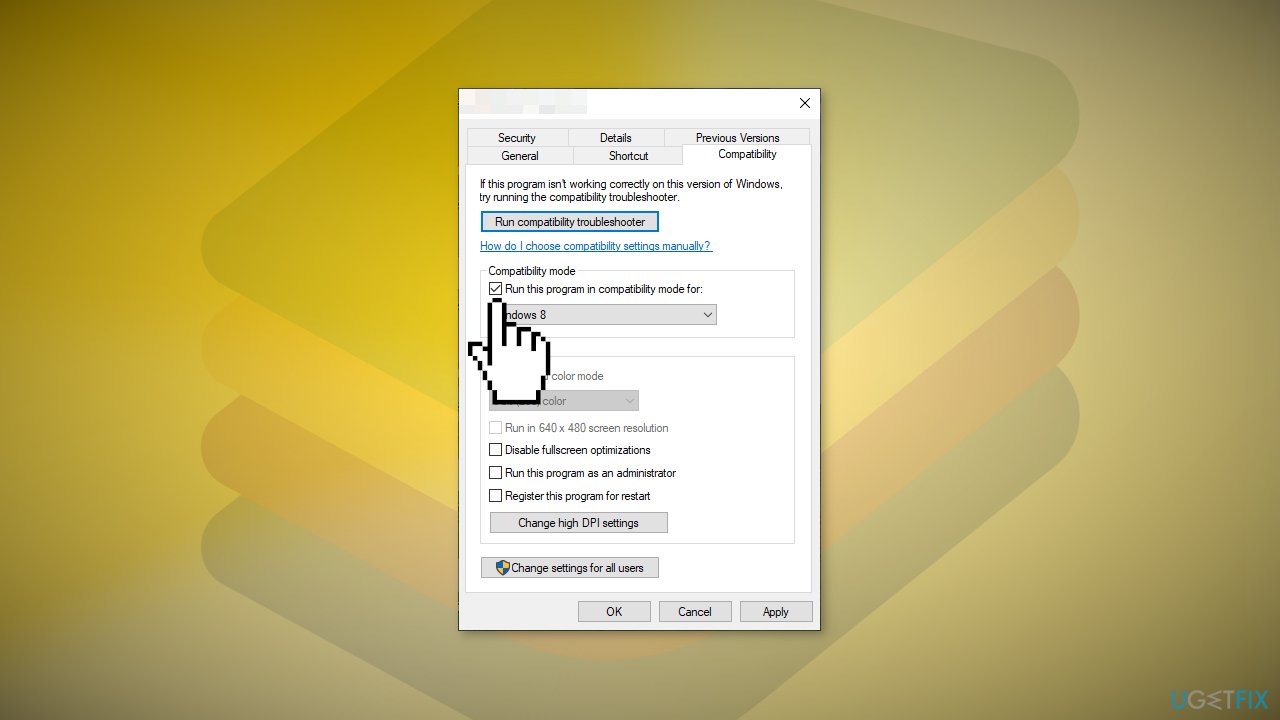
- Choose an earlier iteration of Windows from the dropdown menu, and click on OK to save the changes
- Try running the setup and installing BlueStacks
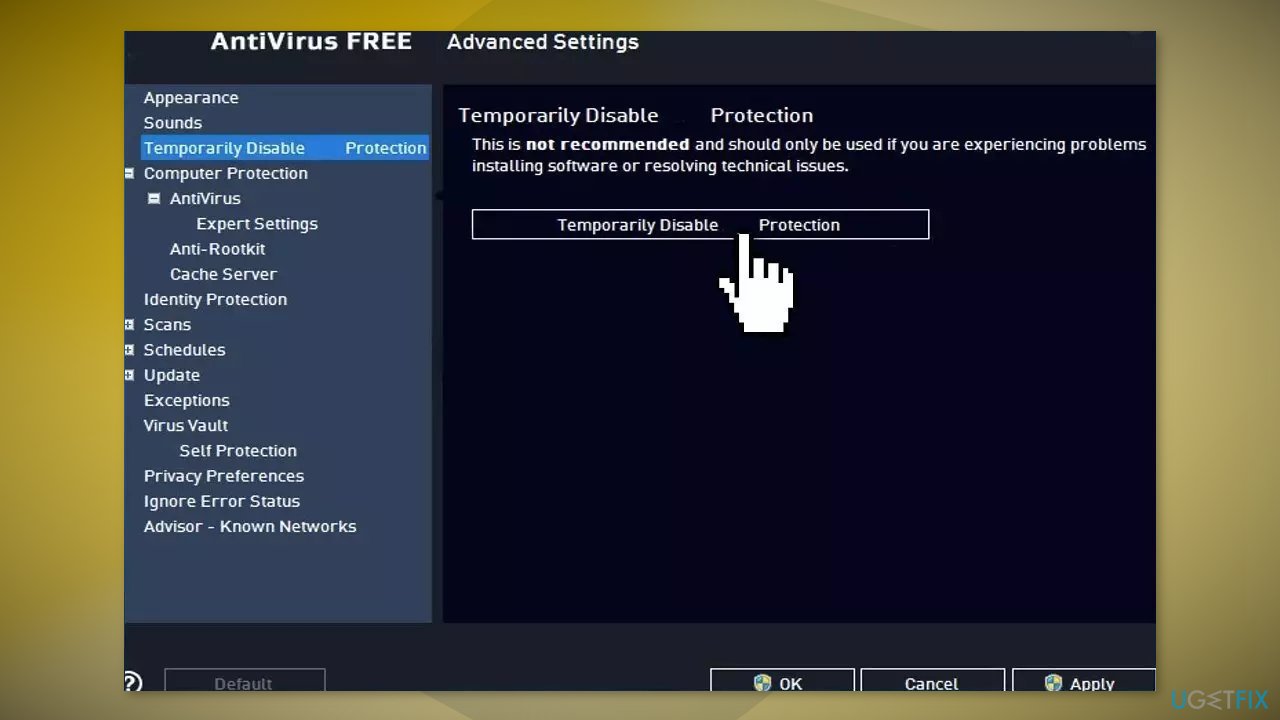
Solution 5. Disable Third-Party Antivirus Software
Sometimes antivirus software can block legitimate processes mistakenly. You should try disabling your antivirus and trying to run the installer again.
Solution 6. Disable Hyper-V
- Open the Command Prompt with Administrator rights and type the below command:
bcdedit /set hypervisorlaunchtype off
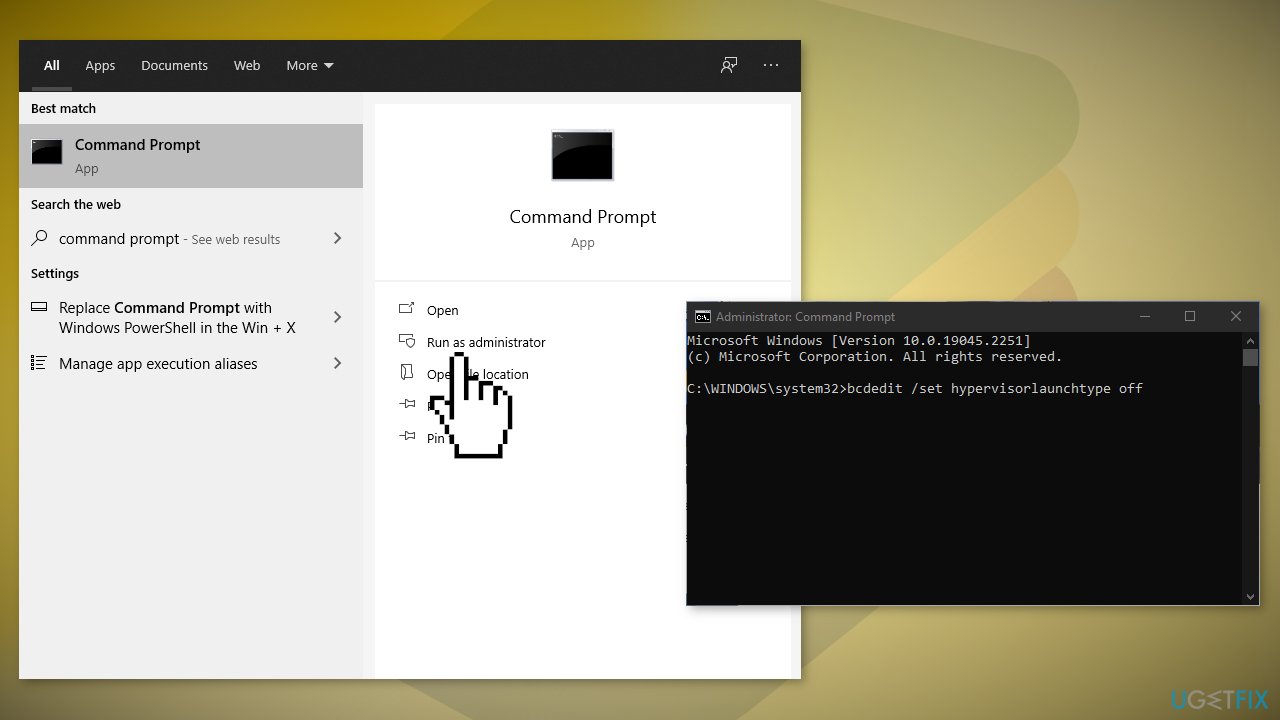
- Now, press the Enter button and let the command execute
- Finally, reboot your computer and then run the BlueStacks installer to see if the problem is fixed
Solution 7. Install Essential Certificates
- Right-click on the BlueStacks installer and select the Properties option
- Now, go to the Digital Signatures tab, select the signature, and click on the Details button
- Next, click on the View Certificate button and then press the Install Certificate button
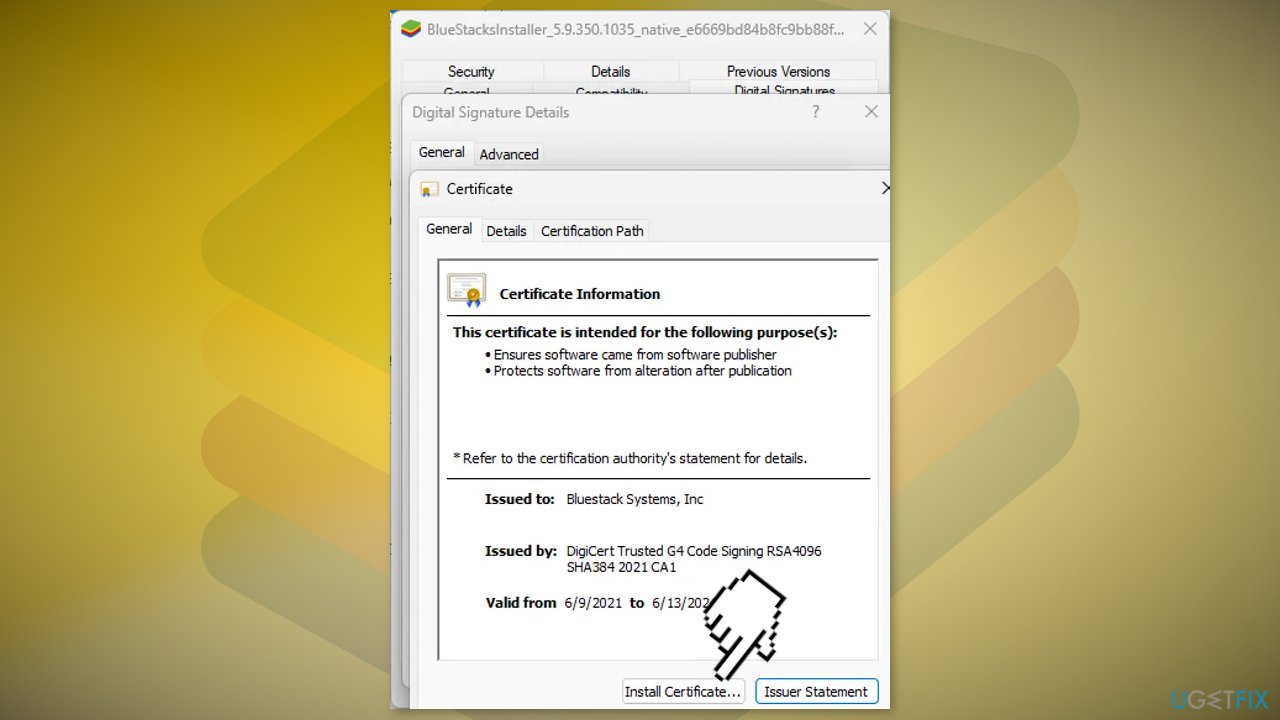
- After that, choose Current User and tap on Next
- Now, click on the Automatically select the certificate store based on the type of certificate option and press Next
- Click on Finish and when the certificate is installed, try installing BlueStacks
Bottom line
To fix BlueStacks not installing in Windows, you can try downloading a new installer, updating your graphics driver, or using the offline installer. If these solutions do not resolve the issue, consider using a maintenance tool to automatically fix system errors.
Frequently asked questions
Ensure that your Windows 10 system meets the minimum requirements for BlueStacks and that virtualization is enabled in your BIOS settings.
Try running the BlueStacks installer as an administrator and ensure that your Windows 11 is fully updated with the latest patches.
Check for any conflicting software, such as antivirus programs, and temporarily disable them before attempting the installation again.




Report an issue
What's wrong with this guide? We review every report and update or remove content.
Report received — thank you. We'll review and fix it.
You need a free account to submit a report.
Be the first to comment