How to fix
“Your channel options will be limited” error
on Windows
Resolve the "Your channel options will be limited" error in Windows 10 or 11 effortlessly. Get expert-tested solutions for a smooth Insider experience.

What causes How to fix “Your channel options will be limited” error in Windows Insider Program?
- PC does not meet minimum hardware requirements for Windows 11
- TPM is disabled
- Secure Boot is disabled
- Processor does not meet speed or core requirements
- Insufficient RAM or storage
Repairs Windows system files, removes malware, and restores a clean OS state — without reinstalling.
Hello. I see a message "Your channel options will be limited" in the Windows Insider Program window. Why is that?
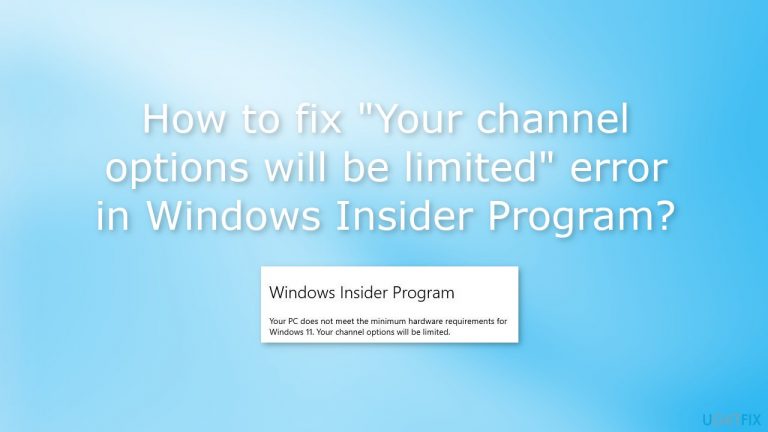
Some Windows Insiders may see the message stating "Your channel options will be limited" because their PC does not meet the minimum requirements for Windows 11. However, people say that they see this message even though their device meets all the needed requirements. The full message reads as follows.
Your PC does not meet the minimum hardware requirements for Windows 11. Your channel options will be limited.
The error can be seen in the Windows Insider Program window. The error simply means that the Dev, Beta, or Release Preview Channel modes and features will not be available. It is unknown why exactly this error shows up. This message may appear because TPM[ref en-1] or Secure Boot[ref en-2] is disabled.
In this guide, you will find 4 steps that should help you fix "Your channel options will be limited" error in Windows Insider Program. For various system errors, BSODs,[ref en-3] corrupted files, and registry issues we recommend using an automatic maintenance tool like [d1]. Otherwise, proceed with the step-by-step instructions below.
Solution 1. Check if your PC meets the Minimum Requirements
| Processor | 1 gigahertz (GHz) or faster with 2 or more cores on a compatible 64-bit processor or System on a Chip (SoC) |
| RAM | 4 gigabyte (GB) |
| Storage | 64 GB or larger storage device |
| System firmware | UEFI, Secure Boot capable |
| TPM | Trusted Platform Module (TPM) version 2.0 |
| Graphics card | Compatible with DirectX 12 or later with WDDM 2.0 driver |
| Display | High definition (720p) display that is greater than 9” diagonally, 8 bits per color channel |
| Internet connection and Microsoft account | Windows 11 Pro for personal use and Windows 11 Home require internet connectivity and a Microsoft account during initial device setup. Switching a device out of Windows 11 Home in S mode also requires internet connectivity. For all Windows 11 editions, internet access is required to perform updates and to download and take advantage of some features. A Microsoft account is required for some features. |
You can also find all the information about Windows 11 requirements on the official Microsoft website. If your device meets all the needed requirements proceed with the next steps.
Solution 2. Enable TPM and Secure Boot
- Open Settings and click on Update & Security
- Press on Recovery and under the Advanced startup section, click the Restart now button
- Click on Troubleshoot, then on Advanced options
- Click the UEFI Firmware settings option and then press the Restart button
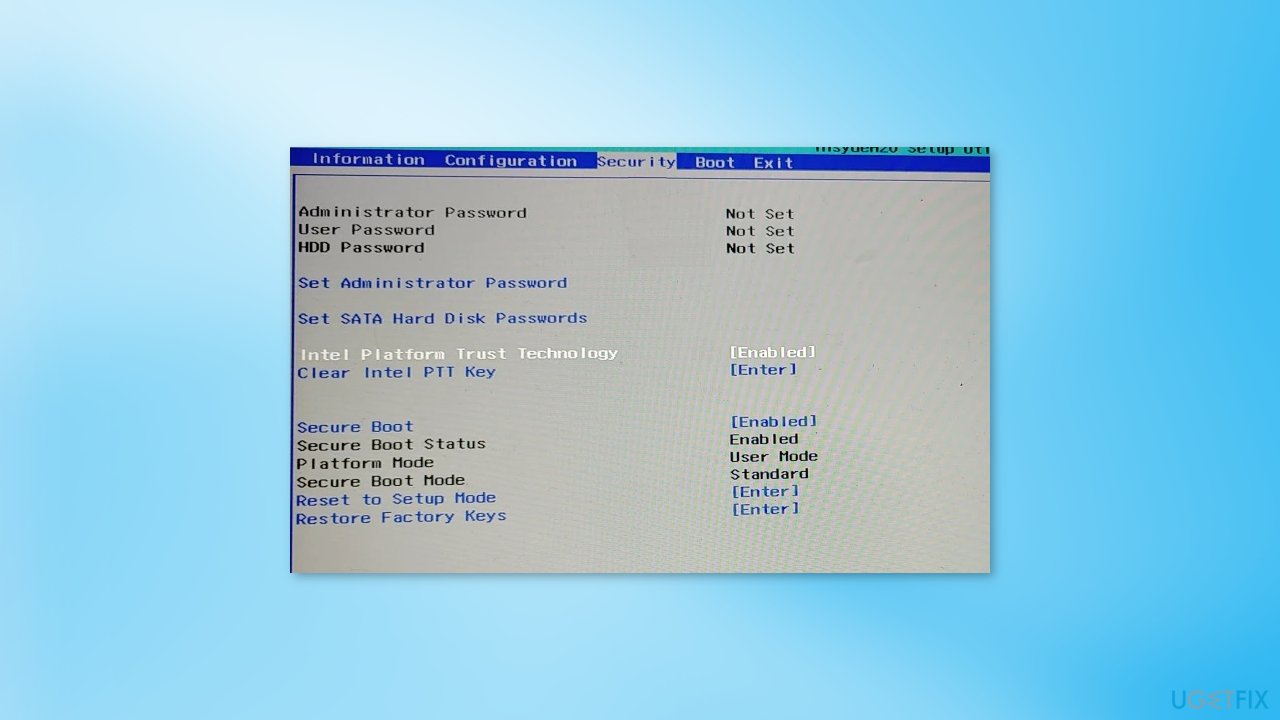
- Click the advanced, security, or boot settings page, depending on the motherboard
- Select the TPM 2.0 option and choose Enabled
- Now start Windows as normal and open the Start menu
- Search for System Information and click the top result
- Click on System Summary on the left pane
- On the right pane, check the Secure Boot State information and confirm the feature is turned On
Solution 3. Enable the Dev, Beta, or Release Preview Channel
- Press the Windows key + R to open the Run dialog
- Type notepad and hit Enter
- Copy and paste the code below into the text editor for the Channel you want:
Enable Dev Channel:
Windows Registry Editor Version 5.00
[HKEY_LOCAL_MACHINE\SOFTWARE\Microsoft\WindowsSelfHost\Applicability]
"BranchName"="Dev"
"ContentType"="Mainline"
"Ring"="External"
[HKEY_LOCAL_MACHINE\SOFTWARE\Microsoft\WindowsSelfHost\UI\Selection]
"UIBranch"="Dev"
"UIContentType"="Mainline"
"UIRing"="External"
Enable Beta Channel:
Windows Registry Editor Version 5.00
[HKEY_LOCAL_MACHINE\SOFTWARE\Microsoft\WindowsSelfHost\Applicability]
"BranchName"="Beta"
"ContentType"="Mainline"
"Ring"="External"
[HKEY_LOCAL_MACHINE\SOFTWARE\Microsoft\WindowsSelfHost\UI\Selection]
"UIBranch"="Beta"
"UIContentType"="Mainline"
"UIRing"="External"
Enable Release Preview Channel:
Windows Registry Editor Version 5.00
[HKEY_LOCAL_MACHINE\SOFTWARE\Microsoft\WindowsSelfHost\Applicability]
"BranchName"="ReleasePreview"
"ContentType"="Mainline"
"Ring"="External"
[HKEY_LOCAL_MACHINE\SOFTWARE\Microsoft\WindowsSelfHost\UI\Selection]
"UIBranch"="ReleasePreview"
"UIContentType"="Mainline"
"UIRing"="External"
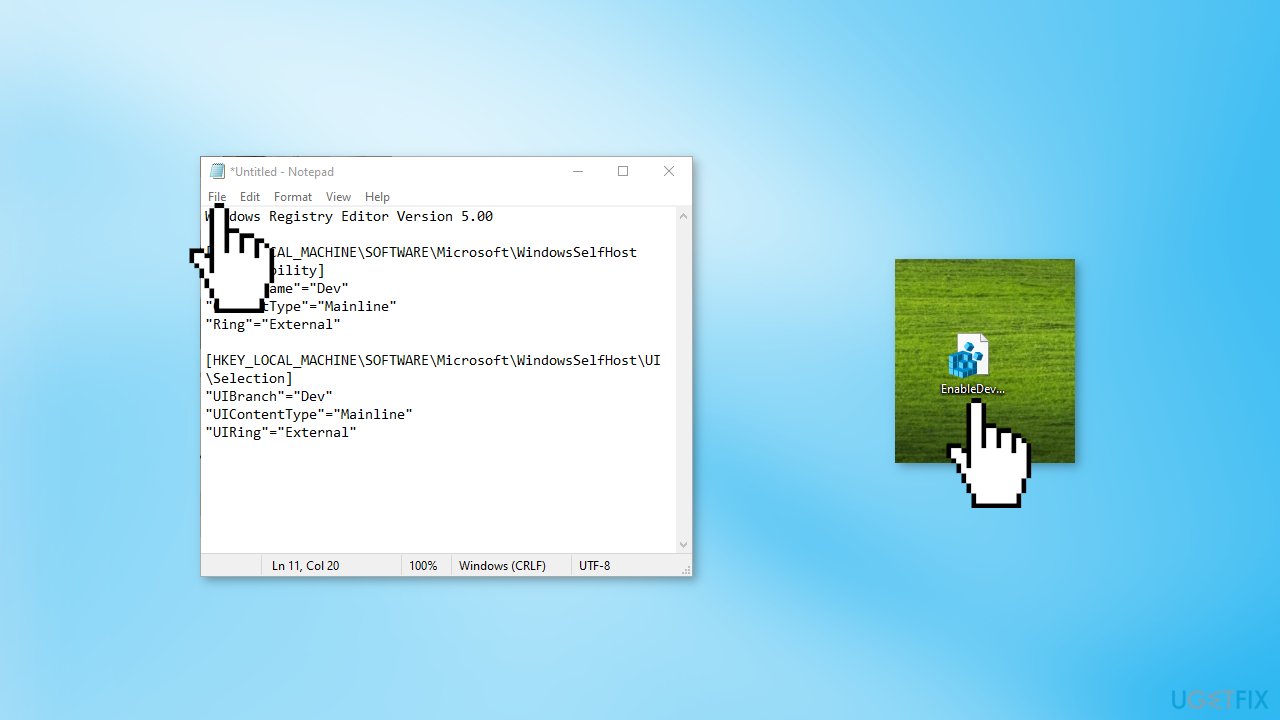
- Now, click the File option from the menu and select Save As button
- Choose a location (preferably the desktop) where you want to save the file
- Enter a descriptive name with a .reg extension (eg; EnableDevChannel.reg)
- Choose All Files from the Save as type drop-down list
- Double-click the saved .reg file to merge it
- If prompted, click on Run > Yes (UAC) > Yes > OK to approve the merge
- You can now delete the .reg file if you like
- Restart your PC
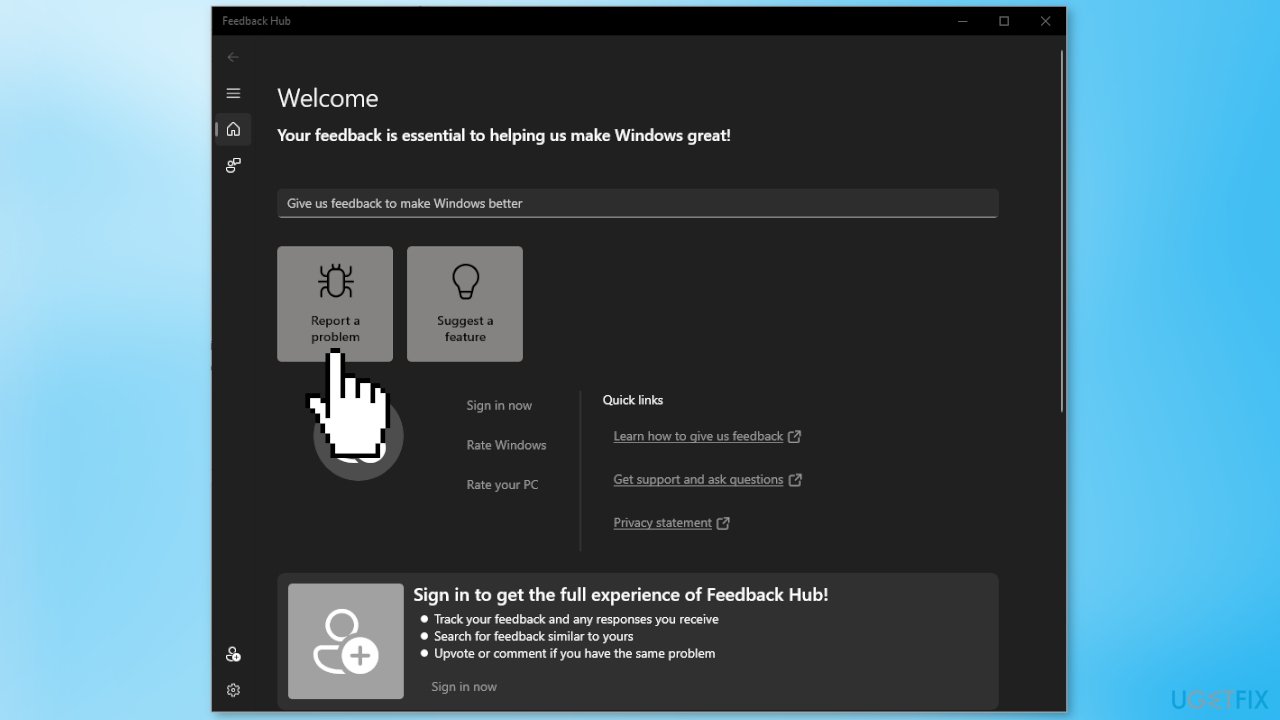
Solution 4. Report the issue in the Feedback Hub
You can use the Windows Feedback Hub App to see what are other users requesting as features, and complaints by other users on particular problems, and to add and send your feedback, suggestion, or complaint to the Windows team.
- Open the Start Menu
- Click All Apps and look for Feedback Hub
- Click on it to launch it
Bottom line
To fix the "Your channel options will be limited" error, check if your PC meets the minimum requirements for Windows 11, ensure TPM and Secure Boot are enabled, and verify that your processor, RAM, and storage are adequate. If these steps do not resolve the issue, consider using an automatic maintenance tool for further assistance.
Frequently asked questions
This error indicates that your Windows Insider settings are preventing you from accessing different release channels, likely due to account or device compatibility issues in Windows 10 or Windows 11.
To fix this error, ensure your Microsoft account is properly linked to the Windows Insider Program and check for any pending updates in Windows 11 that might affect your enrollment.
Yes, you can attempt to change your Insider channel by restarting your device and re-enrolling in the Windows Insider Program, but ensure your device meets the requirements for the channel you wish to switch to.




Report an issue
What's wrong with this guide? We review every report and update or remove content.
Report received — thank you. We'll review and fix it.
You need a free account to submit a report.
Be the first to comment