How to fix
ESIF TYPE: ERROR MODULE: IPF TIME error
on Windows
Resolve the ESIF TYPE: ERROR MODULE: IPF TIME issue in Windows 10 or 11 quickly and effectively. Expert-tested solutions for seamless performance.

What causes How to fix ESIF TYPE: ERROR MODULE: IPF TIME error in Windows?
- Outdated Intel Dynamic Platform and Thermal Framework drivers
- Corrupted Intel Dynamic Platform and Thermal Framework drivers
- Outdated Intel Rapid Storage Technology drivers
- Corrupted system files
- Outdated motherboard drivers
Repairs Windows system files, removes malware, and restores a clean OS state — without reinstalling.
Hello. Recently my Windows 11 PC started crashing frequently. I noticed an ESIF TYPE: ERROR MODULE: IPF TIME error in Event Viewer. How should I fix this?
Windows is a complicated operating system that relies on thousands of processes to keep it running smoothly. Even if one of those processes goes rogue, people can experience bugs, Blue Screen errors,[ref en-1] and other crashes. That is why it is so important to keep the system and all of its drivers updated.
Recently, some users reported experiencing the ESIF TYPE: ERROR MODULE: IPF TIME error in Windows. It is said to be related to the Intel Dynamic Platform and Thermal Framework or Intel Rapid Storage Technology which is a storage controller.
These components could be causing the ESIF TYPE: ERROR MODULE: IPF TIME error because their drivers[ref en-2] are outdated or corrupted. In this guide, you will find 6 steps that should help you fix this error and stop your computer from crashing. However, the manual troubleshooting process can be lengthy.
If you want to avoid it, you can use a maintenance tool like [d1]. It can automatically fix most system errors, BSODs, corrupted files, and registry[ref en-3] issues. Otherwise, follow the step-by-step instructions below.
Solution 1. Fix Corrupted System Files
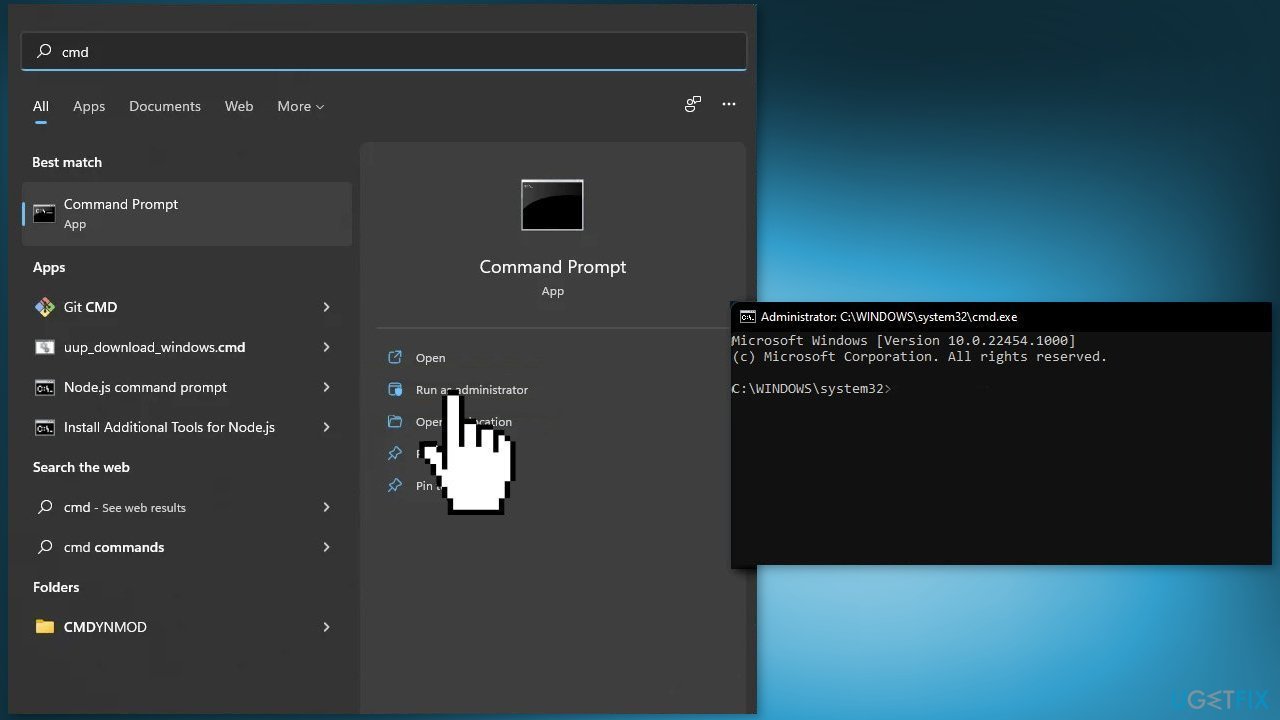
Use Command Prompt commands to repair system file corruption:
- Open Command Prompt as administrator
- Use the following command and press Enter:
sfc /scannow
- Reboot your system
- If SFC returned an error, then use the following command lines, pressing Enter after each:
DISM /Online /Cleanup-Image /CheckHealth
DISM /Online /Cleanup-Image /ScanHealth
DISM /Online /Cleanup-Image /RestoreHealth
Solution 2. Update Intel DPTF Driver
- Open Device Manager
- Click to expand the Intel Dynamic and Perform Thermal Framework category
- Right-click the Intel Dynamic and Perform Thermal Framework Generic Participant you can see here and choose Update driver
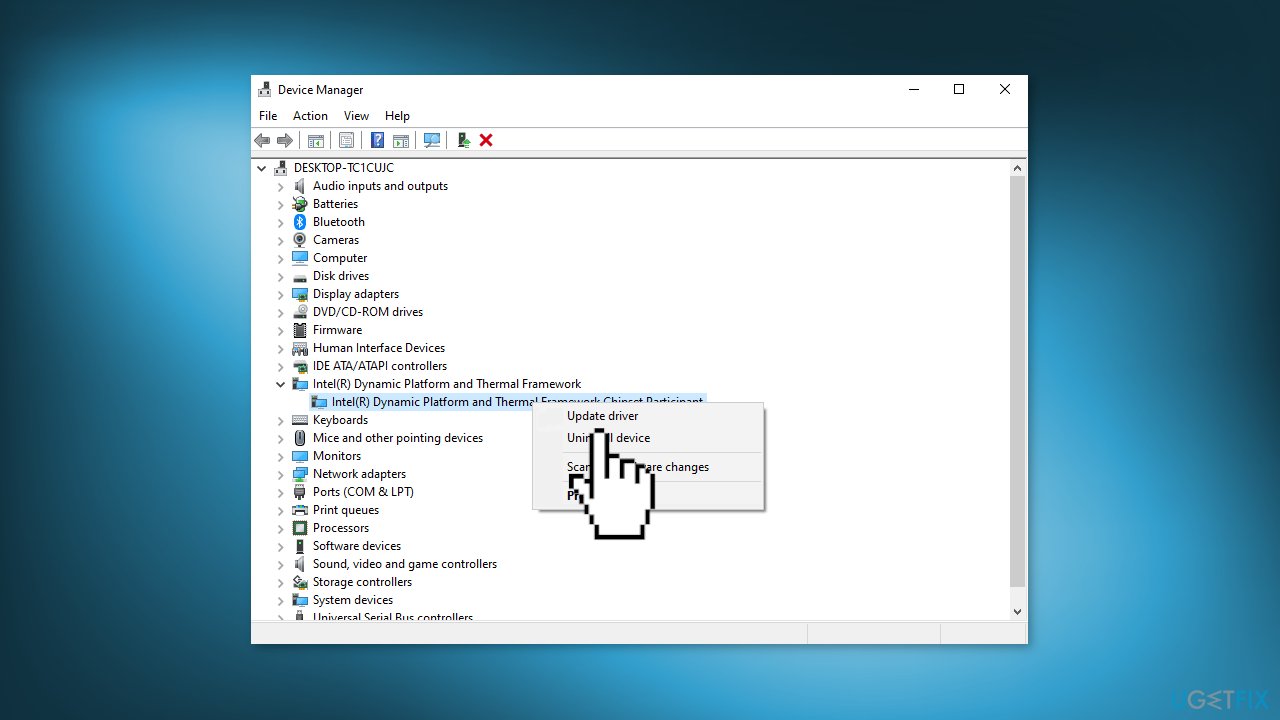
- Choose Search automatically for updated driver software
- Follow the on-screen instructions and finish the process
Solution 3. Update Motherboard Driver
- Go to the official website of your motherboard manufacturer, then search for your motherboard model
- Go to the driver download page for the motherboard, then download the correct and latest drivers
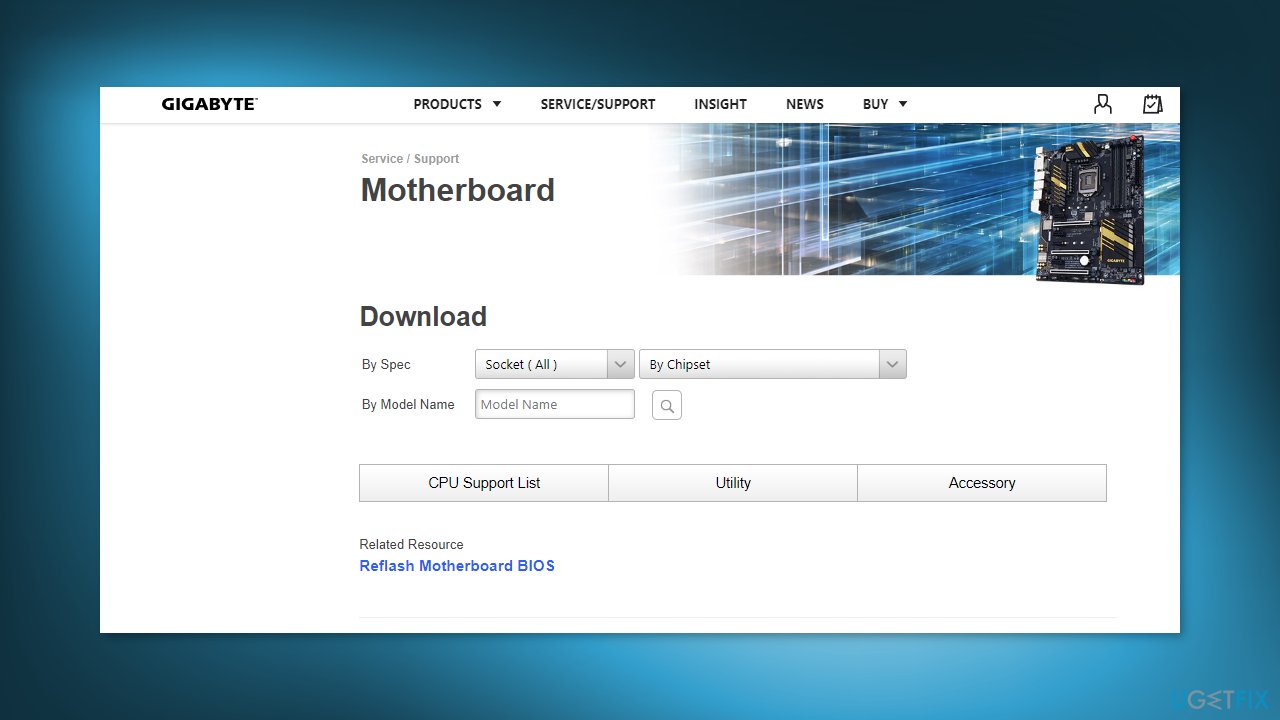
- You should download the drivers for all the components on your motherboard
- Open the downloaded files and follow the on-screen instructions to install the drivers on your computer
- For an easier process, you can use a dedicated utility like [rev id="DriverFix"] that can find the best drivers for your machine and install them automatically
Solution 4. Update Storage Controller Drivers
- Open Device Manager
- Find the Storage Controllers and expand them
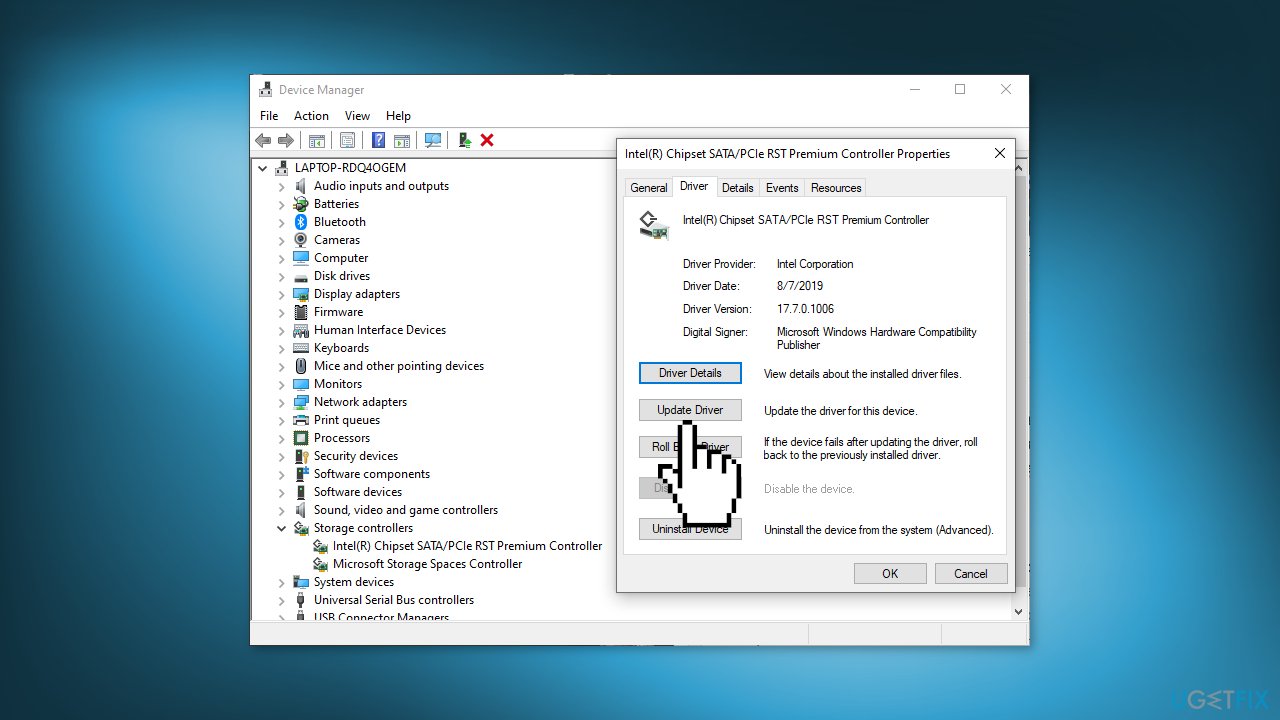
- Right-click on them and choose Properties
- Go to the Driver tab and click on Update Driver
Solution 5. Use System Restore
- Go to the Start menu, type
restore, and click on Create a restore point - Click System Restore, then follow the prompts until you can select a restore point
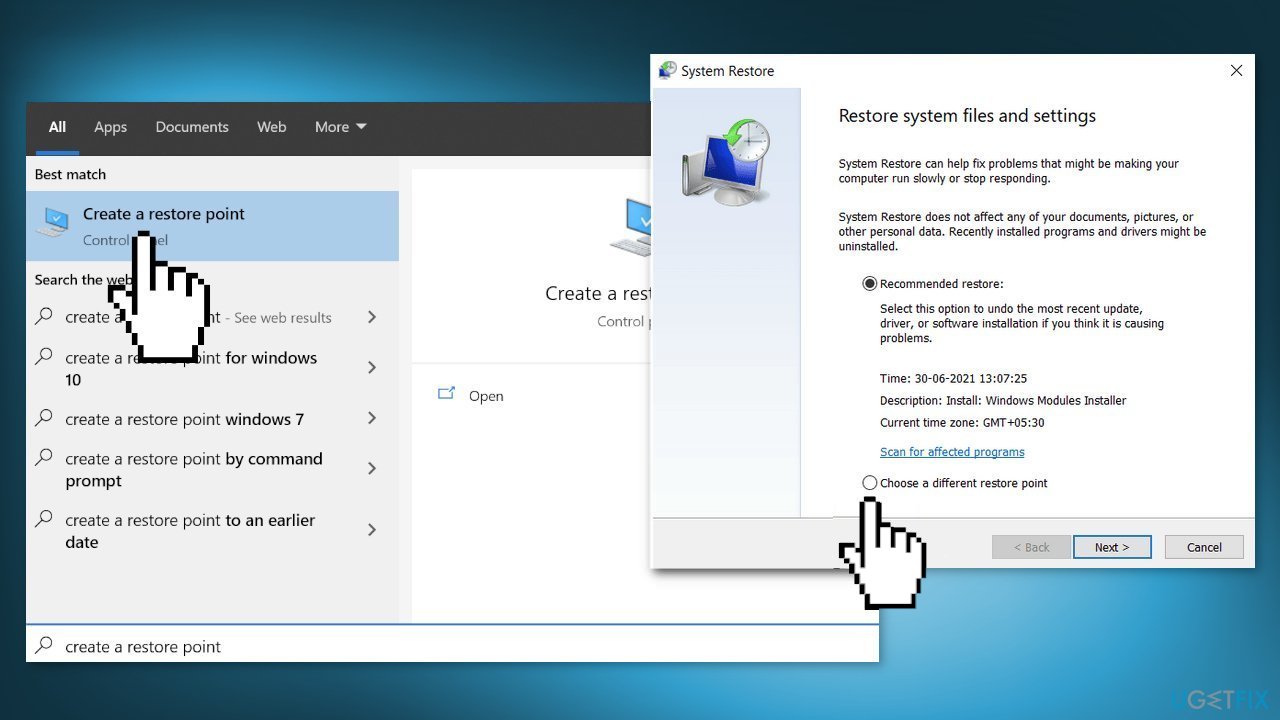
- Select the one you want (ideally before the ESIF TYPE: ERROR MODULE: IPF TIME error started) and go ahead with the process
Solution 6. Perform a Repair Install
- Visit the official Microsoft website to download Windows 11 Installation Media
- Run the Media Creation Tool and select Create Installation Media for another PC
- Select your USB drive
- Let the Process complete of writing the Installation files to the USB drive
- Click Finish
- On the PC you wish to upgrade, Press Windows + E to open the File Explorer
- Open the Removable drive and click Setup.exe
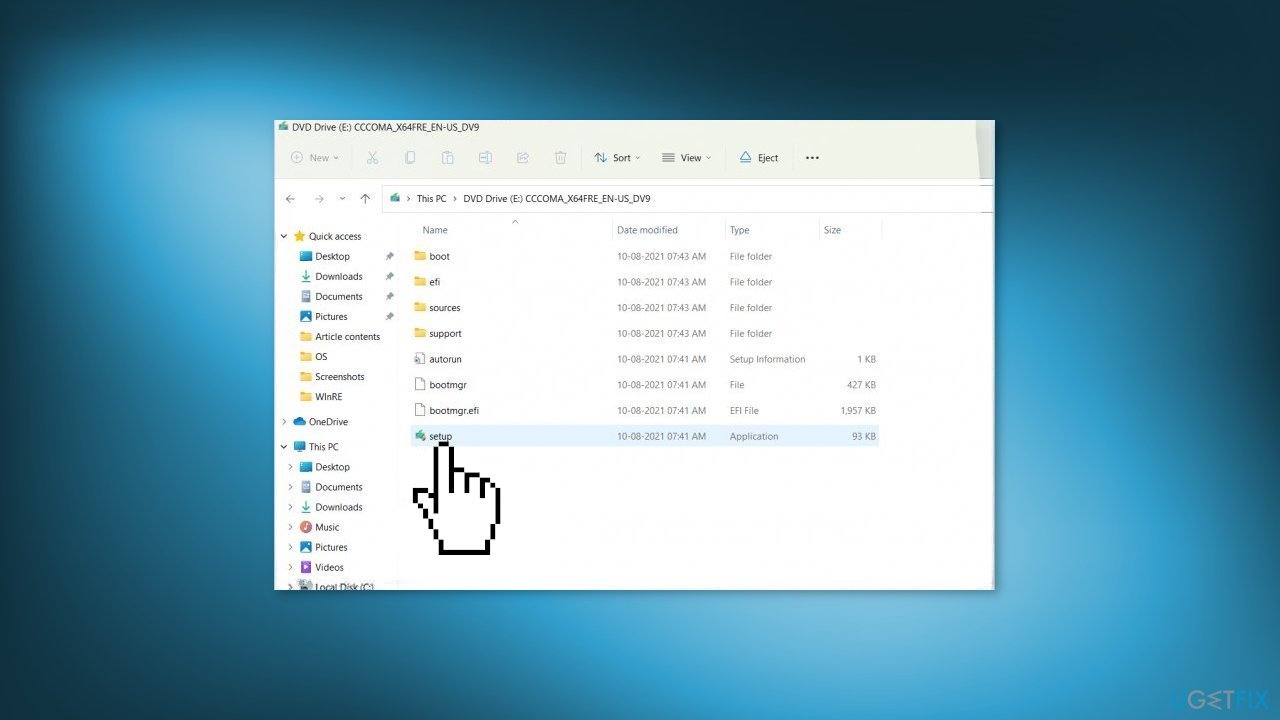
- Accept the license terms on the next screen
- Confirm the Upgrade options – Files, apps and Settings are kept
- Click Install, and the upgrade should start
Bottom line
To fix the ESIF TYPE: ERROR MODULE: IPF TIME error, you can repair corrupted system files using Command Prompt, update the Intel DPTF driver, or update your motherboard driver. If these solutions do not resolve the issue, consider using a maintenance tool to automatically fix system errors.
Frequently asked questions
This error is typically caused by driver conflicts, outdated system drivers, or issues with the Intel Dynamic Platform and Thermal Framework (DPTF). Updating your drivers or uninstalling conflicting software can often resolve the issue.
To update drivers on Windows 11, go to Settings > Windows Update > Check for updates, and then select 'Optional updates' to install any available driver updates. You can also manually update drivers through Device Manager.
Yes, using the Windows Troubleshooter or third-party tools like Driver Booster can help automatically detect and fix driver-related issues causing the ESIF TYPE error. Ensure that your Windows 10 is fully updated for the best results.




Report an issue
What's wrong with this guide? We review every report and update or remove content.
Report received — thank you. We'll review and fix it.
You need a free account to submit a report.
Be the first to comment