How to fix
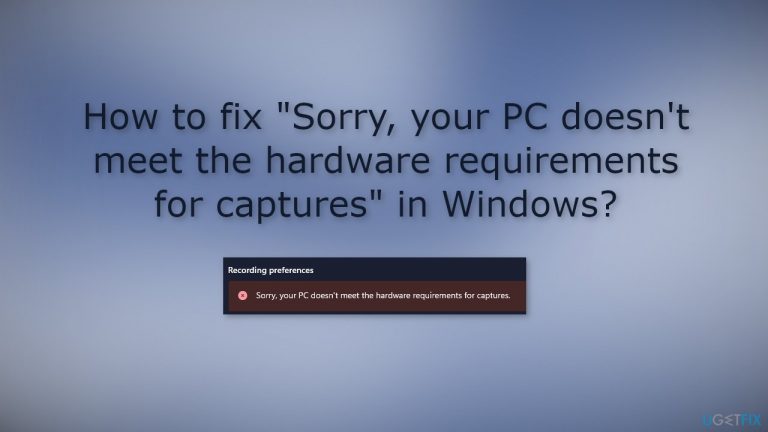
“Sorry, your PC doesn’t meet the hardware requirements for captures”
on Windows
Resolve the "Sorry, your PC doesn't meet the hardware requirements for captures" error in Windows 10 or 11 effortlessly. Expert-tested solutions await!

What causes How to fix “Sorry, your PC doesn’t meet the hardware requirements for captures” in Windows?
- Corrupted files
- Outdated drivers
- Reinstalling Windows
- Upgrading Windows
- No hardware changes made
Repairs Windows system files, removes malware, and restores a clean OS state — without reinstalling.
Hello. I have used the built-in recorder in the Xbox Game bar to record my gameplay for the past 2 years. Now it says that my PC doesn't meet the hardware requirements for captures. No hardware changes were done to my computer. How do I fix this error?
The Xbox Game Bar[ref en-1] is a built-in Windows application. It is a customizable gaming overlay that allows people to use various widgets such as sound controls, performance statistics, or framerate while playing games on their computers. All that is needed to open this overlay is pressing the Windows key + G shortcut on your keyboard.
It is also possible to use the Xbox Game bar to capture videos and screenshots while playing PC games. This allows people to record their gameplay without any third-party apps. However, some people report encountering the "Sorry, your PC doesn't meet the hardware requirements for captures" error in Windows when trying to use the capture function.
This message shows up even if people have not performed any hardware changes to their computers. While it is unknown why exactly this happens, most people say that they encountered the error after reinstalling or upgrading Windows so it is possible that this is a result of corrupted files or outdated drivers.[ref en-2]
In this guide, you will find 3 steps that should help you fix Sorry, your PC doesn't meet the hardware requirements for captures" in Windows. Keep in mind that the manual troubleshooting process can be lengthy. You can use a maintenance tool like [d1] that can fix most system errors, BSODs,[ref en-3] corrupted files, and registry[ref en-4] issues automatically. Otherwise, follow the step-by-step instructions below.

Solution 1. Reinstall Gaming Services
- Right-click on the Start button and search for the Command Prompt
- Click on Run as administrator, and click Yes on a UAC prompt
- Enter the following commands and press Enter after each one:
get-appxpackage Microsoft.GamingServices | remove-AppxPackage -allusers
start ms-windows-store://pdp/?productid=9MWPM2CQNLHN
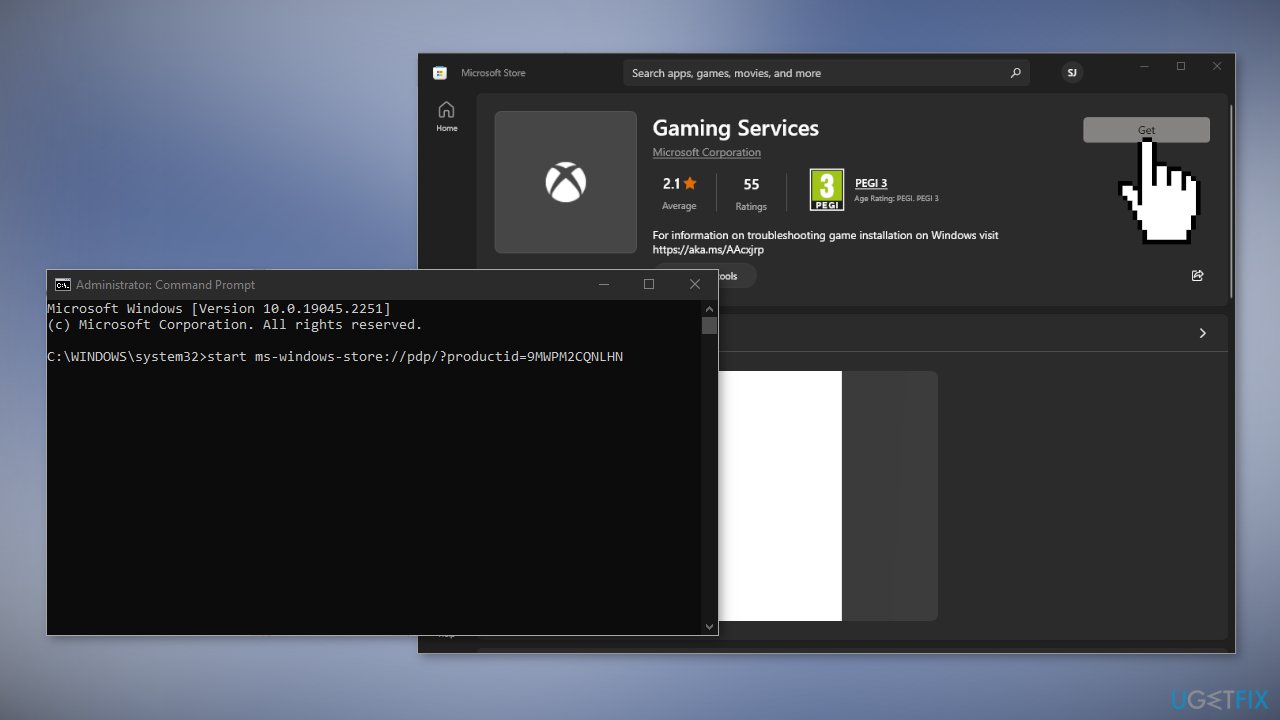
- You will be directed to the Microsoft Store where you should install Gaming Services
- Finish the process and see if the issue is fixed
Solution 2. Update Display Driver
You may not be able to capture gameplay because of outdated graphics drivers. Try to update them and see if it fixes the issue.
- Open Device Manager and expand the Display Adapters tab
- Right-click on your graphics driver and select Properties
- Go to the Driver tab and click on Update Driver
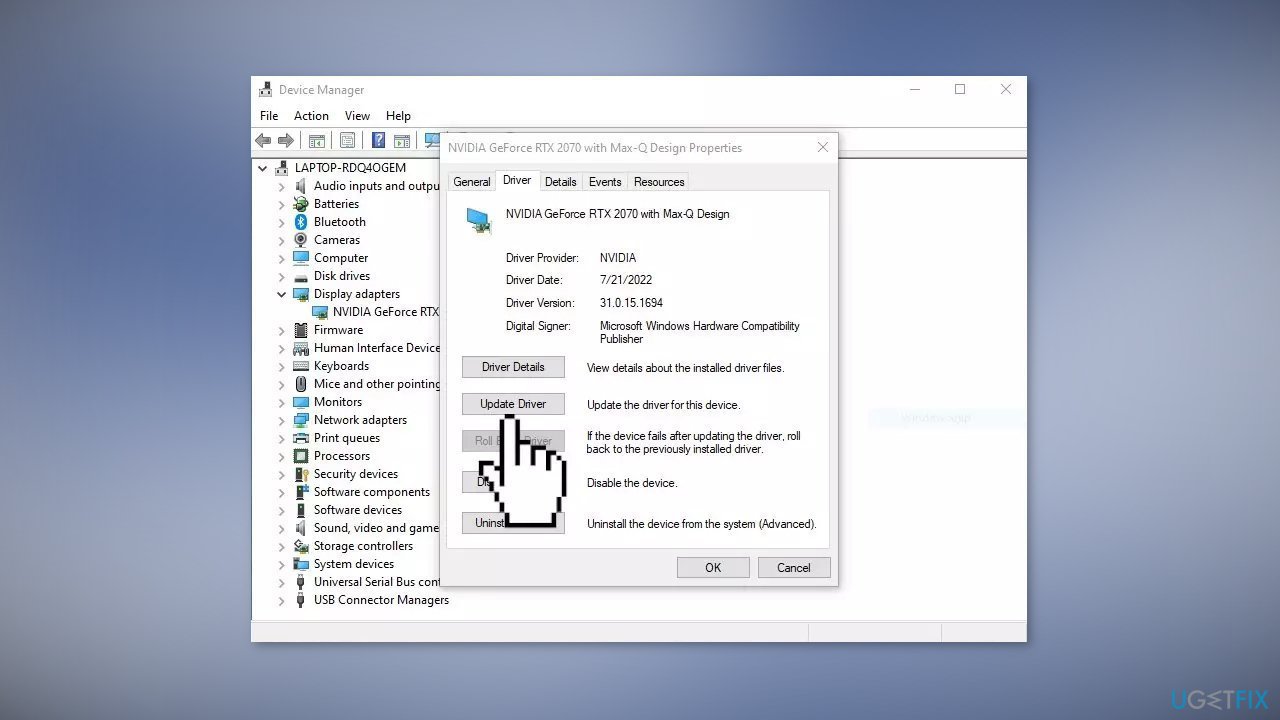
- Press on Search Automatically for Drivers
- If a graphic driver update is available, install it and then restart your PC
- Upon restart, launch the Modern Warfare game and check if it fixed the issue.
- You may also use a dedicated utility like [rev id="DriverFix"] that ca find the best drivers for your machine and install them automatically
Solution 3. Edit the Registry
If you recently reinstalled Windows, it could be that the Registry entries changed. Open the Registry Editor and check it according to the steps:
- Press the Windows key + R to open the Run dialog box
- Type regedit and click OK
- Go to the following location:
Computer\HKEY_LOCAL_MACHINE\SYSTEM\CurrentControlSet\Control
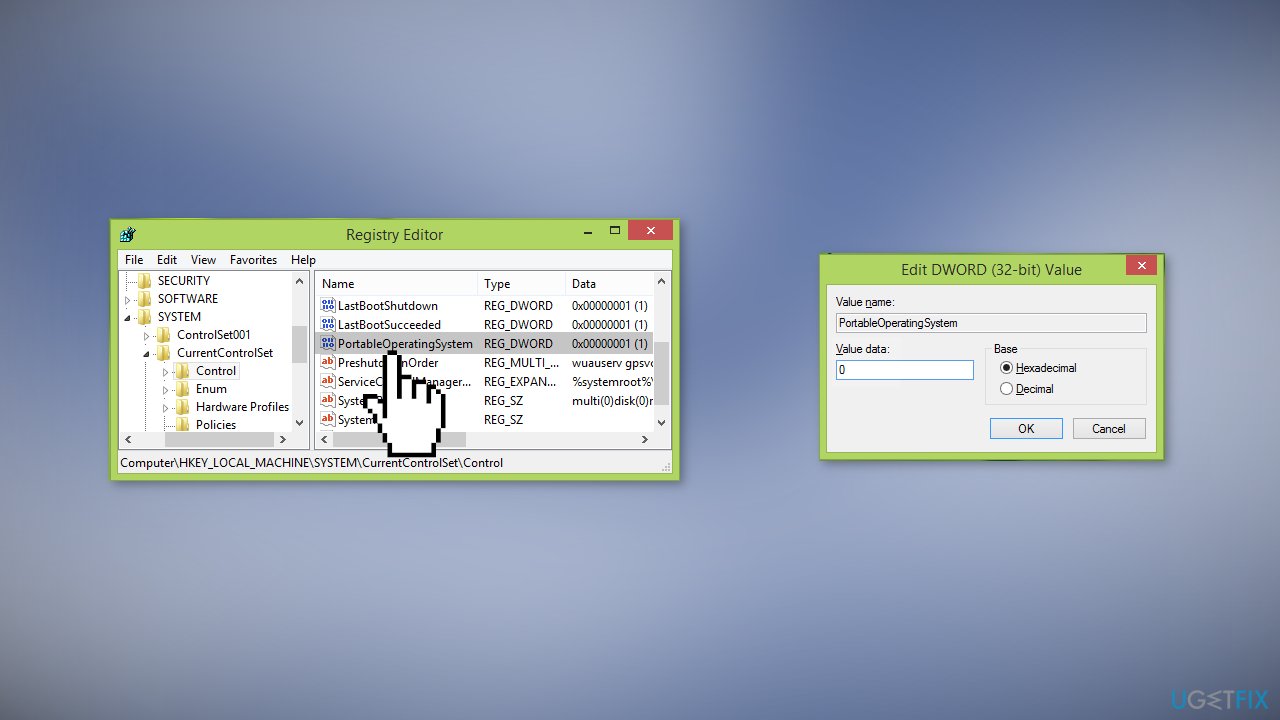
- Set the REG_DWORD value of PortableOperatingSystem from 1 to 0
- If there is no PortableOperatingSystem key, create one by right-clicking, pressing on New > DWORD (32-bit) Value
- Rename it to PortableOperatingSystem
- Then double-click on it and set the Value data to 0
- Close the Registry Editor, restart your system and check if the issue is resolved
Bottom line
To fix the error 'Sorry, your PC doesn't meet the hardware requirements for captures', you can try reinstalling Gaming Services or using a maintenance tool to address system errors. If these solutions do not work, consider further troubleshooting or seeking additional help.
Frequently asked questions
First, ensure that your graphics card supports DirectX 12, as this is a requirement for screen capturing features in Windows 10. You can check your GPU specifications in the Device Manager.
You can update your graphics drivers by going to Device Manager, right-clicking on your graphics card, and selecting 'Update driver.' Alternatively, you can visit the manufacturer's website for the latest drivers.
Yes, you can enable hardware-accelerated GPU scheduling by navigating to Settings > System > Display > Graphics settings in Windows 10 or 11, and toggling the option on if your hardware supports it.




Report an issue
What's wrong with this guide? We review every report and update or remove content.
Report received — thank you. We'll review and fix it.
You need a free account to submit a report.
Be the first to comment