How to fix
Callisto Protocol stuttering
on Windows
Resolve Callisto Protocol stuttering on Windows 10 and 11 effortlessly. Follow our expert-tested tips for a smooth gaming experience in no time!

What causes How to fix Callisto Protocol stuttering?
- Stuttering due to graphics settings
- Lag caused by DirectX version
- Low framerate from outdated graphics drivers
- System errors affecting game performance
- Registry issues impacting gameplay
Repairs Windows system files, removes malware, and restores a clean OS state — without reinstalling.
Hello. I just bought the Callisto Protocol on Steam and the game runs horribly. It has massive lag spikes and constant stuttering. My system meets the requirements and I don't have any of these issues when playing other games. Is there anything I can do or should I just wait until a patch is released?
The Callisto Protocol is a third-person survival horror video game developed by Striking Distance Studios. It has been one of the most highly anticipated upcoming horror games of 2022. It is set in the year 2030, on the dead Jupiter moon of Callisto. The story is told through combat and the corridors of the Black Iron Prison.
However, when it was released on December 2, 2022, it managed to receive over 3 thousand negative reviews on the first day alone. Most of the reviews were not about bad gameplay or graphics. The main issues people encountered when they launched the long-awaited game were stuttering, lag, and low framerate.
Since these problems are affecting the majority of those that purchased Callisto Protocol, it is highly likely that something is wrong with the game itself and not people's systems. By combing through the list of reviews on Steam, we managed to compile a guide of various steps that helped people fix Callisto Protocol stuttering. Some of them include switching to an older version of DirectX[ref en-1] or updating the graphics driver.[ref en-2]
In total, you will find 9 possible solutions. In the case of it not solving the stuttering problem, there is a chance that there are issues with your Windows system. Try a maintenance tool like [d1] that can fix most system errors, BSODs,[ref en-3] and registry[ref en-4] issues. Otherwise, follow the step-by-step instructions below.
Solution 1. Disable Graphics Settings
- Launch Callisto Protocol
- Go to Controls, then enter Keyboard/Mouse settings
- Disable Mouse Look Smoothing and Mouse Aim Smoothing
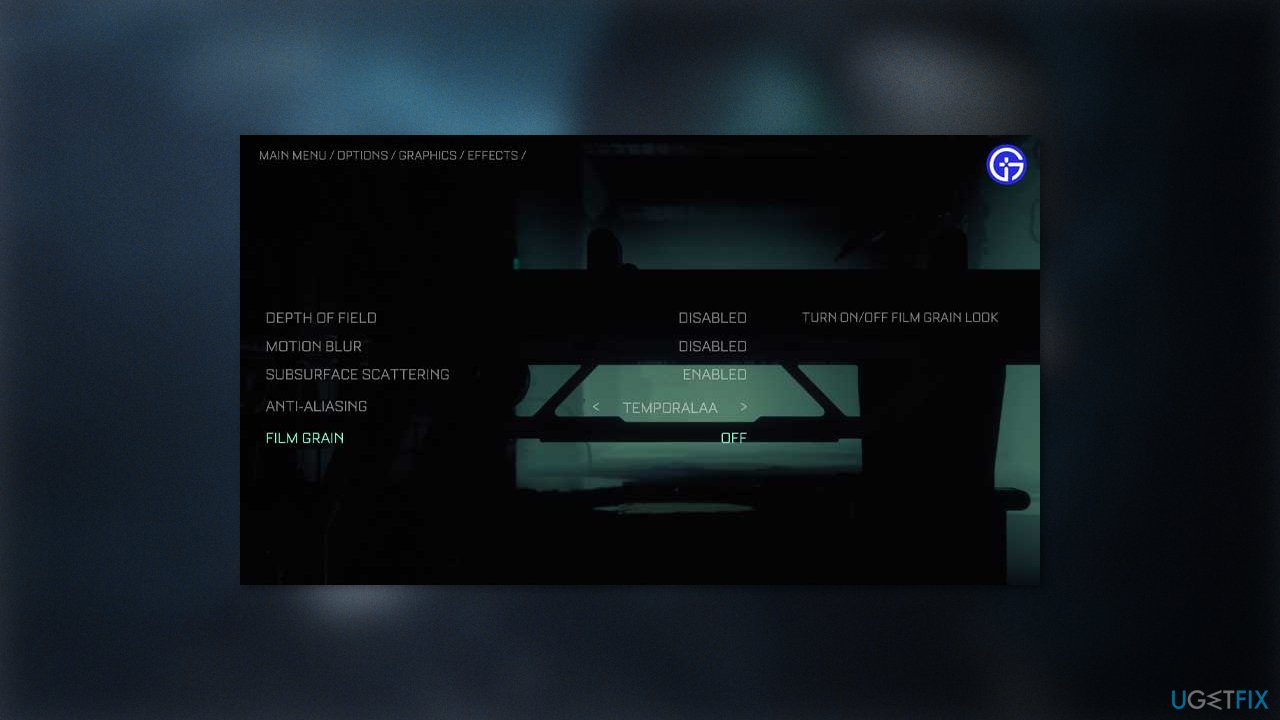
- Then go to Options > Graphics > Effects and Disable Motion Blur, Film Grain, V-Sync
- Check if the stuttering problem is fixed
Solution 2. Modify the Config File
- Open File Explorer
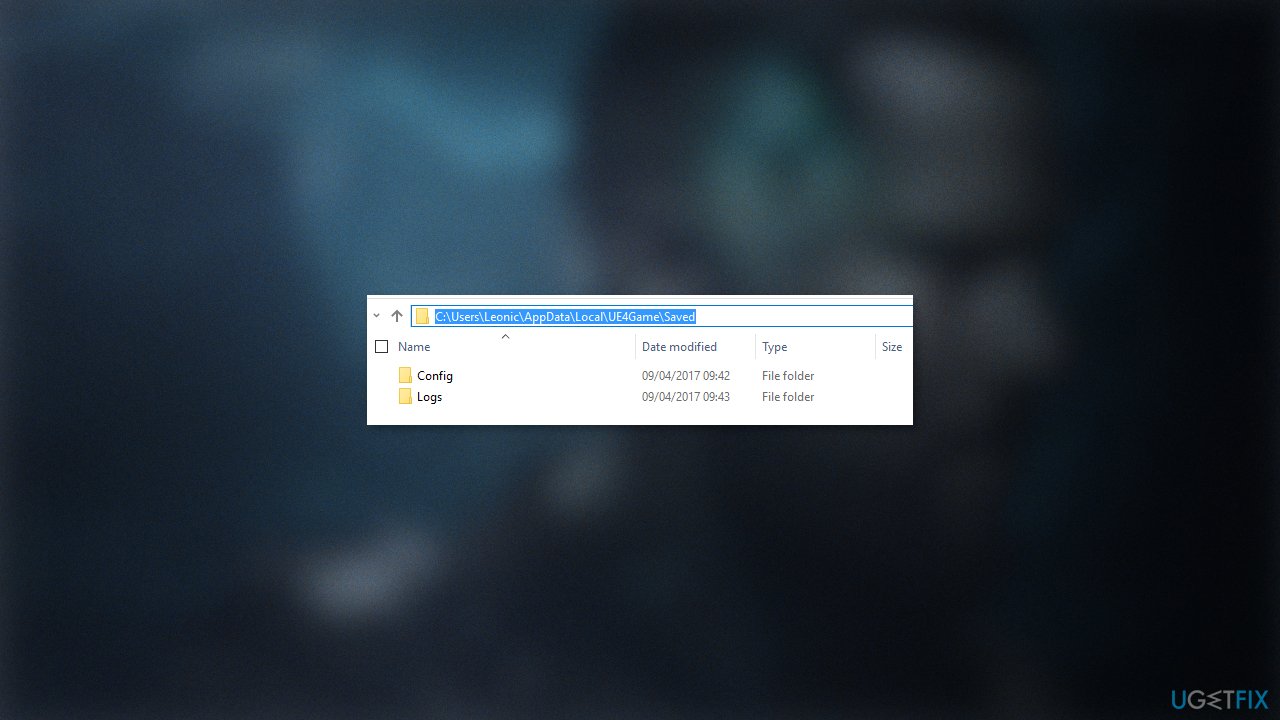
- Open the config file by going to the following location:
%localappdata%\Local\CallistoProtocol\Saved\Config\WindowsNoEditor\Engine.ini
- Add this at the end of the file:
[/script/engine.renderersettings]
r.CreateShadersOnLoad=1
Solution 3. Switch to DX11
- Close Callisto Protocol if it is opened
- Open Steam and right-click on Callisto Protocol
- Select Properties
- Go to the General tab and select LAUNCH OPTIONS
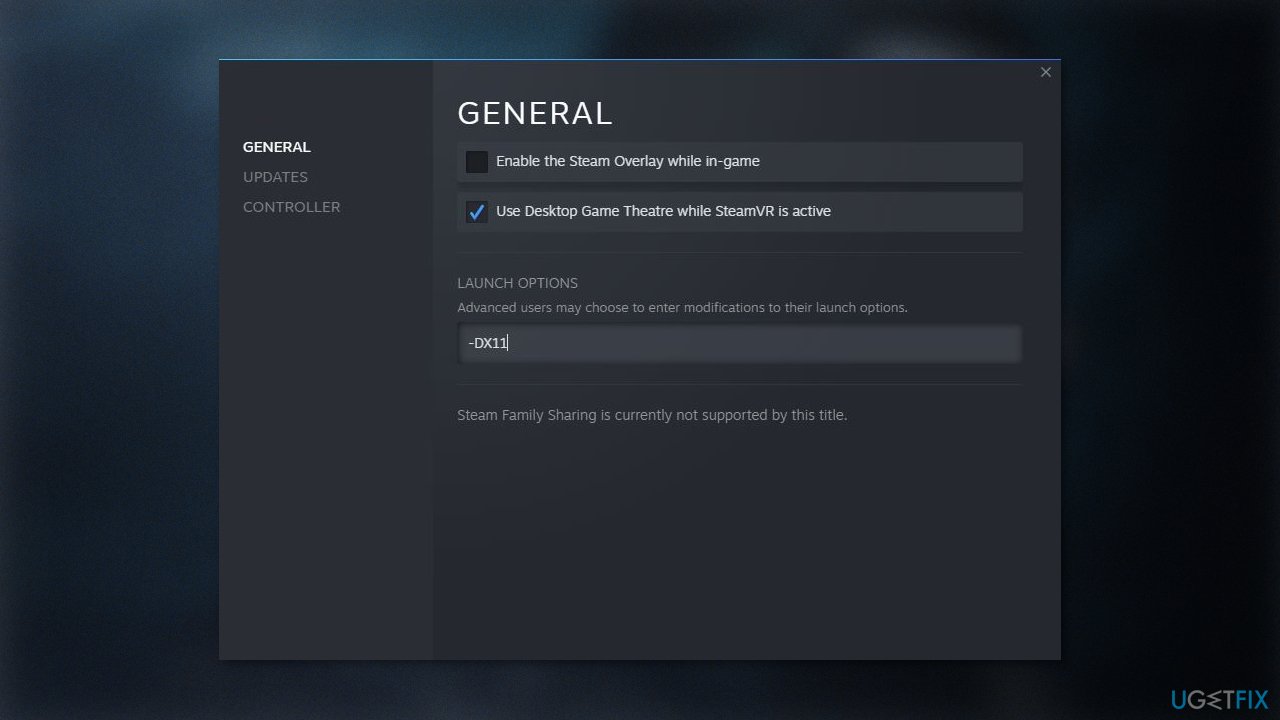
- In the box, type in -DX11
Solution 4. Set High Priority in Task Manager
- Right-click on the Start Menu and select Task Manager
- Go to the Processes tab
- Right-click on the Callisto Protocol task
- Select Set Priority to High
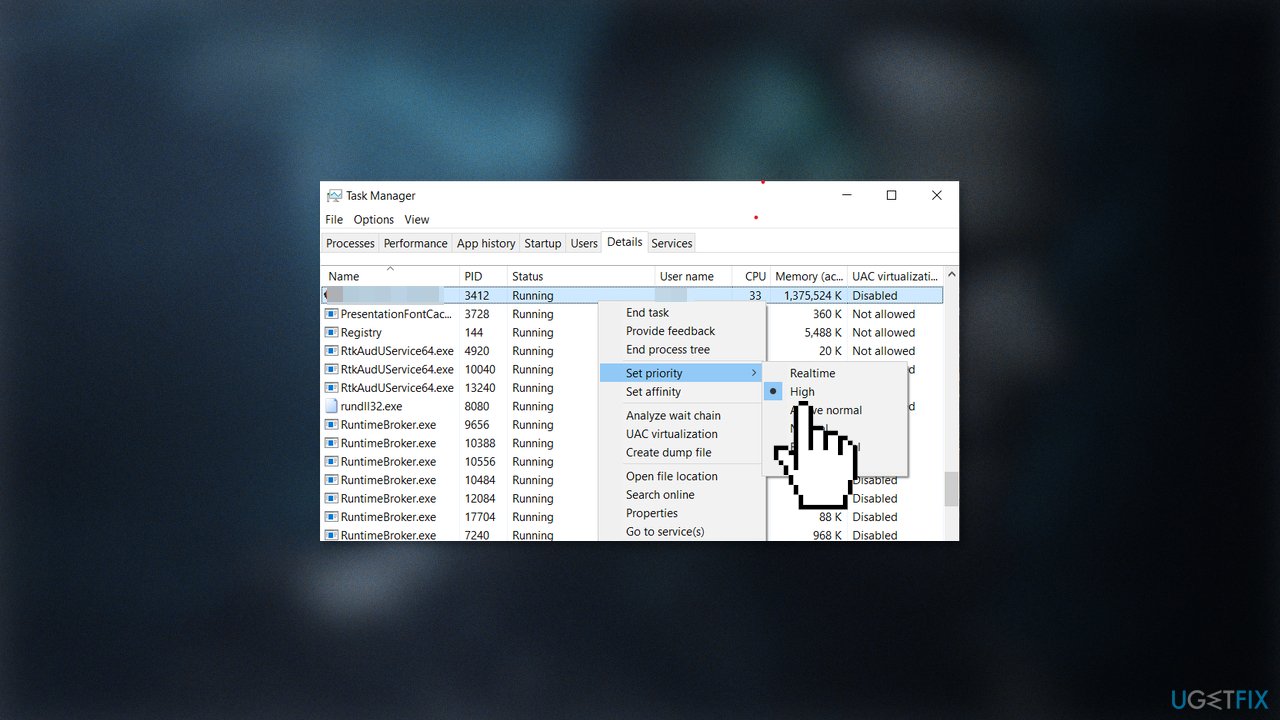
- Close Task Manager
- Launch the Callisto Protocol game to check if the issue is resolved
Solution 5. Verify Integrity of Game Files
- Launch Steam and click on Library
- Right-click on Callisto Protocol from the list of installed games
- Click on Properties, and go to Local Files
- Click on Verify Integrity of Game Files
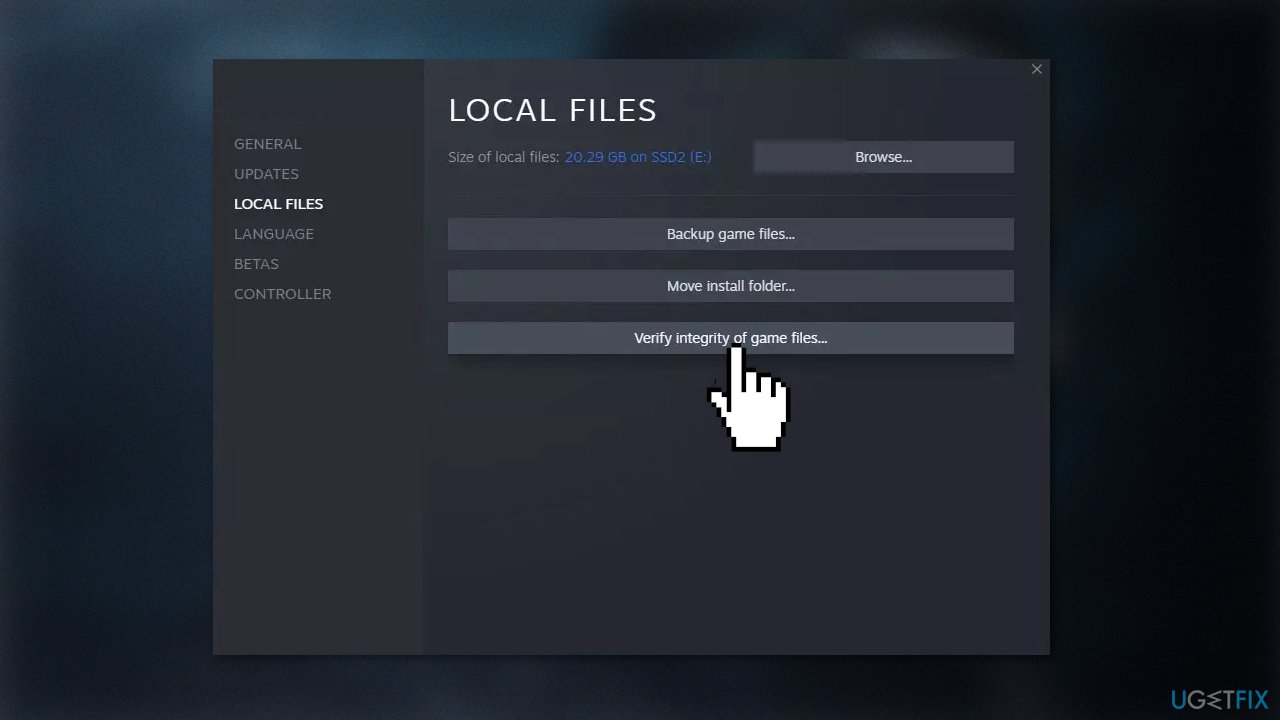
- Wait for the process to finish
- Restart your computer
Solution 6. Disable Fullscreen Optimizations
- Locate the Callisto Protocol game directory
- Right-click on the Callisto Protocol.exe file
- Select Properties, and go to the Compatibility tab
- Checkmark the Disable fullscreen optimizations box
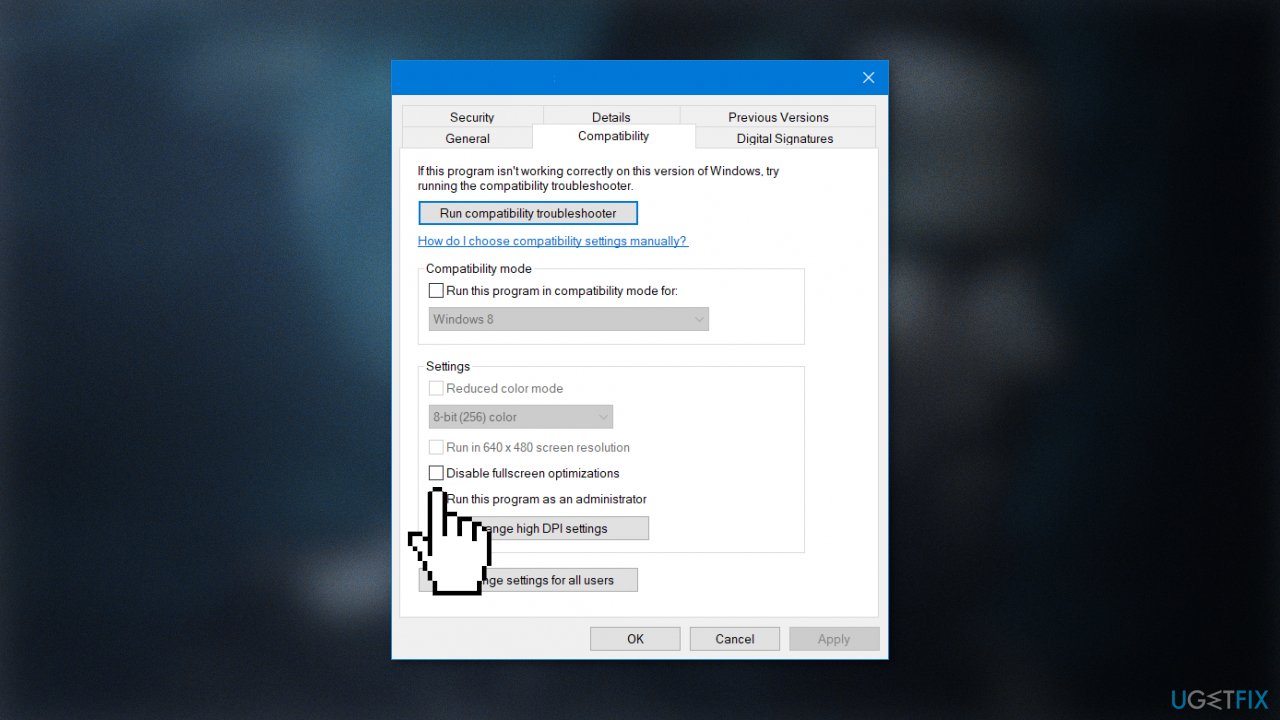
- Click on the Change high DPI settings button
- Checkmark the Override high DPI scaling behavior
- Select Application from the drop-down menu
- Click on Apply and then OK to save changes
Solution 7. Update the Display Driver
- Open Device Manager and expand the Display Adapters tab
- Right-click on your graphics driver and select Properties
- Go to the Driver tab and click on Update Driver
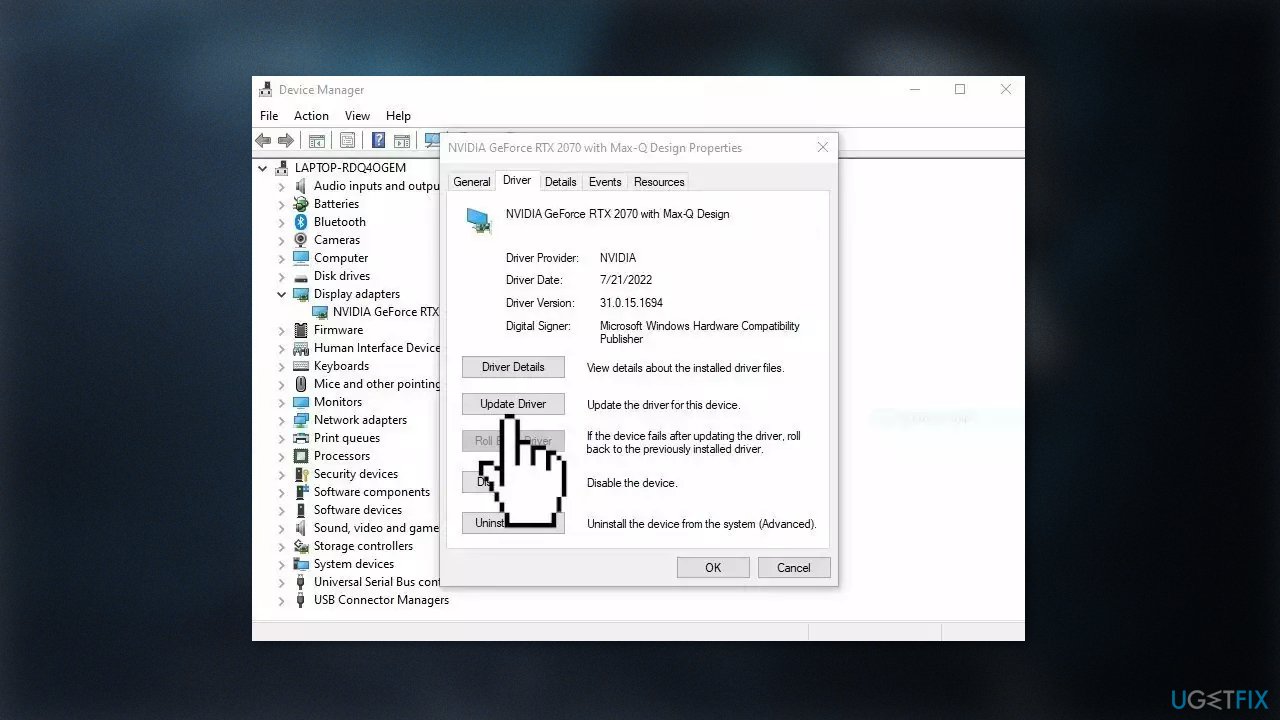
- Press on Search Automatically for Drivers
- If a graphic driver update is available, install it and then restart your PC
- Upon restart, launch the Modern Warfare game and check if it fixed the issue.
- You may also use a dedicated utility like [rev id="DriverFix"] that can find the best drivers for your machine and install them automatically
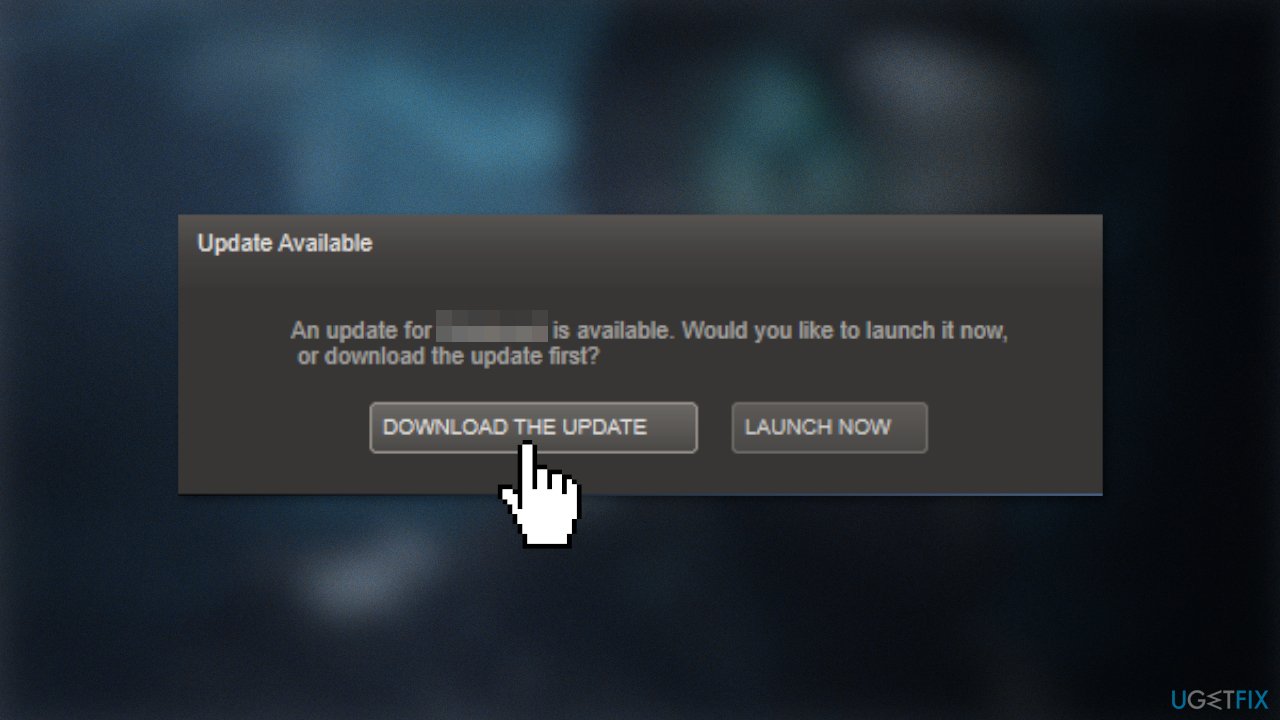
Solution 8. Update Callisto Protocol
- Open the Steam client and go to Library
- Click on Callisto Protocol
- If there is an update available, make sure to click on Update
- Wait for the updating process to finish, and restart your machine
Solution 9. Disable Overclocking
- Reboot your PC and start pressing F8, F10, F2, Del, Esc, or another button (depending on your motherboard manufacturer) on your keyboard to access BIOS menu
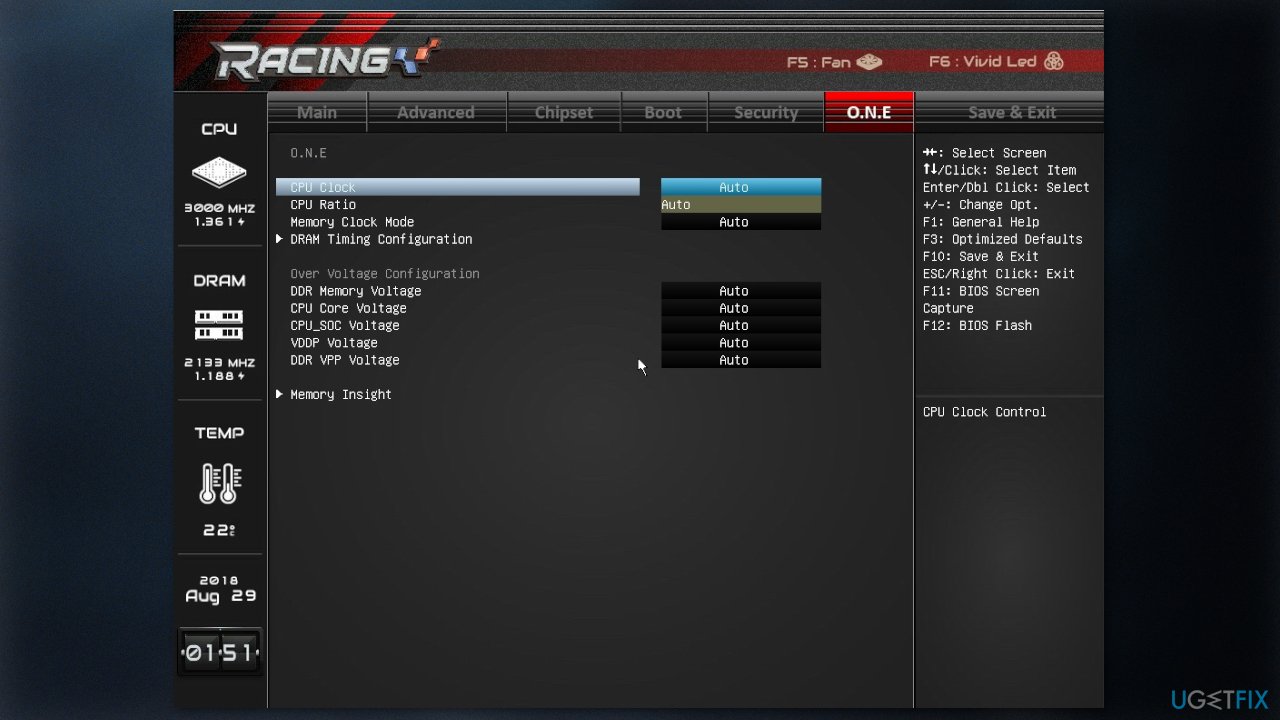
- Now you need to find Overclocking section – this can be typically found under Advanced, Voltage, Performance, or similar menus
- Look for Default or Auto settings under Overclocking
- Confirm and restart your PC
Bottom line
To fix the stuttering problems in Callisto Protocol, you can disable certain graphics settings, modify the config file, or update your graphics drivers. If these solutions do not resolve the issue, consider using a maintenance tool to address potential Windows system problems.
Frequently asked questions
Common causes include insufficient hardware specifications, outdated graphics drivers, and background applications consuming resources.
You can update your graphics drivers by visiting the manufacturer's website or using the Device Manager in Windows 10 or Windows 11 to check for updates.
Yes, lowering the graphics settings, disabling V-Sync, and reducing the resolution can help improve performance and reduce stuttering.




Report an issue
What's wrong with this guide? We review every report and update or remove content.
Report received — thank you. We'll review and fix it.
You need a free account to submit a report.
Be the first to comment