How to fix
SYSTEM PTE MISUSE BSOD
on Windows
Resolve SYSTEM PTE MISUSE BSOD errors on Windows 10 and 11 effortlessly. Follow our expert-tested solutions for a seamless experience, fixed in minutes.


What causes How to fix SYSTEM PTE MISUSE BSOD in Windows?
- Faulty drivers
- Corrupted system files
- Hardware issues
- Incompatible software
- Insufficient memory
Repairs Windows system files, removes malware, and restores a clean OS state — without reinstalling.
Hello, I started to get Windows Blue Screens about two or three weeks ago. They are always marked with the SYSTEM PTE MISUSE error code and occur seemingly randomly, so I might be doing varying stuff, such as watching the video or browsing the web. While it does not happen too often, it is often enough to be slightly bothering me, so I'd like to fix this situation if possible. Thanks in advance.
While the Blue Screen of Death crashes are unpleasant and many users would rather not experience them, they play an important role in Windows' ecosystem, as they stop the operating system from suffering from further damage.
When Windows encounter a certain issue it can no longer resolve while running, it will encounter what is known as a stop error or BSOD, which will immediately interrupt all the work being done on the device and immediately reboot. Before this process, users can briefly see the familiar blue screen with an error code with it.
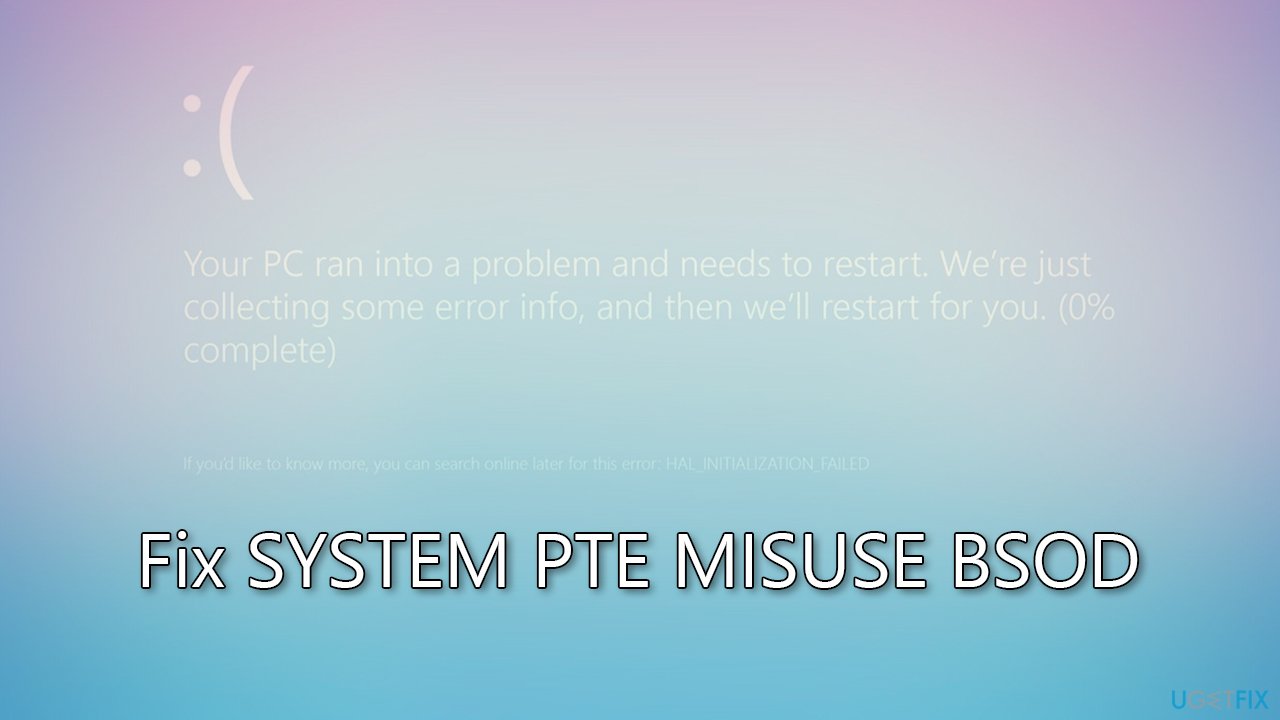
There are hundreds of stop codes associated with such computer crashes, and SYSTEM PTE MISUSE is one of them. Users can see it when Windows shows a frown emoji and the standard text, which claims that the restart is imminent, all while the system is gathering error information. These details can be seen in numerous locations later on, including the Control Panel, Event Viewer, or Registry Editor.
Unfortunately, not many users are aware of this, and the only thing they can go by is the SYSTEM PTE MISUSE error code. While in some cases, users might encounter it once and forget about it since there are no further problems, repeated restarts mean that there's something with the PC that needs to be addressed.
SYSTEM PTE MISUSE BSOD can occur on numerous operating systems - from older ones to modern ones, such as Windows 10 or 11. The timing of the crash can also vary, as some users reported having it at particular times (for example, whenever a program is being launched), while others said it was fully random and they weren't doing anything distinctive.
The SYSTEM_PTE_MISUSE bug check has a value of 0x000000DA. This occurs when a page table entry (PTE) routine is used inappropriately. To fix the issue, you have to go through several troubleshooting steps, as there could be a variety of reasons behind it. The most common culprit of this crash is the drivers and their corruption, so we'll address that first. The BSOD can also be caused by security settings within BIOS, so we'll look over that as well. If these solutions do not work for you, try other ones.
Also, if you would like a fast solution, we recommend running a scan with a PC repair tool [d1] instead of performing the troubleshooting manually, as it could take quite some time and effort.
Solution 1. Update Nvidia drivers
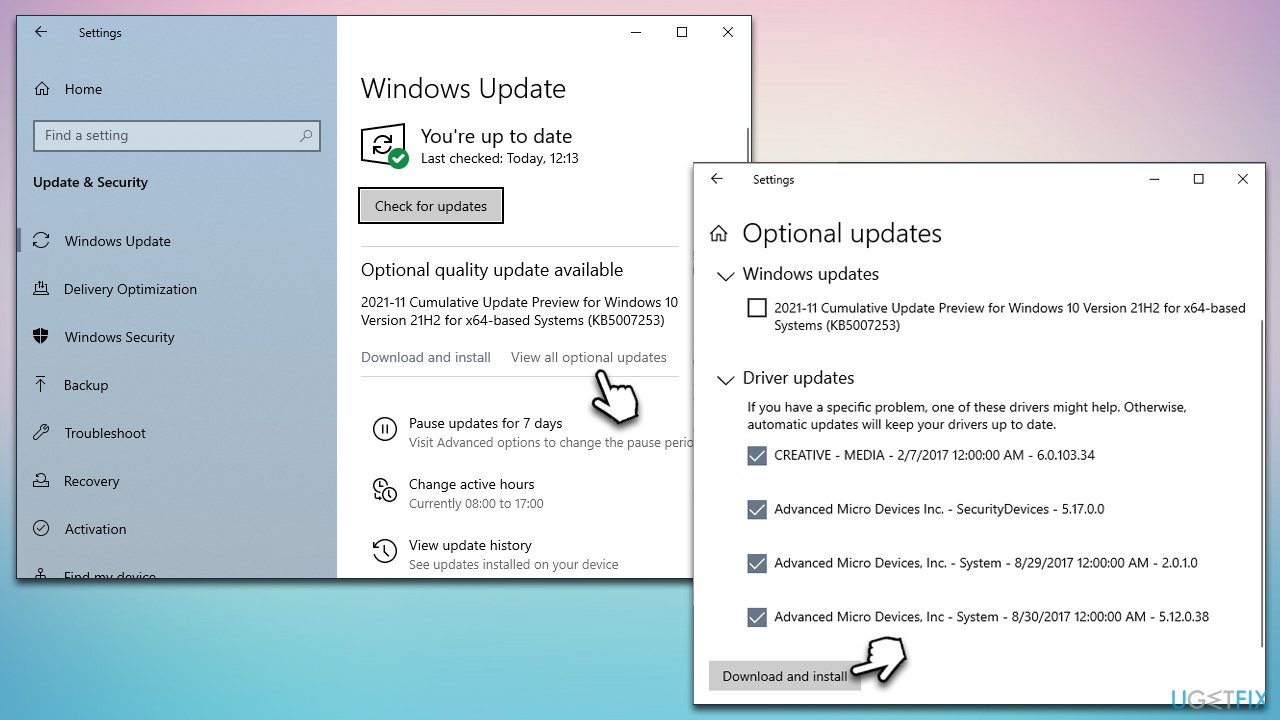
You can update your drivers easily and quickly by using software like [rev id="DriverFix"]. The newest version of your GPU driver can also be downloaded from Nvidia's official website, but you should make sure you're downloading the right driver for your GPU type. Another option is to try downloading driver updates through the Windows Update feature, although this may not work properly, as Windows often fails to find the latest GPU updates.
- Type Update in Windows search and hit Enter
- Click Check for updates
- Click View optional updates
- Find the Driver Updates section, tick the checkboxes, and click Download and Install
- Restart your device.
Solution 2. Reinstall drivers
Some users claimed that the problems started after they installed the newest Nvidia drivers on their systems. Thus, reinstalling the drivers may be helpful:
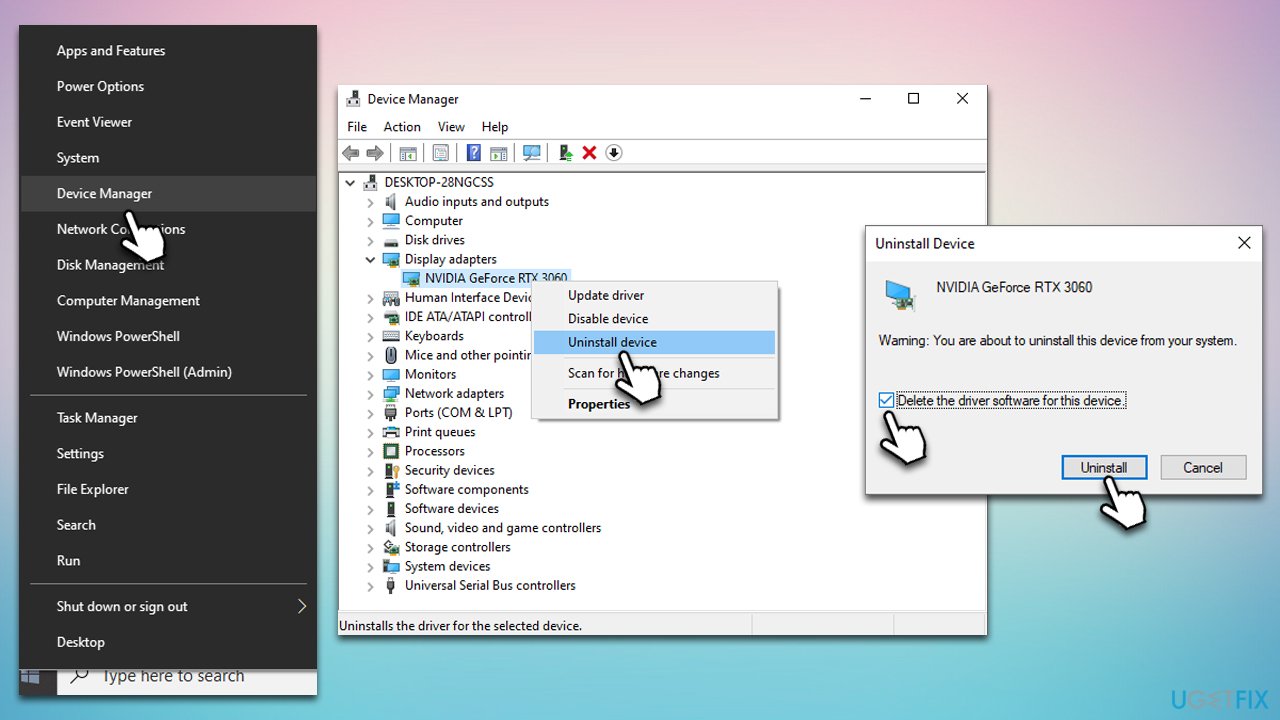
- Right-click on Start and pick Device Manager
- Expand Display adapters
- Right-click on your GPU and select Uninstall device
- Mark the Delete the driver software for this device tickbox
- Click Uninstall and follow the instructions to finish the process
- Restart your device and then use one of the methods above to install the newest drivers.
Solution 3. Check for corrupted system files
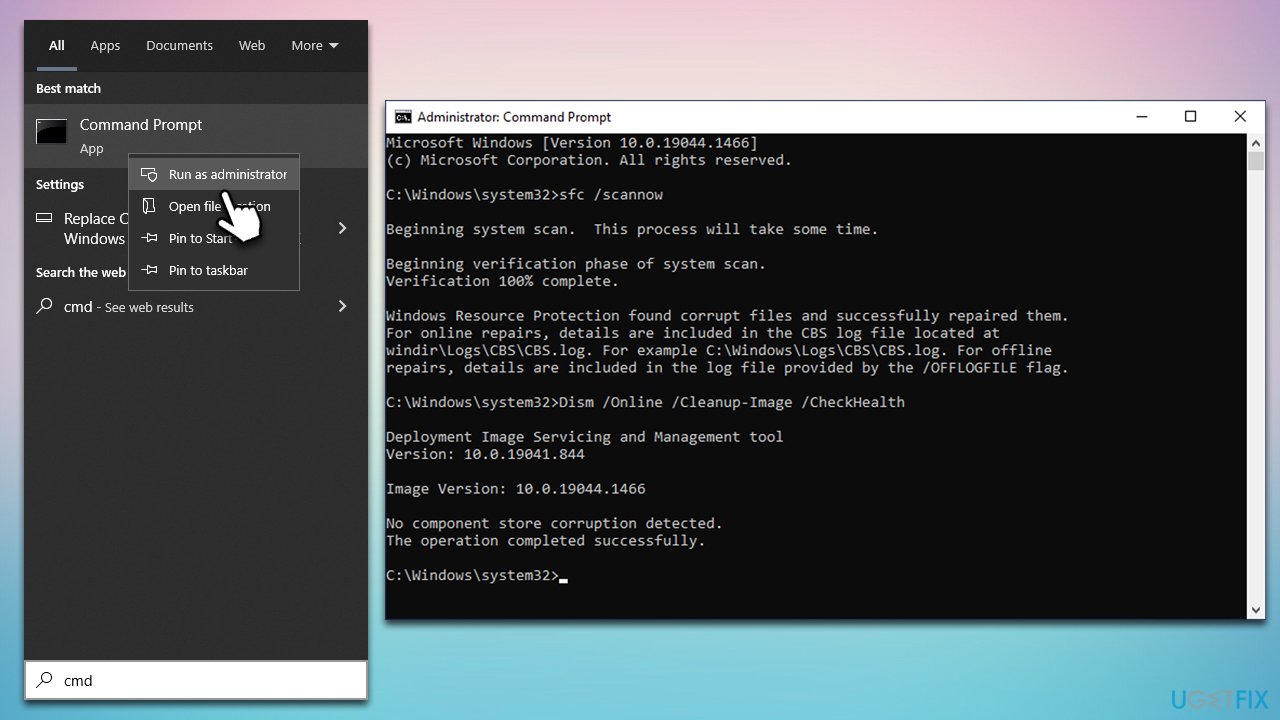
- Type cmd in Windows search
- Right-click on Command Prompt result and select Run as administrator
- Paste the following command into the new window:
sfc /scannow - Press Enter and wait till the scan is finished
- Once done, run this set of commands, pressing Enter each time:
DISM /Online /Cleanup-Image /CheckHealth
DISM /Online /Cleanup-Image /ScanHealth
DISM /Online /Cleanup-Image /RestoreHealth - Restart your system.
Solution 4. Disable TPM or PTT
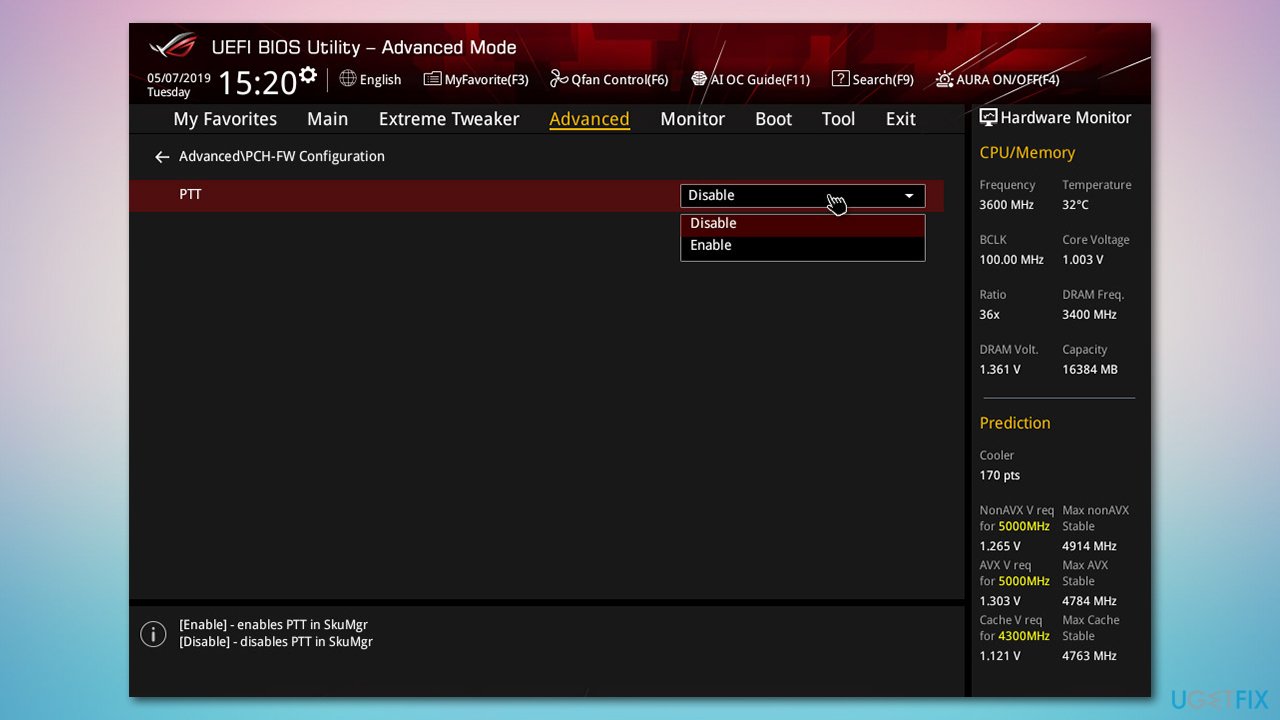
Intel PTT is a credential storage and key management platform for Windows and can be disabled or enabled via BIOS, and doing so managed to help users to fix the SYSTEM PTE MISUSE BSOD. TPM has similar functionality, so if you don't see PTT in your BIOS, look for the former.
- To enter BIOS, restart your PC and keep pressing a button that would grant you entry to it (it is usually displayed on the screen before the system boots - usually, they are F1, F2, F8, F12, Backspace, or Delete)
- Once in BIOS, go to the Security section
- There, look for Intel Platform Trust Technology, PTT, PTT security, or similar, and disable it
- If you can't find PTT, look for TPM instead in a similar manner.
Solution 5. Update BIOS
You can try updating your BIOS version to fix the BSOD issue. Note that this may be too difficult for novice computer users, so we recommend contacting a professional.
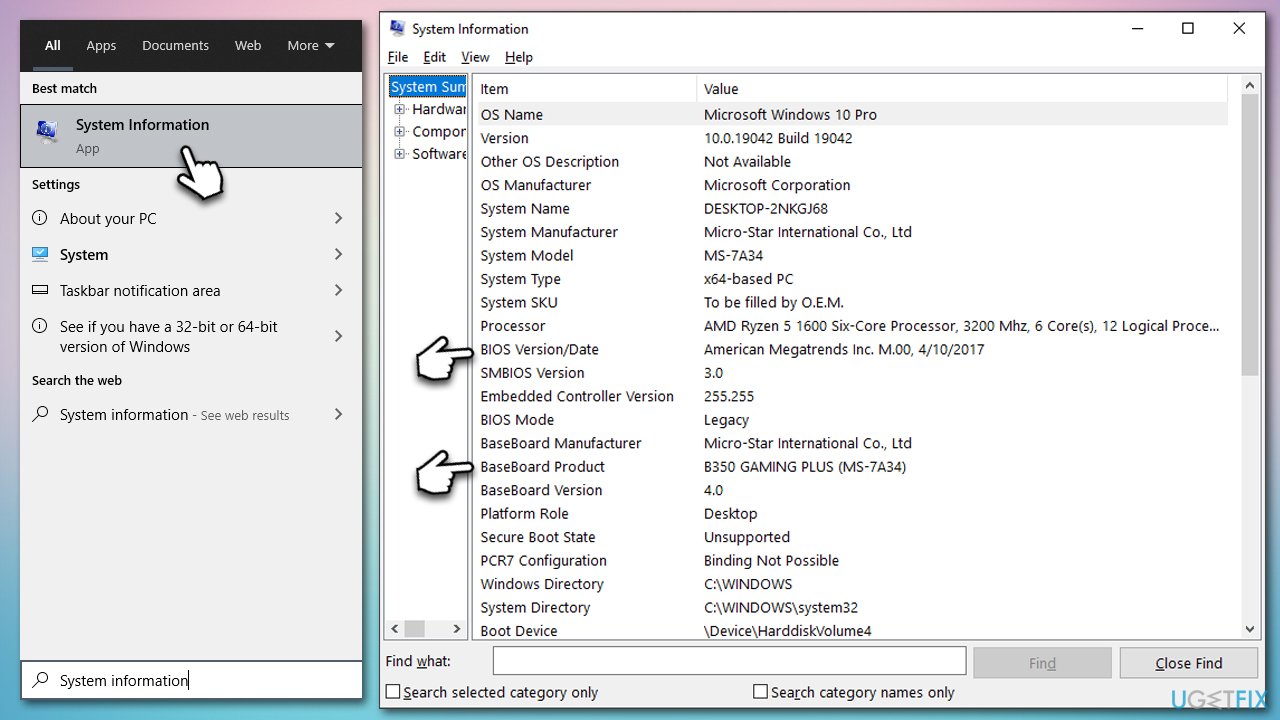
- Type in System Information in Windows search and hit Enter
- Note down info next to BIOS Version/Date and BaseBoard Product
- Open your web browser and visit the official site of your motherboard manufacturer
- Head to the Downloads section
- Download the appropriate version of BIOS for your motherboard and launch the installer
- Reboot your computer once complete.
Solution 6. Reinstall Windows
Before proceeding, make backups of all your personal files
- Visit the official Microsoft website and download Windows 10 installation media (Windows 11 version)
- Double-click the installer and select Yes when UAC shows up
- Agree to terms
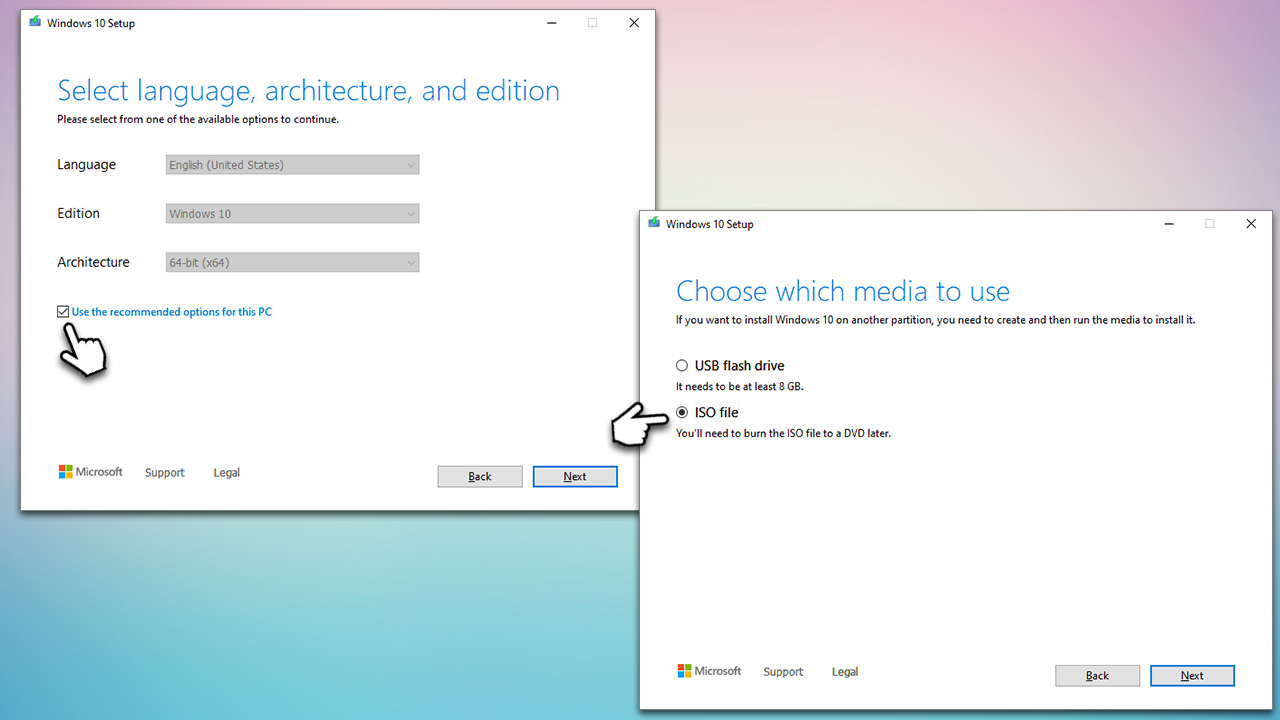
- Pick Create installation media (USB flash drive, DVD or ISO file) for another PC option and click Next
- Select the Use Recommended options for this PC checkbox and click Next
- Choose a USB flash drive and click Next, then follow the on-screen instructions to finalize the process
- Open File Explorer by pressing Win+E and open the USB flash drive where Windows installation media is located
- Double-click the setup.exe file
- Choose to Keep my personal files only and select Install, then follow on-screen instructions to complete the process.
Bottom line
To fix the SYSTEM PTE MISUSE BSOD, users can update drivers, run system file checks, check hardware components, and ensure software compatibility. If these solutions do not resolve the issue, further investigation into hardware or deeper system problems may be necessary.
Frequently asked questions
The SYSTEM PTE MISUSE BSOD error is often caused by faulty drivers, corrupted system files, or hardware issues. It's important to update your drivers and run system diagnostics to identify the root cause.
To troubleshoot the SYSTEM PTE MISUSE error in Windows 11, start by booting into Safe Mode and uninstalling any recently added hardware or software. Additionally, use the System File Checker tool to repair corrupted files by running 'sfc /scannow' in the Command Prompt.
Yes, a Windows update can sometimes resolve the SYSTEM PTE MISUSE BSOD by providing fixes for known issues and updating drivers. Ensure your Windows 10 is up to date by checking for updates in the Settings app.




Report an issue
What's wrong with this guide? We review every report and update or remove content.
Report received — thank you. We'll review and fix it.
You need a free account to submit a report.
Be the first to comment