How to fix
WiFi disconnects randomly (Mediatek MT7921 driver)
on Windows
Resolve random WiFi disconnects on Windows 10 or 11 with our effective Mediatek MT7921 driver fixes. Get back online quickly, expert-tested solutions.

What causes How to fix WiFi disconnects randomly (Mediatek MT7921 driver)?
- Incorrect network driver installed
- Third-party security software interference
- WLAN AutoConfig service not running
- Network configuration issues
- Outdated WiFi driver
Repairs Windows system files, removes malware, and restores a clean OS state — without reinstalling.
Hello. I have a new Windows PC and I have a problem with the Internet connection. I have a Mediatek MT7921 WiFi card and the Internet keeps disconnecting randomly. How can I fix this?
The Mediatek MT7921 WiFi card was designed for gamers with a 2x2 dual-antenna, power efficiency for longer battery life, hardware enhancements for lower latency connections that reduce in-game pings, and support for super long-range connections so people can go even further from the Wi-Fi router.
It also features a Wi-Fi 6 connectivity solution which delivers multi-gigabit, low latency wireless data connectivity, providing faster, more reliable network connections when many users are gaming, streaming, or video chatting in the same space.
However, with all of these benefits, some people are still having issues. People report experiencing WiFi disconnecting randomly. It is unknown why exactly this is happening. It is possible that an incorrect network driver[ref en-1] is installed. Sometimes, the Internet connection can also be interfered by third-party security software.
In this guide, you will find 7 steps that should help you fix WiFi disconnects randomly problem. Keep in mind that the manual troubleshooting process can be lengthy. You can use a maintenance tool like [d1] that can fix most system errors, BSODs,[ref en-2] corrupted files, and registry[ref en-3] issues. Otherwise, follow the step-by-step instructions below.
Solution 1. Run the Network Troubleshooter
- Click Start Menu, and type Settings
- Open Settings, and navigate to System
- Scroll down to the bottom and click Troubleshoot from the list of options
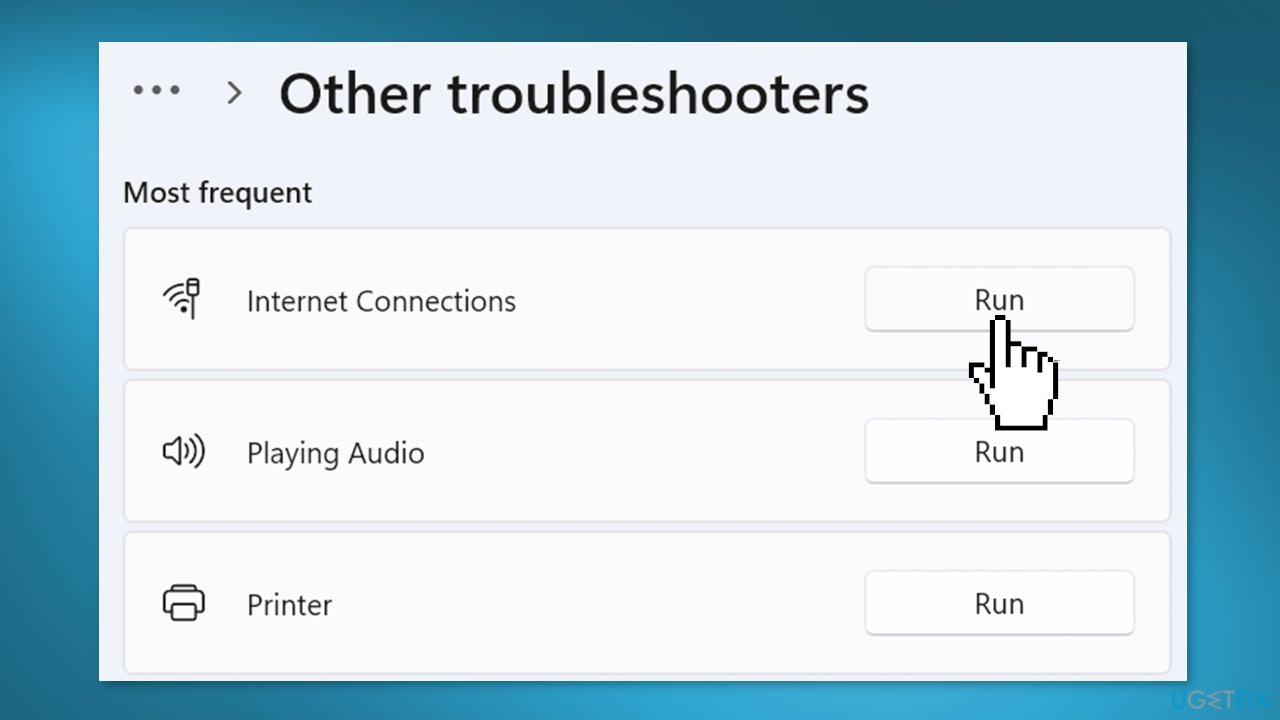
- Click Other Troubleshooters, then click Run on Internet Connection Troubleshooter
- Select Troubleshoot My Connection To the Internet
- check if the issue persists
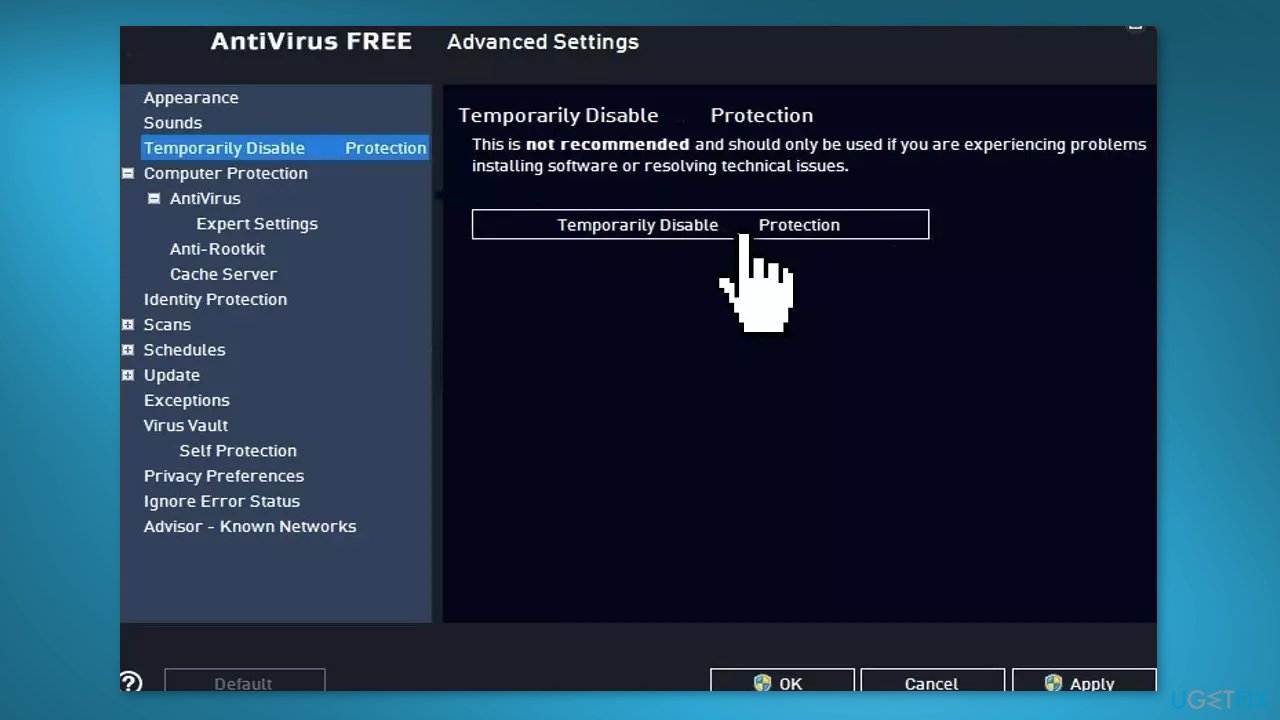
Solution 2. Disable Third-Party Antivirus
Sometimes antivirus software can block legitimate processes mistakenly. You should try disabling your antivirus to see if it fixes WiFi disconnecting randomly.
Solution 3. Restart WiFi AutoConfig Service
- Press the Windows key + R to open the Run box
- Type services.msc and press Enter
- Find WLAN AutoConfig and right-click on it to select Properties
- Change the Startup type from to Automatic, then click Apply
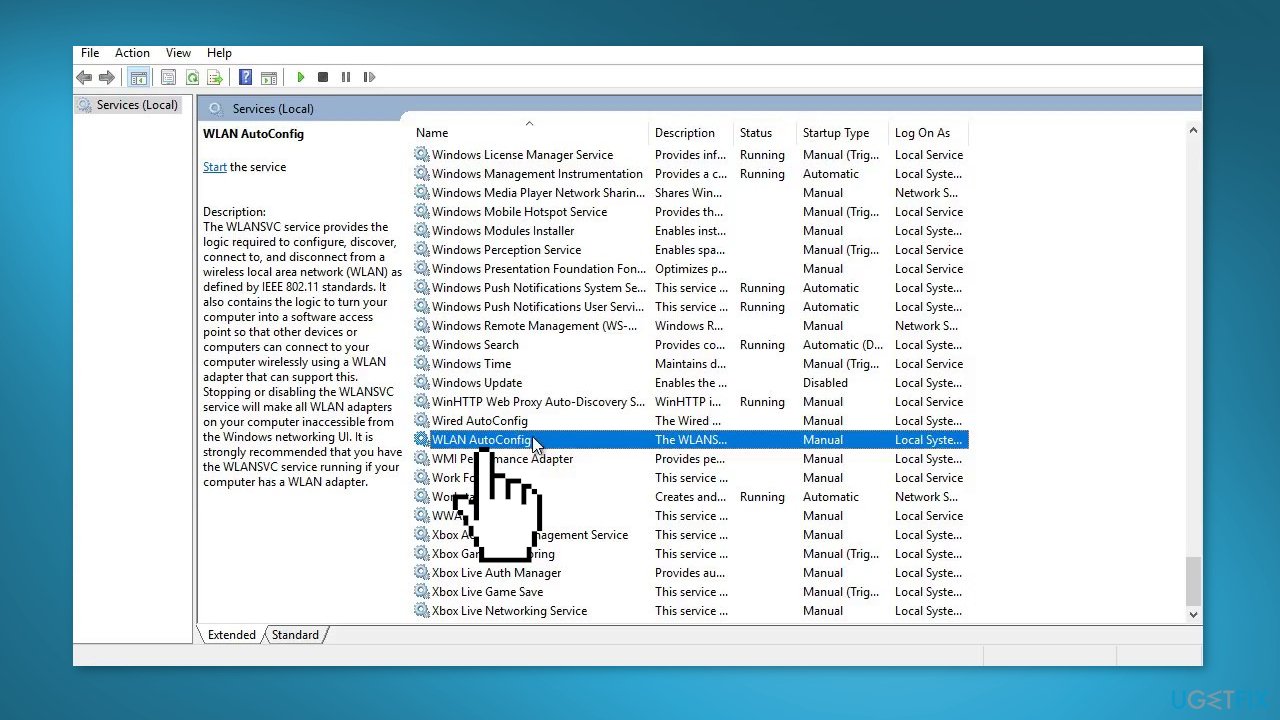
- If the service is stopped, then click the Start button
- Restart your computer to check if the issue persists
Solution 4. Set the Connection to Private
- Press the Windows key + I to open the Settings
- Go to Network & Internet
- Click Ethernet and set the connection to Private
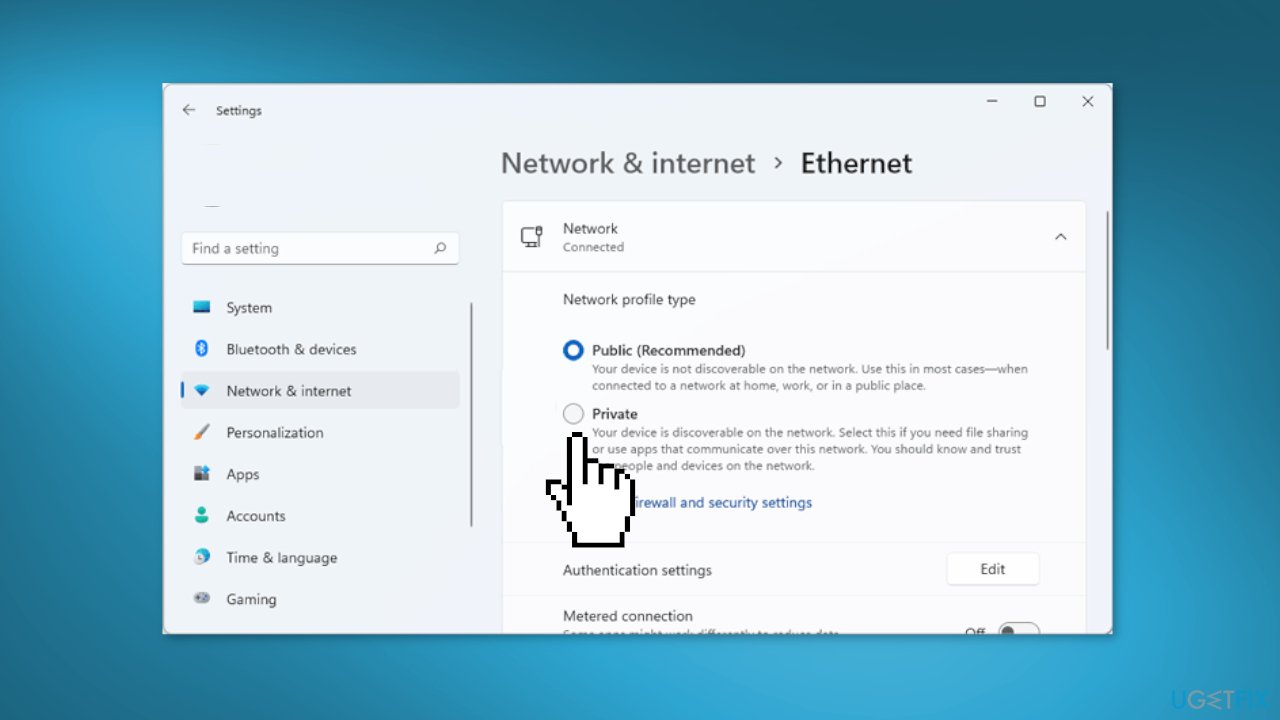
Solution 5. Reinstall Mediatek MT7921
- Right-click on the Start Menu and select Device Manager
- Right-click on the network adapter and click Uninstall Device
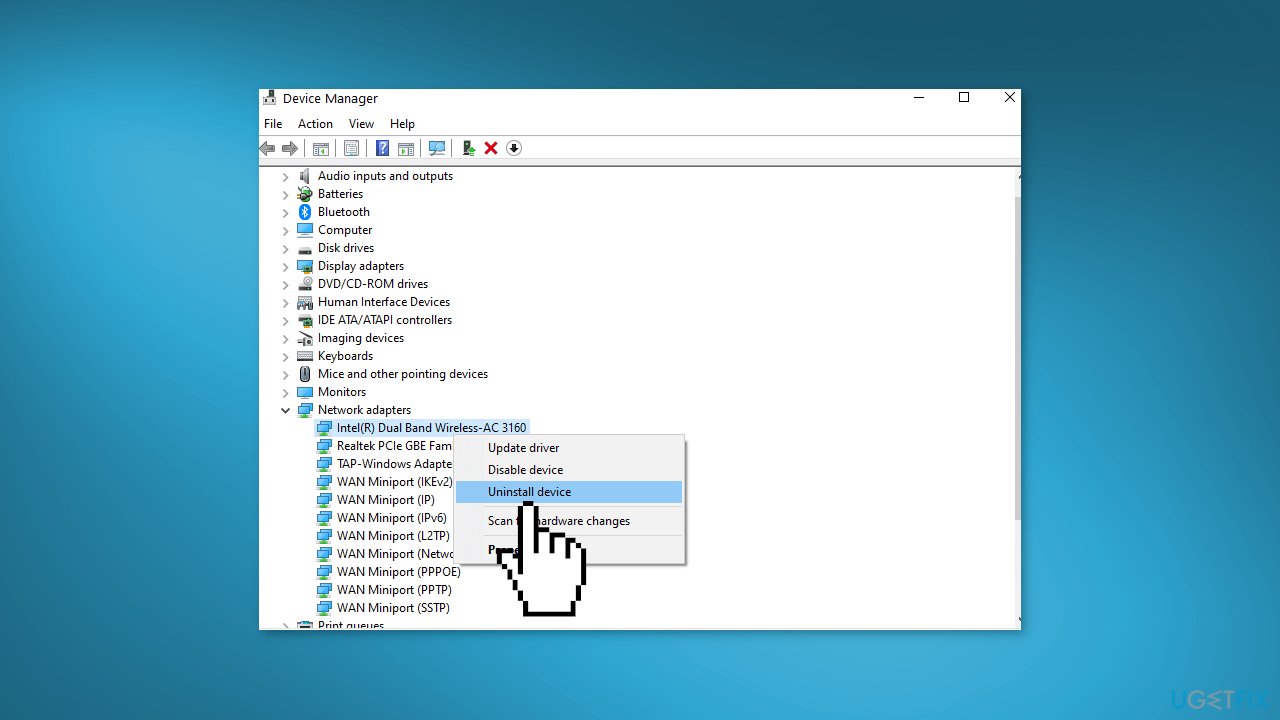
- Once it is done, install the latest driver from the official manufacturer's website
- You can also use a dedicated utility like [rev id="DriverFix"] that can find the best drivers for your machine and install them automatically
Solution 6. Disable Power Management
- Right-click on the Start Menu and select Device Manager
- Right-click on Network Driver and select Properties
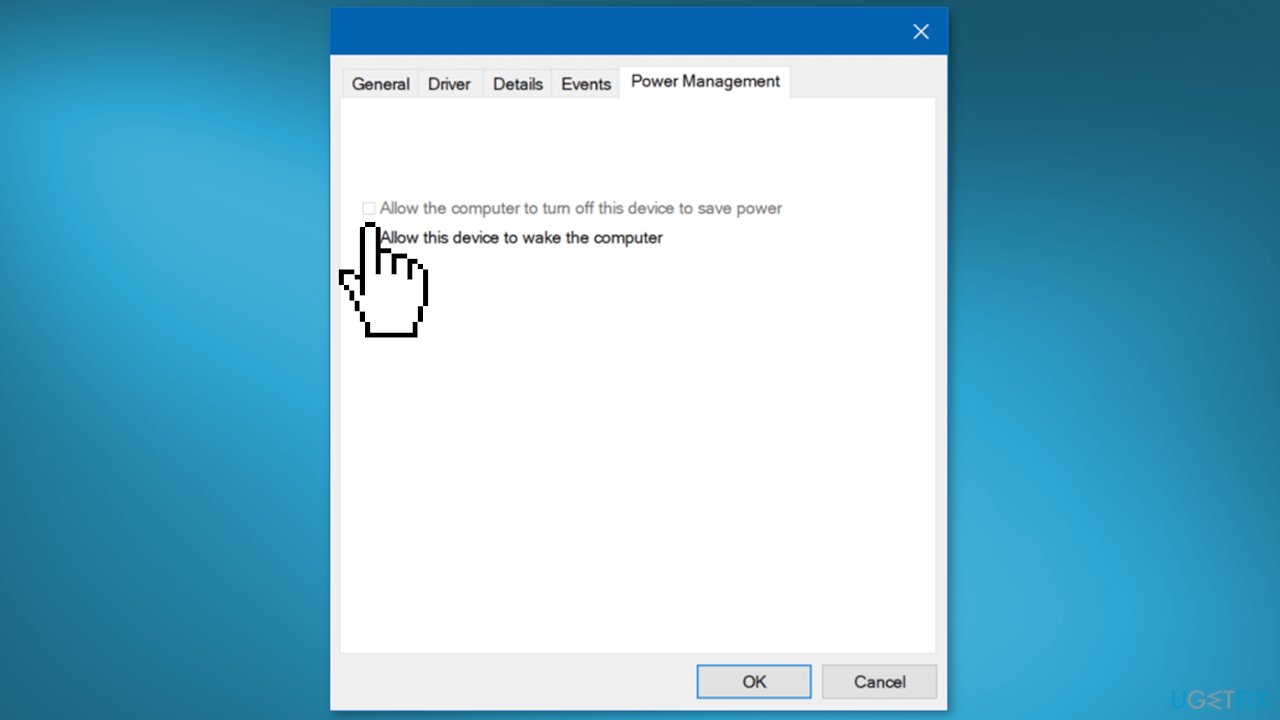
- Go to Power Management, and untick the option Allow This Computer To Turn Off This Device to Save Power
- Once done, close the windows and check if the issue is solved
Solution 7. Reset Network Settings
- Click on the Start Menu, and type Settings
- Open Settings and navigate to Network & Internet
- Click on Advanced Network Settings
- Press on Network Reset under More Settings
- Click Reset Now, and your PC will be restarted
- Now type Command Prompt in the search bar
- Right-click on it and choose Run as Administrator
- Insert the following commands one by one and press Enter:
netsh int ip reset
netsh winsock reset
ipconfig /release
ipconfig /renew
ipconfig /flushdns
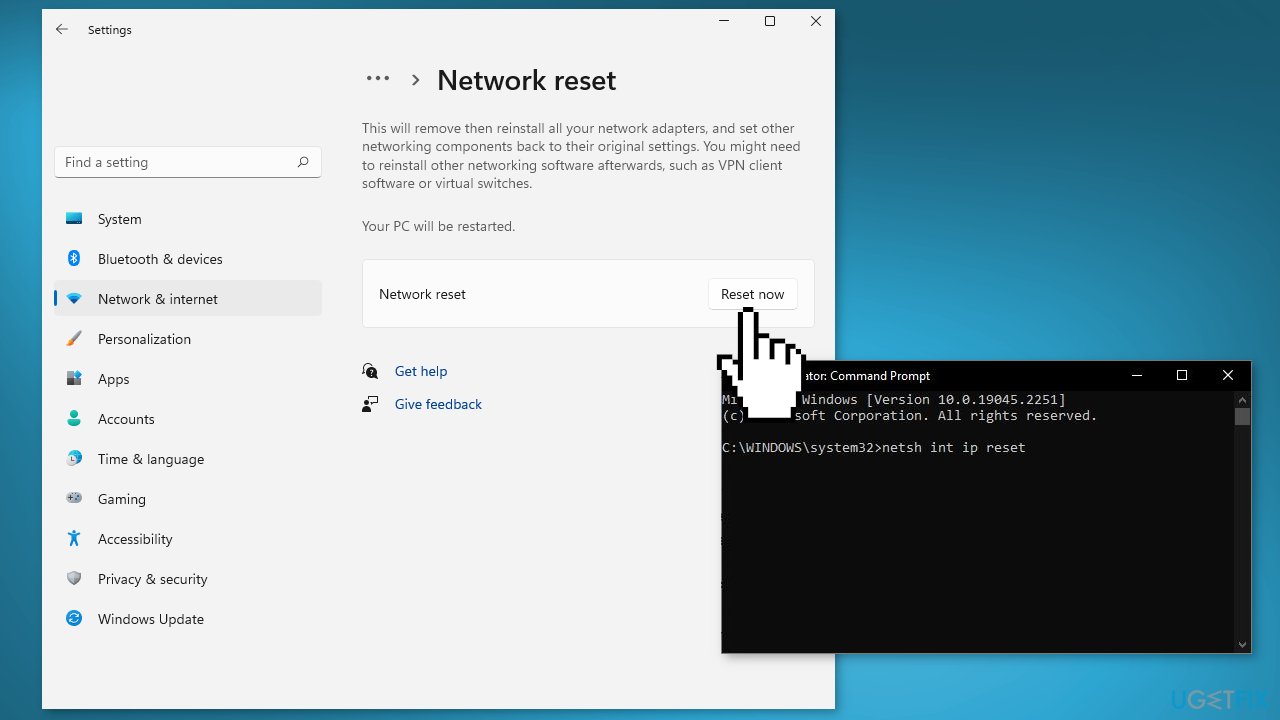
- Restart your computer and see if the issue persists
Bottom line
To fix the WiFi disconnect issue with the Mediatek MT7921 driver, you can run the Network Troubleshooter, disable third-party antivirus software, and restart the WLAN AutoConfig service. If these steps do not resolve the problem, consider using a maintenance tool or checking for driver updates.
Frequently asked questions
You can update the Mediatek MT7921 driver by going to Device Manager, right-clicking on the network adapter, selecting 'Update driver,' and then choosing 'Search automatically for updated driver software.'
If reinstalling the driver doesn't help, try rolling back to a previous version of the driver in Device Manager, as recent updates may have introduced compatibility issues.
Yes, ensure that the Power Management settings for the Mediatek MT7921 adapter are configured to not allow the computer to turn off the device to save power.




Report an issue
What's wrong with this guide? We review every report and update or remove content.
Report received — thank you. We'll review and fix it.
You need a free account to submit a report.
Be the first to comment