How to fix
“Product Activation Failed” error in Epic Store
on Windows
Resolve the "Product Activation Failed" error in Epic Store on Windows 10 or 11 quickly and effectively. Get expert-tested solutions today!


What causes How to fix “Product Activation Failed” error in Epic Store?
- Network connectivity issues
- Account verification problems
- Server downtime or maintenance
- Incorrect region settings
- Corrupted Epic Games Store installation
Repairs Windows system files, removes malware, and restores a clean OS state — without reinstalling.
Hello, I have recently tried to claim the freebee Fallout 3 game I was really excited about on Epic Games Store, and imagine my disappointment when I went to install it and received the "Product Activation Failed" error. This has never happened to me before. Please advise if there's anything I can do to fix this.
The Epic Games Store is an online video game store developed and operated by Epic Games. It was launched in December 2018 as a direct competitor to the popular Steam storefront from Valve Corporation. The store offers a curated selection of games, including titles from both major publishers and indie developers.
One of the key features of the Epic Games Store is its support for cross-platform play, which allows players on different platforms, such as PC and consoles, to play together. The store also offers a number of free games on a regular basis, as well as discounts and other promotions.
While it is a well-known fact that Steam remains by far the most popular platform for gamers, Epic Games Store attracts users with special deals and, most importantly, free games that users have a week to claim.
Unfortunately, some users reported that they had received a "Product Activation Failed" error when trying to purchase or claim a game via the platform. Since free games giveaway only lasts for a week for particular games, the error can be a real hindrance for players.
The "Product Activation Failed" error can occur when trying to add free games from Epic Store, be it on the Epic Games client or the account used via the browser. It can also affect various operating system versions, including the latest Windows 11. The message can have several codes associated with it, including E150-0, E200-0, or E10-0.
If you are encountering the "Product Activation Failed" error in the Epic Games Store, it typically indicates that there was an issue with the activation process for the game or content that you are trying to access.
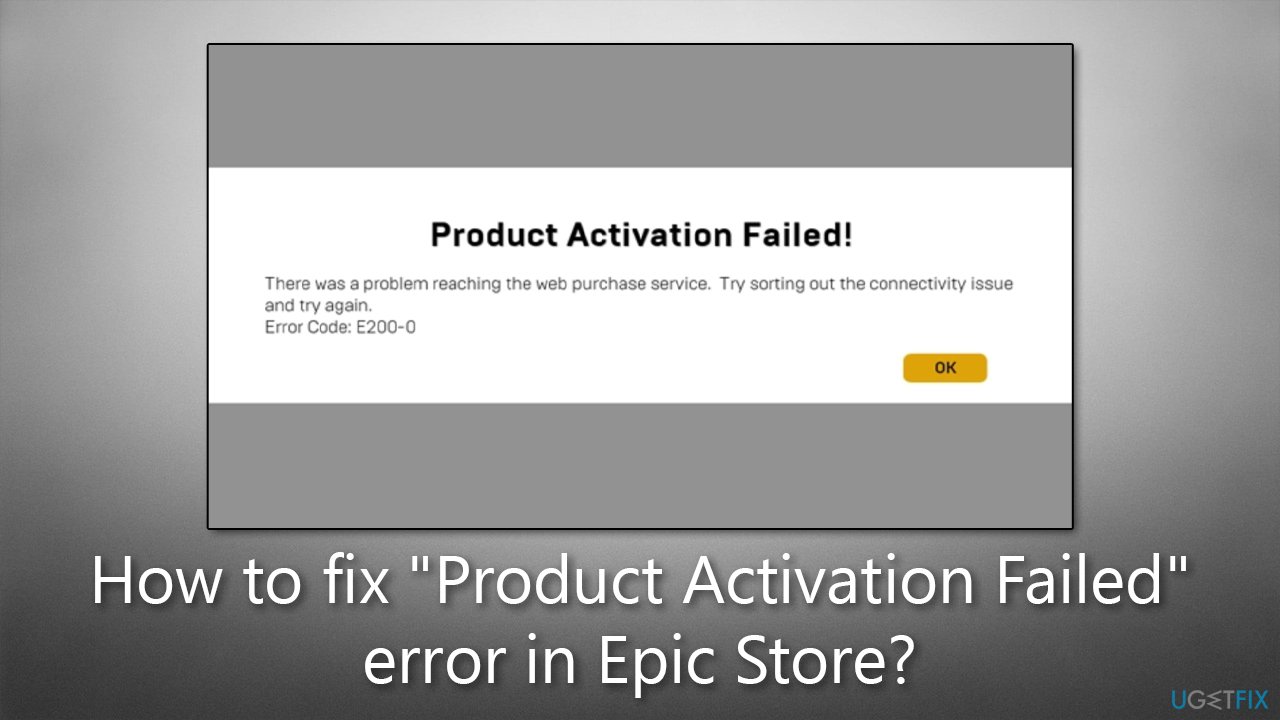
This error can be caused by a variety of factors, including issues with your internet connection, problems with your Epic Games account, or conflicts with your computer's hardware or operating system. On the other hand, the problem may lie within Epic's servers, so most commonly, users manage to fix "Product Activation Failed" simply by waiting it out for a few hours or days. If the problem does not go away, try the fixes listed below.
Fix 1. Check if Epic's servers are running properly
One of the first things you should do is check whether the "Product Activation Failed" error showed up because Epic's servers having difficulties. Technical issues are something that even the most prominent companies can't avoid - even Windows updates may sometimes fail because of this.
To check whether this is the case or not, you should visit the status page of the Epic Games services. Expand the Epic Games Store and Epic Online Services section and make sure that all of them are showing "Operational" status.
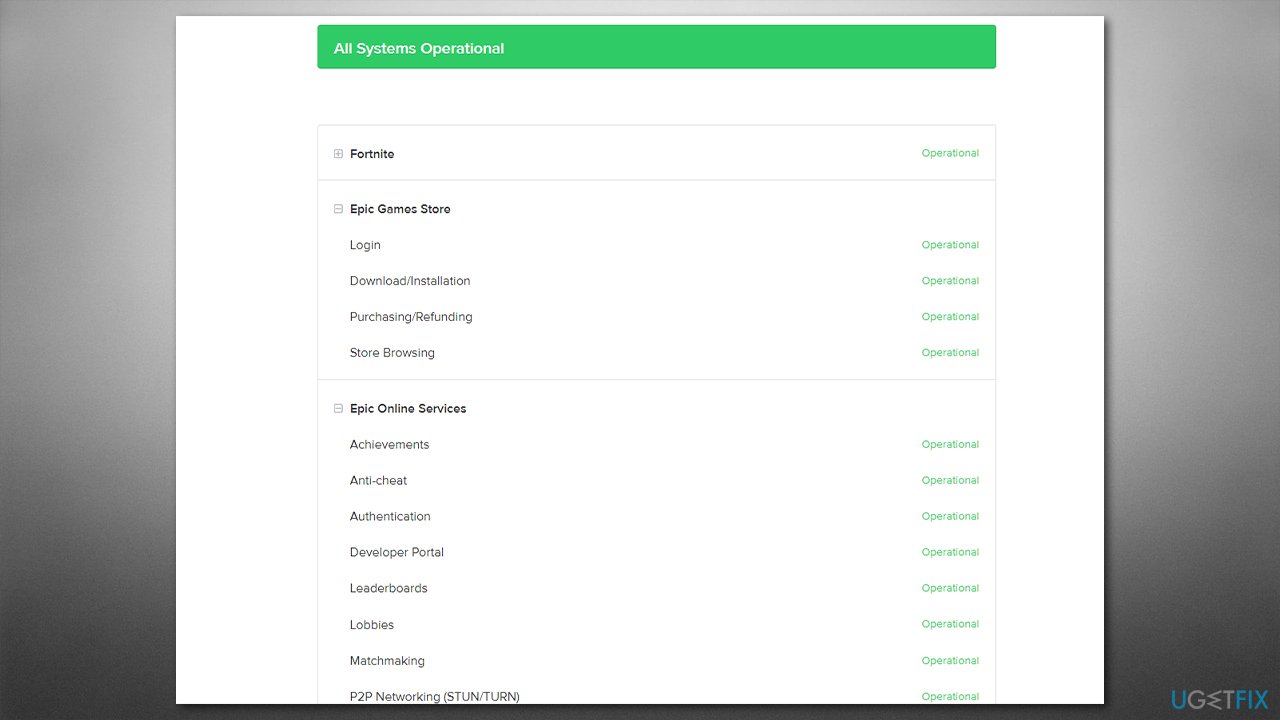
If you find that some of the vital services that could cause the activation error "Product Activation Failed" on Epic Store, it means that nothing much can be done about it from your end, and you'll have to wait a few hours. Usually, tech support sorts these issues out relatively quickly unless something serious (such as a DDoS attack) is going on.
Fix 2. Update your client
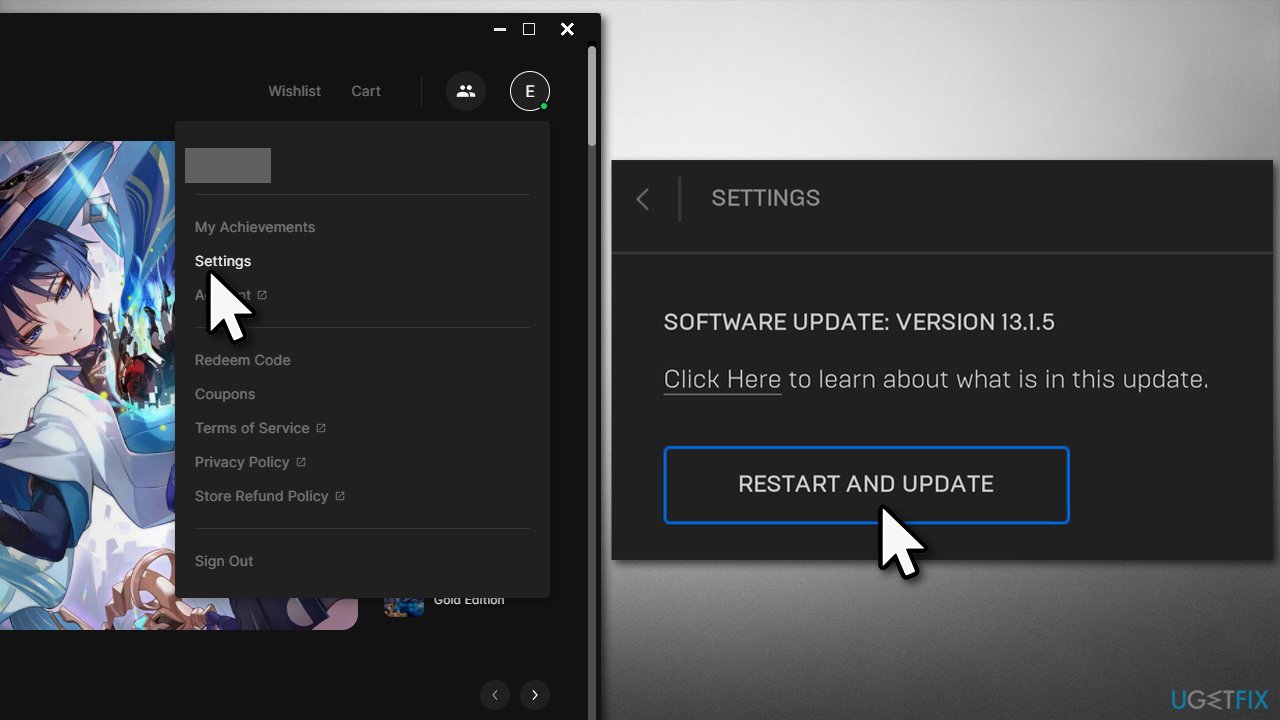
Epic Games Store doesn't automatically update all the time, so users might miss the most recent updates. Updates are usually released by developers to ensure users encounter no bugs and to improve the stability and usability of the platform. To make sure you are running the latest version, follow these steps:
- Open the Epic Games Store client and click on your account icon (usually located at the top-right corner of the window)
- Click Settings
- If an update is available here, click Restart and update.
Fix 3. Re-log and restart the Epic app
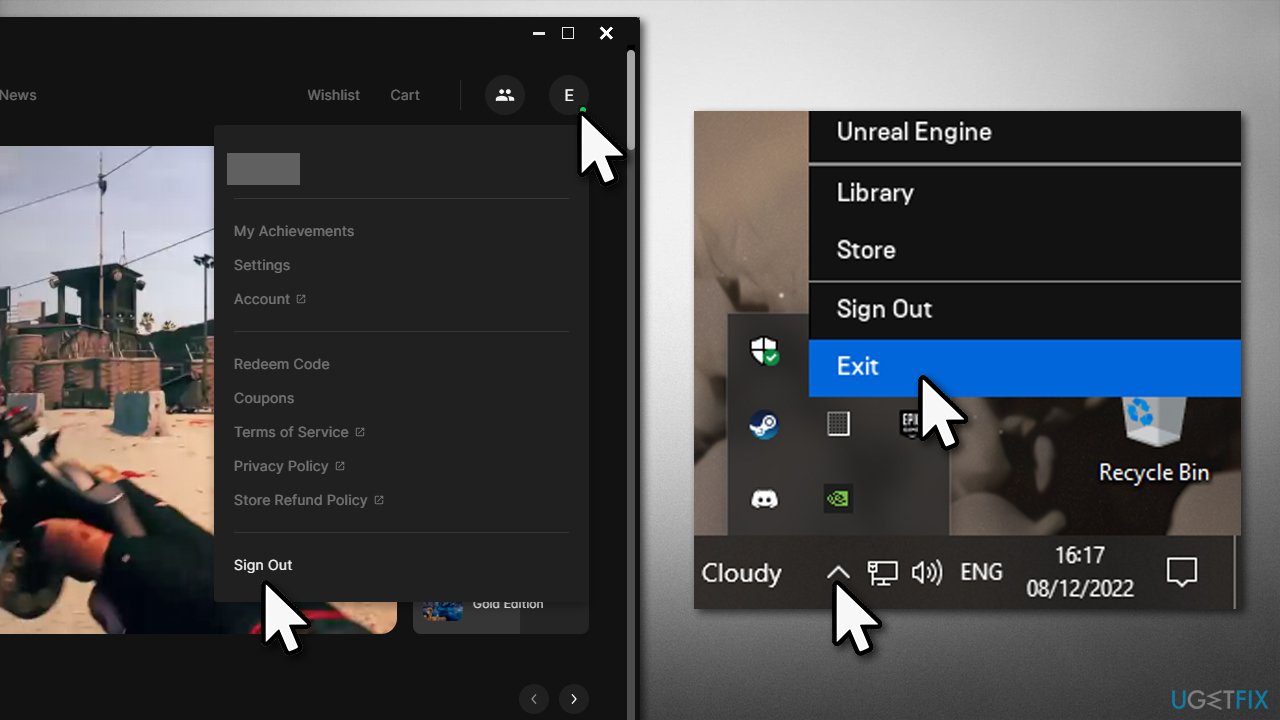
Another simple method of dealing with the "Product Activation Failed" is to log out and restart the client. To do this, follow these steps:
- Open the Epic Games Store client and click on your account icon (usually located at the top-right corner of the window)
- Select Sign Out
- Open the System tray in the taskbar, right-click on the Epic icon, and select Exit
- Then, open the app once again, log in with your credentials, and check whether the problem still persists.
Fix 4. Run the app as an administrator
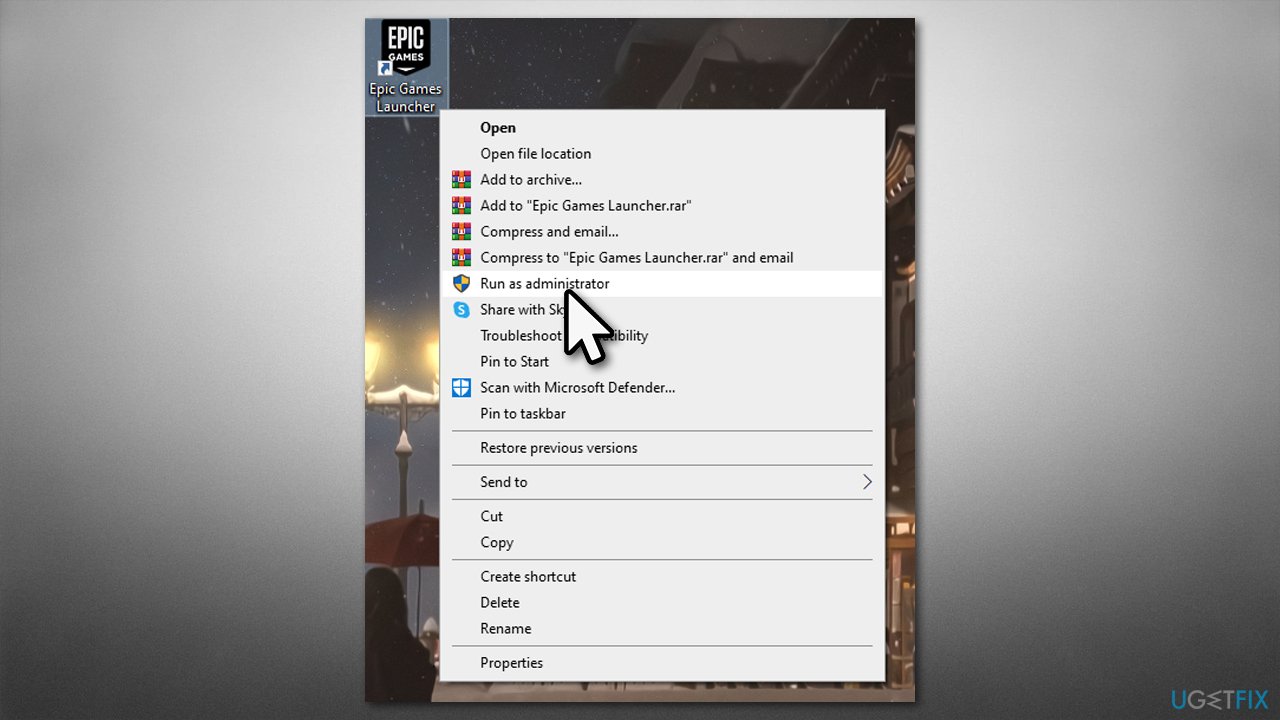
In some cases, users are unable to install games because of insufficient permissions in Windows. To address this, you can try running the app as an administrator:
- Right-click on Epic Games Launcher and select Run as administrator
- If UAC shows up, click Yes.
Fix 5. Reset your internet connection
Sometimes, the cause for the issue might be on your end. Try resetting your internet connection:
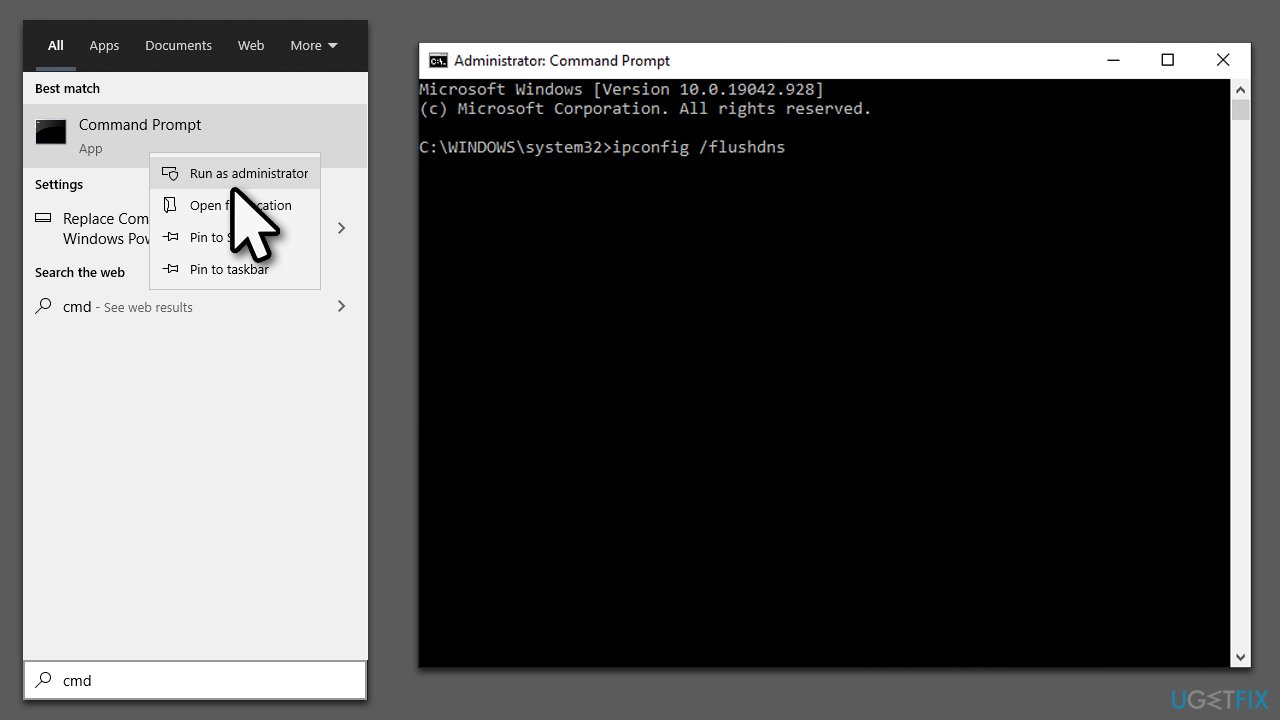
- Type cmd in Windows search and hit Enter
- When User Account Control shows up, click Yes
- Copy and paste each of the following commands, pressing Enter every time:
ipconfig /flushdns
ipconfig /registerdns
ipconfig /release
ipconfig /renew
netsh winsock reset - Restart your computer.
Bottom line
To fix the 'Product Activation Failed' error, you can check your internet connection, verify your account details, and ensure that the Epic Games Store servers are operational. Additionally, adjusting your region settings and reinstalling the Epic Games Store may help. If none of these solutions work, consider reaching out to Epic Games support for further assistance.
Frequently asked questions
First, ensure that your Windows 10 is activated and updated to the latest version. If the error persists, try running the Epic Games Launcher as an administrator.
Check your internet connection and make sure the Epic Games Launcher is up to date. If the issue continues, consider reinstalling the launcher or clearing its cache.
Yes, you can try disabling any VPNs or firewalls that might be interfering with the Epic Games Launcher. Additionally, verify the integrity of the game files through the launcher settings.




Report an issue
What's wrong with this guide? We review every report and update or remove content.
Report received — thank you. We'll review and fix it.
You need a free account to submit a report.
Be the first to comment