How to fix
Screen resolution settings greyed out
on Windows
Resolve greyed-out screen resolution settings in Windows 10 and 11 easily with our expert-tested solutions. Get your display working perfectly in minutes.


What causes How to fix screen resolution settings greyed out in Windows?
- Graphics driver not properly installed
- Graphics driver out of date
- Issue caused by a Windows update
- Problem appeared after connecting a new monitor
Repairs Windows system files, removes malware, and restores a clean OS state — without reinstalling.
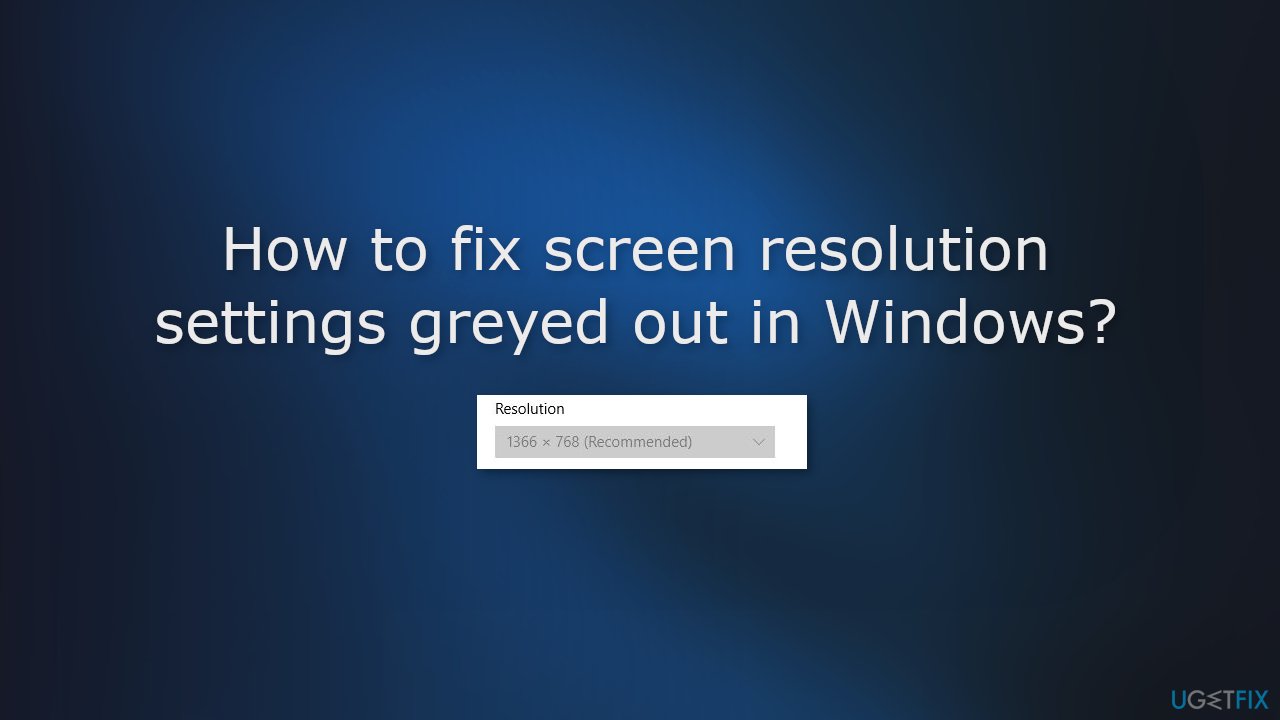
Hello. I recently bought a new monitor for my Windows PC but when I connected it and tried to change the resolution, the settings are unavailable. Is there anything I can do?
Some people report an issue in Windows that does not let them change the resolution settings. There could be several reasons why the resolution settings are not available in Windows. One possible reason is that the graphics driver is not properly installed or is out of date. In this case, the system may not be able to detect the graphics hardware and display the available resolution settings.
It is also possible that the resolution settings are grey because of a Windows update. Some people also report that the problem appeared after connecting a new monitor to their PC. To resolve this issue, the first step would be to check if the graphics driver is properly installed and up to date. You can do this by going to the Device Manager and checking the status of the graphics driver.
in this guide, you will find 5 steps that should help you fix screen resolution settings greyed out in Windows. Keep in mind that the manual troubleshooting process can be lengthy. To avoid it, you can use a maintenance tool like [d1]. It can fix most system errors, BSODs,[ref en-1] corrupted files, registry[ref en-2] issues, or clear cookies and cache[ref en-3] automatically. Otherwise, follow the step-by-step instructions below.
Solution 1. Reinstall the Display Driver
You should reinstall the graphics driver to make sure you have the newest driver software compatible with your hardware.
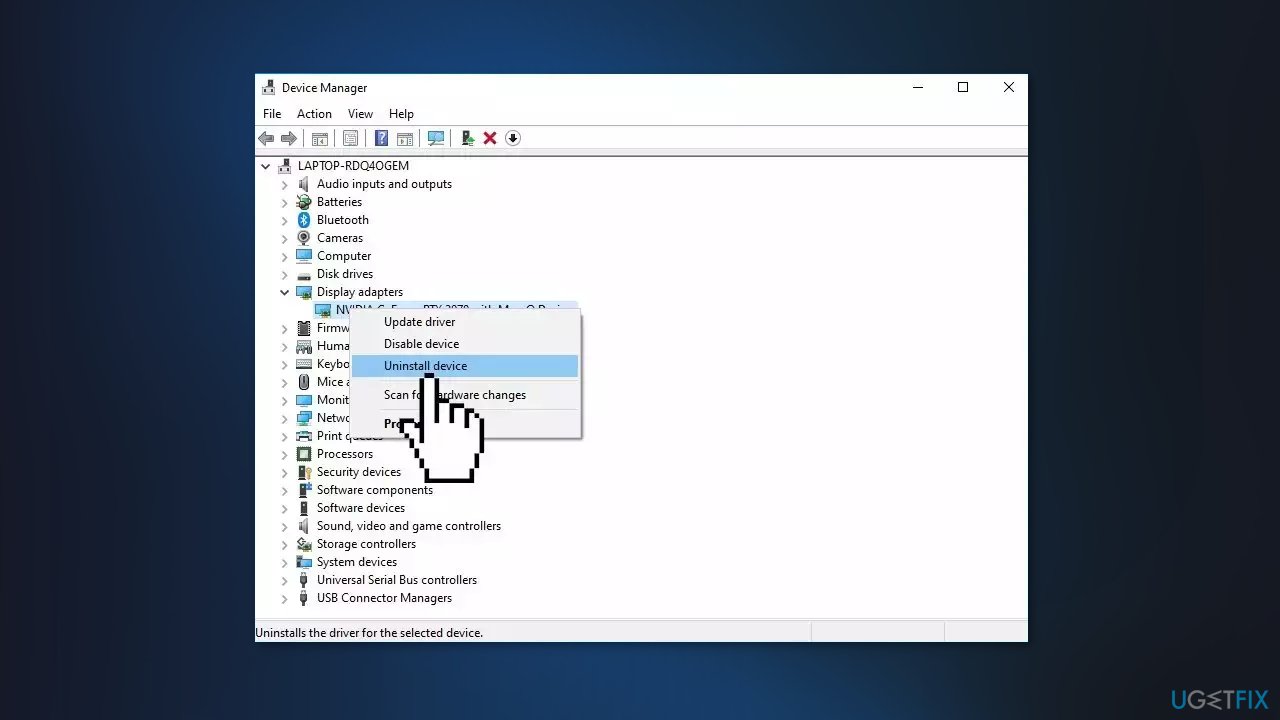
- Open Device Manager and expand the Display Adapters tab
- Right-click on your graphics driver and select Uninstall device
- Click Uninstall again in the second window and wait for the process to finish
- Restart your computer
- You can also download the driver from the manufacturer's website or for an easier process, you can use a dedicated utility like [rev id="DriverFix"] that can find the best drivers for your machine and install them automatically
Solution 2. Uninstall the most recent Windows Update
- Click on the Start menu and type updates
- Press Enter to launch the Settings page
- Click on Update history
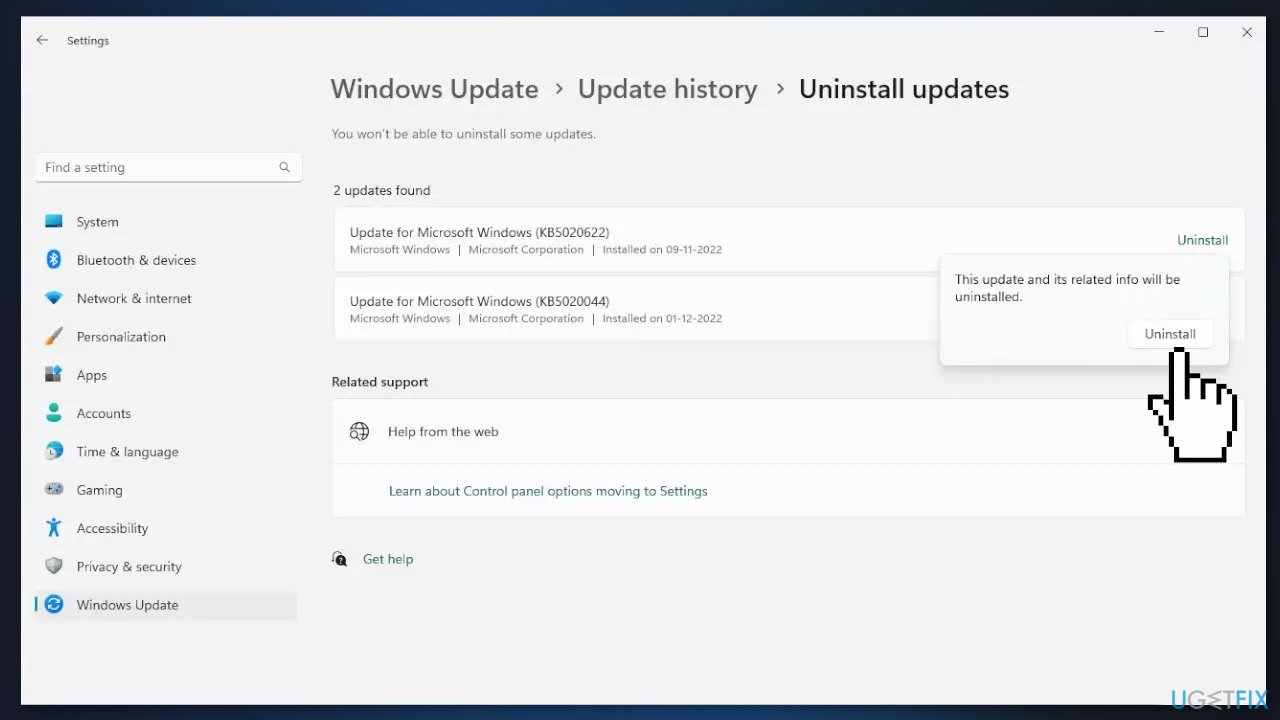
- From the next page, click on Uninstall updates
- Locate the patch you have recently installed and click on Uninstall
- Follow the on-screen instructions
Solution 3. Switch to Microsoft Basic Display Adapter Driver
The Microsoft Basic Display Adapter is software that's built into Windows that provides display and graphics capabilities when software from your hardware manufacturer isn't installed.
- Press the Windows key + X to open the Power User Menu
- Tap the M key on the keyboard to open Device Manager
- Scroll down the list of installed devices and expand the Display adapters section
- Next, right-click on the graphics card and choose Update driver from the context menu
- Select the Browse my computer for drivers option
- Click the Let me pick from a list of available drivers on my computer option
- Select Microsoft Basic Display Adapter from the list
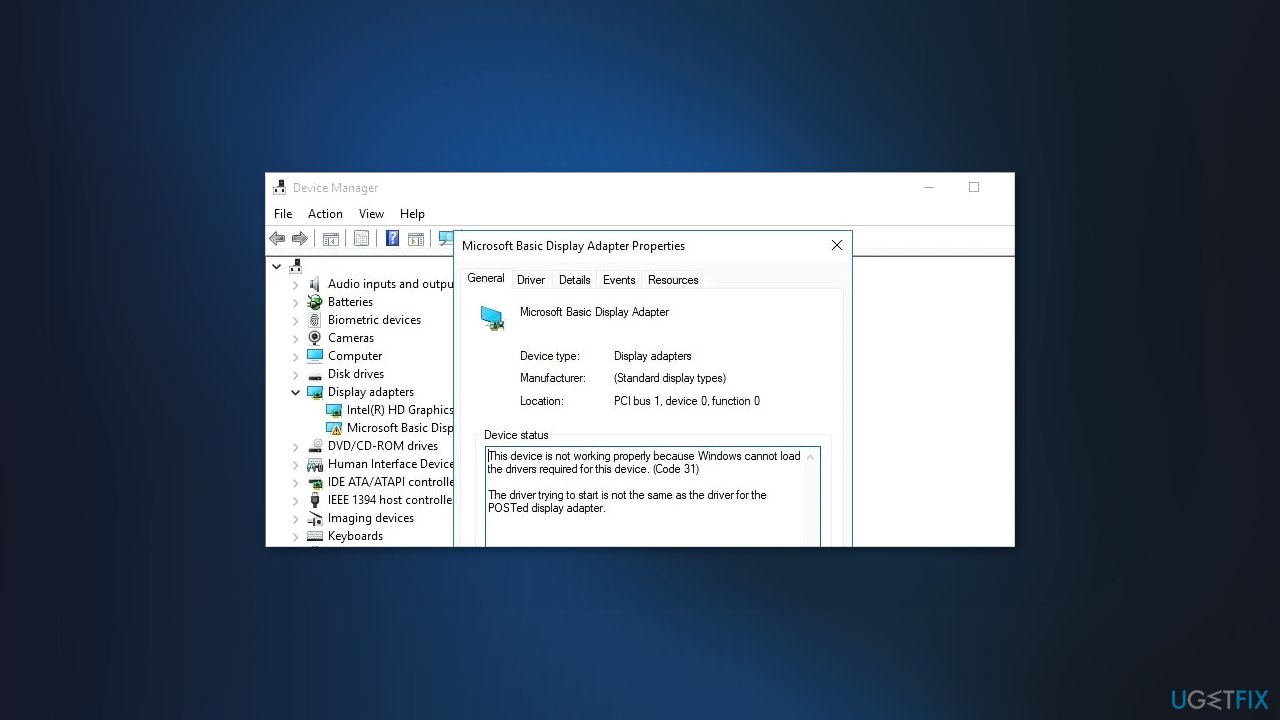
- Click the Next button and wait for Windows to install the drivers
- Once done, reboot your computer
Solution 4. Run System Restore
System Restore is a tool that can revert your system back to a previous point before a specific problem has occurred.
- Go to the Start menu, type restore, and click on Create a restore point
- Click System Restore, then follow the prompts until you can select a restore point
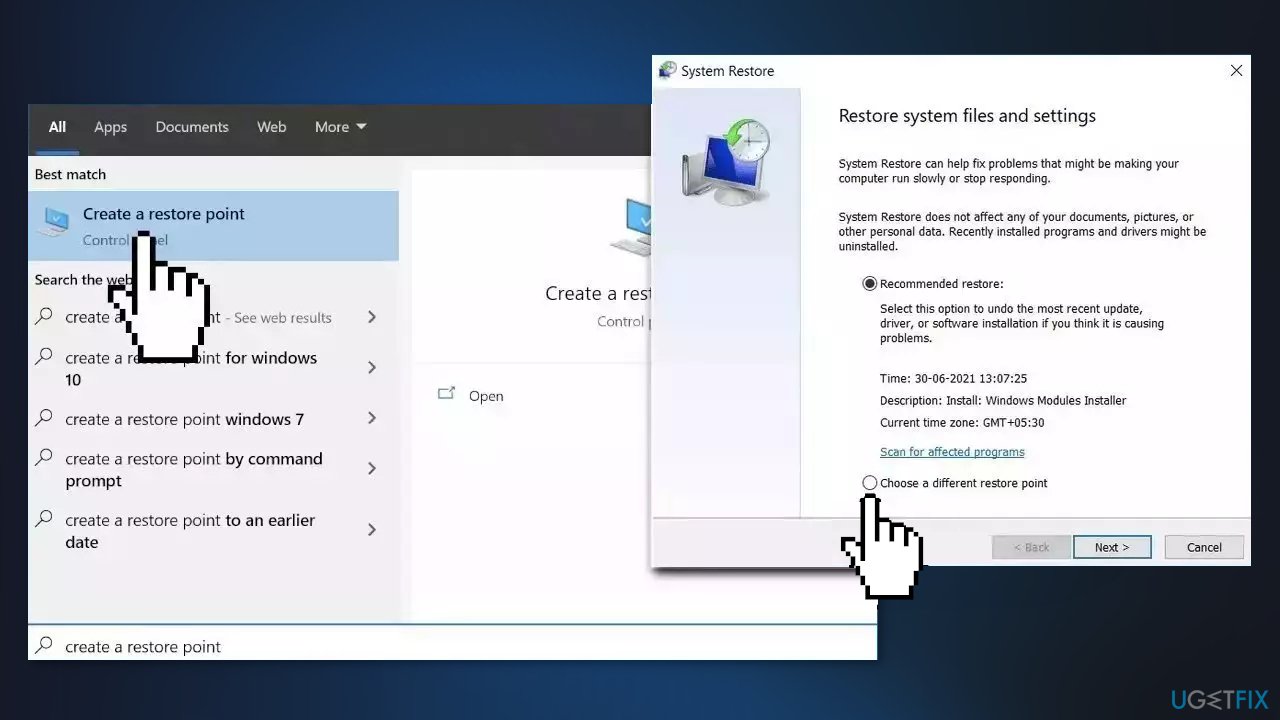
- Select the one you want (ideally before the screen resolution settings became greyed out) and go ahead with the process
Solution 5. Enable Custom Resolution on Intel
If you have the Intel Graphics Command Center, try to change the resolution settings from there.
- Open the Intel Graphics Command Center
- Open the Display tab
- In the Display General Settings, click the Custom button located next to the Resolution setting
- Click on OK to proceed
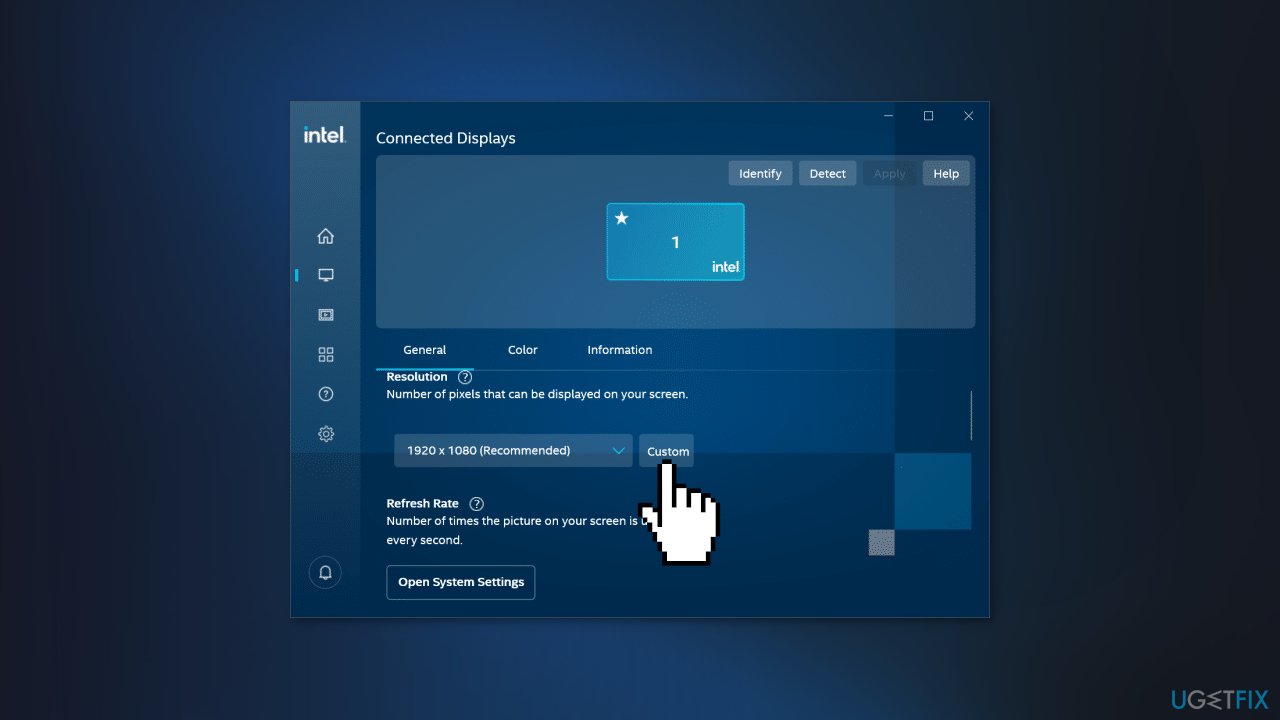
- In the Basic Custom Resolution settings, click Advanced Settings for more options
- Input the custom resolution or mode values per your requirements
- Click Yes to save the changes
Bottom line
To fix the greyed out screen resolution settings in Windows, you can reinstall the display driver or uninstall the most recent Windows update. If these solutions do not resolve the issue, consider using a maintenance tool or further troubleshooting steps.
Frequently asked questions
This issue often occurs due to outdated or corrupted graphics drivers. Updating your drivers through Device Manager can resolve the problem.
You can try restarting the Graphics Driver by pressing Win + Ctrl + Shift + B, or check for updates in Windows Update to ensure your system is up to date.
Make sure that your display adapter is enabled in the Device Manager, and consider rolling back to a previous driver version if the issue started after an update.




Report an issue
What's wrong with this guide? We review every report and update or remove content.
Report received — thank you. We'll review and fix it.
You need a free account to submit a report.
Be the first to comment