How to fix
Can’t turn on Memory Integrity in Core isolation because of mfehidk.sys driver
on Windows
Resolve the mfehidk.sys issue preventing Memory Integrity activation in Windows 10 or 11. Follow expert-tested solutions for a quick fix.

![[Fix] Can’t turn on Memory Integrity in Core isolation because of mfehidk.sys driver](https://ugetfix.com/wp-content/uploads/articles/askit/fix-cant-turn-on-memory-integrity-in-core-isolation-because-of-mfehidk-sys-driver_en-768x432.jpg)
What causes [Fix] Can’t turn on Memory Integrity in Core isolation because of mfehidk.sys driver?
- Mfehidk.sys driver is corrupted
- Mfehidk.sys driver is outdated
- Mfehidk.sys driver is bugged
- Windows operating system is not updated
- System files are corrupt
Repairs Windows system files, removes malware, and restores a clean OS state — without reinstalling.
Hi, I have an issue with Core isolation. It tells me that I can't turn on Memory Integrity because of the mfehidk.sys driver. Any advice would be appreciated.
Microsoft Defender is a security software that is included with the Windows operating system. One of its features is memory integrity, which helps to protect the data stored in a computer's memory from being modified or corrupted by malicious software or other threats.
One of the key benefits of memory integrity in Microsoft Defender is that it can help to protect against a wide range of security threats. For example, it can prevent malware from injecting itself into running processes or modifying the data in memory to avoid detection. It can also help to protect against attacks that attempt to exploit vulnerabilities[ref en-1] in the operating system or other software by ensuring that the data in memory remains unmodified.
Unfortunately, some users reported that they were unable to turn on Memory Integrity in Core isolation, or it suddenly stopped working due to mfehidk.sys driver.[ref en-3] Without a doubt, this can be a serious security threat, so fixing this issue on time is highly recommended.
All drivers on Windows operating system use the .sys extension, so it could be easily assumed that the file belongs to Windows. However, this is not the case here, and mfehidk.sys stems from a popular security software known as McAfee. It is a Host Intrusion Detection Link that runs in the SYSCORE component, operating on the kernel[ref en-2] level.
If you are wondering why or how this is happening, it is because the referenced driver is corrupted, outdated, or simply bugged and is interfering with Windows' ability to use the memory integrity feature. In order to fix mfehidk.sys driver memory integrity issues, you would have to either update or remove the driver.
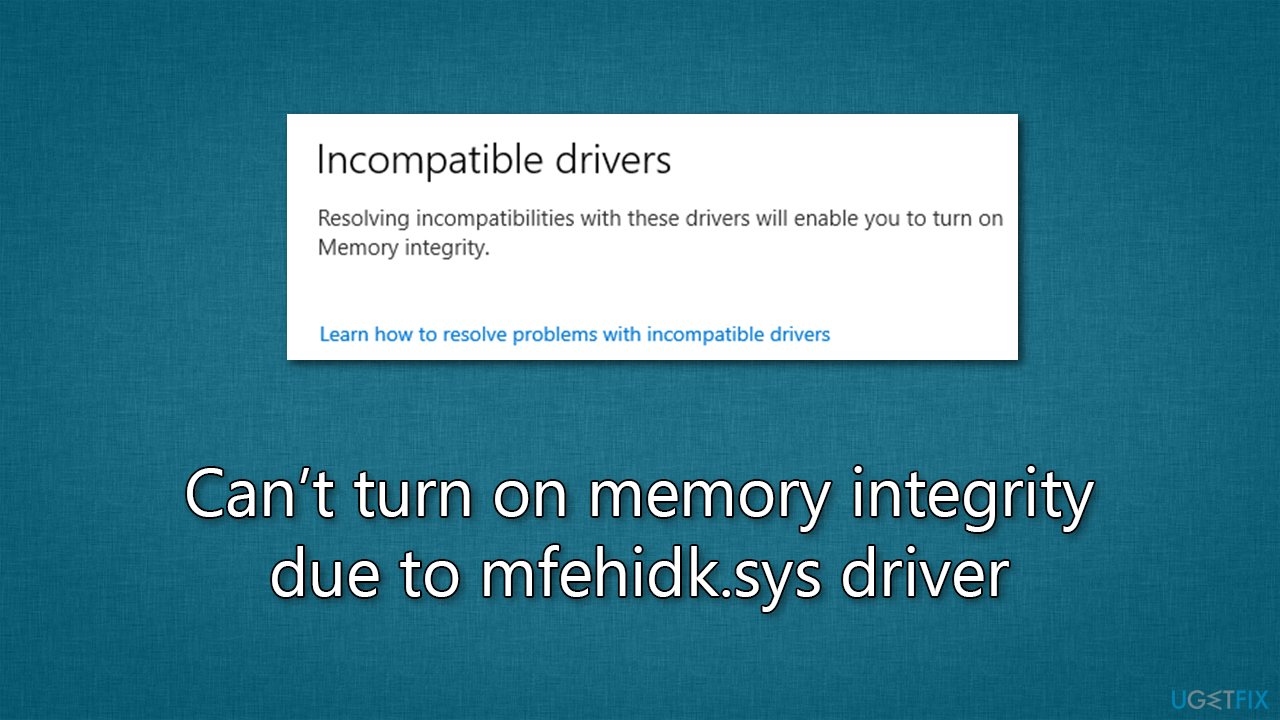
Please ensure that your Windows is updated to the latest version before continuing with the solutions below. In addition, if your system files are corrupt, it could lead to further device malfunctions. We, therefore, recommend running a scan with a PC repair tool [d1] prior to proceeding.
Fix 1. Update McAfee antivirus
There are several bugs that can come as a result of using third-party antivirus software. For example, people might not be able to update Windows, or it may interfere with the operation of local Microsoft Defender.
Third-party security applications are constantly being updated to fix these inconsistencies so, to address the memory integrity issues related to mfehidk.sys, you should first try to update McAfee and ensure it is running on the latest version.
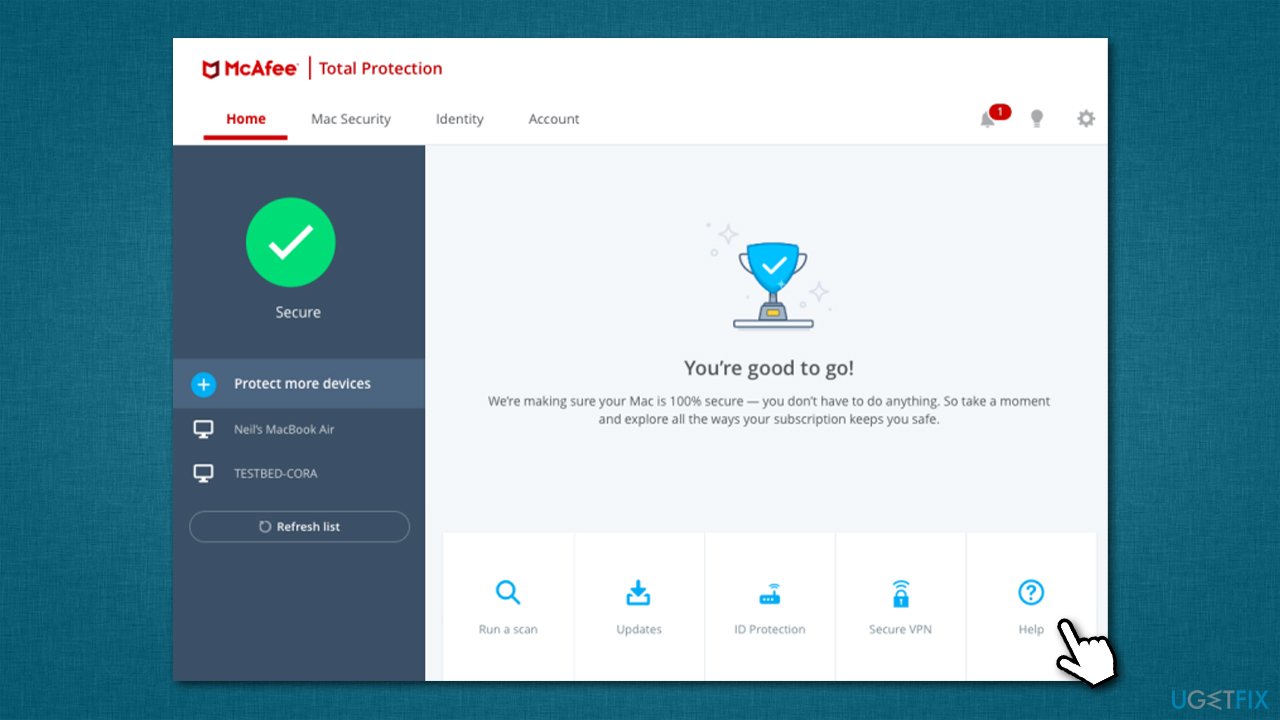
- Double-click the McAfee icon in your system tray or taskbar
- Click on the Help/question mark icon at the bottom right
- Click Update app/Check for updates and wait till the process is finished
- Once done, restart your system.
Fix 2. Uninstall McAfee antivirus
Your option to get rid of all the drivers and other components along with mfehidk.sys is to uninstall McAfee software from your device. However, uninstalling it just like any other program would not suffice, so you should download a special removal tool provided by McAfee.
- You can download it on the official website or follow the direct download link
- Once you download the MCPR.exe file, double-click it to launch it. If the UAC shows up, click Yes
- Click Next and Agree
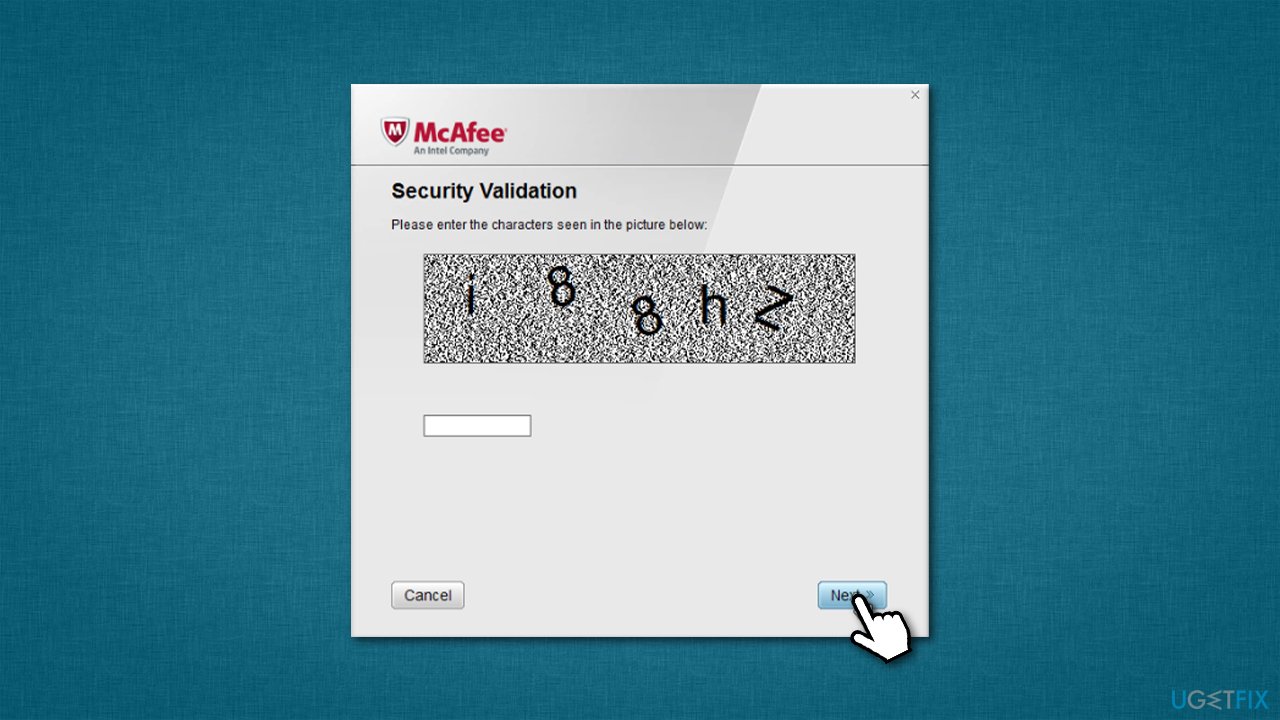
- Enter the Security Validation code and click Next
- Once you see the "Removal Complete" message, hit the Restart button to reboot your system.
Fix 3. Use Autoruns
Sometimes you might be able to get rid of the corrupted driver by simply employing Autoruns from Microsoft.
- Navigate to the official Microsoft website to download Autoruns
- Go to the Downloads folder
- Right-click on the ZIP file and select Extract to Autoruns and enter the folder once done
- Select the right version: Autoruns.exe if you are using 32-bit Windows or go for Autoruns64.exe if you are using 64-bit Windows
- Right-click on the correct EXE file and select Run as administrator
- When UAC comes up, click Yes
- At the top of the window, type in mfehidk
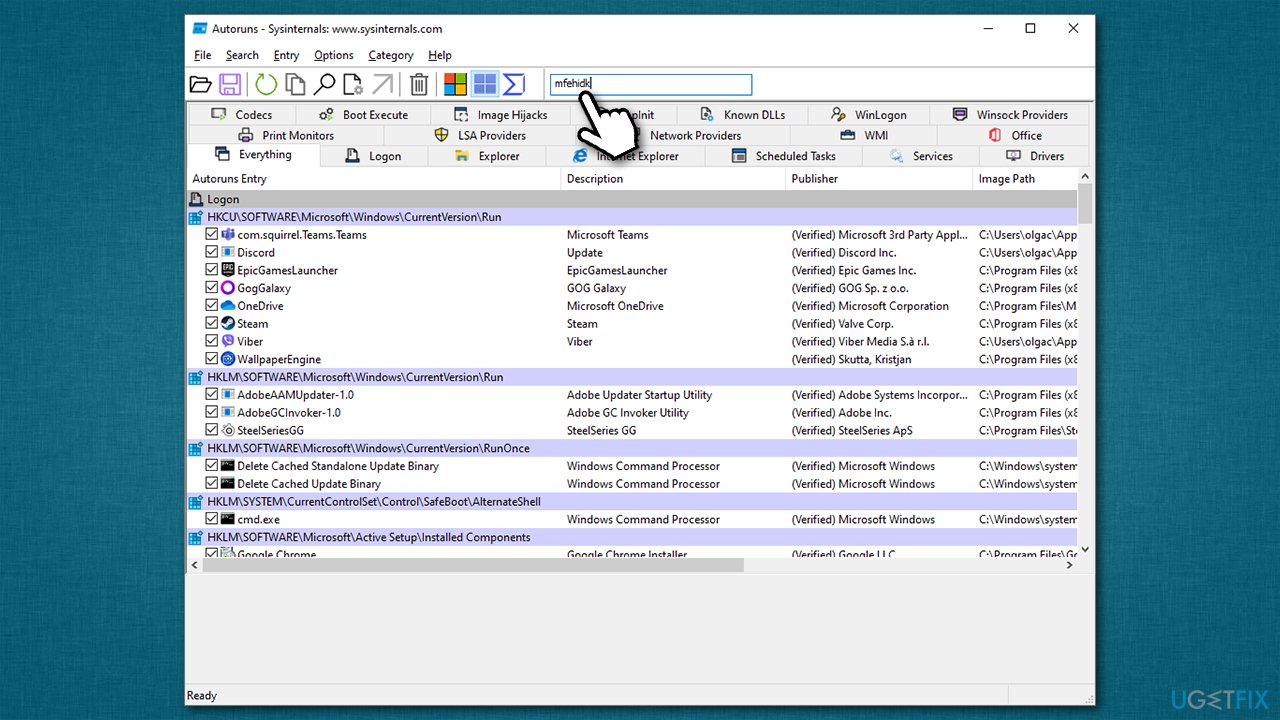
- If Autoruns finds any entries, right-click and select Delete
- Next, press Win + E on your keyboard and navigate to the following location (make sure hidden files are visible):
C:\Windows\System32\Drivers\ - Locate mfehidk.sys driver and press Shift + Del on your keyboard to delete it.
Bottom line
To resolve the issue with Memory Integrity, you can either update or remove the mfehidk.sys driver. Ensure your Windows is updated to the latest version before attempting these fixes. If none of these solutions work, further investigation into system files may be necessary.
Frequently asked questions
You need to update or uninstall the McAfee antivirus software that is using the mfehidk.sys driver, as it is incompatible with Memory Integrity. After making changes, restart your PC and try enabling Memory Integrity again.
You can check the Device Manager for any warnings regarding the mfehidk.sys driver or look for it in the list of drivers affecting Core isolation settings. If you find it, consider updating or removing the associated software.
Unfortunately, mfehidk.sys conflicts with Memory Integrity, so you will need to either update the driver or uninstall the software using it to enable this feature.




Report an issue
What's wrong with this guide? We review every report and update or remove content.
Report received — thank you. We'll review and fix it.
You need a free account to submit a report.
Be the first to comment