How to fix
Microsoft Teams notifications not working
on Windows
Resolve Microsoft Teams notification issues on Windows 10 or 11 quickly and effectively. Get expert-tested solutions for seamless communication, fixed i…

What causes How to fix Microsoft Teams notifications not working in Windows?
- Incorrect notification settings
- Internet connectivity issues
- Problems with Microsoft servers
- App malfunction
- Damaged system files
Repairs Windows system files, removes malware, and restores a clean OS state — without reinstalling.
Hi, Teams on Windows is not working properly for me. I am sometimes not getting pop-up notifications from individual people, and sometimes the messages show as already read. The only thing I can see is group notifications. Any advice on how to fix this, please?
Microsoft Teams is a collaboration platform developed by Microsoft that brings together chat, video meetings, file storage, and application integration in a single platform. It is designed to help teams stay organized and communicate more efficiently, enabling them to work together seamlessly across departments, locations, and time zones.
One of the key features of Microsoft Teams is the ability to hold video meetings and conference calls with team members and external partners. Teams also offers screen sharing, which allows users to share their screen or specific applications with others during a meeting. In addition, Teams offers real-time messaging and collaboration through its chat feature, which allows users to send messages, files, and links to one another.
Despite its all benefits, the app may sometimes malfunction and start showing errors or not connect to the internet. Microsoft Teams notifications not working is yet another problem that users have been complaining about for several years now, although no official solution was provided by Microsoft.
One of the main reasons why users experience Microsoft Teams not showing notifications is due to incorrect notification settings that need to be changed. In other cases, the problem lies within internet connectivity issues, which can be reset or restarted to fix the issue. Also, problems with Microsoft servers could also cause messages not to go through - in this case, waiting is the only thing one can do in this scenario.
Before proceeding with the manual solutions below, we recommend you check out an automatic repair application [d1]. It can easily find and repair damaged system files, ultimately resolving BSODs, registry corruption, DLL errors, and similar common Windows issues automatically.
Fix 1. Sign out and in
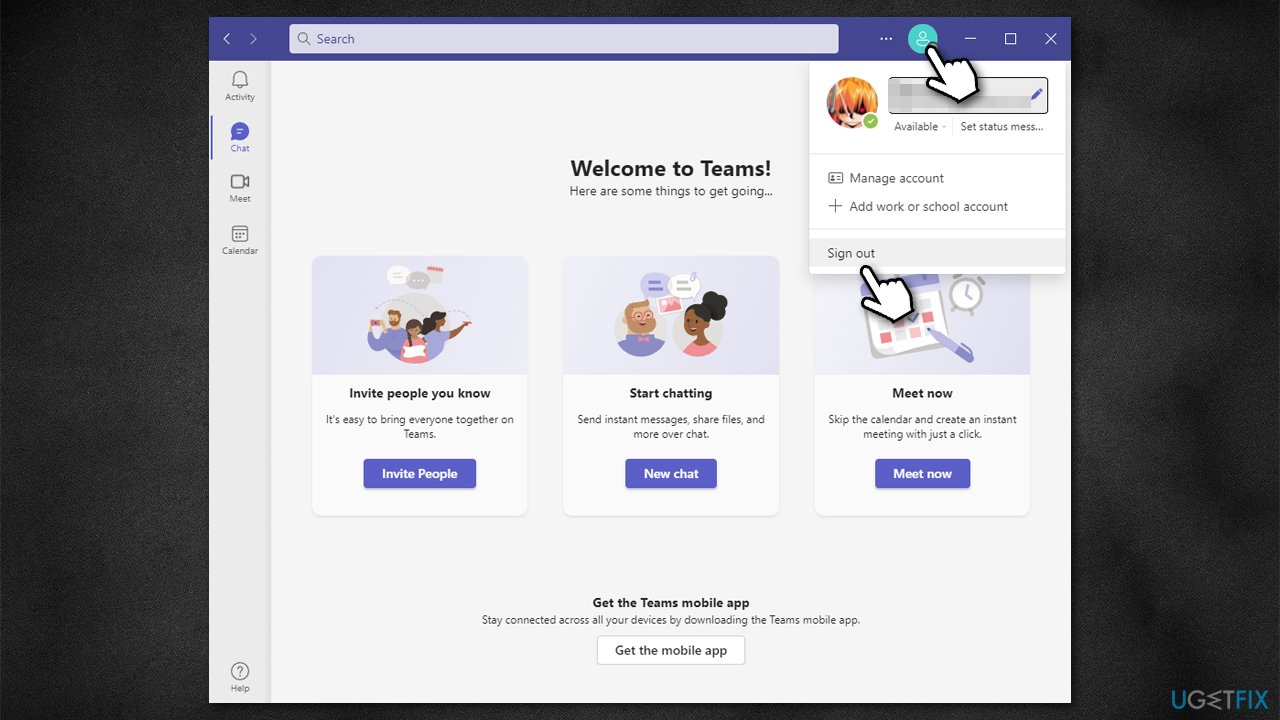
The first thing you should try is signing in and out of the app:
- Open Microsoft Teams
- At the top-right corner of the window, click on your icon
- Click Sign out
- Reboot your system and log back in - see if that helped to solve the notification issue.
Fix 2. Reset Status
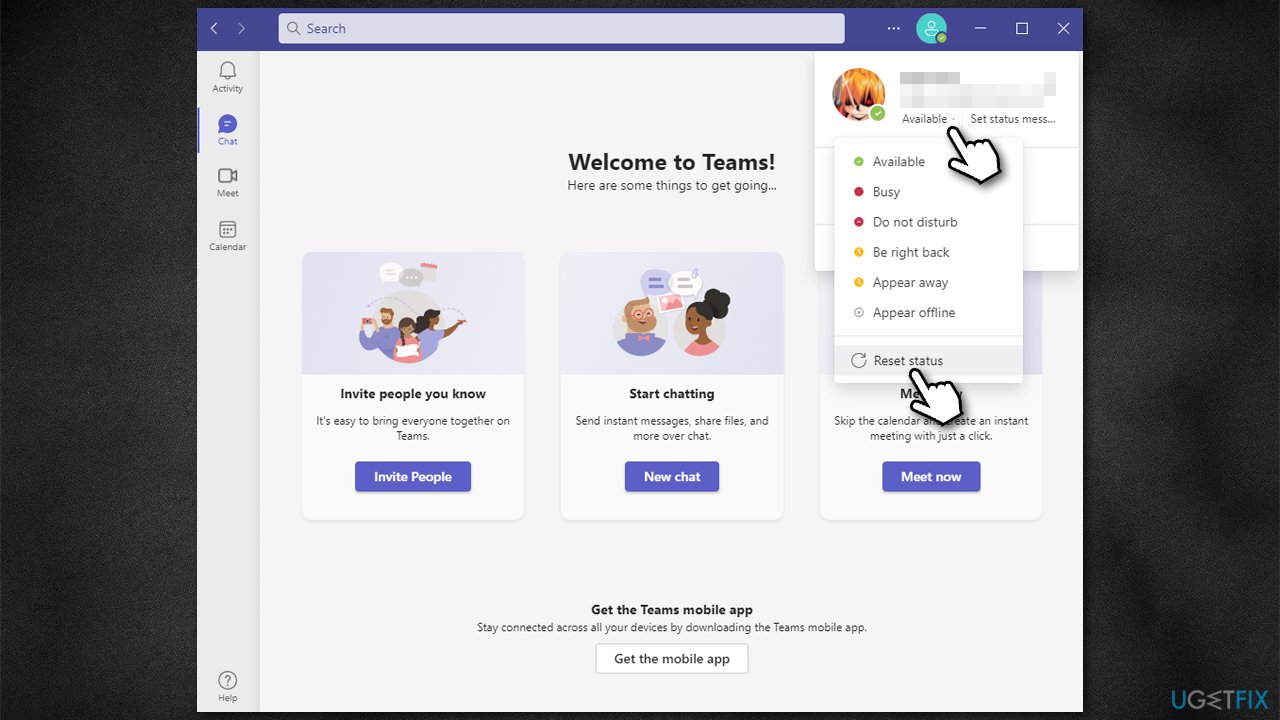
- Click on your icon once again
- Click on Available below your photo/icon
- At the bottom, pick Reset status
- Restart your device.
Fix 3. Make sure notifications are enabled
- Click on Settings and more (⋅⋅⋅) next to your icon/profile
- Select Settings
- Go to the Notifications area
- Here, make sure the Show message preview option is enabled
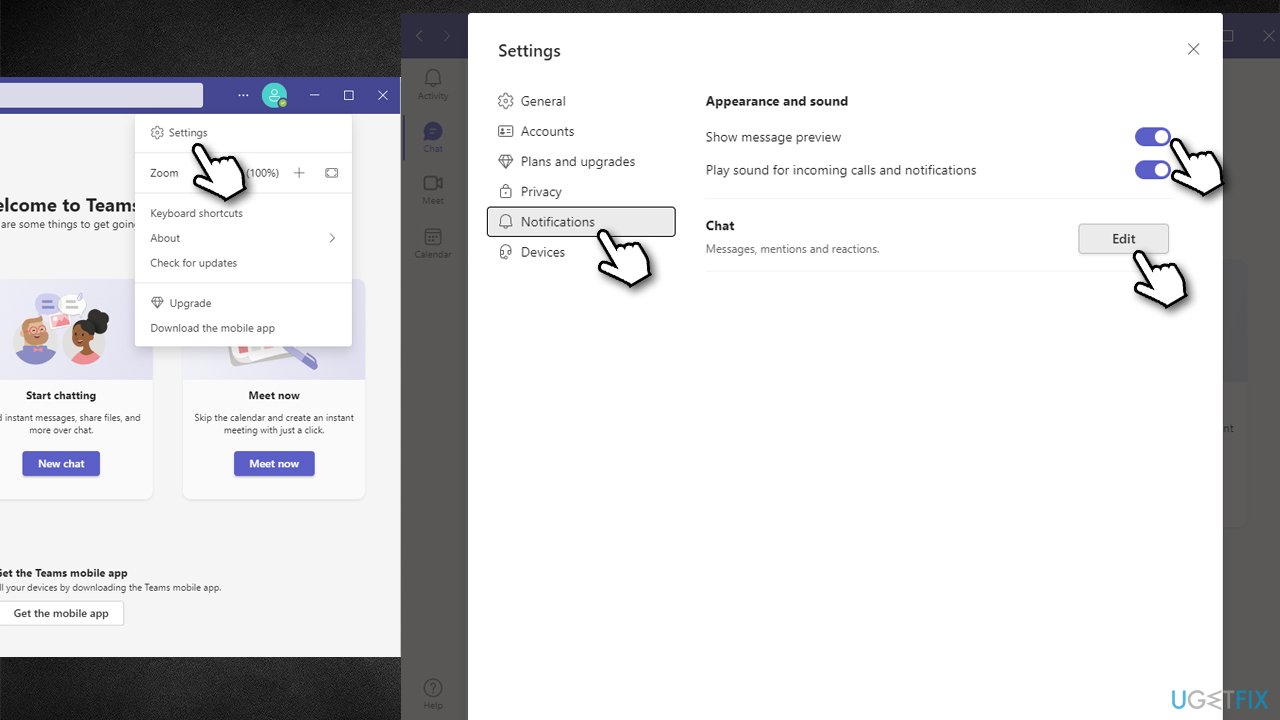
- Next, next to Chat, click Edit
- Next to Messages, make sure you have Banner selected from the drop-down menu.
Fix 4. Enable auto-start
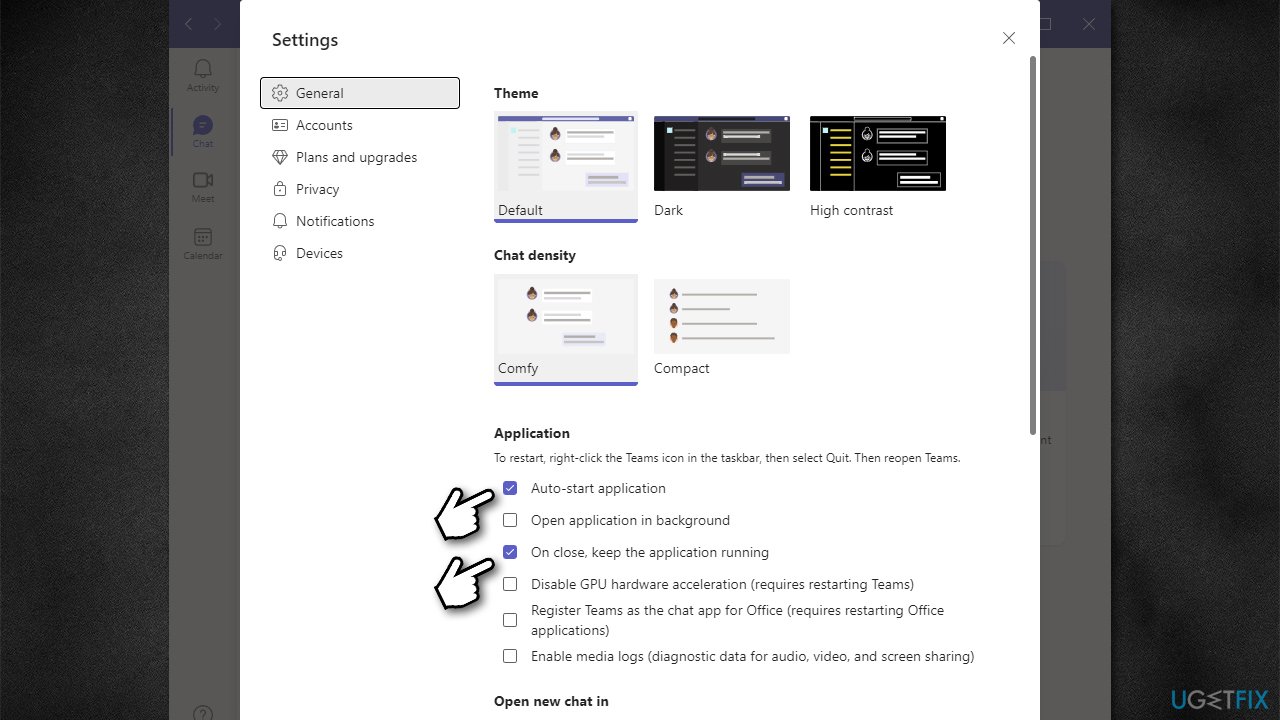
If you are not getting notifications on Microsoft Teams, it might not be running due to you restarting your system previously and it not launching automatically. Thus, make sure it is started as soon as the system boots up:
- Click on Settings and more (⋅⋅⋅) next to your icon/profile
- Pick Settings
- Go to the General section
- Make sure the following is enabled:
Auto-start application
On close, keep the application running - Close down settings.
Fix 5. Ensure notifications are enabled on Windows
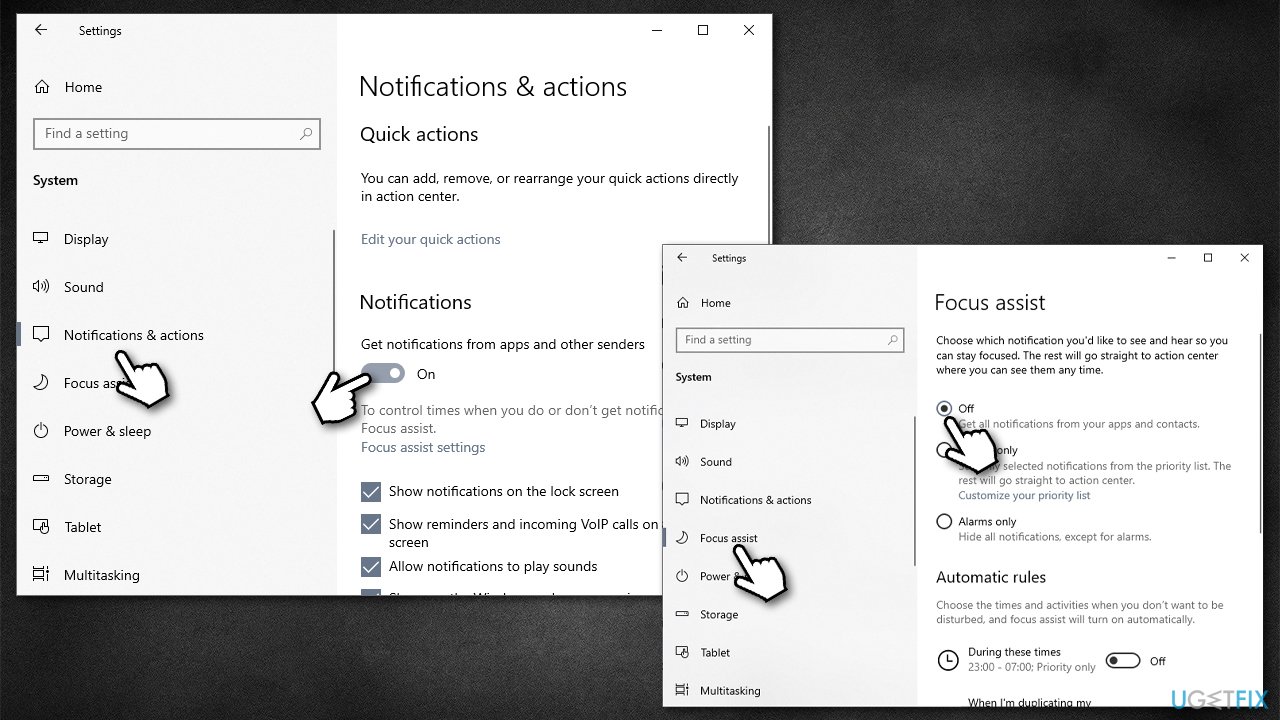
- Right-click on Start and pick Settings
- Go to System
- On the left, pick Notifications & actions
- Under Notifications, make sure the switch is in the ON position (right).
Note: some people reported turning off Focus assist helped them fix the problem. So select Focus assist on the left and turn the feature off.
Fix 6. Clear apps' cache
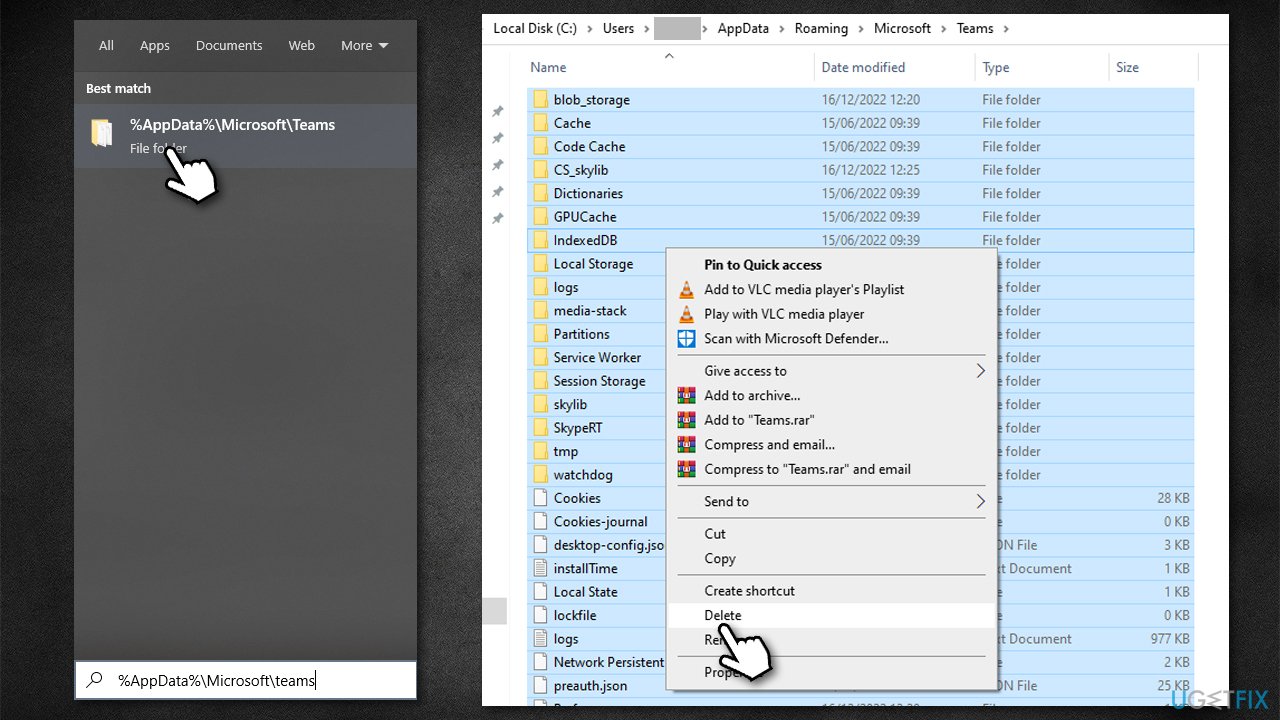
- In Windows search, copy and paste the following:
%AppData%\Microsoft\teams - Press Enter
- Delete all files and folders in this directory
- Start Teams.
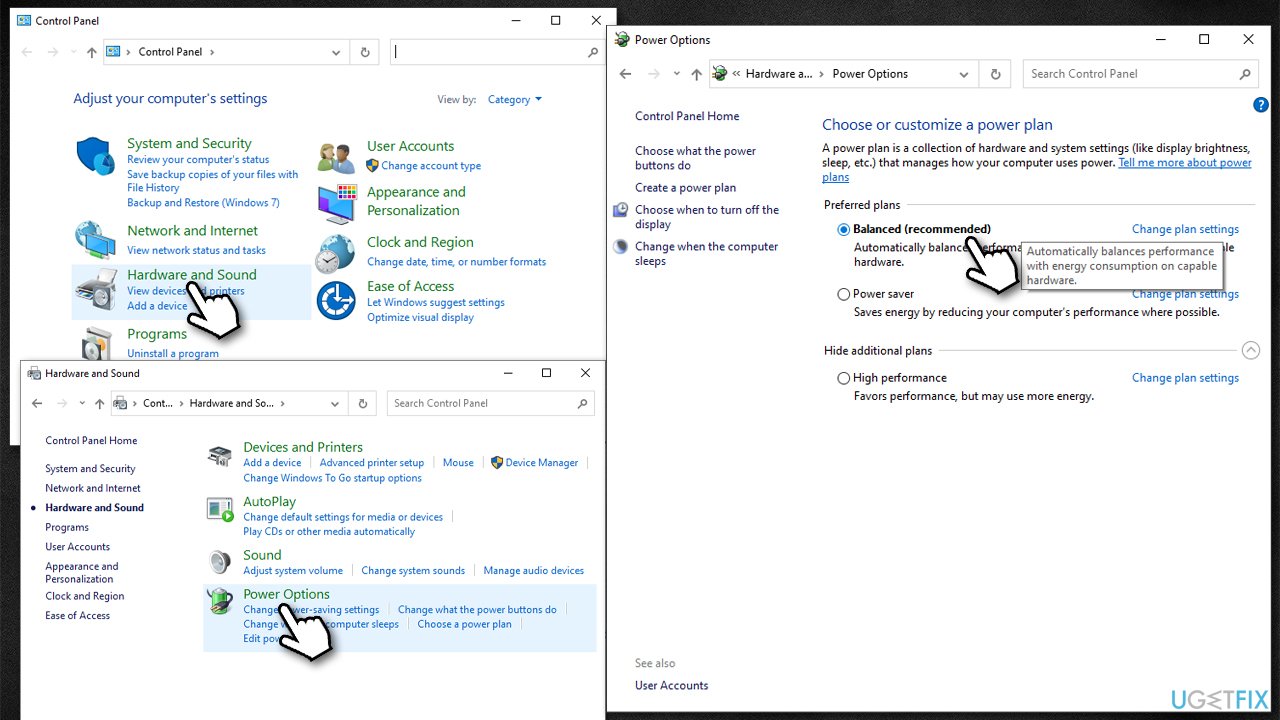
Fix 7. Turn off the battery saver
- Type Control Panel in Windows search and press Enter
- Go to the Hardware and sound section
- Select Power Options
- Switch the setting from Power saver to Balanced.
Fix 8. Reinstall the app
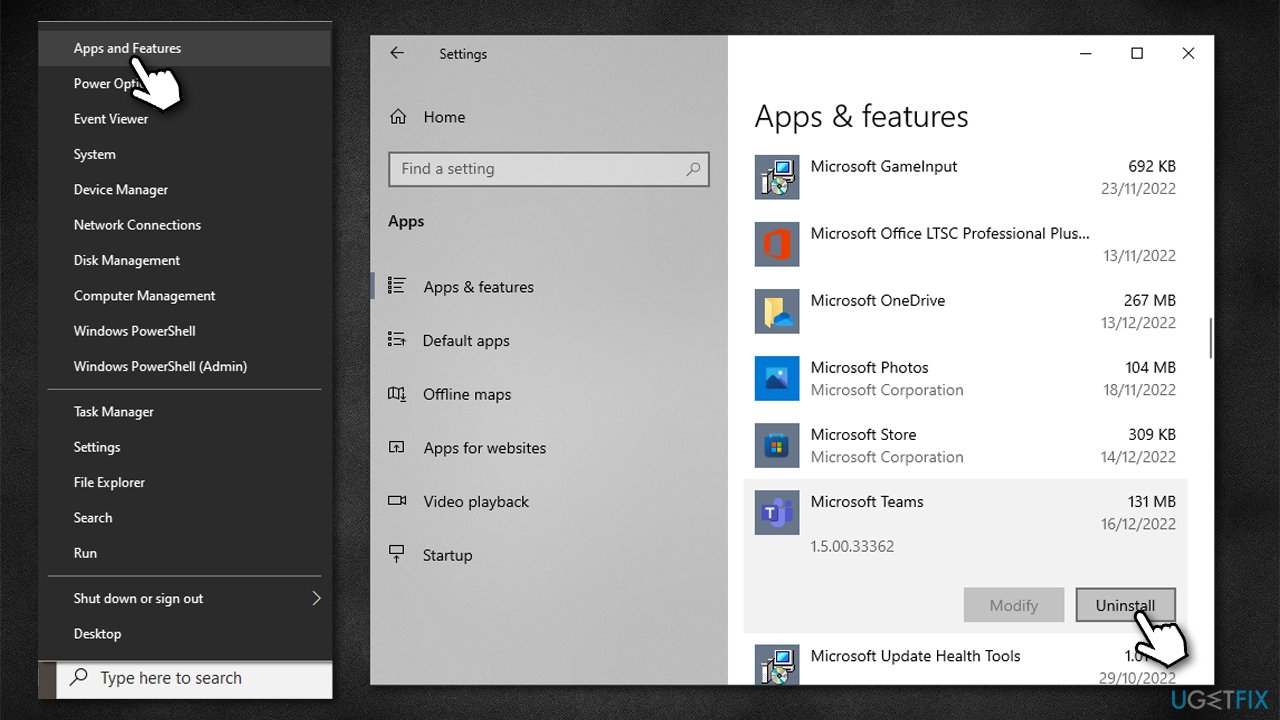
Users with Microsoft Teams not showing notifications were able to fix the problem by reinstalling the app. Here's how:
- Right-click on Start and pick Apps and Settings
- Scroll down to find Microsoft Teams
- Select it and click Uninstall > Uninstall
- Proceed with on-screen instructions to get rid of the app completely
- Restart your system
- Download the app from the official website and install it again.
Bottom line
To fix Microsoft Teams notifications not working, you can try signing out and back into the app, checking your notification settings, and ensuring your internet connection is stable. If these solutions do not resolve the issue, consider using an automatic repair application to fix potential system file problems.
Frequently asked questions
To enable notifications in Windows 10, go to Settings > System > Notifications & actions, and ensure that notifications for Microsoft Teams are turned on.
If notifications are still not showing, check your Teams settings by clicking on your profile picture, selecting 'Settings,' and then 'Notifications' to ensure they are enabled.
Yes, make sure that Teams has permission to send notifications by going to Settings > Privacy > Notifications & actions, and verify that Teams is allowed to send notifications.




Report an issue
What's wrong with this guide? We review every report and update or remove content.
Report received — thank you. We'll review and fix it.
You need a free account to submit a report.
Be the first to comment