How to fix
“LoadLibrary failed with error 87: The parameter is incorrect”
on Windows
Resolve the "LoadLibrary failed with error 87" in Windows 10 or 11 effortlessly. Quick solutions guaranteed, expert-tested for reliable performance.

What causes How to fix “LoadLibrary failed with error 87: The parameter is incorrect” in Windows?
- DLL file being corrupt or missing
- Program or application being improperly configured
- System being unable to locate the DLL file
- Outdated graphics drivers
- Corrupted files
Repairs Windows system files, removes malware, and restores a clean OS state — without reinstalling.
Hello. I recently installed a program for 3D animation but when I try to launch it I receive the "LoadLibrary failed with error 87: The parameter is incorrect" message in Windows. How do I fix this?
Windows is a popular operating system for personal computers and laptops. It provides a user-friendly interface for accessing and managing files, programs, and system settings on a computer, as well as connecting to the internet and other networks. Windows also includes a range of built-in tools and features for tasks such as productivity, security, and maintenance.
However, often users run into various issues when trying to perform tasks using Windows. "LoadLibrary failed with error 87: The parameter is incorrect" error message may appear in Windows when a program or application is unable to load a dynamic-link library (DLL) file. This can occur for a variety of reasons, such as the DLL file being corrupt or missing, the program or application being improperly configured, or the system being unable to locate the DLL file.
It is also possible that the message appears because of outdated graphics drivers[ref en-1] or corrupted files. In this guide, you will find 7 steps that should help you fix "LoadLibrary failed with error 87: The parameter is incorrect" in Windows. Keep in mind that the manual troubleshooting process may be lengthy.
You can use a maintenance tool like [d1] that can fix most system errors, BSODs,[ref en-2] corrupted files, registry[ref en-3] issues, or clear cookies and cache. Otherwise, follow the step-by-step instructions below.
Method 1. Fix Corrupted System Files
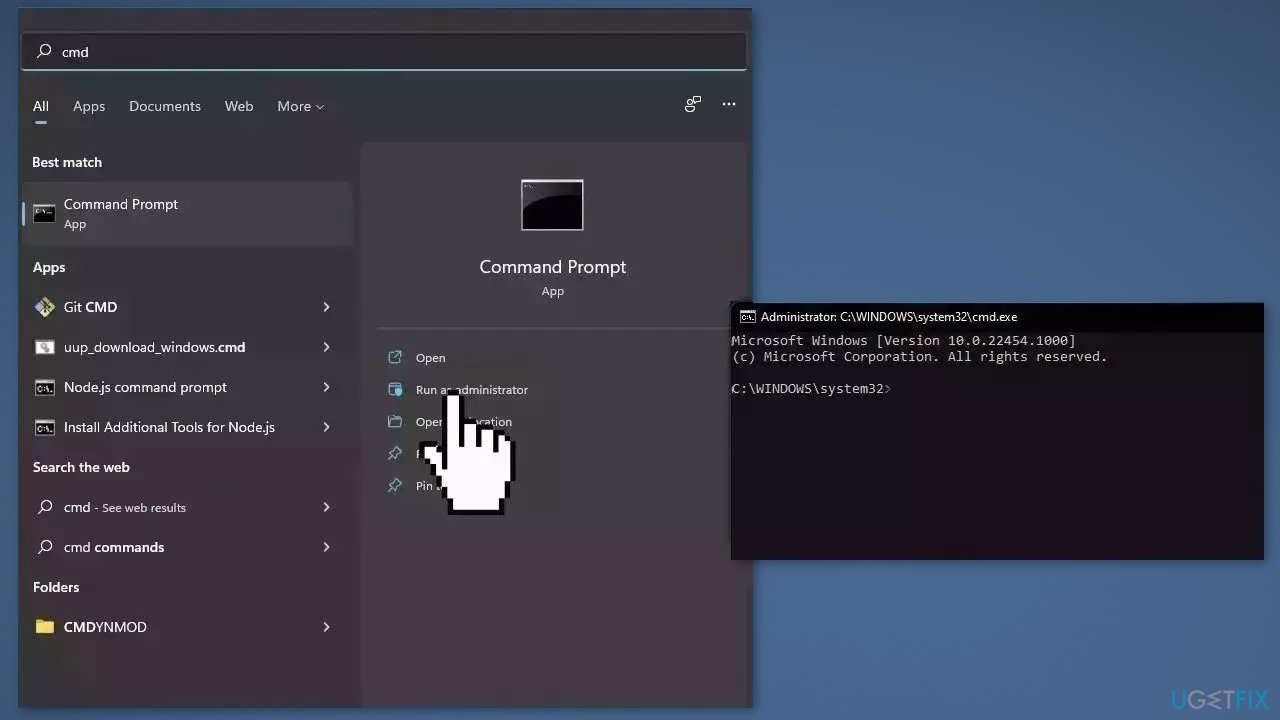
Use Command Prompt commands to repair system file corruption:
- Open Command Prompt as administrator
- Use the following command and press Enter:
sfc /scannow
- Reboot your system
- If SFC returned an error, then use the following command lines, pressing Enter after each:
DISM /Online /Cleanup-Image /CheckHealth
DISM /Online /Cleanup-Image /ScanHealth
DISM /Online /Cleanup-Image /RestoreHealth
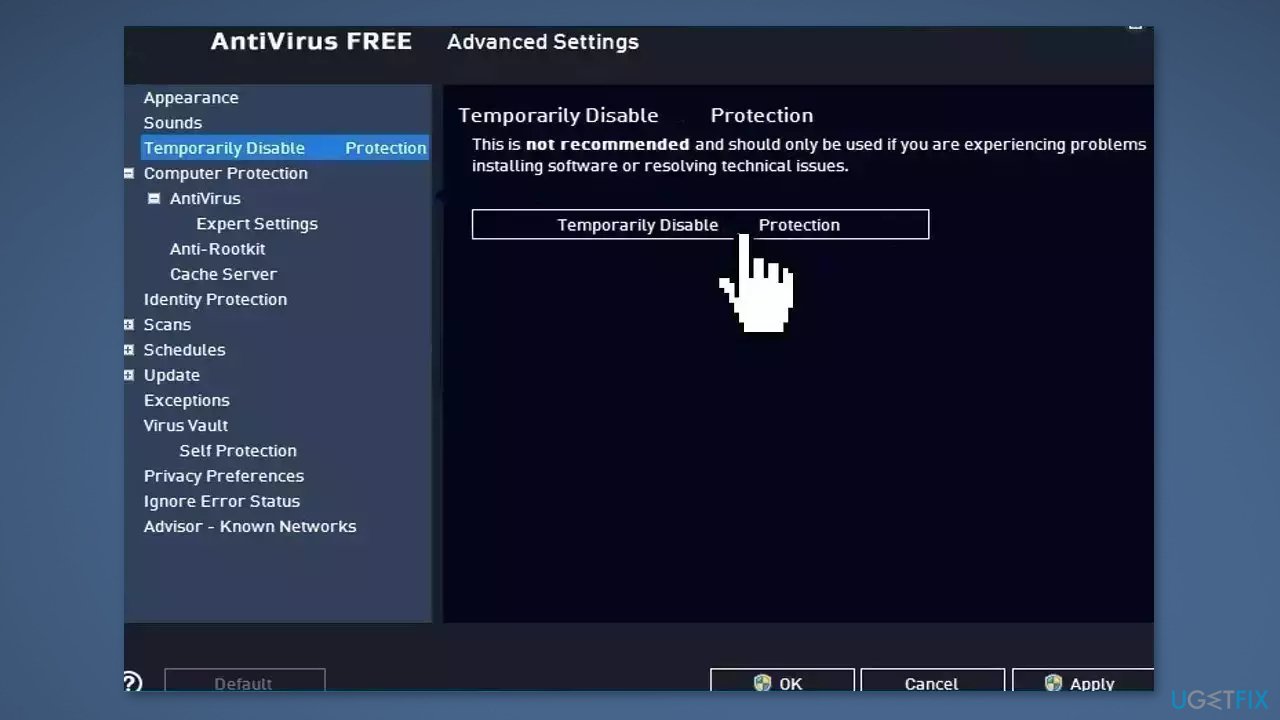
Method 2. Disable Third-Party Antivirus
Sometimes antivirus software can block legitimate processes mistakenly. You should try disabling your antivirus to see if it gets rid of the "LoadLibrary failed with error 87: The parameter is incorrect" message.
Method 3. Update the Display Driver
- Open Device Manager and expand the Display Adapters tab
- Right-click on your graphics driver and select Properties
- Go to the Driver tab and click on Update Driver
- Press on Search Automatically for Drivers
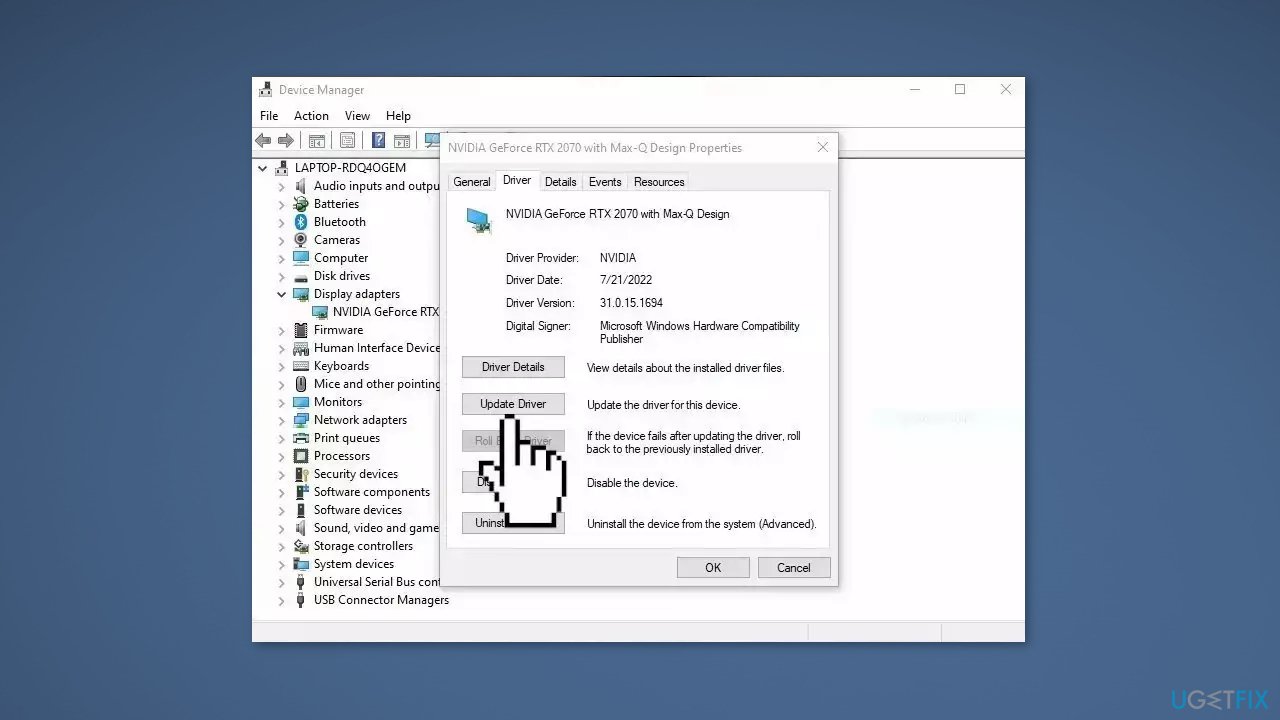
- If a graphic driver update is available, install it and then restart your PC
- You may also use a dedicated utility like [rev id="DriverFix"] that can find the best drivers for your machine and install them automatically
Method 4. Install the Drivers in Compatibility Mode
- Download the latest driver from the manufacturer’s website, then save it on your local disk
- Right-click on the driver installation file and select Properties
- Go to the Compatibility tab, then check the box next to Run this program in Compatibility mode
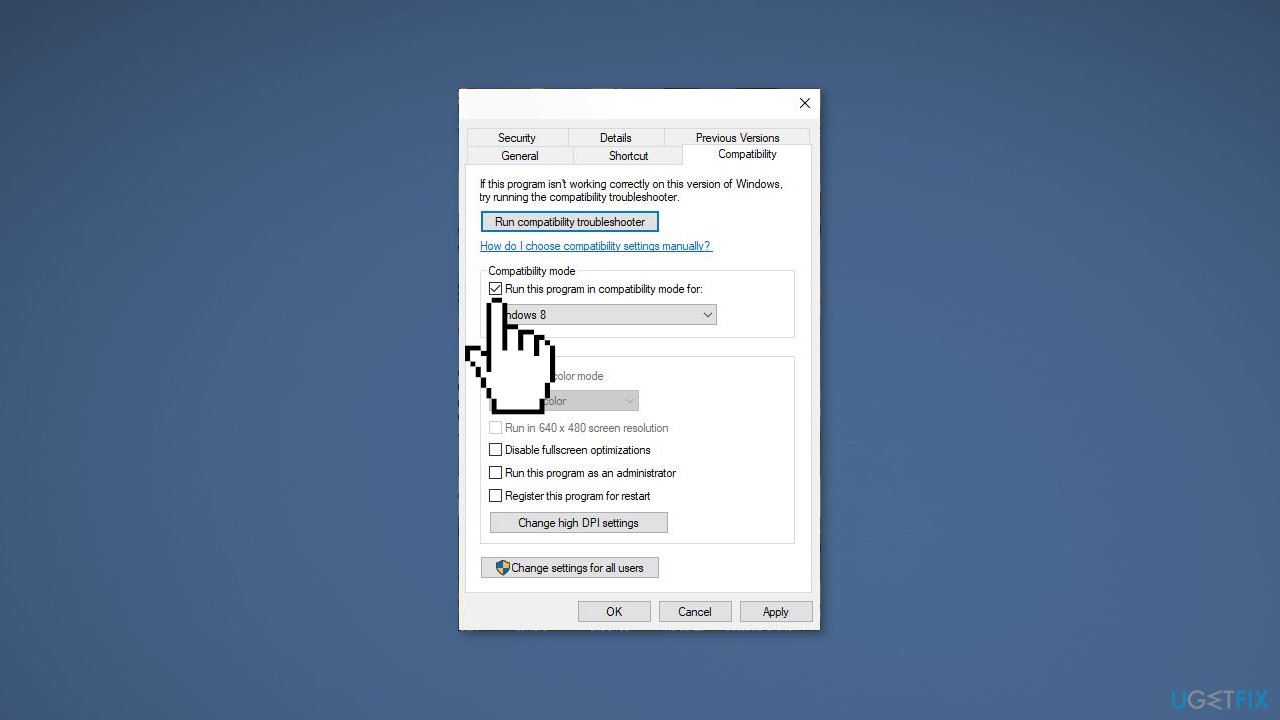
- Select the Operating System from the drop-down list
- The driver will install, then check its functionality
- Restart the computer and check if the issue persists
Method 5. Perform Clean Boot
- Open the Search menu, type in system configuration, and press Enter
- Under the Services tab, tick the Hide all Microsoft services box
- Click on Disable all button
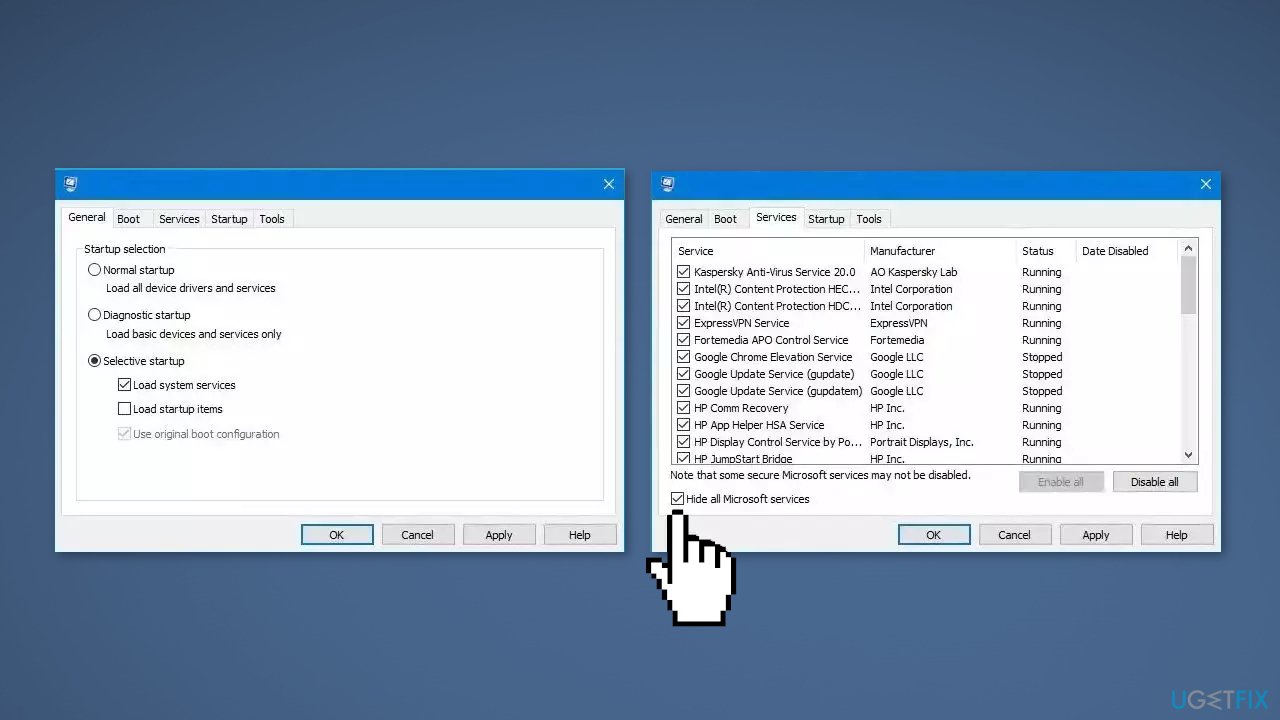
- Head over to the Startup tab and click on Open Task Manager
- Select a third-party program and click on Disable at the top
- Repeat this step to disable all third-party apps and programs
- Restart your PC to enter the clean boot state and see if the issue persists
- If Windows updates in the clean boot state, then you can be certain that a third-party app is causing the issue
- Go through all recently installed apps or programs and remove them one by one
Method 6. Use System Restore
System Restore allows users to reverse a Windows system to a previous point before any issues started occurring.
- Go to the search bar and type Create a restore point
- Click the System Restore button
- Select Choose a different restore point and click Next
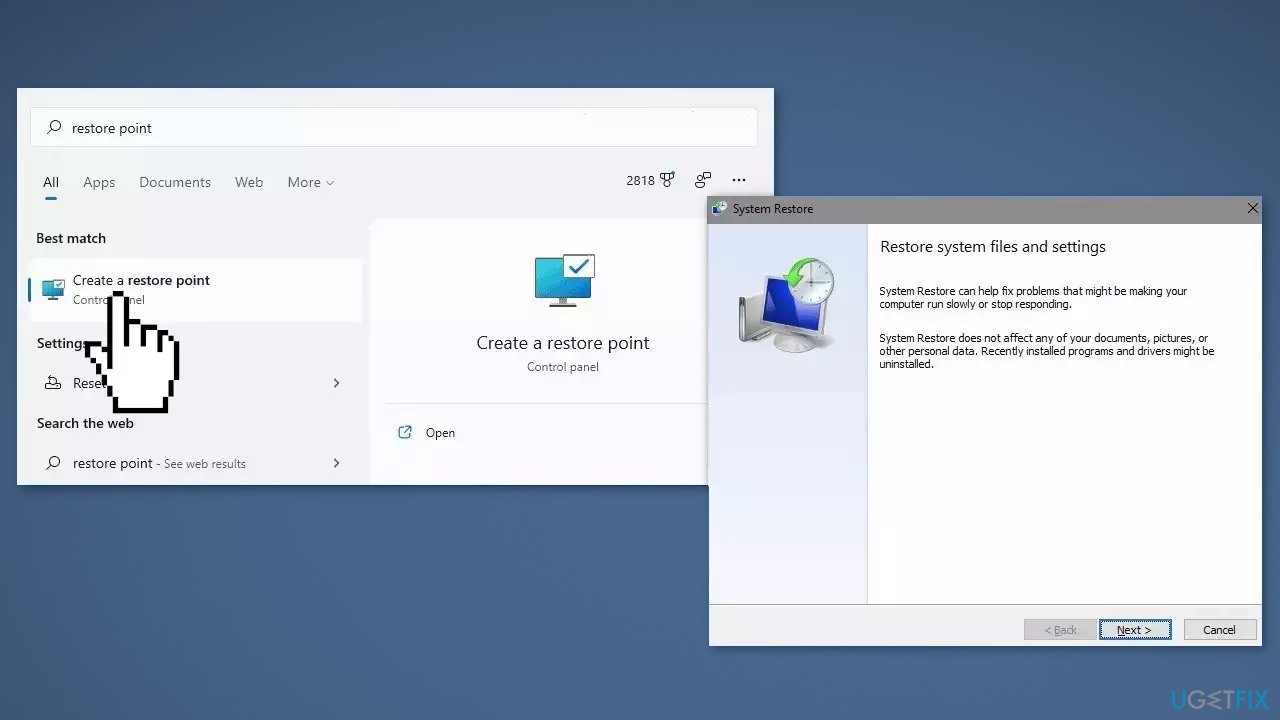
- Select a date for restore before the issue occurred, then click on Next
- Enter your password if asked and follow the on-screen steps to choose a restore location
- Reset your device
Method 7. Repair Install Windows
- Visit the official Microsoft website to download Windows 11 or Windows 10 Installation Media
- Run the Media Creation Tool and select Create Installation Media for another PC
- Select your USB drive
- Let the Process complete of writing the Installation files to the USB drive
- Click Finish
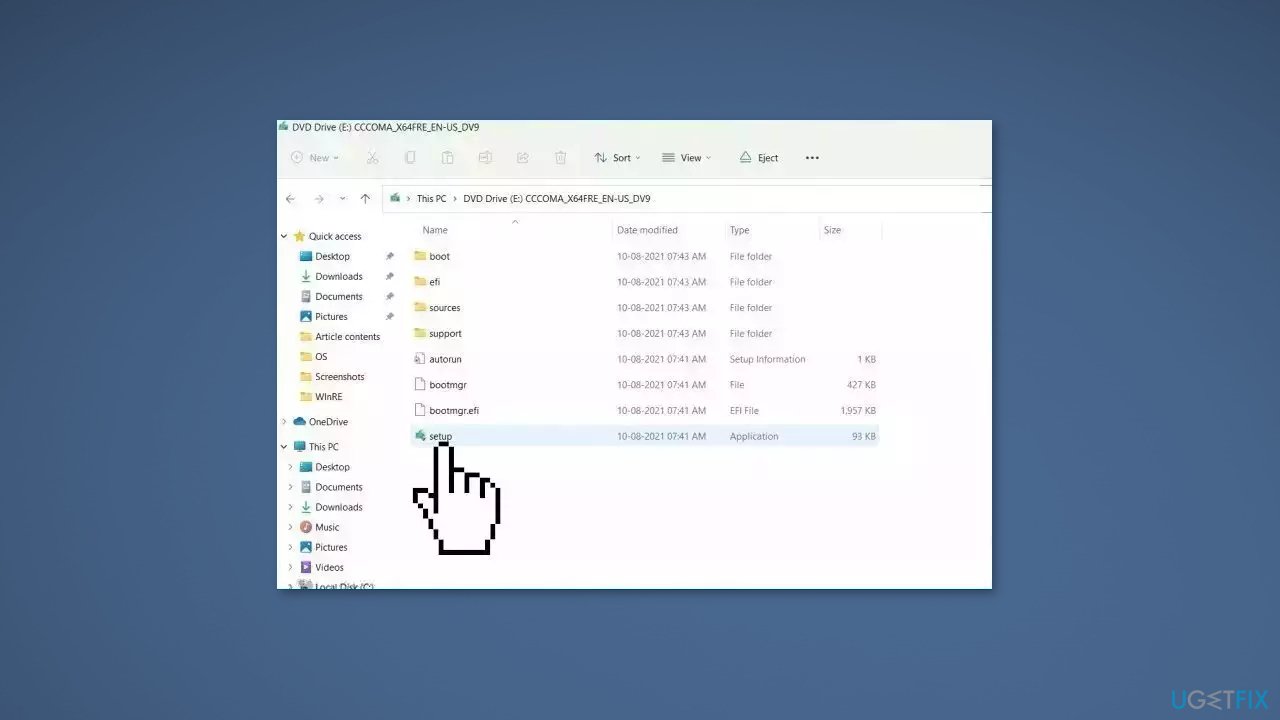
- On the PC you wish to upgrade, Press Windows + E to open the File Explorer
- Open the Removable drive and click Setup.exe
- Accept the license terms on the next screen
- Confirm the Upgrade options – Files, apps and Settings are kept
- Click Install, and the upgrade should start
Bottom line
To fix the 'LoadLibrary failed with error 87: The parameter is incorrect' error, you can repair corrupted system files using Command Prompt, disable third-party antivirus software, or use a maintenance tool. If these methods do not resolve the issue, consider further troubleshooting or seeking professional assistance.
Frequently asked questions
This error typically occurs due to issues with system files, incorrect registry entries, or incompatible software. It can also arise when a DLL file is missing or corrupted.
You can resolve this issue by running the System File Checker (SFC) and DISM tools to repair corrupted system files. Additionally, ensure that all your drivers and Windows updates are up to date.
Yes, you can often fix this error by performing a clean boot, updating or reinstalling the problematic application, or restoring your system to an earlier point without needing to reinstall Windows.




Report an issue
What's wrong with this guide? We review every report and update or remove content.
Report received — thank you. We'll review and fix it.
You need a free account to submit a report.
Be the first to comment