How to fix
WINLOGON_FATAL_ERROR (c000021a) BSOD
on Windows
Resolve the WINLOGON_FATAL_ERROR (c000021a) BSOD in Windows 10 or 11 quickly and effectively. Get expert-tested solutions for a smoother experience.

What causes How to fix WINLOGON_FATAL_ERROR (c000021a) BSOD in Windows?
- Software conflict
- Incompatible applications
- Faulty Windows update
- Faulty driver update
- Compromised WinLogon or CSRSS
Repairs Windows system files, removes malware, and restores a clean OS state — without reinstalling.
Hi, I've been encountering WINLOGON_FATAL_ERROR Blue Screens recently and I was wondering which tips you could give me to resolve this. I am running Windows Pro version 22H2.
Windows is a popular operating system used on a wide variety of devices, including personal computers, laptops, tablets, and servers. It is important to take steps to secure your Windows device to protect against various threats, including malware, viruses, ransomware,[ref en-1] and other forms of cyberattacks.
One of the main security features in Windows is the login process, where users enter their PIN or password, and only then are logged into the system. This prevents any other person from accessing the device without permission, be in somebody in the same house or malicious individuals trying to break into users' devices remotely.
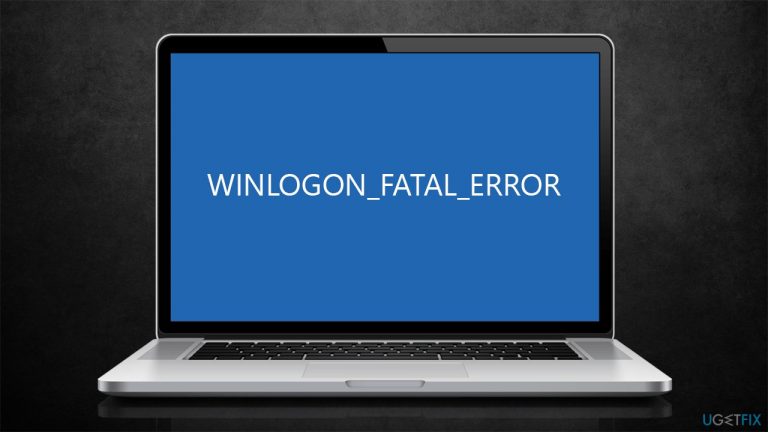
WINLOGON_FATAL_ERROR is one of the Blue Screen of Death errors that can occur unexpectedly and force the computer to restart immediately. Users reported that the issue showed up abruptly and sometimes results in repeated BSODs over the course of a device operation.
WINLOGON_FATAL_ERROR has a bugcheck value of c000021a and occurs whenever WinLogon or the Client Server Run-Time Subsystem (CSRSS) gets compromised and can no longer ensure security. Windows can no longer operate safely without verifying WinLogon.exe - one of the important processes running on the OS.
Since WinLogon is user-mode process, it will force the system to shut down and access kernel-mode[ref en-2] instead. This can cause serious usage problems and needs to be addressed urgently.
The most common cause for the error is software conflict or incompatible apps. In this case, removing the most recently installed applications can fix the WINLOGON_FATAL_ERROR BSOD. Faulty Windows or driver[ref en-3] update could also cause this issue. We address the possible solutions below, although we do recommend running an automatic PC repair tool [d1] which is excellent when dealing with system crashes and BSODs.
Access Safe Mode if you can't log in
Some users are unable to access their computers due to BSODs they experience, and are stuck in a boot loop. If that's the case, you can access Safe Mode to bypass this behavior as follows:
- Restart your computer
- Once Windows starts booting, press the Power button, interrupting the loading process - do this two more times
- After that, Windows will automatically enter Advanced Startup mode
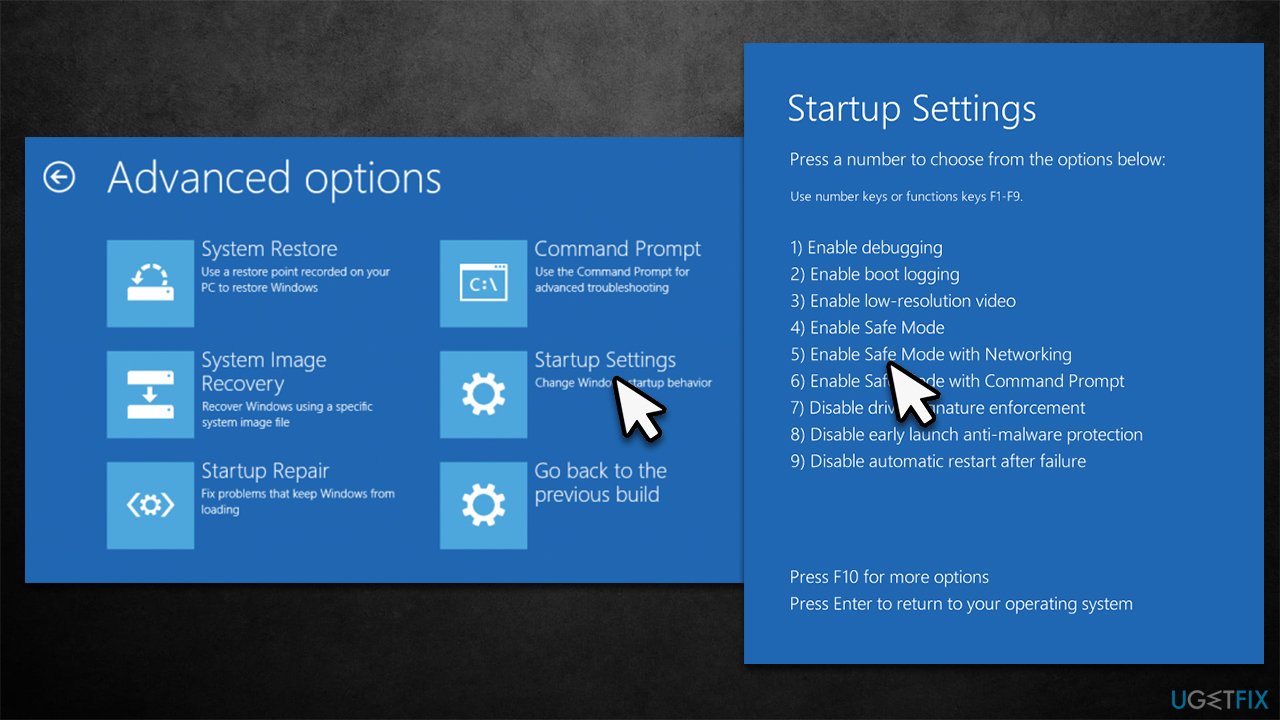
- Select Troubleshoot > Advanced options > Startup Settings and Restart
- After a reboot, pick either 4/F4 for Safe Mode or 5/F5 for Safe Mode with Networking.
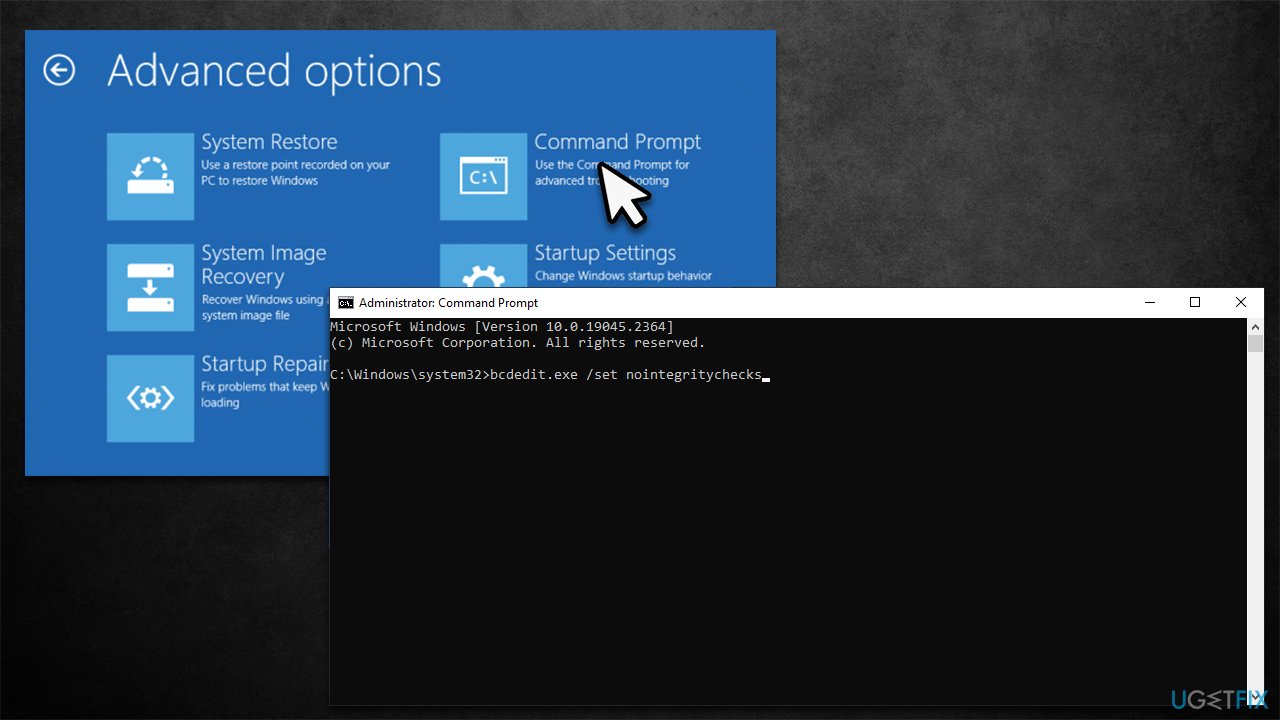
Alternatively, you can disable Signature Enforcement. Windows might go into Blue Screen because of corrupted WinLogon or CSRSS component. You can bypass Windows checking these files before logging it by using commands in elevated Command Prompt.
- From the Advanced Startup menu, pick Command Prompt
- Here, type the following command and press Enter:
bcdedit.exe /set nointegritychecks - Restart your PC.
Solution 1. Uninstall the most recent application(s)
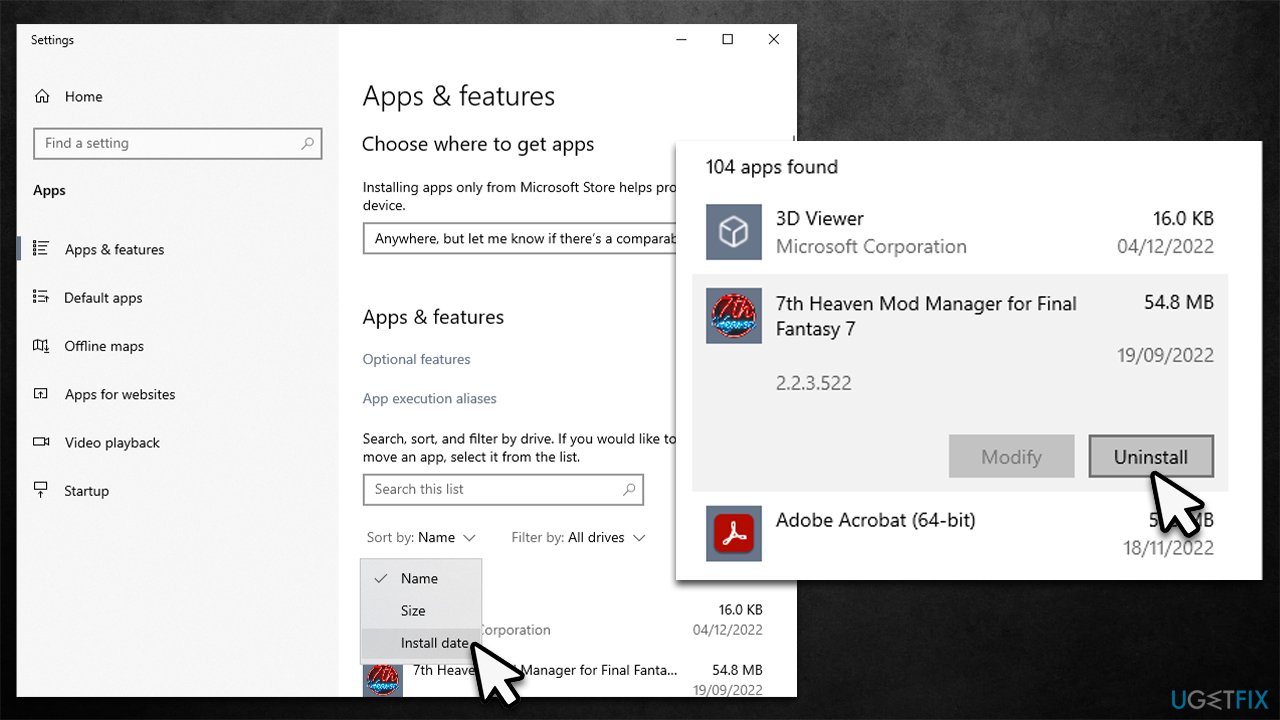
- Right-click Start and pick Apps and Features
- Under Sort by, select Install date from the drop-down menu
- Ignore any apps that could have been updated (such as browsers)
- Once found, click the app and select Uninstall > Uninstall
- Follow on-screen instructions and remove it
- Restart your system.
Solution 2. Try clean boot
If previous solution is not clearly defined for you (for example, you haven't installed any new apps recently), you can try using Clean Boot. If you don't experience the same issue in Clean Boot state, your next course of action is to find out which third-party startup app or service is causing the conflict. To do that, enable all disabled apps and restart your computer. Now see if the problem still occurs. If it does, start disabling apps one-by-one until you identify the culprit.
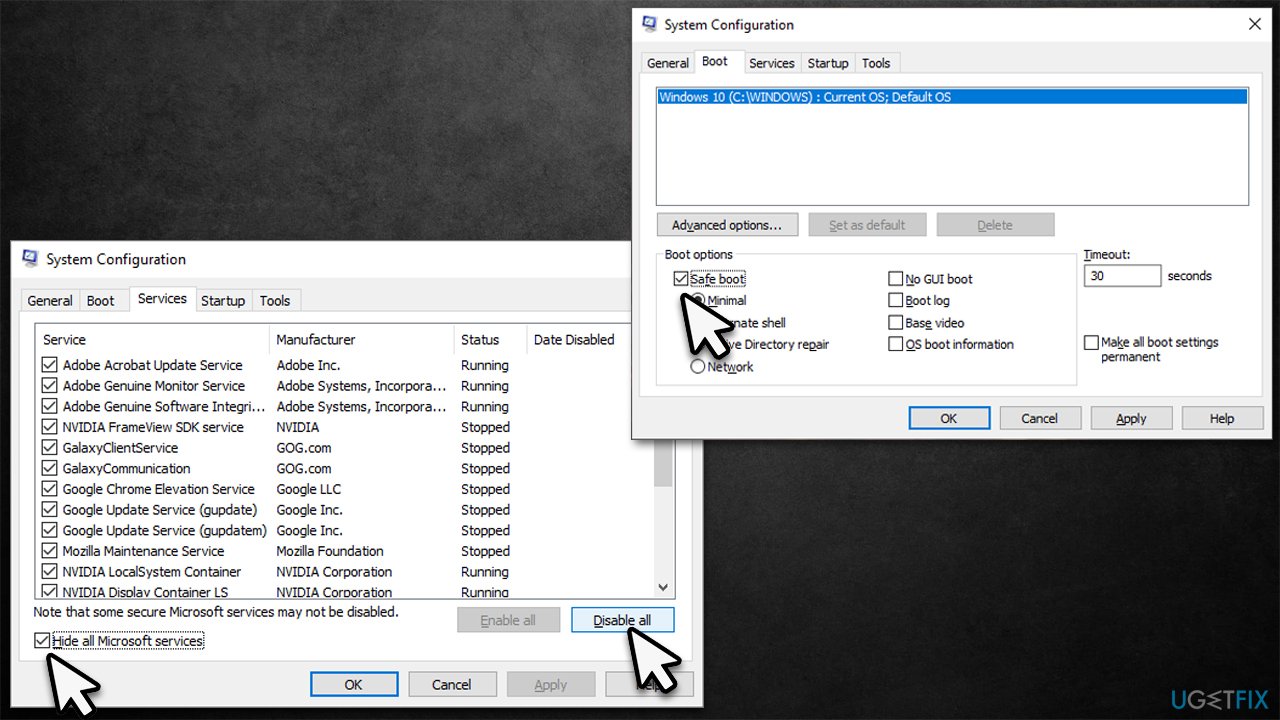
- Type msconfig in Windows search and press Enter
- Pick Services tab
- Mark Hide all Microsoft services and select Disable all
- Select the Startup tab and click Open Task Manager
- In the Task Manager, right-click on each of the items and select Disable, then close the Task Manager
- Go to the Boot tab, tick Safe Boot, then click Apply and OK.
Solution 3. Run SFC and DISM
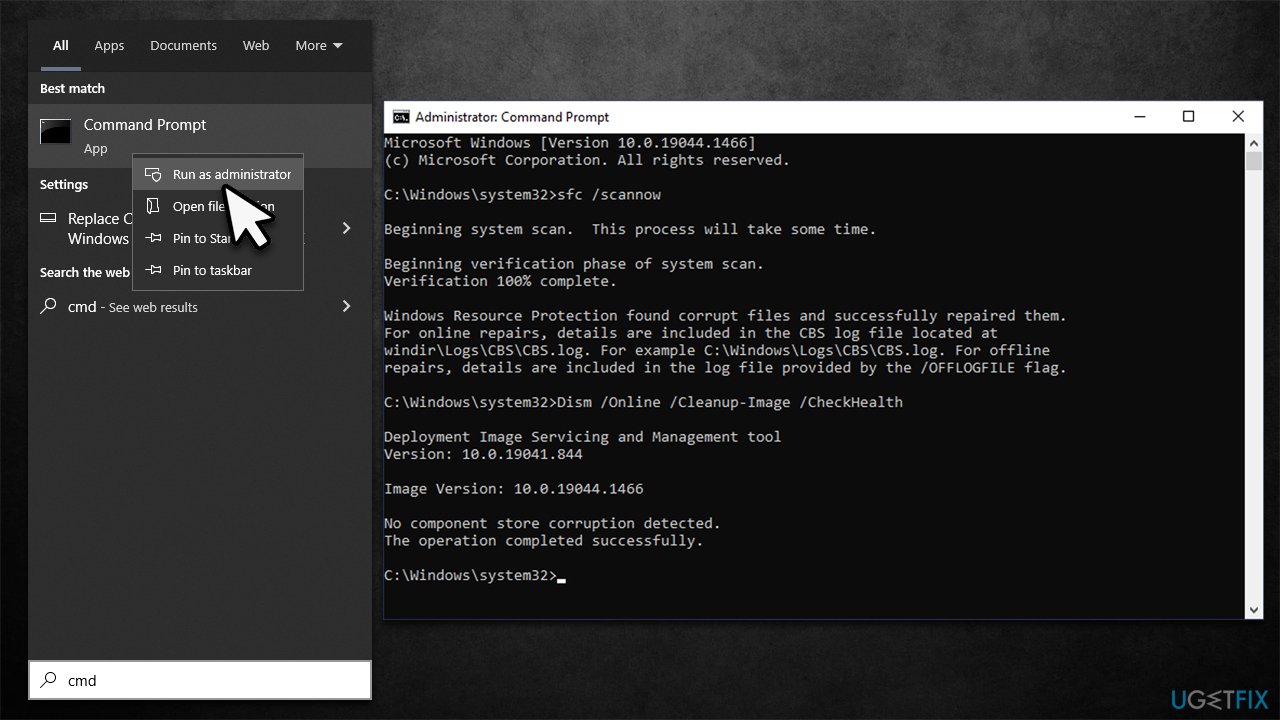
- Type cmd in Windows search
- Right-click on Command Prompt and select Run as administrator
- If User Account Control shows up, click Yes
- As the new window shows up, paste the following command:
sfc /scannow - Once completed, run the following commands, pressing Enter every time:
DISM /Online /Cleanup-Image /CheckHealth
DISM /Online /Cleanup-Image /ScanHealth
DISM /Online /Cleanup-Image /RestoreHealth - Restart the computer.
Solution 4. Uninstall the most recent Windows update
If you have recently installed Windows update and you started experiencing WINLOGON_FATAL_ERROR BSOD right after, you should uninstall it as follows:
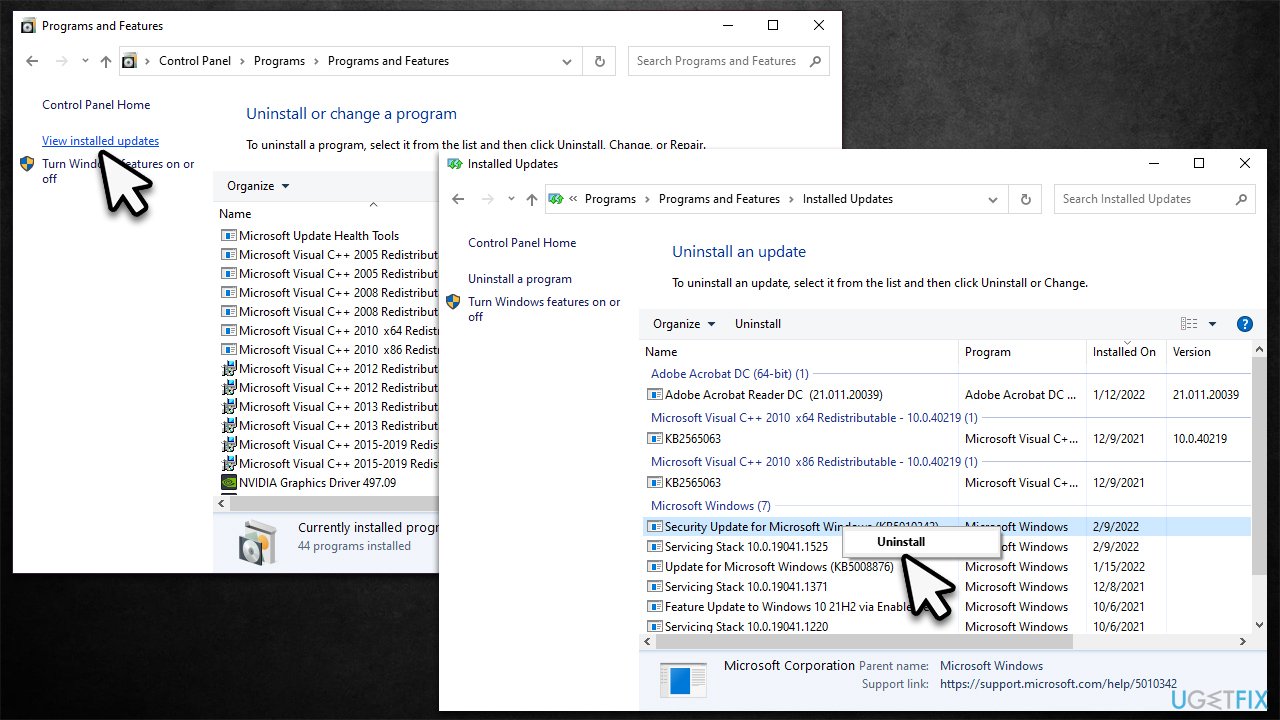
- Type Control Panel in Windows search and press Enter
- Select Programs > Uninstall a program
- Click on View installed updates on the left side of the window
- Sort all the updates by date
- Right-click on the most recent update and select Uninstall.
Solution 5. Update your drivers
You should install all available Windows updates, including optional updates, to make sure all your drivers are the latest:
- Type Updates in Windows search and press Enter
- In the Settings window, click Check for updates
- Install the main updates
- Next, click View all optional updates
- Tick all the available driver update boxes and install them all
- Restart your device.
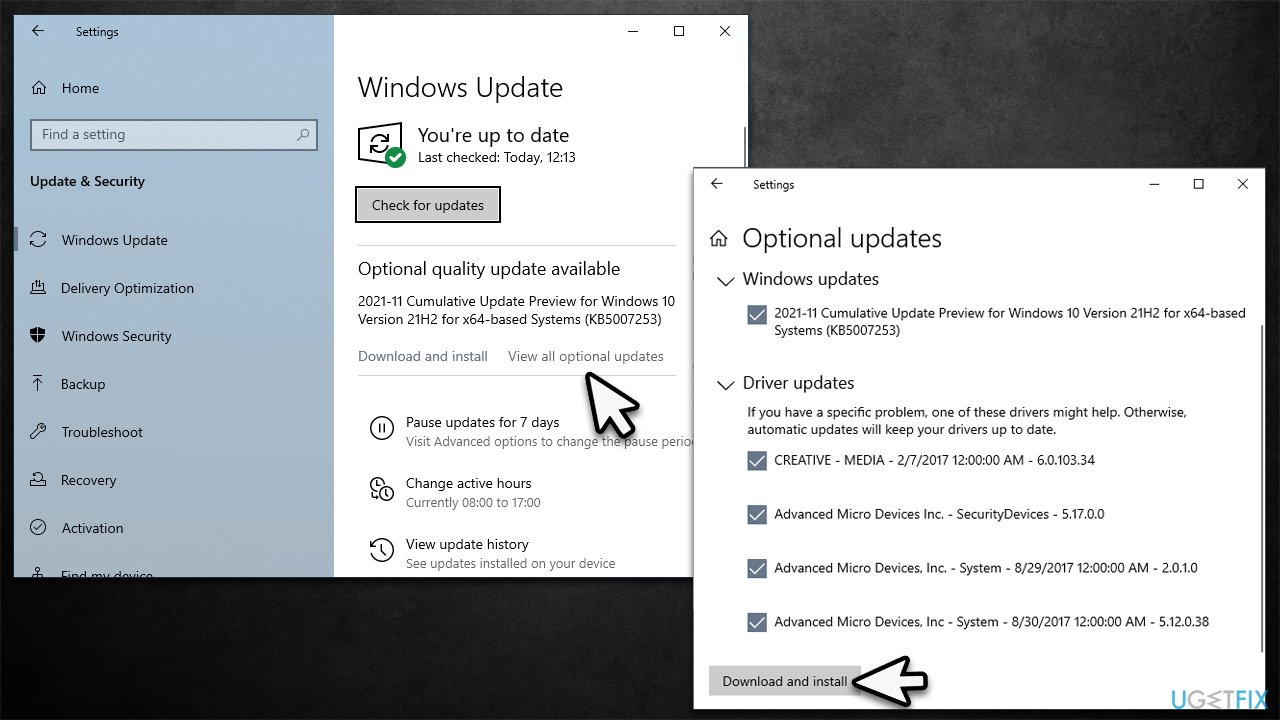
Note that Windows is not very good when it comes to finding the newest drivers for your specific hardware, so you should instead either download them from manufacturer's website or rely automatic tools such as [rev id="DriverFix"] instead.
Solution 6. Reinstall drivers
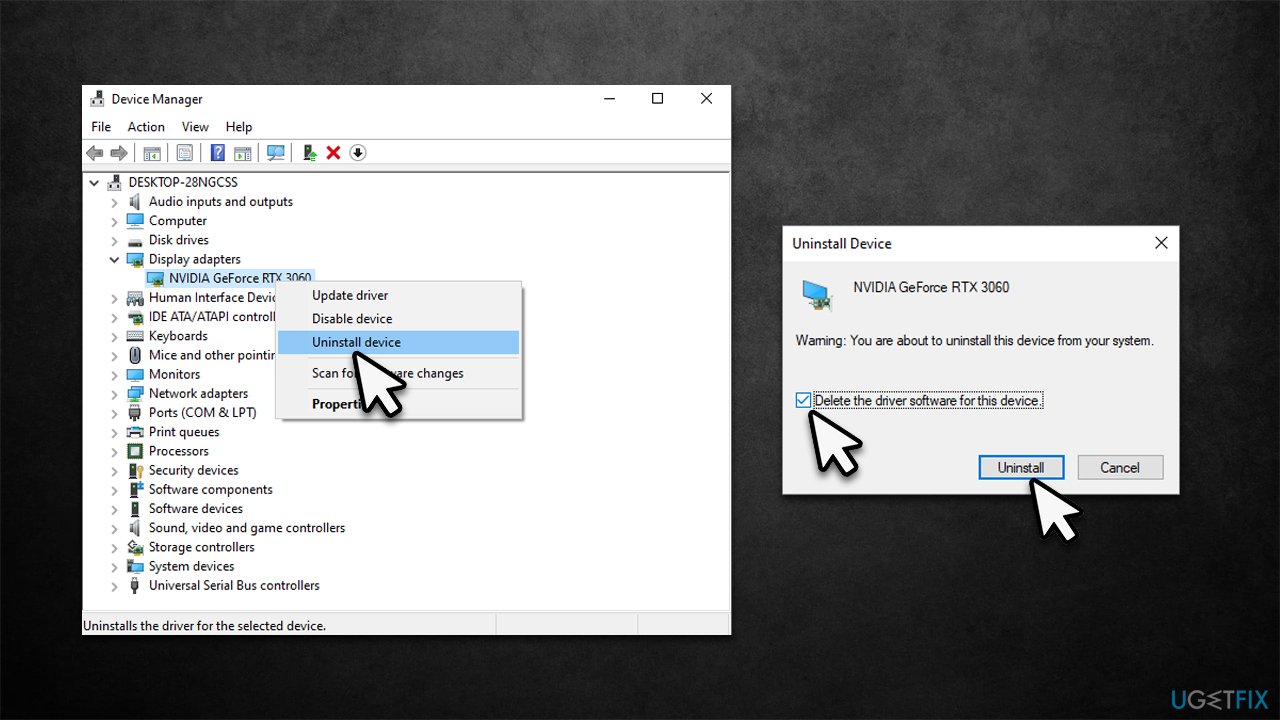
If you know that you have recently installed a driver that started causing the WINLOGON_FATAL_ERROR BSOD, you should uninstall it as follows:
- Right-click on Start and pick Device Manager
- Expand the section with malfunctioning driver, for example, Display adapters
- Right-click the device and select Uninstall device
- In the confirmation window, tick the Delete the driver software for this device checkmark and click Uninstall
- Restart your system and use one of the above methods to install the newest driver for your system.
Bottom line
To fix the WINLOGON_FATAL_ERROR BSOD, consider removing the most recently installed applications, or check for faulty Windows and driver updates. If you are unable to log in, try accessing Safe Mode. If none of these solutions work, running an automatic PC repair tool is recommended.
Frequently asked questions
This BSOD error typically occurs due to corrupt system files, incompatible drivers, or issues with installed software that affects the logon process.
You can fix this error by booting into Safe Mode, running System File Checker, or performing a system restore to revert to a previous stable state.
Yes, you can often resolve the c000021a error by using recovery tools like Startup Repair or Command Prompt to repair corrupted files without needing to reinstall Windows.




Report an issue
What's wrong with this guide? We review every report and update or remove content.
Report received — thank you. We'll review and fix it.
You need a free account to submit a report.
Be the first to comment