How to fix
Error Code 0x800072EFE
on Windows
Resolve the 0x800072EFE error on your Windows Store effortlessly. Get expert-tested solutions to restore functionality in minutes, with screenshots.

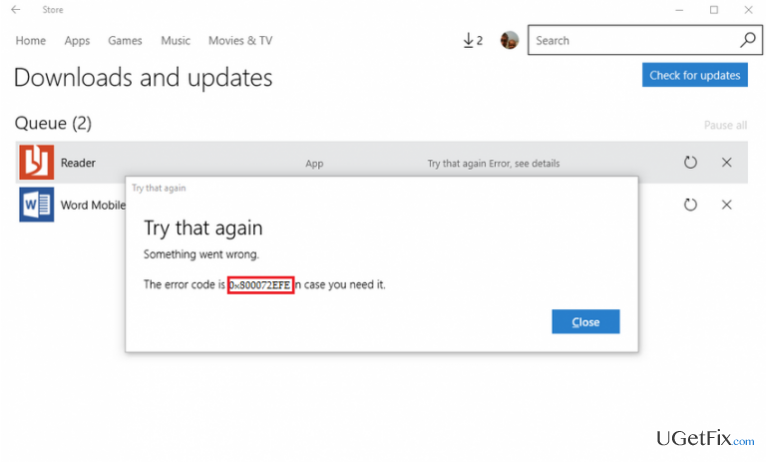
What causes How to Fix Error Code 0x800072EFE on Windows Store?
- Windows Update issues
- Pending crucial updates
- Corrupted Windows Store cache
- System file inconsistencies
- Registry errors
Repairs Windows system files, removes malware, and restores a clean OS state — without reinstalling.
The error code 0x800072EFE shows up on Windows Store and prevents me from downloading all needed apps. I’ve checked the date and time settings, turned off Windows Firewall, did sfc/scannow, but none of these methods worked. Most of the online forums say that this bug is related to Windows Update, is it? Could you please help me to fix the 0x800072EFE error? Any help would be highly appreciated!
The error code 0x800072EFE has been harassing Windows users for a long time. A thorough investigation of this bug revealed that it occurred on Windows XP, Vista, 8, and 8.1 versions. Sadly, Windows 10 users are encountering it as well, so in this post, we will try to explain what methods may help you to fix it. While the 0x800072EFE error is often associated with the Windows Store due to the fact that it usually occurs when trying to download/ install applications from the store, specialists claim that the core of the problem is more likely related to the Windows Updates. Therefore, if you can’t install any apps from the Windows Store because of this error message, we would strongly recommend you to open Updates & Security and Check for Updates. It might be that some crucial updates are pending and need to be installed. If none of the updates are detected or if running them did not fix 0x800072EFE error, then refer to the following paragraph and perform the fixes one by one.
TIP: before initiating any fixes manually, it’s advisable to install [d1] and run a full scan with it. It’s a professional optimization tool that will check registries, system files, cached files, unreliable software, and similar inconsistencies that may lead to various malfunctions, including 0x800072EFE bug.
How to Fix Error Code 0x800072EFE on Windows Store?
Method 1. Remove Windows Store cache
- Press Windows Key + R, type wsreset.exe, and click Enter.
- When the blank Command Prompt window shows, don’t press anything. The cache is being removed, so wait until Windows Store closes and then reopens automatically.
- After that, try to download applications you needed. Hopefully, the error 0x800072EFE is gone.
Method 2. Use an elevated Command Prompt
- Press Windows key + X and select Command Prompt (Admin).
- Type sfc /scannow and press Enter.
- Then copy and paste the commands given below. Enter has to follow each of them:
DISM /Online /Cleanup-image /Scanhealth
DISM /Online /Cleanup-image /checkhealth
DISM /Online /Cleanup-image /Restorehealth - Now close Command Prompt. Press Windows key and type Powershell.
- Right-click on Windows Powershell and select Run as administrator.
- Copy and paste powershell -ExecutionPolicy Unrestricted Add-AppxPackage -DisableDevelopmentMode -Register $Env:SystemRoot\WinStore\AppxManifest.xml command and press Enter.
- Type Get-AppXPackage | Foreach {Add-AppxPackage -DisableDevelopmentMode -Register "$($_.InstallLocation)\AppXManifest.xml"} to re-register Windows apps and press Enter.
- Finally, close everything and reboot your PC.
If these two methods did not work, try to install all available Windows Updates (if you haven’t done that in the first place) or try to re-register your Microsoft Account. For this purpose, you just have to log out from your account then type the login name, password, and log in. Hopefully, this article was helpful and you have successfully fixed Windows Store Error Code 0x800072EFE.
Bottom line
To fix the 0x800072EFE error, you can try removing the Windows Store cache using the wsreset.exe command, checking for Windows Updates, and running a full scan with a professional optimization tool. If none of these methods work, further troubleshooting may be necessary.
Frequently asked questions
This error typically indicates issues with your network connection or problems with the Windows Store itself on Windows 10 or Windows 11.
You can reset the Microsoft Store by going to Settings > Apps > Apps & features, selecting Microsoft Store, and then clicking on the 'Advanced options' to find the 'Reset' button.
Yes, reinstalling the Microsoft Store can help, and you can do this by using PowerShell commands in Windows 10 or Windows 11 to reinstall the app.




Report an issue
What's wrong with this guide? We review every report and update or remove content.
Report received — thank you. We'll review and fix it.
You need a free account to submit a report.
Be the first to comment