How to fix
“Reset this PC” when opting for “Remove everything” issue
on Windows
Resolve the “Reset this PC” issue in Windows 10 when choosing “Remove everything.” Get expert-tested solutions and fix it in minutes!

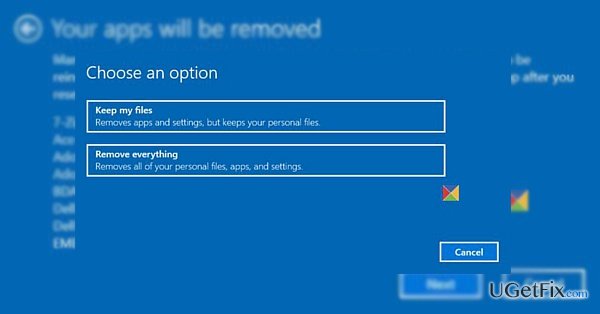
What causes How to fix “Reset this PC” when opting for “Remove everything” issue in Windows 10?
- Installed Get Office application
- Internal bugs in the system
- Windows 10 version 1607
- Incompatibility with certain applications
Repairs Windows system files, removes malware, and restores a clean OS state — without reinstalling.
I tried to perform the full reset of the system, but somehow this function does not fully work. During the reset, a message pops up stating that some files could not be removed. How do I fix this issue?
Windows 10 offers two convenient versions resetting your system. You can either keep the files or remove everything. These features are highly beneficial, however, some users, who have Windows 10 with 1607 update installed, report that they are unable to perform this function. There might be several explanations for this matter. Most likely, you cannot complete “Reset this PC” with the option of “remove everything” process due to the installed Get Office application. This error is caused by internal bugs in the system. Luckily, they have already taken this matter, and this issue should be solved shortly. In the meantime, you can opt for the alternative solution.
Option 1. Uninstall Get Office application
1. Click Start and type Get Office.
2. Right-click on it and then choose Uninstall.
Option 2. Run PowerShell to eliminate the software
1. Click on the Start icon and type Powershell. Right-click on it and choose Run as administrator.
2. Type Get-AppxPackage -Name *MicrosoftOfficeHub* | Remove-AppxPackage and click Enter. This option eliminates this application permanently. If you need it, you can, later on, install it from the Google Store.
Option 3. Check the operating system with an anti-spyware application
It does not require much of your intervention, install [d1] and run the scan. Such tool is beneficial when dealing with more complex virtual threats. regularly update for it to function properly and maintain proper security of the system.
Bottom line
To fix the 'Reset this PC' issue when opting for 'Remove everything', you can uninstall the Get Office application, run PowerShell to eliminate it, or check the operating system with an anti-spyware application. If none of these solutions work, consider seeking further technical support.
Frequently asked questions
You can try running the Windows Recovery Environment by booting from a Windows installation media and selecting 'Repair your computer' to access advanced troubleshooting options.
If 'Remove everything' fails, consider using the command prompt in the recovery environment to execute 'system reset' or performing a clean installation of Windows 10.
Yes, common error messages include 'There was a problem resetting your PC' or 'The drive is locked', which may require checking disk integrity or unlocking the drive.




Report an issue
What's wrong with this guide? We review every report and update or remove content.
Report received — thank you. We'll review and fix it.
You need a free account to submit a report.
Be the first to comment