How to fix
Steam icon always green or yellow in taskbar
on Windows
Resolve the Steam icon color issue in your Windows 10 or Windows 11 taskbar easily. Follow expert-tested tips for a quick fix today!

What causes How to fix Steam icon always green or yellow in taskbar?
- Updates are being downloaded
- Updates are paused and waiting for installation
- Steam client needs to be restarted
- System errors affecting the Steam client
- Corrupted files or registry issues
Repairs Windows system files, removes malware, and restores a clean OS state — without reinstalling.
Hello. I noticed that my Steam icon is always green or yellow. This prevents me from seeing when I receive messages. What could be the cause of this?
The Steam client is a digital distribution platform developed by Valve Corporation that allows users to purchase, download, and play games and other software. It is available for Windows, macOS, and Linux. One of the main benefits of Steam is that it provides a convenient and centralized platform for users to purchase, download, and manage their digital content.
Another benefit of Steam is that it offers a wide variety of content, including games, software, and other digital media. With a vast selection of titles available, Steam makes it easy for users to find and purchase the content they want. One issue that some users may experience with the Steam client is that the icon in the taskbar appears green or yellow. This can be confusing and may cause users to wonder what is going on.
The green or yellow color of the Steam icon in the taskbar indicates that updates are being downloaded or installed. When the icon is green, it means that updates are being downloaded. When the icon is yellow, it means that updates are paused and waiting for installation. There are a few different things that users can do to resolve this issue. If updates are being downloaded and the Steam icon is green, users can simply wait for the updates to finish downloading and installing.
In this guide, you will find 3 steps that should help you fix Steam icon always green or yellow in taskbar. However, in case the troubleshooting process is too lengthy or it did not help you solve the issue, you can try using a maintenance tool like [d1]. It can fix most system errors, BSODs,[ref en-1] corrupted files, registry[ref en-2] issues, or clear cookies and cache.[ref en-3] Otherwise, follow the step-by-step instructions below.
Method 1. Restart the Steam Client
- Go to your Steam client
- Click on Steam at the top left corner
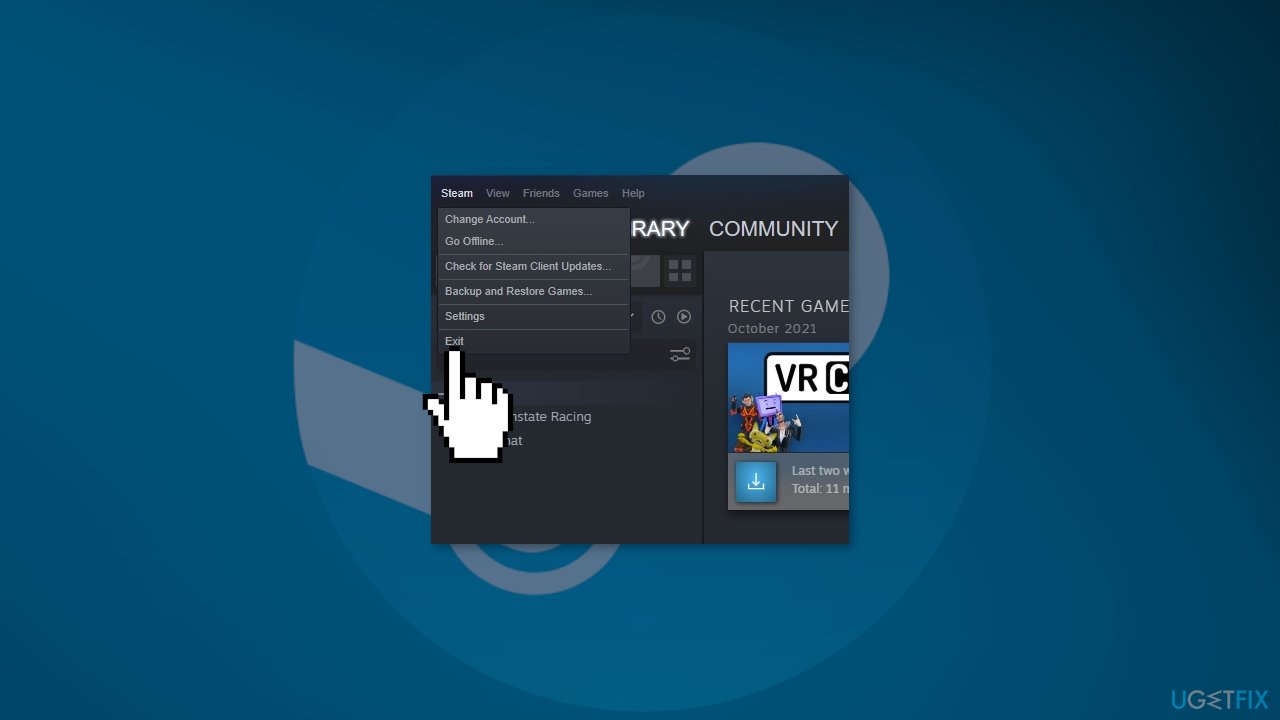
- Press on Exit at the bottom of the context menu
- Relaunch Steam by double-clicking on its icon
Method 2. Check for Updates
- Open the Steam client on your computer
- In the Steam client, click on the Library tab in the top menu
- Your games will be listed in the library
- Go through the games one by one and check for updates
- Click on the Update button
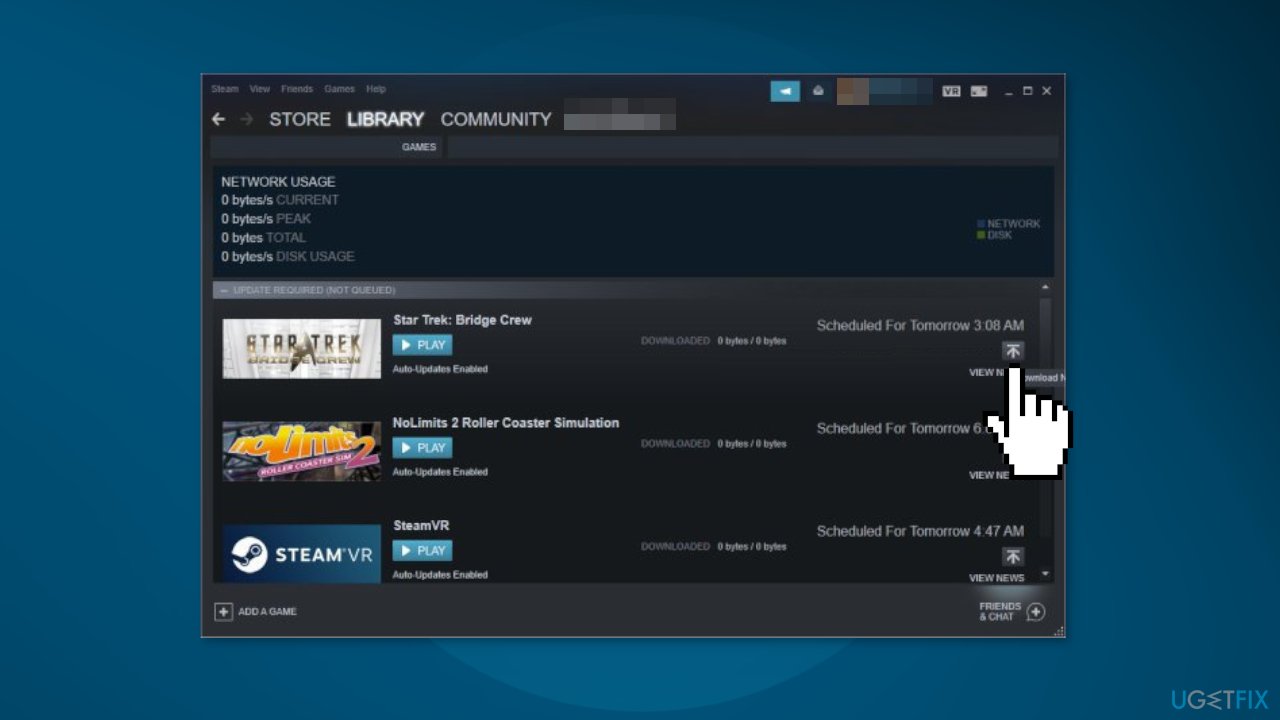
- The progress of the update will be displayed in the Downloads tab of the Steam client
- Once the update is complete, the game will be updated to the latest version
Note: Some games may require you to manually check for updates by going to the game's properties and selecting the "Updates" tab.
Method 3. Resume Updates
The green or yellow Steam icon in the taskbar might mean that you have pending updates that are paused.
- Open the Steam client on your computer
- In the Steam client, click on the Downloads tab in the top menu
- You will see a list of all of your active downloads and updates
- Locate the update that is paused and click on it to select it
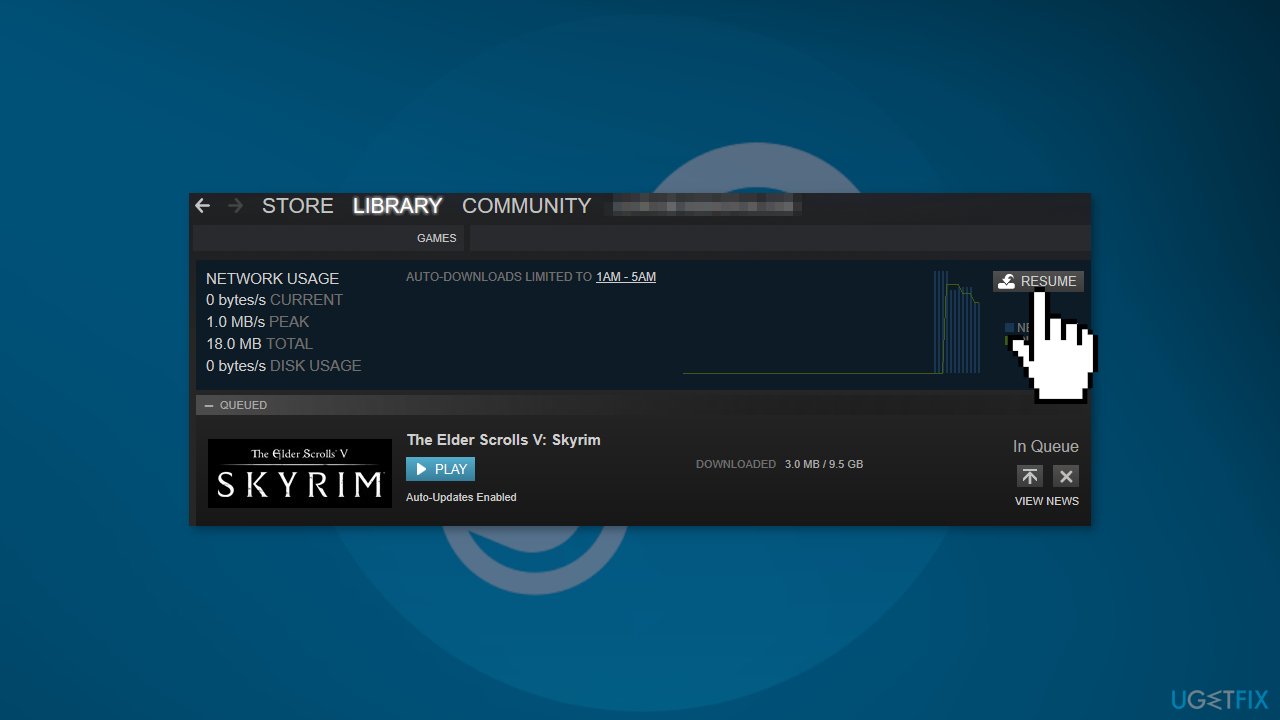
- Click on the Resume button to resume the update
Bottom line
To fix the Steam icon always appearing green or yellow in the taskbar, users can restart the Steam client or wait for updates to finish downloading. If these steps do not resolve the issue, consider using a maintenance tool to address system errors or corrupted files.
Frequently asked questions
The Steam icon may appear green or yellow due to network issues or server connectivity problems. Check your internet connection and ensure that Steam servers are operational.
To reset the Steam client, close Steam, then delete the 'config' folder located in the Steam installation directory. Restart Steam to see if the icon issue is resolved.
If the issue persists, try reinstalling the Steam client or updating your Windows 10 or Windows 11 system to ensure compatibility with the latest Steam version.




Report an issue
What's wrong with this guide? We review every report and update or remove content.
Report received — thank you. We'll review and fix it.
You need a free account to submit a report.
Be the first to comment