How to fix
Microsoft Store missing
on Windows
Resolve the Microsoft Store missing issue in Windows 11 quickly and easily with our expert-tested solutions. Fixed in minutes for seamless access!

What causes How to fix Microsoft Store missing in Windows 11?
- Microsoft Store app has been uninstalled or deleted
- Problem with the Windows operating system
- Software update caused the issue
- Corrupted files or registry issues
- Cookies and cache problems
Repairs Windows system files, removes malware, and restores a clean OS state — without reinstalling.
Hello. After I updated my Windows 11 computer, the Microsoft Store and its apps disappeared. How do I fix this?
The Microsoft Store is an online store and app distribution platform for Microsoft Windows devices. It offers a variety of benefits that can make it easier and more convenient to find and install apps on your device. One of the main benefits of the Microsoft Store is that it provides a central location to find and download apps.
You can browse through a wide range of app categories, such as productivity, games, entertainment, and more, and easily install the ones you want. This can save you time and effort compared to manually searching for and installing apps from the internet.
If you are experiencing an issue with the Microsoft Store app being missing on your Windows 11 device, it could be due to a variety of reasons. One possibility is that the Microsoft Store app has been uninstalled or deleted from your device. This can happen as part of a software update.
It is also possible that there is a problem with your Windows operating system. In this case, you may need to perform a repair installation of Windows to fix the issue. In this guide, you will find 6 steps that should help you fix Microsoft Store missing in Windows 11.
Keep in mind that the manual troubleshooting process can be lengthy. You can use a maintenance tool like [d1] to fix most system errors, BSODs,[ref en-1] corrupted files, registry[ref en-2] issues, or clear cookies and cache.[ref en-3] Otherwise, follow the step-by-step instructions below.
Method 1. Run the Windows Store Apps Troubleshooter
- Press the Windows key + I to open Windows Settings
- Select the System section and scroll down until you see Troubleshoot and click on it
- Click on Other troubleshooters to see more troubleshooters available on your computer
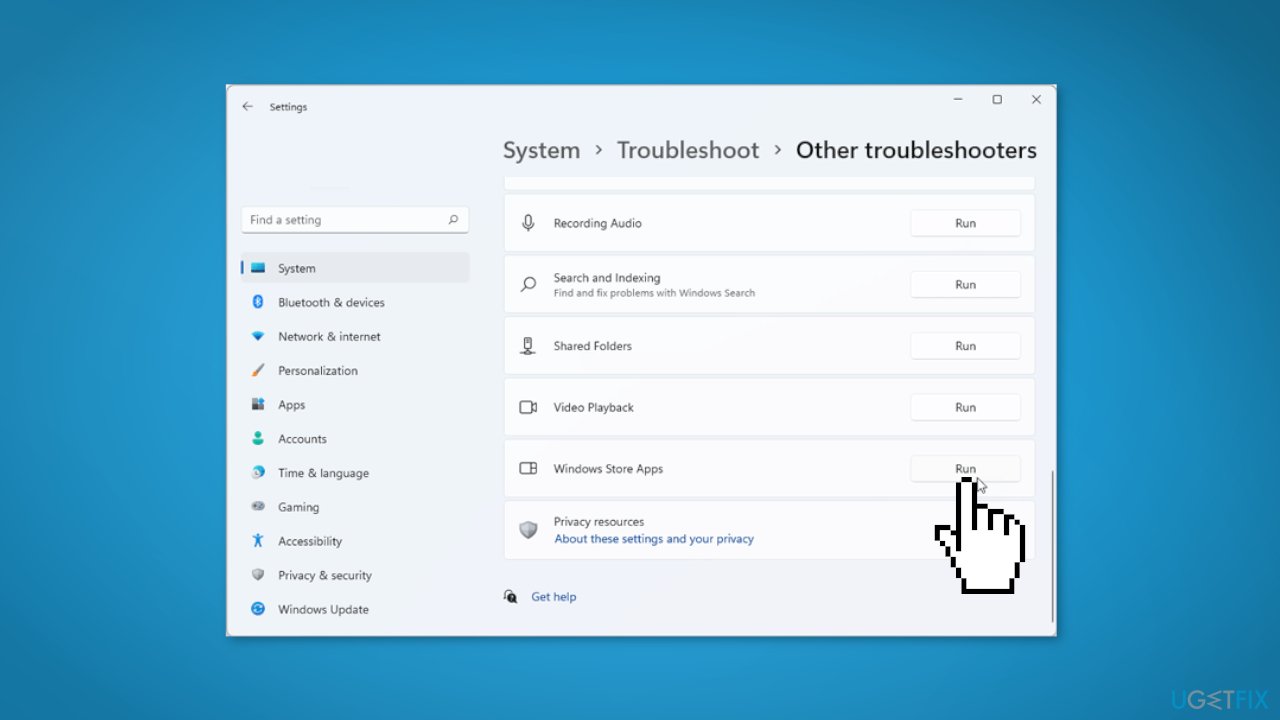
- Scroll down at the bottom until you see Windows Store Apps
- Click on Run to start the troubleshooting process
- Wait until the process is complete
Method 2. Repair or Reset the Microsoft Store
- Press the Windows key + I to open Windows Settings
- Select Apps and access the Apps & features section
- Search for Microsoft Store using the search bar
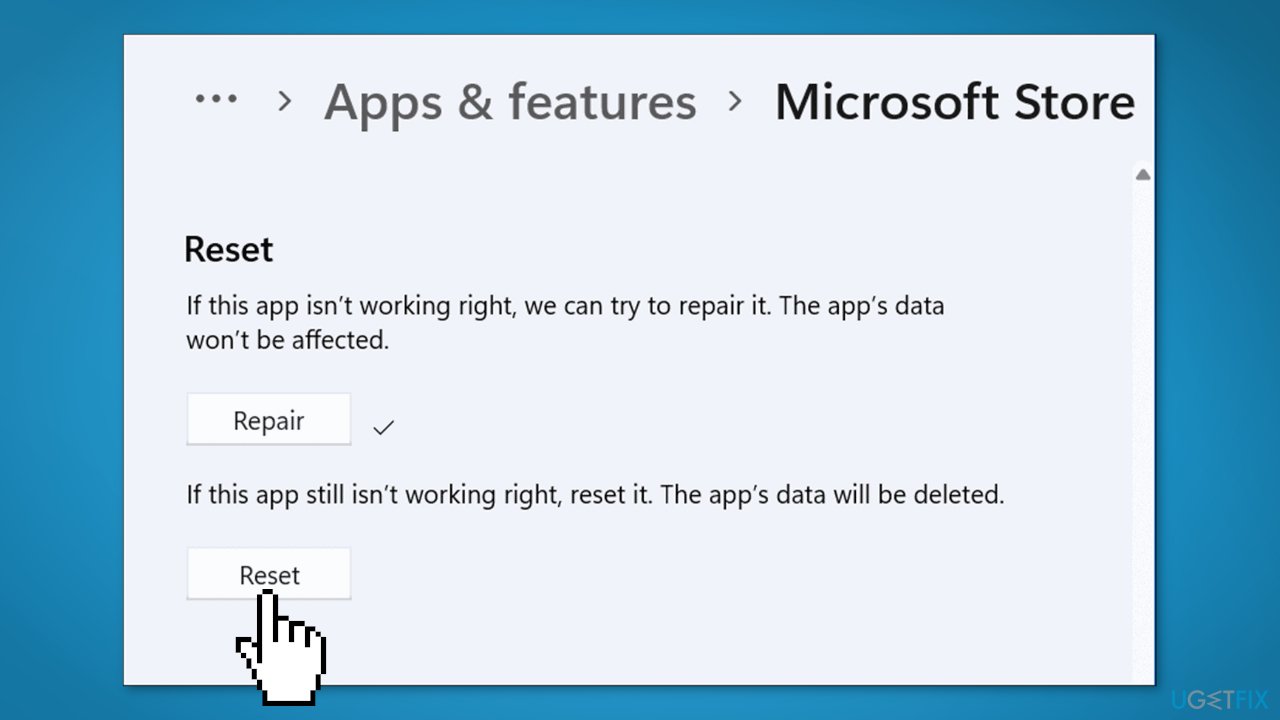
- Click on the three dots located on the right side of it and then click on Advanced options
- Click on the Repair option first, if that does not fix the issue, click on Reset
Method 3. Reinstall the Microsoft Store
- Press the Windows key + R to open the Run box
- Type powershell and press Ctrl + Shift + Enter to open it with administrator privileges
- Insert the following command and press Enter to run it:
Get-AppXPackage *WindowsStore* -AllUsers | Foreach {Add-AppxPackage -DisableDevelopmentMode -Register "$($_.InstallLocation)\AppXManifest.xml"}
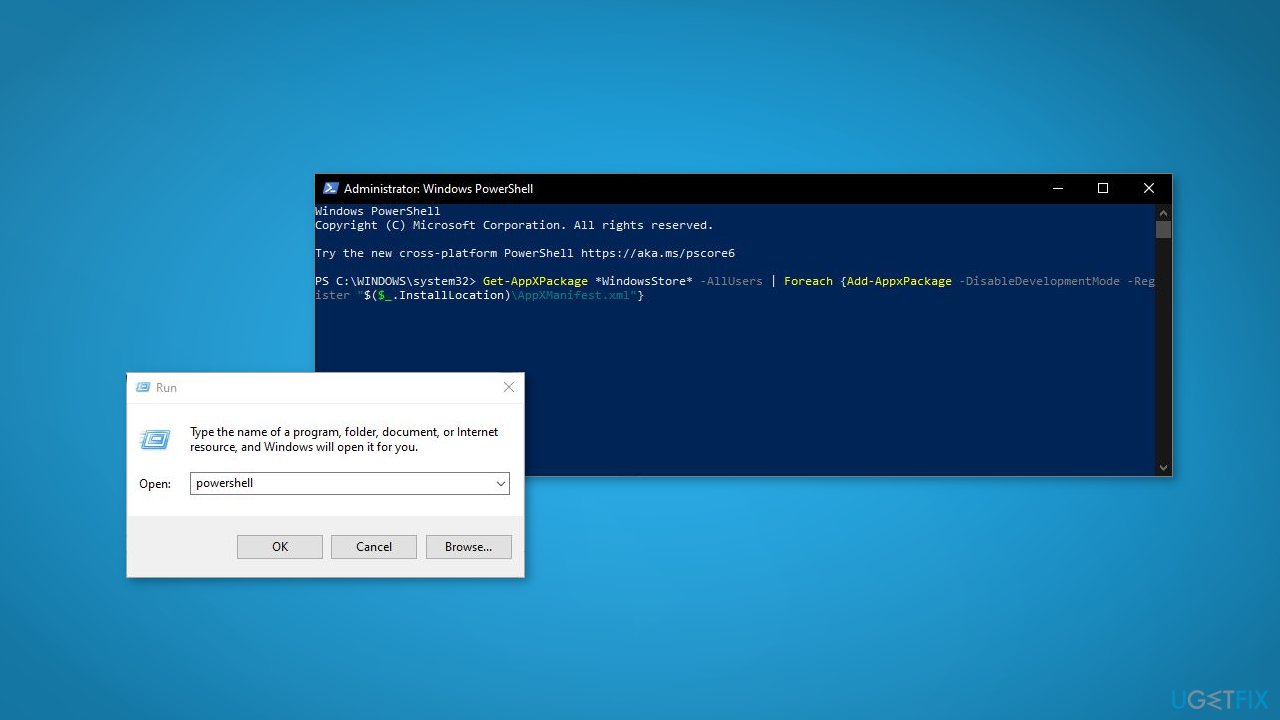
- Close the PowerShell and see is the issue is fixed
Method 4. Clear Microsoft Store Cache
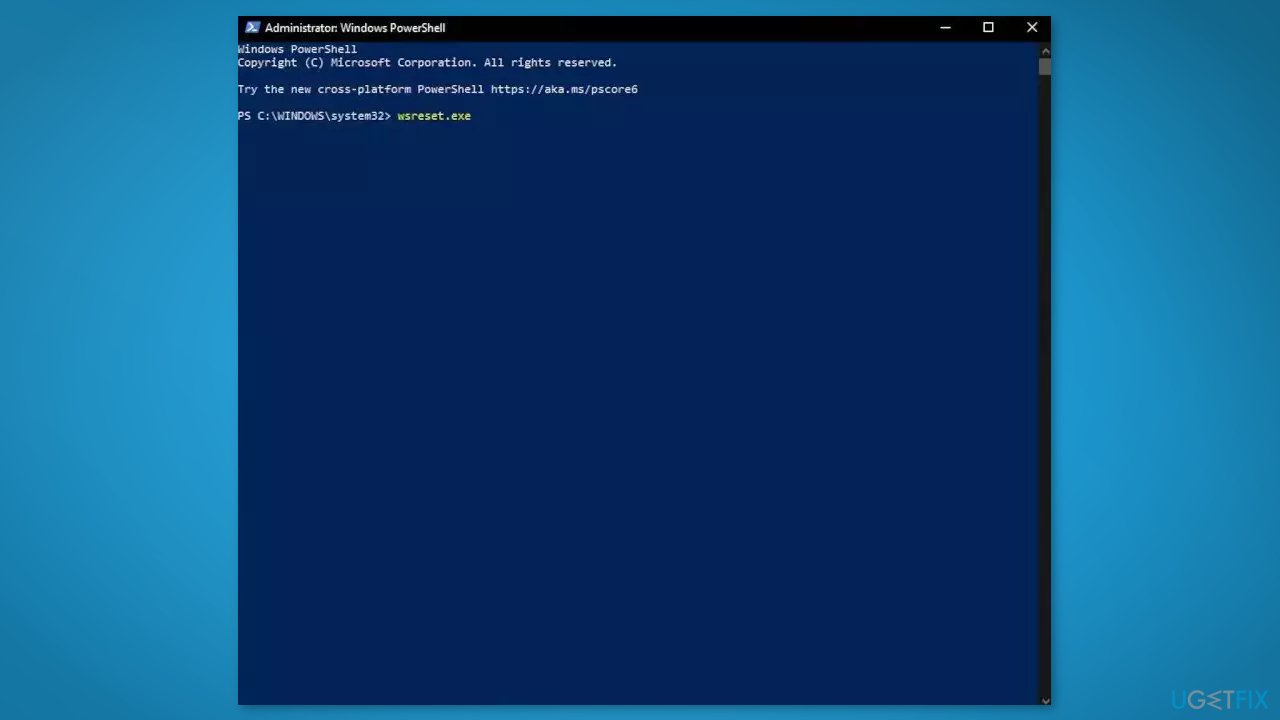
- Open the Windows Powershell from the search bar by typing powershell
- Right-click on the search result and select Run as Administrator
- If a UAC opens, hit Yes to provide your consent
- Type WSReset.exe and hit Enter
Method 5. Install Xbox app Dependencies
- Open the Xbox App
- Click on your profile then click on Settings to open the specific menu
- Select the General tab to be able to see the system bundles that are missing from your computer and waiting to be installed.
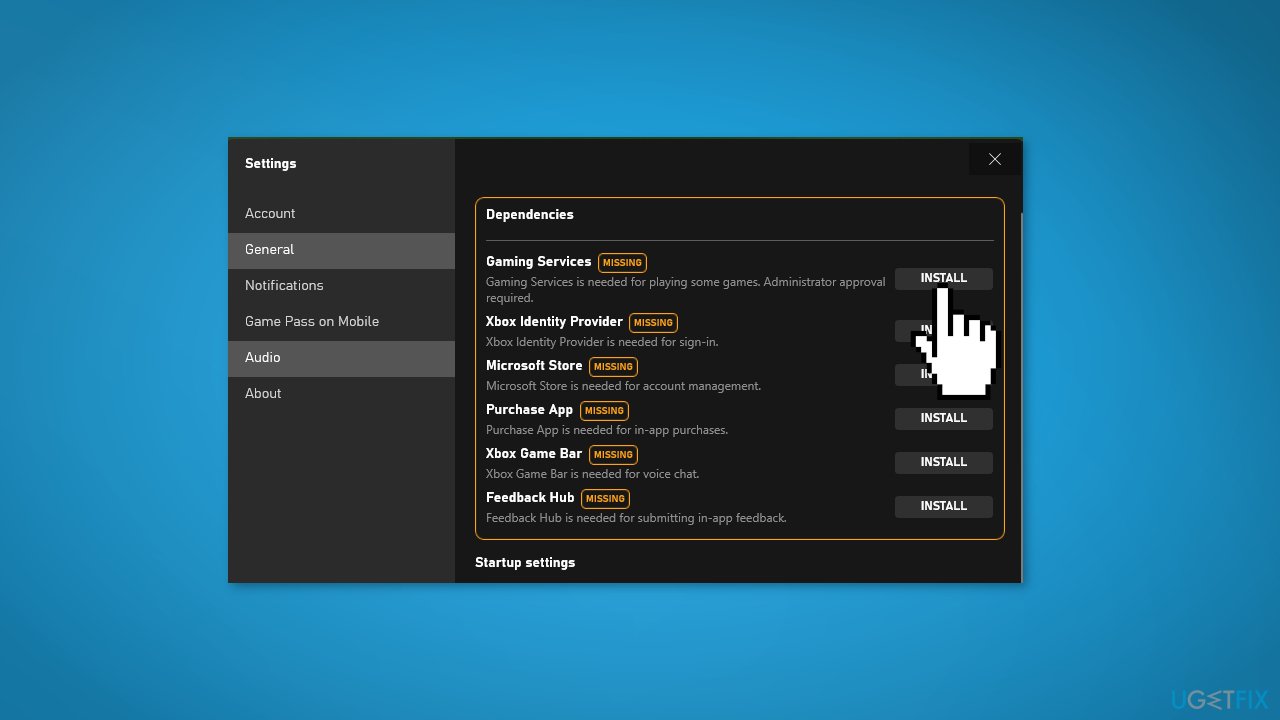
- Look in the upper side of the window, and when you see the Install button next to the system bundles, click on it
- In case there is more than one, make sure to install every one of them
- Close the app and check if the problem disappeared
Method 6. Repair Install Windows
- Download the Windows 11 ISO file
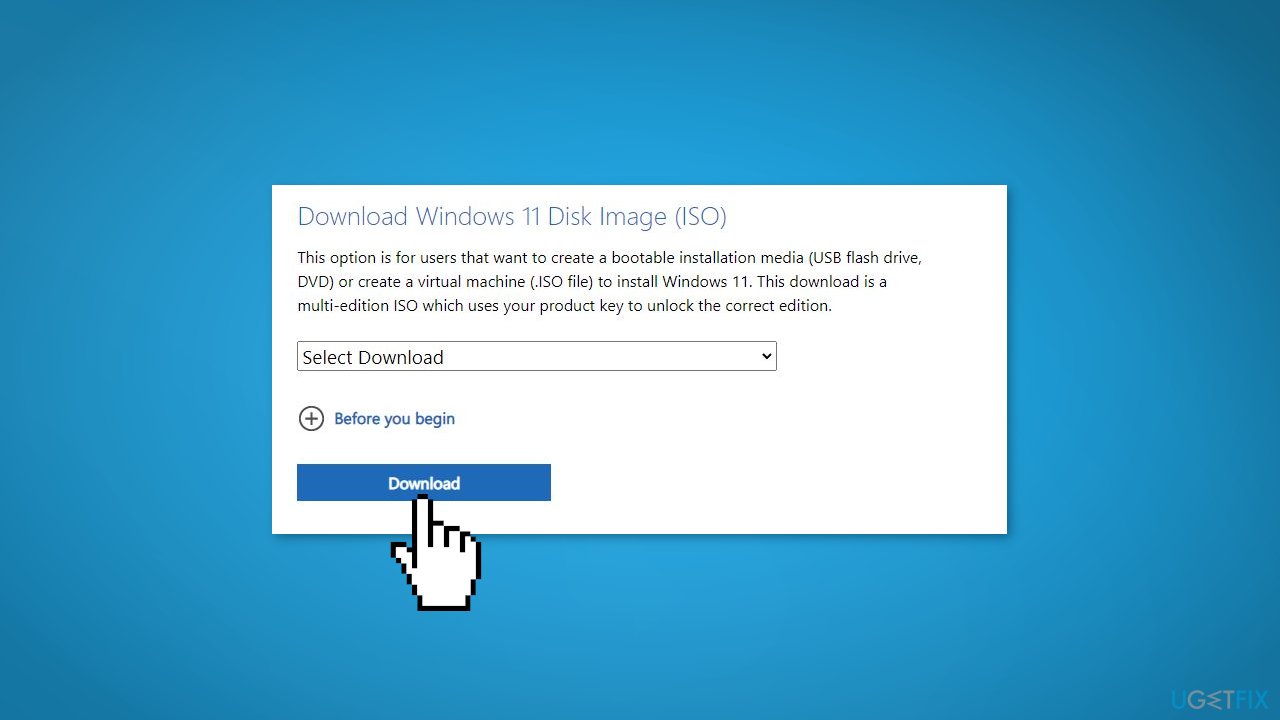
- Now mount the ISO file
- Double-click on the file setup.exe to start the repair, install from the mounted drive
- When the installation provides the License Terms, read them and click Accept
- Windows will now check for updates and will install the ones available
- When all is set, click Install
- When the installation is complete, follow the on-screen instructions
Bottom line
To fix the missing Microsoft Store in Windows 11, you can run the Windows Store Apps Troubleshooter or perform a repair installation of Windows. If these methods do not resolve the issue, consider using a maintenance tool to address system errors.
Frequently asked questions
If the Microsoft Store is missing after your upgrade, try running the Windows Store Apps troubleshooter from Settings > System > Troubleshoot > Other troubleshooters.
You can reinstall the Microsoft Store by opening PowerShell as an administrator and running the command 'Get-AppxPackage Microsoft.Store | Remove-AppxPackage' followed by 'Get-AppxPackage -AllUsers | Add-AppxPackage'.
Ensure that your Windows 11 is up to date and check if the Microsoft Store is enabled in the Apps & features settings.




Report an issue
What's wrong with this guide? We review every report and update or remove content.
Report received — thank you. We'll review and fix it.
You need a free account to submit a report.
Be the first to comment