How to fix
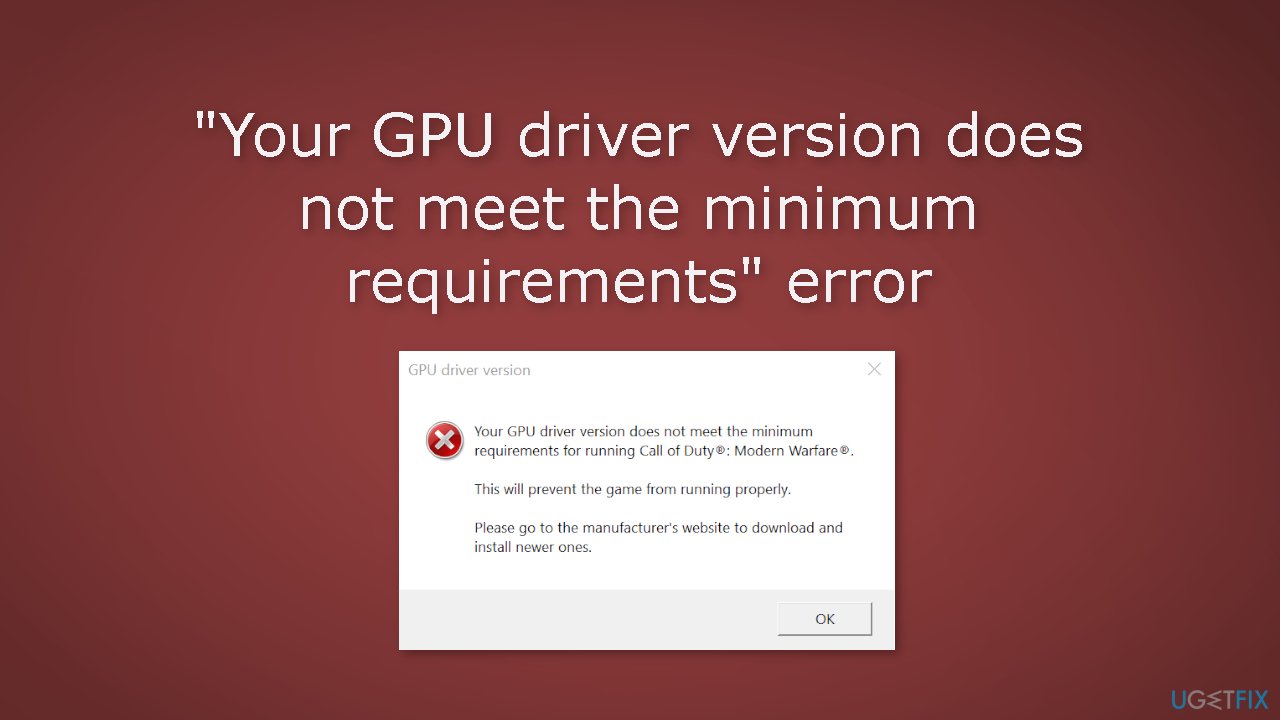
“Your GPU driver version does not meet the minimum requirements” error
on Windows
Resolve the "Your GPU driver version does not meet the minimum requirements" error on Windows 10 or 11 effortlessly. Expert-tested solutions await!


What causes How to fix “Your GPU driver version does not meet the minimum requirements” error in Windows?
- Outdated graphics drivers
- Incompatible graphics drivers
- Conflicts with other software
- Problems with the application or game
- Insufficient system requirements
Repairs Windows system files, removes malware, and restores a clean OS state — without reinstalling.
Hello. Yesterday I wanted to play some Call of Duty but when I tried to launch the game on my Windows computer I encountered the "Your GPU driver version does not meet the minimum requirements" error. What should I do?
The graphics card, also known as the graphics processing unit (GPU), is a crucial component of a computer that is responsible for rendering and displaying graphics on the screen. In a gaming context, the GPU is responsible for rendering the game's visuals and graphics at a high frame rate, which is essential for a smooth and immersive gaming experience.
A powerful graphics card can significantly improve the performance and visual quality of a game, particularly if it is designed to handle the demands of more complex and resource-intensive games. It can enable higher resolutions, faster frame rates, and more realistic graphics and visual effects, such as shadows, reflections, and ambient occlusion.
If you are seeing the error message "Your GPU driver version does not meet the minimum requirements" in Windows, it means that the version of the graphics driver installed on your computer is not compatible with the application or game you are trying to run. This error can occur for a variety of reasons, including outdated or incompatible graphics drivers,[ref en-1] conflicts with other software on your computer, or problems with the application or game itself.
People report seeing this error when trying to launch Call of Duty or other games like Fortnite. In this guide, you will find 6 steps that should help you fix "Your GPU driver version does not meet the minimum requirements" error in Windows. However, the manual troubleshooting process can be lengthy.
To avoid it, you can use a maintenance tool like [d1] which can automatically fix most system errors, BSODs,[ref en-2] corrupted files, registry[ref en-3] issues, or clear cookies and cache. Otherwise, follow the step-by-step instructions below.
Solution 1. Check Minimum Requirements
To avoid encountering the error message "Your GPU driver version does not meet the minimum requirements" when attempting to play a game on your PC, it's important to make sure that your system meets the minimum requirements for running the game. If your system does not meet these requirements, you are likely to encounter this error prompt when you try to launch the game.
Solution 2. Update Graphics Driver
- Open Device Manager and expand the Display Adapters tab
- Right-click on your graphics driver and select Properties
- Go to the Driver tab and click on Update Driver
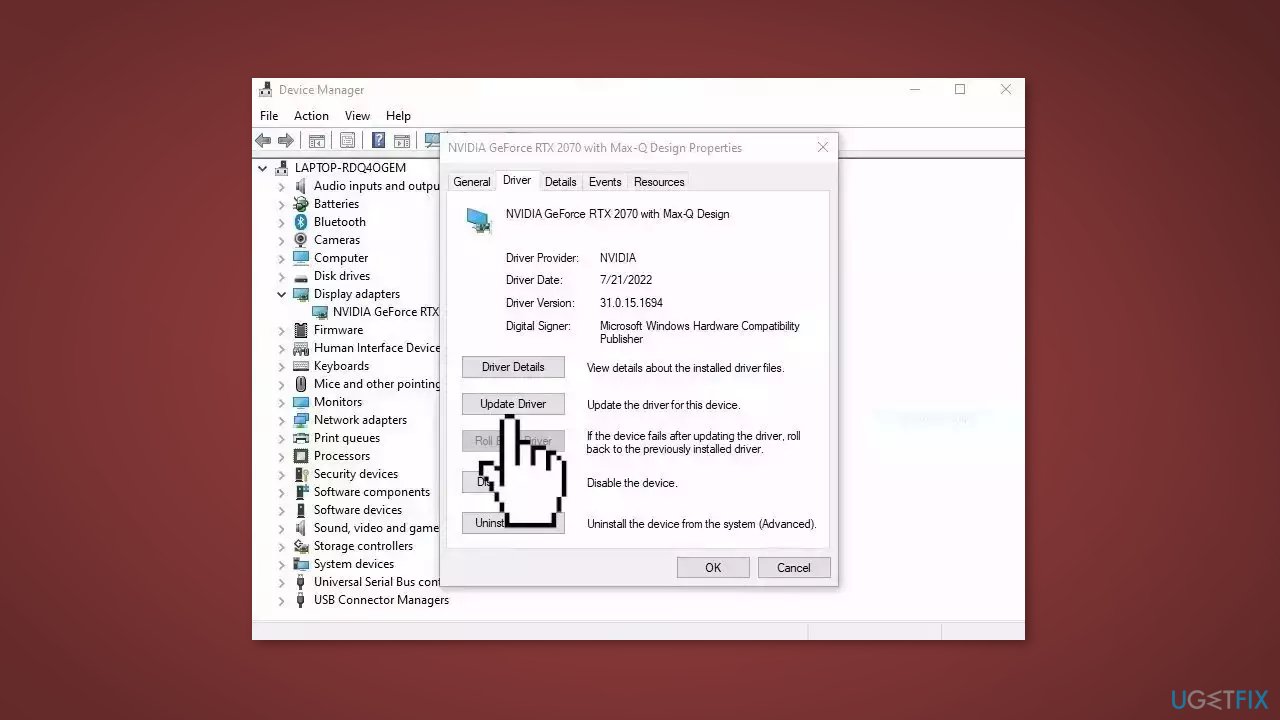
- Press on Search Automatically for Drivers
- If a graphic driver update is available, install it and then restart your PC
- Upon restart, launch the Modern Warfare game and check if it fixed the issue.
- You may also use a dedicated utility like [rev id="DriverFix"] that can find the best drivers for your machine and install them automatically
Solution 3. Update DirectX
DirectX is a collection of APIs (Application Programming Interfaces) for programming graphics and sound in Microsoft Windows. It is primarily used for developing and running games on Windows.
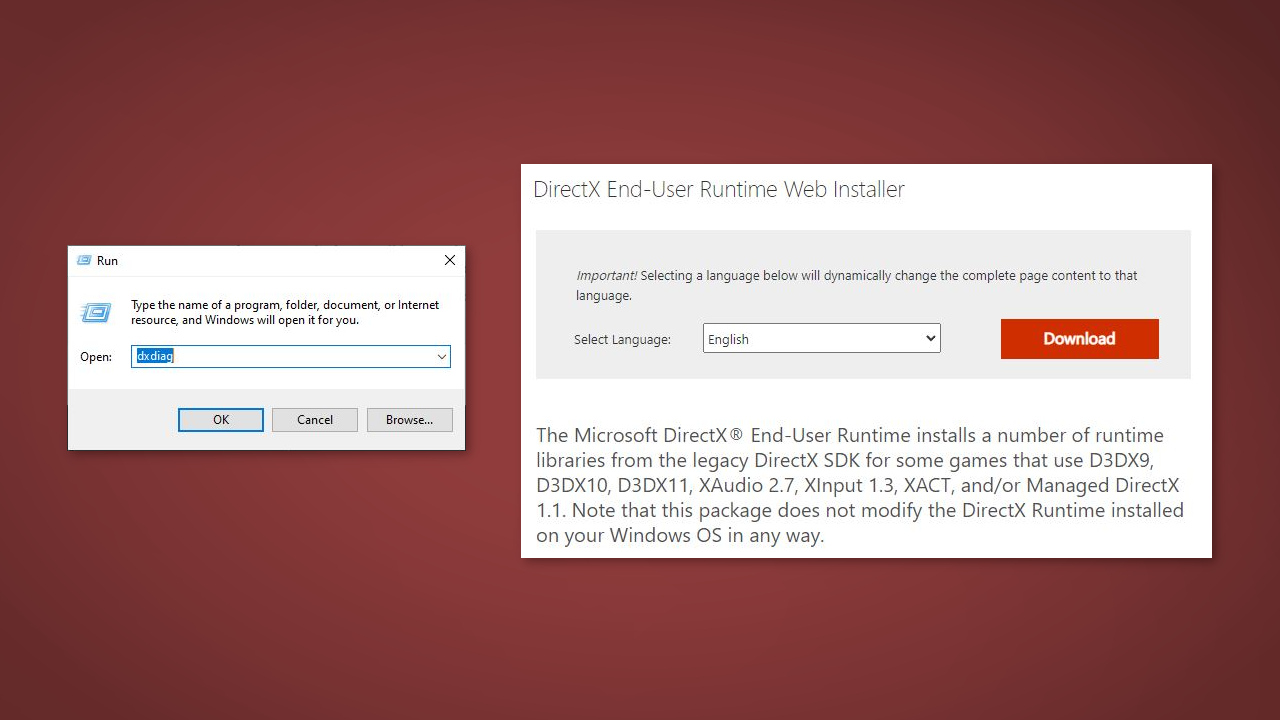
- Press the Windows key + R to open the Run dialog box
- Type dxdiag and press Enter. This will open the DirectX Diagnostic Tool.
- Check the version of your DirectX
- If you do not have the most recent version, install it from the official Microsoft website
Solution 4. Clear Graphics Card Cache
Some graphics card utilities, such as MSI Afterburner, allow you to manually clear the cache of your graphics card. Check the documentation for your specific graphics card utility to see if this option is available.
AMD:
- Open the AMD Radeon Software installed on your PC
- Click on the gear icon in the corner of the program
- Click the Graphics tab
- Expand Advanced
- Scroll down to the Reset Shader Cache option
- Click on Perform Reset
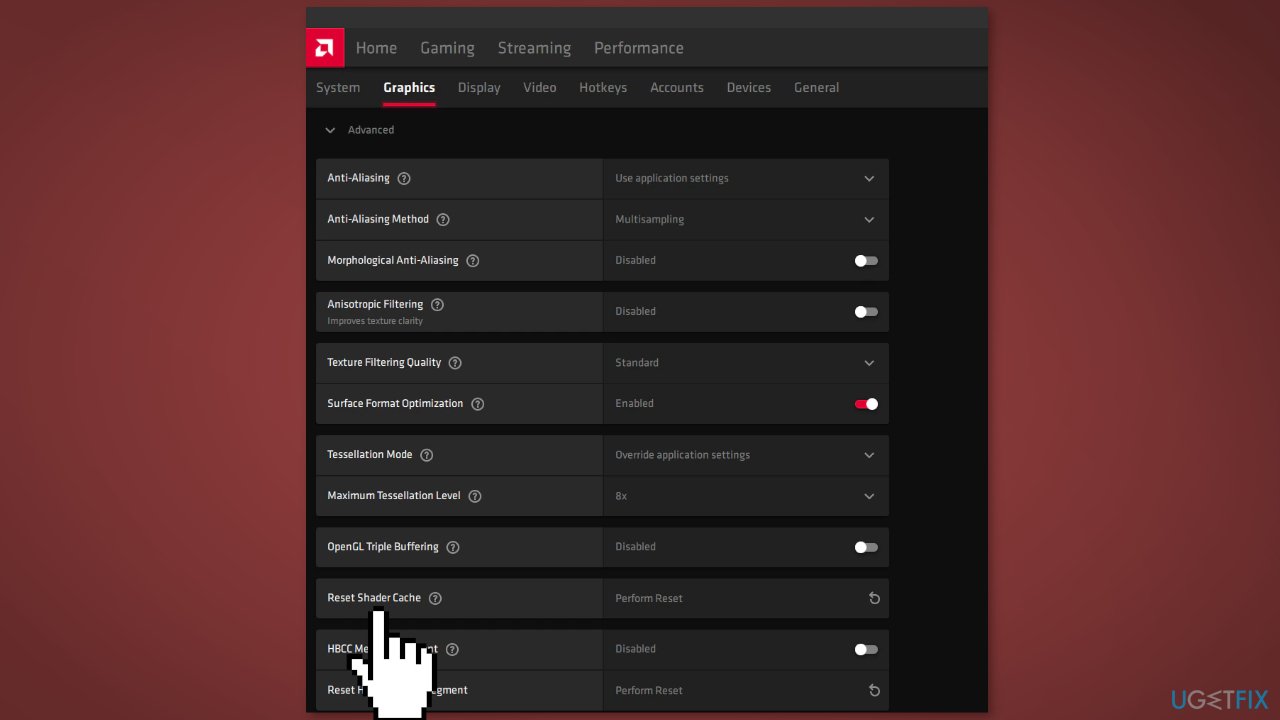
- Exit AMD Radeon Software when done
NVIDIA:
- Press the Windows key + R to open the Run dialog box
- Type %localappdata% and hit Enter
- At the location, find and open the NVIDIA folder
- In the folder, find and open both the DXCache and the GLCache folder and delete all the items in the folders
- Go back to the %localappdata% folder
- Find and open the NVIDIA Corporation folder
- Now, open the NV_Cache folder and delete the contents inside
- Exit File Explorer and restart your PC
Solution 5. Disable and Re-enable the Integrated Graphics Adapter
If you have multiple graphics cards installed on your computer (such as both a dedicated and integrated graphics card) and the integrated GPU (iGPU) is enabled, you may experience the error in question. To fix this issue, you can try disabling the integrated graphics card through the Device Manager or BIOS. If you only have the iGPU installed on your gaming system, you can try disabling and then re-enabling the graphics adapter to see if that resolves the problem.
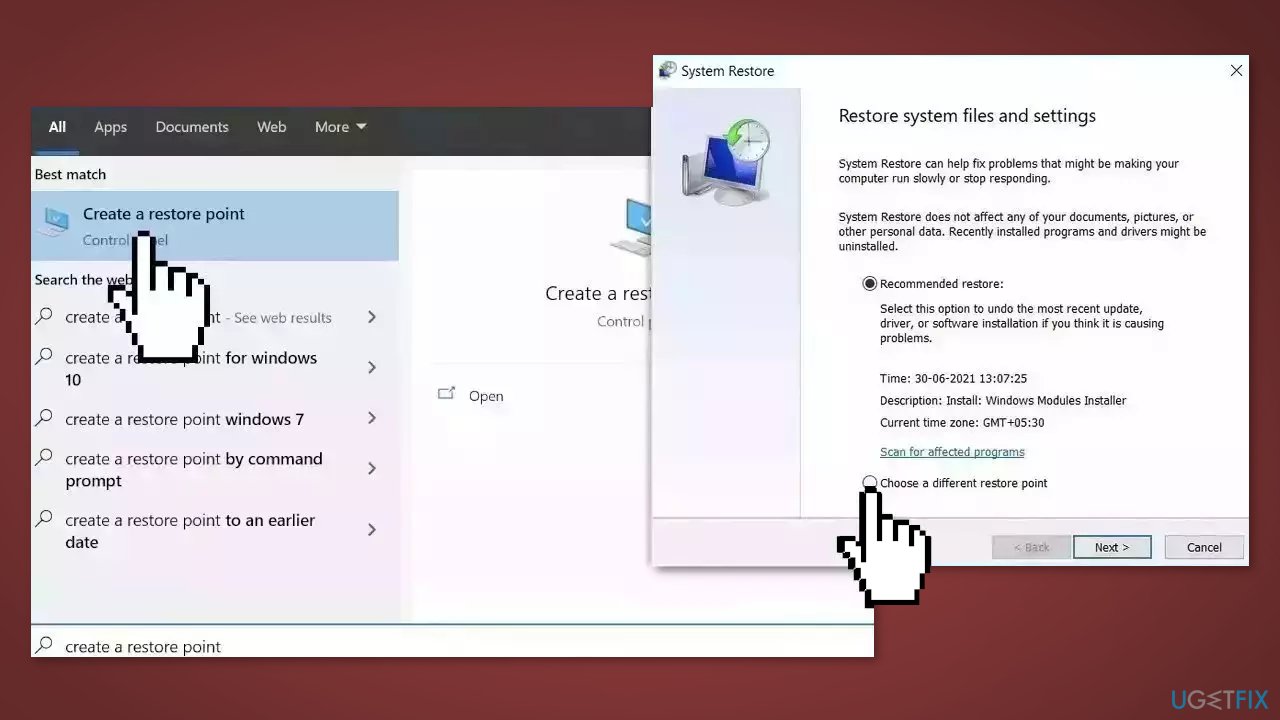
Solution 6. Use System Restore
System Restore is a tool that can revert your system back to a previous point before a specific problem has occurred.
- Go to the Start menu, type restore, and click on Create a restore point
- Click System Restore, then follow the prompts until you can select a restore point
- Select the one you want (ideally before the issue started occurring) and go ahead with the process
Bottom line
To fix the 'Your GPU driver version does not meet the minimum requirements' error, you can check the minimum requirements for the game, update your graphics drivers, and troubleshoot any software conflicts. If these steps do not resolve the issue, consider using a maintenance tool to automatically fix system errors.
Frequently asked questions
You can update your GPU driver by navigating to Device Manager, expanding the Display adapters section, right-clicking your GPU, and selecting 'Update driver' to search automatically for updated driver software.
You can check your GPU specifications by right-clicking on the Start menu, selecting 'System,' and reviewing the Display information under 'Device specifications' to compare it with the application's requirements.
If reinstalling the GPU driver doesn't fix the error, consider performing a clean installation of the driver by using the manufacturer’s uninstaller tool, then downloading and installing the latest version directly from the manufacturer’s website.




Report an issue
What's wrong with this guide? We review every report and update or remove content.
Report received — thank you. We'll review and fix it.
You need a free account to submit a report.
Be the first to comment