How to fix
Microsoft Outlook sent items missing
on Windows
Resolve missing sent items in Microsoft Outlook on Windows 10 or 11 effortlessly. Follow our expert-tested fixes for a seamless experience.

![[Fix] Microsoft Outlook sent items missing](https://ugetfix.com/wp-content/uploads/articles/askit/microsoft-outlook-sent-items-missing_en-768x432.jpg)
What causes [Fix] Microsoft Outlook sent items missing?
- Email is still in the Outbox folder
- Network issues causing delayed sending
- Sent Items folder is missing
- Outlook data file or OST not syncing properly
- Manual synchronization not performed
Repairs Windows system files, removes malware, and restores a clean OS state — without reinstalling.
Hello. The emails that I sent are not showing up in the Sent Items folder in Outlook. How can I fix this?
Microsoft Outlook is a popular email and calendar application that is used by millions of people around the world. It is often used as part of the Microsoft Office suite of productivity tools, but it is also available as a standalone application. Outlook is known for its powerful email management features, including the ability to send and receive emails, organize emails into folders, schedule appointments and events, and more.
When you send an email in Outlook, the message is typically moved to the Outbox folder for delivery. Once the message has been sent successfully, it is transferred to the Sent Items folder in your Exchange Outlook or OWA account. You can view the message and confirm whether it was sent or not by opening the Sent Items folder.
However, sometimes you may notice that the email you sent is not showing up in the Sent Items folder, or you may notice that the Sent Items folder is missing altogether. In these cases, there are a few possible explanations and solutions you can try. One reason could be that the email is still in the Outbox folder. Sometimes, emails can remain in the Outbox until the next synchronization due to network issues or other connectivity problems.
Once the connectivity is restored, Outlook will sync the local Outlook data file or OST containing the sent email in the Outbox folder with the mailbox server. After synchronization, the email will be sent to the recipient and the message will be available in the Sent Items folder. If the email has been in the Outbox folder for a long time, you can try manually synchronizing the mailbox by going to the Send/Receive tab in Outlook and clicking "Update Folder."
Another reason the sent email may not be showing up in the Sent Items folder is if the folder is missing. If the Sent Items folder is missing, you can try restoring it by going to the Folders list in Outlook and selecting "New Folder." Give the folder a name (e.g. "Sent Items") and choose "Mail and Post Items" as the folder type. You can then drag and drop any missing sent emails into the restored Sent Items folder.
If you're still having trouble finding your sent emails in Outlook, it's possible that there could be other issues at play. For example, the email may have been deleted or moved to a different folder, or there could be a problem with the Outlook data file. In these cases, you may need to seek further assistance.
If you are also interested in keeping your operating system running smoothly, you can use an automatic repair tool like [d1]. It can fix most system errors, BSODs,[ref en-1] corrupted files, registry[ref en-2] issues, or clear cookies and cache.[ref en-3]
Method 1. Enable the Save Copies of Email in the Sent Item Folder option
To ensure that sent emails are saved in the Sent Items folder in Outlook, you can follow these steps:
- Open Outlook
- Click on File in the top menu
- Click on Options
- Click on Mail
- Scroll down to the Save messages section
- Check the box next to Save copies of messages in the Sent Items folder
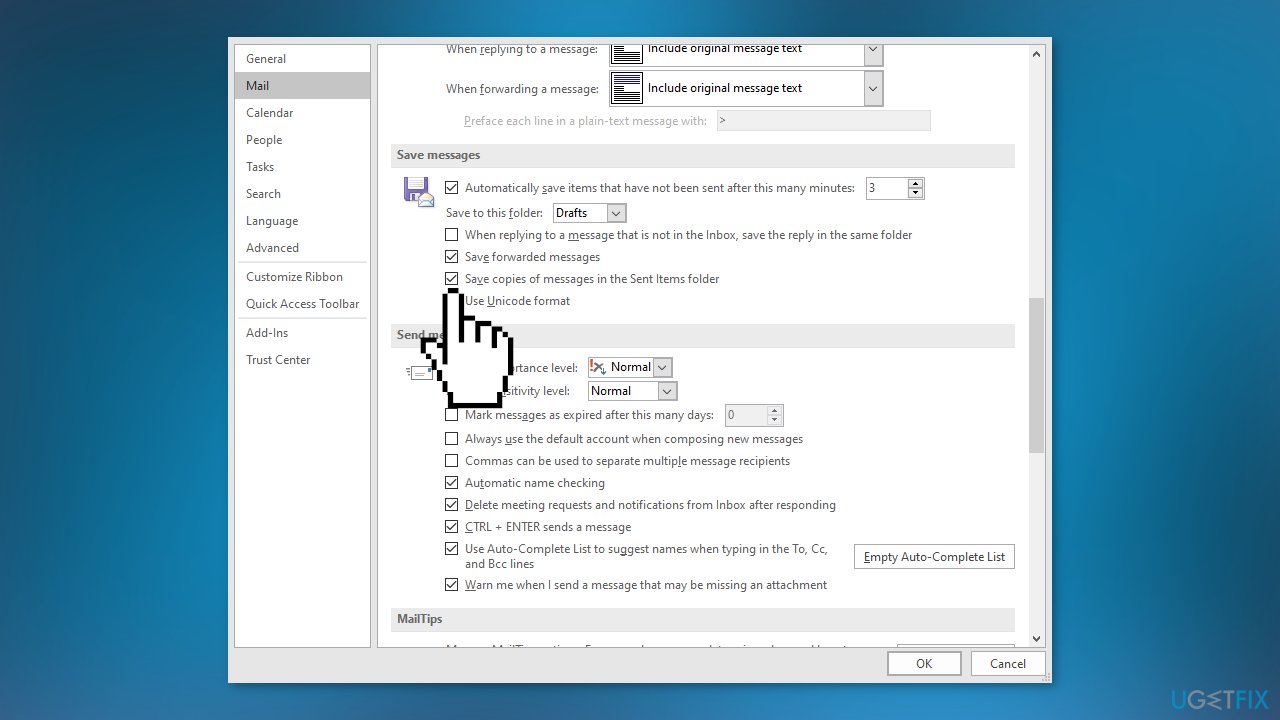
- Click OK
Method 2. Create an Alternative Folder for Storing Sent Emails
- Open Outlook
- Click on the New Email tab, and a new window will open.
- Click on Options
- Click on the Save sent item to option and then select the Other Folder option
- A new window will appear
- Click New
- The Create New Folder page will open
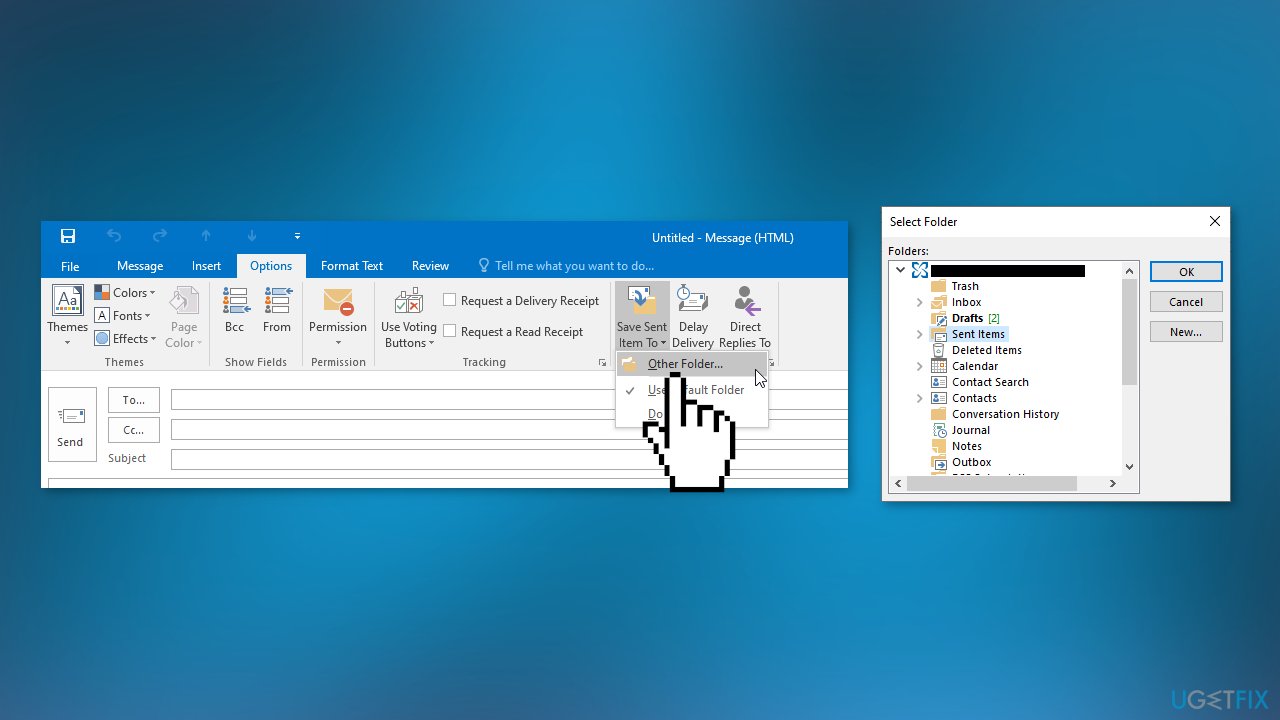
- Enter a name for your new folder
- Under Folder Contains, choose the type of mail and posts you want to store in the folder
- Click OK
Method 3. Clear Outlook Cache
- Launch Outlook
- Navigate to the Outlook cache location:
%localappdata%\Microsoft\Outlook
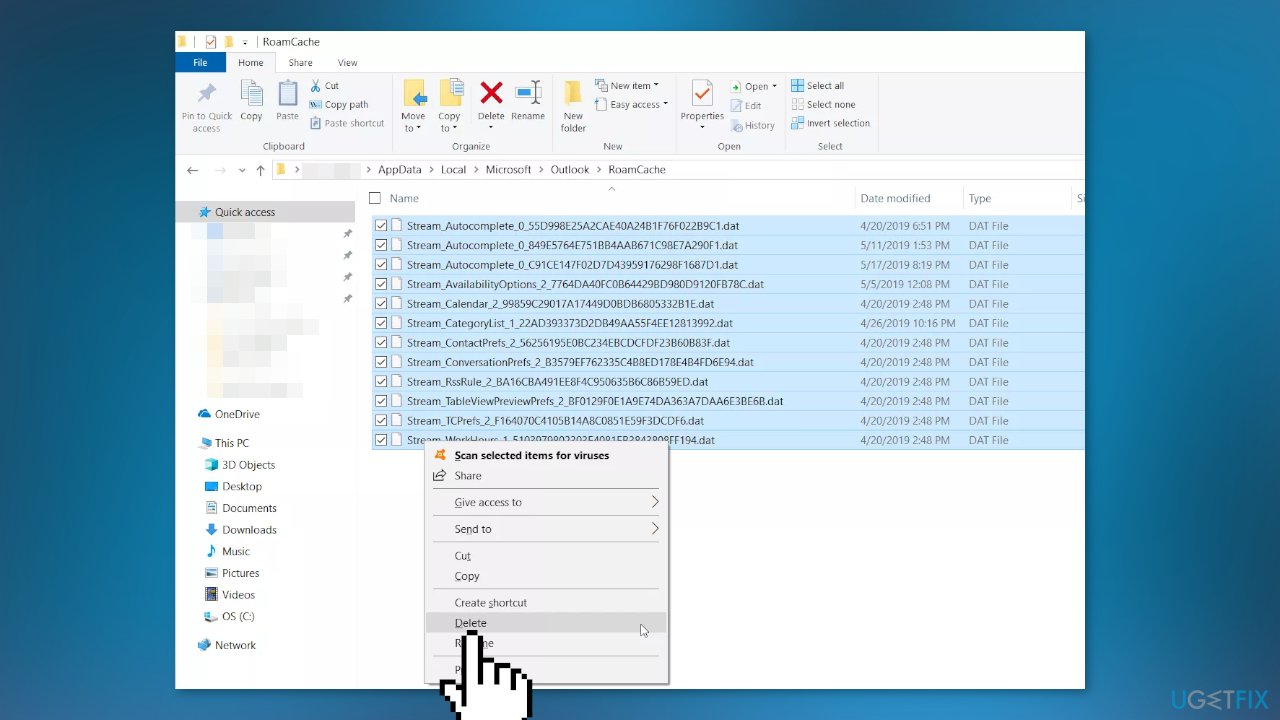
- Delete cached files in Outlook
- Remove the auto-complete cache in Outlook
- Restart Outlook.
Method 4. Disable Outlook Cached Exchange Mode
Cached Exchange Mode in Outlook allows you to access emails and other tasks while offline, by storing them on your local hard drive in OST format. However, if the OST file becomes oversized, it can cause corruption in your emails or Sent folder. To prevent this, you can disable Cached Exchange Mode.
- Open Outlook and click on File
- Choose Account Settings, then click on Account Settings
- Select the account and click on the Change tab
- In the Offline Settings section, uncheck the box next to Use Cached Exchange Mode
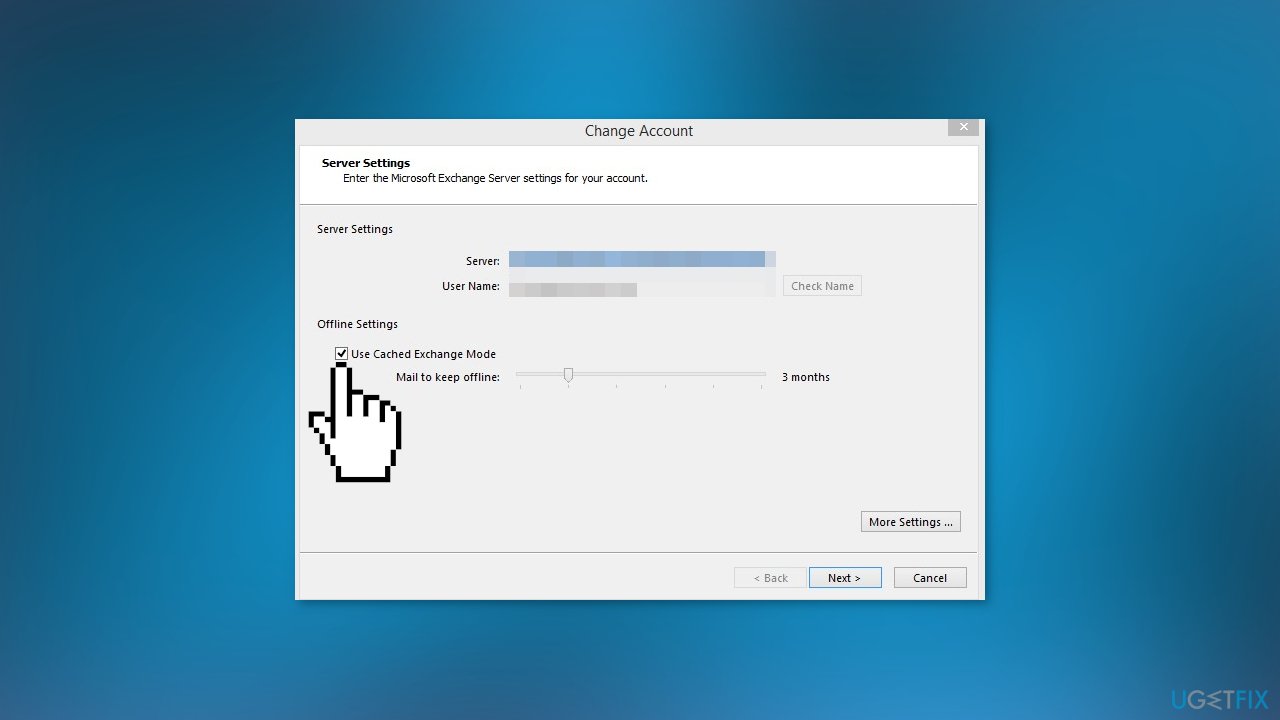
- Restart Outlook to save the changes
Method 5. Check the Outlook Group Policy Settings
If you are unable to find your Outlook Sent Items folder, you may need to check the Outlook Group Policy Setting. Follow these steps to do so:
- Open the Run dialog by pressing the Windows key + R on your keyboard at the same time
- Type gpedit.msc in the Run box and press either the Enter key or click OK
- Navigate to the appropriate path based on the version of Outlook you are using:
For Outlook 2007: User Configuration > Administrative Templates > Classic Administrative Templates (ADM) > Microsoft Office Outlook 2007 > Tools > Options > Preferences > E-mail Options > Message handling
For Outlook 2010: User Configuration > Administrative Templates > Classic Administrative Templates (ADM) > Microsoft Outlook 2010 > Outlook Options > Preferences > E-mail Options > Message handling
For Outlook 2013: User Configuration > Administrative Templates > Microsoft Outlook 2013 > Outlook Options > Preferences > E-mail Options > Message handling
For Outlook 2016: User Configuration > Administrative Templates > Microsoft Outlook 2016 > Outlook Options > Preferences > E-mail Options > Message handling
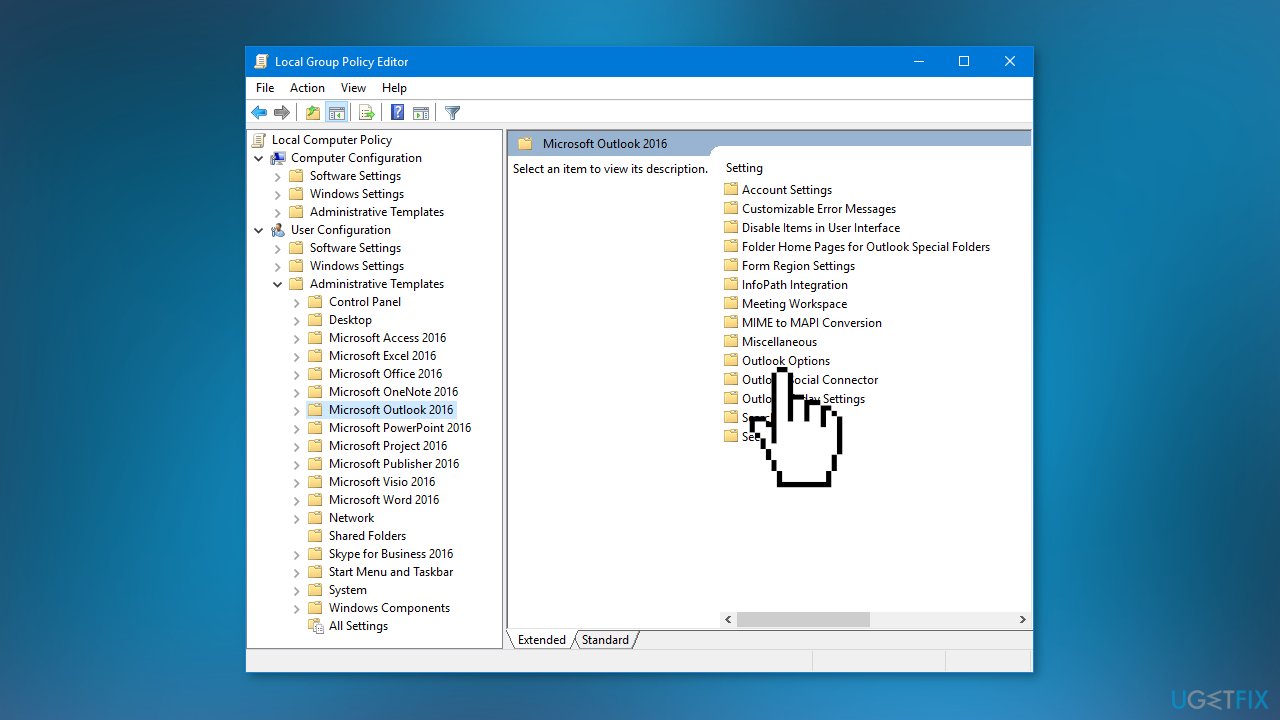
- Once you have located the Message handling option, click on Enabled and select the Save copies of messages in the Save Items folder option
Method 6. Rebuild Offline Folder File (OST)
If the solutions listed above do not fix the issue with your missing Outlook Sent Items folder, the problem may be with the Outlook OST data file. To fix this, you can try rebuilding or recreating the OST file. However, it is important to make a backup of the OST file before deleting it, as this solution will only work if your profile is active. If your profile is disabled or removed from the server, the OST file will not rebuild. To recreate the OST file, follow these steps:
- Press the Windows key + R on your keyboard to open the Run dialog
- Type %localappdata%/Microsoft/Outlook and press Enter
- This will open the location where the default OST file is saved
- Close Outlook and make a copy of the OST file in another location
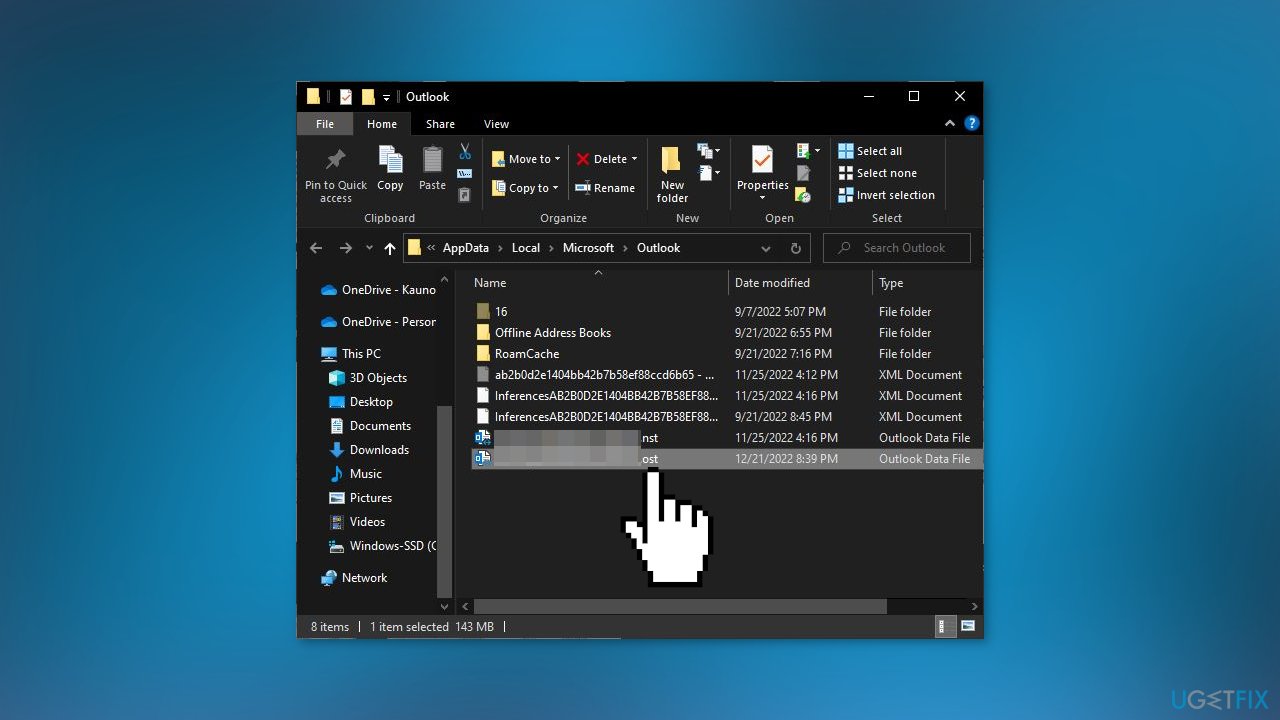
- Delete the default OST file and then restart Outlook
- Outlook will create a new OST file at the same location and sync all your mail items
Bottom line
To fix the issue of missing sent items in Outlook, you can try manually synchronizing the mailbox by using the Send/Receive tab and clicking 'Update Folder.' If the Sent Items folder is missing, you can attempt to restore it through the folder options. If none of these solutions work, further troubleshooting may be necessary.
Frequently asked questions
Sent items may be missing due to incorrect settings in your Outlook or issues with the email server. Check your Outlook settings and ensure that your email account is properly configured to save sent items.
You can recover missing sent items by checking the Deleted Items folder or using the Recover Deleted Items feature if your email server supports it. Additionally, ensure that you have the latest updates for Outlook installed on Windows 11.
If Outlook is not displaying sent items, try repairing the Outlook application through the Control Panel or resetting the view settings. Also, check if the issue persists in Outlook Safe Mode.




Report an issue
What's wrong with this guide? We review every report and update or remove content.
Report received — thank you. We'll review and fix it.
You need a free account to submit a report.
Be the first to comment