How to fix
KernelBase.dll causes application crashes
on Windows
Resolve KernelBase.dll application crashes in Windows 10 and 11 effortlessly. Expert-tested solutions ensure your system runs smoothly and reliably.


What causes How to fix KernelBase.dll causes application crashes in Windows?
- System File Corruption
- Program Compatibility Issues
- Faulty Application
- Multiple Applications Accessing DLL
- Outdated Drivers
Repairs Windows system files, removes malware, and restores a clean OS state — without reinstalling.
Hello. Every time I am trying to play almost any game from my Steam library, I receive crashes with the faulting module KERNELBASE.dll. I tried reinstalling the games in question, but to no avail - I am still getting constant crashes, sometimes even on launch. Any tips would be greatly appreciated.
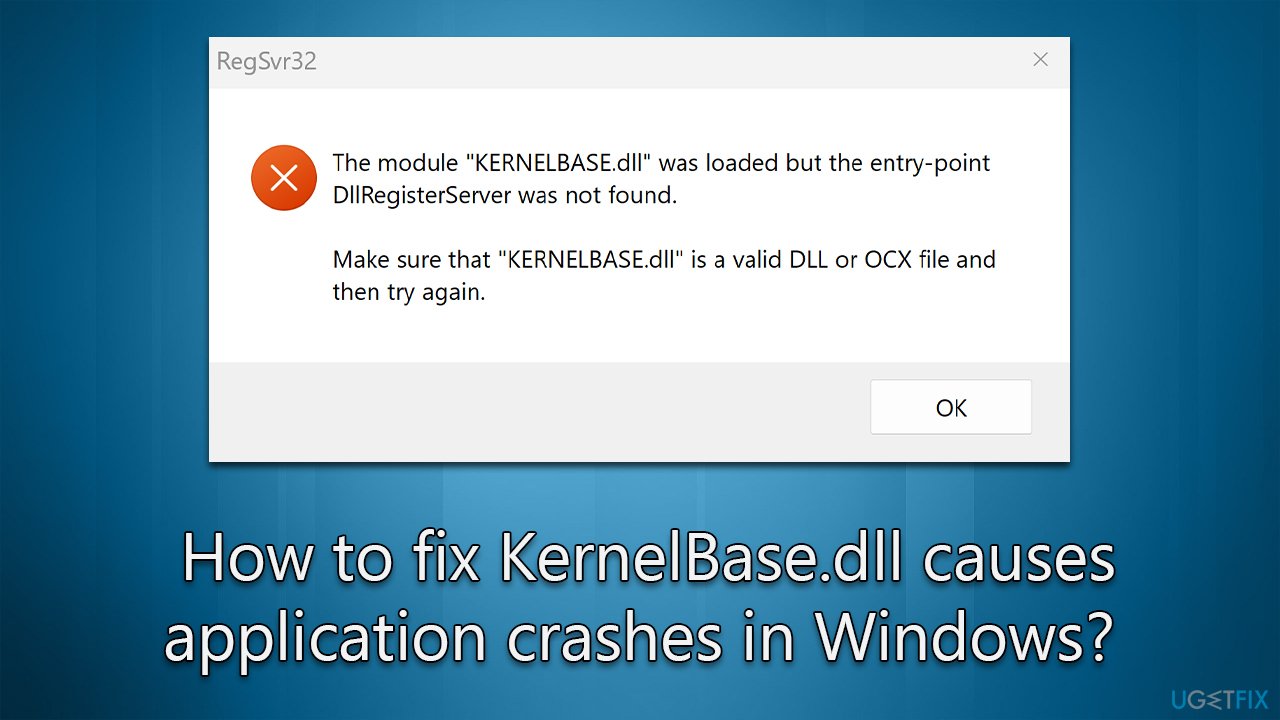
Some users have reported that they receive application crashes with KernelBase.dll when they check the Event Viewer. These issues can occur with any particular program, although many reported having problems with games such as Elden Ring or Halo Infinite. These crashes can occur on various versions of Windows, including 10 and 11.
Windows operating system is known to generate the KernelBase.dll file automatically during installation. This particular Dynamic Link Library file, or DLL, is located in the System32 folder and contains a variety of kernel procedures and driver functions essential for the optimal functioning of your OS - making it critical that this file is intact.
Since KernelBase.dll file - just as many other system-related DLL files - can be used by multiple applications, i.e., it is only accessed whenever one of them needs it at that particular time. Due to this, it may malfunction and behave abnormally, making it a bit difficult to determine what is the root cause of the issue.
Just as with any other issue on Windows, KernelBase.dll crashes could be caused by a variety of issues, including system file corruption, program compatibility issues, or the faulty application itself, as it is usually the victim of the behavior, not that cause. Below we provide solutions for these and a few other problems that you should follow thoroughly.
If you are having problems with DLL files like in this case, we strongly recommend running an automatic PC repair software [d1], which can quickly and easily find and replaced corrupted system files. The app is also great when trying to fix any other common issues, such as BSODs, random crashes, registry errors, and more.
Solution 1. Start with the troubleshooter
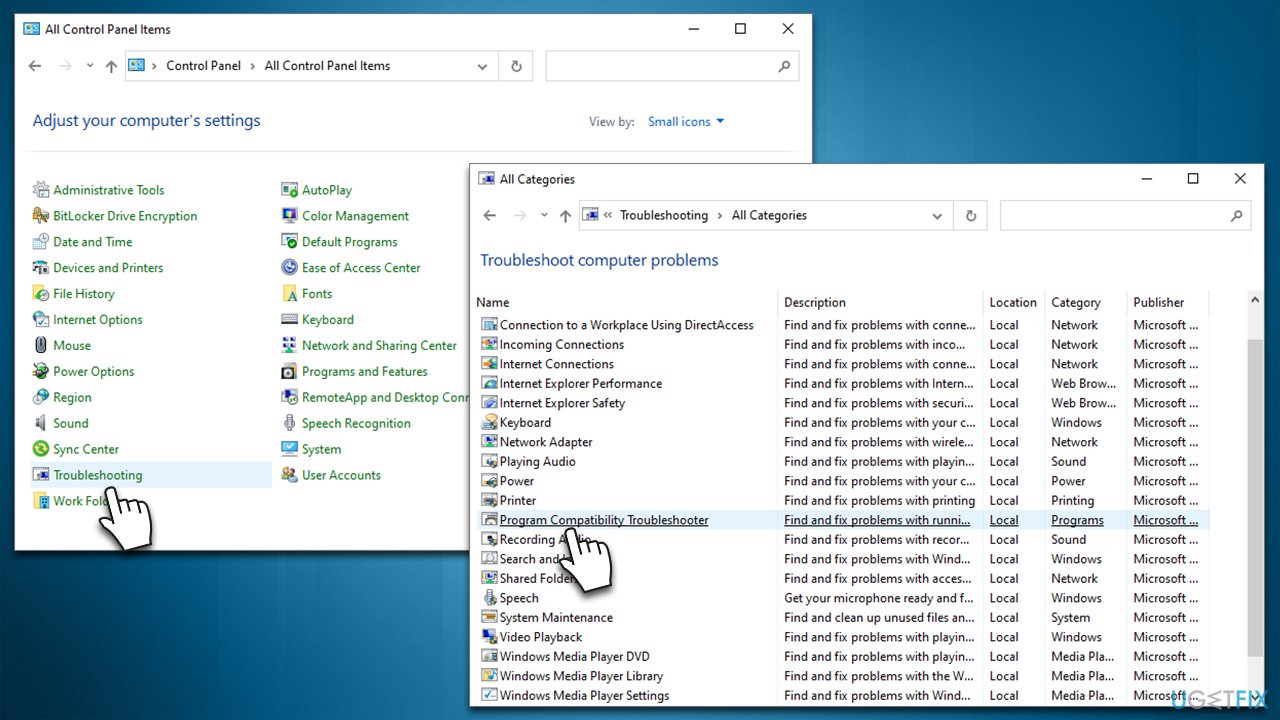
You can start by running the program compatibility troubleshooter as follows:
- Type Control Panel in Windows search and press Enter
- Under the View by: section at the top-right, select Small icons from the drop-down menu
- Select Troubleshooting from the list
- Click View all on the left side of the window
- Select Program compatibility troubleshooter from the list
- Click Next and select the program you are having trouble with
- Click Next and check for the results.
Solution 2. Repair/reset the app
This option is available for all Windows-based apps and a few others.
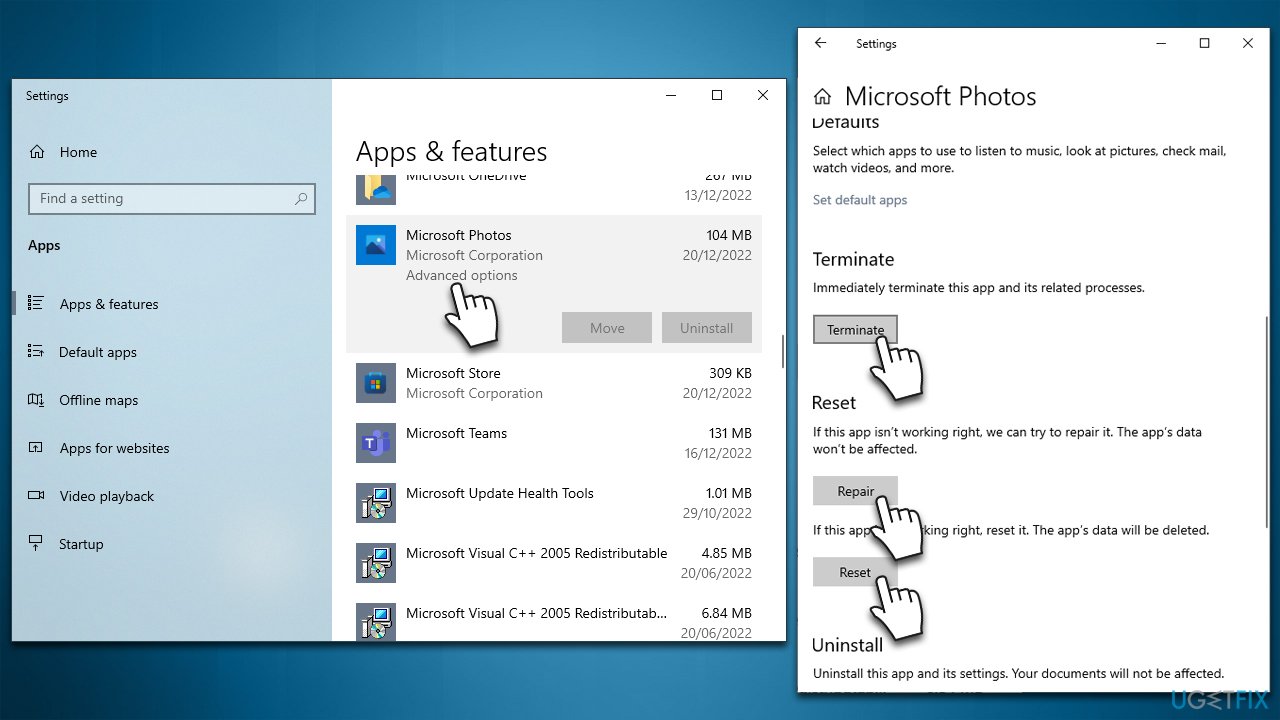
- Right-click Start and pick Apps and Features
- Scroll down to find the crashing app
- Click it and select Advanced options
- Scroll down and click Terminate
- Click Repair and wait
- If this solution doesn't help, try the Reset option instead.
Solution 3. Run SFC/DISM
Fix corrupted system files by using the following steps:
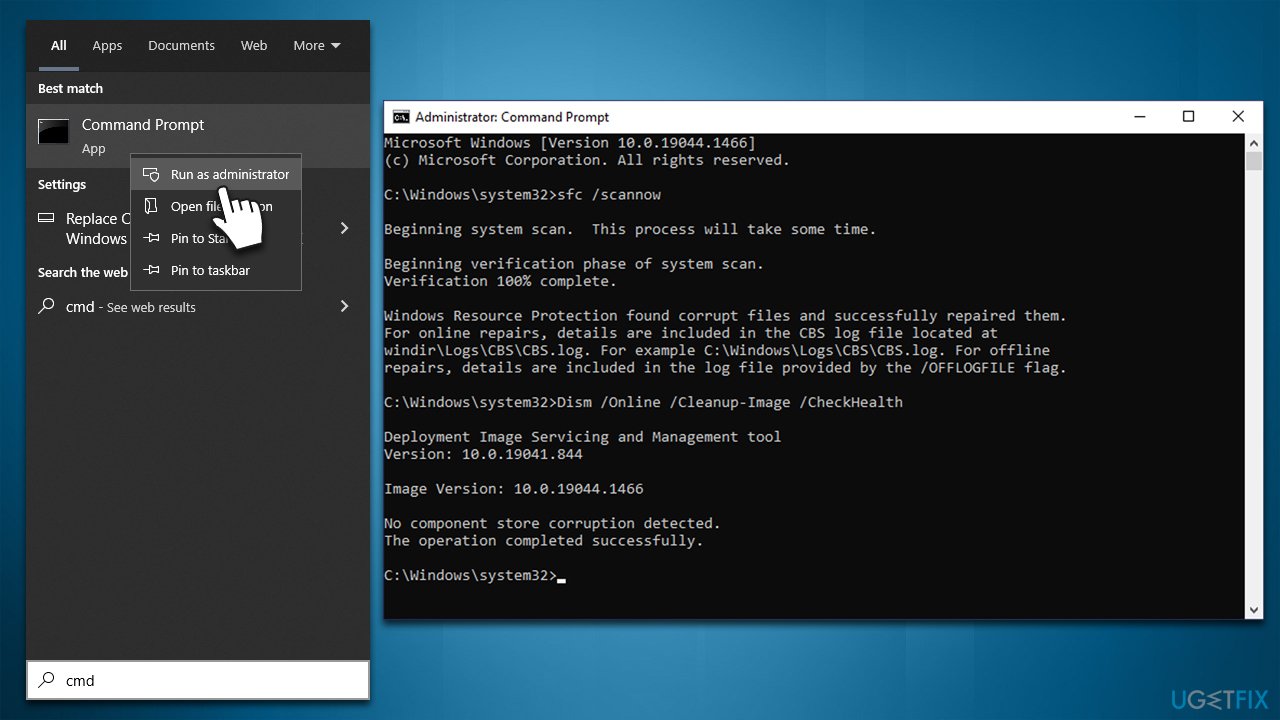
- Type in cmd in Windows search
- Right-click on Command Prompt and select Run as administrator
- Type in the following command, pressing Enter after:
sfc /scannow - Wait till the process finishes and reboot the PC
- If SFC did not help, run DISM
- Open Command Prompt with administrator's rights once again, type in the following commands, and press Enter:
DISM /Online /Cleanup-Image /CheckHealth
DISM /Online /Cleanup-Image /ScanHealth
DISM /Online /Cleanup-Image /RestoreHealth - Close down the Command Prompt and reboot the PC.
Solution 4. Verify the integrity of game files (if applicable)
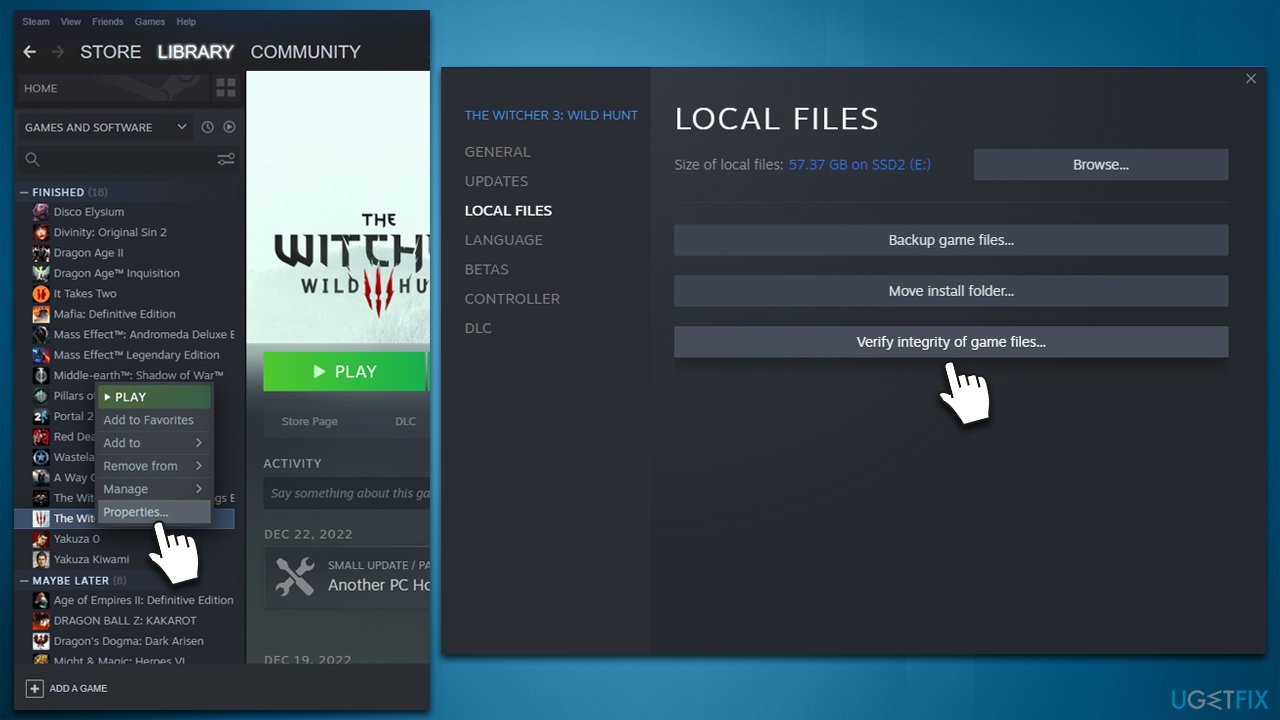
If KernelBase.dll causes games to crash, you should run a built-in feature on Steam or other platforms that allows you to verify the integrity of game files. Follow these steps:
Steam
- Open Steam and select the malfunctioning game
- Right-click and select Properties
- Go to Local Files tab
- Click Verify integrity of game files...
- The process will begin - wait till it is finished and then try launching the game again.
Epic Games
- Launch Epic Games Store
- Go to Library
- Select the crashing game, click the three dots next to it and select Verify
- Wait for the process to complete.
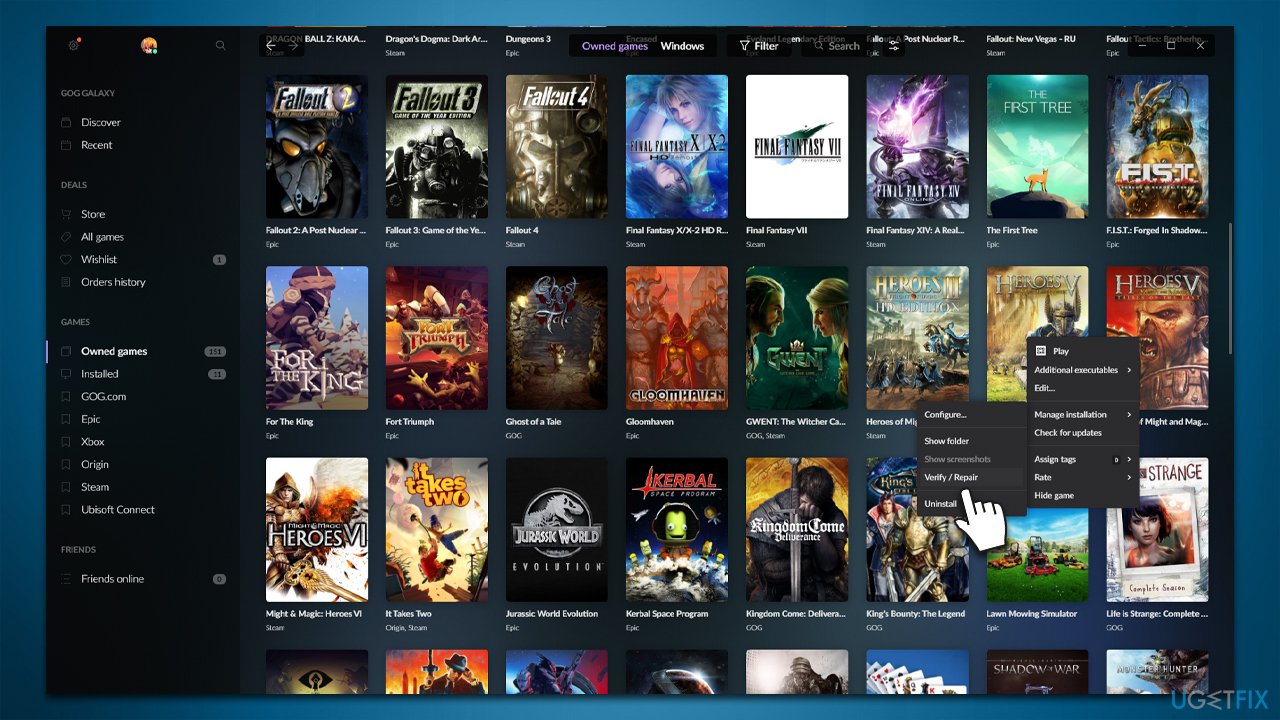
GOG
- Open the GOG client and go to the Owned games section
- Right-click on the game
- Select Manage installation and pick Verify/Repair
- The repair process should start immediately.
Solution 5. Reregister the related file
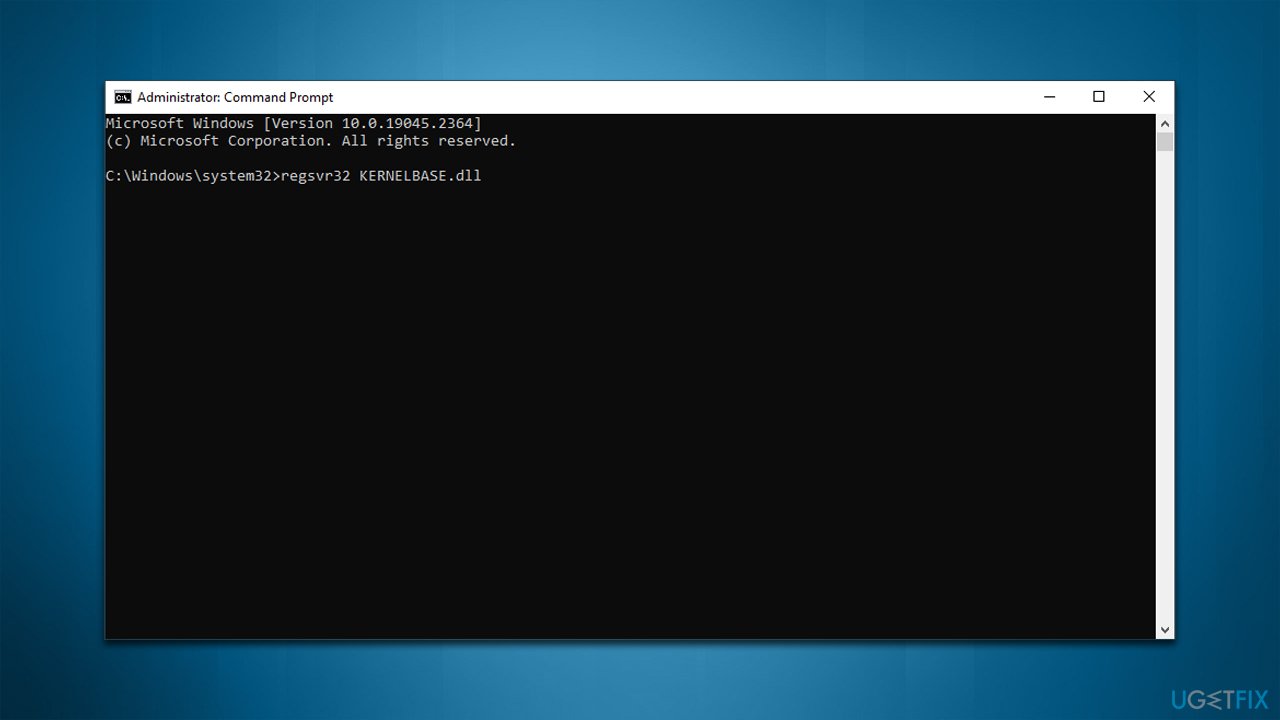
- Open Command Prompt as administrator as explained above
- Copy and paste the following command, pressing Enter after:
regsvr32 KERNELBASE.dll - Restart your device.
Solution 6. Reinstall the app
You should reinstall the app that causes crashes if you haven't done so yet.
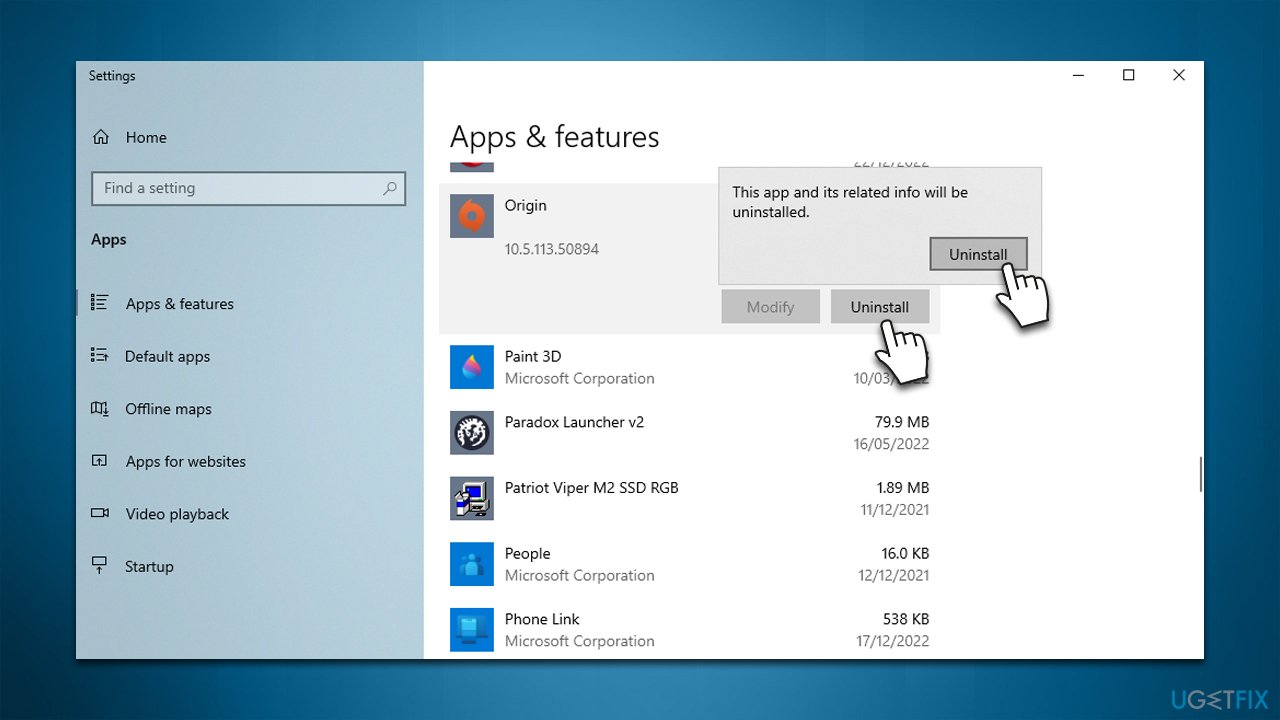
- Right-click Start and pick Apps and Features
- Scroll down to the app in question
- Select Uninstall > Uninstall
- Follow on-screen instructions to finish the process
- Reinstall the app once done.
Bottom line
To fix KernelBase.dll application crashes, you can start by running the troubleshooter, using automatic PC repair software, and ensuring your drivers are up to date. If these solutions do not resolve the issue, consider checking for additional system errors or reinstalling the affected applications.
Frequently asked questions
Common causes include corrupted system files, outdated drivers, or incompatible software that interacts with the KernelBase.dll file.
You can repair the KernelBase.dll file by running the System File Checker tool; simply open Command Prompt as an administrator and execute the command 'sfc /scannow'.
Yes, reinstalling the problematic applications can resolve KernelBase.dll errors if the application files are corrupted or incompatible with your Windows 10 or Windows 11 system.




Report an issue
What's wrong with this guide? We review every report and update or remove content.
Report received — thank you. We'll review and fix it.
You need a free account to submit a report.
Be the first to comment