How to fix
Wdcsam64.sys Memory integrity error
on Windows
Resolve wdcsam64.sys Memory integrity errors in Windows 10 or 11 effortlessly. Get expert-tested solutions and fix issues in minutes!

What causes How to fix wdcsam64.sys Memory integrity error in Windows?
- Incompatible drivers
- wdcsam64.sys causing Memory integrity error
- Driver removal not resolving the issue
- Windows security checks preventing Memory integrity activation
- WD External Storage software causing conflicts
Repairs Windows system files, removes malware, and restores a clean OS state — without reinstalling.
Hello. I am experiencing a Memory integrity error that is caused by wdcsam64.sys. What is this file and how do I fix this?
With its headquarters in San Jose, California, Western Digital Corporation (WDC, sometimes known as Western Digital or WD) is an American data storage and computer drive manufacturer. It creates, produces, and markets goods related to data technology, such as cloud storage services, data center systems, and storage devices for data.
Wdcsam64.sys created by Western Digital Technologies acts as a driver for WD External Storage. This incompatible .sys file is causing an error for some users. The error notice reads as follows:
Incompatible drivers - Resolving incompatibilities with these drivers will enable you to turn on Memory integrity - wdcsam64.sys
Users report that the problem continues even after removing the driver using Device Manager, making it unable to turn on Memory Integrity in Core Isolation in Windows Security.
Users also cannot enable Core isolation due to the Memory integrity wdcsam64.sys problem because Windows performs security checks to make sure all drivers are appropriate before enabling. The application lists any incompatible drivers and suggests fixes if any are found. Unfortunately, the main solution to this problem is to remove all drivers and software related to WD External Storage.
If you experience any other operating system issues you can use a maintenance tool like [d1] that can fix most system errors, BSODs,[ref en-1] corrupted files, registry[ref en-2] issues, or clear cookies and cache[ref en-3] automatically. Otherwise, follow the step-by-step instructions below.
Method 1. Uninstall Driver via Programs and Features
- Press the Windows key + R to open the Run box
- Type appwiz.cpl and press Enter
- Once the Program and Features window opens, find WD Discovery or another item related to wdcsam64.sys and right-click on it
- Click on Uninstall
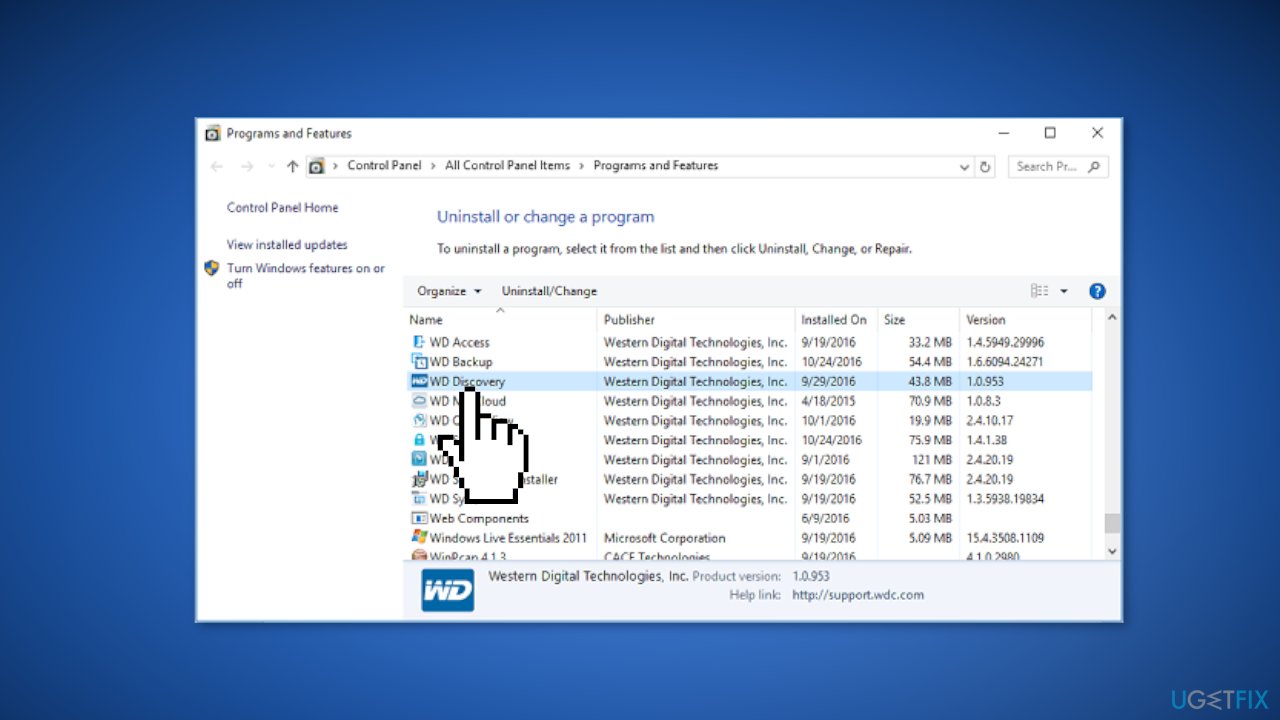
- Once a wizard appears, click on Uninstall again
- Press the Windows key + E simultaneously to open File Explorer
- Hover on See more and select Options
- Switch to the View tab
- Check the option Show hidden files, folders, and drives
- Click on Apply and close the Folder options window
- Then click on Local disk (C:) from the Quick access menu on the left side
- Go to Users and then double-click on the folder named with your Username
- Locate .wdc and delete it
- Open AppData and go to Local, then enter the Temp directory
- Delete all the folders titled WD Discovery
- In the same way, find the following folders and remove them:
C:\Users\USERNAME\AppData\Local\Western Digital\WD Discovery
C:\Users\USERNAME\AppData\Roaming\WD Discovery
C:\Users\USERNAME\AppData\Roaming\WDDesktop
C:\Users\USERNAME\AppData\Roaming\Western Digital\WD Discovery
C:\Users\USERNAME\AppData\Roaming\Western Digital\WDDesktop
C:\Program Files\WD Desktop App
C:\Windows\System32\Drivers\wdcsam64.sys
- Restart the computer
Method 2. Use Autoruns
Autoruns is a utility for Windows that allows you to see all the programs that are configured to run automatically when your computer starts up. It can also be used to disable or delete programs that you no longer need or that may be malicious.
- Navigate to the Microsoft website and download the current version of Autoruns
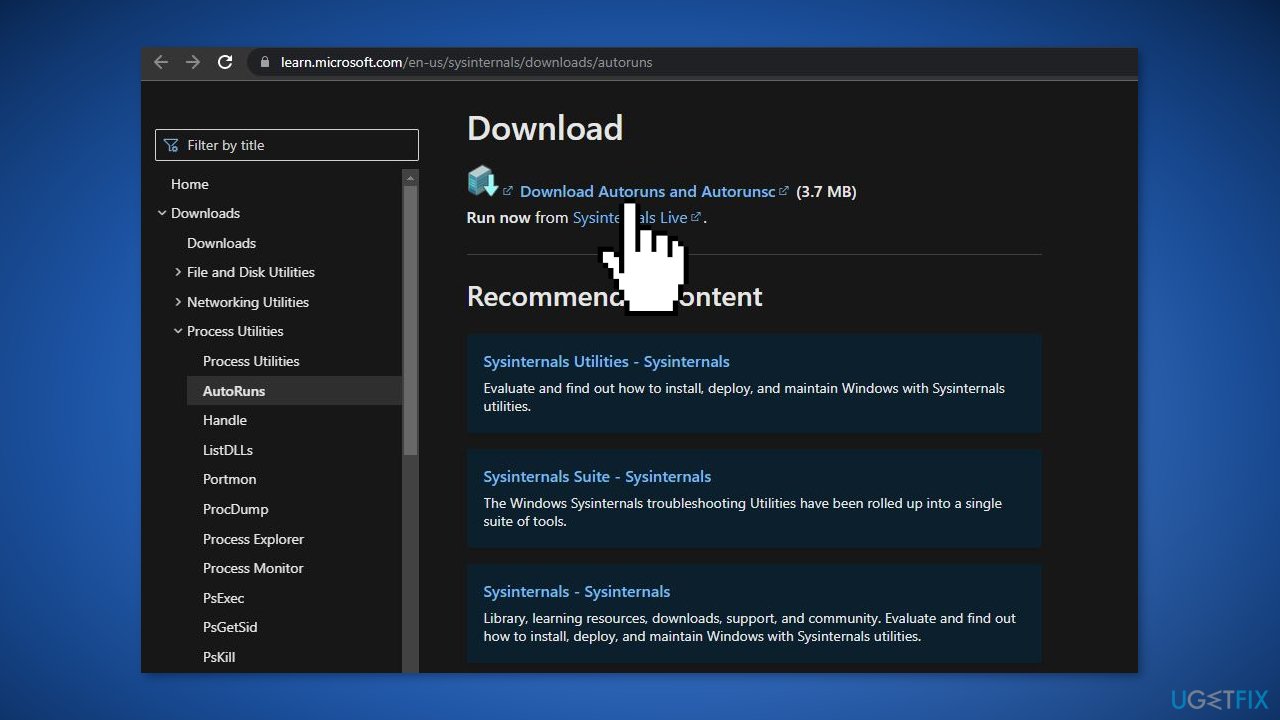
- Extract Autoruns.zip and launch the app using the supporting.exe file
- When the tool completely loads type wdcsam64 in the Quick filter search box
- Press Enter to get the resulting files and folders
- Look for the wdcsam64-related items in the app and delete them
- Reboot your PC
Method 3. Uninstall Driver via Device Manager
- Right-click on the Start menu and select Device Manager
- Click on View and then Show hidden devices
- Find WD Drive Management devices
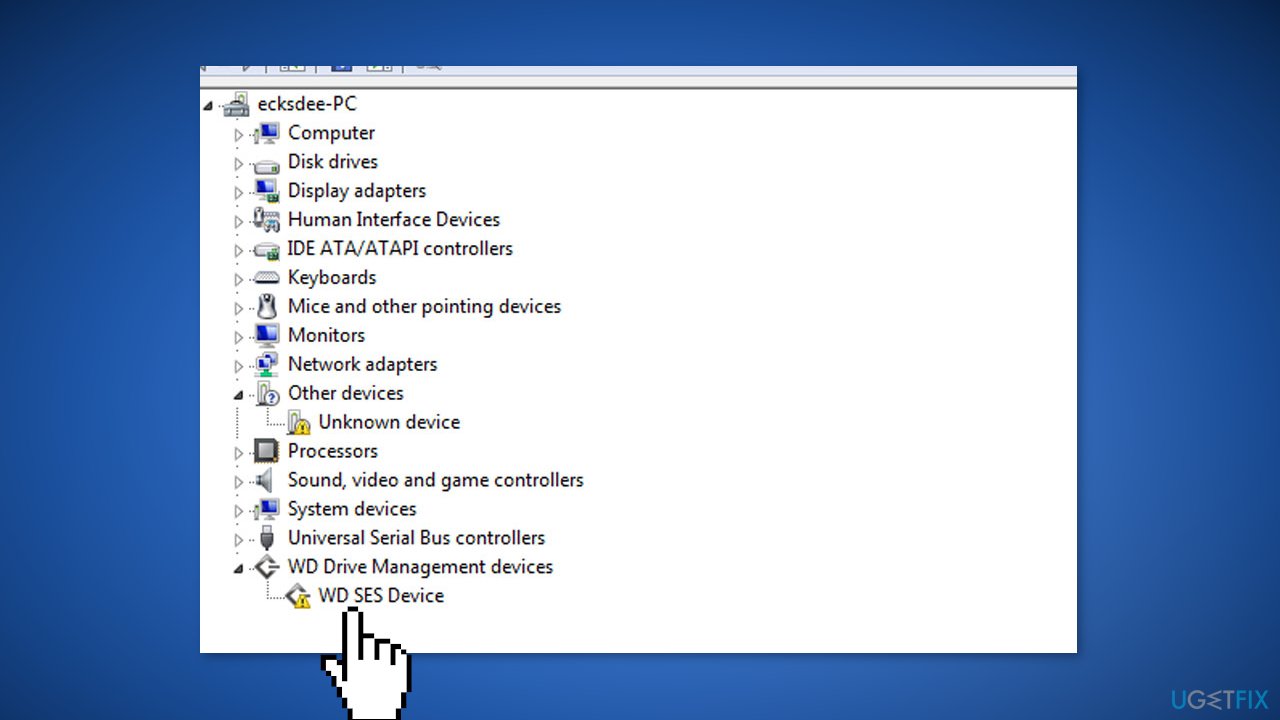
- Right-click on WD SES Device
- Select Uninstall
- Once a pop-up appears, check the box associated with Delete the driver software for this device
- Click on Uninstall and restart the device
Bottom line
To fix the wdcsam64.sys Memory integrity error, users should uninstall the WD Discovery software and any related drivers through Programs and Features. Additionally, enabling hidden files in File Explorer may help in locating and removing any residual files. If these steps do not resolve the issue, consider using a maintenance tool to address other potential system errors.
Frequently asked questions
The wdcsam64.sys Memory integrity error is often caused by incompatible drivers or corrupted system files that conflict with memory integrity settings in Windows 10 and Windows 11.
To disable Memory integrity, go to Windows Security, select Device Security, click on Core isolation details, and toggle off Memory integrity in Windows 10 and Windows 11.
Disabling Memory integrity can resolve the error, but it may expose your system to potential security risks; consider updating drivers first before disabling.




Report an issue
What's wrong with this guide? We review every report and update or remove content.
Report received — thank you. We'll review and fix it.
You need a free account to submit a report.
Be the first to comment