How to fix
Sdl.dll missing or not found error
on Windows
Resolve the Sdl.dll missing error on Windows 10 and 11 swiftly. Follow our expert-tested solutions for a hassle-free experience. Fixed in minutes.

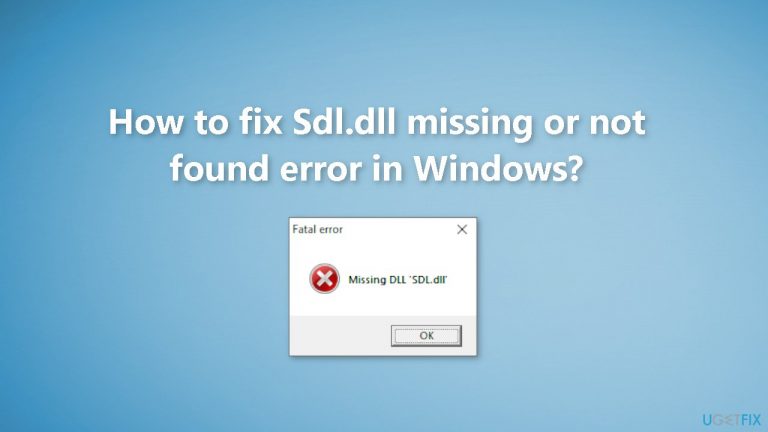
What causes How to fix Sdl.dll missing or not found error in Windows?
- Corrupt sdl.dll file
- Missing sdl.dll file
- Malware or virus infection
- Problem with a software program using sdl.dll
Repairs Windows system files, removes malware, and restores a clean OS state — without reinstalling.
Hello. Whenever I try to launch an application in Windows I receive the "Sdl.dll is missing or not found" error. How do I get rid of it?
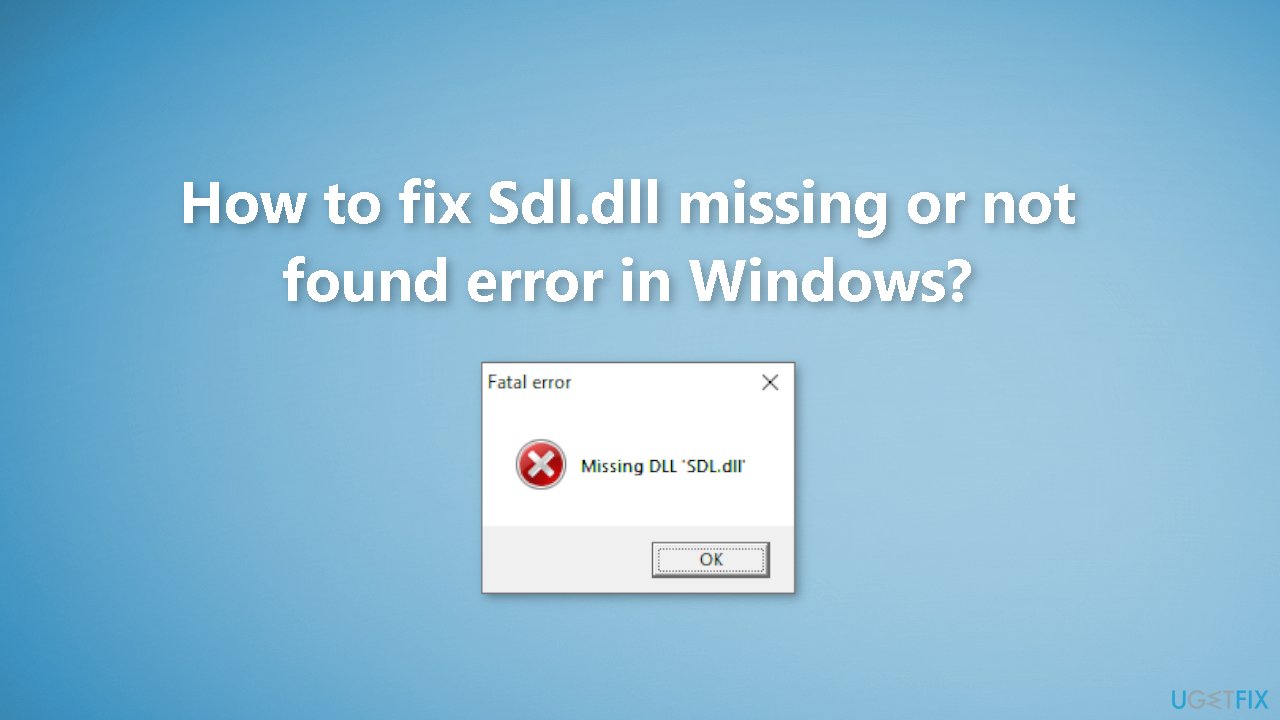
The "Sdl.dll missing or not found" error is an issue that can occur in Windows when the sdl.dll file, which stands for Simple DirectMedia Layer Dynamic Link Library,[ref en-1] is missing or not found. This error can occur for a variety of reasons, including a corrupt or missing sdl.dll file, a malware or virus infection, or a problem with a software program that uses the sdl.dll file.
A .dll file, or dynamic link library, is a type of file that contains instructions that other programs can call upon to perform specific actions. DLL files are used to help reduce the amount of memory and resources that are required by a program, as they allow multiple programs to share the same code.
The impact of the "Sdl.dll missing or not found" error can vary depending on the software program that is using the file. In some cases, the program may not be able to start at all, while in others, certain features or functionality may be missing or not work properly.
In this guide, you will find 6 steps that should help you fix "Sdl.dll missing or not found" error in Windows. However, the manual troubleshooting process can be lengthy. You can use a maintenance tool like [d1] that can fix most system errors, BSODs,[ref en-2] corrupted files, or registry[ref en-3] issues. Otherwise, follow the step-by-step instructions below.
Solution 1. Fix Corrupted System Files
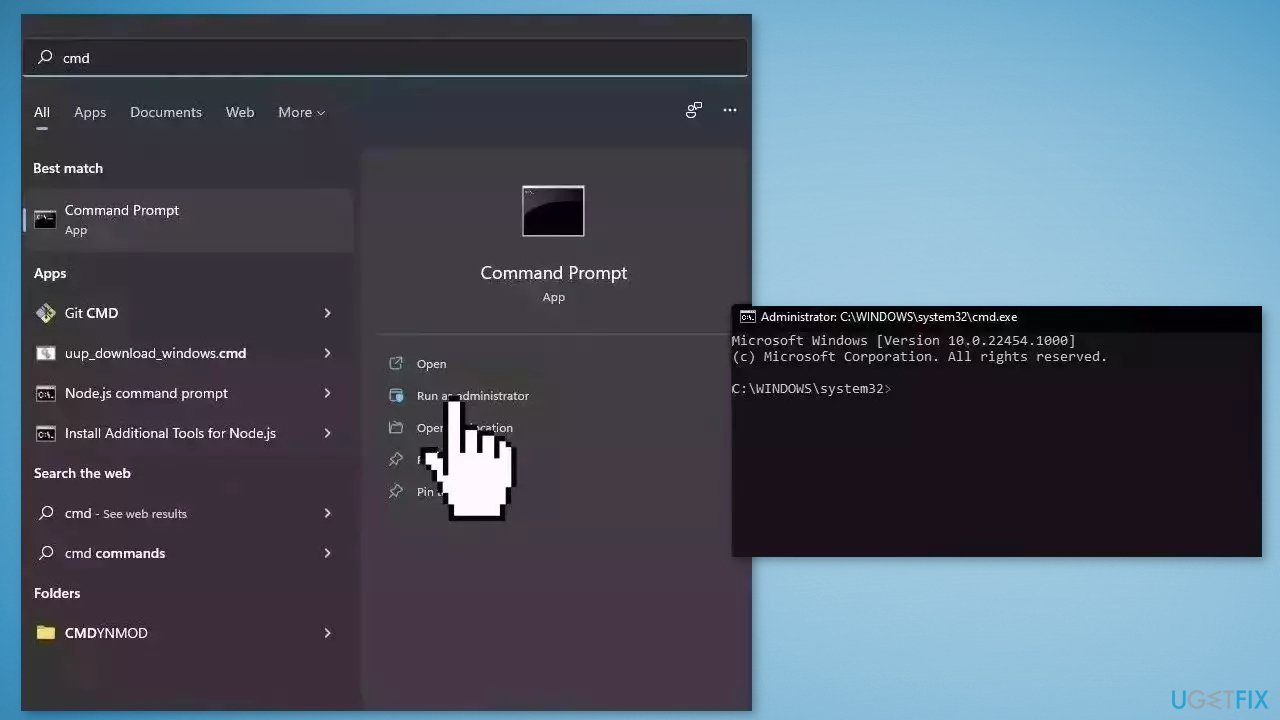
Use Command Prompt commands to repair system file corruption:
- Open Command Prompt as administrator
- Use the following command and press Enter:
sfc /scannow
- Reboot your system
- If SFC returned an error, then use the following command lines, pressing Enter after each:
DISM /Online /Cleanup-Image /CheckHealth
DISM /Online /Cleanup-Image /ScanHealth
DISM /Online /Cleanup-Image /RestoreHealth
Solution 2. Restore SDL.dll from Recycle Bin
The most straightforward explanation for a "missing" sdl.dll file is that you accidentally deleted it. You can go to your Recycle Bin and check if it is there:
- Go to the Recycle Bin
- Locate the Sdl.dll file and recover it
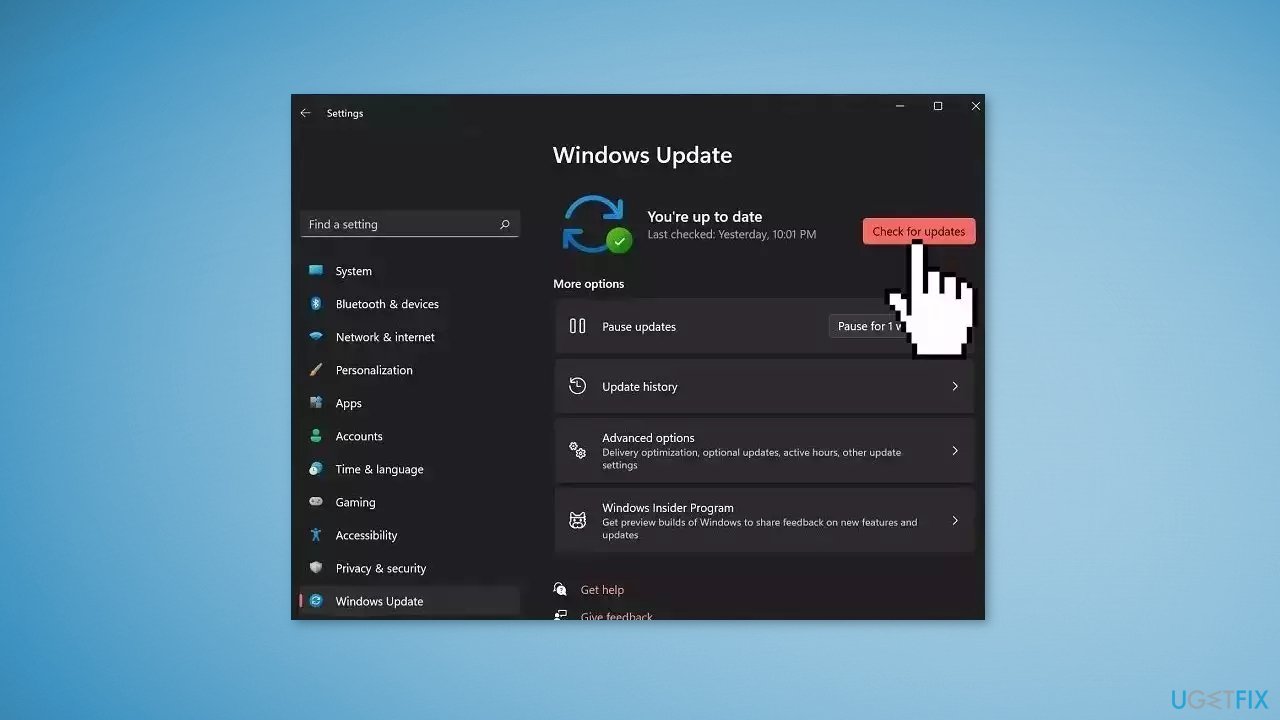
Solution 3. Update Windows
- Click Settings from your start menu and click Update & Security
- Choose Windows Upgrade from the left panel and click the Check for updates button, and then your computer will check for, download, and install any updates found
Solution 4. Reinstall the Problematic Program
If you're having trouble with a certain software or application on your computer, it's likely that it carried the SDL.dll file with it and that something went wrong. If that's the case, fixing this issue and removing any SDL.dll-related error messages you may be encountering may only require you to delete the problematic program and then reinstall it.
- Click the Windows icon in the taskbar to open the Start menu
- At the top of the Start menu, you’ll see a list of pinned apps
- If the app you want to uninstall is in this list, right-click it and then click Uninstall from the context menu that appears
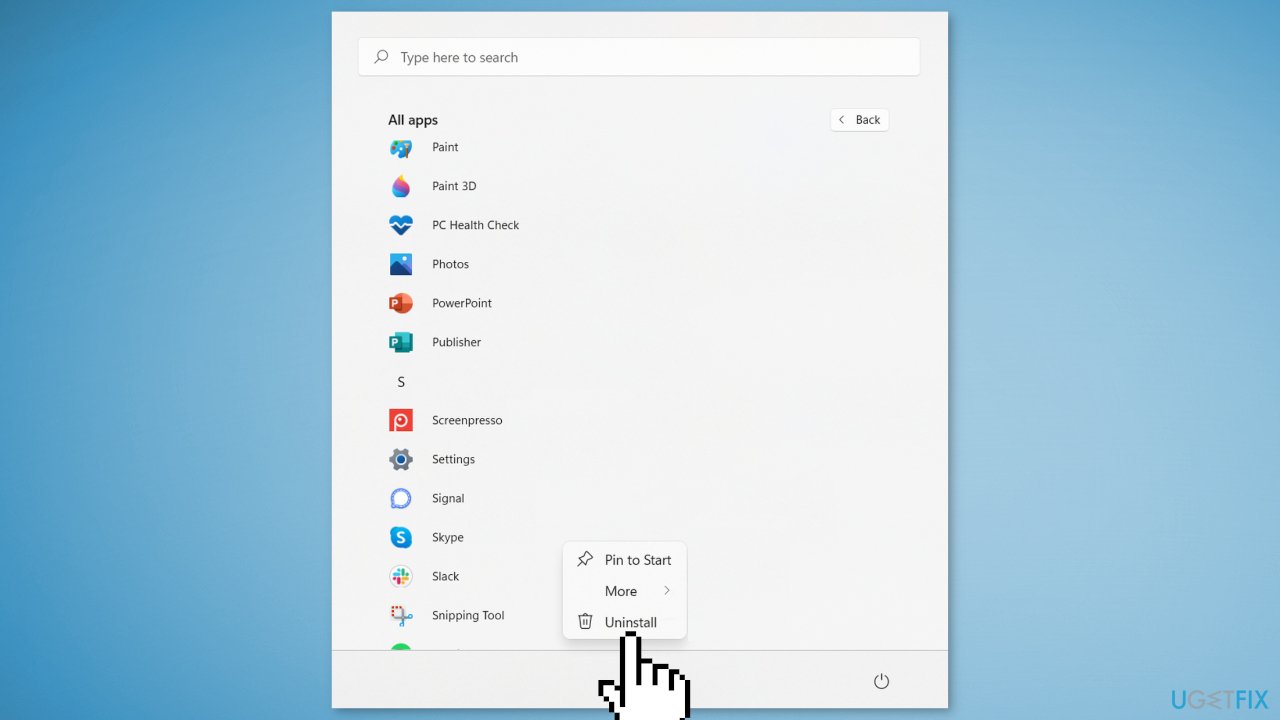
- If the app you want to uninstall isn’t in the list of pinned apps, click All Apps to the right of the pinned apps group
- Locate the app you want to uninstall, right-click it, and then click Uninstall from the context menu
- Once selected, a pop-up notification will appear
- The notification will tell you that the app and all its related data will be removed
- If you’re sure, click Uninstall
Solution 5. Use System Restore
System Restore is a feature in Microsoft Windows that allows users to revert their computer's state to a previous point in time. This can be helpful if you have made changes to your system that are causing problems.
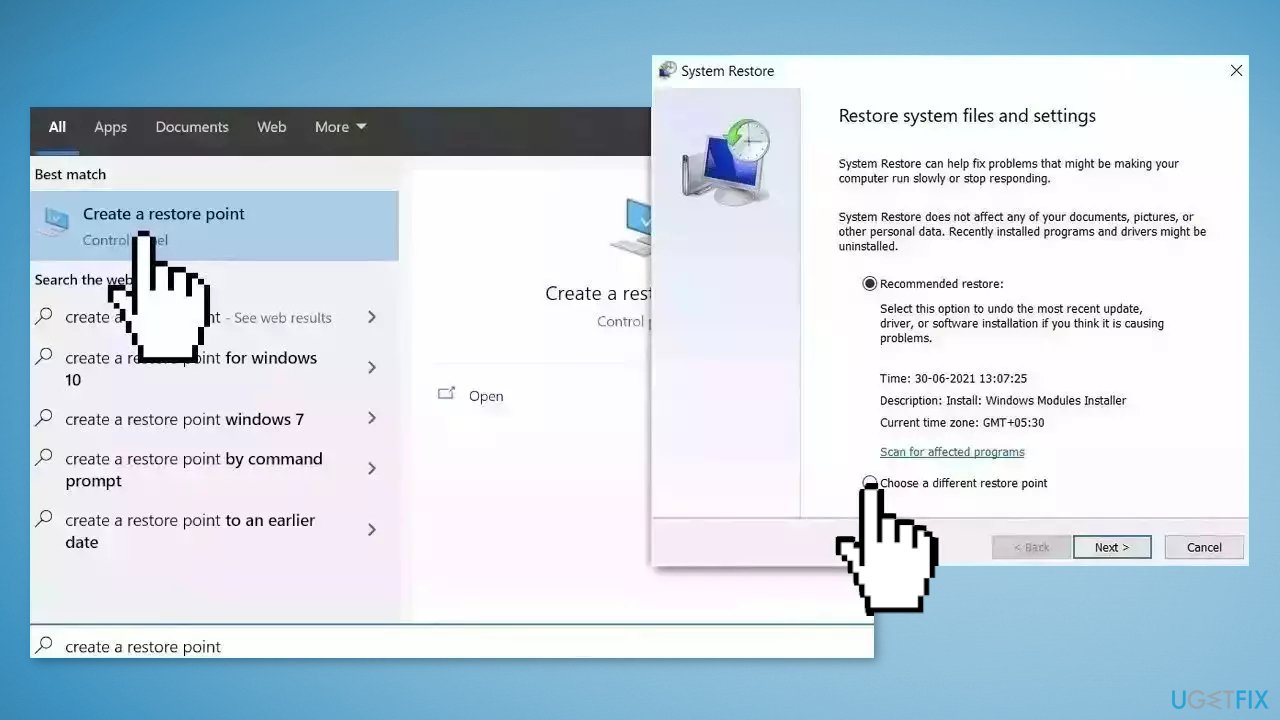
- Go to the Start menu, type restore, and click on Create a restore point
- Click System Restore, then follow the prompts until you can select a restore point
- Select the one you want (ideally before the issue started occurring) and go ahead with the process
Solution 6. Clean Install Windows
- Visit the official Microsoft website to download Windows 11 or Windows 10 Installation Media
- Run the Media Creation Tool and select Create Installation Media for another PC
- Select your USB drive
- Let the Process complete of writing the Installation files to the USB drive
- Click Finish
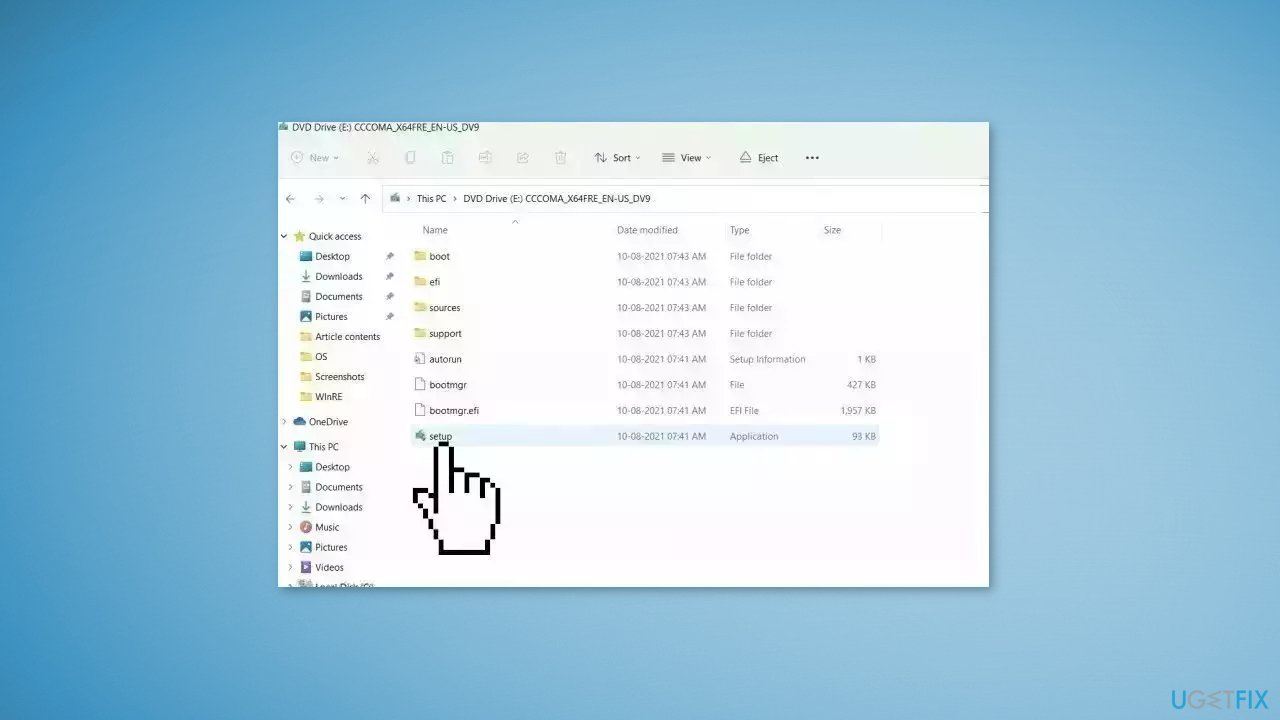
- On the PC you wish to upgrade, Press Windows + E to open the File Explorer
- Open the Removable drive and click Setup.exe
- Accept the license terms on the next screen
- Confirm the Upgrade options – Files, apps and Settings are kept
- Click Install, and the upgrade should start
Bottom line
To fix the 'Sdl.dll missing or not found' error, you can repair corrupted system files using Command Prompt, restore the sdl.dll file from the Recycle Bin, or use a maintenance tool to address system errors. If these solutions do not work, consider seeking further technical assistance.
Frequently asked questions
You can try reinstalling the application that is giving the error, or download a fresh copy of the Sdl.dll file and place it in the application's directory or in the Windows System32 folder.
You can run a System File Checker scan by opening Command Prompt as an administrator and typing 'sfc /scannow' to repair corrupted system files that might cause the error.
No, downloading Sdl.dll from unverified sources can expose your system to malware; it's best to obtain it from official software vendors or use a reliable repair tool.




Report an issue
What's wrong with this guide? We review every report and update or remove content.
Report received — thank you. We'll review and fix it.
You need a free account to submit a report.
Be the first to comment