How to fix
“Bootstrapper has stopped working” error
on Windows
Resolve the "Bootstrapper has stopped working" error in Windows 10/11 with our expert-tested solutions and clear instructions. Fixed in minutes!


What causes How to fix “Bootstrapper has stopped working” error in Windows?
- Third-party security software
- Disabled Task Scheduler
- Compatibility issues
- Interfering applications
Repairs Windows system files, removes malware, and restores a clean OS state — without reinstalling.
Hello. I tried to install Microsoft Office but I received the "Microsoft Setup Bootstrapper has stopped working" error. How do I solve this?
On a computer running Microsoft Windows, Bootstrapper.exe is a program that is used to install prerequisites for applications. Prerequisites are extra components or programs needed for an application to function properly. Developers frequently use Bootstrapper.exe to include prerequisites into their programs so that users won't need to manually install all of the necessary software before installing and using the program.
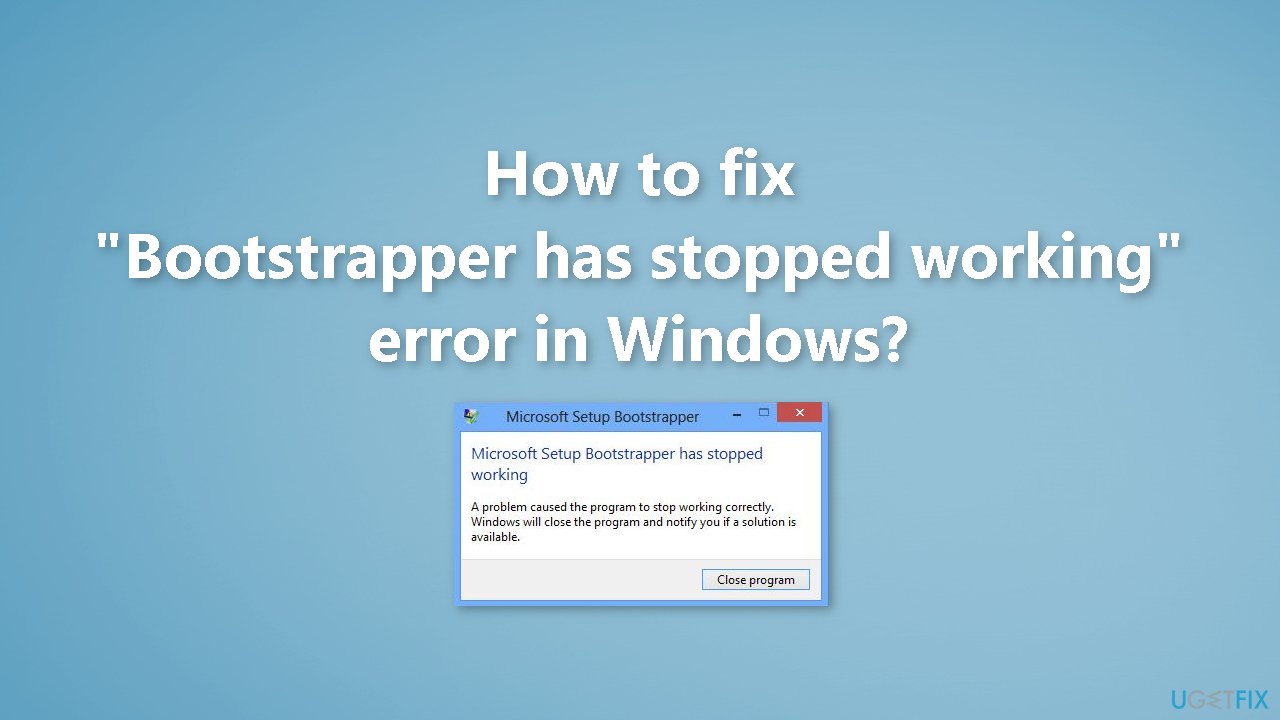
Unfortunately, some users are seeing the "Microsoft Setup Bootstrapper has stopped working" in Windows when trying to install certain programs, for example - applications from the Microsoft Office Suite. There are many factors that could be causing this as there is no single culprit.
Firstly, the error may be caused by third-party security software. Other possible causes include a disabled Task Scheduler, compatibility issues, or other applications that could be interfering with the installation process. In this guide, you will find 7 steps that should help you fix "Bootstrapper has stopped working" error in Windows.
However, manual troubleshooting can be a lengthy process. You can also use an automatic repair tool like [d1]. It can fix most system errors, BSODs,[ref en-1] corrupted files, registry[ref en-2] issues, or clear cookies and cache.[ref en-3] Otherwise, follow the step-by-step instructions below.
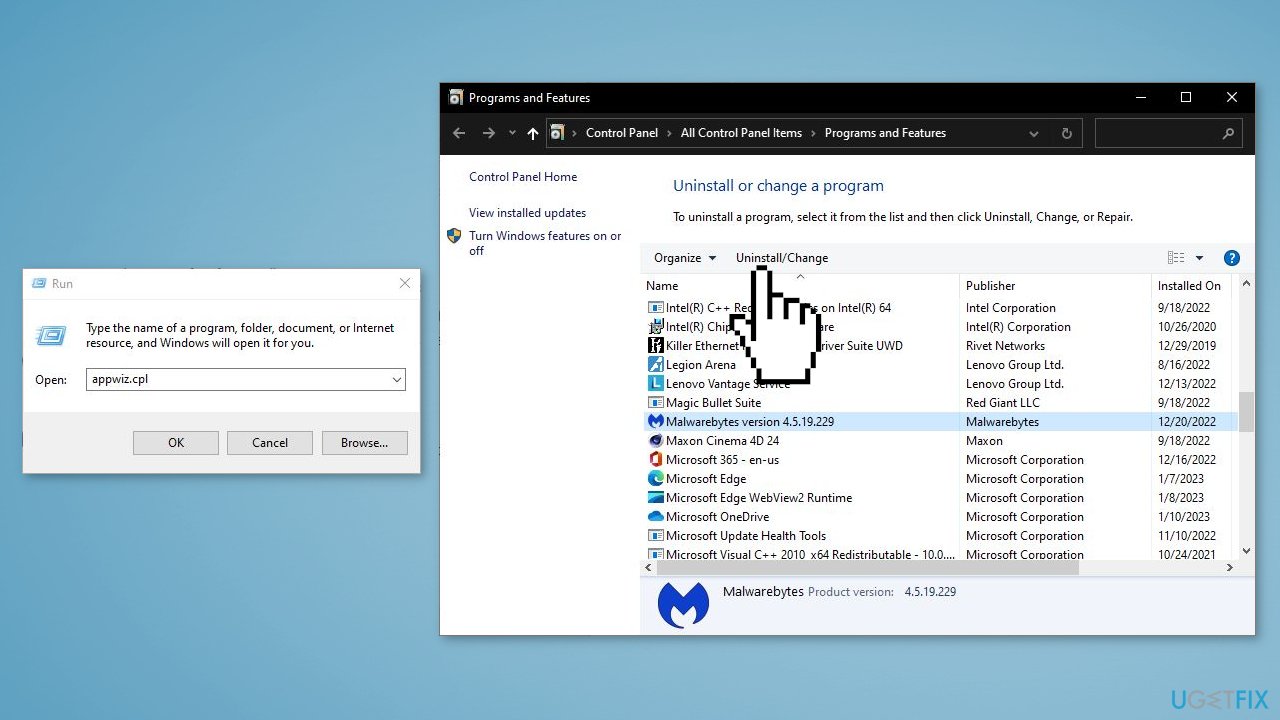
Method 1. Uninstall Third-Party Antivirus Software
To troubleshoot the "Microsoft Setup Bootstrapper has stopped working" error, the initial step you should take is to uninstall any third-party antivirus software that may be installed on your computer. Here is a step-by-step guide on how to do this:
- Press the Windows key + R simultaneously to open the Run dialog box
- Type appwiz.cpl in the box and then press OK
- In the Programs and Features window, locate any third-party antivirus software that is installed on your computer, right-click on it, and select Uninstall
- Follow the prompts to remove the software from your PC
Method 2. Run the Program Install and Uninstall Troubleshooter
The Microsoft Program Install and Uninstall troubleshooter is a tool that can aid in resolving the "Microsoft Office Bootstrapper" error, according to reports from many users. This troubleshooter is intended to address issues that prevent users from installing or uninstalling software. The Program Install and Uninstall troubleshooter is not a built-in feature of Windows, but it can be downloaded and run with these steps:
- Open the Program Install and Uninstall troubleshooter download page
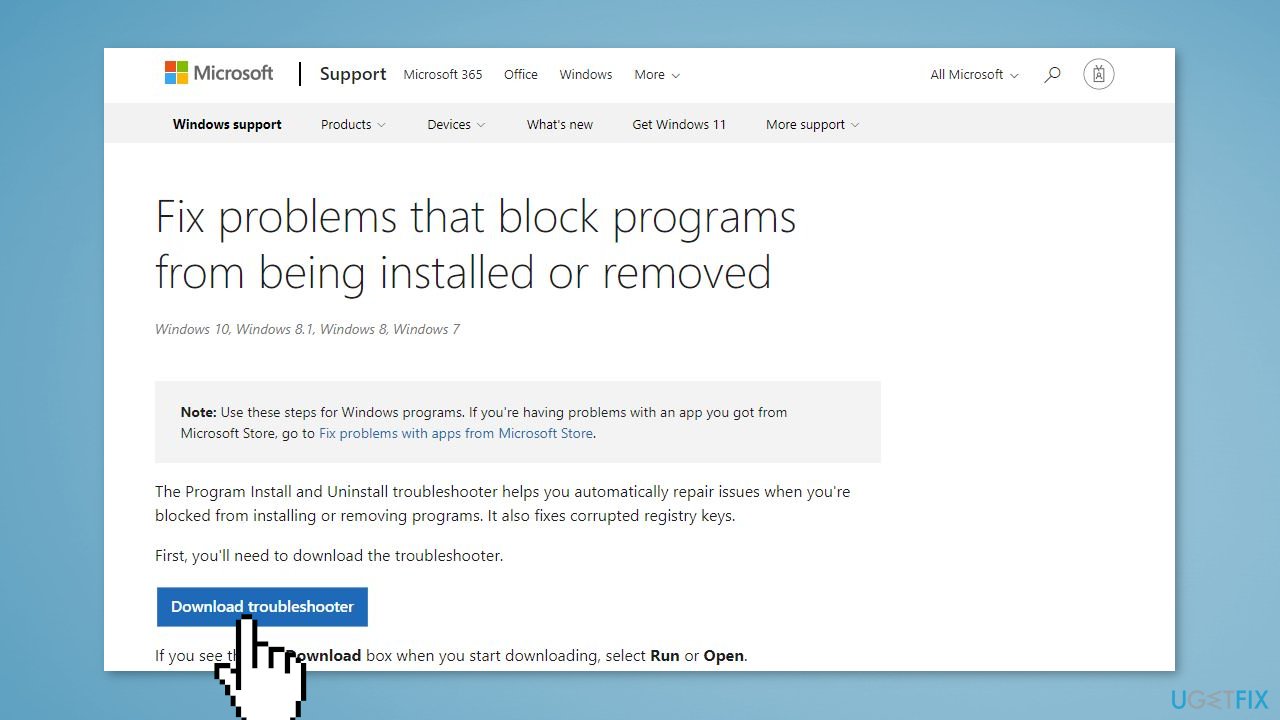
- Select the Download troubleshooter option on the Microsoft page
- Click the File Explorer’s pinned taskbar shortcut to open the folder containing the downloaded file
- Double-click the MicrosoftProgram_Install_and_Uninstall.meta.diagcab file
- Select Next to start the troubleshooting process
- Select Installing option
- Select the software you are having issues installing and click the Next button again
- Select either the Yes, try uninstalling option or No, try other fixes option, depending on your preference.
Method 3. Run the Program Compatibility Troubleshooter
The Program Compatibility Troubleshooter is another tool that may be useful in resolving the Bootstrapper error. This troubleshooter can help to address compatibility issues with the Office setup file.
- Press the Windows key + E to open File Explorer
- Navigate to the folder that contains your Office setup file
- Right-click the Office setup.exe file and select Show more options > Troubleshoot compatibility
- Select Try recommended settings to apply a test run
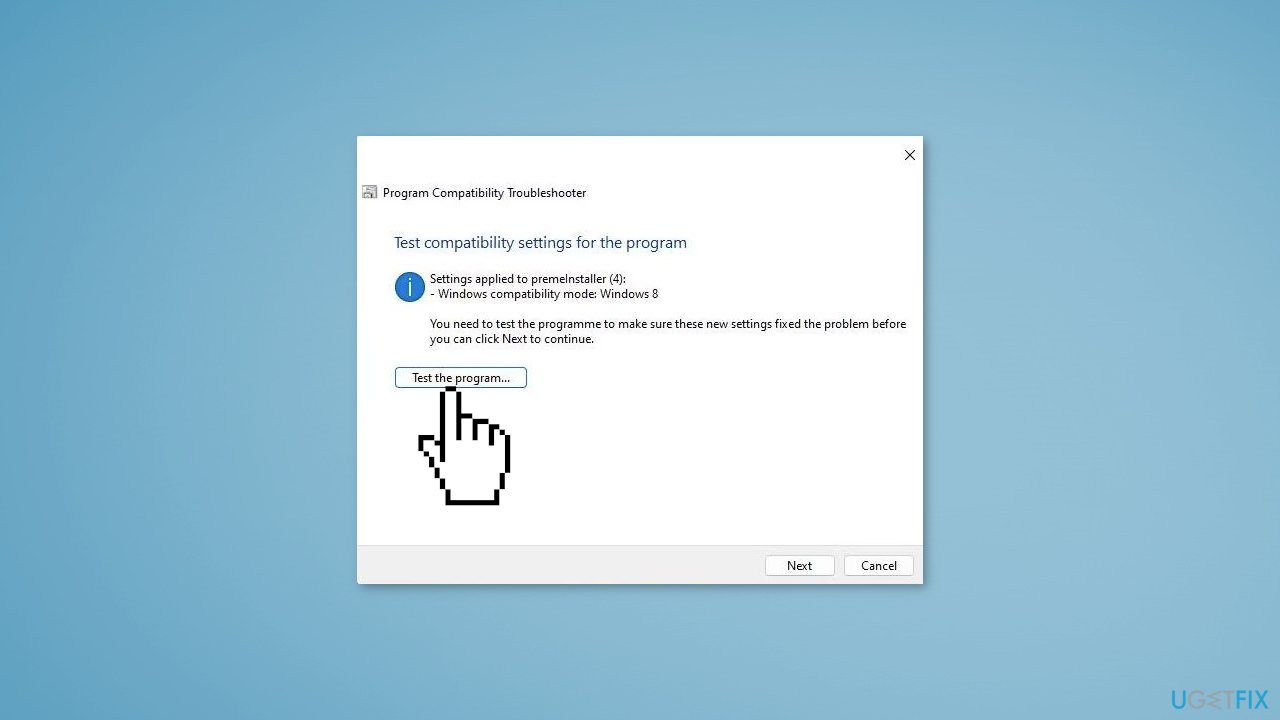
- Press the Test the program button
- Click the troubleshooter’s Next option
- Select the Yes, save these settings option if the setup wizard didn’t have any issues when tested
- Try installing Office again after troubleshooting
Method 4. Re-enable Task Scheduler
According to user reports on forums, re-enabling the Task Scheduler by editing the registry can resolve the Bootstrapper error. This error may be caused by a disabled Task Scheduler that Office services cannot access.
- Press the Windows key + R simultaneously to open the Run dialog box
- Type regedit and click OK
- Navigate to the following registry key in the Registry Editor: Computer\HKEY_LOCAL_MACHINE\SYSTEM\CurrentControlSet\Services\Schedule
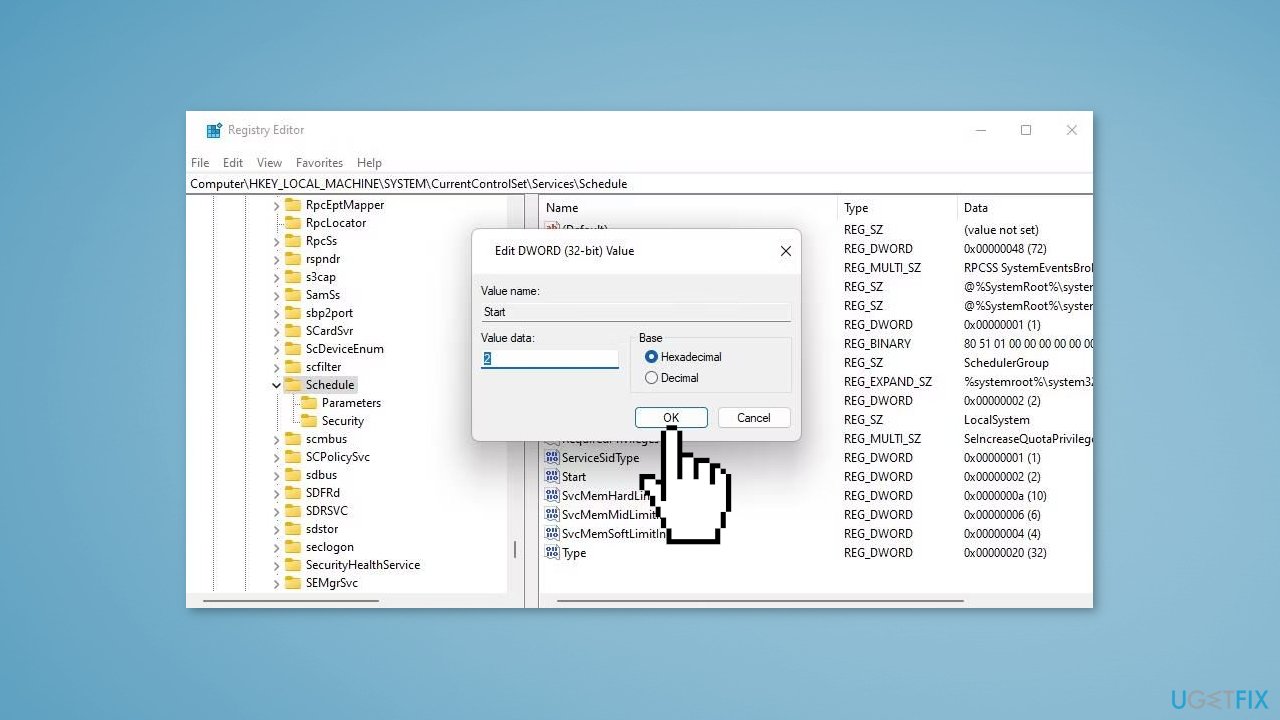
- Select the Schedule key in the left sidebar
- Double-click the Start DWORD
- Enter 2 in the Value data box for the Start DWORD, then click OK to exit
- Close the Registry Editor
- Restart your computer
Method 5. Remove the AppCompactFlag Registry Key
Another potential solution for resolving the Bootstrapper error is through editing the registry by uninstalling any existing Office installation on your PC and removing the AppCompatFlags key.
- Press the Windows key + R to open the Run dialog box
- Type regedit and press Enter to launch the Registry Editor
- In the address bar of the Registry Editor, navigate to the following location: HKEY_LOCAL_MACHINE\SOFTWARE\Microsoft\Windows NT\CurrentVersion\AppCompatFlags
- Right-click the AppCompatFlags key and select Export for backup purposes
- Choose a folder to save the exported key and click Save
- Right-click the AppCompatFlags key and select Delete
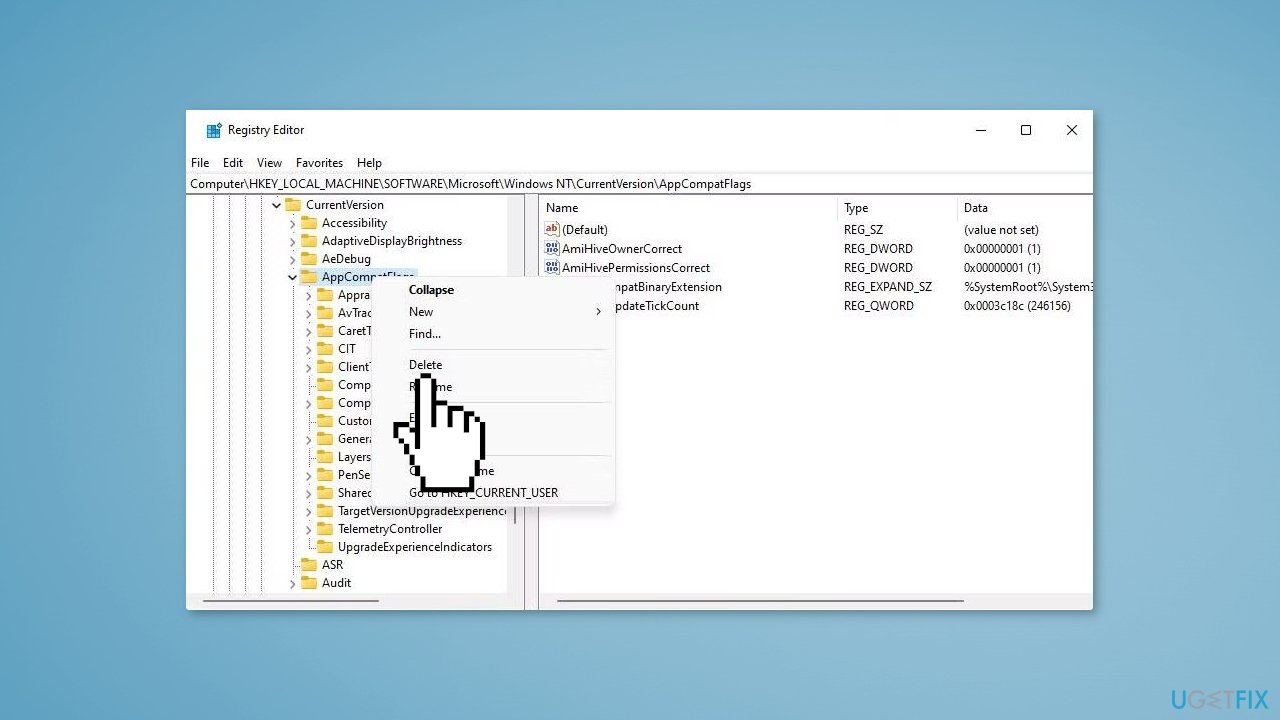
- Click the Yes button in the confirmation window to delete the key and its subkeys
- Close the Registry Editor
- Restart Windows
Method 6. Open Setup.exe in Compatibility Mode
When attempting to install an older version of Office on your computer, you may encounter the "Microsoft Setup Bootstrapper has stopped working" error. However, you can try to resolve this error by running the Setup.exe file in Compatibility Mode. This mode can help the setup to run properly even if it was designed for an earlier version of Windows. Here is how you can do this:
- Locate the Setup.exe file of the Office version you are trying to install
- Right-click on the Setup.exe file and select Properties
- Go to the Compatibility tab
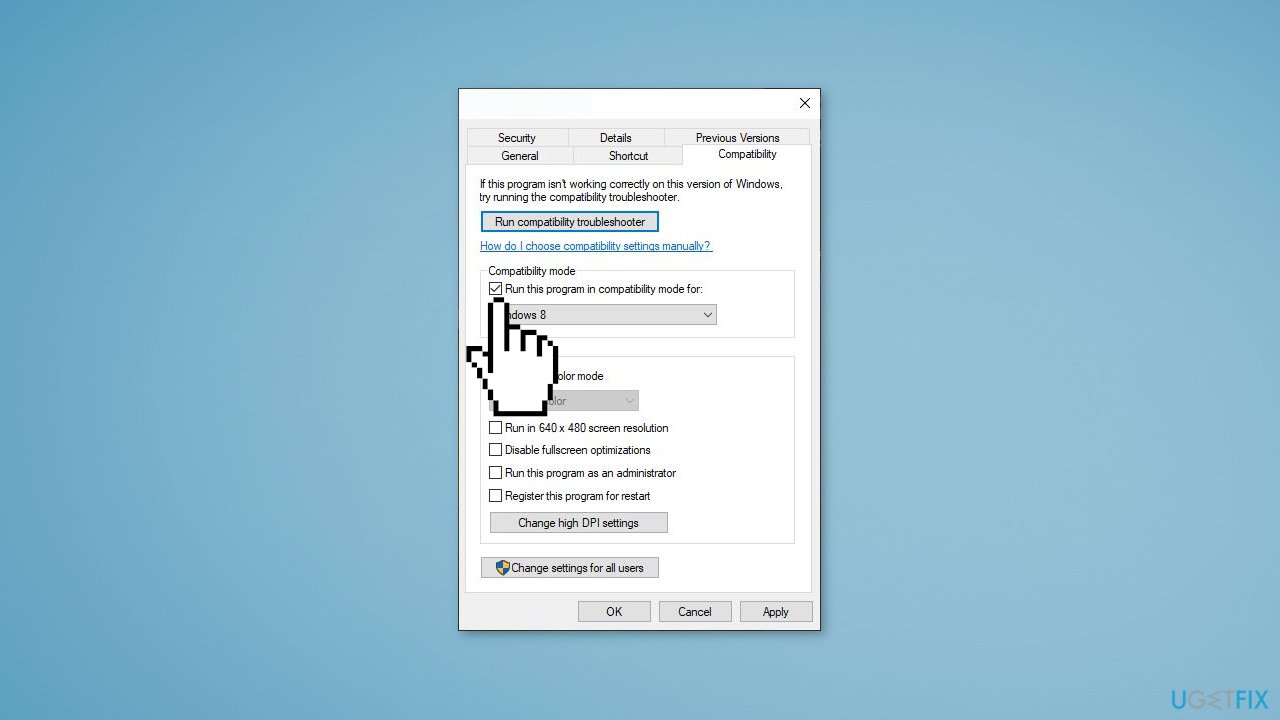
- Check the Run this program in compatibility mode for and select the appropriate version of Windows
- Click on Apply and OK
- Double-click the Setup.exe file to run it in compatibility mode
Method 7. Try Clean Boot
- Open the Search menu, type in system configuration, and press Enter
- Under the Services tab, tick the Hide all Microsoft services box
- Click on Disable all button
- Head over to the Startup tab and click on Open Task Manager
- Select a third-party program and click on Disable at the top
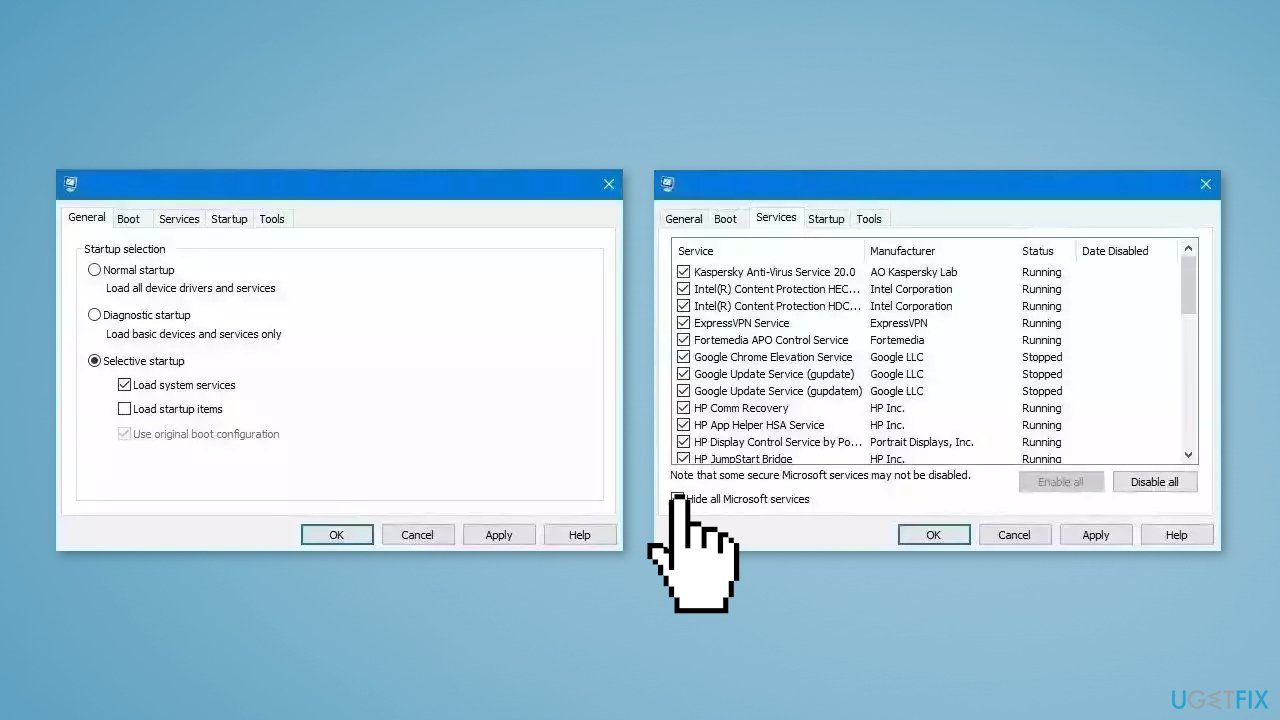
- Repeat this step to disable all third-party apps and programs
- Restart your PC to enter the clean boot state and see if the issue persists
- If the issue disappeared in the clean boot state, then you can be certain that a third-party app is causing it
- Go through all recently installed apps or programs and remove them one by one
Bottom line
To fix the 'Bootstrapper has stopped working' error, you can uninstall third-party antivirus software and run the Program Install and Uninstall Troubleshooter. If these steps do not resolve the issue, consider using an automatic repair tool to address system errors.
Frequently asked questions
Common causes include corrupted installation files, outdated drivers, or conflicts with other software. Check for updates and ensure your Windows 10 system is running the latest version.
You can resolve this error by running the Windows Troubleshooter for apps and ensuring all related software is updated. Additionally, consider reinstalling the problematic application.
To prevent this error, keep your Windows 10 or Windows 11 system updated and regularly check for software compatibility issues. Also, maintain a clean system by removing unnecessary applications and files.




Report an issue
What's wrong with this guide? We review every report and update or remove content.
Report received — thank you. We'll review and fix it.
You need a free account to submit a report.
Be the first to comment