How to fix
Error Code: 0x80070570
on Windows
Fix the 0x80070570 error on Windows 10 or 11 quickly and effortlessly. Expert-tested solutions ensure your device runs smoothly again, fixed in minutes.


What causes How to Fix Error Code: 0x80070570 on Windows?
- Virus
- Damaged system files
- Corrupted update components
- Failure of the Windows Update service
- Corrupted Windows Store cache
Repairs Windows system files, removes malware, and restores a clean OS state — without reinstalling.
Hello. I’m not allowed to download games and apps from the Windows Store. When I try to download something, the error 0x80070570 occurs. What fixes could I try?
Windows OS is a complicated combination of hardware, software, apps, files, processes, and so on. If the integrity of the operating system is interfered with by something, for example, a virus,[ref en-1] damaged system files, corrupted update components, etc., Windows throws the errors like 0x80070570 and prevent computer users from using the system normally.
Initially, the 0x80070570 error showed up on Windows 8 and 8.1 versions when the PC users were trying to delete a certain file. In this case, the error message says “Error 0x80070570: the file or directory is corrupted and unreadable.” When this happens, the bug might be related to the directory or some Windows Startup failure.
However, recently a new type of this error has been noticed. Few Windows 10 users[ref en-2] reported that they could not install applications from the Windows Store due to the error 0x80070570 related to the KB5015807 update. The culprit of this store error may be the failure of the Windows Update service or Windows Store cache.
The latest version of the incidents presents the error with the following message:
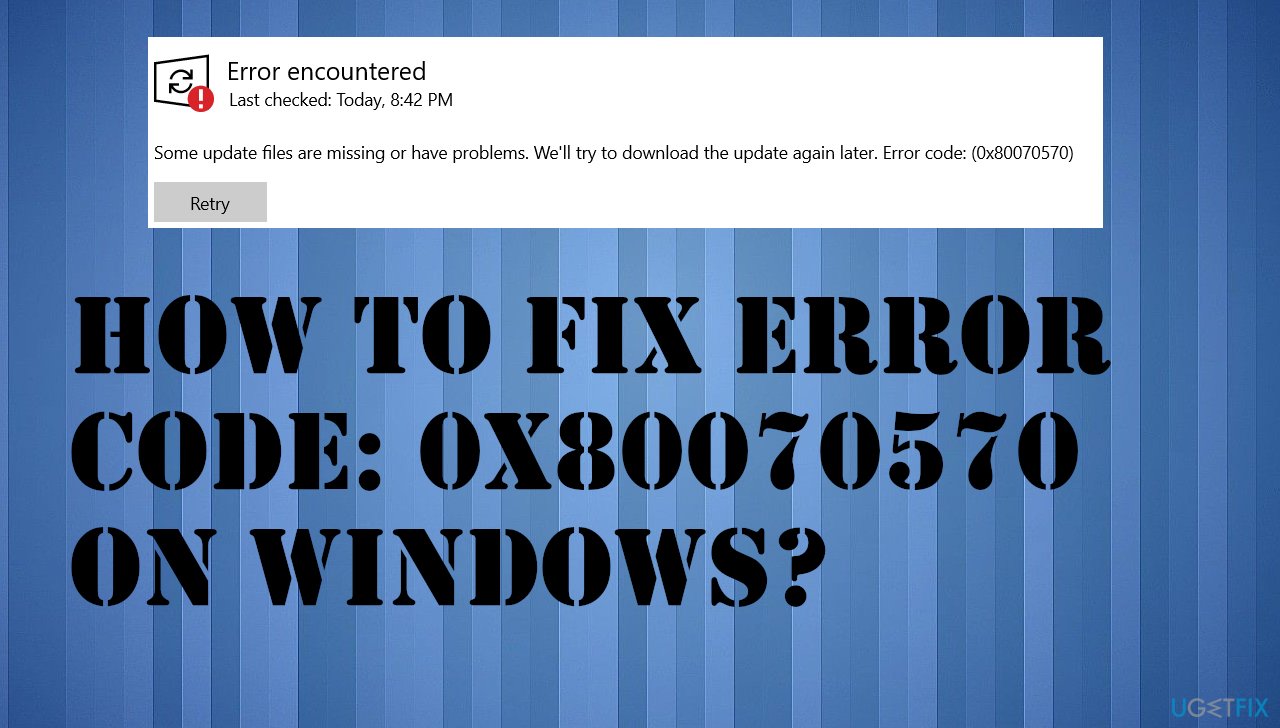
"Some update files are missing or have problems. We'll try to download the update again later. Error code: (0x80070570)"
The issue can occur on various Windows devices, too, due to the updates and failure of the procedures on the operating system. If those issues are related to the missing or corrupted files, you can fix the error with a scan using tools like [d1]. This application can take care of the issues regarding updates[ref en-3] that create problems with the machine or even clear malware leftovers.
Since the error fixes differ with regard to the circumstances it appears, we will provide other possible solutions so that you could try them one by one. There are ways to solve the issue when it is related to the KB5015807, other updates, failure of procedures, or corrupted files, so follow the guide and check a few solutions to find the one that works for your machine.
Method 1. Check and enable services
- Type services.msc in the Start Search text area.
- Then click services.msc in the list.
- If you are prompted for an administrator confirmation, type the password, or click Continue.
- Double-click Background Intelligent Transfer Service.
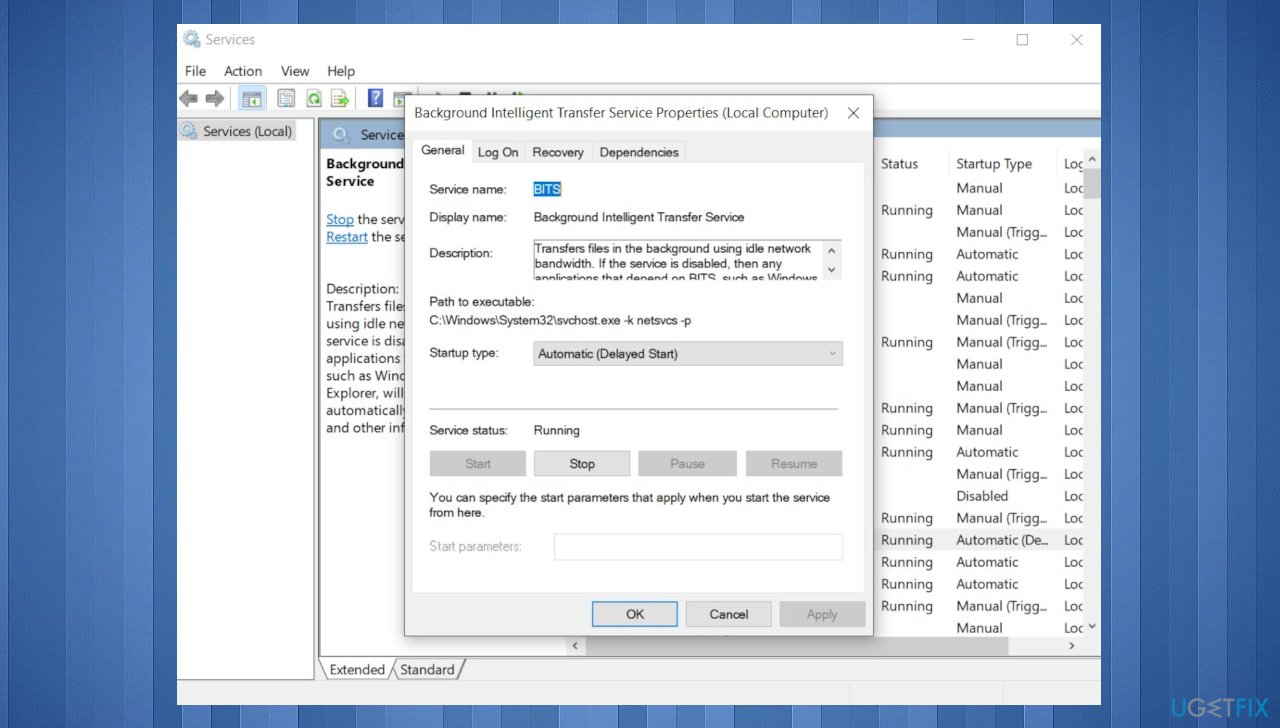
0x80070570 error services - If the Startup status lists Stopped, click Start and then click OK.
- If the status is Running, right-click then select Restart.
- Double-click Windows Update.
- If the Startup status lists Stopped, click Start and then click OK.
- If the status is Running, right-click then select Restart.
Method 2. Clear Windows Store cache
- Press Windows Key + R, type wsreset.exe, and click Enter.
- When the blank Command Prompt window shows, don’t press anything. The cache is being removed, so wait until Windows Store closes and then reopens automatically.
Method 3. Run DISM, sfc /scannow tools, and re-register Windows apps
- Press Windows key + X and select Command Prompt (Admin).
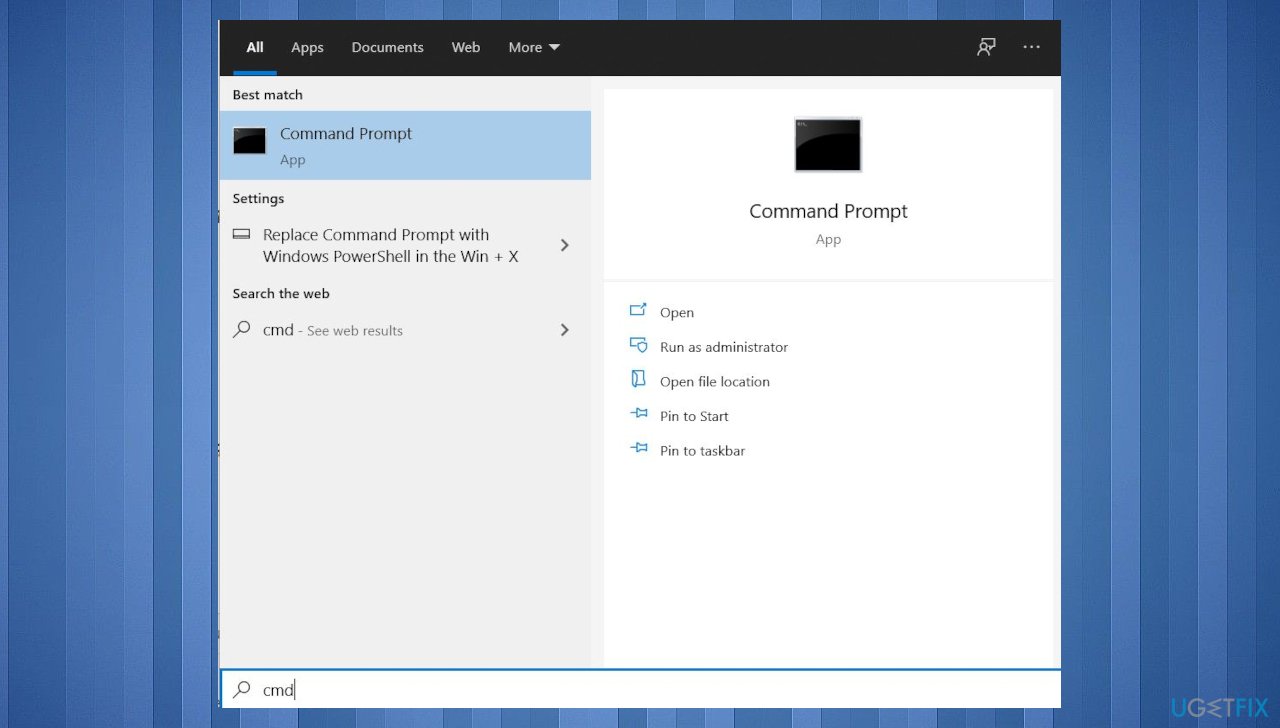
0x80070570 error cmd - Type sfc /scannow and press Enter.
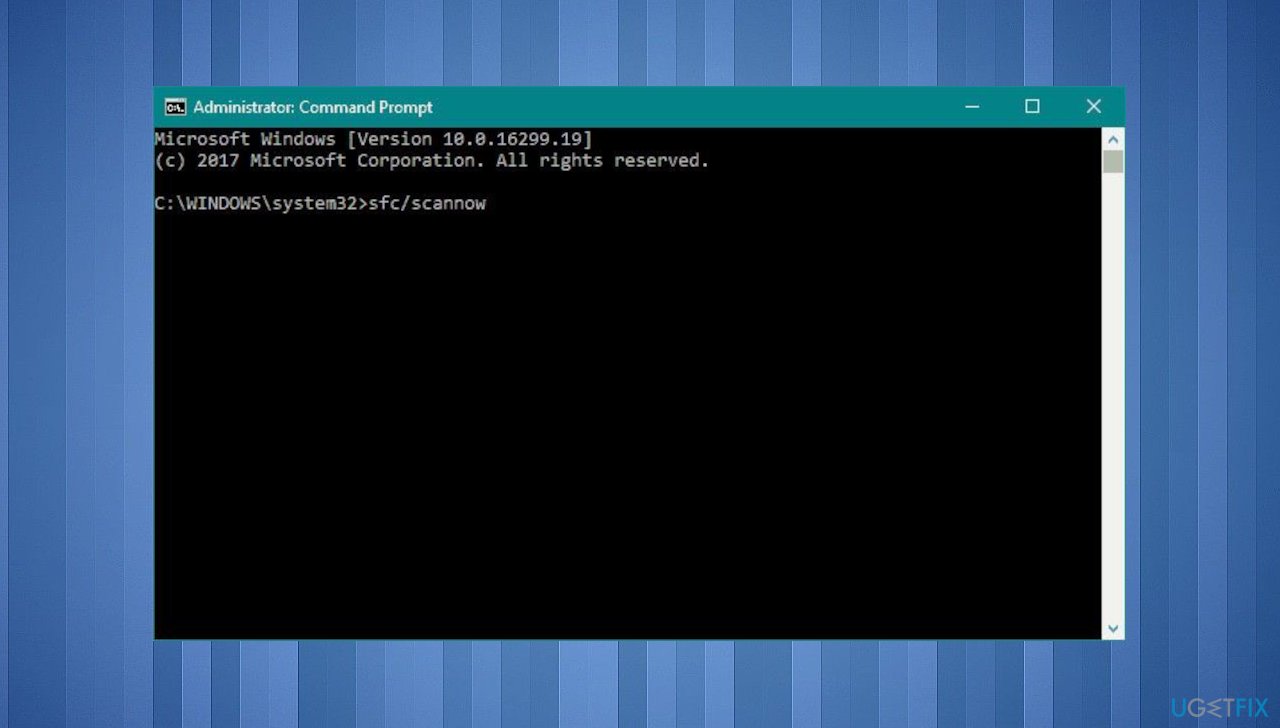
0x80070570 error sfc - Then copy and paste the commands given below. Enter has to follow each of them:
DISM /Online /Cleanup-image /Scanhealth
DISM /Online /Cleanup-image /checkhealth
DISM /Online /Cleanup-image /Restorehealth - Then press Windows key and type Powershell.
- Right-click on Windows Powershell and select Run as administrator.
- Copy and paste powershell -ExecutionPolicy Unrestricted Add-AppxPackage -DisableDevelopmentMode -Register $Env:SystemRoot\WinStore\AppxManifest.xml command and press Enter.
- Type Get-AppXPackage | Foreach {Add-AppxPackage -DisableDevelopmentMode -Register "$($_.InstallLocation)\AppXManifest.xml"} to re-register Windows apps and press Enter.
- Finally, close everything and reboot your PC.
Method 4. Reset Windows update components
- Open Command Prompt as administrator again.
- Copy and paste the following commands, pressing Enter after each:
net stop bits
net stop wuauserv
net stop appidsvc
net stop cryptsvc
Del “%ALLUSERSPROFILE%\Application Data\Microsoft\Network\Downloader\*.*”
rmdir %systemroot%\SoftwareDistribution /S /Q
rmdir %systemroot%\system32\catroot2 /S /Q
regsvr32.exe /s atl.dll
regsvr32.exe /s urlmon.dll
regsvr32.exe /s mshtml.dll
netsh winsock reset
netsh winsock reset proxy
net start bits
net start wuauserv
net start appidsvc
net start cryptsvc - Restart the PC.
How to Fix Error When Trying to Delete Files?
Method 1. Change the location of your files
If you are not allowed to delete files from one particular directory only, we would highly recommend you to cut the files you want to delete and paste them in a different directory. The copy these files and return the back to the directory, which did not allow you to delete them. Once done, right-click on the file you want to delete and select Remove.
Method 2. Run Windows App Troubleshooter
- Click on Start then go to Settings.
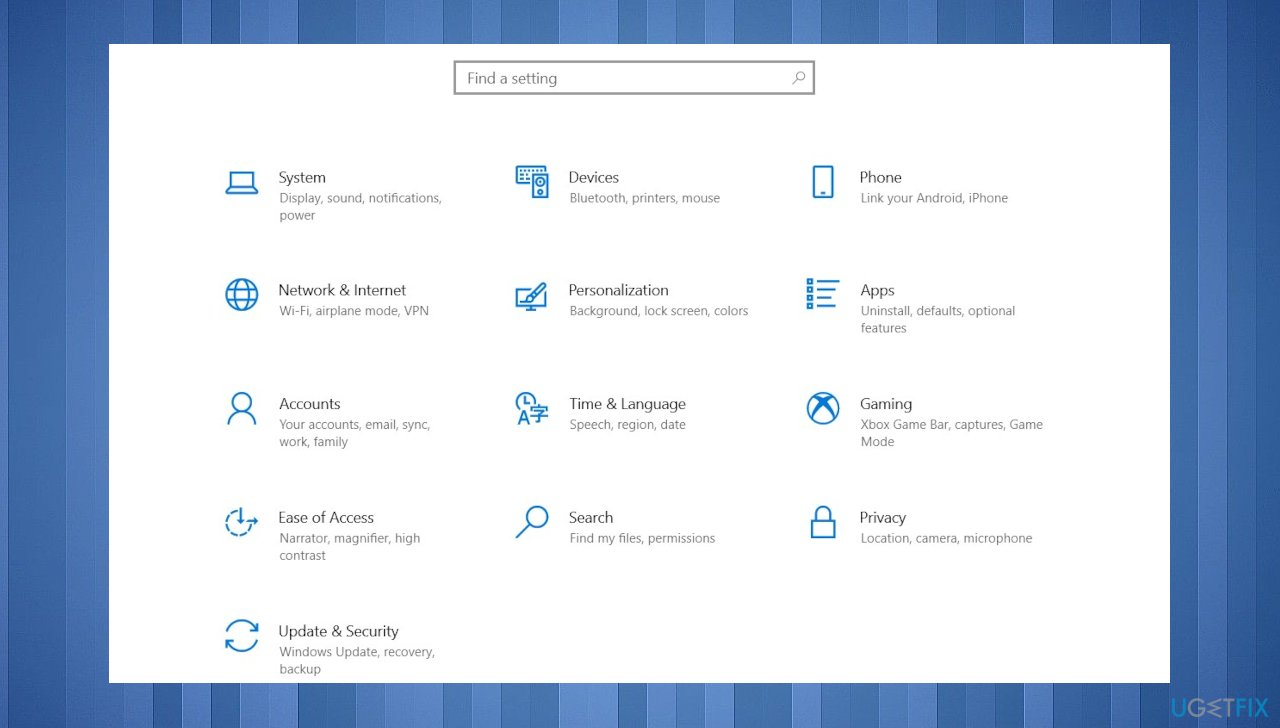
0x80070570 error settings - Choose System.
- Click on Troubleshoot on the right.
- Click on Additional troubleshooters.
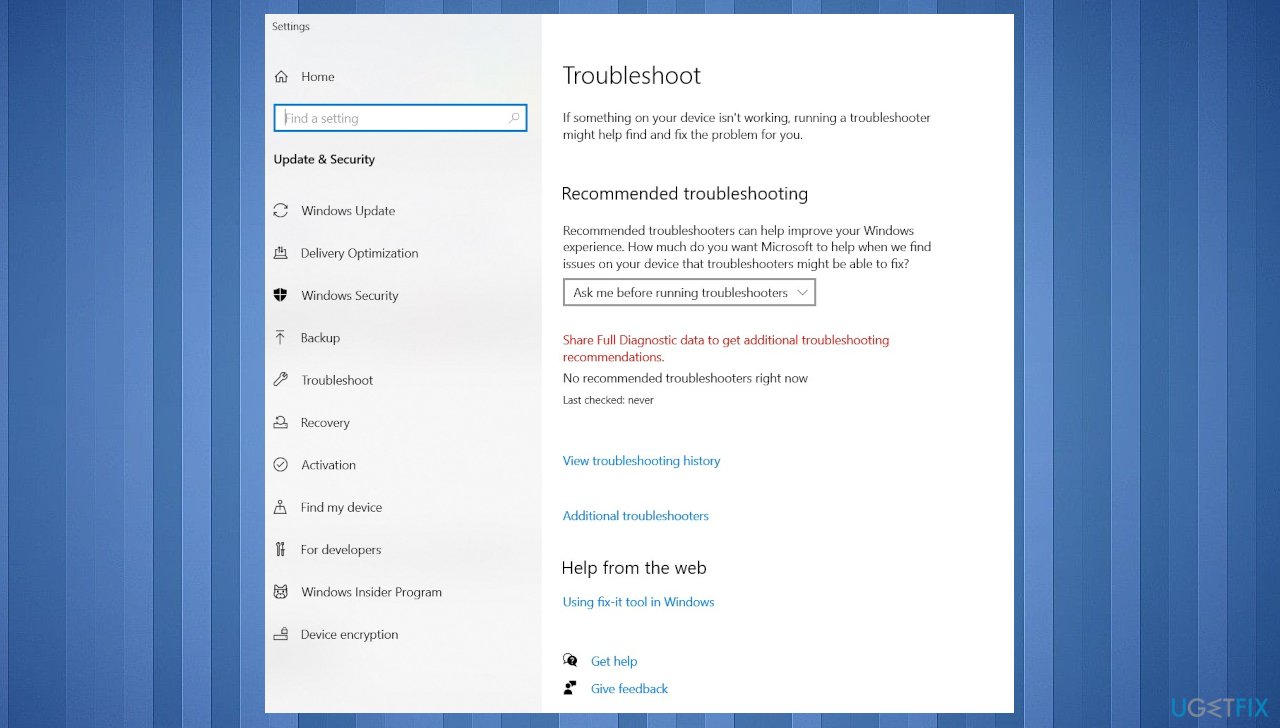
0x80070570 error troubleshoot - Locate Windows Store Apps and press Run troubleshooter.
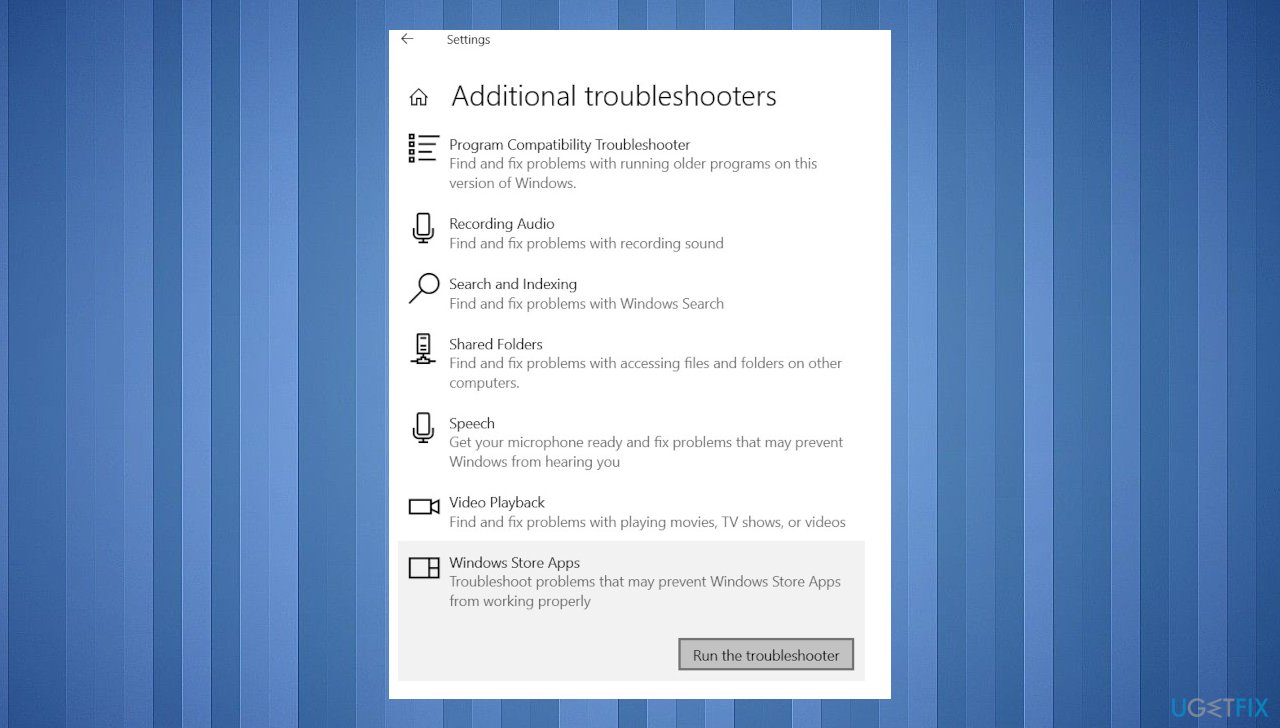
0x80070570 error additional troubleshooters
Method 3. Perform a Startup Repair
It might be that there are some problems with the Windows Startup due to which some of the system files or programs were loaded incorrectly. To fix that, try to perform a Startup Repair.
- Press Windows key and click the Power button.
- Then press and hold the Shift button and, when holding, select Restart.
- When the PC reboots, you should see Advanced Startup Options window.
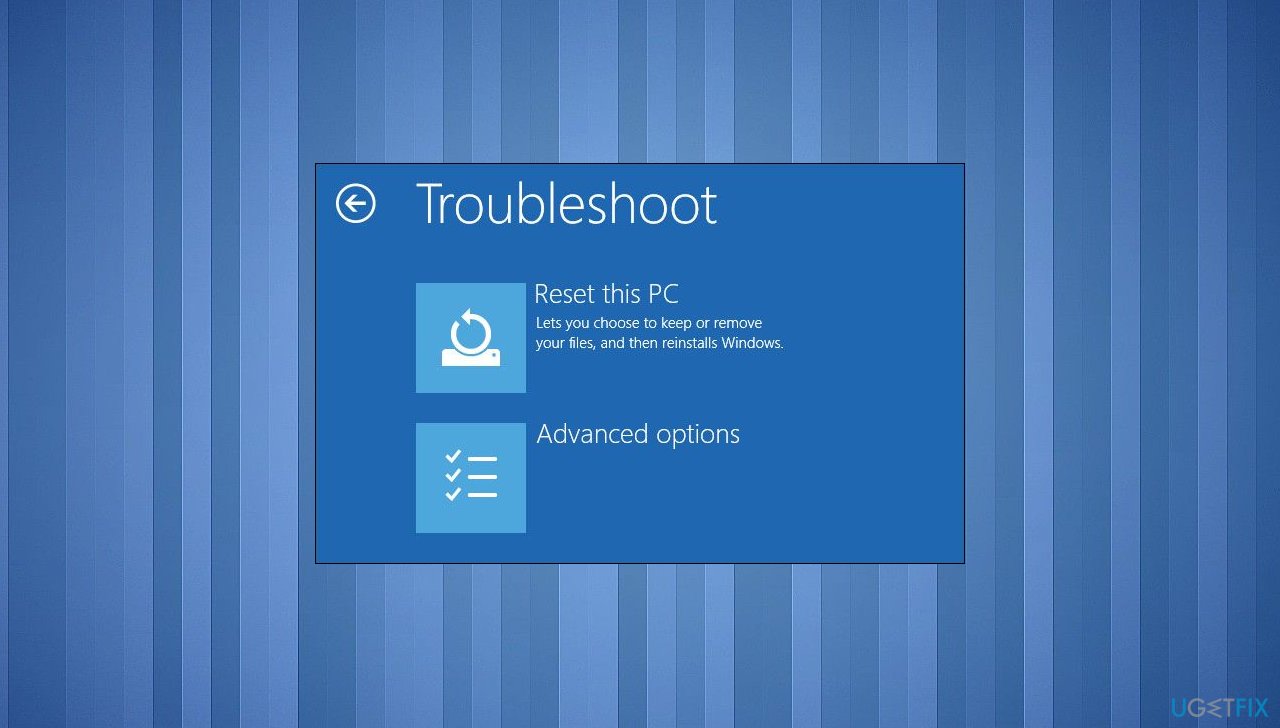
0x80070570 error reset - Select Troubleshoot and click Advanced options.
- Click Startup Repair.
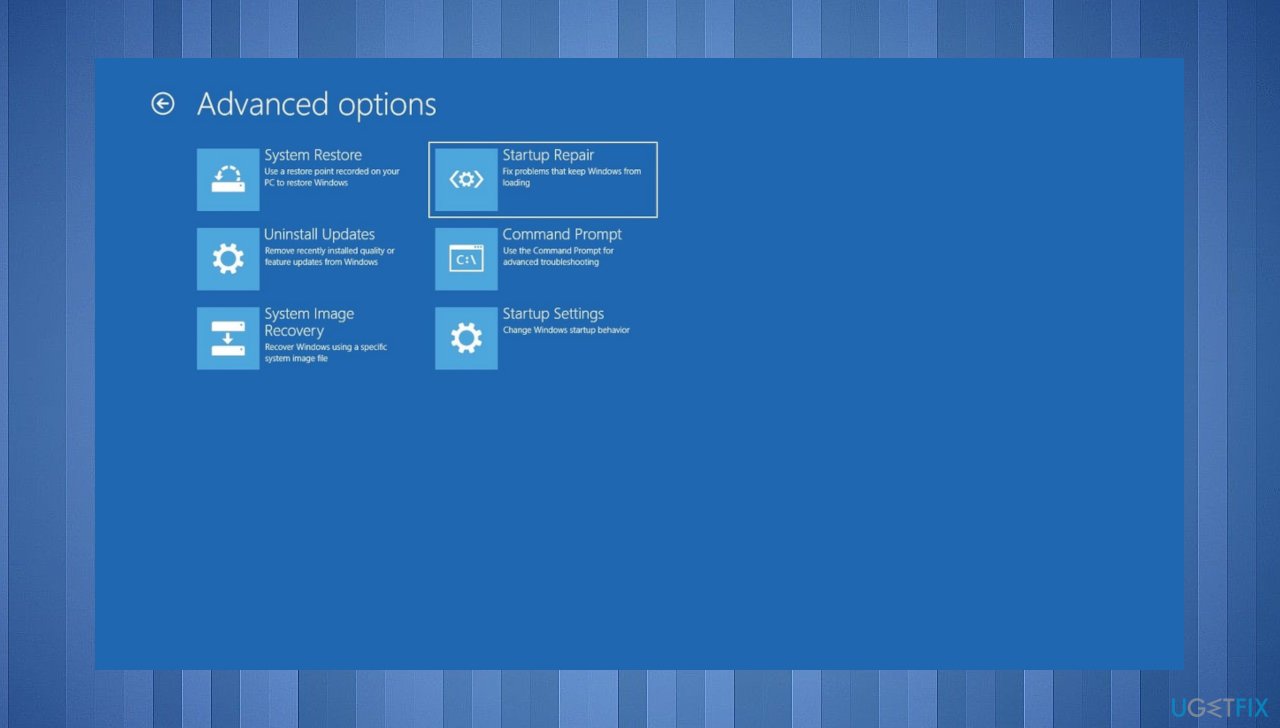
0x80070570 error startup repair - If you are prompted for an administrator password, enter it and press Next.
Bottom line
To fix the error code 0x80070570, you can try scanning for corrupted files, clearing the Windows Store cache, or addressing issues related to the KB5015807 update. If none of these solutions work, consider seeking further assistance or exploring additional troubleshooting methods.
Frequently asked questions
Error code 0x80070570 typically indicates that a file or directory is corrupted and cannot be accessed. This can occur during installation processes or when accessing certain files.
To fix this error while updating, try running the Windows Update Troubleshooter and check for corrupted system files using the SFC command. You can access these tools through the Settings app.
Yes, you can resolve this error by performing a system restore to a previous state or using the DISM tool to repair the Windows image. Both options can help fix underlying issues without a full reinstallation.




Report an issue
What's wrong with this guide? We review every report and update or remove content.
Report received — thank you. We'll review and fix it.
You need a free account to submit a report.
Be the first to comment