How to fix
CLOCK_WATCHDOG_TIMEOUT BSOD
on Windows
Resolve the CLOCK_WATCHDOG_TIMEOUT BSOD on Windows 10 quickly and effectively with our expert-tested solutions, ensuring zero traces left behind.

What causes How to Fix CLOCK_WATCHDOG_TIMEOUT BSOD on Windows 10?
- Antivirus software
- Virus infections
- Driver failures
- BIOS settings
- Outdated SSD firmware
- Hardware issues
Repairs Windows system files, removes malware, and restores a clean OS state — without reinstalling.
Today my system crashed for two times and showed a BSOD CLOCK_WATCHDOG_TIMEOUT. I check the system regularly and optimize it, so up till now, it was working flawlessly. It has been running Windows 10 for more than a year. I haven’t changed any important settings in the past few days, except that I installed the creator’s update last week. Please help.
CLOCK_WATCHDOG_TIMEOUT is a Windows Blue Screen of Death (BSOD).[ref en-1] In comparison to pop-up errors, BSOD errors appear less commonly, but they are much more serious due to the fact that they freeze up the system and initiate forced restarts.
Consequently, PC users may experience significant damage as they may lose some files or information that they were currently working on. Antivirus software,[ref en-3] virus infections, and driver failures are listed among the most common BSOD causes.
However, the CLOCK_WATCHDOG_TIMEOUT Blue Screen may also be triggered some BIOS settings, outdated SSD firmware or some hardware[ref en-2] issues. Therefore, if you want to fix CLOCK_WATCHDOG_TIMEOUT bug, refer to the instructions listed below and try them one by one.

How to Fix CLOCK_WATCHDOG_TIMEOUT BSOD on Windows 10?
Method 1. Check the system with a professional anti-virus
Install a professional anti-malware and run a scan with it. Our recommendation would be [d1]. Of course, you can also use the software that is already running on your OS but make sure to update it. If the anti-virus did not detect any threats, then we would recommend you to disable anti-virus software temporarily and disable Windows Firewall.
For this purpose, open the Task Manager and terminate antivirus’ process out there. Then find its icon on the taskbar, right-click it, and select Disable. Once done, turn off the Windows Firewall:
- Click Windows key + X and select Control Panel.
- Locate Windows Firewall and click it.
- Press Turn Windows Firewall On or Off option.
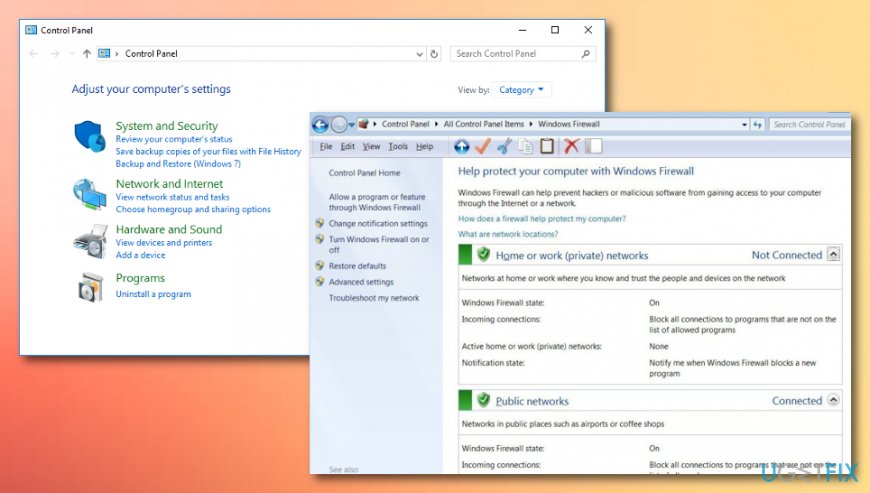
Method 1 - If required, enter your administrator password and press OK.
- Then set Windows Firewall off on both private and public network.
- Click OK to save the changes and close everything.
- Now you should check if these steps helped to fix CLOCK_WATCHDOG_TIMEOUT. If not, move on to the next fix.
Method 2. Update driver software
If the culprit of CLOCK_WATCHDOG_TIMEOUT blue screen is related to drivers, the installation of the driver update should be the right solution. To check that, you should:
- Right-click Windows key and select Device Manager.
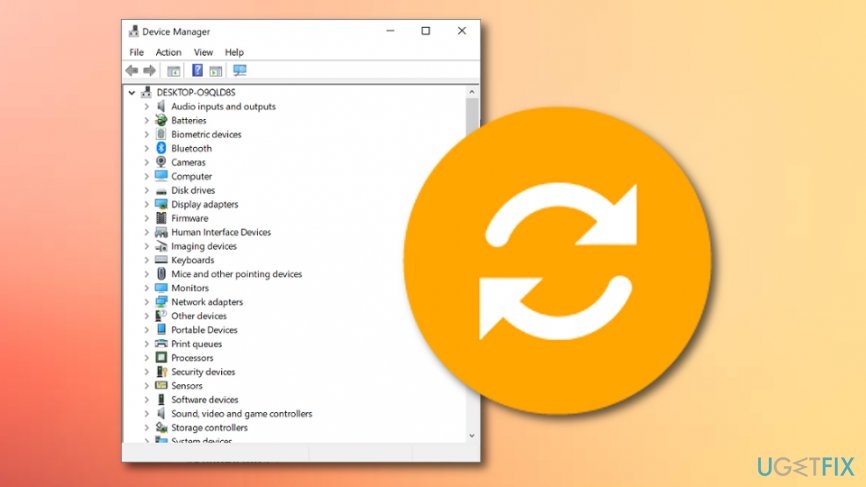
Method 2 - Check all devices and look for the ones marked with a yellow exclamation mark.
- If there are some malfunctioning drivers, update all of them. For this purpose, right-click on the driver and select Update Driver Software.
Unfortunately, but automatic driver updates via Device Manager often fails. Therefore, we would highly recommend you to install a Driver Update software and let it install the latest drivers.
Method 3. Run available BIOS updates
If the CLOCK_WATCHDOG_TIMEOUT error is triggered by incorrect BIOS settings, we would strongly recommend you to install all available BIOS updates.
- Click Win key + R, type msinfo32, and hit Enter.
- Select System Summary and find your BIOS version. Make sure that you remember the type of your BIOS. At best, write down its name somewhere.
- After that, navigate to the official website of your PC’s/laptop’s motherboard manufacturer and check if there is a newer version of the type of your BIOS available. If it is, download it and run its .exe file.
- Finally, restart your PC.
Method 4. Complete an SFC scan
Note that the CLOCK_WATCHDOG_TIMEOUT error message might appear on your computer screen due to possible file corruption. You can run a system scan via Command Prompt by typing in some specific commands. Follow the below-provided steps as they might help you to identify the problem at the end.
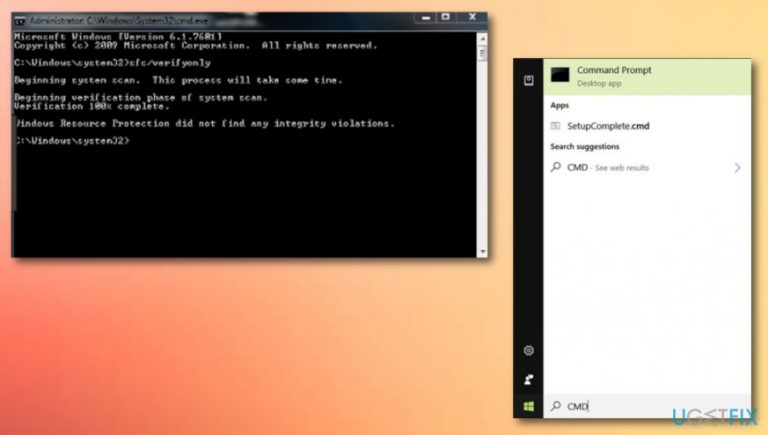
- Go to Windows search.
- Type in "command prompt".
- Select the Command Prompt option and make sure that you run the program as an administrator in order to gain advanced privileges.
- Once a black window shows up in front of you, type sfc /scannow and hit Enter.
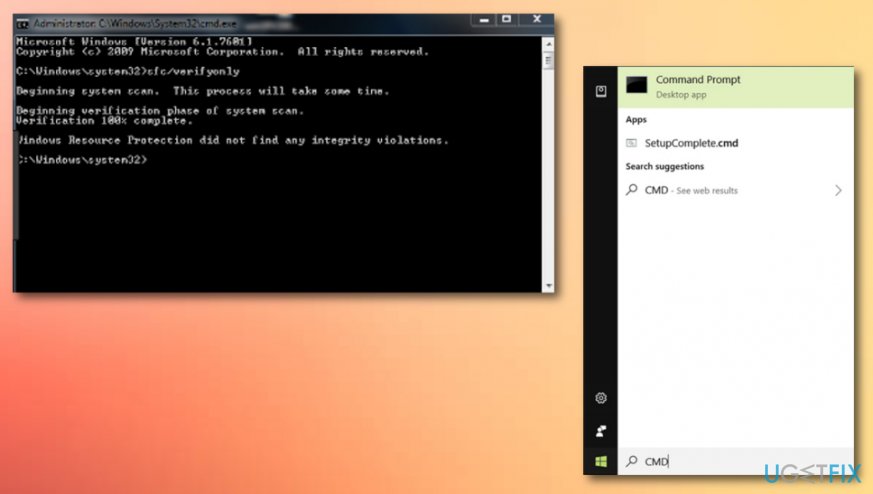
Method 4 - Wait until the process is finished and reboot the system.
Method 5. Update Windows manually
Maybe some crucial Windows updates have been missed or corrupted somehow and now it is the reason why you are facing problems related to CLOCK_WATCHDOG_TIMEOUT. However, no worries as you can easily manage updates manually.
- Go to the Windows search section.
- Type in "update".
- Opt for the Update & Security option.
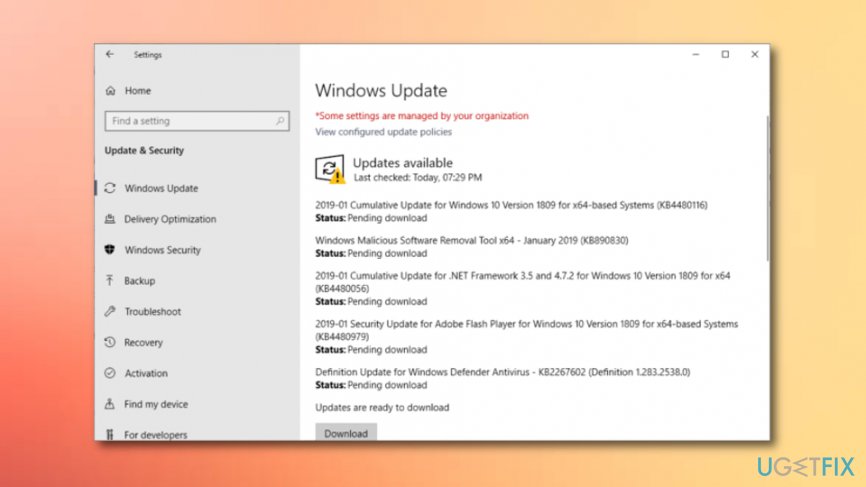
Method 5 - Click the feature that says "Check for updates".
- Reboot your machine after the process is finished.
There are some additional CLOCK_WATCHDOG_TIMEOUT fixes spreading around on the Internet. However, most of them are related to the modification of BIOS settings. However, we would not recommend modifying BIOS manually unless you are a professional IT.
Otherwise, you may cause some serious damage to the system and end up with a system crash.
If none of the solutions provided here did help, we would recommend you to reinstall Windows OS using a bootable Windows 10 installation media.
Bottom line
To fix the CLOCK_WATCHDOG_TIMEOUT BSOD, check your system with a professional anti-virus, disable any antivirus software temporarily, and turn off Windows Firewall. If these steps do not resolve the issue, further troubleshooting may be necessary.
Frequently asked questions
This BSOD error is typically caused by issues with your CPU, outdated drivers, or hardware conflicts. It usually indicates that the system is unable to communicate with the processor.
You can start troubleshooting by updating your device drivers, checking for Windows updates, and running a hardware diagnostic tool. If the problem persists, consider resetting your BIOS settings to default.
Yes, most users can resolve the CLOCK_WATCHDOG_TIMEOUT BSOD by updating drivers or adjusting system settings without needing a complete Windows 10 reinstallation. However, if all else fails, a repair installation might be necessary.




Report an issue
What's wrong with this guide? We review every report and update or remove content.
Report received — thank you. We'll review and fix it.
You need a free account to submit a report.
Be the first to comment