How to fix
“scratch disks are full” error in Photoshop
on Windows
Resolve the "scratch disks are full" error in Photoshop on Windows 10 or 11 effortlessly. Expert-tested solutions for quick fixes and seamless performance.

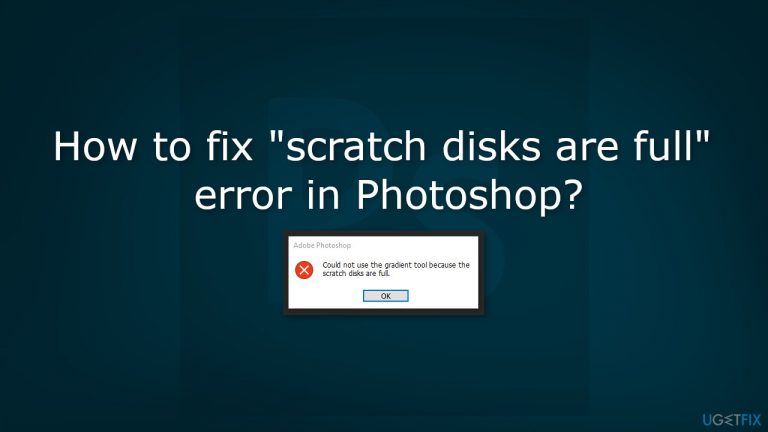
What causes How to fix “scratch disks are full” error in Photoshop?
- Not enough free space on the designated scratch disk(s)
- Working with large files
- Hard drive filled with other files
- Temporary files and cache data consuming space
Repairs Windows system files, removes malware, and restores a clean OS state — without reinstalling.
Hello. I was working in Photoshop and when I tried to use a gradient tool I received the "scratch disks are full" error. I am not able to perform any functions due to this error message. What should I do?
Scratch disks in Photoshop refer to the location where the program stores information as it edits an image. Photoshop uses the scratch disk to store temporary files and cache data, which allows it to perform certain functions more efficiently.
Users may see the "scratch disks are full" error when there is not enough free space on the designated scratch disk(s) for Photoshop to continue working. This can occur if the user is working with large files or if they have filled up their hard drive with other files.
When a user sees this error, it can impact their workflow as they may not be able to save their progress or continue editing the image. It can also lead to crashes or other issues with the program. To resolve the issue, the user will need to free up space on their scratch disk(s) by deleting unnecessary files, moving files to an external hard drive, or increasing the amount of hard drive space on Windows.
Alternatively, user can also change the scratch disk location to another drive with enough space from Photoshop's preference settings. In this guide, you will find 10 steps that should help you fix the "scratch disks are full" error in Photoshop. Keep in mind that the manual troubleshooting process can be lengthy.
If you suspect that there are underlying issues with your Windows operating system, you can use a maintenance tool like [d1] that can fix most system errors, BSODs,[ref en-1] corrupted files, registry[ref en-2] issues, or clear cookies and cache.[ref en-3] Otherwise, follow the step-by-step instructions below.
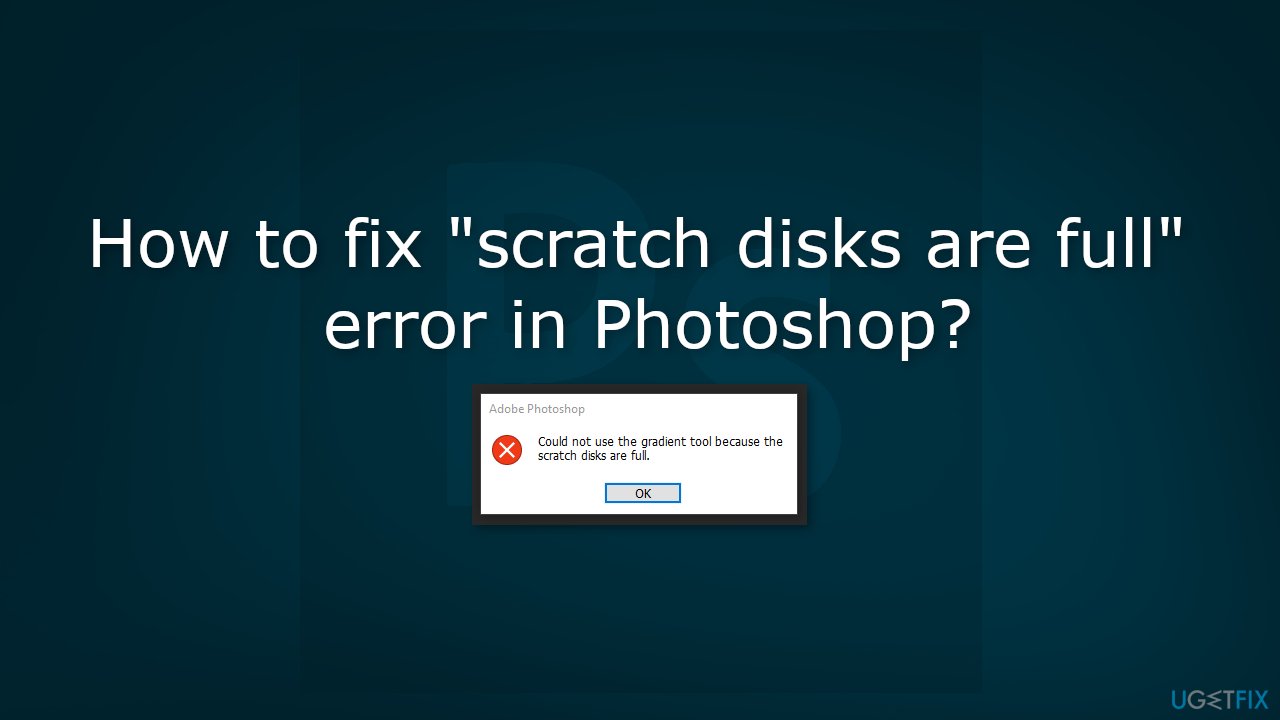
Method 1. Free up Disk Space
- Open the Settings app and click on System
- Select Storage to view your computer’s storage details
- You will see what is occupying the memory, and this will help you decide what to delete
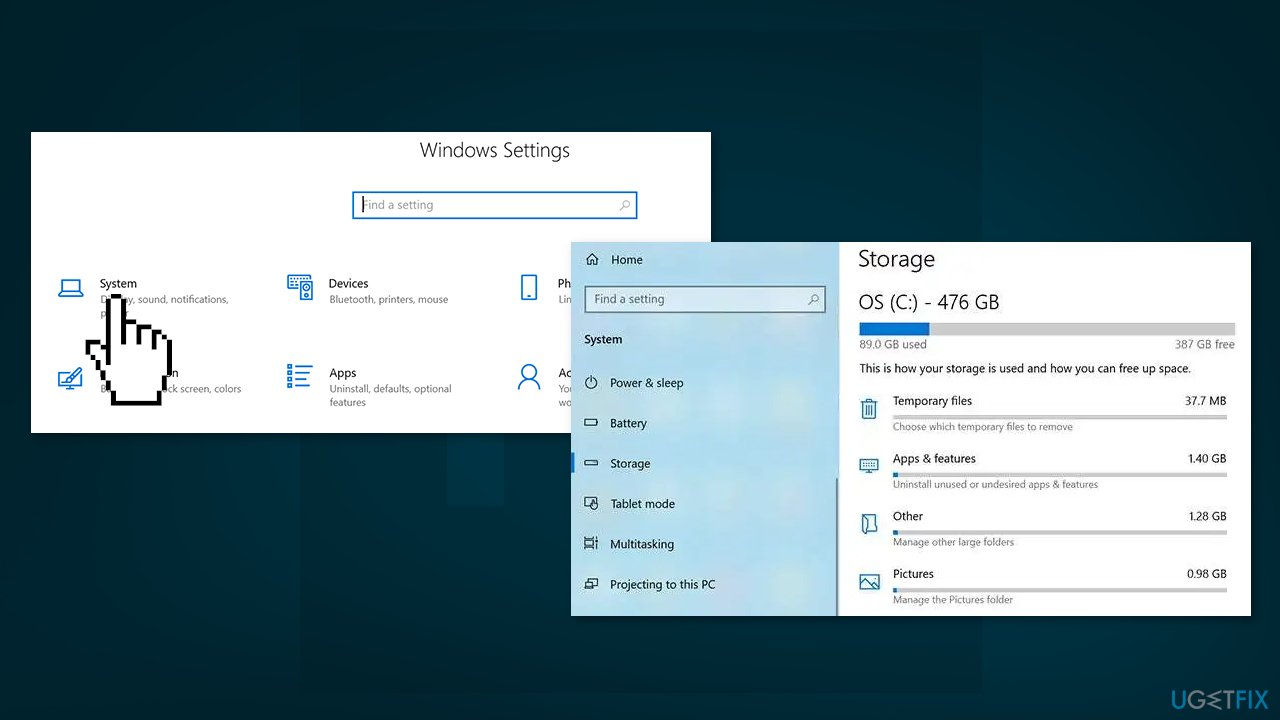
Method 2. Delete Temporary Files
- Press the Windows key + R to open the Run box
- Type %temp% and press Enter
- When the temporary folder opens, find the files named Photoshop or PST
- Right-click those files and select Delete
- Now go to the Recycle Bin and empty it
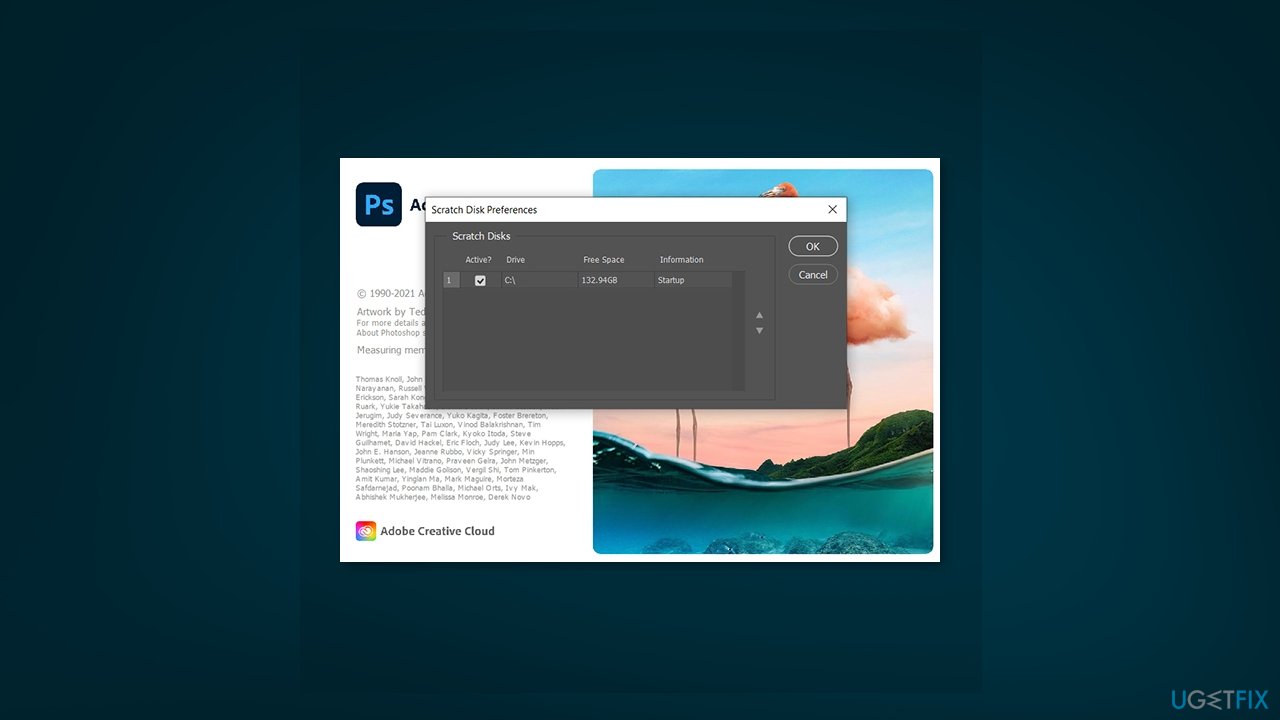
Method 3. Specify Drives for Scratch Disk
- Launch Photoshop and press and hold down the Ctrl and Alt keys at the same time
- Select a new scratch disk from the Startup dropdown menu and click OK
Method 4. Change the Scratch Disk Drive inside Photoshop
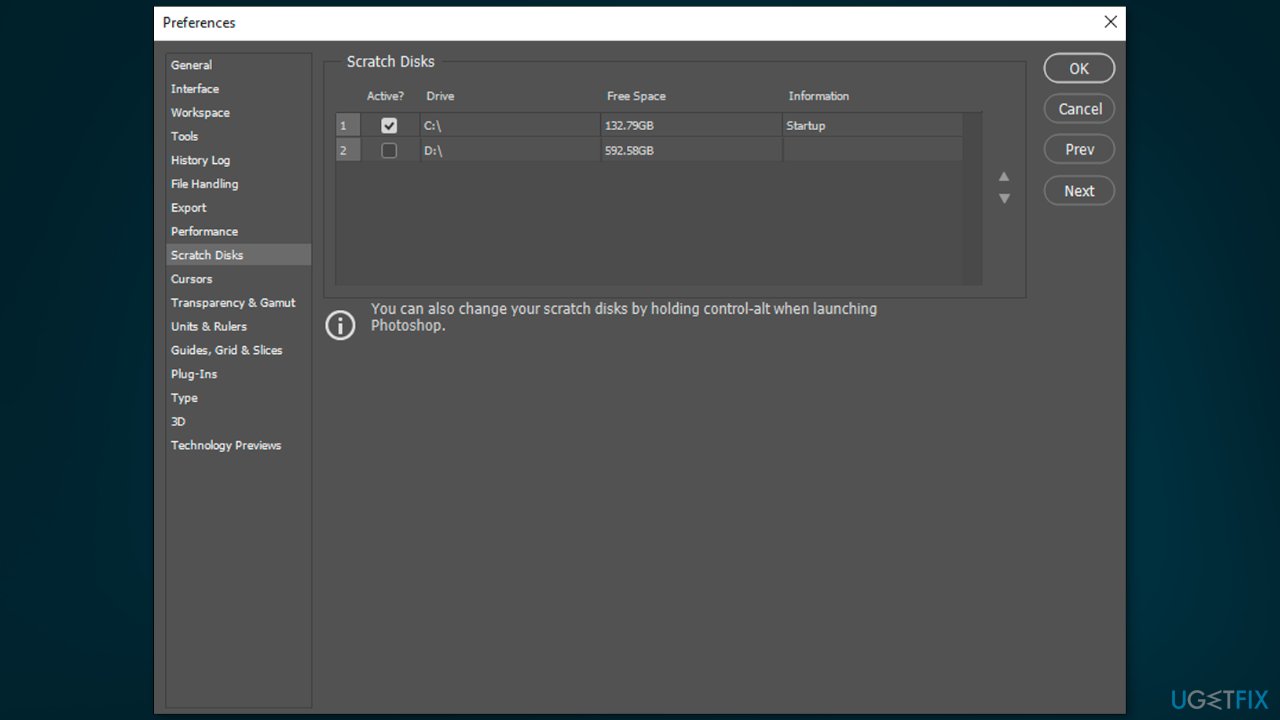
- Launch Photoshop on your computer
- Click the Photoshop menu at the top, select Preferences, and choose Performance
- Enable and disable scratch disks in the Scratch Disks section
Method 5. Disable Auto-recovery Saving
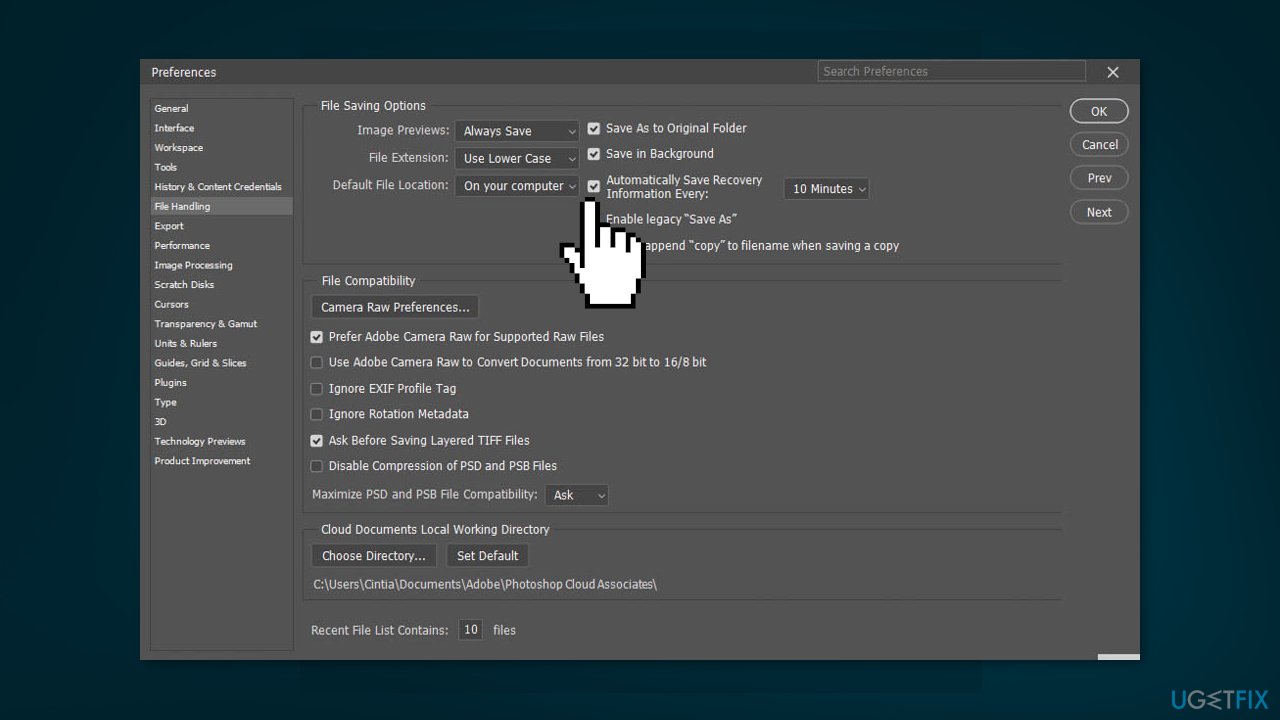
- Launch Photoshop on your machine
- Click Photoshop at the top, select Preferences, and choose File Handling
- Untick the box that says Automatically Save Recovery Information Every
Method 6. Let Photoshop Use More RAM
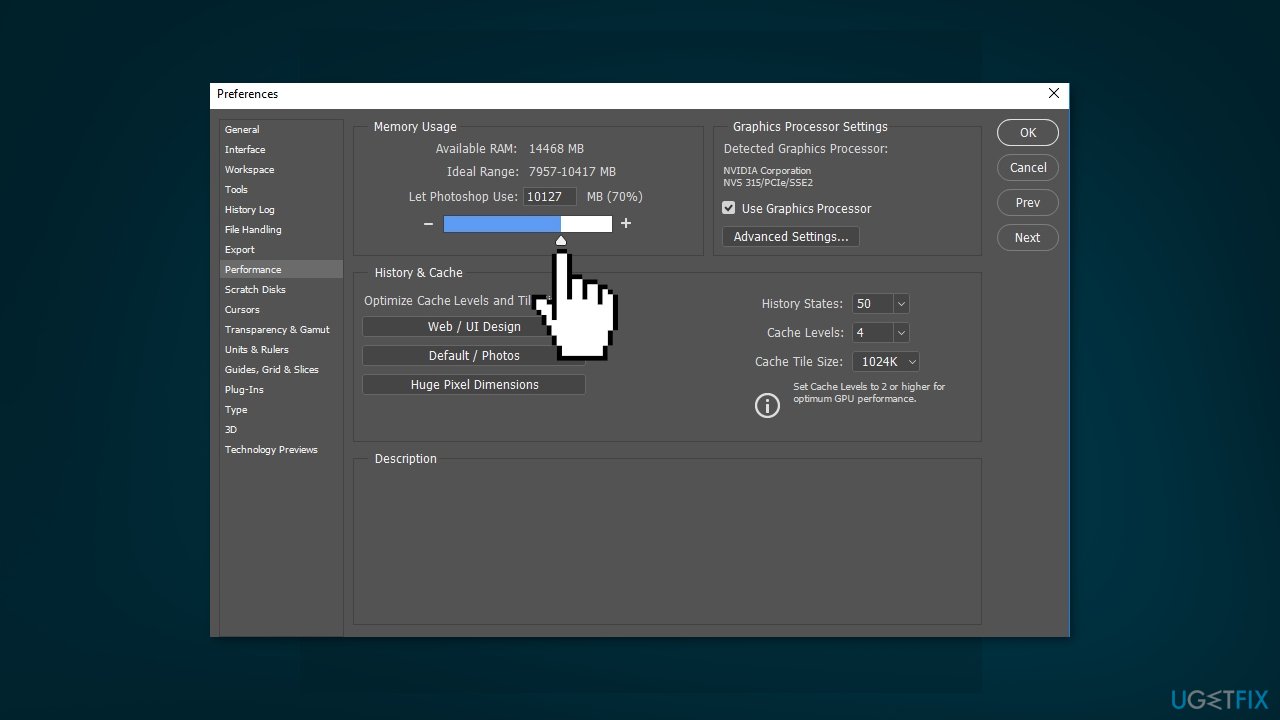
- Open Photoshop on your computer
- Click the Photoshop option at the top, select Preferences, and choose Performance
- In the box next to the Let Photoshop Use option, enter the amount of RAM that you want Photoshop to use
- Click OK to save the changes
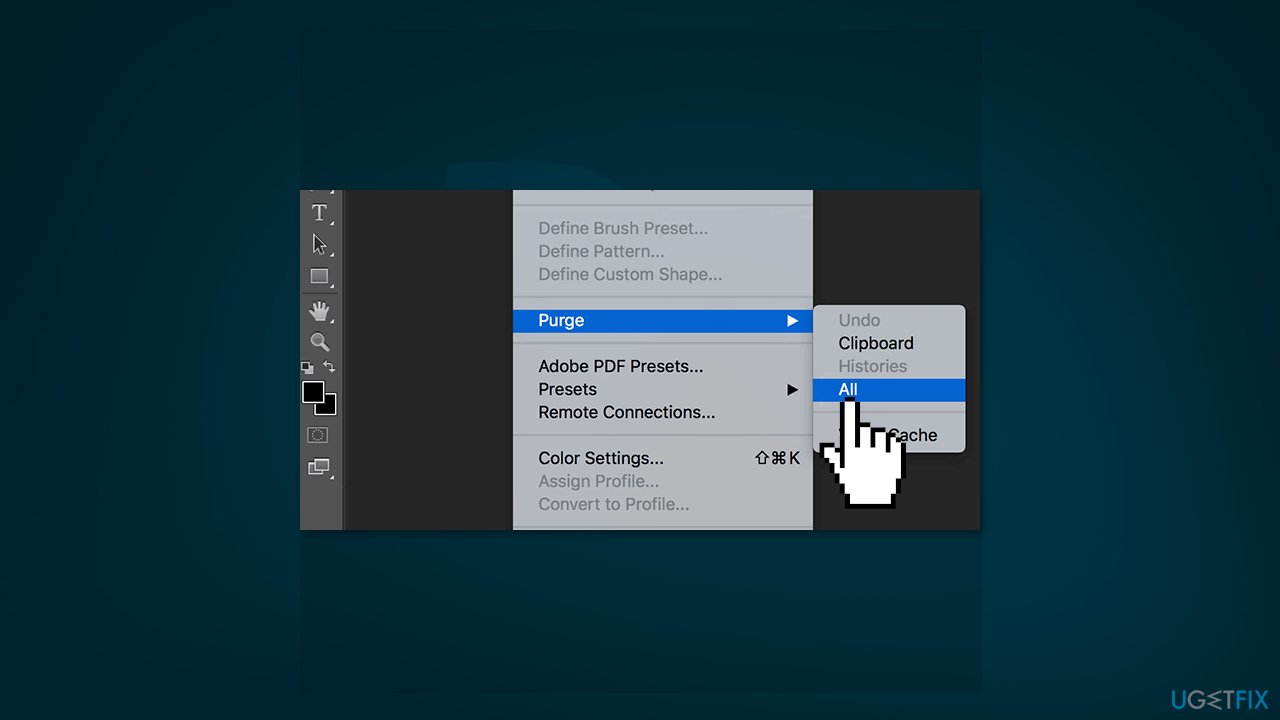
Method 7. Delete Photoshop Cache
- Access Photoshop on your machine and click on the Edit menu at the top
- Select Purge, and choose All
Method 8. Reset Crop Tool Values
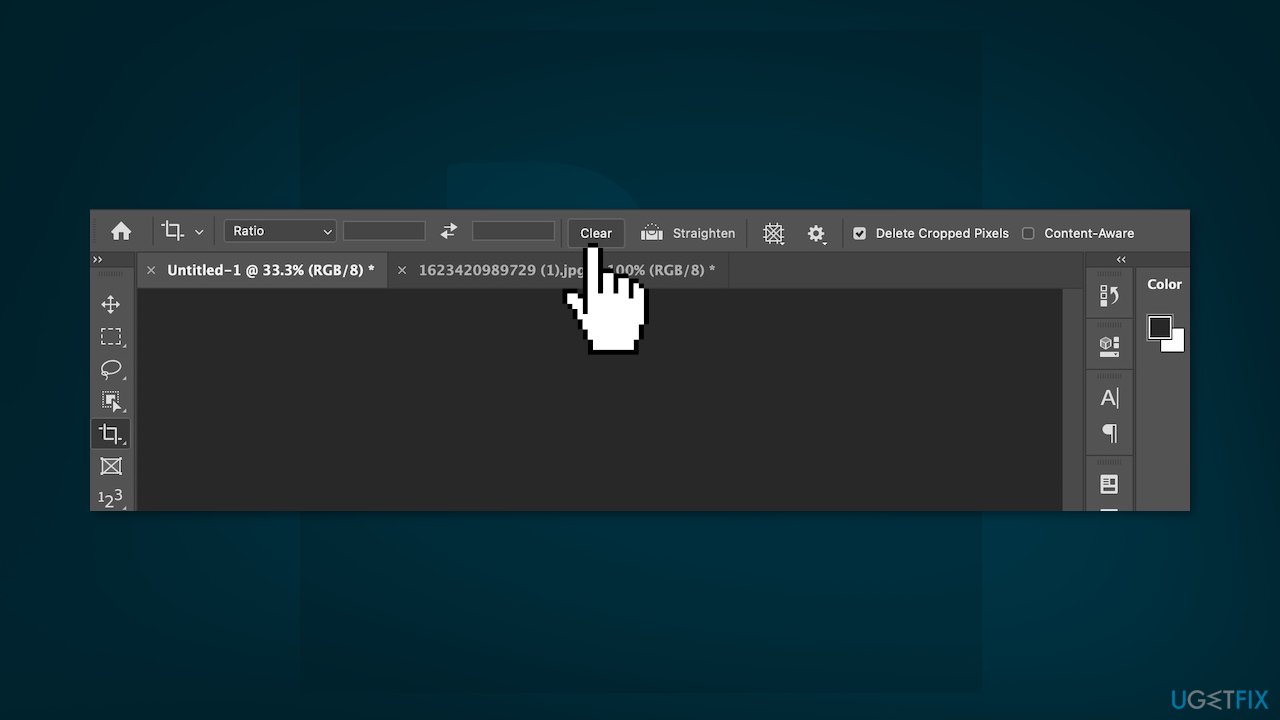
- Access the crop tool in Photoshop and remove any values from the given boxes
- When you enter any values, use pixels as the unit whenever possible
Method 9. Defragment Hard Drive
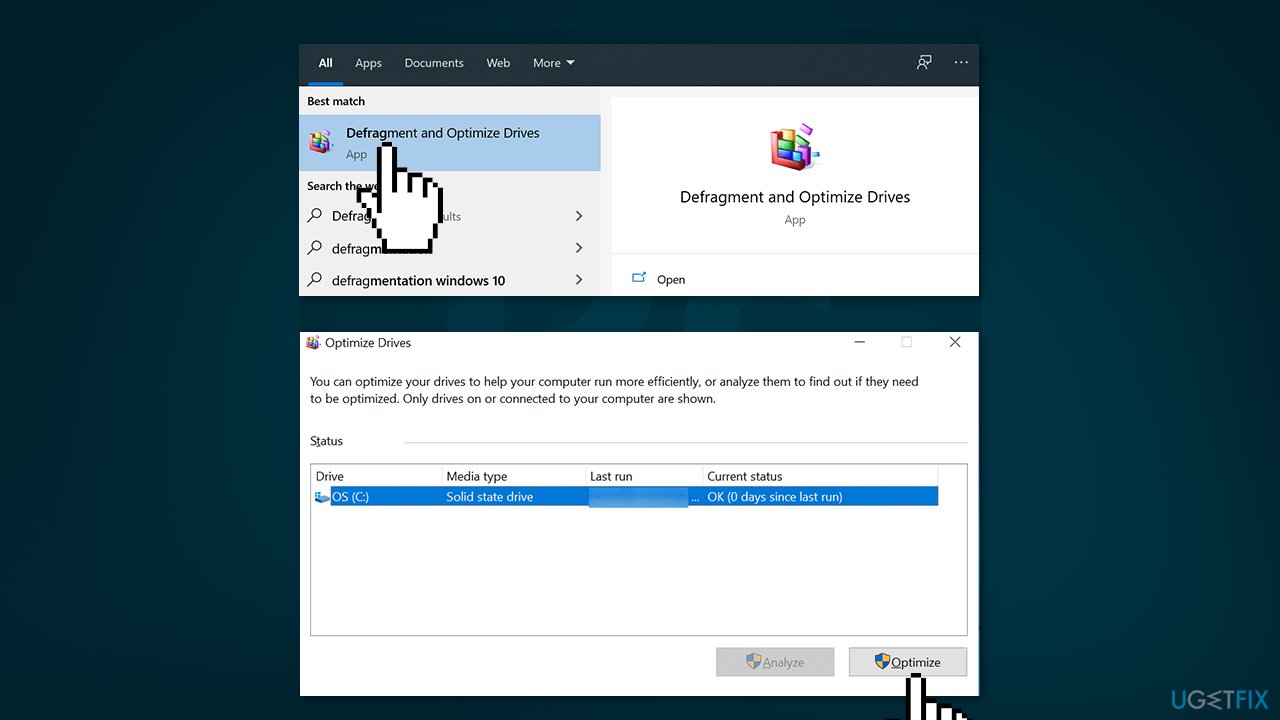
- Search for Defrag in the Start Menu search and click Defragment and Optimize Drives
- You’ll see your hard drive partitions listed on the following screen
- Select the one that you use as your scratch disk and click on the Optimize button
Method 10. Reset Photoshop Preferences
- Close Photoshop on your computer
- Press and hold down the Shift + Ctrl + Alt keys and launch Photoshop
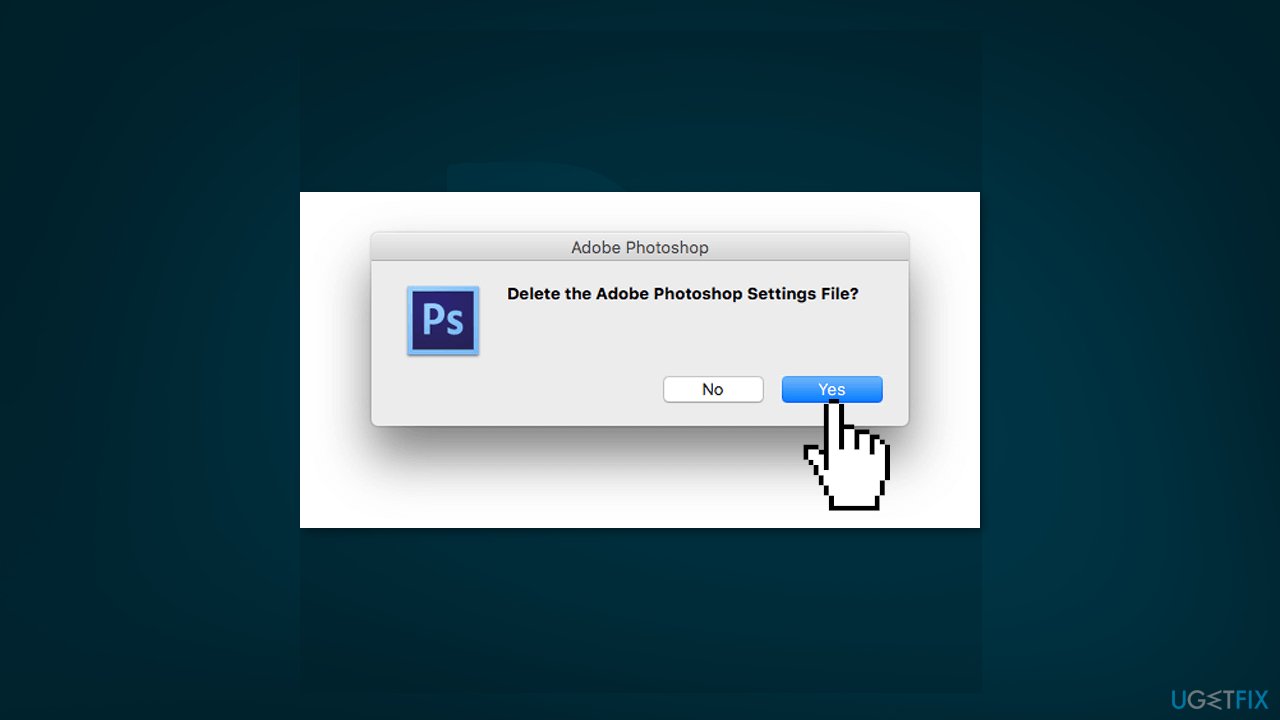
- You’ll get a prompt asking if you want to delete the Photoshop settings file
- Click Yes to delete the file
Bottom line
To fix the 'scratch disks are full' error in Photoshop, you can free up disk space by deleting unnecessary files, moving files to an external hard drive, or changing the scratch disk location in Photoshop's preference settings. If these methods do not resolve the issue, consider using a maintenance tool to address potential underlying problems with your Windows operating system.
Frequently asked questions
You can free up space on your scratch disk by deleting unnecessary files or using Disk Cleanup. Additionally, consider changing the scratch disk location to a drive with more available space.
Open Photoshop, go to Edit > Preferences > Scratch Disks, and select a drive with ample space. After making your selection, restart Photoshop to apply the changes.
Upgrading to Windows 11 may improve overall system performance, but it won't directly resolve the 'scratch disks are full' error unless you also manage your disk space effectively.




Report an issue
What's wrong with this guide? We review every report and update or remove content.
Report received — thank you. We'll review and fix it.
You need a free account to submit a report.
Be the first to comment