How to fix
Socket Error 10060
on Windows
Resolve Socket Error 10060 on Windows 10 and 11 effortlessly. Our expert-tested solutions ensure quick fixes with zero traces left.


What causes How to Fix Socket Error 10060 on Windows?
- Connection timed out due to slow proxy server
- Mistyped URL address
- Issues with email client settings
- Web proxy connection problems
- Inadequate time-out limit for loading websites
Repairs Windows system files, removes malware, and restores a clean OS state — without reinstalling.
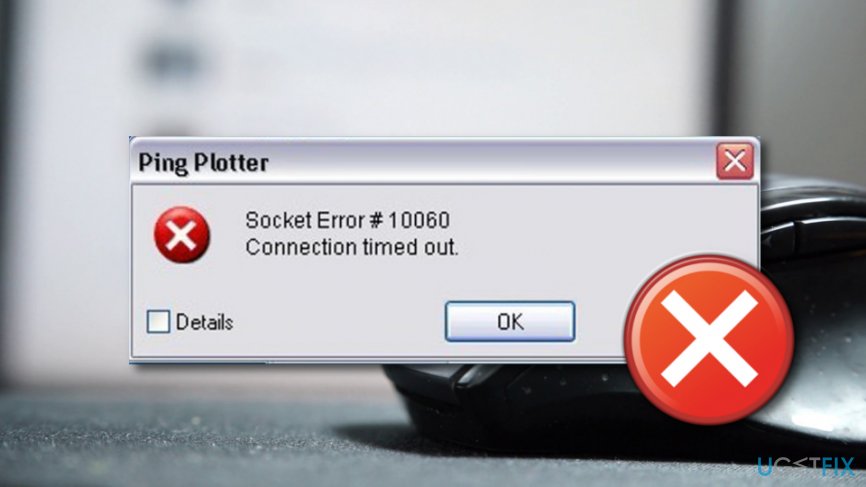
I have received an error message, and I don’t know what to do about it. The error says: "Socket Error # 10060 Connection timed out.” I am not sure what might be wrong with my Internet connection.
Socket Error 10060 informs about connection problems. This error usually shows up when using proxy service to connect to the Internet, and the browser does not have enough time to load the requested page. Generally speaking, the proxy server works too slow. As a result, the connection time out error message occurs.
Sometimes it’s enough to fix Socket Error 10060 by refreshing the website that did not load or checking URL address.[ref en-2] Indeed, mistyped address might trigger this error too. However, in some cases, it’s not enough. Solving this problem may need making modifications in Windows Registry[ref en-1] or verifying web proxy settings.
What is more, this error might also occur when a system cannot connect to the mail server. If you are using Microsoft Outlook[ref en-3] and received this error, you should verify email client settings. It should be enough to solve this problem and use email service normally.
How to Fix Socket Error 10060?
As you already know Socket Error 10060 is related to proxy service and in some cases with mail servers. These three methods explained below should help you to fix this error.

Method 1. Verify web proxy connection
1. Start your computer with administrative rights.
2. Open Run app from the Start, and type inetcpl.cpl. Click OK.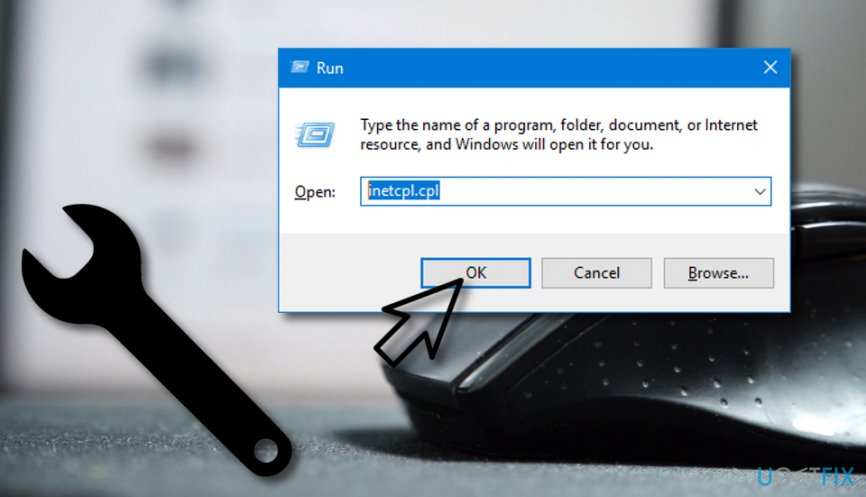
3. When Internet Properties window appears, go to the Connections tab. There go to the Lan settings.
4. The Local Area Network (LAN) Settings window shows up. Find the Use a proxy for your Lan box, and deselect this option. Click OK.
Socket Error 10060 should be fixed. Try to open the website that you were not able before. If this error still shows up, try the second method.
Method 2. Increase the time-out limit for the loading websites.
NOTE. This method requires making modifications in Windows Registry. In order to avoid possible damage, you should backup Registry. Backups are crucial if something go wrong.
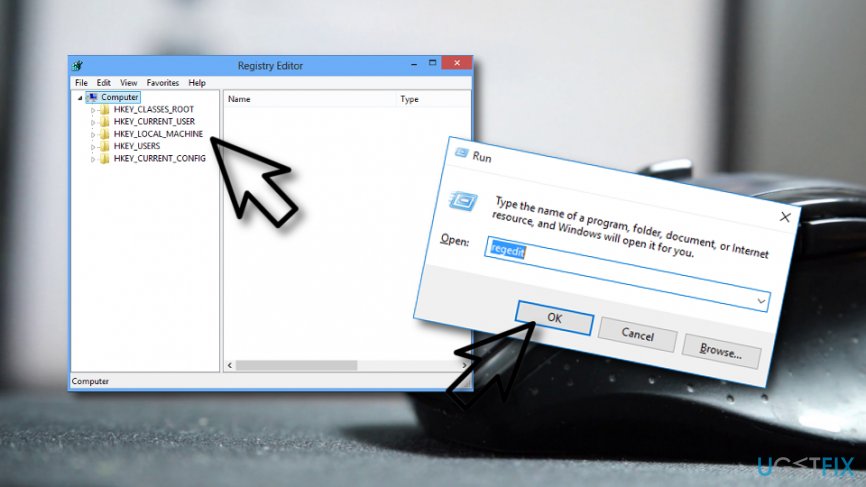
1. Open the Registry Editor. Go to the Run app from the Start, type regedit and click OK.
2. Go to the registry subkey:
HKEY_LOCAL_MACHINE\\SYSTEM\\CurrentControlSet\\Services\\W3Proxy\\Parameters
3. Click on RequestTimeoutSecs, and then on Modify button.
4. Go to Decimal where you can increase the time limit for loading the Internet sites. It is recommended to set this number to 180 and more.
5. Once you do that, click OK.
6. When all modifications are applied, reboot your computer.
After making modifications in the registry, you should also make sure that everything is stable on the system. Once you fix this issue, we suggest scanning the computer with [rev id=”Reimage”].
Method 3. Verify Email Client Settings
If you see Socket Error 10060 when trying to send emails from Microsoft Outlook, you should confirm your client settings.
1. Start your computer with administrative rights.
2. Open Microsoft Outlook.
3. When in Outlook, go to Tools and then open Accounts.
4. In the Internet Accounts window look for the Mail tab. When you open it, you will find the list of accounts. Double-click on your account.
5. In the appeared Accounts Properties window, select Servers tab. Here you need to verify all the details.
If client settings are correct, there might be a problem with the authentication process. Thus, you need to enable that Authentication is enabled. Follow these steps to fix Socket Error 10060:
1. Repeat the first four previously explained steps in order to open Account Properties window.
2. In the Account Properties, select Server tab. Here look for the My server requires authentication box and tick it. Then, click OK.
If it is Windows Live Mail that you are using, follow the below-provided instructing steps:
- Right-click on your account and select Properties.
- Check the Advanced Tab and General Tab and make sure that the right settings are selected.
- Click on the OK/Apply button if you have applied any changes.
Bottom line
To fix Socket Error 10060, you can verify your web proxy connection, increase the time-out limit in the Windows Registry, or check your email client settings. If these methods do not resolve the issue, further troubleshooting may be necessary.
Frequently asked questions
Socket Error 10060 typically occurs due to network connectivity issues, firewalls blocking access, or a timeout in connecting to the server.
To fix Socket Error 10060 on Windows 11, check your internet connection, disable any firewall temporarily, and ensure the server address is correct.
Yes, resetting network settings on Windows 10 can help resolve Socket Error 10060 by restoring default network configurations and clearing potential misconfigurations.




Report an issue
What's wrong with this guide? We review every report and update or remove content.
Report received — thank you. We'll review and fix it.
You need a free account to submit a report.
Be the first to comment