How to fix
“Windows cannot find Powershell.exe” error
on Windows
Resolve the "Windows cannot find Powershell.exe" error quickly and efficiently on Windows 10 or 11, with expert-tested solutions and tips. Fixed in minu…


What causes How to fix “Windows cannot find Powershell.exe” error?
- PowerShell executable file is missing
- Corrupted system files
- PowerShell feature is disabled
- Outdated PowerShell version
- Underlying system issues
Repairs Windows system files, removes malware, and restores a clean OS state — without reinstalling.
Hello. I tried to open Windows PowerShell but I received the "Windows cannot find Powershell.exe" error. How could this be? Any tips would be appreciated.
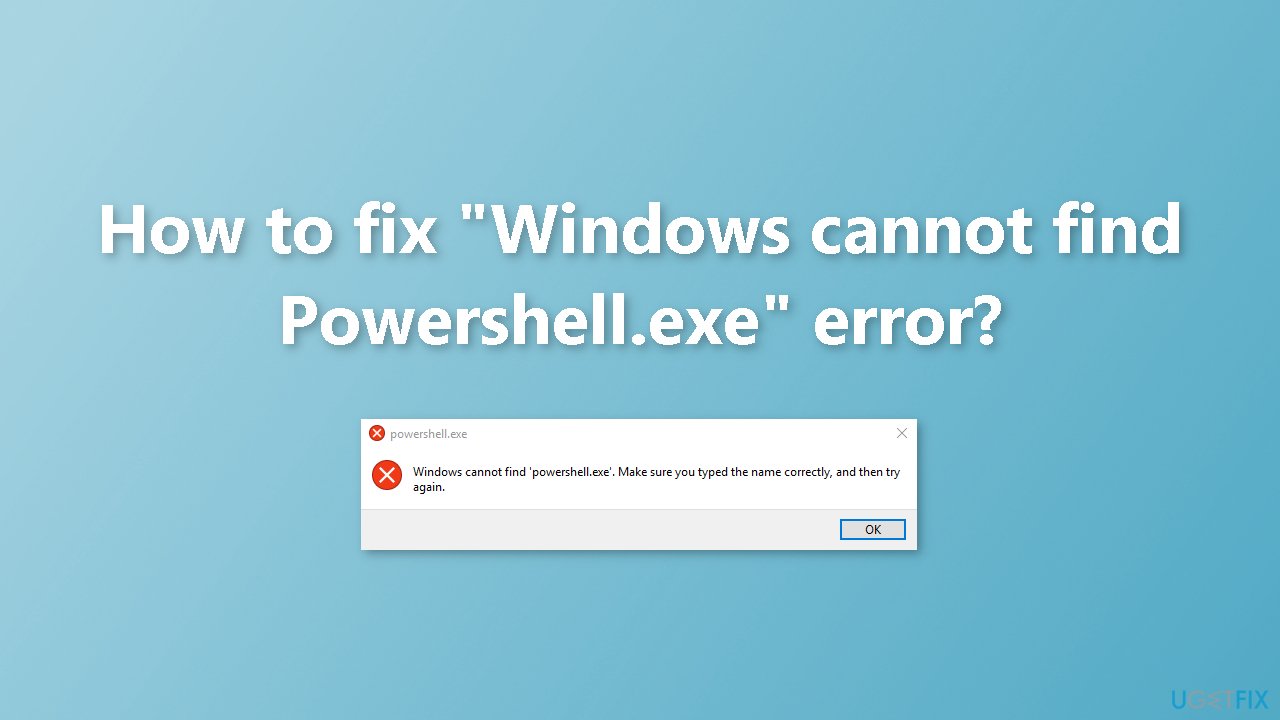
The "Windows cannot find Powershell.exe" error is an issue that can affect some Windows users. This error occurs when the system is unable to locate the PowerShell executable file (powershell.exe) needed to launch the program. This can prevent users from being able to open PowerShell or run any PowerShell commands.[ref en-1]
This issue can be frustrating for users as PowerShell is a powerful command-line tool that allows users to automate tasks, manage Windows systems, and perform various administrative tasks. It is also a valuable tool for developers and system administrators as it offers a wide range of features for managing and automating tasks.
There are several possible solutions to this issue. Some possible solutions include updating the PowerShell version or creating a shortcut for PowerShell on the desktop. In some cases, using System Restore or resetting Windows might solve the problem.
In this guide, you will find 7 steps that should help you fix "Windows cannot find Powershell.exe" error. Keep in mind that you may be experiencing this error because of underlying system issues. You can use a maintenance tool like [d1] that can automatically fix most system errors, BSODs,[ref en-2] corrupted files, and registry[ref en-3] issues. Otherwise, follow the step-by-step instructions below.
Solution 1. Fix Corrupted System Files
Use Command Prompt commands to repair system file corruption:
- Open Command Prompt as administrator
- Use the following command and press Enter:
sfc /scannow
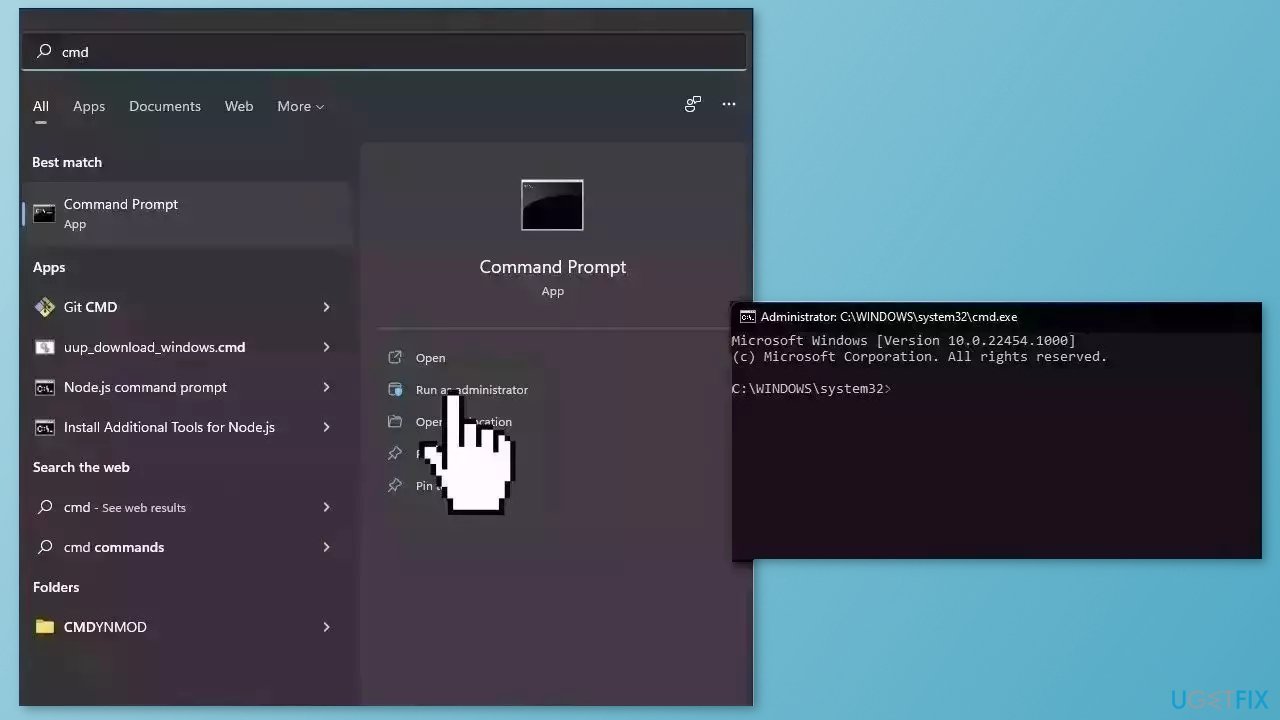
- Reboot your system
- If SFC returned an error, then use the following command lines, pressing Enter after each:
DISM /Online /Cleanup-Image /CheckHealth
DISM /Online /Cleanup-Image /ScanHealth
DISM /Online /Cleanup-Image /RestoreHealth
Solution 2. Enable PowerShell
- Press the Windows key
- Type Control Panel and press Enter
- Click the drop-down menu in the top right corner of the screen and select Large icons
- Click on Programs and Features
- Click on the Turn Windows features on or off option from the left pane
- In the Windows Features screen, verify that the Windows PowerShell (it can be suffixed with 2.0 depending on the version) checkbox is checked or not
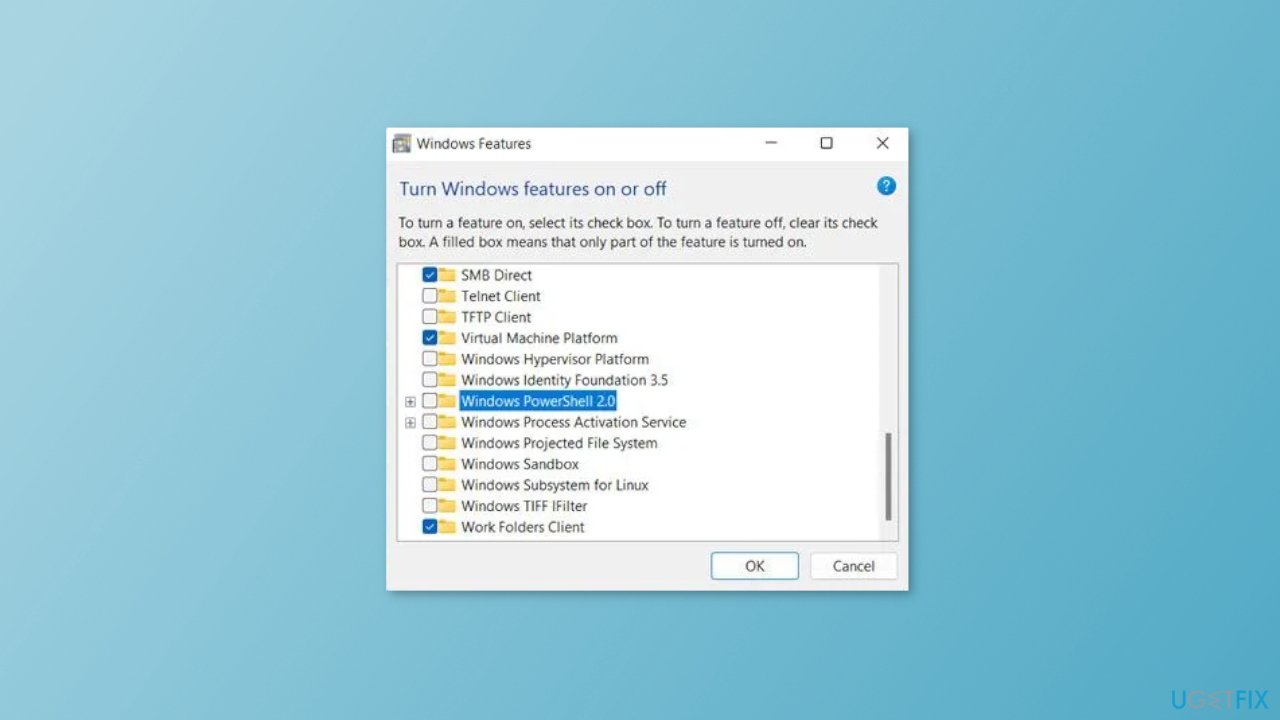
- If it is unchecked, check the box and press the OK button
Solution 3. Use the Run box or File Explorer
If having trouble opening PowerShell using the Search menu, try one of these alternatives:
Run a command:
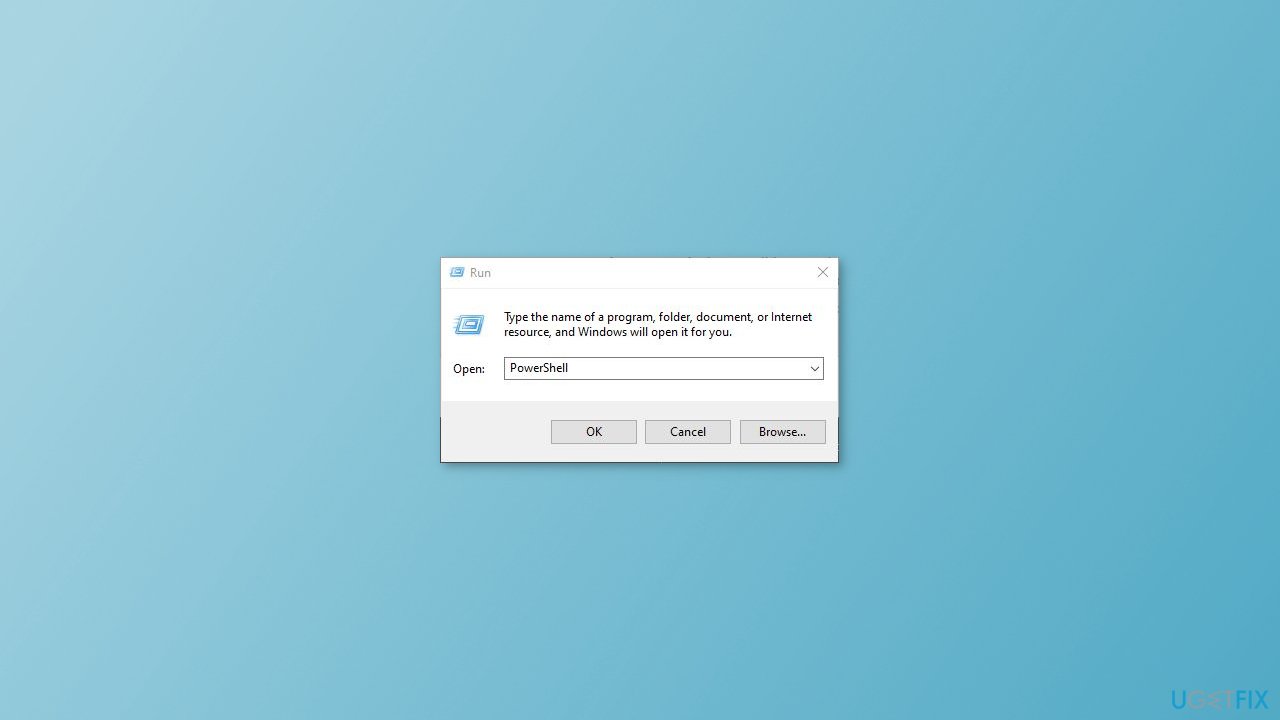
- Click the Windows key + R to open the Run dialog box
- Type PowerShell
- Press Ctrl + Shift + Enter to run PowerShell as admin
- Click Enter to open it
Use File Explorer:
- Click the Windows key + E
- Type PowerShell
- Click Enter
Solution 4. Make PowerShell Shortcut on Desktop
- Right-click on the desktop and select New
- Select Shortcut
- Click on the Browse button
- Scroll down the list and expand This PC
- Click on C Drive > Windows folder > expand SysWOW64
- Expand the WindowsPowerShell folder
- Select the powershell.exe file
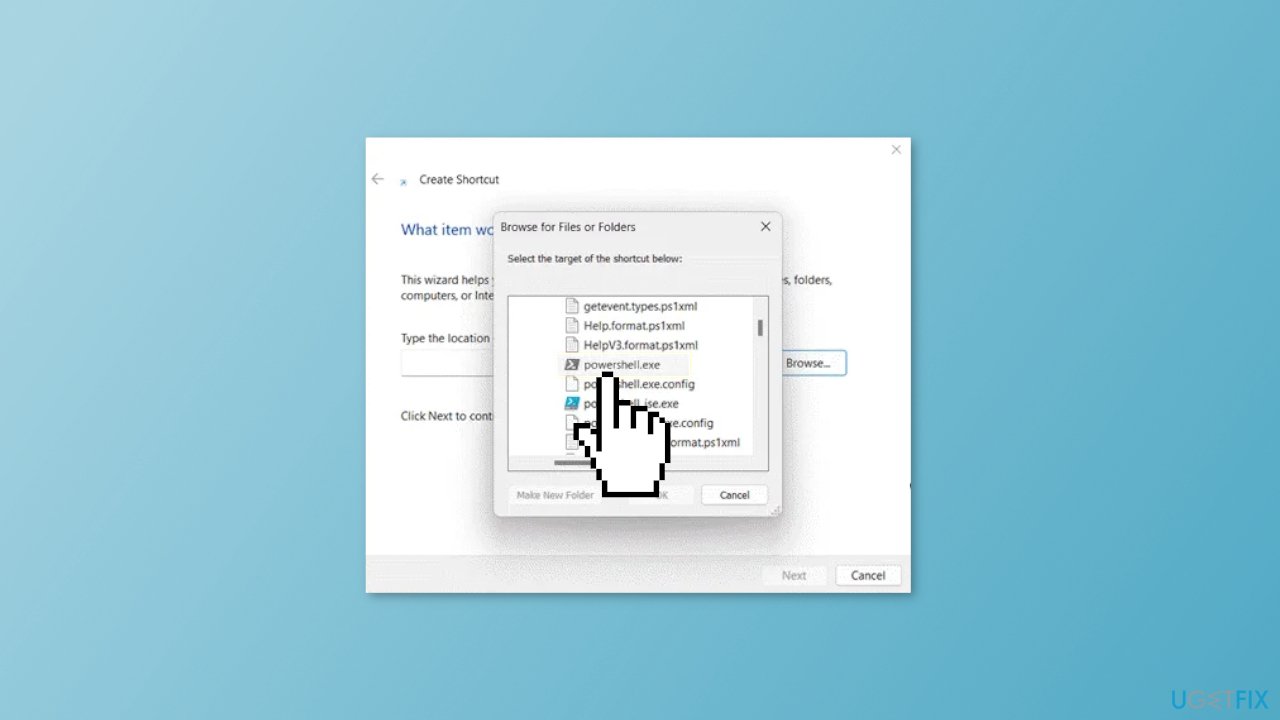
- Click on OK > Next > Finish to create the shortcut
Solution 5. Update Windows PowerShell
- Press the Windows key + X to open the Power User menu
- Select Terminal (Admin) from the list and click on Yes
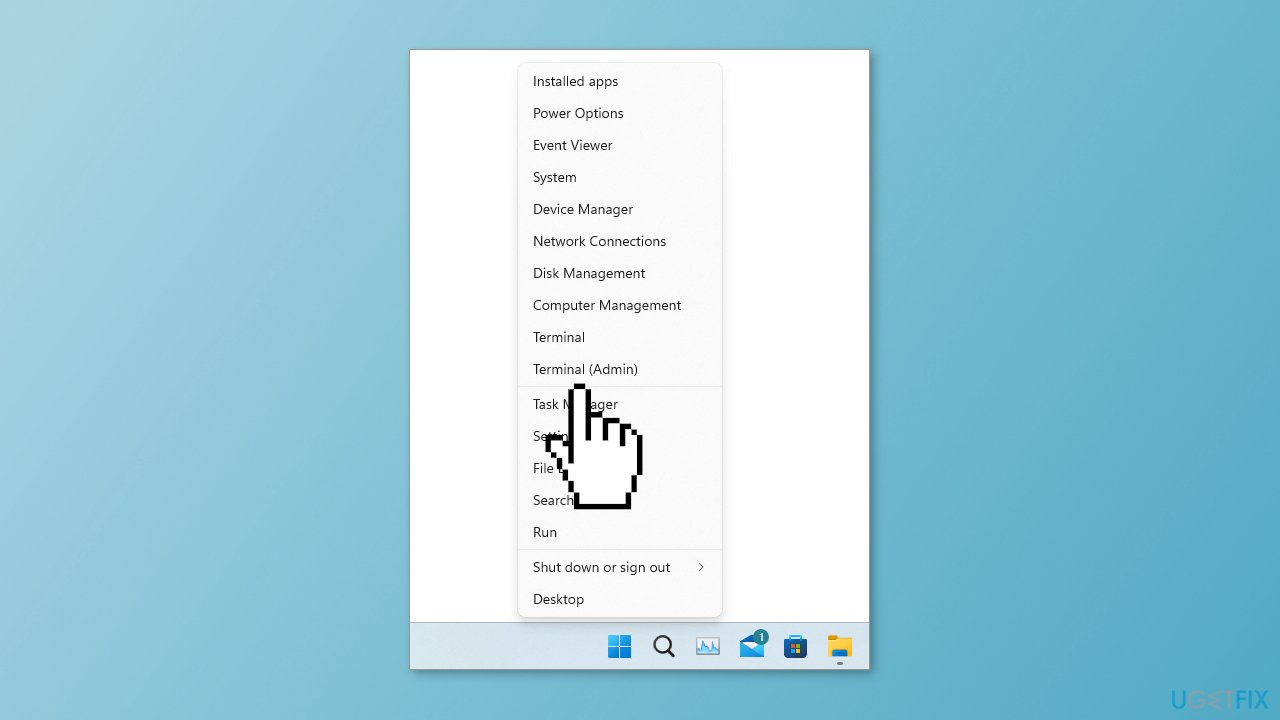
- Type the following command and press Enter:
Winget install --id Microsoft.Powershell --source Winget
- Wait for a few seconds for the latest version of PowerShell to download and install
- Hopefully, after updating PowerShell, the error will be resolved
Solution 6. Use System Restore
System Restore is a feature in Microsoft Windows that allows users to revert their computer's state to a previous point in time. This can be helpful if you have made changes to your system that are causing problems.
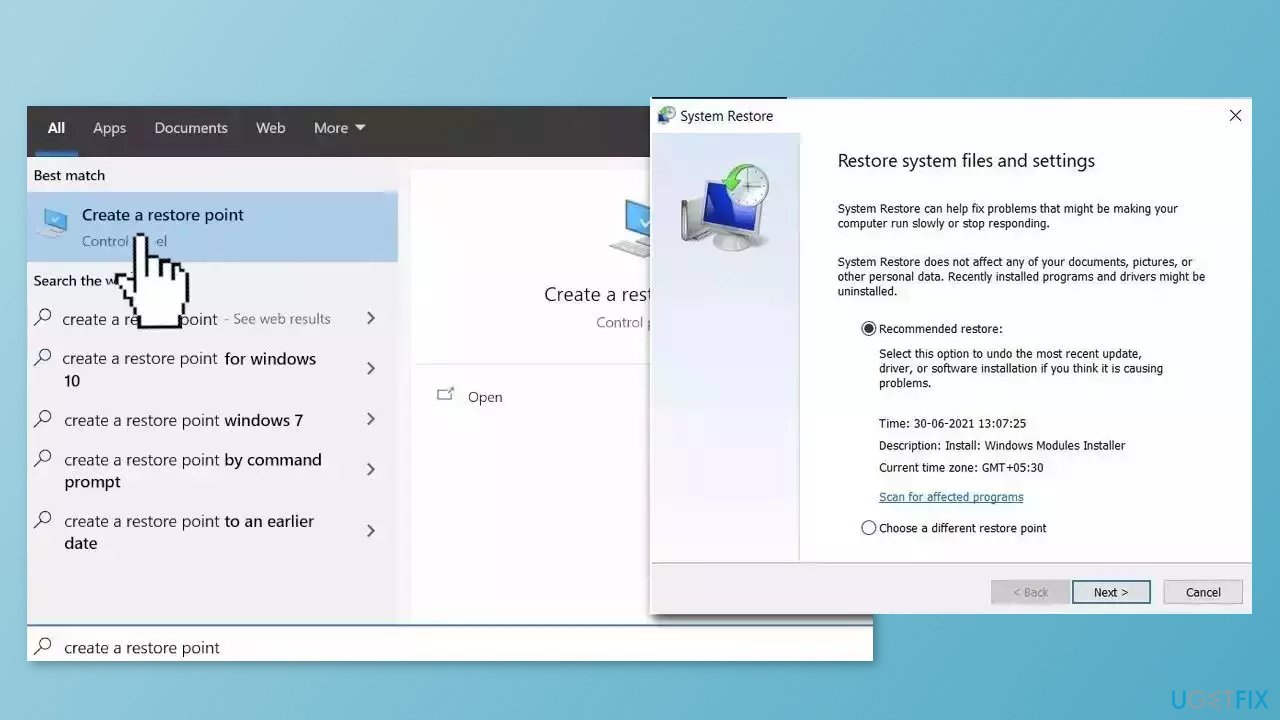
- Go to the Start menu, type restore, and click on Create a restore point
- Click System Restore, then follow the prompts until you can select a restore point
- Select the one you want (ideally before the issue started occurring) and go ahead with the process
Solution 7. Reset Windows
The reset option in Windows will reinstall the operating system but will keep your personal files. However, any apps or drivers that you have installed will be removed, as well as any changes you have made to the settings. The reset option is intended to be used as a last resort when other methods of troubleshooting and repair have failed.
- Click Start and select Settings
- Select Recovery on the System tab
- Next, press the Reset PC button
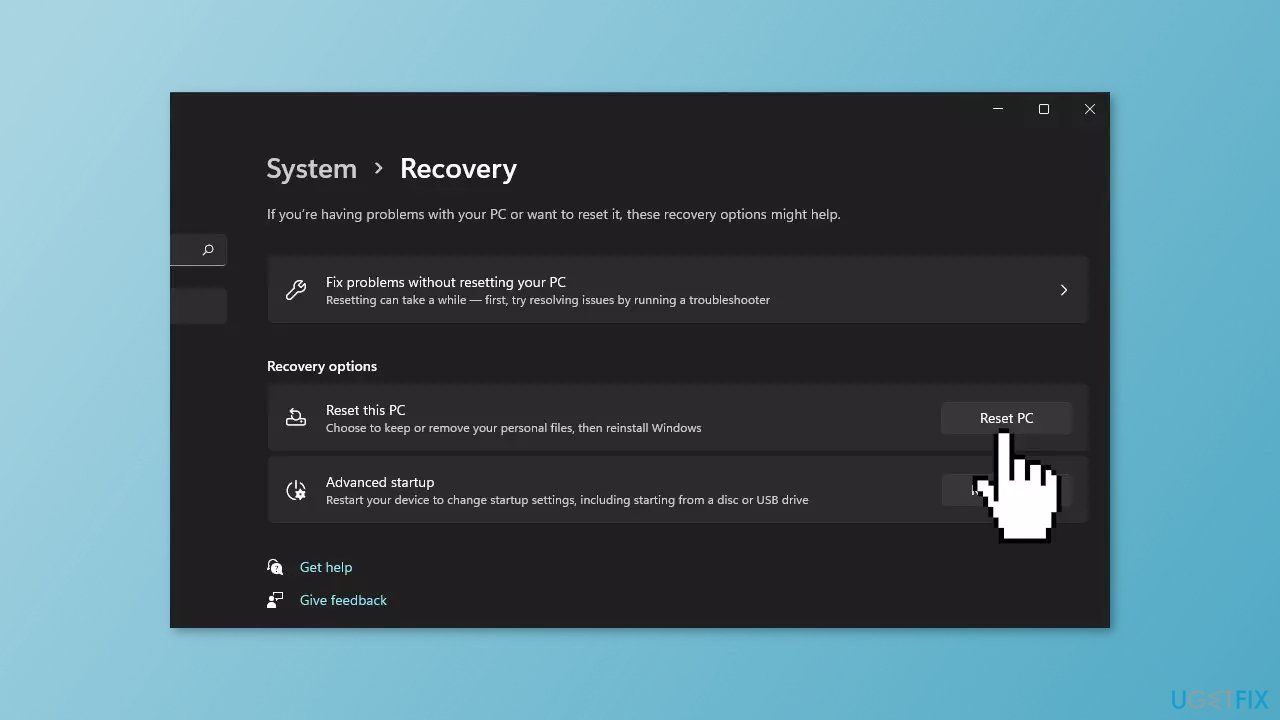
- Select Keep my files in the Reset this PC window
- Choose either the Cloud download or Local reinstall option
- Select the Reset option
- Wait for the process to finish and check if the issue is resolved
Bottom line
To fix the 'Windows cannot find Powershell.exe' error, you can repair corrupted system files using Command Prompt, enable PowerShell through the Control Panel, or update the PowerShell version. If these solutions do not resolve the issue, consider using a maintenance tool or performing a System Restore.
Frequently asked questions
Try running the System File Checker tool by executing 'sfc /scannow' in the Command Prompt to repair any corrupted system files that may be causing the issue.
You can restore Powershell.exe by using the DISM tool with the command 'DISM /Online /Cleanup-Image /RestoreHealth' in the Command Prompt.
Yes, you can fix this error by checking the environment variables and ensuring that the system path includes the directory where Powershell.exe is located.




Report an issue
What's wrong with this guide? We review every report and update or remove content.
Report received — thank you. We'll review and fix it.
You need a free account to submit a report.
Be the first to comment