How to fix
0xc00000e9 BSOD
on Windows
Resolve the 0xc00000e9 BSOD error on Windows 10 quickly and effectively. Follow our expert-tested solutions for a smooth fix with zero traces left.


What causes How to Fix 0xc00000e9 BSOD on Windows 10?
- Incorrectly unplugged removable storage device
- Faulty hardware such as CD-ROM
- Faulty hard drive
- Faulty Windows updates
- Issues during Windows startup
Repairs Windows system files, removes malware, and restores a clean OS state — without reinstalling.
I’ve started receiving a blue screen error 0xc00000e9 a couple of days ago. I can’t use my computer because the BSOD shows up before Windows OS is booted. When I click the power button, I get the option to either run Windows Recovery or start Windows normally. Even if I select to run Windows normally, I get caught in a vicious circle because the 0xc00000e9 blue screen reappears. What should I do? Please help!
The Error 0xc00000e9 is known as Blue Screen of Death (BSOD) or “An unexpected I/O error has occurred” error.[ref en-1] It’s not a very common issue, but apparently, the number of Windows 10 users who are encountering this bug check is increasing. The Error Code 0xc00000e9 shows up during Windows 10 startup, meaning that the PC user is prevented from using the PC.[ref en-2]
This blue screen error indicates the fact that “Windows encountered a problem communicating with a device connected to your computer” and provides two options, i.e. to run Windows Recovery or start Windows Normally. Unfortunately, but clicking any of the options lead to the same 0xc00000e9 BSOD.
According to specialists, this bug may be triggered by an incorrectly unplugged removable storage device (USB drive, external hard drive) or by faulty hardware, such as CD-ROM. However, in most of the cases, people were not using USB or other external devices, meaning that the issue stems from the faulty hard drive.
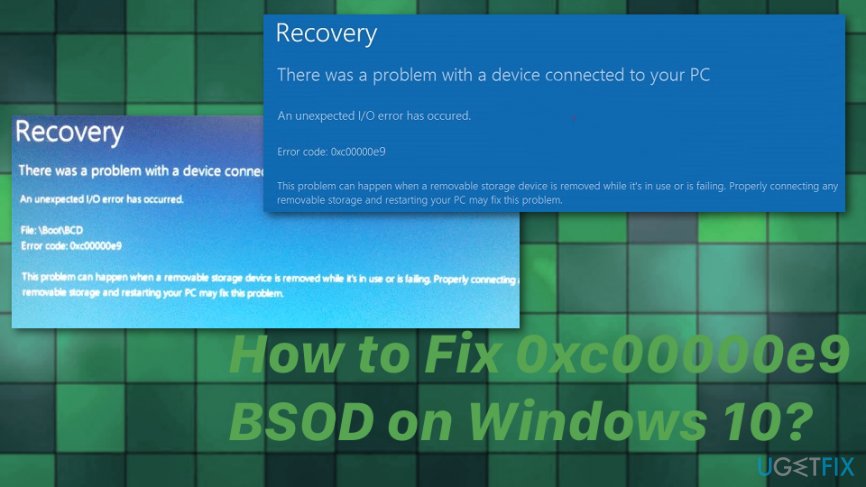
Unfortunately, there is very little information available, so methods are limited. Also, Error 0xc00000e9 can be caused by faulty Windows updates that continuously get debugged.[ref en-3] Nevertheless, there are a few methods that you can try, and we hope that they will help you to fix 0xc00000e9 BSOD on Windows 10. Make sure to try at least a few of them before giving up to re-installing Windows from scratch.
How to Fix Blue Screen Error Code 0xc00000e9 on Windows 10
Hopefully, there a few methods you can try to fix 0xc00000e9 bug. If your PC successfully booted, we would strongly recommend you to install all available Windows Updates and then run a full system scan with [d1] to optimize the operating system.
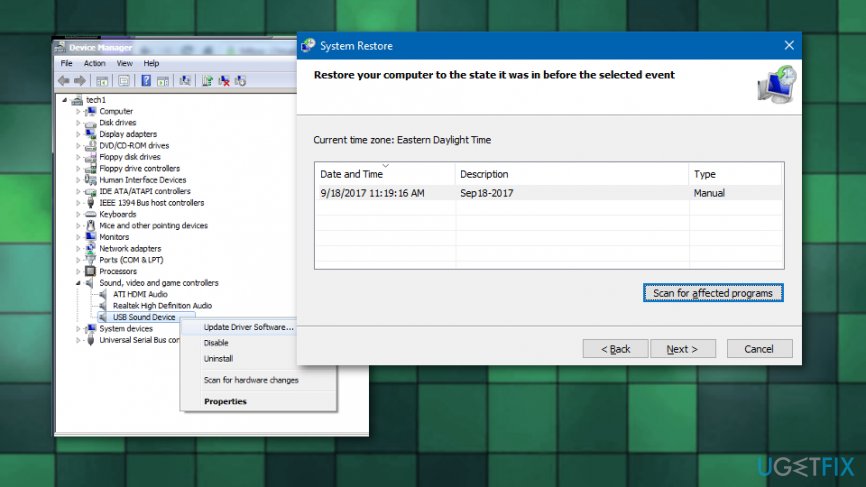
Additionally, to malware scan, you can try System Restore feature and recover the computer in a previous state when the error was not occurring. You can try troubleshooting the problem and then update your drivers or perform a clean, original Windows install. Also, we have a few more advanced methods that should for the Error 0xc00000e9 fix.
Rebuild Boot Manager to fix 0xc00000e9 BSOD
Navigate to the official Microsoft‘s website and download the ISO file. Prepare a USB drive, which contains at least 4 GB free space. and create a bootable Windows 10 installation media. For this purpose, you may also use a recovery drive. To find more information on how to create a bootable Windows 10 installation media, please refer to this post. Once you are prepared, follow these steps:
- Plug-in USB or insert your DVD with the Windows Installation Media and boot up your PC.
- After that, press a key to boot the system from the external drive.
- Set Language, time, currency, keyboard/input method, and hit Next.
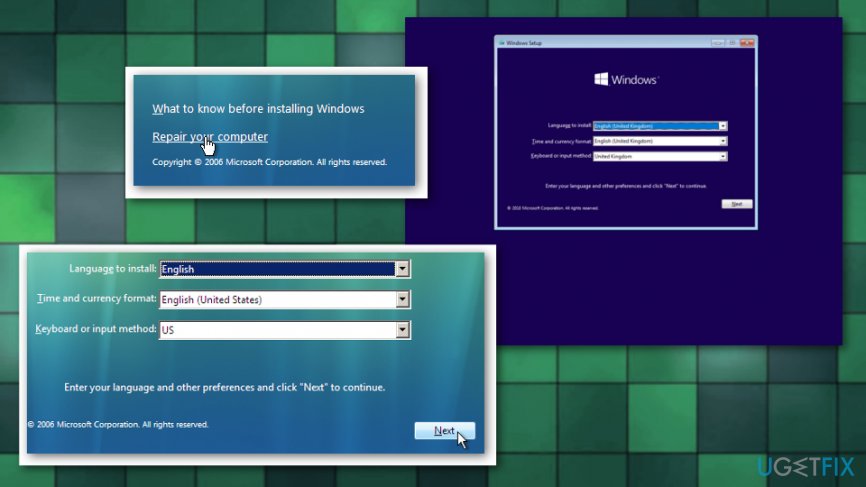
How to fix 0xc00000e9 bsod on windows 10 repair your pc - Select Repair your PC (NOT install Windows).
- Select the type of OS you want to fix and click Next.
- When the System Recovery Option opens, select Command Prompt.
- Type the following commands in the Command Prompt window hitting the Enter key after each of them:
cd /d Partition:\\Windows\\System32
bcdedit /enum all
bcdedit -create {bootmgr} -d "Description"
bcdedit -set {bootmgr} device partition=Partition:
bcdedit /displayorder {GUID}
bcdedit /default {GUID}
bcdedit /timeout Value - Finally, restart your PC.
Run a System File Check and Disk Check
- Launch Command prompt and test the following commands:
chkdsk /f /r
sfc /scannow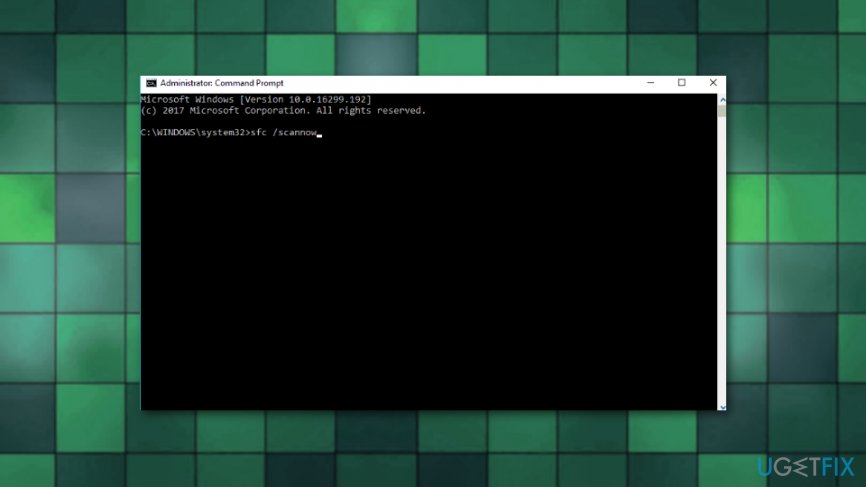
How to fix 0xc00000e9 bsod on windows 10 command prompt
Perform a Startup Repair and fix Error 0xc00000e9
- Plug in the USB, which contains a Windows 10 installation media and press Power button.
- Then press any key to start the system from USB.
- If Windows fails to detect hard drive automatically, read everything that is given during the restart process and try to find the reference to the key, which has to be pressed to interrupt normal startup (usually, F2, F10, ESC, or DEL).
- Use the arrow to the option like Boot, Boot Options, Boot Order or something similar, and then press Enter.
- Locate CD, USB flash drive or DVD under the Boot list and change its place from down below to the top using the arrow keys. Once done, hit Enter.
- After that, press F10 key to save the changes.
- Click Yes on the confirmation window and let the system to reboot.
- Set the language, time, currency, keyboard, and other required settings, and press Next.
- Select Repair your computer and wait for the System Recovery Options to open.
- Once opened, select the Windows installation drive, and press Next.
- Click Startup Repair option and wait for the process to complete.
Bottom line
To fix the 0xc00000e9 BSOD on Windows 10, try installing all available Windows updates and running a full system check. If the issue persists, consider checking your hardware connections and replacing any faulty components. If none of these methods work, you may need to reinstall Windows from scratch.
Frequently asked questions
The 0xc00000e9 BSOD error typically indicates a hardware failure, often related to hard drive issues or connection problems with storage devices on Windows 10.
You can troubleshoot the 0xc00000e9 error by checking physical connections, running a hardware diagnostic, and using Windows Recovery Environment to repair corrupted files.
Yes, you can often fix the 0xc00000e9 BSOD by using tools such as Startup Repair, System Restore, or Command Prompt to repair the boot configuration without a full reinstall.




Report an issue
What's wrong with this guide? We review every report and update or remove content.
Report received — thank you. We'll review and fix it.
You need a free account to submit a report.
Be the first to comment